


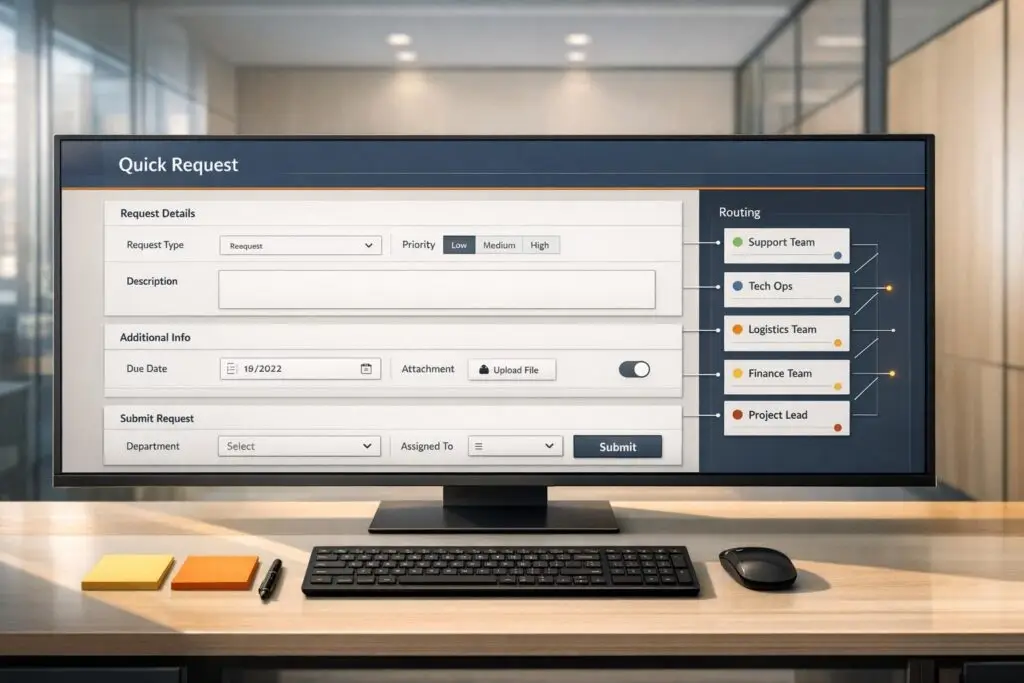
When dealing with operations-heavy customers, incomplete requests can lead to delays, wasted time, and inefficiencies. Quick request templates solve this by standardizing how support teams collect information from customers. These forms include essential fields like asset details, symptoms, urgency levels, and more, ensuring every request is actionable from the start.
Key Benefits:
- Faster Resolutions: Structured forms reduce back-and-forth communication and cut resolution times by 40–60%.
- Improved Accuracy: Templates ensure the right details are collected, reducing errors and incomplete tickets.
- Better Prioritization: Fields like urgency and business impact help teams triage and respond effectively.
- Data Insights: Clean, organized data supports automation and smarter routing.
Steps to Get Started:
- Analyze Past Cases: Identify frequent, consistent request types that need the same data.
- Design Templates: Include mandatory fields like issue details, business impact, and affected systems.
- Integrate Templates: Add them to your support system and ensure they’re accessible across channels.
- Use AI: Automate routing, suggest templates, and improve workflows over time.
Quick request templates streamline support workflows, reduce wasted effort, and improve customer satisfaction. Start by focusing on high-frequency tasks, like account issues or troubleshooting, and continuously refine templates based on performance.
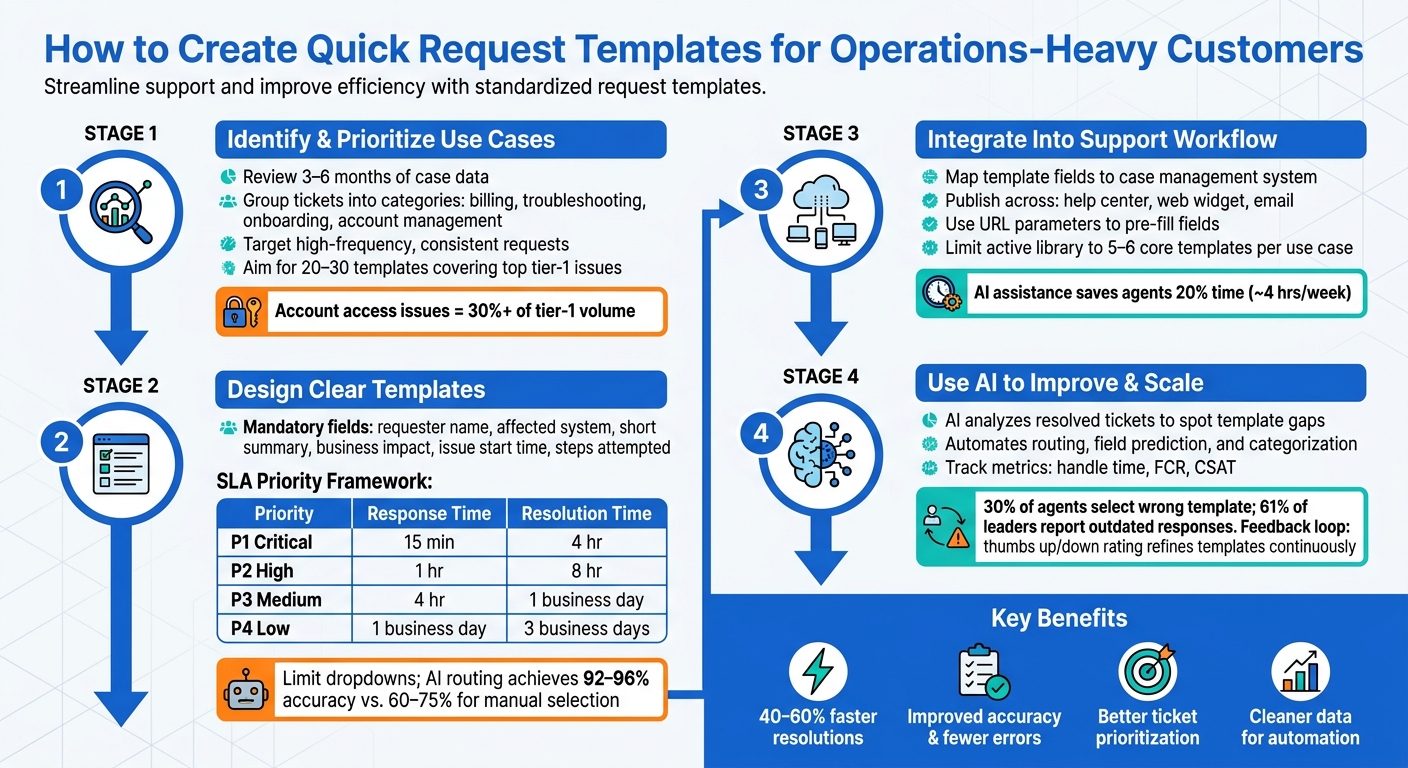
How to Create Quick Request Templates: 4-Step Process for Operations Teams
Power Up Your Service Desk with the RIGHT Ticket Template!
sbb-itb-e60d259
Step 1: Identify and Prioritize Your Quick Request Use Cases
Before diving into template creation, you need to pinpoint which types of requests are worth the effort. Not every request warrants a template – only specific, recurring ones do.
How to Analyze Historical Case Data
Start by reviewing 3–6 months of case data. Group tickets into broad categories like billing, troubleshooting, onboarding, and account management. Pay attention to patterns – clusters of requests with similar descriptions and resolution steps. Many modern AI support tools can even auto-categorize and route incoming messages for you [1].
Focus on cases where agents repeatedly used the same knowledge base (KB) articles or followed the same resolution steps. These cases are prime candidates for templating. This data-driven approach ensures you’re building templates that align with actual trends.
"The biggest unlock for us was treating it like answer drafting, not ‘find similar tickets.’ Curate a small set of canonical KB/macro snippets and 2–3 great exemplars." – Zendesk Power User [1]
How to Decide Which Requests Deserve a Template
The best template candidates share three key characteristics: they occur frequently, their resolution steps are consistent, and they require the same data each time. Use the table below to help evaluate and prioritize:
| Prioritization Criterion | Selection Criteria | Template Suitability |
|---|---|---|
| Request Volume | How often the request occurs | High volume = High priority |
| Process Stability | How often fulfillment steps change | Low variability = High suitability |
| Data Consistency | Whether the same inputs are always needed | Fixed inputs = High suitability |
| Urgency/SLA | How quickly customers expect a response | High urgency = High priority to reduce friction |
| Risk Level | Potential impact of a fulfillment error | Low risk = High suitability |
If you notice frequent follow-ups for certain requests, it’s a sign that a structured template could save time and reduce back-and-forth communication. Once you’ve identified these high-priority cases, you’re ready to move on to template creation.
Building Your Initial Template Shortlist
After identifying the best candidates, narrow your focus to the highest-impact categories. Aim for 20–30 templates that address the most common tier-1 support issues [1].
For example, account access problems – like password resets, MFA resets, and lockouts – often account for more than 30% of tier-1 support volume [2]. These are excellent starting points because they’re frequent, straightforward, and highly automatable. As Yuval Karmi, CEO of Glitter AI, explains:
"This category [Account access] alone is usually 30%+ of tier-1 volume. It’s also the most automatable, and the place where written SOPs pay back fastest." [2]
Beyond account access, consider including templates for shipping updates, software access requests, and network connectivity reports. These categories not only address common issues but also set the stage for integrating AI-driven enhancements in later steps.
Step 2: Design Clear and Usable Quick Request Templates
Once you’ve finalized your shortlist of use cases, the next step is turning them into user-friendly templates. Poorly designed templates can cause just as many problems as having none at all. The goal here is to ensure your templates are clear, practical, and aligned with the needs identified in your use case analysis.
Core Components Every Quick Request Template Needs
To make your templates effective, include these essential fields: requester name, affected system, short summary, detailed description (expected vs. actual), business impact, issue start time, and steps already attempted [2]. These fields ensure all the critical information for resolving tickets quickly and accurately is captured.
Among these, business impact and affected system are the most important. These fields play a key role in prioritizing and triaging tickets, whether the process is automated or manual. As Yuval Karmi, CEO of Glitter AI, explains:
"If your form lets people skip fields, they absolutely will. Make business impact and affected system mandatory. Those two are what drive triage." [2]
To further improve clarity, include mandatory fields tied to specific SLA (Service Level Agreement) guidelines. This helps define urgency and sets clear expectations. Here’s a simple framework you can adapt for your templates [2]:
| Priority Level | Definition | Response Target | Resolution Target |
|---|---|---|---|
| P1 – Critical | Service down, multiple users/teams blocked | 15 minutes | 4 hours |
| P2 – High | Major feature broken, no workaround | 1 hour | 8 hours |
| P3 – Medium | Single user blocked, workaround exists | 4 hours | 1 business day |
| P4 – Low | General request or cosmetic issue | 1 business day | 3 business days |
Field Design Rules That Reduce Errors
Keep dropdown menus to a minimum. Research on support form analytics shows that 25% to 40% of tickets are miscategorized when users rely on dropdown menus, and forms with more than four dropdown options see 15% lower completion rates compared to those with a single free-text field [3]. If dropdowns are necessary, limit them to two levels (e.g., Software → Outlook). AI-based classification systems are far more effective, achieving 92% to 96% routing accuracy, compared to only 60% to 75% for user-selected categories. This can cut response times for urgent tickets by 60% to 80% [3].
"The category dropdown on a customer support form is a tax that everyone pays and nobody benefits from." – Buildorado [3]
Additionally, use priority definitions with real-world examples to avoid confusion. For example, instead of just labeling an issue as "P1", provide concrete scenarios like "production app offline" or "company-wide email outage." This prevents users from marking every ticket as urgent and reduces priority inflation [2].
Customizing Templates for complex B2B accounts
Once you’ve established the basic structure, adapt your templates for more complex accounts, such as enterprise or multi-site customers. A one-size-fits-all approach won’t work here. Use automated metadata capture to pre-fill details like account tier, plan type, account ID, and recent activity [3].
This metadata directly informs prioritization. For instance, a billing inquiry from a customer paying $50,000 per year warrants a different level of urgency than the same query from a free-tier user. This isn’t favoritism – it’s prioritizing based on ROI [3]. By integrating tier-based logic into your case management system, you can ensure enterprise accounts are automatically escalated to "High" or "Urgent", without requiring manual input.
For organizations managing multiple locations or subsidiaries, you can further refine templates by grouping requests by email domain and linking them to a configuration management database (CMDB) or asset manager. This ensures each ticket includes the right context, streamlining the resolution process. This is a critical step in creating a seamless customer support management system that scales with your business.
Step 3: Add Quick Request Templates to Your Support Workflow
Once you’ve created your templates, the next step is making sure they’re actually being used – and used consistently. A template tucked away in a shared document that no one checks won’t help anyone. The key is integrating these templates into your workflow so they become an essential part of your operations.
Setting Up Templates in Your Case Management System
To make your templates truly effective, map each template field directly to the corresponding fields in your case management system. This ensures that all the necessary data flows into your system automatically, saving agents from having to re-enter information. Once that’s done, set up each template to trigger the correct workflow automatically. For example, a facilities request and an HR request should head to different queues as soon as the form is submitted – no manual sorting required [4].
You can also streamline processes further by setting default statuses like "In Progress" and enabling auto-resolution for straightforward requests. This eliminates unnecessary triage steps and reduces repetitive admin work. To keep workloads balanced, use round-robin assignment to distribute requests evenly without requiring extra effort from your team [4]. Finally, make sure these templates are easy to access across all customer-facing channels.
Making Templates Available Across Customer Channels
A template is only useful if customers can find and use it easily. Publish your templates on your help center, embed them in your web widget, and make them available through email. For web widgets, enable form selection so customers can pick the exact type of request they need, like "Hardware Request" or "Access Provisioning", before entering their details [5].
For specific issues addressed via email campaigns or help articles, use URL parameters to pre-fill fields like the subject line or category when customers click through [5]. If users are logged in, you can also include read-only fields for verified information like account IDs or email addresses. This not only speeds up the process but also reduces errors. One important note: pre-filled forms require users to log in via SSO before accessing them, as any pre-filled data could be lost during the login redirect [5].
Using AI to Help Agents Work Through Quick Requests Faster
Once your templates are live across all channels, you can take things a step further by using AI to simplify workflows for your agents. Instead of forcing agents to sift through a long list of templates, an AI-powered assistant can recommend the most relevant template based on the request. This is especially helpful for teams managing over 100 templates, where finding the right one can be a time-consuming challenge [1].
To keep things manageable, limit your active library to 5–6 core templates per use case. Let AI handle the heavy lifting by selecting the right template and auto-filling known data from your CRM or ticket history. This allows agents to focus on reviewing and sending responses instead of wasting time searching or typing. This hybrid approach – where AI drafts and agents approve – has been shown to work well in live support environments. Teams using AI in this way spend 20% less time on routine tasks, saving about 4 hours per week [1].
Step 4: Use AI to Improve and Scale Your Templates Over Time
How AI Identifies New Template Needs
AI doesn’t just simplify workflows – it actively enhances them by spotting trends and gaps in your templates. Templates aren’t static tools; they need to evolve as customer needs change and new types of requests surface. Interestingly, 61% of customer service leaders report dealing with outdated canned responses and knowledge articles [6]. AI tackles this challenge by analyzing resolved tickets, grouping them by topic, and identifying patterns that don’t align with existing templates. If a cluster of similar issues keeps popping up without a corresponding template, that’s a clear signal to create one. This process transforms your case history into a feedback system, filling in blind spots before they slow down your team.
Automating Data Capture and Request Routing
AI can do more than just suggest templates – it can streamline the entire process. For example, when a request comes in, AI can spot missing fields, predict the right values based on past cases, and route the request to the correct team automatically. Using multi-tier categorization, requests are sorted into specific tiers, ensuring they land in the right hands from the start.
For companies with multiple departments, tools like line-of-business routing (also known as Flowsets) prevent mix-ups – like a facilities request accidentally ending up in HR. High-volume support teams can also benefit from round-robin assignment to avoid bottlenecks. Additionally, dynamic fields in templates collect the exact details needed for each request type, cutting back on follow-up emails or calls to gather missing information. These routing and data capture tools integrate smoothly with your existing workflows, making everything run more efficiently.
Monitoring and Enhancing Template Performance
Once your templates are up and running, tracking their performance is key to keeping things efficient. Metrics like handle time, first-contact resolution (FCR), and CSAT scores can pinpoint which templates are slowing things down or causing repeated customer contacts. For example, agents spend 30–60 seconds searching for the right template, and 30% of the time, they select the wrong one [6]. If a template consistently leads to follow-ups, it’s likely too vague or missing critical details, undermining FCR.
A simple feedback system – like letting agents rate AI-suggested templates with a thumbs up or down – can flag underperforming templates for review while reinforcing the ones that work. This ongoing refinement process keeps your templates accurate and effective without requiring time-consuming audits. Platforms like Supportbench incorporate AI tools like predictive CSAT scoring, case summaries, and FCR detection to ensure template performance data contributes to improving overall customer satisfaction and operational health.
Conclusion: Building a Faster, Leaner Support Operation with Quick Request Templates
Key Takeaways for Customer Support Leaders
Quick request templates can transform operations-heavy support teams that are drowning in repetitive and unstructured queries. The trick is to focus on prioritization: start with the requests that occur most often and are least complex, rather than diving into rare edge cases. Templates designed around high-frequency tasks yield the best time savings for your team. To make these templates effective, include mandatory fields, use clear labels, and incorporate AI to adjust and improve the process as your customer needs shift. These principles lay the groundwork for immediate improvements.
Next Steps for Getting Started
The first step? Conduct a ticket audit. Look at the last 90 days of resolved cases and identify your top 10 most common service requests – think tasks like access provisioning, checking order statuses, or making configuration changes. These will serve as the foundation for your initial templates.
For each template, define the exact information agents need to resolve the issue, such as account ID, request type, affected system, and priority level. Once these templates are live, take it a step further: map each request type to a specific workflow or agent group so tickets are routed automatically as soon as they’re submitted.
Finally, don’t let your templates go stale. Use AI tools to monitor performance and flag templates that are leading to multiple back-and-forths or long resolution times. When that happens, revisit the template’s design or routing logic. The teams that see the biggest benefits from quick request templates are the ones that commit to regular reviews and updates, not just a one-and-done implementation.
FAQs
What should I template first?
Start by diving into your last 90 days of ticket data to spot recurring trends. Pay special attention to high-volume, low-complexity requests – things like password resets, billing inquiries, or shipping updates. Organize these into three tiers:
- Tier 1: 5–8 common questions that pop up most frequently.
- Tier 2: 5–10 issues that are emotionally sensitive and require a thoughtful response.
- Tier 3: 3–5 rare but complex problems that demand more detailed handling.
Use a spreadsheet to track how often these inquiries occur and how urgent they are. This will help you build a focused library of 20–30 templates, making your responses faster and more consistent.
How many fields is too many?
Every extra field in a form increases the chance of users abandoning it. In fact, over half of users don’t finish forms they start. While there’s no one-size-fits-all rule for the number of fields, it’s best to stick to the basics – like name, email, and a brief description of the issue. Incorporating conditional logic can also help by displaying only the fields that are relevant based on earlier responses. Studies indicate that cutting down on unnecessary fields can boost completion rates by as much as 15%.
How do I measure template ROI?
To figure out the ROI of your templates, start by calculating the time and cost savings they bring through better efficiency. Here’s the formula to use:
(Time Saved per Interaction in Minutes × Number of Interactions ÷ 60) × Average Agent Hourly Cost
Beyond this, keep an eye on metrics like First Contact Resolution (FCR) and how often templates are being edited. These can help pinpoint areas where adjustments might be needed. Reviewing these metrics every quarter ensures your templates stay effective and help minimize operational hiccups.






