


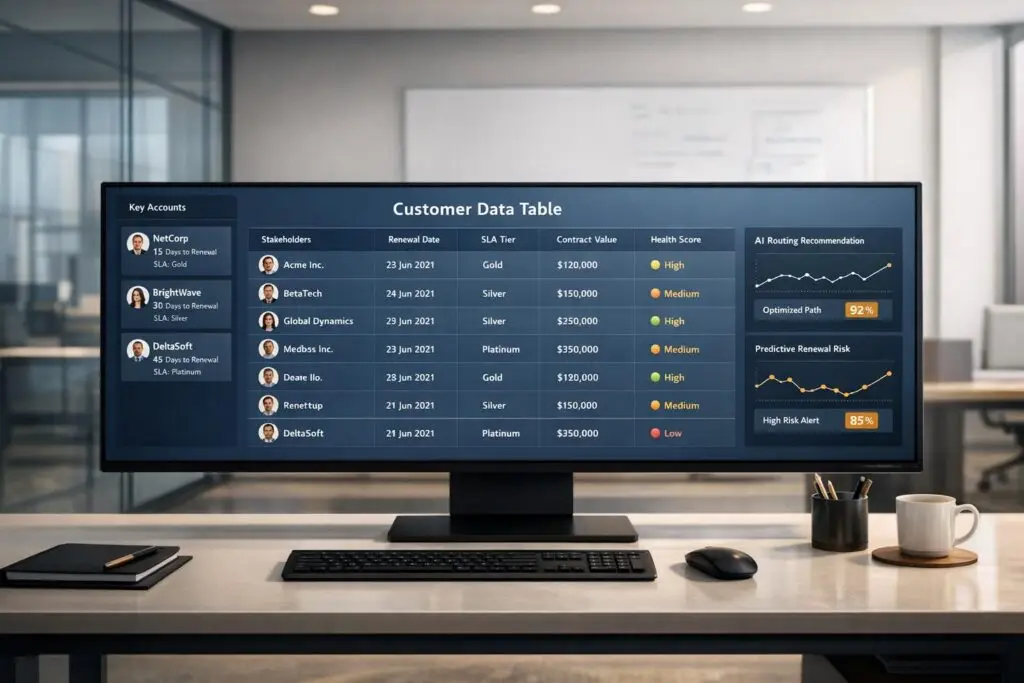
Managing complex customer data doesn’t have to mean juggling spreadsheets or expensive add-ons. Supportbench‘s data tables let you organize non-standard customer details – like multi-stakeholder contacts, dynamic SLAs, and custom contract terms – directly within its platform.
This feature integrates seamlessly with workflows and AI tools, offering benefits like:
- Centralized storage for detailed client data (e.g., renewal dates, stakeholder lists).
- AI-driven tools for auto-tagging tickets, case summaries, and predictive analytics.
- Cost savings (20% lower operational costs, 127% ROI in two years).
How to Set Up Data Tables in Supportbench
How to Set Up Data Tables in Supportbench: Step-by-Step Guide
Prerequisites: Permissions and Access
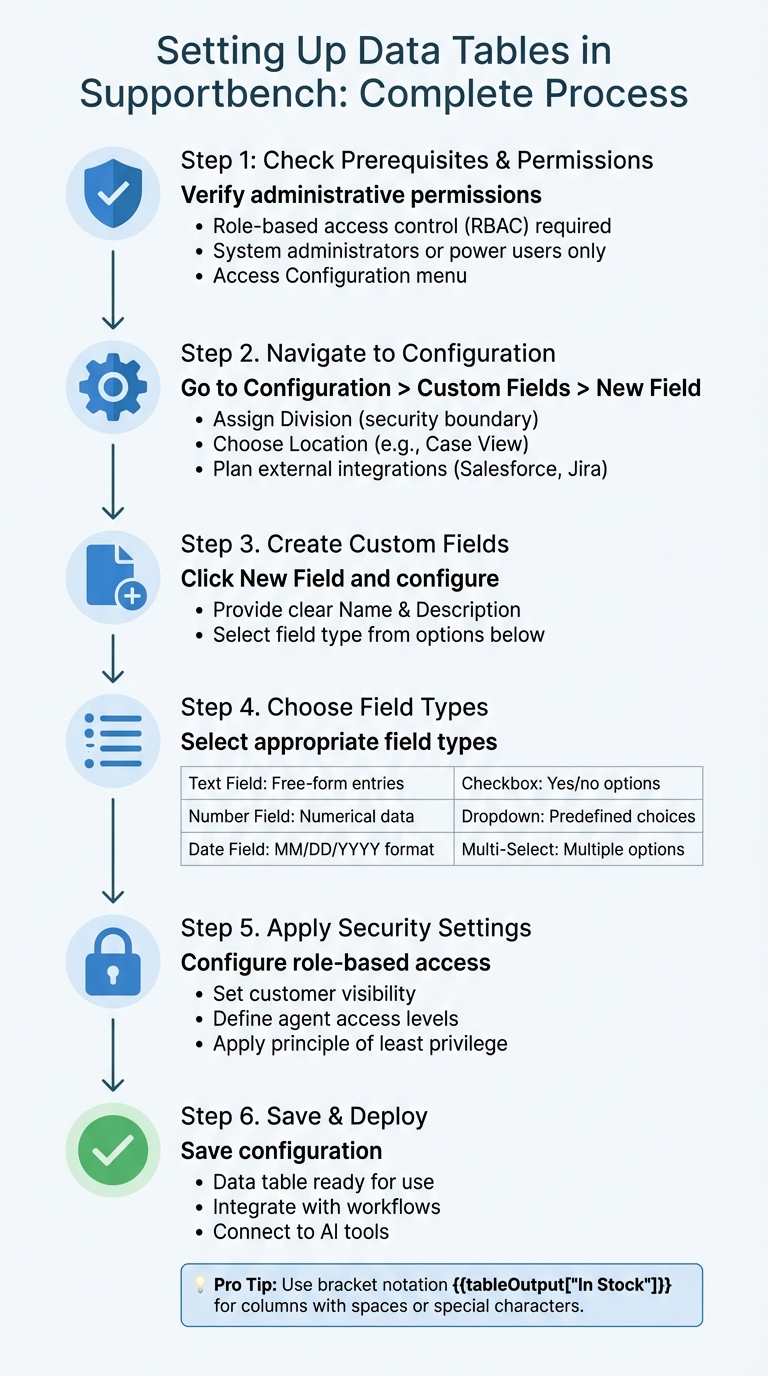
Before diving into the setup, ensure you have the right administrative permissions to configure Supportbench. To start, go to Configuration > Custom Fields > New Field. Supportbench uses role-based access control (RBAC) to manage permissions for custom data fields. This means only users with specific access – like system administrators or designated power users – can access the Configuration menu and make changes[1][2].
When setting up fields for your data table, you’ll assign a Division, which serves as both a security boundary and an organizational container. This ensures that sensitive details – such as contract terms, renewal dates, or multi-stakeholder contacts – are only visible to authorized team members. Additionally, you’ll choose a Location (e.g., Case View) to determine where your custom data table will appear for agents in the user interface[1].
If your data tables will interact with external systems like Salesforce or Jira, plan for those integrations early. Supportbench provides built-in support for connecting custom data models to external platforms[2]. Once permissions are confirmed, you’re ready to configure your data table.
Creating and Customizing Data Tables
To create a data table, navigate to Custom Fields and click New Field. Provide a clear Name and Description for each field to help future administrators understand its purpose[1]. Supportbench offers a variety of field types to suit your data needs:
- Text Field: For free-form entries.
- Number Field: For numerical data.
- Date Field: Ideal for time-based information like renewal dates, formatted as MM/DD/YYYY.
- Checkbox Field: For simple yes/no options.
- Dropdown Field: For predefined choices.
- Multi-Select Field: Allows users to pick multiple options[1].
You can also include Static text or field descriptions for added guidance[3]. If your table columns contain spaces or special characters, use bracket notation when referencing them in workflows – for instance, {{tableOutput["In Stock"]}}[4]. Finally, apply role-based security settings to ensure customers only see relevant data, while agents can access internal information[2]. Once saved, your data table is ready to handle the complex B2B data your team relies on.
sbb-itb-e60d259
Use Cases for Non-Standard Customer Data
Building on the setup process described earlier, let’s explore how data tables can reshape B2B support operations.
Storing Multi-Stakeholder Information
B2B support teams often face the tricky task of identifying which individuals within a client organization are authorized to request assistance. For companies managing multiple locations or enterprise clients with distributed teams, it’s essential to track and manage this access. Data tables simplify this by storing detailed lists of trained personnel, clearly identifying who is permitted to contact your support team for help[5].
But the benefits don’t stop there. These tables can also store technical details that standard support systems might overlook. For example, you can document login credentials for client-specific environments, track which technical contacts are responsible for certain systems, and maintain records of stakeholder training. With all this information tied to the parent organization, support agents have a full picture before responding to any request[5].
"Supportbench’s datatables feature allows you to store critical B2B data such as infrastructure details, login credentials, and trained personnel lists, which are often vital but impossible to manage in generic helpdesks." – Eric Klimuk, Founder and CTO of Supportbench[5]
When integrated with a modern support CRM like Salesforce, this functionality becomes even more powerful. Stakeholder data can sync seamlessly, giving your support team a unified view of customer relationships. This integration links account manager assignments, contract details, and more directly to every support interaction, ensuring nothing falls through the cracks[5].
Tracking Renewal Data with Dynamic SLAs
Renewal periods can be chaotic, and standard support systems often lack the flexibility to meet these demands. Data tables solve this problem by storing renewal-specific details such as contract end dates (formatted as MM/DD/YYYY), active seat counts, and recent usage data. This information can be pulled directly from billing tools or CRM systems[9].
With this data in hand, dynamic SLA timers come into play. These timers automatically tighten response targets as renewal dates approach, ensuring that issues are prioritized appropriately. Supervisors receive automated breach warnings before deadlines are missed, and escalation paths are triggered when issue severity rises or sentiment analysis detects dissatisfaction[8]. This proactive approach not only reduces frustration but also ensures high-value accounts receive the attention they need. It’s a step toward creating a more personalized experience for customers, addressing one of the most common pain points in B2B interactions[10].
Supporting AI-Driven Customer Health Scoring
Customer health scoring works best when it’s predictive, not reactive. Data tables provide the structured information AI systems need to identify early warning signs before problems become critical. By tracking factors like customer tier, subscription status, and engagement patterns, AI can analyze these data points to flag at-risk accounts[7].
Take Klarna as an example. In early 2024, the fintech company rolled out a GPT-4–powered AI agent that managed 65% of all support chats – equivalent to the workload of 700 full-time agents. This reduced average handling time from 11 minutes to just 2 minutes (a 66% improvement) while boosting CSAT scores by 20% in the first quarter alone[11]. The AI’s ability to access comprehensive customer data from both data tables and CRM systems was a major factor in this success.
Supportbench employs AI in a similar way. It monitors interaction velocity to flag cases where customers submit multiple rapid follow-ups, a potential sign of urgency. Sentiment analysis further identifies frustration in B2B communications, automatically prioritizing high-tier clients before they explicitly request escalation. This shifts customer health scoring from an occasional check-in to a real-time tool, enabling retention teams to intervene at just the right moment[7].
Using AI with Data Tables in Supportbench
Once you’ve filled your data tables, Supportbench’s AI steps in to turn that static information into practical insights. By leveraging Natural Language Processing (NLP) and Machine Learning, the platform analyzes both incoming requests and the structured data from your tables. The result? A support system that’s smarter, faster, and more responsive to customer needs [7].
"AI is revolutionizing the operational backbone of support by bringing intelligence and context-awareness to ticket routing and prioritization." – Nooshin Alibhai, Founder and CEO of Supportbench [7]
The best part? There’s no need for a complicated IT setup or long onboarding periods. Supportbench’s AI works right out of the box. It learns from how your team operates and gradually improves its accuracy over time [13]. This integration connects static data with real-time insights effortlessly.
AI Auto-Tagging and Case Summaries
Supportbench’s AI simplifies ticket management by automatically tagging incoming tickets based on context. It identifies details like product names, issue types, or even the sentiment behind the message. Instead of relying on customers to choose a category, the system examines the ticket content and compares it with the data in your tables [7].
For instance, if a customer mentions a product and their tone suggests frustration, the AI can pull their tier information from the data table and prioritize the case accordingly. It also saves time by summarizing lengthy email threads and past interactions, giving agents a quick overview without the need to dig through extensive histories [12].
"Supportbench uses language models to apply context-aware tags to tickets, articles, and documents as they’re created." – Eric Klimuk, Founder and CTO of Supportbench [13]
To maintain clarity, it’s a good idea to limit automated tags to 3 to 5 per ticket [13].
Predictive Analytics for Better Support
Beyond tagging, Supportbench’s AI takes things a step further with predictive analytics. By combining case content with data from your tables, it forecasts key metrics like CSAT (Customer Satisfaction), CES (Customer Effort Score), and churn risk [12]. This allows your team to act before small issues escalate.
The AI also evaluates First Contact Resolution (FCR) by analyzing case history and interaction trends, providing reliable metrics for support quality [12]. Plus, it dynamically adjusts SLA timers based on urgency. For example, if the AI detects a critical issue from a high-value customer, it tightens response targets to ensure faster resolution [7].
This blend of real-time analysis and structured B2B data ensures predictions that your team can trust – and act on [6].
Common Mistakes and How to Avoid Them
Even with a carefully planned system, data tables can quickly become a source of frustration if they’re not set up properly. The upside? Most of these issues are entirely avoidable once you know what to look out for. Below are some of the most common missteps and how to steer clear of them.
Preventing Field Type and Format Errors
Getting your field types right is crucial. For instance, using the wrong type for dates, currency, or numbers can disable key UI functions like sorting or filtering. Always choose the correct type to avoid these hassles.
Another common mistake is naming custom fields with reserved terms like "channel" or "status." These can lead to configuration errors, so it’s best to avoid them altogether. Also, keep in mind that you can’t add or remove columns directly within a data table field during a task. Any structural changes must be made at the source table, not on the field level.
If a field fails to appear in the UI, double-check that it has a "Default Value" linked to a source table. Lastly, take the time to fine-tune your security settings to safeguard the data stored in these tables.
Setting Up Role-Based Security
Protecting sensitive customer information starts with implementing role-based permissions. Supportbench allows you to control access down to the smallest detail. You can decide who gets to view tables, edit records, create or delete entries, or even modify the table structure itself [14]. The golden rule here is the principle of least privilege – grant users only the access they need to perform their roles.
For example, agents might only need permission to view data, while team leads can edit records, and administrators are the only ones allowed to modify the table’s structure [1][14][15].
To configure these permissions, go to Team management > Roles, select or create a role, and locate the Data storage > Data tables section [14]. Make it a habit to review role assignments regularly. As team members take on new responsibilities, their permissions should be updated accordingly.
When set up correctly, role-based security not only protects your data but also ensures smooth operation of automated workflows.
Connecting Data Tables to Workflows
Data tables shine when they’re integrated into automated workflows, but this requires careful planning. Use lookup operations for retrieving single records or "Search" operations when you need to pull multiple records into your workflows [4]. If your column names include spaces or special characters, use bracket notation as outlined in the setup instructions to avoid errors during execution [4].
To prevent data silos, enable bidirectional syncing. By using "Update a Row" actions, you can ensure that any edits made during a workflow are pushed back to the master source table. This keeps the source table as your single source of truth [16]. However, keep in mind that if a user doesn’t have the right table access permissions, they may encounter a "forbidden" error. Always make sure your permissions align with the needs of your workflows [16].
For added simplicity, consolidate multiple individual fields into a single data table. This streamlines workflows and reduces complexity [16]. Avoiding these common mistakes ensures smooth AI-driven processes that make the most of your structured data for efficient, proactive support.
Conclusion
Data tables are reshaping how B2B support teams manage the intricate demands of enterprise accounts. By organizing non-standard data – like multi-stakeholder details, renewal timelines, and custom asset configurations – into structured formats, you eliminate the hassle of juggling multiple systems or sifting through scattered spreadsheets. This centralization not only saves time but also lays the groundwork for automated workflows that adapt to changes in customer data without requiring manual input. These benefits tie back to the setup strategies and AI tools discussed earlier.
The real advantage comes when you pair these structured tables with AI-powered capabilities. For instance, automated parsing can transform unstructured emails into verified CRM entries, while sentiment analysis can identify at-risk accounts before issues escalate. With your data neatly organized, your support team can operate more efficiently, proactively addressing customer needs while keeping costs in check as you grow.
On a practical level, these data tables drive better operations. When your team has instant access to key context – like a product’s end-of-life date or a stakeholder’s role in purchasing decisions – they can deliver consistent, high-quality support. That consistency leads to higher CSAT scores and stronger customer loyalty.
The effort to set up these tables pays off quickly. Once configured with the right fields, role-based permissions, and workflow integrations, they unlock features like triggered SLAs and AI-driven ticket routing. Over time, this system evolves, becoming smarter and more scalable with every interaction, setting your team up for long-term success.
FAQs
When should I use a data table instead of custom fields?
When dealing with complex or structured customer data, data tables are your go-to tool. They shine when managing relational or nested data structures, such as custom attributes, unique account information, or details involving multiple stakeholders. Their ability to organize and interlink data makes them ideal for such scenarios.
On the other hand, custom fields are perfect for capturing simple, standalone data points. Whether it’s text, numbers, or dates, custom fields handle these straightforward inputs with ease.
To sum it up: use data tables for complexity and custom fields for simplicity.
How do I control who can view or edit a data table?
To manage access to a data table in Supportbench, you can control permissions using user roles. Start by defining roles with specific access levels, then assign those roles to users as needed. Each data table includes a user_roles attribute, which you can configure to limit who can view or edit the data. This setup ensures that only users with the appropriate roles have access to the table or the ability to make changes.
How can AI use data table data to prioritize tickets and predict churn?
AI taps into support data tables – like custom fields, customer profiles, and ticket histories – to streamline ticket prioritization and predict customer churn. By analyzing factors such as account details, sentiment, and previous interactions, it assigns ticket priorities dynamically, cutting down on manual effort and ensuring greater precision. For churn prediction, AI identifies warning signs like negative sentiment or decreased engagement, allowing teams to step in early, address concerns, and strengthen customer relationships.






