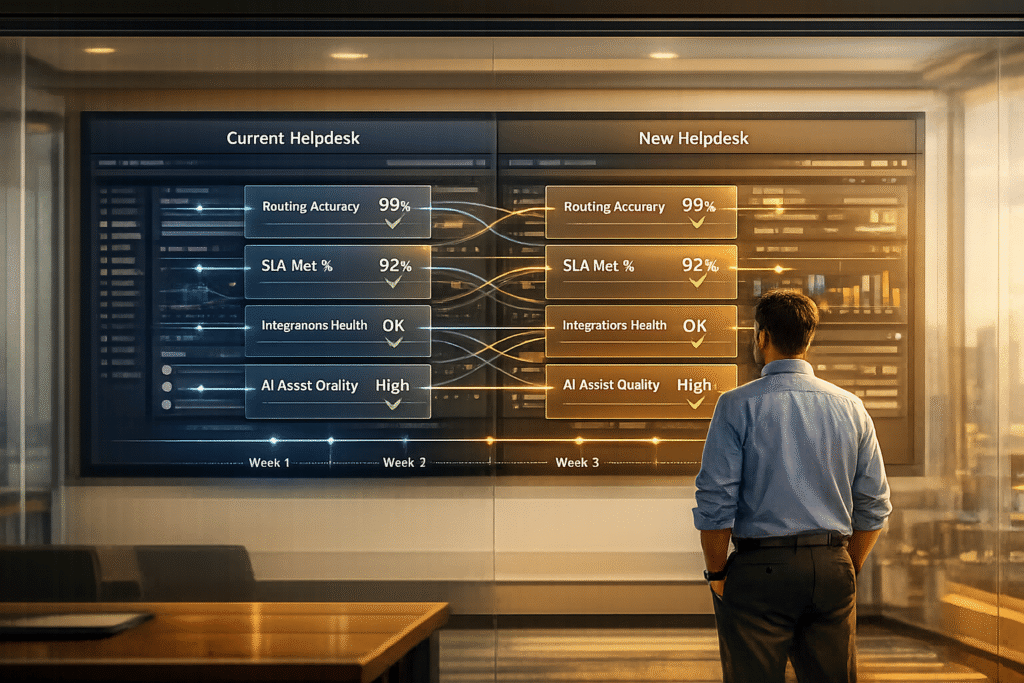
Switching to budget-friendly helpdesk software can be risky without proper testing. A parallel run minimizes the chance of disruptions by running the old and new systems side by side temporarily. This allows you to test real tickets, workflows, and integrations to ensure the new system works as expected before fully transitioning.
Key Steps:
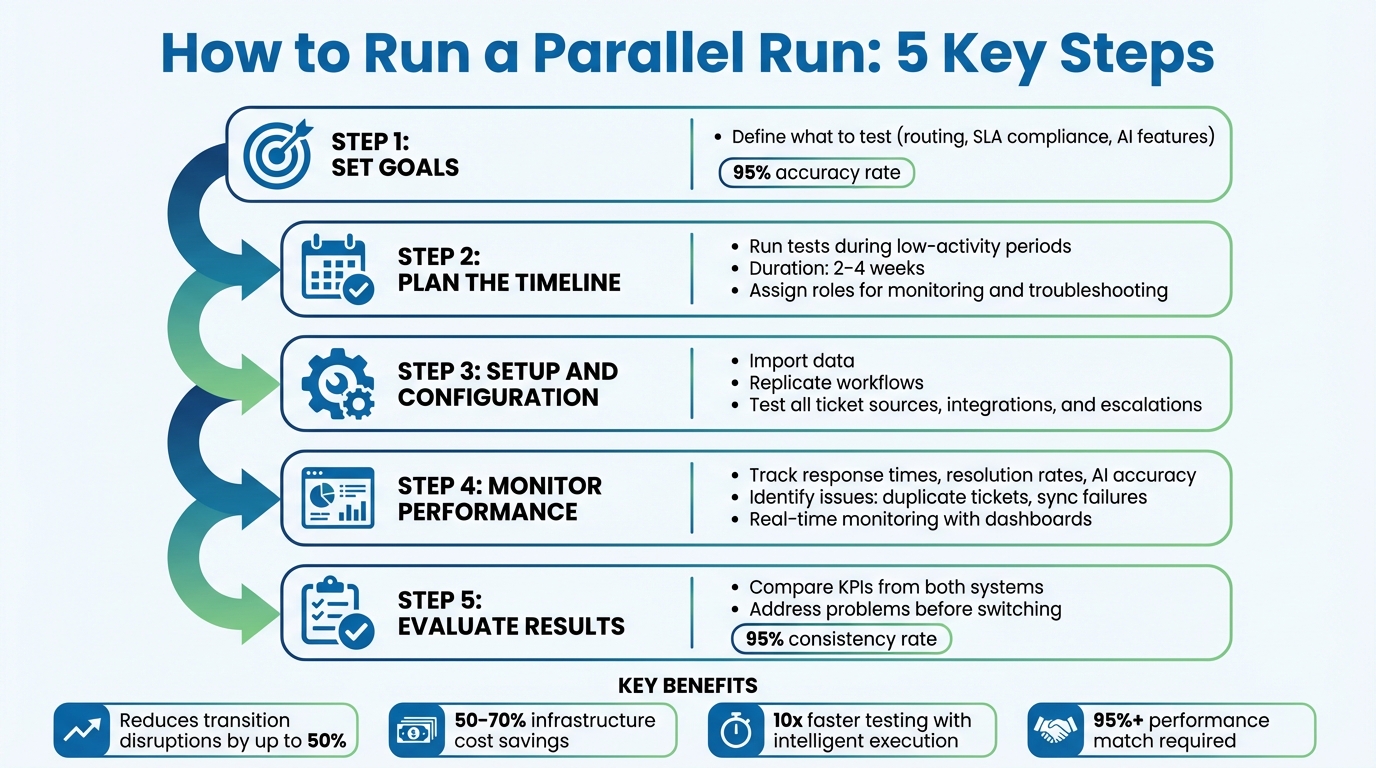
- Set Goals: Define what to test (e.g., routing, SLA compliance, AI features). Use measurable benchmarks like a 95% accuracy rate.
- Plan the Timeline: Run tests during low-activity periods for 2–4 weeks. Assign roles for monitoring and troubleshooting.
- Setup and Configuration: Import data, replicate workflows, and test all ticket sources, integrations, and escalations.
- Monitor Performance: Track metrics like response times, resolution rates, and AI accuracy. Identify and fix issues like duplicate tickets or sync failures.
- Evaluate Results: Compare KPIs from both systems. Address problems, and switch only when the new system meets performance standards.
Benefits:
- Reduces transition disruptions by up to 50%.
- Identifies issues early, avoiding costly downtime.
- Provides agents with hands-on experience before the full rollout.
A structured parallel run ensures a smoother transition and helps confirm your new helpdesk is ready to replace the old one without service gaps.
5-Step Parallel Run Process for Helpdesk Migration
What Is a Parallel Run for Helpdesk Software?
Parallel Run Basics
A parallel run involves operating your old and new helpdesk systems side by side for a limited time. During this period, both systems manage live tickets – handling emails, forms, chats, and other communication channels. The purpose? To ensure the new system processes tickets correctly, routes them to the right agents, and integrates seamlessly with tools like your CRM, SLA trackers, and other connected platforms.
Think of it as a real-world test drive. Unlike sandbox testing, which uses dummy data, a parallel run puts the new helpdesk through its paces under actual conditions. This includes managing high ticket volumes and addressing a variety of customer inquiries. It’s the last chance to spot critical issues before fully transitioning to the new system.
Understanding these fundamentals highlights why parallel runs are a smart move.
Why Parallel Runs Matter
For B2B support teams, parallel runs provide a safety buffer, exposing issues like ticket misrouting or SLA failures before you fully switch over. They also let you compare how the new platform handles advanced features – such as automated triaging and suggested responses – against your current system.
The advantages are clear. Businesses that adopt parallel runs often see 50% to 70% reductions in infrastructure costs by replacing inefficient legacy setups with more dynamic, on-demand systems [2]. Beyond cost savings, parallel runs speed up feedback. You can quickly evaluate how the new system handles live ticket volumes and resolve any problems while they’re still fresh. Plus, your agents get hands-on practice with the new platform while the old one remains the trusted fallback, making the transition smoother and less stressful.
While the benefits are compelling, it’s important to be prepared for potential challenges.
Common Problems to Avoid
Parallel runs aren’t without their hurdles. Misconfigurations can lead to duplicate tickets, overwhelming both systems. For example, if routing rules aren’t properly set, a single email or form submission might generate tickets in both platforms. Another common issue is sync failures, where CRM links or analytics dashboards don’t connect properly with the new system.
There’s also the risk of agent fatigue. Managing two systems at once can double workloads, leaving your team stretched thin. To avoid this, plan your parallel run during a low-activity period, when ticket volumes are more manageable. This gives your team the space to troubleshoot without feeling overwhelmed. Additionally, establish a rollback plan from the start – whether that’s reactivating the legacy system or using backup email routing – so you’re prepared to revert if critical issues arise [1].
sbb-itb-e60d259
How to Plan Your Parallel Run
Set Your Scope and Goals
To kick things off, identify the key areas you need to test during your parallel run. These might include ticket routing, SLA compliance, escalation rules, and AI-driven features like automated triaging or suggested responses.
"The primary goal is to validate that the new system is accurate, reliable, and capable of fully replacing the old system without causing disruptions." – Neeta Sahay, SDE-4 at VMware [6]
Set SMART goals – those that are specific and measurable. For instance, instead of saying "improve response times", aim for something like "reduce average resolution time by 1.5 minutes by the end of the quarter" [7]. Your success criteria should focus on two main aspects: functional parity, ensuring the new system can handle the same tasks as your current one, and output consistency, where reports, database entries, and API responses align with what your legacy system produces [6]. To make this work, map out your existing workflows in detail before starting the run. This way, you’ll know exactly what the new system needs to handle [5].
Once your scope and goals are nailed down, you can move on to planning the logistics for effective testing.
Create a Timeline and Assign Resources
Schedule your parallel run for two to four weeks, ideally during a quieter period when ticket volumes are lower. This gives your team the space to identify and fix any issues without major disruptions [1].
"Plan the switch during a quiet business period. Fewer tickets and lower support activity reduce the risk of disruptions and ease troubleshooting." – Supportbench [1]
Put together a team that includes frontline agents, IT personnel, and AI specialists. Assign clear roles – who’s tracking ticket flow, who’s monitoring SLA compliance, and who’s documenting any issues that arise. From day one, establish a feedback loop to gather input from pilot users. This will help you tweak permissions, templates, and workflows as needed. Always have a rollback plan ready. Whether it’s reactivating the old system or rerouting emails back to the legacy platform, having a fallback option ensures you’re prepared for unexpected challenges [1].
With your team and timeline in place, it’s time to configure the systems for testing.
Set Up Data and System Settings
Create a realistic testing environment by migrating a small batch of historical and active tickets. This helps you identify formatting issues or data mismatches early on. Use a sandbox or staging setup to simulate ticket handling, escalations, and reporting [1].
Next, configure the new platform to mirror your current system. Import customer accounts, knowledge bases, and integrations with tools like your CRM or analytics dashboards. Make sure ticket routing is set up correctly for all entry points – email aliases, contact forms, embedded widgets – and verify that SLA rules are visible and enforceable in real time [1]. Test your escalation management processes to ensure critical issues trigger the right alerts, such as a security incident requiring a 30-minute response [5]. The goal here is to replicate your live environment as closely as possible so the parallel run reflects actual conditions.
Running the Parallel Test: What to Track
With your systems now set up, it’s time to focus on tracking the right performance metrics during the parallel test phase.
Track Ticket Handling and AI Performance
Start by benchmarking key metrics like response times, resolution times, and customer satisfaction scores. These early indicators help you spot and fix issues quickly [1]. Pay special attention to how AI features perform in real-world scenarios. Metrics like overall satisfaction and first contact resolution (FCR) rates are great markers of how effective your AI tools are.
"A trial run is your safety net. Before fully committing, simulate real workflows to catch friction points and ensure team readiness." – Eric Klimuk, Founder and CTO, Supportbench [1]
Keep an eye out for duplicate tickets, which can result from misconfigured routing [1]. Real-time monitoring tools, like configurable dashboards, are invaluable here. Use them to track ticket volume, agent utilization, and average handle time. When monitoring is done right, organizations using intelligent parallel execution strategies can test systems up to 10 times faster [2].
Test Escalations and SLA Rules
It’s not just about ticket handling – your system’s ability to manage pressure matters too. Check that escalation workflows trigger as expected. For example, if your SLA demands a 30-minute response for high-priority incidents, confirm that the system sends alerts and routes tickets correctly. Make sure overdue ticket alerts and multi-level escalations are visible and enforceable in real-time [1].
Stress-test your automation by simulating critical scenarios. If your AI is programmed to flag urgent tickets, create test cases that meet those criteria and verify they’re routed properly. Aim for a pass rate of 95% or higher. Anything less signals the need for adjustments to your escalation or SLA settings [2].
Record Problems and Differences
Accurate tracking is essential to determine if the new system meets your operational needs. Log every issue – whether it’s an integration failure, an AI error, or a formatting mismatch [1]. Daily check-ins with frontline agents are especially helpful for identifying problems like slow interfaces or confusing navigation [1].
"Your agents are the first to notice friction – missing features, sluggish response, confusing UI. Make space for daily check-ins or pulse surveys during the rollout week to surface issues early." – Supportbench [1]
Verify that all connected tools, such as CRMs, analytics dashboards, and SLA trackers, are functioning and pulling data correctly [1]. If you notice differences in how the old and new systems handle the same ticket, document them thoroughly. These records will be crucial in deciding whether the system is ready for full deployment or if further tweaks are needed.
Review Results and Decide Whether to Switch
With your tracked metrics and documented issues in hand, it’s time to evaluate the system’s overall performance and decide whether to move forward with a full switch.
Use KPIs to Measure Success
Start by comparing key performance indicators (KPIs) like response times, resolution times, customer satisfaction, and first contact resolution (FCR) rates. Aim for at least a 95% consistency rate to ensure the new system delivers reliable results without compromising service quality [2].
Next, assess resource efficiency. Look for 70–80% CPU utilization and at least 60% memory efficiency to confirm that your infrastructure is balanced – neither overburdened nor underutilized [2]. The new system should speed up tasks while maintaining quality. Many organizations transitioning to cloud-based systems report 50–70% savings on infrastructure costs [2], providing a direct financial benefit.
Fix Issues Found During Testing
Address any issues flagged during testing, such as data sync errors or routing misconfigurations, as soon as possible. Use a sandbox environment to test fixes and revalidate critical integrations. If there are any data gaps or formatting inconsistencies, perform a second migration pass to resolve them [1].
For agent-reported issues like slow response times or confusing navigation, collaborate with your onboarding team to refine permissions, templates, and automation settings [1].
"Use this feedback to adjust permissions, templates, workflows, or UI settings before wider deployment." – Supportbench [1]
Before proceeding, establish a rollback plan. This plan should outline how to reactivate legacy access or reroute emails in case of critical failures during the final cutover [1]. Having this safety net ensures your operations remain stable even if unexpected challenges arise.
Once all issues are resolved and the system is performing as expected, use these results to guide your final decision.
Decide If You’re Ready to Switch
Set clear exit criteria to assess readiness. Ensure the new system achieves a 95% performance match, resolves all critical data errors, and receives positive feedback from agents on usability. Confirm that every ticket source – emails, contact forms, embedded widgets – is routing correctly to the new platform [1].
"Only retire the old system once you’re confident in the new one." – Eric Klimuk, Founder and CTO of Supportbench [1]
Schedule the final migration during a low-activity period to minimize disruptions. Once all stakeholders, including IT, Finance, and Management, have reviewed and approved the results, you’ll be ready to make the transition.
Conclusion
Switching from email to a helpdesk can be a daunting task, but running a parallel test beforehand can save you from costly downtime and operational headaches. By sticking to a structured plan – setting clear goals and timelines, testing ticket handling and AI performance, optimizing your AI-powered knowledge base, and reviewing results against measurable KPIs – you can identify and fix potential issues before they affect your customers.
Parallel testing can speed up the transition process significantly, cutting transition time by as much as 10x through smart resource allocation and system partitioning, while maintaining over 95% consistency between the old and new platforms [2][3]. Without thorough testing, you risk a productivity drop of over 25% and an unsuccessful system migration [2][4].
Make sure to address any issues discovered during testing, such as data synchronization problems, routing errors, or integration failures, before retiring your legacy system. Use this overlap period to confirm that ticket sources are routing correctly, SLA rules are functioning as intended, and your team is comfortable navigating the new system.
FAQs
Should we run all tickets through both helpdesks or split traffic?
When transitioning to a new helpdesk system, it’s a good idea to process all tickets through both platforms during a parallel run. This allows you to thoroughly test workflows, integrations, and any AI-powered features. That said, many teams opt for a more cautious approach by routing low-risk tickets to the new system while keeping high-priority ones in the legacy platform. This way, critical operations remain uninterrupted while the new system gets a proper trial run before a complete migration.
How do we prevent duplicate tickets during a parallel run?
Preventing duplicate tickets during a parallel run means putting smart systems in place to catch and handle them early. Leverage AI-driven tools to spot duplicates and set up automation rules to merge them automatically. Adjust workflows to flag and consolidate duplicates before they skew reports or overwhelm your team. For tougher cases, a manual review process can ensure nothing slips through the cracks. By blending these approaches, you can keep your data clean and your operations running smoothly.
What are the minimum exit criteria before we cut over?
To successfully meet the minimum exit criteria, several critical elements must be addressed. Start by ensuring data integrity – double-check that all data is accurate and consistent. Validate workflows to confirm they operate as intended, and make sure SLAs (Service Level Agreements) are being met.
It’s also essential to verify that agents are fully trained and ready to handle operations. System performance should meet predefined benchmarks, such as acceptable response times, before moving forward.
Lastly, always have a tested rollback plan ready. This ensures you’re prepared to handle any major issues that might arise during the transition, minimizing potential disruptions.