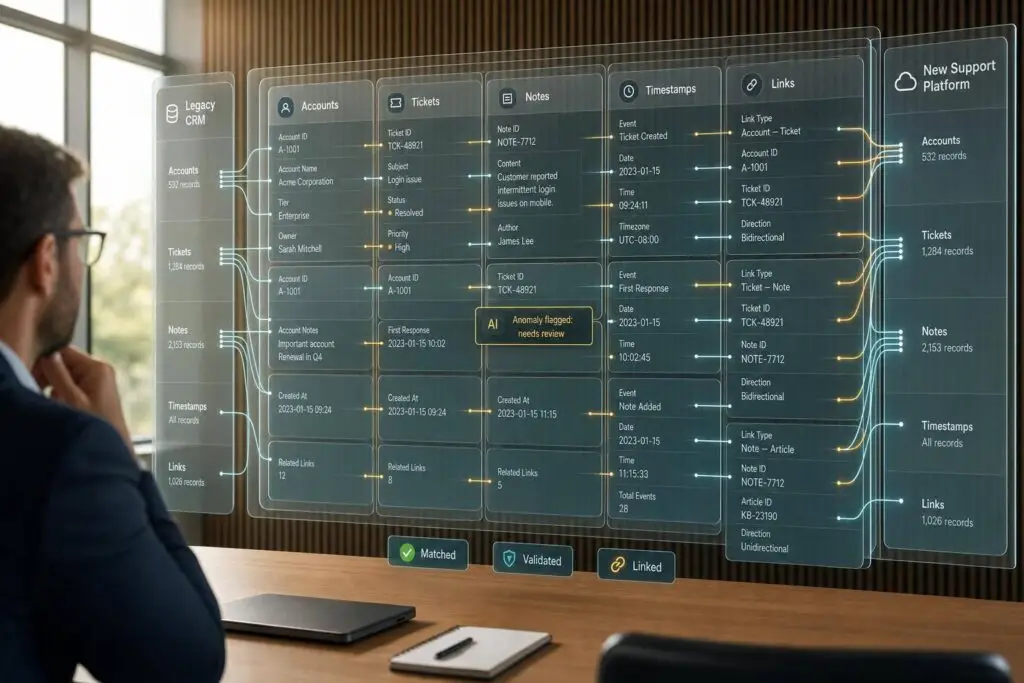
If you migrate support tools without a record plan, agents lose the customer story. Old tickets may move, but links, notes, SLAs, attachments, and account history often do not.
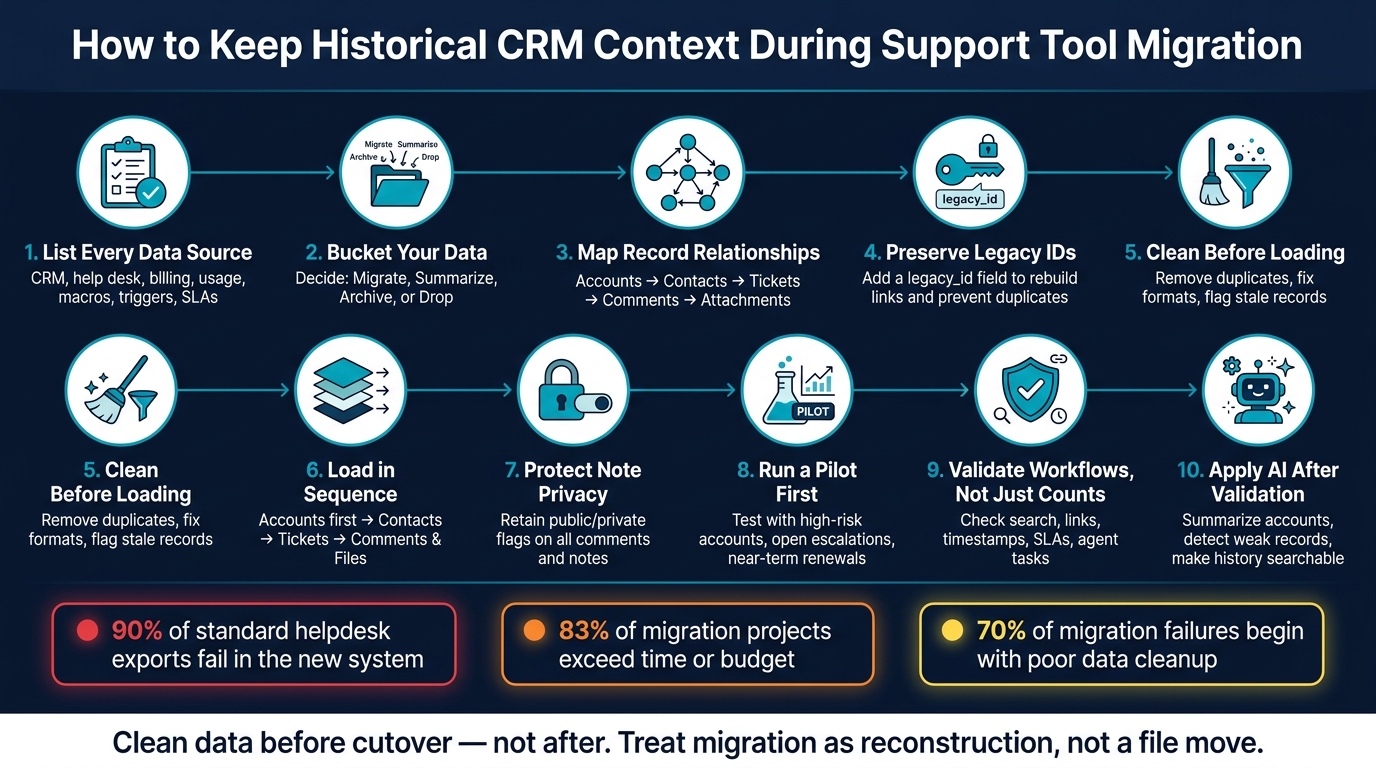
Here’s the short answer: I’d keep context by sorting data before migration, mapping parent-child links, loading records in order, testing with live agent workflows, and using AI only after the data is checked. That matters because bad exports can flatten private notes, break ticket-to-account links, and leave custom fields unreadable. The article also points out that 90% of standard helpdesk exports fail once the data reaches the new system, and 83% of migration projects run over time or budget.
If I wanted a simple plan, it would be this:
- List every data source first: CRM, help desk, billing, product usage, macros, triggers, views, tags, and SLAs
- Decide what belongs in each bucket: migrate, summarize, archive, or drop
- Map records by relationship: accounts, contacts, tickets, comments, notes, and attachments
- Keep old IDs with a
legacy_idfield to rebuild links and stop duplicates - Clean data before loading: remove duplicates, fix field formats, and flag stale records
- Load in sequence: accounts first, then contacts, then tickets, then comments and files
- Protect note privacy: keep the public/private flag on comments and notes
- Run a pilot first with high-risk accounts, open escalations, and near-term renewals
- Validate use, not just counts: check search, linked records, timestamps, SLA views, and daily agent tasks
- Use AI after validation to create AI case summaries, spot weak records, and make old history searchable
The main idea is simple: this is not a file move. It’s a rebuild of customer history inside a new system. If I treat it that way, I’m far less likely to force customers to repeat themselves after cutover.
Below, the article walks through that process step by step.
CRM Support Tool Migration: 10-Step Process to Preserve Customer History
1. Build a migration inventory and target data model
Inventory every source of customer history before you export anything
Before you export a single record, list every place customer history lives. That includes your CRM, support platform, billing system, product telemetry, and support setup objects like ticket types, forms, macros, triggers, views, tags, and SLAs.
Put all of it into one inventory matrix. Give each source or object its own row, then track record count, custom fields, usage frequency, dependency, and action. This becomes the sheet the whole project runs on. Gartner reports that 83% of data migration projects go over the original budget or timeline [6]. A tight inventory is what helps keep account timelines, linked cases, and renewal signals readable after cutover.
| Object Type | Source System | Record Count | Custom Fields | Action |
|---|---|---|---|---|
| Contacts/Users | Legacy CRM/help desk | 12,450 | 23 | Migrate all |
| Companies/Orgs | Legacy CRM | 3,200 | 15 | Migrate all |
| Tickets/Conversations | Support tool | 8,700 | 18 | Migrate open + last 24 months |
| Activities/Notes | CRM timeline | 45,000 | 5 | Selective: last 12 months |
| Entitlements/SLAs | Support tool | 12 rules | N/A | Rebuild in target system |
| Product Usage | Product database | 1 million+ events | 10 | Summarize as attributes |
One more thing: map your integration dependencies early. Renewal-risk signals often sit in product-usage APIs, not inside the support tool.
Map entities, fields, and relationships at the record level
Once you know what you have, the next step is mapping how it connects. Data rarely breaks because a row is missing by itself. It breaks because the relationships are gone. A ticket without its organization, or a contact without its parent account, turns into an orphaned record that agents can’t do much with.
The safest move is to document each entity and its links before writing any import script. Organizations usually sit at the top. Contacts link to organizations. Tickets link to both contacts and organizations. Comments link to tickets and include a public/private flag so customer replies stay separate from internal notes. Activities and attachments connect either to tickets or contacts, based on the target model.
Each record in the target system should include a legacy_id field, which stores the original primary key from the source. That one field does a lot of work: it helps stop duplicates during retries and makes it possible to rebuild parent-child relationships across multiple load passes [1][4].
| Entity | Key Fields to Map | Relationship / Parent |
|---|---|---|
| Organizations | Name, domain, industry, tier, legacy_id | Top-level parent |
| Users/Contacts | Email, name, role, phone, permission level | Linked to organization |
| Tickets/Cases | Subject, status, priority, created_at, tags | Linked to user and organization |
| Comments | Body, public (Boolean), author ID | Linked to ticket |
| Activities | Call logs, meeting notes, email threads, timestamps | Linked to ticket or contact |
| Attachments | File name, content type, binary data/URL | Linked to ticket or comment |
Clean formats and remove duplicates before loading any data
This is the step teams often rush, and it comes back to bite them. 70% of migration failures start with poor data cleanup [5]. In a typical B2B CRM, 15% to 30% of records are duplicates, and 30% to 40% are inactive [5].
Start with deduplication. For contacts, match on email address plus normalized phone number. For organizations, use normalized domain plus company name. Then look for records that probably shouldn’t make the trip. Any contact with no activity in the last 24 months, and any ticket stuck in the same status for more than 12 months, should be flagged for archive review instead of automatic migration [5].
Normalization matters too. Date formats need to stay consistent across the whole load. In the U.S., use MM/DD/YYYY for display and YYYY-MM-DD for storage. Currency values should be standardized the same way across systems. Tags should follow one naming pattern, such as snake_case or kebab-case, so people can filter and report on them later.
Custom fields need extra care. If your export gives you field IDs like custom_field_3829103, join those IDs to the API metadata before import. If you skip that step, you’ll end up with a pile of values that no agent can make sense of [1]. And before any load starts, save a full export snapshot. If the import goes sideways, that snapshot gives you a rollback point.
With the inventory cleaned and the target model mapped, phase the load so master records land before dependent history.
sbb-itb-e60d259
2. Migrate in phases to preserve timelines and record relationships
Load master records first, then dependent support history
Once your mappings are locked, load order starts to matter a lot. If a ticket lands before its parent account, you end up with an orphaned record.
The safest sequence looks like this:
- Accounts and organizations first
- Contacts tied to those accounts
- Custom objects and entitlements
- Tickets and cases
- Comments, notes, and activities
- Attachments
That order follows the parent-child structure common in a B2B support setup. It also helps prevent INVALID_FIELD_FOR_INSERT_UPDATE errors that can stop an import halfway through.
If you need more than one load pass, keep a crosswalk table. That table ties old record IDs to new ones, so links still work after cutover. It also keeps account history readable for agents when they open a record and need the full backstory.
Before the first load begins, pause automations, triggers, and notification workflows in the target system. Otherwise, a live import of thousands of accounts can fire every rule you have and flood teams with unwanted emails and alerts.
Once the relationships are in place, keep the original event order intact so agents can read history the way it happened.
Preserve timestamps and activity order so agents can read history in sequence
When timestamps disappear, history turns into a pile of records with no clear thread. And once that sequence is gone, agents lose the story behind escalations, renewals, and past fixes.
Map and keep the original created_at, updated_at, and AuthorID fields for every record. That keeps timelines readable and supports a clean audit trail. If your export flattens everything into CSVs, switch to API-based extraction for tickets and comments. CSVs can strip out nested event metadata, and that missing detail can cause problems later.
For notes and comments, keep the public/private flag. If that flag is lost, internal notes can show up to customers in the new system. That’s a serious trust and compliance issue.
For older records with little activity, one account-level note can do the job. Include the key events, escalations, and renewal signals so agents still have the context they need.
Then start validation with the highest-risk accounts before moving into full cutover.
Run a pilot and parallel cutover for accounts with open escalations, renewals due soon, or heavy usage
Before you move everything, run a pilot with a sample that reflects the accounts that matter most: those with open escalations, renewals due soon, or heavy usage. Check that their full history – open cases, linked contacts, entitlements, and internal notes – landed where it should and is visible to agents in the new system. If links are broken or fields are missing, fix that before touching the rest of the data.
A clean cutover usually looks like this: lock the source system, run the migration overnight, validate before go-live, and keep the legacy system read-only during parallel support. During that parallel period, reconcile open cases every day across both systems so you can catch records that drifted or failed to sync. Keep the legacy system in read-only mode for 90 days after cutover so agents can check edge cases without creating data conflicts. [4]
After cutover, verify the basics that can trip teams up fast:
- Record counts
- Parent-child links
- Timestamps
- Agent workflows
Next, validate that the migrated history is complete and usable in the new support workflow.
SuiteCRM Data migration with related records – pay attention to your record IDs!
3. Validate that historical context is complete and usable after cutover
This is your last shot to catch broken context before agents run into it.
A row-count match doesn’t prove the migration worked. Associations, ownership, and consent can still drift. Start with volume checks across every entity – accounts, contacts, tickets, entitlements, and internal notes. Then confirm required fields are filled in, critical cases are intact, and orphaned tickets are at zero. If those checks fail, agents lose the customer story.
Next, spot-check high-value accounts. Open specific user and organization records and verify that the full ticket history is there, including attachments and internal notes, and that everything is linked the right way. These are the accounts where even small context gaps show up first.
The table below shows the minimum validation criteria your team should clear before go-live so agents have usable context:
| Validation Item | Source Result (Legacy) | Target Result (New) | Acceptable Variance |
|---|---|---|---|
| Total Account Count | 15,400 | 15,400 | 0% |
| Total Ticket Count | 250,000 | 249,995 | <0.01% (de-duplicated) |
| Orphaned Tickets | 0 | 0 | 0% |
| Note Visibility (Private) | 45,000 | 45,000 | 0% |
| Custom Field Population | 92% | 92% | 0% |
| High-Severity Cases | 450 | 450 | 0% |
Pay close attention to the note visibility row. If the public vs. private flag on internal notes gets lost in transit, sensitive escalation details can be misread by AI agents [1].
Test account views, linked records, and real agent workflows
Technical validation tells you the data arrived. Agent testing tells you whether people can use it. That’s a different test entirely, and teams that skip it often find the problem during a live escalation.
Put a frontline agent in the new system and give them a specific at-risk account. They should be able to open the account, read the full case history in chronological order, review internal notes from past escalations, and check an SLA breach – without switching tabs or digging through an external file. If any step needs a workaround, that’s a gap you need to fix before cutover is done.
Search needs its own test too. Agents should be able to find old tickets by email, organization name, or external ID. If search returns nothing – or the wrong record – the history may exist in the system, but it’s still invisible in practice. That’s just as damaging as data loss. 72% of consumers expect support agents to already know their contact information and product history without being asked [8].
If search or linked views break here, AI summaries will carry the same blind spots.
Use an acceptance checklist before retiring the legacy system
Before you switch the legacy system to read-only and call the migration done, your team needs a defined minimum bar – not a gut feeling that things look fine.
At a minimum, every account in the new system should show full case history, correct contact roles, active SLA rules, and searchable internal notes. Agents should also be able to:
- Apply a macro
- Check an SLA breach
- Escalate a case without hitting a dead end
If any of those actions fail during user acceptance testing, the migration isn’t ready to close.
Keep the legacy system read-only through validation and acceptance testing. Once validation passes, use AI to rebuild searchable context from the verified legacy records.
4. Use AI to rebuild searchable customer context in the new support stack
Once validation is done and the legacy system is set to read-only, use AI to make migrated history searchable and usable from day one. AI is not the migration. It’s the layer that makes old history readable, searchable, and useful for agents.
Generate account and case history summaries from legacy records
Most B2B accounts build up years of tickets, internal notes, and escalation threads. No agent is going to read thousands of old comments before replying to a live case. That’s where AI helps.
Use it to turn long histories into clear account snapshots and case summaries. Group similar tickets into account-level summaries, then rebuild full threads only for high-priority accounts.
For regulated industries or VIP segments, rebuild full threads for those high-priority accounts while creating shorter summaries for everyone else. That keeps the system cleaner without losing the history that matters most [3].
Think of these summaries as the readable layer. After that, run AI checks to find what still needs repair.
Detect missing fields, broken links, and low-confidence records
After cutover, AI can run a second pass on migrated records and flag anything incomplete or inconsistent before agents run into it in a live workflow. That includes unmatched contacts, broken record links, duplicate contacts, and weak matches that slipped past the first validation pass.
A useful method is to sample migrated records with an AI model and check whether field mappings and data types match the target system’s schema [7]. This helps catch silent failures: fields that did migrate, but landed in the wrong place or lost meaning along the way.
A common problem is anonymous legacy field IDs like custom_field_8321. AI can inspect the values in those fields and suggest readable names like "Customer Segment" or "Renewal Risk" so nothing stays buried behind an unclear label [1][7].
AI can also spot knowledge gaps by looking at failed searches and unresolved tickets, then turning those old dead ends into new searchable articles [3].
Once the records are trustworthy, the next step is simple: put that context where agents already work.
Put migrated context to work with AI-native support workflows in Supportbench
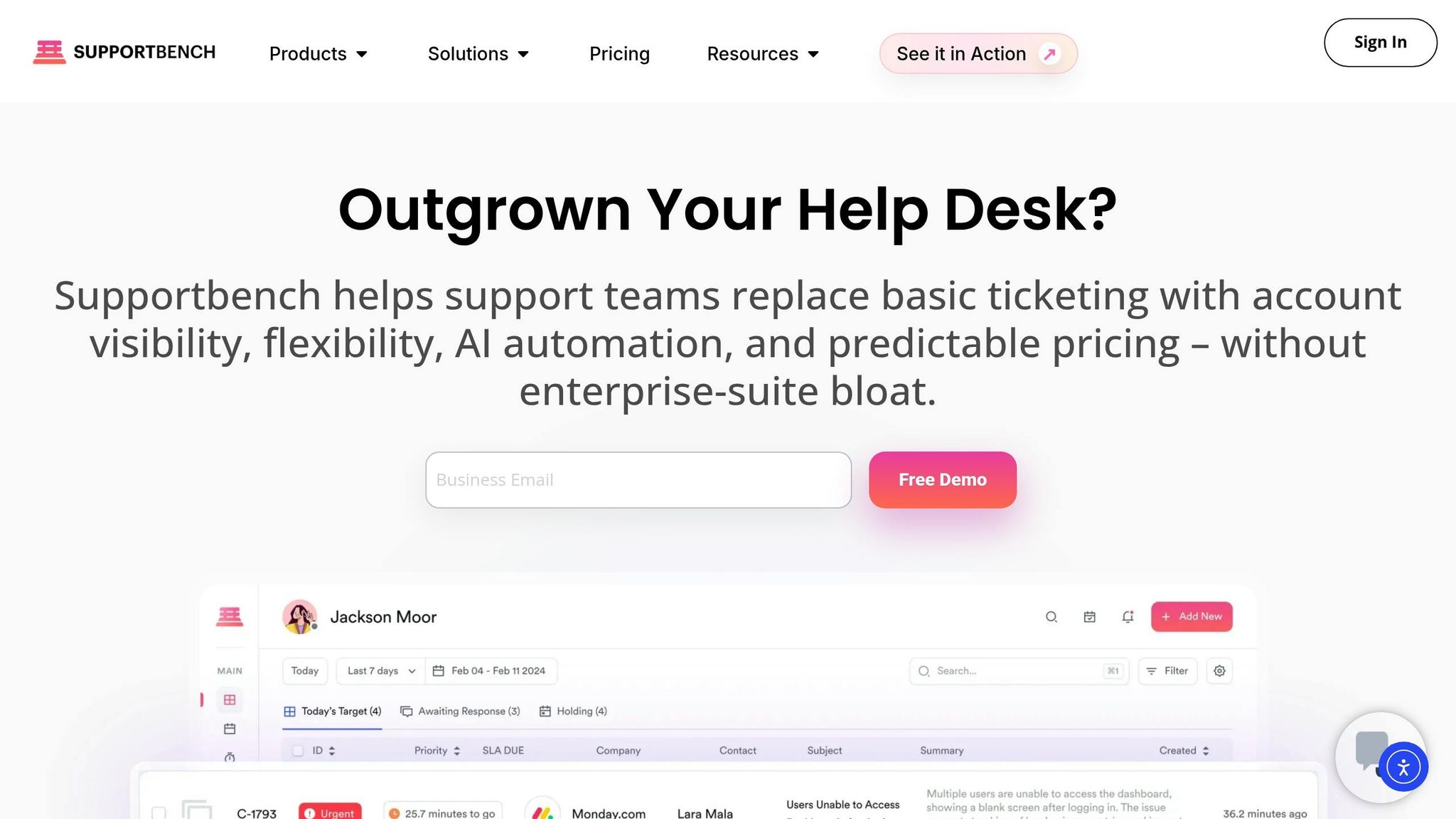
Agents should see the customer story inside the ticket, not in some other system. With Supportbench, teams can surface account summaries, search case history, draft replies from past interactions, and turn resolved cases into knowledge articles without heavy IT setup [2].
You can also map renewal dates and account health into dynamic SLAs so at-risk accounts show up first. Then AI Copilot can draft replies from migrated history, pulling from past interactions and resolved tickets so agents get the full customer story the moment a case opens.
Conclusion: A clear plan for keeping support operations intact during migration
Once validation is done, the last step is simple: make sure agents can use the migrated history.
A clean migration comes down to four things: keep the right context, load it in the right sequence, test it inside daily workflows, and use AI to make that history easy to search.
Start with parent records first: accounts and organizations. Then bring in contacts, tickets, and past activity. That sequence matters. But it only works when data cleanup happens before the load, not after.
Clean data before cutover; cleanup after migration is slower, costlier, and less reliable.
Before you retire the legacy tool, check record counts, relationships, field accuracy, and the core workflows agents use every day. Do that in the same views your team already works in. Once that checks out, turn the verified history into searchable context in the new stack.
The result is straightforward: fewer repeat questions, faster agent ramp, and lower renewal risk.
Treat migration like reconstruction. Inventory the context, map it, phase the load, validate it, and use AI to make it searchable in Supportbench. That’s how you keep support operations intact during cutover.
FAQs
How much historical data should we actually migrate?
It depends on your support needs, compliance rules, and system performance. In most cases, teams move the most recent and most useful data – often the last 12 to 24 months – so agents keep the context they need without bogging down the new system.
A lot of teams also set a cutoff date and archive older records in a separate place. You can move everything, but that usually adds more time and more complexity, especially when older data is outdated or not worth much.
What records are most likely to break during migration?
The records most likely to break are ticket relationships, internal notes, attachments, call recordings, custom fields, and metadata like timestamps and IDs.
During migration, these pieces often cause trouble. If they aren’t handled with care, they can be lost, damaged, or disconnected from the tickets they belong to.
When should AI be used in the migration process?
AI helps most with data validation, mapping, and reconciliation.
That’s where a migration can get messy fast. Fields don’t line up, records clash, and old notes often hide the context your team still needs. AI can take a lot of that manual work off your plate by finding custom fields, suggesting mappings, spotting duplicates, identifying relationships, and reviewing email threads and other signals to figure out the current status of a ticket or deal.
It can also sum up legacy histories, flag missing fields, and rebuild searchable customer context. Used at these stages, AI cuts manual effort, lowers the risk of mistakes, and helps keep your data reliable and ready for action during migration.
Related Blog Posts
- How do you migrate from Salesforce Service Cloud to a helpdesk without losing case history?
- How do you migrate away from HappyFox without losing ticket history or attachments?
- How do you migrate away from Jira Service Management without losing ticket history?
- Support vs project management tools: where implementations fall apart
Evaluating help desks for a B2B team?
Supportbench is all-inclusive from $32 per agent per month, with migration and onboarding included. See pricing or book a 20-minute demo.