


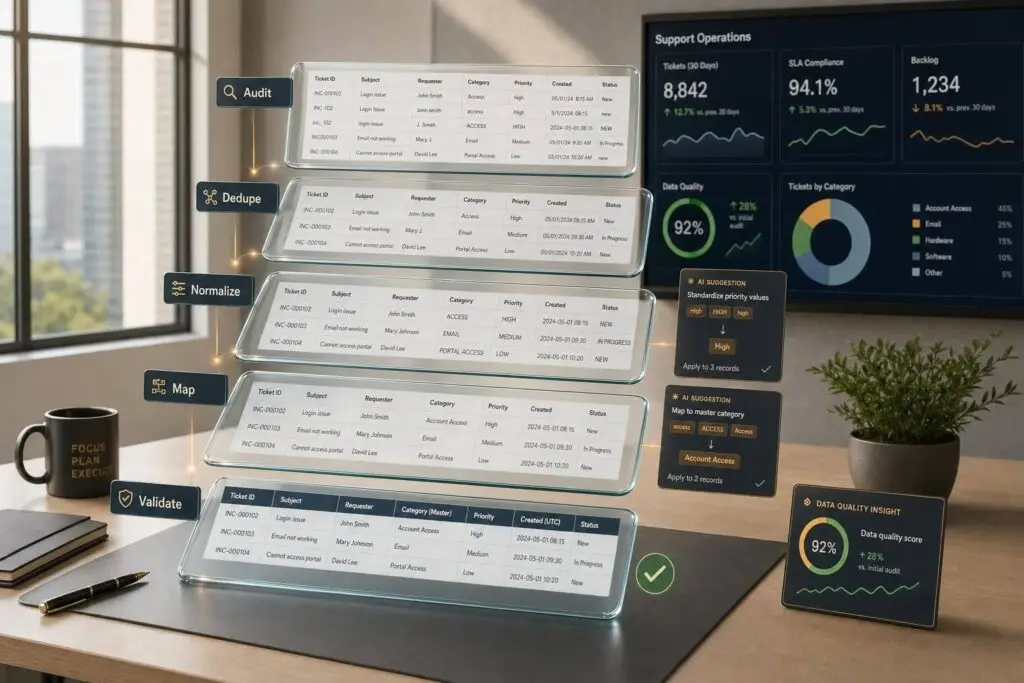
Most helpdesk migrations fail because the data is messy, not because the migration tool is bad. If you want the move to work, I’d focus on five things before cutover: scope, audit, cleanup, mapping, and validation.
Here’s the short version:
- I decide what should move and what should stay archived.
- I audit tickets, contacts, fields, tags, automations, attachments, and integrations.
- I merge duplicates, remove junk, and standardize statuses, priorities, tags, and dates.
- I map old fields to new ones, set defaults, and mark items that will not migrate.
- I test with sample records and stop if counts drift by more than 1%.
- I check timestamps, SLA behavior, routing, permissions, attachments, and private notes before go-live.
A few numbers stand out. Over 80% of migration projects miss goals or go over budget, and integration issues cause 45% of delays. On top of that, duplicate contacts often make up 10% to 20% of records. That’s why I treat cleanup as part of the migration, not a side task.
What matters most is simple: clean data keeps routing, reporting, account links, and AI workflows from breaking on day one. If the source data is messy, the new helpdesk will inherit the same problems.
This article walks through the pre-cutover work in plain steps so you can move cleaner data, avoid import errors, and keep your support team from sorting out old problems in a new system.
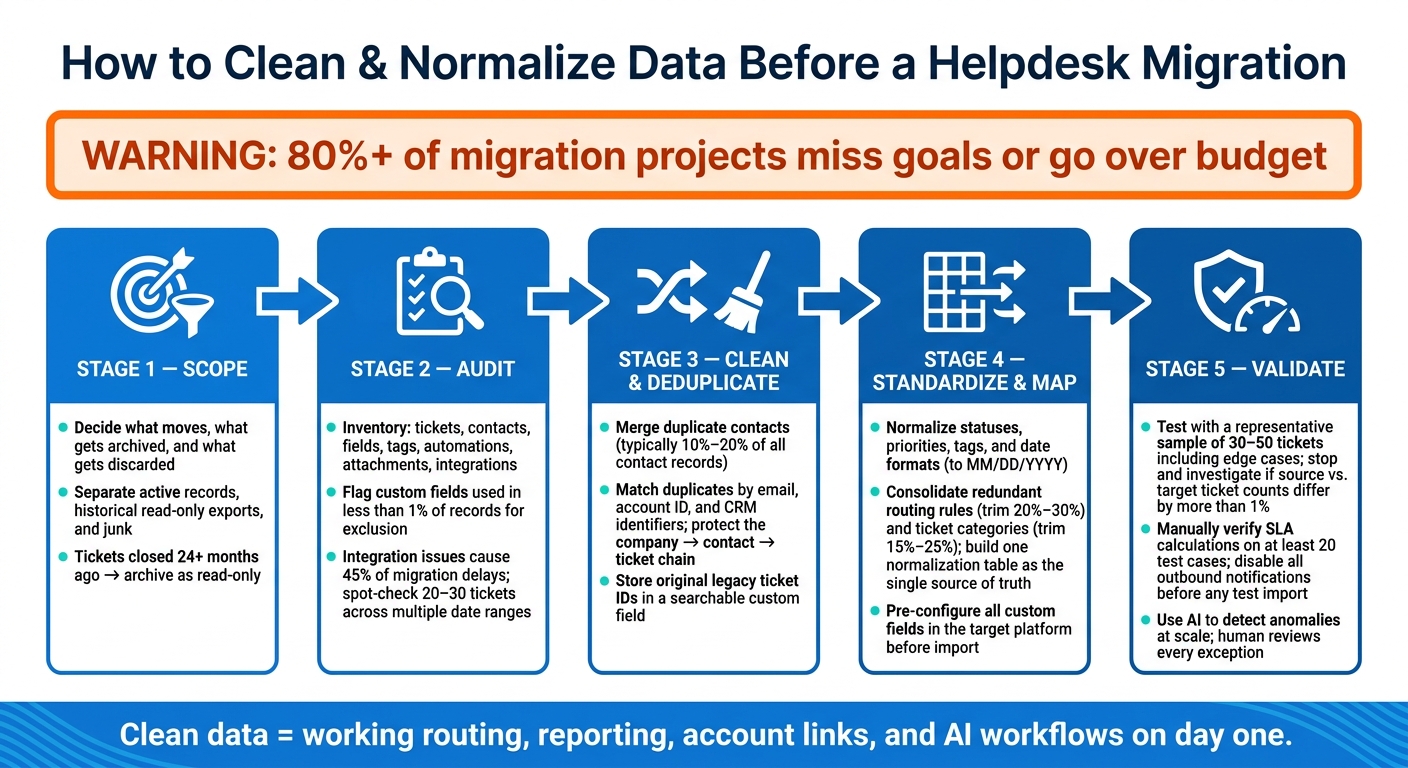
Helpdesk Migration: 5-Step Data Cleaning Process Before Cutover
1. Audit your current helpdesk data
Inventory every object, field, and dependency
Start by listing every object in your helpdesk: tickets, contacts, organizations, knowledge base content, agent roles, SLA policies, macros, and integrations.
For each object, record the field type, whether the field is required, and how often people use it. Custom fields with zero entries or fields used in less than 1% of records should be flagged for exclusion – they create clutter without adding value [2][3].
Then map every automation dependency. That includes routing rules, escalation triggers, SLA policies, and macros. For each one, write down what it does and why it matters. Do the same for every integration – CRM, telephony, billing, and analytics – and note the data flow, connection type, and how critical it is to day-to-day work.
These dependencies directly affect routing, SLAs, reporting, and AI workflows. Integration failures account for 45% of migration delays [5], so this step needs attention early. After the inventory is done, sample the records that power routing, SLAs, and reporting.
Flag data quality issues early
With the inventory in place, run a focused quality check. Export a sample of each data type and spot-check 20–30 tickets across more than one date range [2].
Look for:
- Broken timestamps
- Truncated threads
- Missing attachments
- Broken inline images
Those problems don’t stay small. After cutover, they can turn into routing errors and bad reporting. If date formats are inconsistent, flag them now and normalize them before import so SLA calculations and reports don’t get thrown off.
Use the table below to zero in on the issues most likely to cause migration risk:
| Data Object | Audit Check | Common Quality Issues |
|---|---|---|
| Tickets | Volume by status, date, and channel | Broken timestamps, truncated threads, missing custom values [1][3] |
| Contacts | Profiles, organizations, and custom fields | Duplicate emails, missing account IDs, deleted users [5][3] |
| Attachments | File size, type, and inline images | Files skipped, broken, or moved to the wrong comment [3] |
| Tags/Labels | Usage frequency and naming patterns | Typos, redundant synonyms, abandoned campaign tags [5][3] |
| Automations | Triggers, macros, and SLA policies | Logic differences between platforms, obsolete rules [4][5] |
| Integrations | CRM, telephony, and API connections | Webhook failures, stale API keys, data silos [1][2] |
You should expect duplicate contacts. Deduplication is a standard migration task. Assign one owner to each data segment so someone is accountable for validating counts and reviewing samples before cleanup starts. Then use what you find here to decide what gets cleaned first in the next step.
sbb-itb-e60d259
2. Clean, de-duplicate, and standardize records
Remove junk and merge duplicate records
Start with the audit output and sort records by migration risk. Focus first on tickets, contacts, and fields tied to ticket routing, SLAs, and reporting.
Then make the first big cleanup call: what should move at all? Not every record belongs in the new system. Put your data into three groups:
- active records to migrate
- historical records to archive as read-only
- junk to discard
For tickets closed more than 24 months ago, archive them as read-only exports if they fall outside your active-history window.
Most help desks build up duplicate contacts over time. In many cases, that adds up to 10% to 20% of contact records [5]. Merge those duplicates by matching email, account ID, and CRM identifiers. A shared business domain can help, but it shouldn’t be the only signal. After matching on email, account ID, and other identifiers, use the most complete record as the master.
The main goal here is to protect the company-to-contact-to-ticket chain. If those links break, you end up with orphaned tickets. Agents lose account context, and AI tools lose it too, right when they need it most after cutover. Store the original legacy ticket ID in a searchable custom field in the new system so agents can still find old records using the reference numbers they already know [3][7].
Normalize statuses, priorities, tags, and field formats
Once duplicates are handled, standardize the messy values left behind. Older help desks tend to collect years of one-off labels, and that can wreck reporting or trigger the wrong automation in the new platform.
Set one standard taxonomy before mapping anything. For instance, roll up top-tier urgency labels like "Urgent" and "P1" into a single value. Do the same with tag variants like billing_issue and billing-problem, and turn them into one clean label. Date formats need the same treatment. Normalize them to MM/DD/YYYY before import so SLA calculations and routing filters still work after cutover. During this step, organizations often trim routing rules by 20% to 30% and ticket categories by 15% to 25% [5].
Pre-configure every custom field, dropdown option, and multi-select value in the target platform before the migration starts. If the target field doesn’t exist, the import can fail, or the value can get dropped [7][3].
After the taxonomy is cleaned up, map each normalized value to the target platform’s fields.
Build a status and field normalization table
Write the final rules in one normalization table. That gives import, validation, and troubleshooting teams one shared source of truth instead of three half-matching versions.
Use one normalization table for every transformation rule:
| Legacy Value | Normalized Value | Transformation Rule | Exception Notes |
|---|---|---|---|
| Urgent, P1, Critical | High | Map all top-tier urgency to "High" | Keep "Critical" label for VIP accounts only |
| Solved, Resolved, Fixed | Closed | Map all terminal states to "Closed" | Ensure "Solved" tickets don’t trigger surveys |
| billing_issue, billing-problem, billing_err | billing | Consolidate all finance tags into one label | N/A |
| (Empty Field) | General | Assign default for required fields | Only for tickets < 12 months old |
| DD/MM/YYYY date format | MM/DD/YYYY | Reformat to U.S. standard before import | Validate SLA timestamps after conversion |
| Inactive/former agent | Legacy Agent (placeholder) | Map to a generic "Legacy Agent" account | Prevents orphaned ticket assignments |
Assign one owner to each row.
3. Map legacy data to the new structure
Once your data is clean and normalized, the next job is to fit it into the target platform’s setup.
This is where mapping comes in. For each object type, use one rule set before import. And don’t wing it. Your normalization table should be the source of truth for every mapping rule.
Build field mapping rules for each record type
Each major record type needs its own call: copy it as-is, change the value, or leave it out.
Tickets: Map original ticket IDs to a searchable field. Then apply the normalized status and priority values.
Contacts and accounts: Split legacy Customer records into Contact and Organization objects before mapping fields. Map requesters by email or unique ID, and companies by domain or normalized name [3][2].
SLA policies and macros: Rebuild SLA policies and macros from documented intent. In most cases, they do not move over one-to-one.
Knowledge base metadata: Map categories, sections, authors, permissions, and article URLs. If the target system has fewer folders, collapse extra nesting levels.
User roles: Active agents can map straight to matching roles in the new system. Former or deactivated agents should map to a placeholder such as "Legacy Agent" so historical comment authorship stays intact [3].
Document exceptions, defaults, and data that will not migrate
Before import testing starts, document edge cases. It saves a lot of back-and-forth later.
Add a default-value column for missing fields so required records can import cleanly.
For fields with no clear match, decide whether to map them, rebuild them, or leave them out. Free-text internal notes should keep their visibility rules. Unused or duplicate fields should be retired so the new system doesn’t get cluttered [3][4].
You should also spell out what will not migrate at all. Very old closed tickets, duplicate contacts, expired knowledge base articles, and large unneeded attachments should all have a clear "do not migrate" label in the mapping document [3][5].
Add a legacy-to-new field mapping table
Put every transformation rule into one shared table. This gives your import and validation teams one place to check instead of juggling notes, Slack messages, and old spreadsheets.
| Legacy Field | New Field | Transformation Rule | Default Value | Exception Notes |
|---|---|---|---|---|
| Original Ticket ID | Custom Field (Searchable) | Direct copy | N/A | Required for cross-referencing historical records |
| Ticket Status: "On Hold" | Status: "Pending" | Map all "On Hold" to "Pending" | "Open" | If status is null, default to "Open" |
| SLA Flag: "Gold" | Entitlement: "Premium" | Map based on Account Tier field | "Standard" | Exclude for accounts marked "Inactive" |
| Custom Field: "Product_ID" | Field: "Product_Category" | Map ID to category name via lookup table | "General" | If ID not found, flag for manual review |
| Agent: [Inactive User] | Assignee: "Legacy Archive" | Map all inactive agents to a single placeholder | "Unassigned" | Preserve the original name in a private note. |
| KB Category | Folder/Collection | Collapse extra nesting levels if target has fewer folders | "General" | Update internal cross-links to new URL structure |
| Private Notes | Internal Comments | Maintain "Internal Only" visibility setting | N/A | Verify visibility flags post-import |
| Macros | Canned Responses | Rebuild manually; update variable syntax | N/A | e.g., update {{ticket.id}} to target platform syntax |
Assign one owner to each row.
4. Validate the cleaned dataset before cutover
Once your mapping rules are locked in, test them on real records before cutover. If you skip this step, agents and customers will find the mistakes for you.
Check timestamps, attachments, and conversation history
Start with a representative sample of 30–50 tickets. Include both clean, standard records and messy edge cases: long threads, multiple attachments, tickets from former agents, and CC-heavy threads [3][6]. This is usually where import problems show up early, including issues with normalized statuses, mapped fields, and merged contacts.
For each sampled ticket, check that replies appear in chronological order, authorship is assigned to the right person, and internal notes stay private. Look closely at inline images too. URL changes during migration often leave those images broken [3][5].
Also review created, updated, solved, and closed timestamps for time zone consistency [3][6]. If a ticket shows a close date before its open date, something’s off and needs a closer look.
Stop and investigate if source and target ticket counts differ by more than 1% [2].
Once the sample looks clean, move on to routing, reporting, and SLA checks.
Test reporting, routing, permissions, and SLA behavior
Test every active routing rule and make sure tickets land in the right queue without manual help. Then log in with different agent roles to confirm permission boundaries still hold. Agents should only be able to see and edit what their role allows. Customers should never see internal notes.
Dynamic SLA behavior needs its own check. Manually compare SLA timer calculations on at least 20 test cases, and confirm that business-hour SLA logic matches the source system on migrated tickets [5][3]. Then compare volume reports by status, channel, and priority. If variance is more than 1%, stop and review the issue [2][3].
Disable all outbound notifications and triggers before any test import. If old tickets fire "ticket created" automations, customers can get alerts for records that are years old [4][3].
After the main workflows pass, use AI to find odd cases faster.
Use AI to detect anomalies and review edge cases
Manual spot-checks catch the obvious failures. AI helps you find malformed tags, mismatched statuses, and missing identities at scale.
Use AI to group similar tags and surface inconsistencies your normalization pass may have missed. For example, prompting AI to "Identify records where the status value does not match the expected values in this mapping table and list the exceptions" can surface malformed field values across a large dataset [2][3].
Use AI only to flag anomalies. A human should review every exception. Send unclear status mappings and missing requester emails to manual sign-off.
| QA Area | Verification Method | Critical Checkpoint |
|---|---|---|
| Ticket History | Representative sampling (30–50 records) | Chronological order |
| Attachments | Manual spot-checks | Inline image rendering |
| Custom Fields | Filtered reporting | Multi-select and dropdown value mapping |
| Timestamps | Audit log comparison | Time zone consistency for Created and Closed dates |
| User Data | Match requester identity | Correct requester email mapping |
| Routing & SLAs | Test every active rule; spot-check 20 SLA cases | Business-hour accuracy |
Conclusion: Apply a pre-migration checklist and sign-off process
Once validation passes, lock the plan with formal sign-off. Before that happens, check five gates: audit, clean, standardize, map, and validate.
Right before the final export, freeze changes in the source system and run one last delta sync. That picks up late updates made between the full migration and cutover. After cutover, keep the source system in read-only mode so the team can still use it for reference.
Every decision needs a named owner. Document exclusions, note any mapping conflicts, and record who has final go/no-go authority. The executive sponsor owns that call and is accountable for approving rollback if critical issues show up.
Use this final checklist to approve cutover.
| Category | Key Items to Verify |
|---|---|
| Scope | Final inventory of all in-scope objects |
| Cleanup | Duplicates merged and junk removed |
| Mapping | Field mapping and fallback rules approved |
| Validation | Counts within 1%, attachments intact, SLAs verified [2][3] |
| Exceptions | Exclusions documented and rollback verified |
| Owner | Named executive accountable for go/no-go sign-off |
FAQs
How far back should we migrate ticket history?
Don’t move every record to your new platform. Old, unused data creates clutter. It can also slow the system down and make agents less efficient.
A smart approach is to migrate active tickets from the last 12 months. Older records – usually 1–2 years old or more – are often better left in read-only archive storage for compliance or future reference.
Focus on the data your team still uses day to day, especially anything that helps with:
- agent context
- reporting
- active workflows
What data problems are most likely to break routing or reporting after cutover?
The biggest post-cutover problems usually trace back to three things: inconsistent formatting, weak field mapping, and old workarounds carried over from the legacy system.
When status taxonomies don’t match, tickets can land in the wrong state. And when custom fields like priority or segment tiers are mapped poorly, automations can fail without any warning. That’s the kind of issue that slips by at first, then turns into a mess later.
Duplicate contacts split up customer history, which makes support harder than it should be. Broken relationships – like tickets linked to inactive agents or deleted organizations – can leave records unassigned. On top of that, stale tags, unmapped dropdown values, and abandoned automation rules often force teams back into manual triage.
How should we handle records that don’t map cleanly to the new system?
Put day-to-day use ahead of copying everything over. Sort records into four buckets: keep as-is, rewrite, merge, or retire. If a field or record type doesn’t have a direct match, set plain fallback rules for invalid or missing values so you don’t run into import errors or holes in reporting.
Don’t move data just in case. Archive low-value or outdated records outside the new system, and test your mapping choices with a pilot migration that uses a subset of real records.
Related Blog Posts
- How do you migrate from Salesforce Service Cloud to a helpdesk without losing case history?
- How do you migrate away from Freshdesk without losing tickets, contacts, or history?
- Cleaning Your Data Before a Helpdesk Migration: A Step-by-Step Guide
- How to migrate integrations when switching helpdesks
Evaluating help desks for a B2B team?
Supportbench is all-inclusive from $32 per agent per month, with migration and onboarding included. See pricing or book a 20-minute demo.






