


When email fails to send large files due to attachment limits, the solution lies in secure portals and link-sharing tools. These methods bypass size restrictions, ensure security, and simplify workflows. Here’s the key takeaway:
- Email Limitations: Most providers cap attachments at 20–25 MB, but Base64 encoding reduces the effective limit to about 17 MB.
- Common Issues: Large files like logs, videos, or databases often bounce back, delaying support and risking compliance.
- Better Solutions:
- Support Portals: Allow direct uploads (up to 100 GB), provide encryption, and maintain audit trails.
- Secure Links: Generate password-protected, expiring links for files up to 250 GB.
- AI Integration: Automates workflows, generates upload links, and analyzes files instantly.
These tools streamline file transfers, improve security, and keep support operations running smoothly.
Email Attachment Limits vs Secure File Transfer Solutions Comparison
Email Attachment Limits and Their Impact on Support Operations
Why Email Providers Set Attachment Size Limits
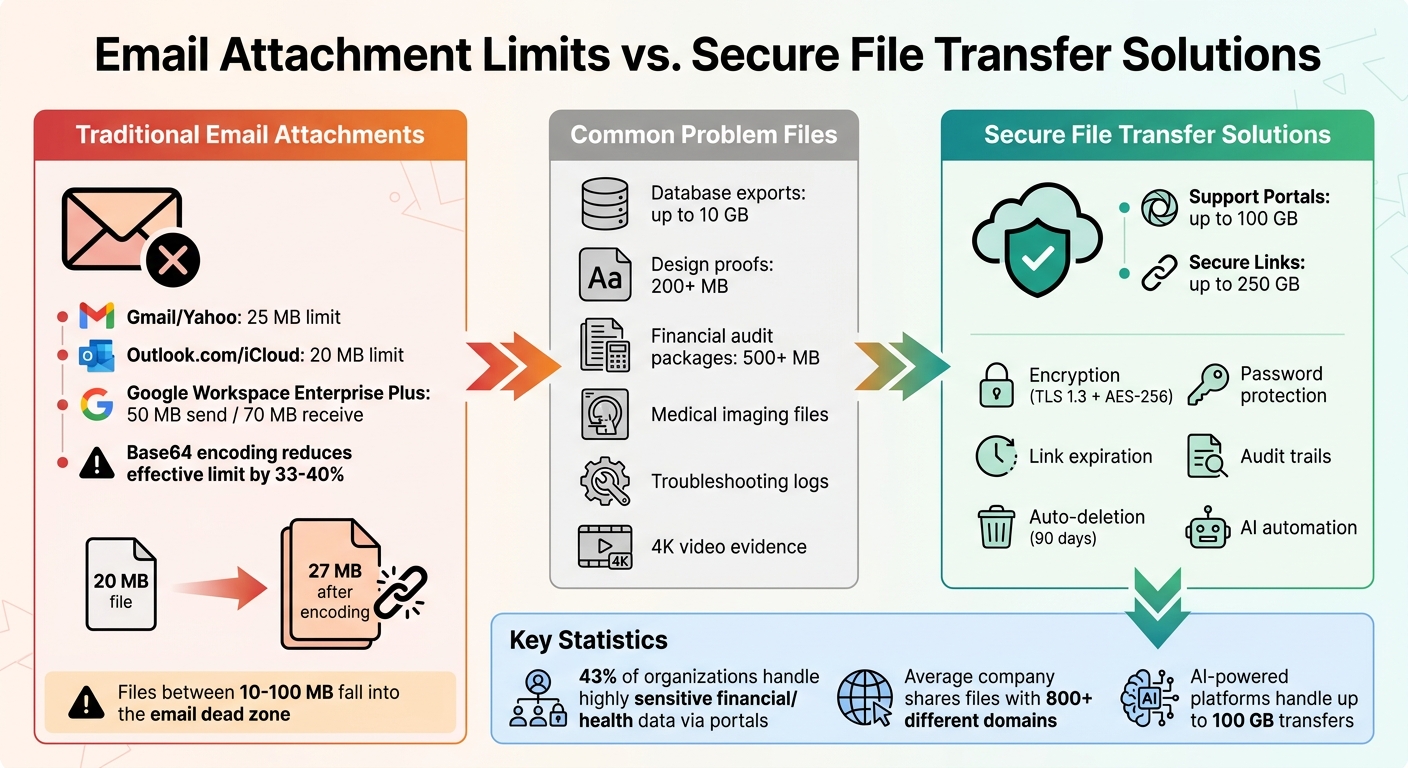
Email providers impose attachment size limits to safeguard their systems and users. Typically, these limits range between 10 MB and 25 MB [2]. For instance, Gmail and Yahoo support attachments up to 25 MB, while Outlook.com and iCloud Mail generally cap theirs at around 20 MB [2]. In February 2026, Google Workspace Enterprise Plus increased its sending limit to 50 MB and its receiving limit to 70 MB [8].
These restrictions serve several purposes. They help prevent network congestion and manage server storage [7]. They also mitigate security threats, as large file transfers can be exploited for DDoS attacks or flagged by spam filters [9]. Additionally, email wasn’t originally designed for transferring large files. Attachments are encoded using Base64, which inflates file sizes by about 33–40%. For example, a 20 MB file can expand to roughly 27 MB during transmission [8]. Complications arise when the lowest supported limit becomes the bottleneck – if a sender can send a 50 MB email, it will still fail if the recipient’s email provider only accepts 25 MB [8]. Even small elements like embedded logos in email signatures can add to the file size, potentially pushing an email over the limit [8]. These technical constraints often disrupt modern B2B support workflows.
How Attachment Limits Disrupt B2B Support Workflows
For B2B support teams handling complex accounts, these limits can create serious obstacles. High-priority support often involves sharing files well beyond typical email size caps. Examples include database exports (up to 10 GB), design proofs (200 MB+), financial audit packages (500 MB+), and medical imaging files [6]. When critical files like troubleshooting logs or compliance documents bounce back due to size restrictions, delays occur, and service level agreements may be at risk.
Base64 encoding further complicates matters, as a 25 MB limit effectively supports only 17–18 MB of raw data. A 20 MB file, once encoded, can exceed the limit [6][8].
When email fails to deliver large attachments, support agents often turn to less secure alternatives. These workarounds can compromise oversight, audit trails, and compliance, creating additional risks in support operations.
Why Traditional Workarounds Don’t Work
Standard workarounds – like compression, splitting files, or converting formats – often fall short. For instance, ZIP compression doesn’t help much with files that are already compressed, such as PDFs or MP4 videos [2]. Splitting a large file across multiple emails can confuse recipients and increase manual labor [2]. Compressing video evidence, such as 4K footage of UI bugs, often reduces resolution to 720p, which can hinder troubleshooting efforts [3].
The legal team at Marshall Dennehey experienced these challenges firsthand. With 1,200 employees, they faced constant delays and IT interventions due to email size restrictions. Lisa Ruane, Manager of Application Services, led their transition to a secure file-sharing solution that eliminated size limits. She shared:
It’s really intuitive, our attorneys and staff found it seamless to get started and use it regularly. TitanFile is consistently reliable and when we do large file transfers at all hours of the day, it just works!
Files between 10 MB and 100 MB often fall into the "email dead zone" [3], where they’re too large for email but too small for enterprise file-sharing systems. This gap can expose sensitive data to risks, as unsecured alternatives may leave files accessible even after support tickets are closed.
These persistent challenges highlight the need for specialized support portals and secure link-sharing tools designed to handle oversized attachments efficiently.
sbb-itb-e60d259
How to securely share files outside your business
Using Customer Support Portals for Large File Transfers
Customer support portals offer a practical solution to the challenge of transferring large files. They provide a secure and dedicated space where customers can upload files directly to your support system, bypassing the limitations and inefficiencies of email attachments. This approach aligns with modern enterprise customer support workflows that prioritize both security and speed.
Most current support platforms allow file uploads ranging from 20 MB to 50 MB. For anything larger, integrating with cloud storage services becomes essential. For example, some platforms enable linking to external drives [11]. In more technical scenarios where standard limits aren’t enough, offering options like SFTP or secure workspaces can make a big difference [10].
How to Set Up and Configure a Support Portal
To ensure your support portal is effective, start by setting upload limits that suit typical use cases. For files larger than 20 MB, integrate external cloud storage solutions [11].
Implement role-based access controls to ensure that customers can only view their own files and tickets. Require authentication through work or school accounts to prevent unauthorized access and create a clear audit trail.
If your team deals with massive datasets regularly, consider advanced solutions like Microsoft’s Secure File Exchange. This tool generates unique, time-limited upload links for each support session and automatically deletes files 90 days after the case is closed [10].
Finally, secure your portal with strong encryption, access controls, and audit logs that meet compliance standards. These measures ensure data safety while maintaining transparency.
Security and Compliance Best Practices for Portal File Sharing
Protecting files requires robust encryption, such as TLS 1.3 for data in transit and AES-256 for data at rest [6]. Automate file deletion 90 days after case closure to stay compliant and reduce unnecessary storage.
For industries with strict regulations, ensure that files are stored in the correct geographic region – for example, within Europe to comply with GDPR. Use detailed audit logs to track every upload and download, including who accessed each file and when.
When sharing credentials, avoid sending them through the same channel as the portal link. For password-protected links, deliver the password separately – via SMS or a phone call – to reduce interception risks [6].
Common Mistakes to Avoid with Support Portals
One frequent issue is mismanaging file permissions. As BoldDesk’s documentation notes, "If a Private OneDrive file is selected, it can change to Shared Publicly, allowing broader access" [11]. Such automatic permission changes can unintentionally expose sensitive customer data.
Another pitfall is poor storage management. Many platforms impose storage limits based on your plan and agent count, and exceeding these limits can result in extra charges [12]. To avoid this, use API-driven redaction workflows to remove attachment content from older tickets while keeping the metadata intact.
Additionally, provide clear instructions to customers on preparing files for upload. Encourage them to compress large folders into ZIP or 7z archives to reduce transfer times and simplify handling. For very large datasets, generating a SHA-256 checksum allows recipients to verify the file’s integrity during transfer [6].
Finally, secure link handling is critical. Avoid sending secure links and their passwords through the same communication channel. As SendMeSafe emphasizes, "The security of your large file transfer method is not just a convenience consideration – it is a risk management imperative" [6]. A breach in the transfer process could expose significant amounts of sensitive data.
Using Secure Link-Sharing Solutions for File Transfers
Secure link-sharing is an excellent option when traditional portal access isn’t available. Alongside support portals, it offers a reliable way to handle large attachments in modern B2B support scenarios. Instead of attaching files directly to emails, you generate a unique URL that links to the file stored in your cloud infrastructure. The recipient can then click the link, access the file through their browser, and download it – no additional software required.
How Secure Link-Sharing Works
Secure link-sharing addresses the limitations of email attachments by offering a more efficient alternative. Most platforms provide two key options: "Send Files", which temporarily stores a copy in dedicated storage, and "Share File", which links to an existing file in your cloud storage. Both options bypass email size restrictions and support files ranging from 2,000 MB to 100 GB, with some platforms even handling up to 250 GB through specialized add-ons [14][4].
Security features include password protection, link expiration, and download limits (e.g., one-time use) [13][6]. For businesses managing sensitive data, enterprise-grade solutions offer ISO 27001 certification, HIPAA compliance, and regional hosting options, such as EU-only data residency, to meet regulatory standards [6][5][10].
The "Dropzone" link is another handy feature, allowing agents to share a permanent URL where customers can upload large files directly into a support ticket – no account required [5]. AI assistants can even create unique, session-based upload URLs for customers, streamlining the process for immediate troubleshooting and file analysis [1].
How to Generate and Share Secure Links
Creating a secure link is simple. Upload your file to the platform, set access controls (such as passwords, expiration dates, or download limits), and generate the URL. Many B2B platforms also let you personalize the download portal with your brand’s logo, title, and custom domain, reinforcing customer trust [13].
For added security, send the link and password through separate channels. For instance, you can use SMS, a phone call, or a personalized hint like the last four digits of a social security number [6][14]. For critical files, consider generating a SHA-256 checksum so the recipient can verify the file’s integrity after download [6].
Advanced platforms also support resumable uploads, which allow large file transfers to continue from where they left off if the connection is interrupted. This is especially useful for customers dealing with unstable internet connections while uploading multi-gigabyte files [6].
Managing Secure Links: Expiration, Access Tracking, and Security
Always set an expiration date for shared links to limit access to sensitive B2B data. For HIPAA compliance, this is often a requirement, along with password protection [14]. Some platforms, like Microsoft’s Secure File Exchange, automatically delete files 90 days after a support case closes, ensuring no lingering access [10].
Using unique links for each interaction is another best practice. This approach allows you to pinpoint which stakeholder is engaging with the content [15]. Advanced tools can even capture viewer email addresses or require unique identifiers, like PINs, to confirm the recipient’s identity [17].
Detailed audit trails are invaluable for monitoring access. These logs can track who accessed the file, when, and from where. For example, geographic IP monitoring can help identify unauthorized access – if a link intended for a U.S.-based user is accessed from another country, it can be flagged as a potential breach [17][18]. You can also configure links for one-time use or limit the number of views [16][19].
"Secure link sharing isn’t just about security; it’s about control. By sharing documents securely, you manage who has access, track how they interact with your content, and revoke access as needed." – Sizle [17]
If a security risk arises, you can immediately revoke access to a link [5][6]. Once the recipient confirms they’ve downloaded the file, disable the link to reduce exposure to potential threats [6][14].
These tools and practices lay the groundwork for integrating AI-driven automation into support workflows for file-sharing.
Using AI to Automate Large File Handling
Tackling the hassle of managing oversized attachments, AI-powered platforms simplify the process by identifying files that exceed size limits and triggering automated workflows. These workflows might include generating secure upload links, opening on-page modals, or even analyzing file contents on the spot.
AI Workflow Automation for Oversized Attachments
Imagine a customer trying to send a large file – like system logs, crash dumps, or high-resolution screenshots. Instead of hitting email size restrictions, AI steps in to generate one-time, secure upload links. These links allow for browser-based uploads directly within the chat session, sidestepping the limitations of email attachments entirely [1].
Even more convenient, some systems offer secure upload modals embedded right in the chat window [20]. This keeps the user engaged without needing to switch between platforms, which helps reduce drop-offs. For example, if a customer uploads a log file, the AI can analyze it immediately and suggest specific troubleshooting steps based on the content [1].
These systems can handle file transfers up to 100 GB [20], a massive improvement over the typical email attachment cap of around 20 MB [21]. Plus, these AI solutions prioritize privacy. Sensitive files remain confidential, never used for training or inference, and adhere to strict zero-knowledge principles [20]. If an issue needs to be escalated to a human agent, the system securely passes encrypted file links and metadata using standardized APIs [20].
This kind of automation doesn’t just streamline the process – it creates a smoother experience for both customers and support teams.
AI-Generated Customer Instructions for File Access
AI doesn’t stop at simplifying file uploads – it also makes sharing and accessing files easier. It can create clear, personalized instructions for customers, including secure links, password hints, and expiration details. This eliminates the need for agents to draft these details manually.
For outbound file sharing, AI can set access controls like passwords, expiration dates, and download limits based on the file’s sensitivity. If a customer needs to upload a file, the AI generates a session-specific, branded upload link with step-by-step instructions tailored to the customer’s technical comfort level. This minimizes confusion and reduces follow-up questions, saving time for everyone involved.
Tracking Efficiency Gains with AI
By automating these processes, AI improves support metrics and analytics significantly. Logs, screenshots, and other essential artifacts are delivered instantly during the chat, boosting first-contact resolution rates and speeding up task completion [20]. It’s a win-win for both support teams and customers.
Choosing the Right File Transfer Strategy for Your Support Team
Selecting the best file transfer method depends on the specific needs of your support operations. Traditional email attachments just don’t cut it for modern B2B transfers, especially when dealing with sensitive or large files. That’s where specialized solutions come into play.
Portals are a great choice if you need a permanent, auditable record of every file exchange. They’re especially useful for managing contracts, technical logs, or any sensitive documents requiring version control and compliance tracking. These systems provide detailed audit trails, showing exactly who accessed, downloaded, or shared each document [23]. This level of accountability is crucial for B2B workflows. In fact, 43% of organizations using client portals handle highly sensitive financial or health data – data that standard email simply cannot protect [23]. If maintaining compliance and detailed records is a priority, portals align perfectly with those operational needs.
On the other hand, secure link-sharing is ideal for quick, one-time file deliveries. Whether it’s large video files, software installers, or other non-collaborative assets, link-sharing allows recipients to access files immediately without the need for account creation [22][4]. While these solutions are fast and convenient, they lack the centralized control and audit capabilities that portals provide. For support teams, link-sharing works best when speed is the main concern, but it’s less suited for workflows requiring long-term tracking or collaboration.
Integrating AI into these platforms takes efficiency to the next level. AI-enabled portals can analyze uploaded data in real time, offering instant troubleshooting suggestions. For example, when customers upload system logs or diagnostic files, AI can process the information immediately and recommend specific solutions [1]. This eliminates the typical back-and-forth, helping your team resolve issues faster and often on the first try.
Choosing the right tool means balancing your security, workflow, and collaboration needs. Modern platforms can handle transfers of up to 100 GB [20], and the key is finding one that integrates seamlessly into your existing support workflows. Options like embedded upload modals, AI-powered ticket routing, or centralized portal access can make all the difference.
Finally, cost efficiency matters. The average company shares files with over 800 different online domains [24], which can lead to fragmented processes and rising expenses. Consolidating file transfers into a single AI-powered platform simplifies operations, reduces costs, and strengthens security across your support team’s activities.
FAQs
When should I use a support portal vs a secure link?
A support portal is a great way to securely and efficiently share files with support teams, especially when dealing with troubleshooting or advanced analysis. Portals help you bypass email size limits, simplify workflows, and even take advantage of AI tools that enhance the process.
Secure Links for External File Sharing
When you need to share large files with external parties, a secure link is the way to go. These links provide features like encryption, expiration dates, and access controls. This makes them ideal for long-term storage or sharing sensitive files with clients and partners.
How do I keep large file transfers compliant and auditable?
To handle large file transfers securely while staying compliant, it’s crucial to use methods that incorporate encryption and maintain detailed audit trails. Tools like secure portals or link-sharing platforms are excellent options. They often include features such as session-specific links, encryption for both transit and storage, and detailed access logs.
These solutions are designed to ensure files are transferred safely, tracked thoroughly, and meet stringent security standards. By using them, you can maintain accountability and protect sensitive data throughout the transfer process.
How can AI automate oversized file uploads in support tickets?
AI simplifies the process of uploading large files by leveraging secure, AI-powered file transfer tools that work seamlessly with support platforms. These tools allow users to upload oversized files through secure portals, create unique session links, and efficiently analyze or route the files. This approach not only makes handling large attachments easier but also ensures security and compliance, improving the overall efficiency of file transfers in complex support situations.






