

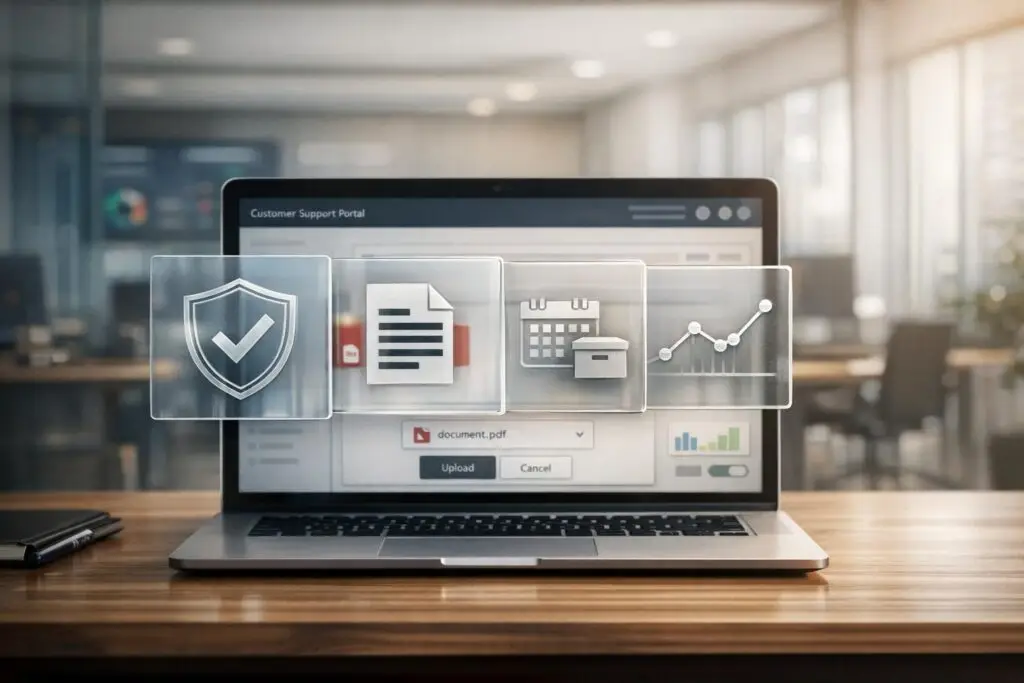
When managing file uploads in a portal, security risks like malware, sensitive data exposure, and compliance violations are unavoidable. Here’s how to address these risks effectively:
- Automated Virus Scanning: Block malicious files at upload using tools like Microsoft Defender or ClamAV. Use "Incoming/Clean/Quarantine" workflows to isolate and verify files before storage.
- PII Detection and Redaction: Deploy AI tools to identify and redact sensitive information (e.g., SSNs, credit card numbers) in real time, preventing unintentional data exposure.
- Retention Policies: Automate deletion of old files based on legal and business needs. Tools like S3 bucket rules or Azure policies streamline this process.
- Access Controls: Implement Role-Based Access Control (RBAC) to limit file access to authorized users. Use audit logs to track file interactions and detect suspicious activity.
- AI Threat Monitoring: Use AI for ongoing file behavior analysis, ensuring threats are flagged and neutralized in real time.
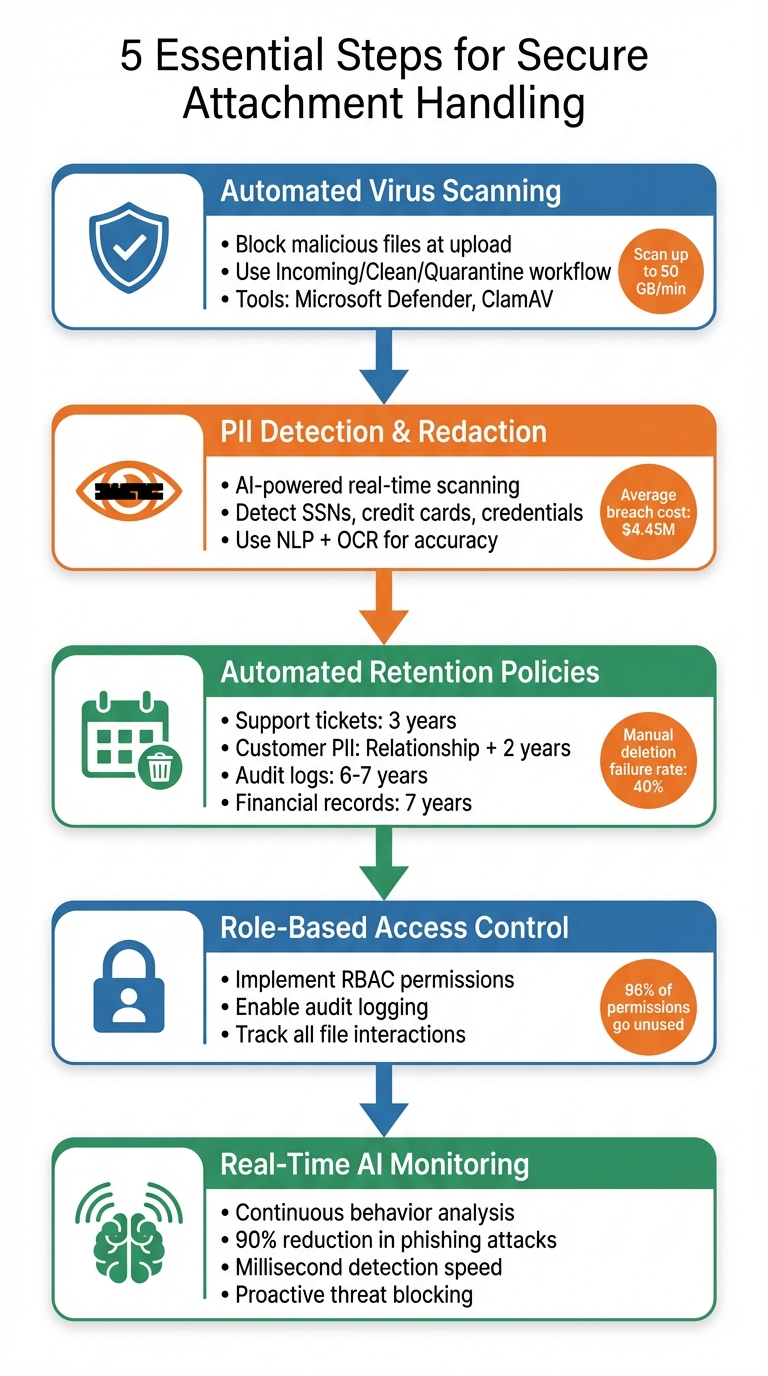
5-Step Process for Secure Portal Attachment Handling
Secure Your File Uploads Today with OWASP | Learn Web Dev with Austin Gil
sbb-itb-e60d259
Step 1: Set Up Automated Virus Scanning on Upload
Stopping malicious files at the door is your first and best defense. Automated virus scanning acts like a gatekeeper, blocking harmful files before they can reach your storage or devices [5]. Without this step, a single infected file could spread malware from a customer’s ticket to your support team’s devices – and even throughout your entire network [6][8].
Modern virus scanning tools are designed to detect more than just traditional viruses. They can identify executable scripts, phishing attempts, and even uploads that could trigger denial-of-service (DoS) attacks [5]. A smart setup is to implement an "Incoming/Clean/Quarantine" system. Here, files are first placed in an isolated holding area, scanned automatically, and only moved to production storage if deemed safe [10].
In February 2026, Salesforce rolled out a new File Scan (Beta) feature as part of its Spring ’26 release. This includes real-time UI scanning, asynchronous API scanning, and a dedicated "Malicious Files" view [9].
How to Choose a Virus Scanning Solution
When picking a virus scanning solution, focus on integration and speed. Cloud-native tools like Microsoft Defender for Storage offer agentless, automatic scanning, handling up to 50 GB of data per minute per storage account [8]. These solutions scan files in-memory and delete them immediately after processing to ensure no sensitive data lingers [8].
For smaller-scale operations with files under 100 MB, serverless options like ClamAV on AWS Lambda provide a budget-friendly way to secure uploads without managing physical servers [10]. If you prefer a vendor-managed option, API-based solutions like Filestack or Cloudinary’s Perception Point add-on are great choices. These tools can trigger scans automatically through event-driven workflows, such as Azure Event Grid or AWS S3 Event Notifications, eliminating the need for manual intervention [5][6][10][8].
To avoid unexpected costs during periods of high traffic or targeted attacks, set a monthly scanning cap. For instance, Microsoft Defender for Storage charges per GB scanned and defaults to a 10 TB (10,000 GB) monthly limit unless you customize it [8]. Use webhooks to notify your backend as soon as a scan is complete, so your system can update file statuses – like "Safe" or "Blocked" – in real time [6].
Once your virus scanning is in place, the next step is to validate file types before they’re stored.
How to Configure File Type Restrictions
File type validation is another critical layer of protection, especially against files disguised as something harmless. Don’t rely on file extensions alone – attackers often rename malicious files to appear safe. Instead, use magic bytes (specific sequences of bytes that identify file types, like %PDF for PDFs) to verify files on the server side before they reach storage [10][11].
Pay special attention to high-risk file types, such as PDFs, Microsoft Office documents (.doc, .docx, .xls, .xlsx), and compressed formats like .zip and .rar, as these are often used to hide malicious scripts or macros [11][7]. Make sure your system also scans the contents of archives to catch any hidden threats [7].
To save on resources and improve performance, exclude low-risk files like system logs (.log) or temporary files (.tmp) from scanning. You can do this by setting up rules based on file prefixes or suffixes [8]. Configure your upload API as synchronous middleware to scan files immediately and reject infected ones with a 400 error response [11]. Test your setup using the EICAR test string, a standardized, harmless string used for antivirus testing, to confirm your quarantine process works as intended [9].
Step 2: Set Up PII Detection and Redaction Tools
Once you’ve blocked malicious files, the next step is to safeguard sensitive customer data in attachments. Unlike viruses, which are intentionally harmful, personally identifiable information (PII) often gets shared unintentionally – but the consequences can be just as severe. Consider this: the average cost of a data breach is $4.45 million, and violations of GDPR alone can lead to fines of up to 4% of annual global turnover or €20 million [12].
"Support is where customers paste passwords, card numbers, and medical context into the thread. Assume every channel (ticket, email, chat) will receive PII." – OpenRedaction [13]
To address this, AI-powered tools leverage Natural Language Processing (NLP) and Optical Character Recognition (OCR) to detect and redact sensitive information. These tools operate at the point of upload – before the file is stored – minimizing exposure risks across your support systems [13]. Below, let’s explore the types of sensitive data that are most commonly shared.
Common PII Risks in Attachments
Customers often share private information without realizing the potential risks. Some of the most obvious threats include direct identifiers such as full names, Social Security Numbers (SSNs), passport numbers, driver’s licenses, email addresses, and phone numbers [12]. In addition, support teams frequently encounter financial and government-related data, including tax IDs, bank account numbers, and credit card details (partial or full) [13].
One particularly risky category is credentials – passwords, one-time passwords (OTPs), and API keys [13]. For example, in March 2024, AWS documented a case where a customer named Maria Garcia mistakenly uploaded a photo of her prescription medicine instead of proof of purchase during a support chat. Amazon Rekognition’s integrated scanner flagged the sensitive content, rejected the upload, and deleted the file from S3 storage before the support agent could access it [1].
Another concern is quasi-identifiers, such as dates of birth, ZIP codes, order IDs, device IDs, and IP addresses. While these may seem harmless individually, when combined, they can identify individuals – triggering compliance requirements under GDPR Article 30, CCPA Section 1798.100, and HIPAA Safe Harbor rules [12][13]. HIPAA, for instance, mandates the removal of 18 specific identifiers to de-identify protected health information (PHI), with penalties reaching up to $1.5 million per category per year [12]. With these risks in mind, advanced AI systems can now provide real-time scanning to protect your attachments.
How to Use AI for Real-Time PII Scanning
AI tools use a combination of Regex patterns (for structured data like SSNs or credit card numbers) and NLP models (for context-based entities like names and locations) to achieve high accuracy in identifying sensitive data [12]. Advanced systems often include over 300 specialized recognizers, far surpassing the roughly 30 found in standard tools [12].
To maximize protection, trigger redaction at the point of ingestion – scanning attachments before they are indexed or replicated [13]. For image-based files, OCR extracts text, and the system applies either masking (replacing text with **** or labels like [ADDRESS]) or pseudonymization (assigning consistent IDs like PERSON_1), with pseudonym maps stored separately under strict access controls [14][15]. For example, Azure AI Language processes up to 40 documents per request, with a 10 MB limit per file [15], while Amazon Bedrock Data Automation can handle files up to 200 MB via console or 500 MB via API [15].
Pseudonymization is especially useful for workflows involving downstream processing – like automated classification or legal reviews – since it preserves the relationship between repeated mentions of the same entity. If you choose this method, ensure the entity map is stored securely with stricter access permissions [15].
To further tighten security, display truncated tokens by default, with full details accessible only to authorized personnel using break-glass permissions [13]. Shorten Time-to-Live (TTL) settings for full transcript storage, keeping only redacted summaries for long-term reporting [13]. Finally, perform regular audits – sample tickets monthly and search for patterns like credit card BINs or national ID formats using regex to catch any potential redaction gaps [13].
Step 3: Set Up Automated Retention and Deletion Policies
After completing virus scanning and PII redaction, the next step is setting up automated retention policies. Why does this matter? Holding onto unnecessary data increases costs and the risk of breaches. Manual deletion processes are unreliable, with a failure rate of roughly 40%, making automation essential for maintaining compliance [17].
"A well-crafted retention schedule is your best defense… It’s your primary shield against accusations of hiding or improperly destroying information." – AttachDoc [16]
The real challenge lies in automating these decisions to ensure they’re consistent, timely, and aligned with regulations like GDPR, CCPA, and HIPAA. Below, we’ll break down how to define retention periods and fully automate the process.
How to Define Retention Policies for Attachments
Start by taking inventory of all records, including attachments, ticket metadata, chats, and logs. Organize these into categories such as "Support Tickets", "Customer PII", "Financial Records", and "Legal Documents." This grouping allows you to apply uniform rules across similar data types [16][17].
When setting retention periods, follow this guideline: the longer of the legal minimum or business need, but never exceeding the legal maximum [17]. For example:
- Support tickets are often retained for 3 years after closure [17].
- Customer PII under GDPR is typically kept for the relationship duration plus 2 years [17].
- Audit logs required by SOX or HIPAA must be stored for 6–7 years [17].
- Financial records governed by IRS regulations require 7 years of storage [16][17].
Here’s a quick reference table:
| Data Type | Typical Retention Period | Regulation/Standard |
|---|---|---|
| Support Tickets | 3 years after closure | Industry Standard [17] |
| Customer PII | Relationship end + 2 years | GDPR/Privacy Standards [17] |
| Audit Logs | 6–7 years | SOX/HIPAA [17] |
| Financial Records | 7 years | IRS/Tax Law [16][17] |
| Recruitment Data | 6–24 months | GDPR Best Practice [17] |
Additionally, implement legal holds to prevent the deletion of records tied to ongoing legal matters [16][17].
How to Automate Retention Workflows
Once you’ve defined retention rules, the next step is automation. Use lifecycle management tools, like S3 bucket rules or Azure blob lifecycle policies, to handle data automatically. For example, you can configure these tools to move older data to cold storage or delete it based on tags or age [18][19]. Temporary files, such as staging data, should have strict deletion policies – 30 days is a common standard [18]. Final deliverables, on the other hand, often require retention for 7 years or more [18].
If your support platform doesn’t offer built-in retention features, consider using database triggers or cron jobs to anonymize or delete expired data on a regular schedule [17]. Before deleting anything, ensure that the tool checks for "legal-hold" tags or classifications to avoid compliance issues [19]. AI-powered tools can also help by analyzing metadata – like contract expiration dates or project milestones – to trigger deletion or archiving exactly when required [19].
"The alternative to not having a solution like Lightbeam would have been to hire 10 people to perform all of the functions it provides manually." – Martin Parent, VP Operations, AGA Benefits [19]
Finally, conduct monthly audits to confirm that automation is working as expected and no data is retained beyond its designated retention period [17]. This step ensures compliance and keeps your processes running smoothly.
Step 4: Configure Access Controls and Permissions
Once automated retention is set up, the next step is to ensure files are accessible only to those who are authorized. Even with virus scanning, PII detection, and retention policies in place, sensitive files remain vulnerable without strict access controls. This step is critical for reducing risks.
How to Configure Role-Based Access
Role-Based Access Control (RBAC) is key to separating attachment access from ticket access. Assign permissions carefully so that only specific roles – like senior support staff or compliance officers – can view and manage sensitive files. To prevent data leaks, restrict capabilities such as downloading, saving, or printing files to local devices or personal storage.
"Only users with access to both the security gateway and the ticketing system can access and decrypt the files." – SendSafely [2]
For cloud-based storage solutions like Amazon S3, enforce CORS (Cross-Origin Resource Sharing) policies to limit file GET and PUT requests to approved business domains [20]. Additionally, require authentication for all attachment access to block unauthorized usage [2].
While controlling access is essential, it’s equally important to track what happens to these files. This is where audit logs and monitoring come in.
How to Set Up Audit Logs and Monitoring
Audit logs play a crucial role in identifying suspicious activity and ensuring compliance. Configure your system to log every interaction with the files – whether it’s a view, download, or modification – along with user details and timestamps [2]. This not only helps meet regulations like GDPR and HIPAA but also strengthens your security posture [23].
"Audit trails maintain detailed records of who accessed the file along with the changes made. By enabling audit trails, businesses can monitor all activities on the portal to detect potential security threats." – Moxo Team [22]
Instead of allowing direct file downloads, consider using secure, cloud-based links. This method offers centralized monitoring, the ability to revoke access at any time, and visibility into unauthorized sharing attempts [21][23]. If someone without the correct permissions tries to access a file, your system should flag it instantly [23].
Regularly review your audit logs – monthly at a minimum. Look for red flags like high download volumes, after-hours activity, or attempts to access files outside an employee’s role. These patterns could signal a potential security breach. By staying vigilant, you can catch and address issues before they escalate.
Step 5: Use AI for Real-Time Threat Monitoring
Once you’ve implemented access controls and audit logs, it’s time to add another layer of security: continuous monitoring. While traditional scans check files only during upload, AI keeps an eye on attachment workflows in real time, identifying threats that might slip past older methods. This ongoing analysis fills the gaps left by one-time scans.
How AI Detects Malware Beyond Traditional Scans
Conventional antivirus tools rely on recognizing known malware signatures, which means they can miss new or altered threats. AI takes a different approach by examining behavior patterns rather than just file attributes. It evaluates how a file behaves, who sent it, and whether the recipient typically receives such attachments [26].
For instance, AI can detect a spreadsheet with hidden macros or spot anomalies like an unusually large number of empty cells – both common signs of an Excel-based attack [26]. It also creates sender profiles, flagging unusual activity even when the file itself seems harmless [26]. This "human-like" contextual understanding goes beyond the capabilities of traditional scans.
"If attackers now are using sophisticated techniques like AI, we should be using AI to combat them." – Jeff McDonald, SVP of Technology Services [24]
AI-powered security platforms can reduce phishing attacks by as much as 90% and deliver malware detection results in mere milliseconds [24][25]. Even better, when AI identifies a new threat in one area – like email – it shares that information across your entire system, including endpoints and customer portals, offering proactive protection everywhere [25].
How to Set Up Threat Alerts
Speed matters. AI can immediately flag high-risk attachments and notify administrators [4]. To maximize protection, configure alerts for unusual sender activity, suspicious file structures, or infected uploads. Enable AI scanning on public portals to block threats instantly [9]. This gives your security team the chance to investigate and act before any damage occurs.
When testing your setup, use the EICAR test string – a harmless file designed for security testing – to confirm that the AI correctly blocks uploads and triggers alerts [9].
If the AI scanner encounters an error or times out, treat the file as a potential threat by default and move it to quarantine [4]. To manage storage and minimize risks, set up automatic deletion of quarantined files after a set retention period. Automating these processes ensures threats are neutralized in milliseconds, sparing your team from manual intervention and reducing response times.
Common Mistakes to Avoid When Handling Attachments
Even with solid safeguards in place, organizations often make avoidable errors that can leave their systems vulnerable. One major issue is relying on outdated virus scanners. These scanners, which depend on static signature databases, often fail to detect newer threats like ransomware, trojans, or malicious scripts hidden in PDFs and Office documents. The fix? Use managed APIs or take advantage of native cloud tools that automatically update malware signatures. This eliminates the need for manual updates and ensures your defenses stay current [11]. As noted in Step 1, keeping virus scanners updated is critical. Skipping regular data audits is another misstep that can leave older attachments exposed.
Routine audits are just as important as scanning. Support systems tend to accumulate unstructured files with outdated naming conventions, and studies show that about 96% of enterprise permissions remain unused, increasing the risk of unrestricted file access [27]. To combat this, conduct monthly audits of stored tickets and attachments. Look for patterns such as credit card BINs, email formats, or national ID numbers [13]. If sensitive information, like personally identifiable information (PII), is found in the wrong storage location, fix the automated processes rather than relying solely on staff retraining [13].
"Sample tickets monthly. Search for patterns (card BINs, email regex, national ID formats). If hits appear in the wrong tier of storage, fix the pipeline – not the agent memo." – OpenRedaction [13]
Another common pitfall is manual retention processes, which are not only error-prone but also lack the robust audit trails required for compliance. These workflows can lead to sensitive data being retained longer than necessary [28][29]. Automating retention processes can solve this issue. Use scheduled jobs with customizable file-routing logic based on metadata, such as filenames, file size, or content labels [29]. This ensures centralized monitoring of file lifecycles and automatically deletes flagged files from both staging and permanent storage areas [1].
Lastly, treating file uploads as just a user experience issue instead of a potential security risk is a critical oversight [4]. Every uploaded file should be considered untrusted until it’s verified. To secure uploads, store them in a dedicated "raw" storage zone first. Only move files to a "safe" area after they’ve passed a thorough virus scan [4]. By implementing these practices, you can build a stronger, more secure attachment management system.
How AI Improves Attachment Security in B2B Support
After implementing virus scanning, PII redaction, and retention policies, AI strengthens attachment security in B2B support by combining these measures into a single, automated system. It analyzes files the moment they’re uploaded – detecting threats, redacting sensitive information, and enforcing retention rules instantly. This immediate response is critical in B2B support, where a compromised attachment could expose sensitive customer contracts, financial records, or proprietary technical documents.
AI goes beyond basic virus scanning by examining the content and structure of files. Modern tools like Amazon Rekognition use machine learning to analyze the internal structure of files rather than relying solely on file extensions, thwarting attempts to disguise malicious executables as harmless images [1]. When integrated with serverless functions like AWS Lambda, these scanners automatically delete flagged files from both staging and permanent storage [1]. This eliminates the delay and risks associated with traditional systems, where flagged files often sit in quarantine awaiting manual review.
For PII protection, AI employs a zero-knowledge design, ensuring that sensitive data is scanned without being exposed in plaintext. For instance, SendSafely Halo uses end-to-end encryption to securely scan files as large as 100 GB [3].
"Halo enables file sharing without ever exposing data to the model itself… Sensitive documents never touch vendor storage in the clear." [3]
This approach keeps sensitive information secure throughout the entire support process.
AI also classifies documents and applies tailored deletion triggers based on file type. For example, sensitive originals may have shorter retention periods, while business records can be kept longer [30]. UpBrains AI underscores this by stating their system can be configured to "retain NO DATA in UpBrains AI’s storage after processing, another layer of preserving your data privacy and confidentiality" [30].
Platforms like Supportbench integrate these AI capabilities seamlessly, enabling real-time file scanning, automatic PII flagging, and enforcement of retention policies – all without requiring IT teams to create custom solutions. This streamlines operations, reduces compliance risks, and allows support agents to focus on resolving customer issues instead of worrying about file safety protocols.
Conclusion: Best Practices for Secure Attachment Handling
When it comes to securing attachments in your support portal, every file uploaded should be treated as untrusted input until it’s verified as safe. Files must pass through a robust validation process, moving from "raw" to either "safe" or "quarantine" zones before being accessed by agents or systems.
To build a strong defense, layer your security measures. Essential steps include automated virus scanning, AI-driven detection of sensitive information, retention policies that enforce compliance, role-based access controls, and real-time AI monitoring. Each of these measures addresses specific risks, and when combined, they create a system that prevents vulnerabilities from snowballing into major breaches. These layers also help ensure operational efficiency and compliance – key priorities for B2B support environments.
AI plays a pivotal role by continuously monitoring for new threats. It shifts security from being reactive to proactive. Modern tools can instantly analyze file structures, flag inappropriate content, and enforce compliance rules – all without exposing sensitive data to the AI itself. As Marwan Bassyouni from AWS puts it, "By implementing this strategy, businesses can enhance cyber resilience, mitigate risk posed by malicious activities, with security and compliance requirements top of mind" [1].
Malicious files pose a serious threat to data security and customer trust. By integrating tools like automated scanning, PII detection, retention automation, and detailed audit logging, you can process attachments securely while maintaining the speed and ease that customers expect.
Solutions like Supportbench simplify this process by embedding these capabilities directly into the platform. This eliminates the need for custom integrations or manual intervention, allowing your team to focus on resolving customer issues. At the same time, it ensures compliance and protects the trust that underpins B2B relationships. Following these best practices helps streamline your operations while consistently safeguarding customer data.
FAQs
What’s the safest upload workflow for attachments in a support portal?
The safest way to handle file uploads in a support portal involves a series of secure steps designed to protect both users and the system. Here’s how:
- Use presigned URLs: These allow for secure, temporary file uploads without exposing sensitive credentials.
- Scan files for viruses: Perform server-side antivirus checks to catch malicious files before they’re processed.
- Detect and manage PII: Automated tools can identify and handle sensitive personal information in uploaded files.
- Restrict file size and types: Limit uploads to specific file types and sizes to prevent abuse or system overload.
- Enforce access controls: Apply strict access rules for flagged files to ensure only authorized personnel can view them.
- Automate retention policies: Set up automated systems to delete files after a specific period, ensuring compliance with data regulations.
By following these steps, you can reduce risks and keep your support portal secure.
How can we detect and redact PII in PDFs and images automatically?
You can rely on AI-powered tools that use natural language processing (NLP) and image analysis to identify and redact sensitive information (PII) in PDFs and images. These tools automatically detect private data, apply redactions, and minimize the chance of manual mistakes. Providers like Microsoft and AWS offer cloud-based APIs, giving you scalable solutions to manage PII securely. This approach helps ensure compliance while safeguarding data in customer support workflows.
How do we set retention rules without deleting files under legal hold?
To manage retention rules while safeguarding files under legal hold, you need to configure retention policies that exclude these files from automatic deletion. Make sure these policies are designed to recognize and respect the legal hold status, ensuring no modifications or deletions occur until the hold is removed. This setup lets you enforce retention rules on other data while keeping files under legal hold protected.
Related Blog Posts
- How do you set up a customer portal that supports role-based access and multiple customer teams?
- Cybersecurity Software Support: Handling Sensitive Client Data Safely
- LegalTech Support: Confidentiality and Case Management Workflows
- Customer portal design checklist for regulated industries (audit, RBAC, logs)