

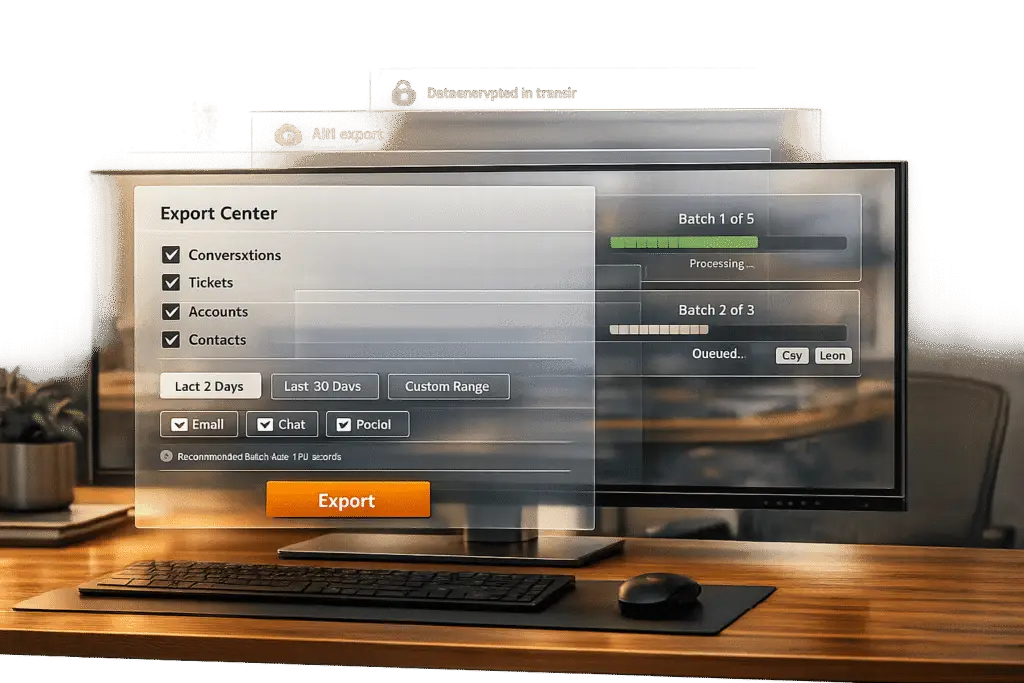
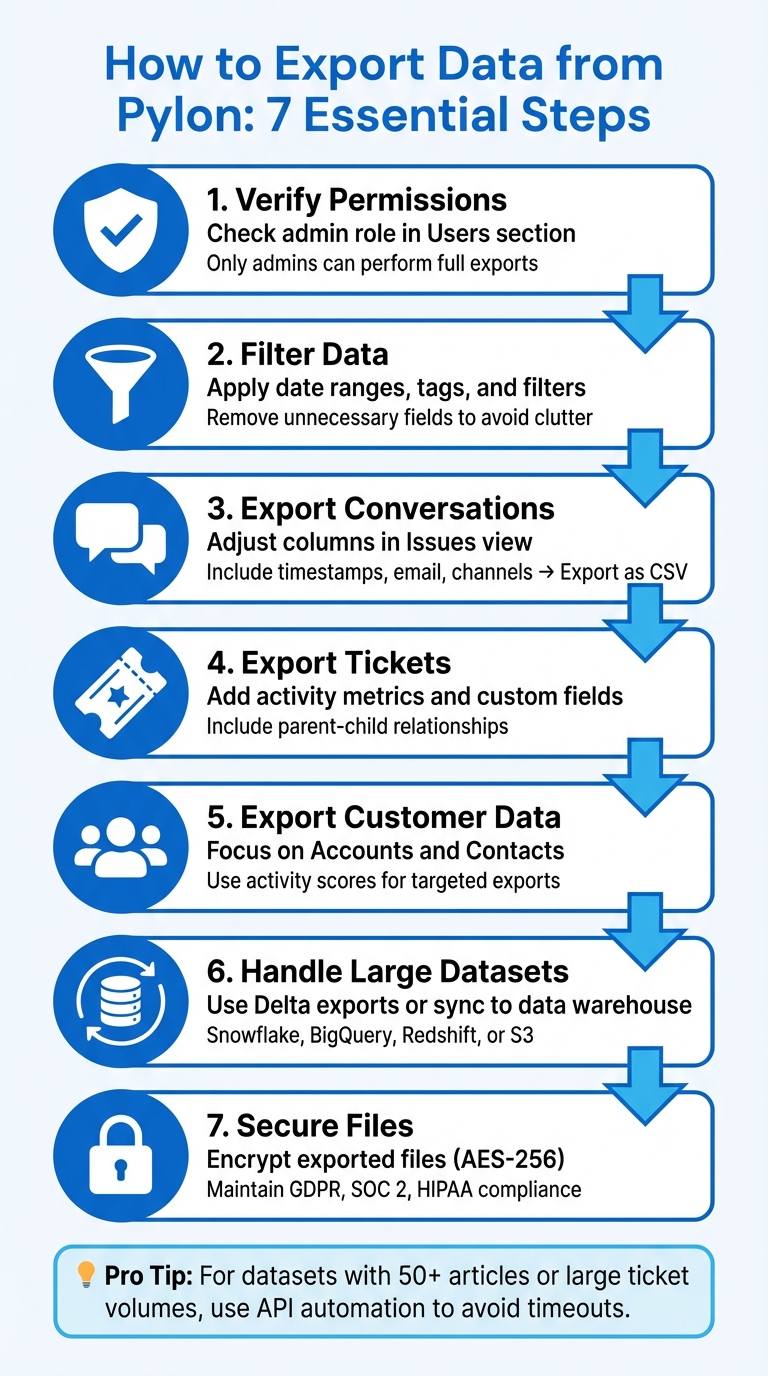
Exporting data from Pylon is straightforward when you follow the right steps. Whether you’re handling conversations, tickets, or customer data, the process ensures your information is organized, secure, and ready for analysis or migration. Here’s a quick summary:
- Verify Permissions: Only admins or users with the correct roles can perform exports. Check your role in the Users section.
- Filter Data: Use filters (e.g., date ranges, tags) to narrow down your export. Clean up unnecessary fields to avoid clutter.
- Export Conversations: Adjust columns in the Issues view to include necessary details (e.g., timestamps, email, channels) before exporting as CSV.
- Export Tickets: Include metrics like activity volume, custom fields, and relationships (e.g., parent-child tickets).
- Export Customer Data: Focus on Accounts (companies) and Contacts (individual users). Use filters like activity scores for targeted exports.
- Handle Large Datasets: Use Delta exports or sync data directly to platforms like Snowflake or BigQuery to avoid timeouts.
- Secure Files: Encrypt exported files and restrict access to maintain compliance with standards like GDPR and SOC 2.
Exporting efficiently requires proper setup, filtering, and validation. By following these steps, you can ensure your data is accurate, secure, and ready for use.
Step-by-Step Guide to Exporting Data from Pylon
Preparing for Data Exports in Pylon
Before diving into data exports, make sure you have the right permissions and a clear idea of what data you need. Skipping these steps can lead to failed exports or even compliance headaches.
Verify Access and Permissions
To handle data exports in Pylon, you need the Admin role, which grants access to workspace-level settings and allows API token creation for exports. If you’re assigned the standard Member role, your options will be limited to basic CSV exports.
Check your role by navigating to the Users page in Pylon and reviewing the dropdown menu. If your organization uses SSO or SCIM provisioning, double-check that roles are mapped correctly in the Access & SSO settings. Automated provisioning can sometimes assign incorrect permissions.
For teams using the Enterprise plan, custom roles can be a game-changer. They allow you to grant contractors or external consultants access to specific data subsets without exposing sensitive workspace settings. This is especially helpful during migrations when temporary third-party access is required.
Identify Data Types and Export Requirements
Pylon organizes its data into several categories, including:
- Issues: Tickets with full conversation threads
- Accounts: Company-level data
- Contacts: Individual user details
- Knowledge Base: Articles and collections
There are also specialized datasets like NPS and CSAT survey results, as well as Tasks and Milestones. Before exporting, take some time to audit your custom fields. Carrying over unused fields from legacy systems can clutter your data and make reporting harder. Focus on what truly supports your business needs.
Use filters to narrow down your data. For example, apply date ranges to exclude outdated information or focus on specific sources, like a Slack channel or a Chat Widget, to keep your exports manageable.
| Data Category | Specific Types | Export Method |
|---|---|---|
| Support Operations | Issues, Conversations, Threads | CSV Export, API, S3 Sync |
| Customer Data | Accounts, Contacts, Subaccounts | CSV Export, API, CRM Sync |
| Feedback & Quality | NPS Results, CSAT Scores, AI QA Logs | CSV Export, API |
| Knowledge Base | Articles, Collections | API, PDF (Individual) |
Planning these details ensures that your AI-driven export and automation processes run smoothly.
Check Export Limits and Filters
While Pylon doesn’t enforce strict file size limits, large datasets can timeout if not filtered properly. For smaller knowledge bases (fewer than 50 articles), a manual copy-paste might actually save you time compared to setting up an automated export.
Before exporting, clean up your data. Look for common issues like anonymous contacts or generic email domains. Use time-based filters to focus on recent data – tickets from the past year are usually enough for compliance and analysis. If your dataset is massive, segment by team and include only the custom fields that are relevant moving forward.
These steps will help you avoid unnecessary delays and keep your exports efficient and accurate.
sbb-itb-e60d259
Step-by-Step Guide to Exporting Pylon Data
Pylon brings together conversations from platforms like Slack, Email, Chat Widget, Microsoft Teams, and Discord into a single, unified view called "Issues". This means your CSV export will mirror exactly what you see on your screen. If a column isn’t visible in your list view, it won’t show up in the exported file. Follow these steps for accurate exports tailored to your needs.
Exporting Conversations (Chats and Emails)
To ensure your exports are both precise and actionable, start at the Issues page. Customize the columns to include details like requester email, timestamps, channel source, and language. Use filters such as Created At for tickets opened during a specific period or Last Activity At for recent interactions to narrow down your dataset. Once your view displays all the necessary data, click the export button to download the CSV. Since only visible columns are included, double-check your setup before exporting.
Exporting Tickets (Cases with Activities)
For ticket-specific data, adjust your view to include metrics relevant to your workflow. Tickets are managed as Issues, so the process is similar. Add columns like Number of touches to track activity volume, external issue links (e.g., Jira or Linear), and any custom fields you use regularly. If you’re filtering by multiple tags or teams, use the "contains all" operator for multiselect fields. To track parent-child ticket relationships, include the Number of Child Issues column to display hierarchies. Once your view is set, export the CSV and verify that all activity metrics and external links are correctly included.
Exporting Customer Data
When exporting customer data, focus on filtering Accounts (companies) and Contacts (individual users). Use filters like activity score or segment to zero in on high-value customers or specific groups. Select fields such as account notes, custom data, and contact details before exporting. This data can be critical for analytics tools or syncing with modern support CRM systems. Keep in mind that Pylon’s compliance framework prohibits sharing or selling customer personal data to third parties, so ensure exported files are secured and access is restricted.
Overcoming Common Challenges During Exports
Handling Large Datasets and Timeouts
When dealing with massive datasets, timeouts and performance slowdowns can become frustrating obstacles. Luckily, Pylon provides Delta exports, which allow you to pull only the newest or updated records since your last transfer. This eliminates the need to repeatedly export the same historical data, saving both time and system resources. For larger migrations, Interval Migrations can be a lifesaver. This feature lets you pause and resume your export up to five times over a five-day period, helping to manage system load without disrupting your workflow.
Another effective strategy is applying date filters. By focusing on tickets created within the last year, you can reduce the risk of timeouts and keep your export relevant to current needs. If your analytics requirements involve datasets too large for standard exports, consider syncing your data directly into platforms like Snowflake, BigQuery, Redshift, or Amazon S3. This approach bypasses the limitations of manual CSV downloads and ensures smoother data handling.
Fixing Field Mapping Errors
Field mapping errors often occur when Pylon’s core objects – Accounts (companies), Contacts (individual users), and Issues (tickets) – don’t align properly with the destination system. Although Pylon supports 12 custom field types (such as Multi-select, Datetime, and Formula), mismatches can arise. For example, exporting a Multi-select field to a system that only accepts plain text can lead to inconsistencies.
To prevent these issues, audit your fields under Settings > Pylon and ensure that each one matches the format requirements of your destination system. Simplify the process by removing unused custom fields. If you encounter widespread errors, Pylon’s API endpoints – PATCH /issues, PATCH /contacts, or PATCH /accounts – can help you bulk-correct field values before completing the export. These adjustments ensure a smoother and more reliable data transfer.
US-Specific Compliance and Formatting
For US-based organizations, maintaining compliance with standards like SOC 2 Type II, HIPAA, GDPR, and ISO 27001 is critical – and Pylon has these certifications covered. If your export involves protected health information (PHI), double-check that your process adheres to HIPAA requirements before transferring data outside the platform. To maintain formatting consistency – such as date formats (MM/DD/YYYY) and number separators (commas for thousands) – opt for Pylon’s integrations with Snowflake or BigQuery instead of manual CSV exports.
It’s also important to address data hygiene before exporting. For example, merge duplicate accounts, especially those with generic email domains like @gmail.com, to improve reporting accuracy. Use tools like Audit Logs and Role-Based Access Control to monitor who performs exports, ensuring compliance with internal security policies. These steps not only safeguard compliance but also enhance data integrity, making it easier to integrate AI-driven automation tools down the line.
Leveraging AI to Automate and Streamline Exports
Pylon’s API and AI tools simplify manual export tasks by turning them into automated workflows, saving time and reducing the risk of errors. These capabilities are particularly useful in AI-driven customer support operations.
Using Pylon API for Scripted Exports
Admin users have exclusive access to create API tokens, which are essential for exporting data through Pylon. Once authenticated, you can use the GET /issues endpoint to retrieve time-based lists or the POST /issues/search endpoint to filter datasets based on specific parameters. These filters include criteria like created_at, account_id, state, tags, title, and custom fields, allowing you to zero in on the exact data you need.
The API employs cursor-based pagination, with a default limit of 100 results per request that can be increased to 1,000. Rate limits are set at 10 requests per minute for listing issues, 20 for searches, and 60 for fetching details of individual issues. When using the GET /issues endpoint, make sure to limit the time range between start_time and end_time to a maximum of 30 days. All time-based queries must follow the RFC3339 format to avoid errors. This scripted approach provides a solid framework for preparing data with AI enhancements.
AI-Powered Pre-Export Triage
Pylon’s AI takes the guesswork out of ticket categorization by using natural language processing to tag and organize tickets in seconds. This step ensures that your data is already structured and filtered for relevance before the export process begins. The AI also evaluates key factors like urgency, account value, and issue complexity, helping you prioritize data segments such as high-value account tickets.
"AI-powered ticketing systems can increase the number of tickets handled per agent from 12 to 23 per day – a 92% productivity boost – while reducing the average cost per ticket from $22 to $11." – Pylon Team
Leverage these AI-generated tags with the /issues/search API to extract high-priority or topic-specific datasets. This eliminates the need for manual data cleanup, ensuring that your exported files are ready for immediate use.
Integrating with Data Warehouses
Once triage is complete, Pylon integrates seamlessly with data warehouses to automate continuous data syncing. Instead of relying on manual CSV exports, you can use Pylon’s native integrations with platforms like Snowflake, BigQuery, Redshift, and Amazon S3. These connectors keep analytics and issue data updated in real time, with no additional scripting required. You can even set up workflows to flag and export high-priority data directly to CRMs like Salesforce or HubSpot.
For instance, in 2025, Ada successfully migrated to Pylon from another platform in just two weeks. This process involved exporting and transferring an entire year’s worth of historical support data. This case highlights how API-driven exports combined with warehouse integrations can handle large-scale data transfers efficiently while maintaining both accuracy and compliance.
Best Practices for Accurate and Compliant Data Exports
After completing the export process, it’s crucial to follow these best practices to keep your Pylon data accurate, secure, and compliant.
Validating Exported Data
Start by validating your exported data against Pylon’s source records to ensure completeness and accuracy. Check the mappings between fields, such as "Companies" to "Accounts", "Issues" to "Tickets", and "Users/Leads" to "Contacts." Pylon’s built-in GraphQL playground can help by running validation queries to confirm that the output aligns with expected types and structures. This approach, which generates the API schema directly from TypeScript definitions, minimizes manual mapping errors.
Be alert for common data quality issues. For instance, accounts created using generic email domains like @gmail.com can result in fragmented reporting, as Pylon might create separate accounts for each contact. Additionally, verify that tickets meant for archival are in a "closed state" since agents and customers cannot reply to these within Pylon. To make this process easier, Pylon’s AI Issue QA and AI Reports features can automatically scan for inconsistencies or missing data in conversations and tickets, or you can customize customer support data reports to manually audit specific fields.
Once validation is complete, focus on securing your data during and after the export process.
Securing Exported Files
Protect your exported data by encrypting it with AES-256, both at rest and during transit. Strengthen account security by enabling multi-factor authentication (MFA) on accounts used for accessing Pylon and exporting data. Apply the principle of least privilege, ensuring only authorized users can access exported files. If you opt for custom encryption, be cautious with key management – losing your keys could result in permanent data loss, while compromised keys could lead to breaches.
"Customer is solely responsible for its use of the Services, including (a) making appropriate use of the Services to ensure a level of security appropriate to the risk in respect of Customer Personal Data; (b) securing the account authentication credentials, systems and devices Customer uses to access the Service; and (c) backing up Customer Personal Data." – Pylon Data Processing Agreement
Pay attention to U.S.-specific compliance requirements. Starting April 8, 2025, the Department of Justice (DOJ) will regulate the transfer of "bulk sensitive personal data" to specific countries, including China, Russia, Iran, North Korea, Cuba, and Venezuela. If your exports include personal health data for over 10,000 U.S. individuals or identifiers for over 100,000 U.S. individuals, you’ll need to meet CISA security standards. These include using MFA, encryption, and maintaining a 12-month log retention period. Non-compliance could result in civil penalties of up to $368,136 or twice the transaction amount, and criminal penalties could reach $1,000,000 and 20 years in prison. Annual independent audits and retaining compliance records for at least 10 years are also required.
With security measures in place, ensure continuity through regular backups.
Scheduling Regular Backups
Set up automated backups using Pylon’s API, ideally during off-peak hours to avoid timeouts. Create retention policies to manage data lifecycle and delete exported files that are no longer needed. Use data flow management tools to automatically track where exported data moves, reducing compliance risks and eliminating the need for manual tracking via spreadsheets. Regular backups are essential for maintaining operations and safeguarding data during platform migrations or unexpected system failures.
Conclusion
Exporting Pylon data offers a clear pathway to turning support interactions into actionable insights. This approach not only reduces costs and enhances compliance but also empowers teams to make smarter, data-driven decisions. For example, AI-powered ticketing systems can boost an agent’s capacity from 12 to 23 tickets a day – a striking 92% increase in productivity. Meanwhile, automated workflows can slash the average cost per ticket by half, dropping it from $22 to $11.
The foundation of these benefits lies in maintaining clean data. Start by filtering out outdated tickets, removing anonymous users, and keeping only the essential custom fields. Why is this so critical? Clean data leads to better AI training, which in turn produces more accurate automated responses and quicker resolutions. Companies that adopt these AI-driven support strategies have seen up to a 45.8% reduction in headcount needs, even as ticket volumes grow.
Accurate data exports also play a vital role in meeting compliance standards like SOC 2, GDPR, HIPAA, and ISO 27001. By replacing traditional linear scaling with automation, organizations can manage resources more effectively. Syncing exported data into platforms like Snowflake, BigQuery, or Redshift unlocks valuable insights into metrics such as deflection rates, resolution times, and account health signals – insights that might otherwise remain hidden. This level of visibility is what distinguishes proactive teams from those merely reacting to problems.
FAQs
What permissions do I need to export data from Pylon?
To export data from Pylon, having the right permissions is crucial to maintain secure and compliant handling of conversations, tickets, and customer information. Usually, this means you’ll need administrative or elevated access rights, as these roles are designed to manage sensitive data and oversee export operations.
Since Pylon emphasizes security and compliance, permissions are tied to user roles and data access controls. This setup helps prevent unauthorized exports and ensures the integrity of the data. If you’re uncertain about your access level, it’s a good idea to reach out to your system administrator to confirm whether you have the required permissions to export data.
How can I export large datasets without running into timeouts?
Exporting large datasets can sometimes lead to timeouts, but a few adjustments can help ensure a smoother process. One effective approach is to break your data into smaller batches – for example, by date range, ticket types, or customer groups. This reduces system strain and lowers the risk of errors. If your platform allows it, try exporting data incrementally, starting with the most recent records and working backward to include older data.
Still facing issues? Contact your platform’s support team for guidance. They might provide specialized tools or recommend workflows designed to handle large exports. Additionally, AI-powered automation tools can simplify the process, efficiently managing large datasets while maintaining accuracy. These techniques can save time, reduce manual work, and make exporting large datasets much more manageable.
What are the best practices for ensuring GDPR compliance when exporting data?
When exporting data under GDPR, it’s crucial to focus on legal, technical, and procedural safeguards to protect personal information and maintain compliance. Start by drafting a clear and detailed Data Processing Agreement (DPA). This document should specify how personal data will be processed, the purpose behind it, and the responsibilities of all involved parties.
To secure the data, implement measures like encryption, access controls, and purpose limitations. These steps ensure that data is only used for its intended purpose and remains protected from unauthorized access.
Another key principle is data minimization – export only the data that is absolutely necessary for the task. Keep meticulous records of all export activities to demonstrate compliance with GDPR requirements. If user consent is required, make sure to obtain it beforehand and provide users with options to exercise their rights, such as accessing or deleting their data.
Lastly, regularly review your retention policies. This ensures that personal data is only stored for as long as it’s needed. Once it’s no longer required, securely delete it to further protect user privacy and reduce legal risks. These steps not only safeguard user data but also help maintain trust and accountability.
Related Blog Posts
- How do you migrate from Salesforce Service Cloud to a helpdesk without losing case history?
- How do you migrate away from Freshdesk without losing tickets, contacts, or history?
- How do you export Freshdesk tickets + attachments (API + CSV) the right way?
- How do you migrate away from Pylon without losing shared inbox history and customer context?