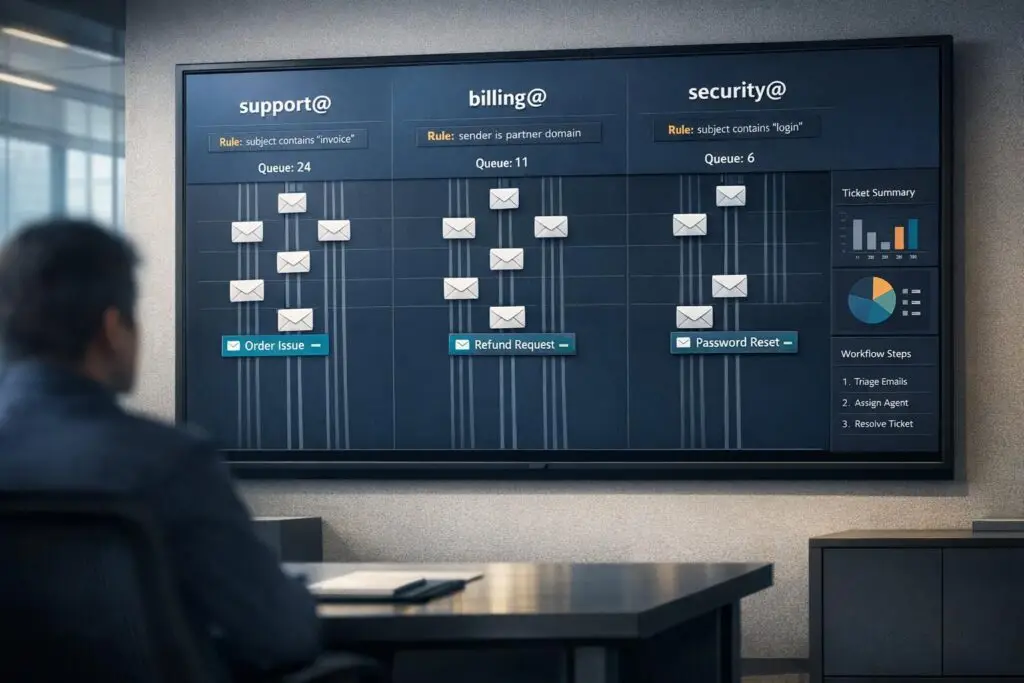
Routing emails based on inbound addresses helps avoid delays, miscommunication, and costly manual triage. Misrouted emails can waste up to 30% of employee time and cost businesses millions annually. The solution lies in using clear, deterministic routing rules that ensure emails land in the right hands efficiently. Here’s what works:
- Dedicated email addresses like
billing@orsupport@prevent confusion and speed up ticket assignment. - AI classification analyzes email content to sort messages in seconds, reducing delays and improving accuracy.
- Simplified routing rules avoid bottlenecks caused by overly complex systems.
- Dynamic systems scale easily as teams grow, unlike static setups that fail under increased demands.
How to route support emails with AI
sbb-itb-e60d259
Common Email Routing Mistakes and How to Fix Them
Email routing issues often arise from treating the process as manual labor, creating overly complicated rules, or sticking to static systems. These missteps lead to delays, inefficiencies, and frustrated customers.
Misrouted Tickets and Their Consequences
Improper routing can leave tickets sitting in shared inboxes for 4–6 hours [2]. This means billing inquiries might end up with engineering, while feature requests could land with billing [2][6]. On top of that, manual triage consumes 30% of employee time before the actual problem-solving even begins [2].
A straightforward solution is setting up dedicated intake email addresses. Use specific addresses like bugs@, billing@, or renewals@ to route emails directly to the right team or tool. For urgent matters like fraud reports, create dedicated routes that trigger immediate case creation, skipping the standard queue altogether. Another helpful tactic is implementing email threading. By using Message-ID and In-Reply-To headers, you can ensure replies are linked to the original ticket, avoiding duplicate entries [5].
Overly Complex Routing Rules
Overcomplicated routing slows everything down. When logic involves too many nested conditions or unclear classifications, tickets get stuck. Considering the average office worker handles over 120 emails daily [4], these delays can quickly pile up.
"This isn’t a staffing problem. It’s a routing problem, and you can fix it without writing a single line of code." – Silviya Velani, Founder, Builts AI [2]
Simplify routing with AI classification. AI can analyze subject lines and email content to assign structured labels – like intent, urgency, or category – in under 2 seconds [2]. To prevent errors, set a confidence threshold (e.g., 0.75). Emails below this score can be flagged for human review [6]. Additionally, include an escape hatch in automated responses, such as "Reply ‘no’ to speak with a person", ensuring more complex issues are redirected to a human promptly [2].
Static Routing That Doesn’t Scale
Static routing systems often fail as teams expand. What works for a small team of five agents becomes ineffective for a team of fifty. These rigid setups struggle to adapt to changes in team structures, new product lines, or varying customer needs [5].
To scale effectively, consolidate communication channels. Bring email, chat, and social messages into a single help desk system, so one set of routing rules handles all incoming traffic [2]. Use keyword-based tagging to automatically categorize tickets based on their subject line or body content [5]. For teams managing sensitive documents, like KYC or AML paperwork, integrate automated verification and secure parsing to maintain compliance as ticket volumes grow [5]. Lastly, spend just 15 minutes each week reviewing misrouted tickets. This small effort helps refine AI prompts and routing logic as customer language evolves [2].
How to Set Up Inbound Email Routing: Step-by-Step
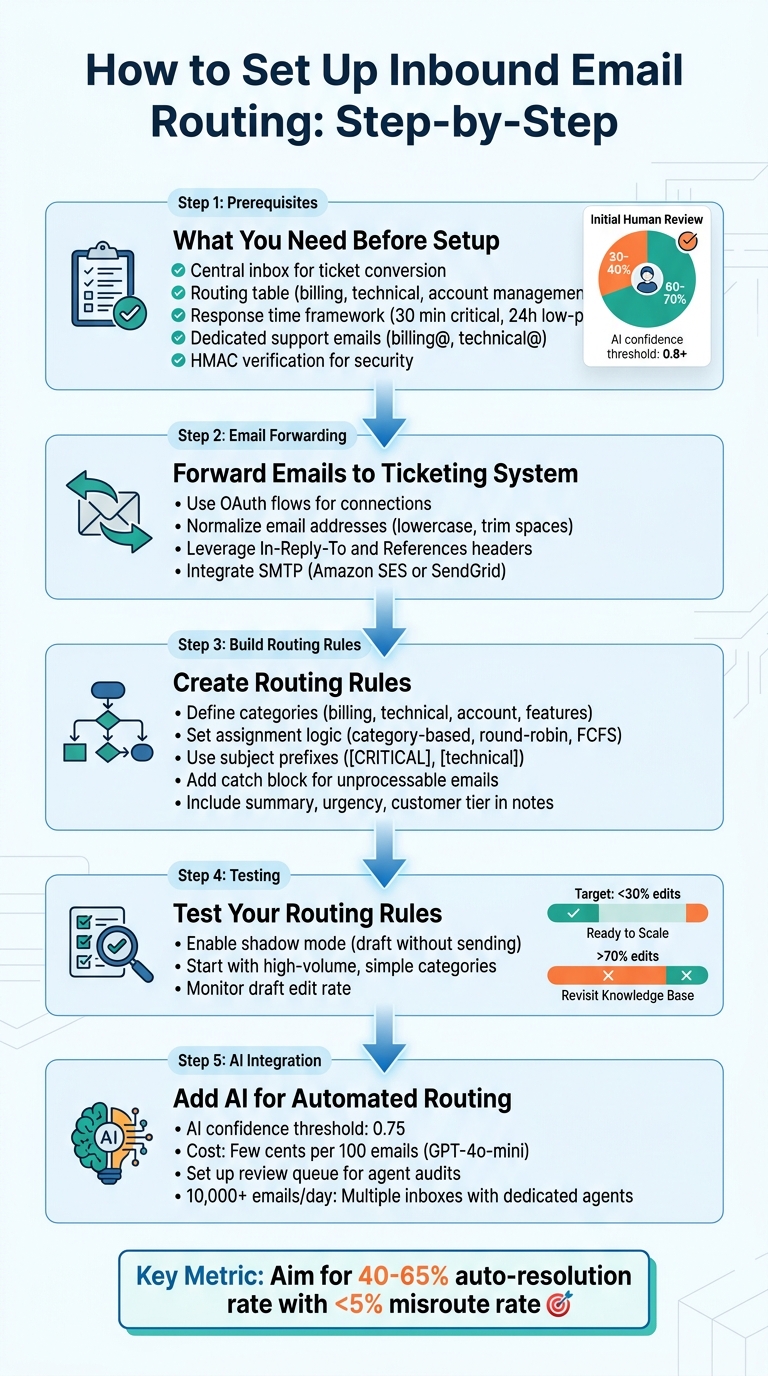
5-Step Email Routing Setup Process with AI Integration
Once you’ve tackled common challenges, it’s time to establish a structured system for inbound email routing.
What You Need Before Setting Up Email Routing
Start by setting up a central inbox that automatically converts forwarded emails into support tickets [7]. Develop a routing table to map categories like billing, technical support, and account management to specific queues [6]. Each route should include a response time framework, such as 30 minutes for critical issues and up to 24 hours for low-priority requests [6].
Create dedicated support email addresses (e.g., billing@yourcompany.com, technical@yourcompany.com) [6]. To enhance security, use HMAC verification and wrap email content in boundary markers to prevent prompt injection [6]. Initially, set AI confidence thresholds at 0.8 or above. This ensures that during the first week, 30–40% of emails will still be routed to humans for review [6].
How to Forward Emails to Your Ticketing System
Use OAuth flows to connect each support email, granting necessary permissions like reading emails, managing labels, and sending replies [8]. This ensures seamless functionality without relying on personal accounts [8].
Normalize email addresses by converting local-parts and domains to lowercase and removing any extra spaces to avoid mismatches [1]. Leverage the In-Reply-To and References headers to link replies to their original tickets [6]. For outgoing replies, integrate your ticketing system with reliable SMTP providers like Amazon SES or SendGrid to maintain consistent branding and ensure deliverability [7].
Building Routing Rules Based on Inbound Addresses
Define clear categories for incoming emails, such as billing, technical support, account management, and feature requests [8]. Set up assignment logic tailored to your team’s needs – use category-based routing for specialized teams, round-robin for balanced workloads, or first-come-first-serve for smaller teams [8].
To prioritize queues, adopt subject prefixes like [CRITICAL] or [technical] [6]. Add a catch block in your webhook handler to ensure that any unprocessable emails are routed to a human [6]. When assigning emails to agents, include a summary, urgency level, and customer tier in the internal notes to save time [6].
Once your rules are in place, test their accuracy and efficiency to ensure smooth operation.
Testing Your Routing Rules
Start by enabling shadow mode, where the system drafts replies for agent review without sending them [8]. This step helps identify and fix any issues with misrouted tickets or manual triage. Begin testing with high-volume, straightforward categories like password resets or shipping inquiries before moving on to more complex issues [8].
Monitor how often agents approve automated drafts without edits. A draft edit rate below 30% indicates that the system is ready to handle more complex categories. If over 70% of drafts require edits, revisit the knowledge base, tone settings, or routing rules for improvements [8].
Adding AI for Automated Routing
AI can analyze subject lines and email content to assign structured labels, building on the manual setup you’ve already implemented. Set an AI confidence threshold of 0.75 to ensure emails below this score are routed to human review [6]. Using smaller models like GPT-4o-mini, classification costs are estimated at just a few cents per hundred emails [6].
"A triage agent that silently drops emails is worse than no triage at all." – Samuel Chenard, Co-founder, LobsterMail [6]
Establish a review queue where experienced agents audit AI-generated drafts and provide feedback to refine the system’s knowledge base [8]. This approach helps balance automation with human oversight, reducing manual triage while maintaining quality. For teams processing over 10,000 emails daily, consider setting up multiple inboxes with dedicated agents for each category and tailored classification prompts [6].
Email Routing Rules That Work: Real Examples
Effective email routing rules are the backbone of smooth support operations. Poorly designed, generic rules can clog up workflows, while targeted, thoughtful ones ensure tickets land with the right person immediately. Let’s dive into some practical examples to see how these rules can transform your support system.
Routing by Customer Tier or Priority Level
Routing based on customer priority ensures that high-value accounts get the attention they deserve. For instance, emails from a domain like *@vipcustomer.com can be routed directly to a VIP inbox or a senior agent group [9][10]. To make these tickets stand out, assign them an importance score of 90 and include an internal comment like, "High-value account – respond within 1 hour." This helps agents recognize the urgency immediately. Adding watchers, such as Account Managers or Senior Developers, also improves cross-departmental collaboration [9].
| Routing Goal | Condition Example | Action Example |
|---|---|---|
| VIP Prioritization | Sender email ends in @keyaccount.com | Move to VIP Inbox; Set Importance to 90; Add Comment [9][10] |
| Technical Escalation | Subject contains "bug" OR "error" | Route to Development Group; Add Lead Dev as "Watcher" [9] |
| Urgent Handling | Header includes Priority: High | Assign to specific Senior Agent; Move to top of queue [10] |
Routing by Product or Service Type
Routing by product or service type can significantly improve accuracy. One effective method is setting up dedicated inbound addresses, such as product-a@company.com for Team A and product-b@company.com for Team B. This eliminates confusion and ensures emails go to the correct team every time [9].
If separate addresses aren’t an option, multi-condition logic can help. For example, if the subject contains "billing" or the body mentions "invoice", route the email to the billing team and tag it as "Finance" [10]. Tagging emails not only simplifies routing but also provides valuable insights into which products require the most support. For premium services, assigning higher importance values ensures these tickets are handled promptly. Meanwhile, non-essential items like newsletters can be filtered out with "Archive and Tag" rules, keeping queues clean and focused [10].
Routing for Escalations and Renewals
Escalations and renewals often require a mix of sender identity and content-based triggers. For example, emails sent to renewals@company.com can be distributed using round-robin assignment to balance workloads [10]. Escalations, on the other hand, can be identified by scanning for keywords like "urgent" or "billing" in both the subject and body using "OR" logic [10].
Did you know that about 53% of customer churn is involuntary, often due to failed payments? Improved routing for dunning and renewal processes can help address this issue, with some merchants seeing a 12% revenue increase within just three months [11].
When handling escalations, combining multiple conditions – such as emails from VIP domains with subjects containing "escalation" – ensures only genuine emergencies are flagged as high priority [9]. This prevents unnecessary disruptions caused by false alarms and keeps your support system running smoothly.
How AI Prevents Ticket Chaos
Managing high ticket volumes can overwhelm manual email routing systems, leading to delays and missed priorities. AI steps in as a game-changer, acting as a smart triage system that categorizes and routes tickets in under two seconds [2].
AI-Powered Ticket Prioritization and Assignment
AI uses Natural Language Processing (NLP) to analyze incoming tickets for intent, urgency, and sentiment. This process follows a Trigger–Classify–Route model: when a new email arrives, automation is triggered, AI categorizes the ticket, and appropriate labels or assignments are applied. For instance, it can distinguish between an invoicing question and a critical bug report [2]. This real-time system drastically reduces first-response times from hours to under a minute.
Take the example of KwikUI, a SaaS platform with over 3,000 users. In early 2026, they implemented an AI-powered routing system using tools like Zendesk, OpenAI‘s API, and n8n. The results were striking: a 65% auto-resolution rate, first-response times slashed from 4–6 hours to under 60 seconds, and a 40% drop in customer churn [2]. Silviya Velani, Founder of Builts AI, explains:
"AI classification is the brain of the system. Every ticket gets read by a model… which returns a structured label for intent, urgency, and category in under 2 seconds." [2]
This kind of efficiency not only improves customer experience but also saves money. AI classification costs about $0.01 per ticket, compared to the $45,000–$65,000 annual salary of a triage specialist [2]. Another example involves a B2B SaaS company with 45 agents managing 3,000 tickets weekly. By using AI to route tickets based on agents’ past performance, they cut first-response times from 4.2 hours to 1.1 hours and boosted CSAT scores from 71% to 88% within 90 days [14].
AI Analysis of Email Content and Sentiment
AI goes beyond categorization by analyzing the tone and context of emails. Sentiment analysis flags frustration or urgency, ensuring critical issues are escalated quickly [2]. Deep learning models identify whether a message is a routine query or a potential escalation [13]. For example, if a customer’s tone shifts from neutral to negative over several replies, the system can automatically escalate the ticket to a supervisor.
AI triage systems achieve impressive accuracy, with 90% success in classifying new tickets and 98% accuracy in spam detection, which can remove about 20% of queue volume [13]. Additionally, when tickets are handed off between agents, AI-generated summaries retain the context, saving time and ensuring smooth transitions [14].
Tracking and Improving AI Routing Performance
To maintain high performance, regular monitoring and optimization are essential. Reviewing misrouted tickets during the first month and conducting a 15-minute weekly audit can help catch errors early. As Silviya Velani notes:
"A 15-minute weekly review catches drift early and keeps accuracy high." [2]
Key benchmarks include keeping the misroute rate under 5%, escalation rate under 10%, and first-response times under 60 seconds for automated replies (and under 15 minutes for human responses). Auto-resolution rates should aim for 40% to 65% [2]. If misroutes occur frequently in specific categories, reworking the classification prompts and testing them against historical data is crucial before rolling out updates [2].
The quality of your knowledge base also plays a big role. Mapping the top 20 most-asked questions and ensuring clear, structured answers can improve auto-resolution rates. For example, KwikUI spent eight weeks refining their classification prompts and knowledge base, achieving a 65% auto-resolution rate and doubling their trial-to-paid conversion rate from 4% to 8% [2].
Lastly, adding "escape hatches" – such as allowing customers to reply "no" to bypass automated responses – prevents frustration. With these strategies, businesses can achieve an average ROI of 200% in the first year [2]. Regular sentiment tracking, prompt updates, and misroute reviews are critical to sustaining these benefits.
How to Scale Email Routing Without Creating Chaos
As your support operation grows, the number of inbound email addresses can multiply quickly. What might begin as a straightforward setup – like support@company.com and billing@company.com – can balloon into dozens of addresses for different products, regions, or customer tiers. Without a clear system, this expansion can lead to errors and delays.
Managing All Email Addresses in One Place
The first step to scaling email routing effectively is centralization. By managing all inbound email addresses from a single dashboard, you gain full visibility into message routing and avoid losing track of addresses [15].
A centralized configuration panel (e.g., Configuration > Email Configuration > Routes) is essential for defining and managing all inbound routes. This setup ensures streamlined control as new addresses are added [15]. For example, Todoist assigns a unique email address to every project, enabling users to forward emails directly to specific destinations. The system then automatically processes the subject line and body to set due dates, labels, and priorities without manual input [5].
Another tip is to use custom subdomains for routing. Instead of flooding your primary domain with multiple email addresses, create a subdomain like support.yourcompany.com and configure its MX records for automation. This approach keeps your main domain neat while allowing DNS settings tailored to routing needs [5]. Additionally, set a default system address for outgoing replies, ensuring customers receive responses from a consistent sender, no matter which address they initially contacted [15].
Once you’ve centralized control, the next challenge is balancing automation with human oversight.
Finding the Right Balance Between Automation and Human Review
Automation is invaluable for scaling, but it’s not perfect. To avoid frustration, combine AI-driven routing with human oversight. Make sure every automated response includes an "escape hatch" so customers can easily reach a real person if needed.
"If frustrated customers can’t reach a human in one step, your auto-responder becomes the problem" [2].
Start by using AI routing for straightforward, high-volume tasks like password resets [8]. Before going live with new routing rules, test them in shadow mode, where the AI applies rules internally but doesn’t send responses to customers. This lets agents review the accuracy of the system before full implementation [8]. For more complex or high-risk cases – like those flagged by negative sentiment, SLA breaches, or VIP tags – create escalation safety nets that bypass automation and route tickets directly to senior agents [2].
Balancing automation with human input ensures quality while controlling costs. Use agent feedback as part of a continuous improvement process. For instance, when an agent updates an AI-generated draft, treat it as an opportunity to refine your rules or documentation [8]. Even a quick 15-minute weekly review of misroutes can help catch issues early and maintain accuracy [2]. Assign reviewers based on their expertise – billing specialists for billing-related drafts, engineers for technical ones – to ensure quality oversight [8].
After centralizing management and fine-tuning automation, the final step is to use data to refine your strategy over time.
Using Data to Improve Routing Over Time
Scaling email routing requires ongoing adjustment. Regularly track performance metrics to adapt to evolving customer needs. Focus on data like the number of messages received, forwarded, or dropped, as well as rejections caused by security checks or mailbox errors [17].
Pay special attention to security and deliverability metrics. Monitor SPF, DKIM, and DMARC records to protect your sender reputation [17]. Ideally, your bounce rate should stay below 2%, and spam complaints should remain under 0.3% [16][18]. Use customer feedback on misclassifications to fine-tune AI models and tagging rules [3].
Tracking misroutes and response times is equally crucial. Keep detailed logs – including Message ID, sender, and actions taken – to quickly identify and fix routing errors [17]. These logs also help you spot recurring issues and adjust your rules accordingly. For instance, some platforms use inbound routing to sync email replies with their interface. By extracting the Message-ID and leveraging the "In-Reply-To" header, you can keep conversations organized and reduce ticket fragmentation [5].
Conclusion
Email routing doesn’t have to be complicated. By combining clear rules, AI-driven classification, and continuous refinement, you can eliminate the chaos that often comes with scaling support operations. When you centralize control over inbound addresses, balance automation with human oversight, and use data to fine-tune your strategy, you create a system that can handle growth with ease.
AI-powered routing changes the game for handling high volumes of emails. Tools like Natural Language Processing and machine learning can automatically sort, tag, and route messages based on their intent and urgency, freeing up your team to focus on more complex issues instead of repetitive manual tasks [3]. As Ian Bussières, CTO & Co-founder of LobsterMail, aptly says:
"The routing pattern is the plumbing. Get it right early, and you won’t rebuild it when you go from five agents to fifty" [19].
Start small with quick wins – automate simple, high-volume requests and test new rules in a controlled environment before fully rolling them out. Use clear tagging frameworks like URGENT_BUG or BILLING_INQUIRY to ensure emails are routed accurately [12]. And don’t forget fallback options – if the AI can’t classify a message, make sure it’s flagged for human review to avoid anything slipping through the cracks [12].
To keep your system running smoothly, implement weekly spot-checks, gather agent feedback, and regularly review misrouted emails. These practices will help you adapt to changing customer needs and maintain a system that’s both efficient and scalable.
FAQs
How many inbound support email addresses should we create?
When it comes to setting up inbound support email addresses, there’s no one-size-fits-all rule. The number you need depends entirely on your organization’s specific needs and how your workflow is structured. For instance, having dedicated addresses like sales@yourcompany.com or returns@yourcompany.com can make it easier to direct tickets to the right teams quickly and efficiently.
The goal is to strike a balance: create enough addresses to clearly separate inquiries, but avoid setting up so many that it complicates processes or leads to unnecessary confusion. Keep things as streamlined as possible to maintain smooth communication.
What’s the safest way to prevent duplicate tickets from email replies?
To keep your ticketing system organized and free of duplicates, make sure email replies are threaded into the correct existing tickets. This can be achieved by using unique identifiers, such as Ticket IDs in the email subject line or matching specific headers like Message-ID.
Avoid manually CC’ing or adding participants to email chains, as this can unintentionally create duplicate tickets. Instead, focus on properly setting up email threading rules and ensuring unique identifiers are consistently used. These steps will help you maintain a streamlined and clutter-free ticketing workflow.
How do we set AI confidence thresholds without slowing response times?
To strike the right balance between accuracy and speed when setting AI confidence thresholds, it’s essential to fine-tune the system’s behavior. Configure the AI to take action only when its confidence level surpasses a specific threshold. For situations where confidence is lower, route those cases for manual review to prevent unnecessary delays.
Fine-tuning these thresholds should align with your operational priorities. This way, the majority of emails can be processed automatically, ensuring both efficiency and accuracy are maintained.