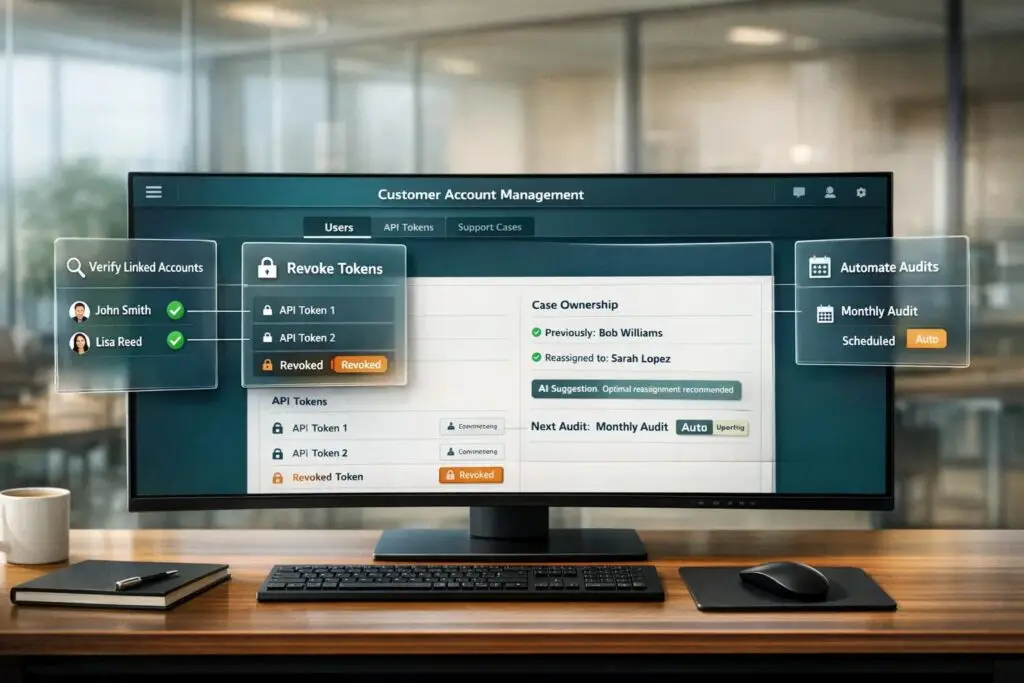
When employees leave, failing to revoke their access to company systems can lead to serious risks, including data breaches, compliance violations, and financial losses. Here’s what you need to know:
- 75% of companies have faced issues due to former employees misusing access.
- 33% of IT teams take over 24 hours to fully offboard users, leaving security gaps.
- Unused accounts can lead to compliance failures (e.g., SOC 2, GDPR) and wasted SaaS costs.
Key Steps to Mitigate Risks:
- Verify All Accounts: Cross-check HR, SSO, CRM, and SaaS tools for linked accounts, including email aliases and OAuth tokens.
- Revoke Access Immediately: Suspend accounts, invalidate tokens, and rotate shared passwords.
- Reassign Records: Transfer tickets, dashboards, and shared resources to active users.
- Automate Workflows: Use HRIS-IdP integrations and SCIM protocols to streamline access removal.
- Audit Regularly: Run periodic checks to catch missed accounts and ensure compliance.
- Prevent Access Drift: Schedule access reviews and enforce least-privilege principles.
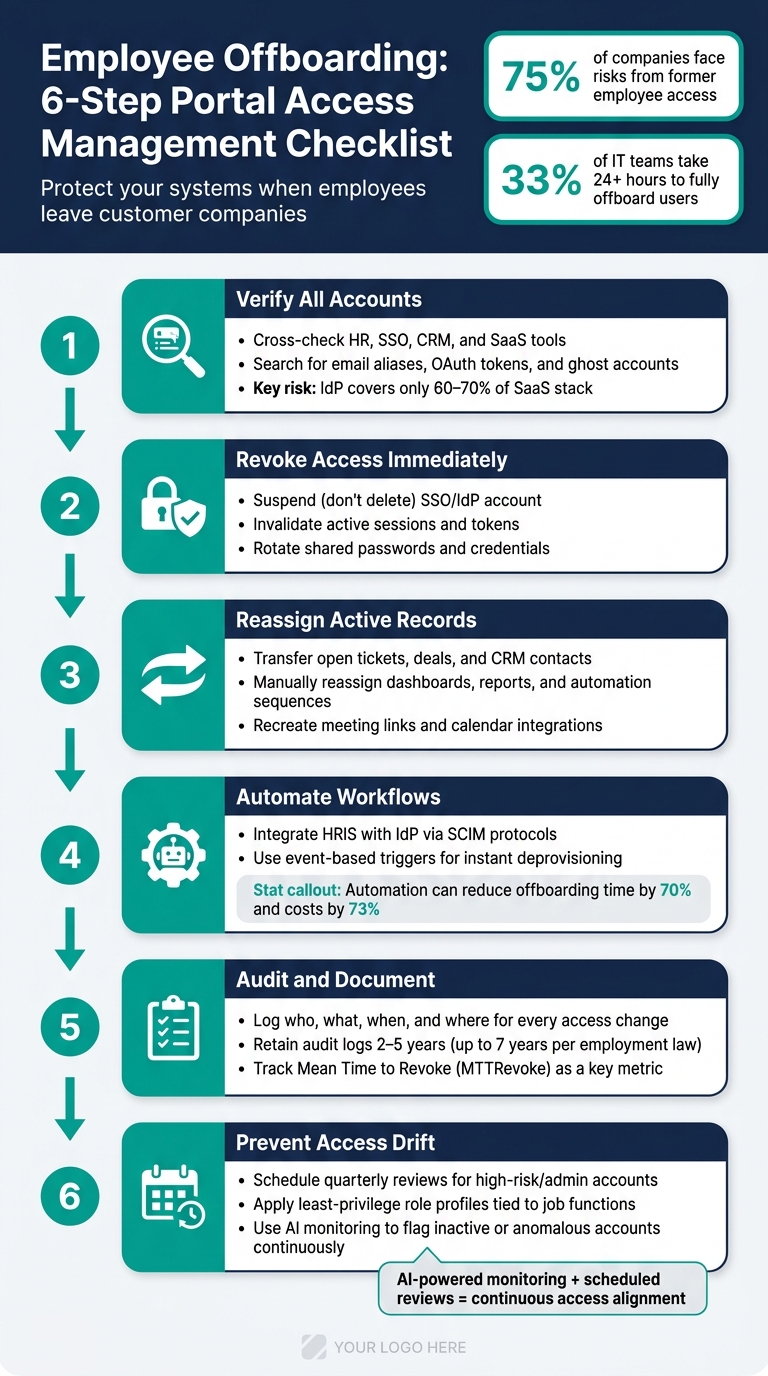
Employee Offboarding: 6-Step Portal Access Management Checklist
Automate User Offboarding in Microsoft 365 | Full Tutorial

sbb-itb-e60d259
Step 1: Verifying Departing User Records
Before deactivating any user accounts, take a complete inventory of all accounts linked to the departing user. Skipping this step can lead to missed access points or accidental disruptions for active users. This process ensures access is revoked accurately and securely.
Confirm Employee Identity and Linked Accounts
Start by consulting your HRIS (like Workday or BambooHR) as the primary source of truth. Cross-check this identity with your IAM or SSO platform to identify every entitlement associated with the user. Additionally, review CRM records, admin logs, and internal user mappings to locate accounts that may have bypassed standard provisioning processes.
Pay special attention to OAuth and app-level access. These often remain active even after SSO is disabled. Export all OAuth grants from platforms like Google Workspace or Microsoft 365 before deactivation, as these tokens can remain valid indefinitely on the SaaS side.
Don’t forget to search for accounts tied to the employee’s email aliases, previous names, or contractor domains. Ghost accounts often emerge under secondary email addresses, which can be easy to overlook.
"If offboarding only touches the IdP, it only removes access to the known environment – not the real one." – Waldo Security [9]
Proper account verification is essential for maintaining security and ensuring compliance.
Common Mistakes to Avoid During User Verification
To avoid incomplete offboarding, steer clear of these common errors:
One of the biggest mistakes is assuming SSO deactivation is the final step. Identity providers typically manage only 60–70% of a company’s SaaS stack via SCIM, leaving a significant portion of legacy tools, niche apps, and shadow IT unaddressed. This uncovered 30–40% poses the greatest risk [4].
Another frequent oversight involves shared inboxes and mailbox delegates. If the departing employee had delegate access to shared support inboxes or was a calendar delegate, that access doesn’t automatically disappear when their account is disabled. Be sure to review delegate logs thoroughly. Similarly, inspect for hidden email forwarding rules, which could continue sending data to external addresses after the employee leaves.
Outdated CRM contact records present a different challenge. If a customer account is still linked to the former employee’s email, it could result in lost visibility or unauthorized access. Cross-check CRM data with portal user records to prevent these orphaned account issues.
| Failure Mode | Issue | Fix |
|---|---|---|
| SSO-only focus | IdP deactivation covers only 60–70% of tools | Cross-reference HRIS, CRM, and SaaS discovery logs [3] |
| Missing OAuth tokens | Tokens persist on the SaaS side after SSO revocation | Inventory "Connected Apps" before revoking SSO [3] |
| Ghost aliases | Accounts created under secondary email addresses | Search the user directory for all associated aliases and names [2] |
| Shared inbox access | Delegate permissions aren’t tied to the primary account | Thoroughly review mailbox and calendar delegate logs [8] |
| Outdated CRM records | Contact data not synced with portal user records | Cross-check CRM accounts against portal user mappings before making any changes |
Step 2: Revoking and Reassigning Portal Access
Once you’ve identified all accounts tied to the departing user, the next step is to revoke their access while ensuring a seamless transition for ongoing operations.
How to Revoke Access Immediately
Acting quickly is essential. Studies show that 33% of former employees retain access to company systems, and 75% of organizations face security risks because of this lapse [4]. Upon termination, suspend (don’t delete) the user’s primary SSO or IdP account (like Okta, Azure AD, or Google Workspace). This preserves activity logs and allows time for data export before permanent removal [4][2]. Follow up by invalidating active sessions, resetting passwords, and revoking associated tokens. Keep in mind, these credentials can sometimes operate independently of the main account, creating potential vulnerabilities even after SSO access is disabled [4][9].
For teams juggling multiple customer portals, using automated deprovisioning tools linked to your HRIS (like Workday or BambooHR) is often the most reliable method. For example, ServiceNow’s internal offboarding automation led to a 70% reduction in offboarding time and a 73% cut in costs per offboard [4]. Just as important, make sure access removal is paired with reassigning active records to prevent disruptions.
Transferring Ownership of Active Records
Before archiving the user’s account, reassign all open tickets, cases, deals, and contacts to the appropriate team members. Many platforms offer one-step migration tools for this, while others may require creating workflows for bulk reassignment by record type.
Don’t forget about assets that don’t transfer automatically. Dashboards, saved reports, and automation sequences tied to the former user’s email can break unless reassigned manually. Similarly, meeting links and calendar integrations linked to a deactivated inbox need to be recreated and updated to maintain professional relationships and customer confidence.
| Asset Type | Transfer Method | Why It Matters |
|---|---|---|
| CRM Records (Tickets, Deals) | Migration Tool / Workflows | Prevents service interruptions |
| Dashboards & Reports | Manual Reassignment | Ensures reporting continuity |
| Automation Sequences | Update "From" Address | Keeps outbound communications intact |
| Meeting Links | Recreation by Successor | Preserves customer-facing interactions |
Updating Shared Credentials and Permissions
Rotate passwords for all shared accounts – such as vendor portals, social media accounts, monitoring tools, and break-glass credentials – immediately to reduce security risks [4][2].
The best practice here is to centralize shared credentials in a PAM (Privileged Access Management) vault. This ensures role-based retrieval and detailed logging [7][1]. When assigning access to a successor, avoid simply mirroring the departing employee’s permissions. Instead, use standardized role profiles to grant only what’s necessary, which helps prevent unnecessary permission buildup over time [5].
"As soon as someone is offboarded, they should be stripped of everything. ‘The same access ABC has is nothing’ is the correct security posture." – Industrial Monitor Direct [5]
Step 3: Automating Access Management Workflows
Manually handling offboarding can take anywhere from 30 to 90 minutes per person, which not only wastes time but also increases the likelihood of errors. Automating these workflows can drastically cut down on both time and mistakes.
Setting Up Event-Based Triggers
Integrate your HRIS – such as Workday, BambooHR, or Rippling – directly with your Identity Provider (IdP). This connection ensures that when an employee is marked inactive in the HRIS, it automatically triggers actions like suspending accounts, invalidating sessions, and revoking access across all connected apps. This eliminates the need for manual intervention.
However, SCIM-based deprovisioning typically covers only about 60–70% of a standard SaaS stack [4]. The remaining 30–40% often involves legacy tools, shadow IT, or niche apps without API support. For these cases, browser automation can fill the gaps. A great example is SpotOn, which used browser automation to close over 400 offboarding gaps, ultimately recovering $160,000 in unused SaaS licenses [4]. By building this automated trigger system, you can also streamline role-based permission updates.
Configuring Role-Based Permission Updates
Assigning access based on roles makes it easy to manage permissions. When a role is revoked, all associated permissions are automatically removed. This approach prevents unnecessary permissions from lingering, which can lead to security risks. Instead of duplicating access from a departing user, set up standardized permission profiles to ensure only the necessary permissions are granted, avoiding any outdated or excessive access.
Using AI Tools to Manage Access
Static role settings are a good start, but AI tools can take security and efficiency to the next level. Automation might overlook certain cases, and that’s where AI steps in. For instance, tools like Lumos (Albus AI) continuously monitor access patterns and flag inactive accounts automatically [11]. Microsoft Security Copilot also allows admins to query access logs using plain language. For example, you could ask which users were missed by a workflow in the past week, making it easier to identify potential issues [12].
To add another layer of protection, set up anomaly detection thresholds. For example, you can configure the system to pause a sync if it detects that more than 30% of a group’s membership is being removed at once [13]. This safeguard prevents accidental deprovisioning of entire teams due to HRIS data errors. Organizations that have implemented automated identity lifecycle management have seen up to a 60% drop in IT access tickets within 90 days [11], enabling IT teams to focus on more strategic tasks.
Step 4: Auditing and Documenting Access Changes
Automation is helpful, but it’s not perfect. That’s why thorough audits and documentation are critical. They serve as a safety net for your offboarding process, ensuring compliance and security standards are met. Auditing acts as a final check, reinforcing the automated workflows and manual controls you’ve set up earlier. This meticulous logging strengthens your overall offboarding strategy by tying together automation and proactive oversight.
Keeping Detailed Access Logs
Every access change should be logged with precision. The goal is to capture who made the change, what was changed, when it happened (including exact timestamps), and where it occurred within the system [2][14]. This level of detail isn’t just a best practice – it’s what SOC 2 auditors expect when verifying that inactive employees no longer have access during an observation period [4].
For apps outside your SSO or identity provider, such as shadow IT tools, browser automation tools can help. Tools like Stitchflow generate detailed, timestamped logs and even visual proof when available. These logs provide auditors with solid evidence, even for systems without API support.
"If it isn’t documented, it didn’t happen." – Clarity Security [10]
It’s also important to record both the pre-change permissions and the final revoked state. This provides proof that access was successfully removed. Any exceptions – such as manual overrides – should be documented, including who approved them and what alternative controls were applied [2][8]. This ties back to earlier steps in the offboarding process, creating a cohesive approach to access management. Keep these audit logs for at least 2–5 years, or up to 7 years if required by employment laws [14].
Once you have detailed logs, periodic audits help ensure no gaps are left unnoticed.
Running Periodic Access Audits
Even the best automation can miss something. There’s always the chance that an account remains active – whether it’s an overlooked OAuth token, a personal API key, or a SaaS account created with a corporate email but never linked to your identity provider. Regular audits are how you catch these.
Cross-check your HR roster, identity provider (IdP), and app user lists on a regular basis [15]. For users with access to sensitive data, quarterly reviews are a good cadence, while privileged or service accounts may require monthly reviews. When you find mismatches – like an app account still active for someone marked inactive in HR – it’s a clear indicator of a "Former With Access" identity. These accounts need to be closed immediately [3].
Attestation workflows provide an additional layer of accountability. They require managers or app owners to explicitly confirm the access status of former employees, turning assumptions into documented accountability [1].
"Attestation turns assumptions into verifiable accountability." [1]
Finally, track a key metric: time-to-full-offboard. This measures the time from the HR termination event to the confirmed revocation of access across all systems [3][15]. If this metric starts to rise, it’s a sign your workflows need attention before compliance reviews expose the issue.
Step 5: Preventing Access Drift Over Time
Audits are great for spotting problems after they happen, but wouldn’t it be better to stop access drift before it even starts? Even with the best offboarding workflows, permissions can go astray over time. Role changes, internal transfers, or forgotten accounts can all lead to misaligned access. The real challenge is keeping access accurate and secure all the time – not just after someone leaves. Proactive reviews are a key part of the solution, working alongside automated workflows to keep everything in check.
Scheduling Regular Access Reviews
Not all accounts are created equal, so your review schedule should match the risk level of each one. For example, high-risk roles like admin accounts, financial systems, and production infrastructure should be reviewed every quarter. Meanwhile, standard SaaS tools or collaboration platforms can be checked twice a year. And don’t wait for the next scheduled review if something big changes – like a promotion or department transfer. Those should trigger an immediate review.
Automation can make this process much smoother. By using activity signals, you can flag accounts for removal if they show prolonged inactivity. This avoids relying solely on manual oversight. Pair this with requiring system owners to confirm the status of each account, rather than depending entirely on automated directory reports. Together, these steps help close gaps that automation alone might overlook [1][7].
"Least Privilege Access reduces what must be removed later and limits risk if anything is missed." – Kevin Henry, Risk Management [7]
Applying Least-Privilege Role Design
Permission bloat is one of the biggest culprits behind access drift. Over time, users collect extra permissions – whether through job changes, temporary project assignments, or just being granted the same access as a coworker. Without regular reviews, this excess access can pile up unnoticed. That’s where the least-privilege approach comes in. Instead of granting permissions to individuals, tie them directly to specific job functions.
Start by creating standardized role profiles that match job titles to access needs. For example, a "Sales Level 1" profile might include basic CRM access and a few file shares. When someone’s role changes, these profiles can automatically adjust their access, cutting down on manual cleanup during offboarding. This method ensures users only have the access they need for their current responsibilities, minimizing unnecessary exposure.
Using AI for Continuous Access Monitoring
Scheduled reviews are helpful, but they only provide snapshots in time. AI-powered monitoring, on the other hand, offers continuous oversight. It can flag suspicious activity, like unexpected actions from disabled accounts, as soon as it happens [3].
AI can also catch unsanctioned accounts created outside your main identity provider – something traditional SSO deprovisioning might miss [4]. By combining scheduled reviews with AI monitoring, you can move from a reactive approach to one that stays aligned with operational changes. This ongoing refinement strengthens access management and supports secure, efficient business operations.
Conclusion: Key Steps for Keeping Portal Access Aligned
Managing portal access when employees leave is a continuous effort. The steps outlined here – thoroughly verifying departing users, swiftly revoking access, reassigning ownership correctly, automating where possible, and conducting regular audits – work best as a cohesive system.
Acting quickly is crucial. Studies show that one-third of organizations take more than 24 hours to fully offboard an employee [4]. This delay creates a window of vulnerability when the risk of unauthorized access is highest. To measure your offboarding efficiency, track your Mean Time to Revoke (MTTRevoke) – the time it takes from an HR event to fully disabling access across all systems.
Automation is key to closing the gaps left by manual processes. By integrating your HRIS with identity and access management (IAM) tools, using SCIM protocols to synchronize changes across SaaS platforms, and applying standardized role-based access control (RBAC) profiles, you significantly reduce the chances of leaving an account unsecured. While most identity providers cover the majority of applications, some require advanced, AI-driven monitoring to ensure full protection. Together, these automated tools create a strong, reliable offboarding process.
As Kevin Henry, a risk management expert, aptly puts it:
"Automation turns policy into predictable action." [7]
The risks of access misuse are serious. A staggering 75% of organizations have faced issues caused by former employees misusing access [4], and 47% of ex-employees admit to using old company passwords after leaving [6]. By implementing a structured approach – combining careful verification, swift access removal, proper reassignment, and ongoing monitoring – companies can safeguard their portals and maintain operational integrity. A well-executed access management strategy based on least-privilege principles and regular reviews is essential for reducing risks and ensuring portal security.
FAQs
What access remains after SSO is disabled?
Disabling a user in your Single Sign-On (SSO) provider might block new federated logins, but it doesn’t completely cut off access. Active sessions, mobile logins, and cookies could still function, keeping the door open for certain activities. Additionally, tools outside your SSO system – like shadow IT or legacy applications – may remain accessible if they rely on separate credentials. On top of that, OAuth tokens, API keys, and personal access tokens can continue granting access to company resources unless they’re manually revoked.
How do we offboard portal users without breaking workflows?
To ensure a smooth process when offboarding portal users, consider automating access management. By integrating your HR system with an identity provider (IdP) through SCIM, you can instantly trigger account revocation and terminate active sessions in real-time.
Implement Role-Based Access Control (RBAC) to assign permissions based on roles rather than individuals, simplifying management and reducing errors. For critical integrations, use service accounts to maintain functionality without relying on individual user accounts.
Adopt a staged offboarding approach for better security and workflow continuity. This involves three key steps: first, restrict access; next, transfer any necessary data; and finally, delete the accounts once everything is in place. This method helps protect sensitive information while ensuring operations run smoothly.
What’s the best way to measure offboarding speed?
The most effective way to gauge offboarding speed is by using time-to-full-offboard as your key performance indicator (KPI). This goes beyond simply tracking how fast an Identity Provider (IdP) account is disabled. Instead, it measures the entire process – from the moment an employee departs to the point when all access is fully revoked. This includes things like API tokens and shadow SaaS accounts.
To pinpoint weaknesses in the process, filter for former employees who still have active access. Use this data to create a dashboard that highlights any incomplete offboarding tasks, making it easier to address gaps and improve efficiency.
Related Blog Posts
- How do you design role-based customer portals for B2B (multiple users, permissions, reporting)?
- How do you handle Salesforce permissions + role-based access when moving to a helpdesk portal?
- Customer portal for MSPs: how to separate client data and still work efficiently
- How to manage “do not share” data rules for enterprise customers