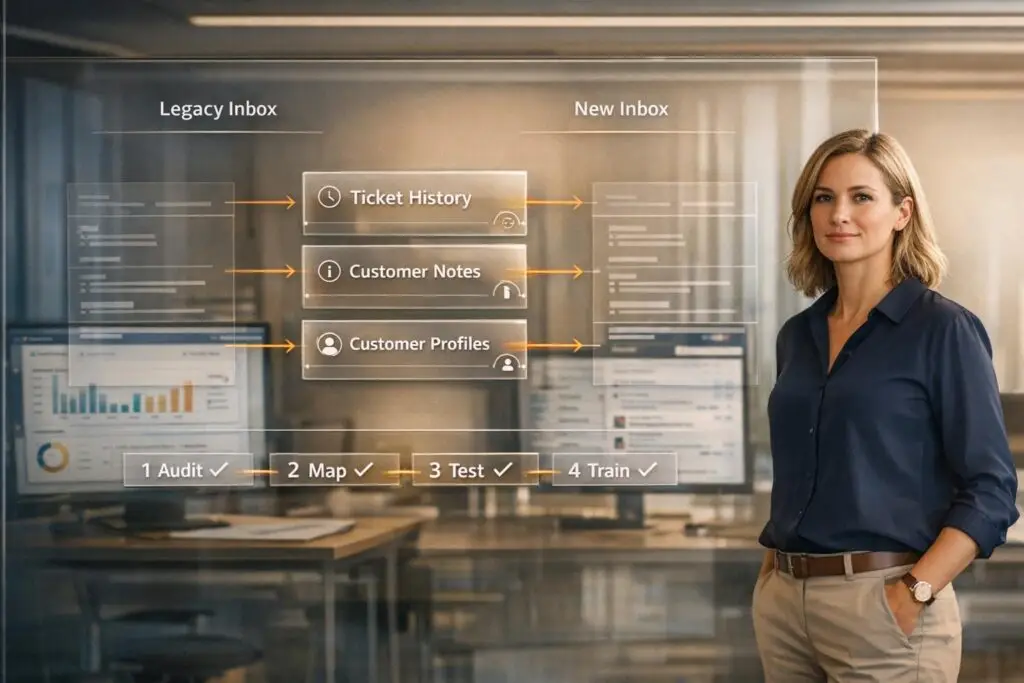
Migrating from Pylon can be challenging, especially when you want to retain your shared inbox history and customer context. The key is a structured approach that ensures your data remains intact and workflows continue uninterrupted. Here’s how:
- Audit Your Data: Review what needs to be migrated, focusing on tickets, customer profiles, and metadata like custom fields and tags. Clean up duplicates and outdated records to avoid clutter.
- Preserve Relationships: Ensure tickets stay linked to the correct customer accounts and historical data remains accessible for context.
- Choose the Right Tools: Decide between a complete migration or phased transition. Use AI-powered tools or third-party services for faster and more accurate transfers.
- Test Early: Run a small-scale test migration to catch errors before the full migration.
- Train Your Team: Equip agents with the knowledge to navigate the new platform and maintain service quality.
Proper planning and execution will help you switch platforms without losing the data and context that are critical for your support operations.
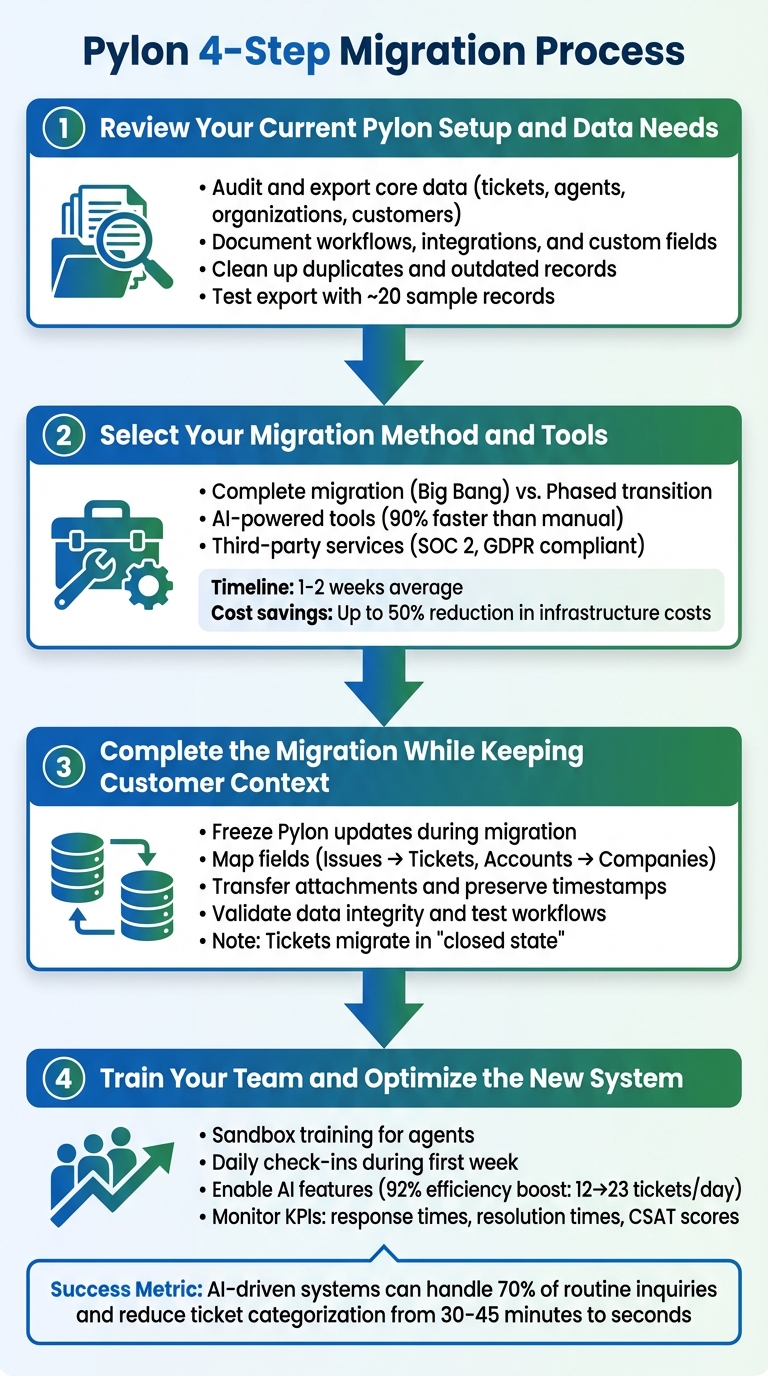
4-Step Process for Migrating from Pylon Without Losing Customer Data
How Help Desk Migration Wizard Works | Step-by-Step Migration Guide
sbb-itb-e60d259
Step 1: Review Your Current Pylon Setup and Data Needs
Take a close look at your existing data and clearly define your migration objectives. As Eric Klimuk points out, understanding what you’re migrating is key to aligning your goals with operational requirements. This initial audit will determine whether your migration process hits the mark or falls short.
What Data to Export From Pylon
Focus on exporting the core help desk objects: tickets, agents, organizations, and customers. For tickets, ensure all key details – such as subject, description, status, comments, attachments, and tags – are included. When exporting user data, capture names, email addresses, roles, and team memberships. If you’re migrating a knowledge base, make sure to include the full content of articles, author information, and the organizational hierarchy.
Metadata is a common stumbling block. Custom fields, tags, inline images, and legacy IDs are vital for maintaining historical context. Even more important is preserving relational data – the links between tickets and their associated customers or accounts. Eric Klimuk highlights:
"Mismatched relationships are one of the most common sources of integrity issues in poorly executed migrations."
To maintain context, ensure that tickets stay connected to the correct customer accounts.
As part of the audit, clean up your data. Remove duplicates, outdated records, and incomplete entries. Migrating unnecessary or "junk" data will only replicate existing issues on the new platform. Consider filtering your export to include only recent tickets (e.g., those from the past year) or focusing on tickets from specific teams, such as Support, to avoid cluttering the new system with irrelevant information.
Document Your Current Workflows and Integrations
Take stock of your current Pylon settings, including custom fields, SLAs, triggers, macros, CSAT settings, and views. Identify all integrations and CRM dependencies, such as routing rules based on "Account Owner" or "Customer Tier." This might include tools like Linear for bug tracking, in-app chat systems, or shared communication platforms like Slack or Teams. Each component should have a clear counterpart in the new system.
Map out how tickets are routed to different teams. Whether you’re using manual triggers, AI routing, or specific workflows to direct tickets to Support, Sales, or Billing, ensure that these processes are fully documented. Also, list all active communication sources, such as email forwarding domains, in-app chat widgets, shared Slack or Teams channels, and API-based ticket forms.
Create a field-level mapping document to match Pylon’s custom fields to the fields in your new system. This will help prevent data from being misplaced or lost during the migration.
Check Pylon’s Data Export Options
Once your workflows are documented, evaluate Pylon’s native export capabilities. Since Pylon stores omnichannel history across Slack, Microsoft Teams, email, and chat widgets, your export process will need to consolidate these signals to maintain customer context. Keep in mind that some migration tools might transfer tickets in a closed state. While this preserves historical data, agents may lose the ability to reply to those threads in the new platform.
Review the file formats Pylon supports for exporting data and ensure they are compatible with the import requirements of your new system. During the final export phase, freeze your source data in Pylon to avoid mismatches caused by last-minute edits. Before committing to a full migration, test the process with a small sample – around 20 record IDs, including tickets and knowledge base articles. This step will help verify that the formatting and relational links remain intact.
If you’re migrating a knowledge base, document the URLs of your old articles now. This will make it easier to set up redirects later, ensuring that links shared with customers continue to work after the transition. With your data and workflows thoroughly reviewed, you’ll be ready to move on to selecting your migration tools and methods.
Step 2: Select Your Migration Method and Tools
When planning your migration, you’ll need to decide between a complete migration (often called a "Big Bang") or a phased transition. Each approach has its own pros and cons. A complete migration is quicker and often less expensive upfront, but it carries higher risks since there’s little room for error recovery. On the other hand, a phased transition takes more time and can cost more due to running parallel systems, but it allows for troubleshooting and adjustments as you go. Let’s break down these options further.
Complete Migration vs. Gradual Transition
A complete migration works well for simpler, low-risk systems. However, for more complex workflows or high ticket volumes, a gradual transition is generally a safer bet. For example, Rossi Residencial in Brazil successfully migrated four SAP environments to a scalable cloud platform using a phased rollout. This approach led to their first zero-downtime migration, no unavailability incidents, and a 50% reduction in infrastructure costs.
To minimize disruptions, plan your final cutover during a quieter business period with lower ticket volumes. Use a staging environment to simulate key tasks like ticket handling and reporting before fully committing to the migration. If you opt for a phased approach, consider a "Delta" migration to capture any new or updated records created during the transition. This ensures no recent customer interactions are overlooked. Your choice of migration method will directly impact how well your shared inbox history and customer context are preserved.
Using AI and Automation to Speed Up Migration
AI-powered tools can dramatically reduce the time needed for migration – up to 90% faster compared to manual methods or in-house development. These tools handle automated mapping of default and custom fields while maintaining relationships between tickets, agents, contacts, and companies. They also convert inline images into attachments, migrate side conversations as private notes, and update cross-links in knowledge base articles to ensure no context is lost.
Before proceeding with the full migration, you can run a free demo migration using a small subset of real data (e.g., 20 records). This allows you to verify field mapping and ensure attachments are intact. To avoid duplicate notifications, disable email alerts and ticket triggers in the source system during the transfer.
Evaluating Third-Party Migration Services
If you’re considering third-party migration services, prioritize security and compliance. Look for providers offering SOC 2 Type II and GDPR compliance, along with end-to-end encryption. Features like migrating inline images as attachments, transferring call recordings, and skipping outdated files can save storage space and speed up the process.
Pricing for these services usually depends on your data volume and the type of records being migrated. Options often range from Standard (self-service via a no-code platform) to Signature (a fully managed service handled by specialists). Anthony Kendrew, IT Solutions Developer at The Salvation Army, shared his experience:
"The most useful custom feature for us was being able to migrate only associated customers with the tickets we migrated. With this customisation, we could migrate tickets in batches, saving money and ensuring the live destination continues to operate."
Choose a service that allows agents to continue working in the source platform during the migration. This ensures no downtime or disruptions to customer support. On average, a migration – including preparation and post-migration checks – takes about 1 to 2 weeks.
Step 3: Complete the Migration While Keeping Customer Context
Now that you’ve audited your setup and selected the right migration tools, it’s time to focus on executing the transfer with precision. This involves ensuring accurate field mapping, maintaining relational data integrity, and preserving metadata to keep the customer context intact. Every detail matters when it comes to a smooth migration.
Start by freezing Pylon updates to maintain data consistency during the process. This pause allows for a controlled transfer of shared inbox history and helps ensure everything remains accurate.
How to Transfer Shared Inbox History
Begin with a comprehensive mapping document that aligns Pylon’s data structure with your new platform’s fields. For example, Pylon’s "Issues" often correspond to "Tickets" or "Cases" on other platforms, while "Accounts" typically map to "Companies" or "Organizations." This alignment helps prevent errors and ensures conversation threads, timestamps, and user IDs are preserved.
Attachments require extra attention. Some systems limit the number of attachments per comment, splitting them into multiple entries if there are more than five. Verify that your migration tool can handle all attachments without loss. Also, remember that migrated tickets usually appear in a "closed state", serving as historical records rather than active cases.
Before diving into the full migration, test a small sample, including edge cases such as inactive users or outdated formats. This pilot run helps validate your mapping and identify any potential issues early in the process.
Confirm Data Integrity
Validating the migration is a critical step. Compare the data from before and after the migration to ensure everything has transferred correctly and functions as expected. Check that each ticket is properly linked to the right customer profile and account.
Involve your team by having agents review the test data for accuracy. Create a feedback loop so they can report any missing attachments, broken links, or mislabeled fields immediately.
For instance, in July 2025, Rossi Residencial – a construction company based in Brazil – successfully migrated four SAP environments to a cloud platform. Their approach included a thorough pre-migration assessment and phased rollouts, resulting in zero downtime and a 50% cut in infrastructure costs.
Test Workflows on Your New Platform
Once you’ve confirmed the data’s accuracy, focus on testing key workflows. Ensure agents can create, update, assign, and close tickets seamlessly. Permissions should be configured to restrict access to sensitive customer information. Don’t forget to test SLA settings, automation rules, and integrations to confirm they are functioning as intended.
Run extensive workflow tests and have a rollback plan ready, just in case. With data integrity secured and workflows verified, the next step is preparing your team to use the new platform effectively.
Step 4: Train Your Team and Optimize the New System
Once the data is validated and workflows are in place, the next step is ensuring your team is ready to navigate the new platform with confidence. The migration might be done, but without proper training, your team could face challenges with unfamiliar tools and processes. This can lead to slower responses and unhappy customers. The priority now is to get everyone comfortable with the system while maintaining high service standards.
Train Agents on the New Platform
Start by engaging your frontline agents early. Let them explore migrated data within a sandbox environment. This hands-on approach not only helps them get familiar with the system but also allows them to flag usability issues and confirm that customer data has been properly carried over.
Provide role-specific resources like guides, FAQs, and quick-reference sheets to make the learning process smoother. During the initial rollout, set up an intensive support phase with live help or dedicated chat channels so agents can resolve any issues quickly.
"A successful data migration isn’t just a technical achievement – it’s also a communication project. People are affected: employees, customers, and stakeholders." – Eric Klimuk, Founder and CTO of Supportbench
Hold daily check-ins during the first week. These sessions can uncover early pain points, like slow system performance, confusing interfaces, or missing features. Fixing these issues promptly can prevent them from escalating and impacting customer satisfaction.
Use AI Features to Work Faster
To maximize productivity, train your team to make the most of the platform’s AI capabilities. For example, AI-driven ticketing systems can increase the number of tickets handled per agent from 12 to 23 daily – a 92% boost in efficiency. It can also cut ticket categorization time from 30–45 minutes to just seconds.
Teach agents to use AI tools like smart response suggestions, automated triage, and sentiment analysis. These features can handle up to 70% of routine inquiries, giving your team more bandwidth to focus on complex, high-touch issues. Generative AI tools can also assist agents in drafting messages and fine-tuning their tone, ensuring consistent communication as they adapt to the new workflows.
Whenever possible, prioritize the platform’s native AI tools over third-party add-ons. Native tools often provide better integration and access to customer data, which enhances their effectiveness. Encourage agents to identify areas where new resources or knowledge articles could help reduce future ticket volumes.
Improve Processes After Migration
From day one, monitor key metrics like response times, resolution times, and customer satisfaction scores. These benchmarks will help you identify and address any issues quickly. Be on the lookout for signs of misconfigured routing, such as duplicate tickets or overlapping messages.
Create feedback channels for agents to report workflow challenges. Use this input, along with ongoing KPI reviews, to refine your processes. Regular improvements will not only boost efficiency but also help preserve the customer context you’ve worked hard to maintain.
| Phase | Focus Area | Key Activity |
|---|---|---|
| Pre-Launch | Readiness | Sandbox testing and role-based documentation |
| Launch Week | Support | Live chat support and daily check-ins |
| Post-Launch (Immediate) | Validation | Monitoring response times and customer satisfaction scores |
| Ongoing | Optimization | Monthly KPI reviews and workflow adaptation |
Leverage dashboards to fine-tune automation and ensure compliance with service-level agreements (SLAs). Finally, conduct a formal retrospective to capture what worked, what didn’t, and any creative solutions the team developed. These insights will be invaluable for scaling operations and onboarding new team members down the road.
Conclusion: Key Steps for a Successful Migration
Switching away from Pylon doesn’t mean losing the shared inbox history or customer context your team depends on. The key is to approach migration as both a technical challenge and a communication opportunity. As Eric Klimuk, Founder and CTO of Supportbench, explains:
"Done right, migration isn’t just a one-time task. It’s a chance to improve how your data is structured, accessed, and supported for years to come."
The path to success lies in careful planning, thorough testing, and making use of AI-driven tools to ensure everything runs smoothly. A structured plan can help you achieve the same results.
Migration Checklist for Leaving Pylon
Here’s a quick checklist to guide your migration process. Before you make the switch, ensure these steps are in place:
- Back up all your Pylon data and store it securely in an off-site location.
- Freeze any changes to the Pylon system during the migration to avoid data mismatches.
- Map out field-level details by creating a document that translates Pylon "Issues" into tickets on your new platform, while keeping links between conversations and customer profiles intact.
- Test with a pilot migration using a small subset of data in a sandbox environment to identify formatting errors, broken links, or metadata issues.
- On the big day, disconnect all channels – emails, contact forms, widgets – from Pylon and direct them to your new helpdesk. Monitor for duplicate tickets or missed messages and have a rollback plan ready in case any major issues arise.
How AI-Native Platforms Improve Support Operations
Once the migration is complete, AI-native platforms like Supportbench can take your support operations to the next level. These tools can use your imported data to calculate Customer Health Scores based on support signals and streamline escalation workflows by analyzing historical SLA data.
Features like auto-updating dashboards provide instant metrics from day one, and built-in audit logs make compliance a breeze. With routine tasks automated, your team can focus on solving complex customer problems while keeping the context and history that matter most.
FAQs
How can I migrate from Pylon without losing data or customer context?
To switch from Pylon without losing data or customer context, start with a solid plan. Begin by auditing your current data to decide what’s essential for transfer. Clean up outdated or irrelevant records and set clear objectives for the migration. This helps streamline the process and reduces unnecessary complications.
Select tools that allow for efficient data export and import while preserving critical details like ticket histories, customer profiles, and metadata. If possible, use API-based exports and carefully map fields to maintain connections and timestamps. Running a small-scale test migration first can help uncover and resolve potential problems before committing to a full transition.
Once the migration is complete, verify your data to ensure everything – from timestamps to customer information – has been accurately transferred. Test workflows in the new system to confirm they’re functioning as expected, minimizing interruptions and maintaining a seamless customer experience.
How can AI tools simplify migrating shared inbox history while keeping customer context intact?
AI tools simplify the process of migrating shared inbox history by automating key tasks. They can extract and organize critical information such as ticket details, timestamps, and customer profiles, making sure nothing slips through the cracks. On top of that, AI can identify and clean up outdated or duplicate records, cutting down on manual effort while boosting accuracy.
Once the migration is complete, AI-powered validation tools step in to ensure everything is in order. These tools can check for data consistency, ensuring that connections between tickets and customer profiles remain intact. They can even simulate workflows in the new system, allowing you to confirm that everything functions correctly before the final switch. By handling these tasks efficiently, AI minimizes errors, saves time, and ensures the migration process runs smoothly with minimal disruptions.
What are the best ways to train your team on a new support platform after migrating?
Training your team on a new support platform is crucial for a seamless transition and keeping productivity on track. Begin with thorough onboarding sessions to introduce agents to the platform’s features, workflows, and processes. Focus on key areas such as ticket management, handling customer data, and setting up automation rules. Incorporating hands-on methods like simulations or role-playing can make the learning process more engaging and help agents feel more prepared, minimizing resistance to change.
To ensure ongoing support, provide resources like step-by-step guides, quick-reference sheets, and access to a dedicated support team for troubleshooting. A phased rollout – starting with essential features and gradually adding more advanced tools – can make the learning curve less intimidating. Regular performance reviews and feedback sessions after the migration can highlight areas for improvement and reinforce best practices. To go a step further, consider using AI-powered tutorials or interactive tools that offer personalized, on-demand help tailored to each agent’s specific needs.
Related Blog Posts
- Help Desk Migration Checklist: How to Switch Platforms Without Downtime
- How do you migrate from Salesforce Service Cloud to a helpdesk without losing case history?
- How do you migrate away from Freshdesk without losing tickets, contacts, or history?
- How do you map Freshdesk fields, groups, and statuses to a new helpdesk?