A helpdesk switch usually fails in the connections, not the ticket export. If your CRM sync, billing lookup, routing rules, webhooks, or SSO break, agents can still work for a while – but your team starts losing context, missing SLAs, and sending tickets to the wrong place.
Here’s the short version: I’d treat this move as an integration rebuild, not a data import. The safest path is to:
- List every connected system and name an owner for each one
- Rank integrations by Day 1 impact so email, chat, SSO, CRM, and billing work first
- Map fields, objects, and events so data and automations land in the right place
- Rebuild APIs, webhooks, and service accounts before cutover
- Choose the right launch pattern for each connection: direct swap, parallel run, phased rollout, or pilot queue
- Set rollback thresholds in advance, such as error rates above 2%, CSAT drops above 5%, or SLA breach increases above 10%
- Test messy support cases, not just clean ones: long threads, large attachments, merges, and inactive assignees
- Watch post-launch metrics like routing accuracy, duplicate records, escalation volume, AI handoff rate, and SLA compliance against your pre-move baseline
A few points stand out. First, ticket history is easier to move than workflow logic. Second, bidirectional syncs and webhook chains need extra care because one bad event can create duplicate records in both systems. Third, AI can help with documentation, mapping gaps, and log review, but people still need to approve the final setup.
If I were doing this today, June 14, 2026, I’d keep the old helpdesk in read-only mode after launch, run a 30-day hypercare window, and review AI routing behavior every day for the first 2 weeks.
That’s the core of the article: document first, map second, cut over in stages, and measure everything after go-live.
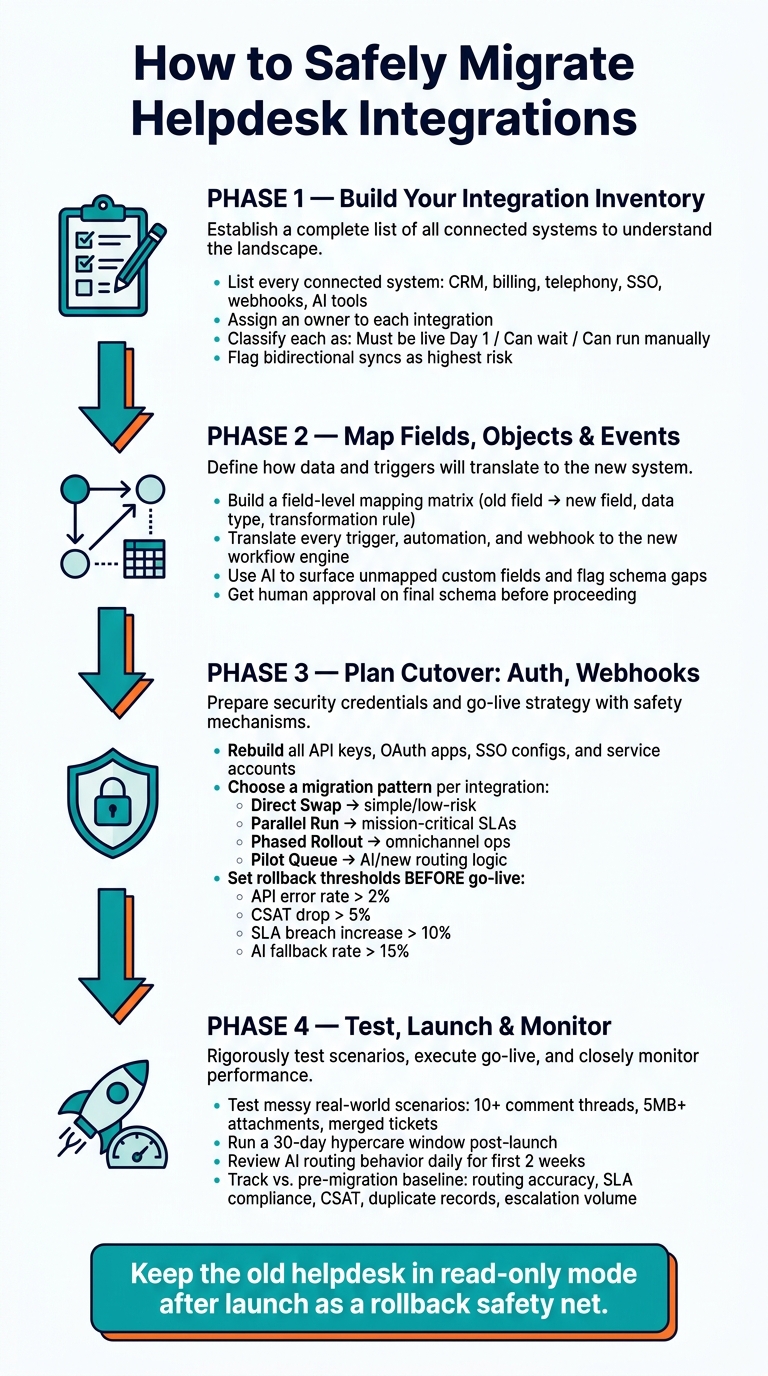
Helpdesk Integration Migration: Step-by-Step Process Guide
1. Build a complete integration inventory before you move anything
Catalog systems, owners, and data flows
Start by listing every system connected to support: native apps, custom APIs, webhooks, middleware, and AI tools.
A spreadsheet works well here. Set up tabs for Integrations, Customizations, and Help Center Redirects. For each integration, record the system name, connection type, data direction, owner, criticality, and failure impact. Also note whether the flow is one-way or bidirectional. That detail matters because bidirectional syncs are usually much harder to rebuild and test.
Make sure you document every support-critical connection across CRM, billing, entitlements, telephony, knowledge base, identity, and analytics. Assign owners for routing, security, billing, and the hidden agent workarounds that never made it into formal docs. Bring frontline agents into this process too. They often know the messy stuff no one else sees.
Map dependencies and critical workflows
Once the list is complete, rank each integration by failure impact. Some connections have to work on Day 1: inbound email ingestion, live chat widgets, SSO for agent login, CRM sync for account context, and billing entitlement checks. Others can wait a bit, or be handled manually during the transition.
A simple three-tier setup keeps this from turning into chaos: must be live on Day 1, can wait, or can run manually during transition [1].
Look closely at workflows where one broken integration can knock out the whole chain. Common trouble spots include routing by account tier, SLA clock triggers, escalation rules before renewals, and contract-based entitlement checks. These are the highest-risk items, so they need the most detail before cutover.
Rank those high-risk items first. That way, the next step only has to map what the cutover actually depends on.
Use AI to speed up current-state documentation
Doing all of this by hand can eat up days. AI can help by summarizing exports, pulling out fields, spotting undocumented dependencies in webhook logs, and drafting a first-pass integration map.
This helps most with the weird edge cases: informal automations, patched-together webhook chains, and agent or ops workarounds that grew over time and were never written down. AI can also summarize your current Help Center content, macros, and policy docs so you have input ready for day-one AI agents [3].
Use this inventory as the source for field mapping and event translation. It becomes the input for field, object, and event mapping.
sbb-itb-e60d259
2. Map fields, objects, and events to prevent data loss and broken workflows
Next, map every field, object, and event to the new helpdesk schema – or write down why it can’t move. Skip this step, and things fall apart fast: account context breaks, duplicate contacts pile up, and automations start firing under the wrong rules.
Build a field and object mapping matrix
Start with a field-level map. Use one row per field, and note where it lives now, where it should go next, the data type, and any rule needed to make it fit. Keep raw history intact. Only normalize the parts needed for search, reporting, and automation.
Also, watch object relationships closely. Accounts connect to contacts. Contacts connect to tickets. Merged-ticket histories tie old records together. That relationship data gives B2B support its context, and it’s often the first thing to snap when teams rely on a flat CSV export.
| Old Field | New Field | Data Type | Transformation Rule | Source of Truth | Approver |
|---|---|---|---|---|---|
ticket_id | external_id | String | Prefix with "OLD-" | Legacy Helpdesk | Ops Lead |
cust_priority | priority_level | Dropdown | Map 1–5 scale to Low–Urgent | CRM | Support Mgr |
acct_tier | account_segment | String | Normalize to "Enterprise/SMB" | Billing System | Finance |
created_at | legacy_created_date | Timestamp | Convert ISO 8601 to UTC | Legacy Helpdesk | Data Arch |
sla_status | sla_policy_id | ID | Map to new Dynamic SLA ID | New Helpdesk | Ops Lead |
Once the field matrix is done, use it to rebuild event logic and webhook behavior.
Translate triggers, automations, and webhook events
Field mapping covers the data. Event mapping covers what the system does.
That means every trigger, automation, and webhook in the old setup needs to be rewritten for the new workflow engine, not pasted over and hoped for the best. For example, a trigger that fired on ticket_status = solved in the old system may need to fire on ticket_status = closed in the new one.
Start with the highest-risk events first:
- Ticket created
- SLA breached
- Escalation triggered
These events drive routing, queue assignment, and account-based workflows. If they misfire after go-live, agents lose automation coverage right when they need it most. Map each event to its new match, verify that the conditions line up, and record who signed off on the translation.
Use AI to find mapping gaps and draft transformation rules
Manual mapping gets you a long way, but it misses things. This happens a lot with anonymous custom field IDs like custom_field_3829103 that never got a readable name.
AI can scan the source helpdesk through the API, map those fields to readable names, and flag fields that show up in legacy reports but have no destination in the new schema. It can also spot duplicate concepts across systems and suggest normalization rules for mismatched enums – for example, converting "Solved" to "Closed" and standardizing tags to snake_case.
Human review should approve the final schema.
Once the mapping matrix is approved, use it to plan API, webhook, and auth cutover.
3. Plan cutover for APIs, webhooks, authentication, and rollback
With your field and event mapping approved, the next step is the switch itself. This is the part that often decides whether the migration stays on track or starts slipping.
Rebuild authentication, permissions, and service accounts
Before cutover, create a full registry of every API key, OAuth app, SSO dependency, and service account in use. For each one, note the owner, the connected system, and the permission scope. Your checklist should also cover credential rotation, endpoint updates, retry behavior, and log checks.
Start with least-privilege access. Each service account should have only the access it needs, nothing more. Rotate credentials as part of the migration plan, then verify the new connections before you shut off legacy access.
You’ll also need to update webhook URLs in every system that sends data to the helpdesk. Test those new webhooks against source systems before retiring the old helpdesk. This is one of those areas where small misses can turn into messy downtime.
Cut ambiguity before cutover. Clear ownership, clear permissions, clear endpoints.
Once credentials and endpoints are mapped, pick the cutover pattern for each integration.
Choose a migration pattern for each integration
Not every integration should switch in the same way. A direct endpoint swap can work for simple, low-risk setups. But high-value workflows need more protection. The pattern should match the risk.
| Migration Pattern | Best For | Risk Level | Rollback Time |
|---|---|---|---|
| Direct Endpoint Swap | Small teams; simple workflows | High | Slow |
| Parallel Run | Mission-critical SLAs; complex data | Low | Instant |
| Phased Channel Rollout | seamless customer support management | Moderate | Fast |
| Pilot Queue | Testing AI or new routing logic | Very Low | Instant |
A parallel run, where both systems operate at the same time for a short overlap, is the safest choice for integrations tied to high-value account handling. It gives you room to confirm that the new system behaves as expected under production conditions before you cut off the old one.
If your team is testing new AI routing or automation logic, a pilot queue is a smart way to start. Route one high-volume, low-risk intent to the new system first, check the behavior, then expand from there.
Set rollback triggers before go-live
Rollback needs hard thresholds. Set them before go-live so the call to roll back is automatic, not an argument in the middle of an incident.
| Rollback Trigger | Threshold |
|---|---|
| API/widget error rate | Spikes above 2% [4] |
| CSAT score | Drops more than 5% from baseline [4] |
| AI/bot fallback rate | Exceeds 15% [4] |
| SLA breach rate | Increases more than 10% from baseline [1] |
| Failed ticket routing | Any failure on high-value accounts [1] |
When a threshold is hit, follow a fixed sequence:
- Revert DNS or email forwarding to the original helpdesk
- Disable inbound webhooks in the new system to stop duplicate records
- Re-enable legacy triggers and automations
- Document the exact failure point for a post-mortem [1][2]
Keep the old platform available in read-only mode after cutover as a safety net.
Use these thresholds to shape staged testing before launch.
4. Test in stages, launch carefully, and validate after go-live
Run pre-production tests for real support workflows
Test the messy stuff, not just the happy path. The support flows you rebuilt during mapping and cutover should include tickets with 10+ comment threads, attachments larger than 5 MB, customer merges, and tickets assigned to inactive agents.
Set up a test matrix across email, web forms, chat, and phone. Then check routing, escalations, internal notes, and final resolution. Use anonymized real-account scenarios, and confirm the right user, organization, CRM context, and SLA rules show up every time.
Put a change freeze on the legacy helpdesk before the final export. If someone adds a new workflow or custom field after the freeze, you’re inviting a mismatch during cutover.[1]
When these workflows pass in staging, move to a limited live cutover.
Use AI to generate test cases and summarize failures
Use AI to build test cases from 100+ anonymized complex tickets, including thread depth, inline images, and HTML sanitization.[5]
Then run that same test set against expected and actual outcomes. AI also helps after each run with root-cause review. Webhook logs and API errors get dense fast, and AI can sort failures by root cause, like payload mismatches, 429 rate-limit errors, or missing field mappings, then turn that into plain English for the next fix cycle.
Monitor routing, escalations, SLA performance, and AI behavior after launch
After launch, the job changes. You’re no longer just checking if the system works. You’re watching how it behaves under live volume.
Rules that looked fine in staging can act differently once real tickets start piling in. SLA timers can slip. AI agents may hand off more often if the knowledge base has holes.
Track these signals during the early post-launch window:
- ticket routing accuracy
- escalation volume by tier
- SLA compliance rate
- resolution time
- AI resolution rate
- duplicate records
- CSAT
Compare each metric with your pre-migration baseline, not only with an internal target. That matters. If a number drifts from baseline, something may have broken even if the raw result still looks okay.
| Metric to Monitor | Failure Signal | AI-Assisted Validation Step |
|---|---|---|
| SLA Compliance | Sudden drop in "Met" percentage | AI summarizes breach logs to find common root causes, such as specific time zones or priority levels |
| Escalation Volume | Spike in Tier 2/3 ticket counts | AI clusters escalated tickets to identify whether routing rules are missing specific keywords |
| Webhook Health | Missing data in CRM or billing tools | AI monitors API logs for 429 errors or payload mismatches and alerts the command center |
| AI Resolution Rate | High handoff rate to humans | AI identifies content gaps where the knowledge base lacks answers for new ticket trends |
| Duplicate Records | Multiple profiles for one email or ID | AI scans contact databases for duplicate profiles missed during import |
If you use AI-assisted routing or auto-responses, review AI behavior every day for the first two weeks. Keep a 30-day hypercare channel open for routing exceptions and reporting gaps that show up after the first cutover window.
Conclusion: Safe integration migrations are documented, staged, and measured
The teams that run into the most trouble usually aren’t dealing with the most complex setups. They’re the ones that don’t realize how many undocumented connections they have until something fails in production.
Start with a complete integration inventory. Map every field and event with care. Then pick a cutover pattern that fits the risk level of each workflow, and set rollback triggers before a single live ticket enters the new system. The goal is simple: remove guesswork before cutover so downtime stays low.
After go-live, use the migration as a chance to clean house. Too many point tools create more API failure points and add extra licensing costs. Folding those functions into one AI-native platform like Supportbench cuts fragile external dependencies and keeps workflows, a knowledge base, a customer portal, surveys, dashboards, and AI automation in one system from day one.
That matters because a strong migration doesn’t just keep support workflows intact. It also gets rid of the ones you no longer need.
Keep reviewing the new setup so it continues to fit the work, not just launch day. The cutover is short-lived. The architecture you end up with will be around much longer, so it should stay simple, measurable, and easy to maintain.
FAQs
How long should a helpdesk integration migration take?
It depends on your team size, how much data you need to move, and how complex your workflow is.
Small teams with light automation can often wrap up a migration in 1–3 days. Mid-sized teams may need 1–2 weeks. Larger or more complex migrations can take 2–6 weeks, and omnichannel operations may need 1–3 months.
If you’re planning a phased migration with lots of data and many integrations, set aside several weeks to a few months. The main goal is giving your team enough time for testing, validation, and rollback planning so you don’t run into disruption.
Which integrations should go live first?
Start with integrations tied to your core workflows and day-to-day support, like CRM, billing, messaging channels, and helpdesk connections.
Set these up and test them first in the new platform so you can confirm that data is moving properly and key workflows still work the way they should. It also helps to reconfigure and test webhooks and Zapier automations early. That cuts the odds of data loss or broken workflows during cutover.
How do I prevent duplicate records during cutover?
Use multiple dry runs before the final switch. That gives your team a chance to compare record counts, attachments, comments, and ticket relationships early, instead of finding problems at the last minute. It also helps to validate sample exports by hand, including edge-case tickets, so you can confirm that threads and history stay intact.
Once the final mapping is approved, put the old helpdesk into a change freeze. Then run both systems in parallel for a short period to catch duplicate tickets, missed messages, or broken relationships before the full cutover.
Related Blog Posts
- Help Desk Migration Checklist: How to Switch Platforms Without Downtime
- How do you map Kayako statuses, priorities, and custom fields to a new helpdesk?
- How do you migrate away from Help Scout without losing conversations or history?
- How do you map Help Scout mailboxes, workflows, and statuses to a full helpdesk?