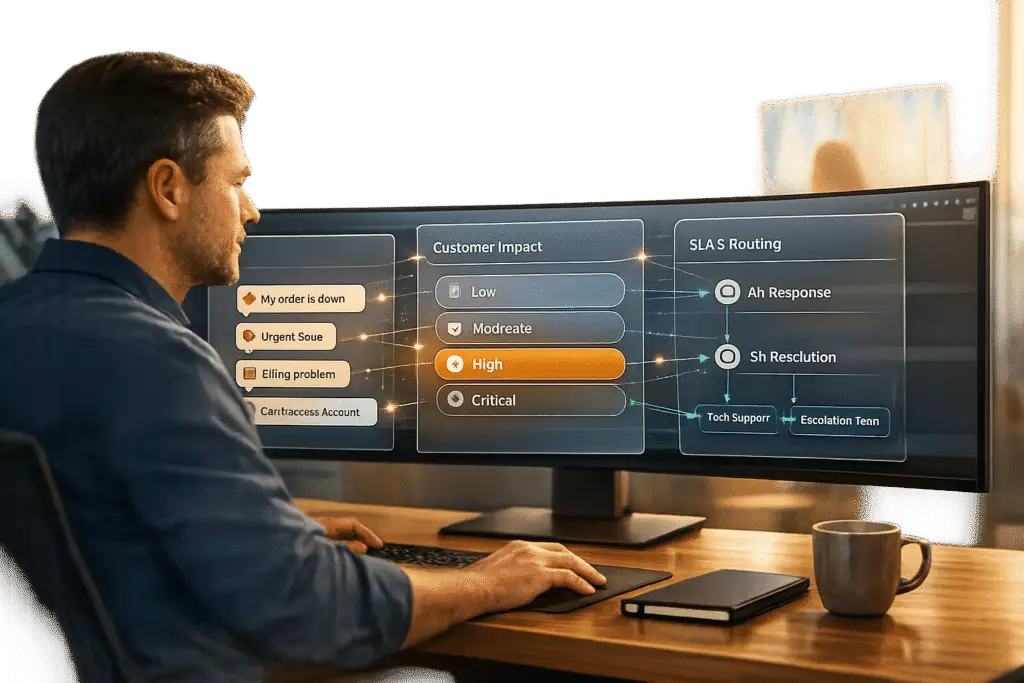
A customer impact field helps classify issues based on how they affect a customer’s work, ensuring faster, more accurate responses. This article explains how to design one that’s clear, actionable, and customer-friendly.
Key Takeaways:
- Purpose: Categorize issues by severity to improve prioritization and resolution.
- Common Problems: Fields often confuse customers with technical jargon or vague labels.
- Effective Design:
- Use clear, relatable language (e.g., "We can’t use the product at all").
- Include dropdown menus with helpful descriptions.
- Avoid mandatory fields to prevent random selections.
- Impact Levels: Define levels like Critical, High, Medium, and Low with specific business criteria.
- AI Integration: Use AI to suggest impact levels and improve routing accuracy.
- Testing & Refinement: Regularly review and adjust based on agent feedback and customer behavior.
A well-designed impact field bridges customer input with actionable solutions, making support faster and more efficient.
Planning Your Customer Impact Model
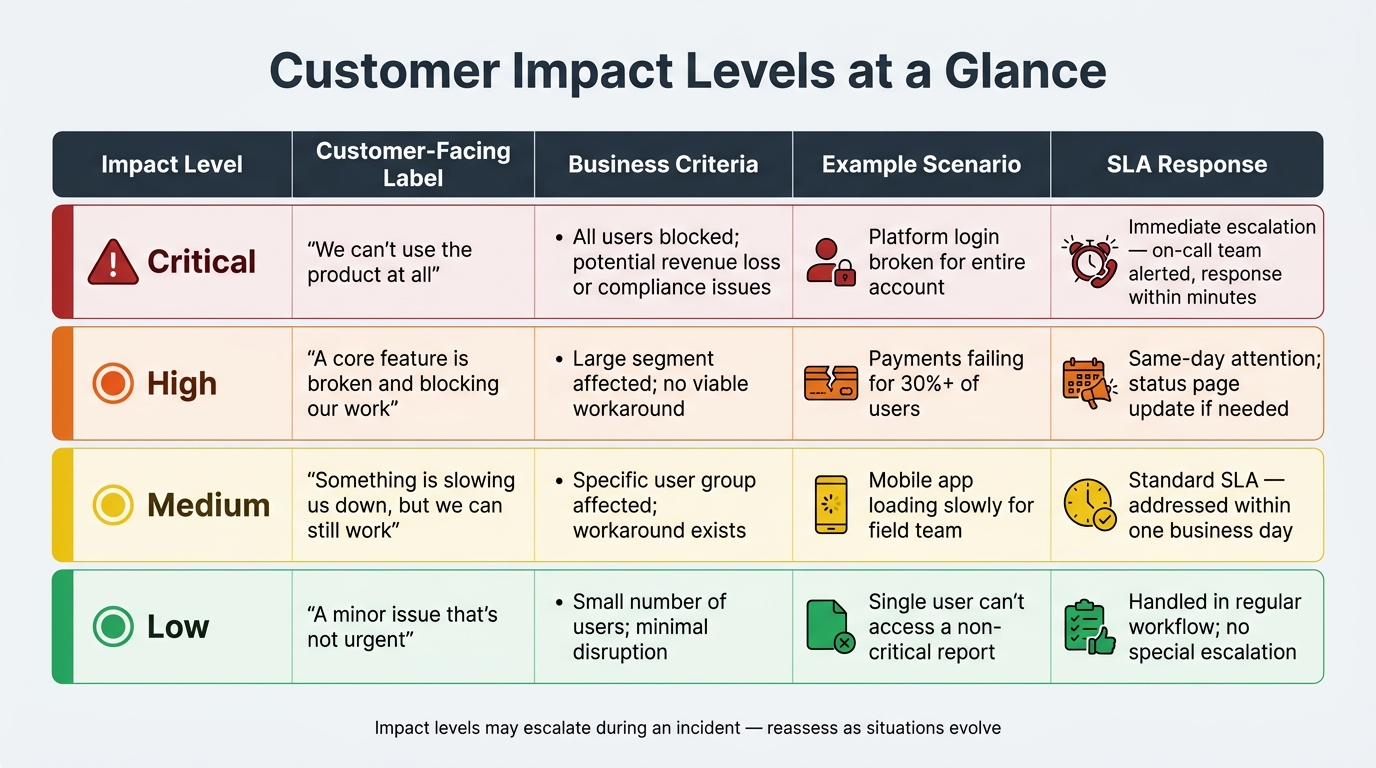
Customer Impact Levels: Definitions, Criteria & SLA Responses
Building an effective customer impact model is crucial for turning customer pain points into actionable insights that drive business outcomes.
Connecting Impact Levels to Business Outcomes
For a customer impact model to work, it must tie impact levels directly to measurable business goals. Metrics like CSAT, NPS, FCR, SLA adherence, and renewal risk are all influenced by how well a ticket’s impact is classified right from the start.
Take a B2B SaaS company as an example. Imagine an account lockout two weeks before a renewal. This issue carries a direct revenue risk and needs immediate attention. The stakes are clear: delayed resolution could mean lost revenue, higher churn probability, or even compliance concerns. By linking a "Critical" impact level to scenarios like this, your team can ensure these urgent issues are prioritized appropriately.
Think of it like this: every impact level should correspond to a specific business outcome. Whether it’s revenue loss per hour, increased ticket volume, customer churn risk, or compliance exposure, clear connections between impact levels and outcomes reduce subjective decision-making. When your team can point to a tangible consequence, classifying tickets becomes much more straightforward.
Once you’ve identified the business outcomes, the next step is to define impact levels that align with these outcomes.
Defining Impact Levels and Their Criteria
Most support teams find success using four impact levels: Critical, High, Medium, and Low. The secret lies in defining these levels in simple, customer-focused terms rather than relying on internal jargon.
| Impact Level | Customer-Facing Description | Business Criteria | Example Scenario |
|---|---|---|---|
| Critical | "We can’t use the product at all" | All users blocked; potential revenue loss or compliance issues | Platform login broken for the entire account |
| High | "A core feature is broken and blocking our work" | Large segment affected; no viable workaround | Payments failing for 30%+ of users |
| Medium | "Something is slowing us down, but we can still work" | Specific user group affected; workaround exists | Mobile app loading slowly for field team |
| Low | "A minor issue that’s not urgent" | Small number of users; minimal disruption | Single user can’t access a non-critical report |
Scope and urgency matter just as much as the number of users affected. For example, an issue impacting five users who handle all financial operations is far more critical than one affecting five users in a 500-person company where others can step in. These subtleties need to be documented in your criteria, not just reflected in impact level labels.
"Your first thresholds will be wrong. Adjust quarterly based on actual incident data." [2]
Linking Impact Levels to SLAs and Workflows
Once you’ve defined your impact levels, the next step is aligning them with specific operational responses. This is where the model transitions from theory to action.
- Critical issues should prompt immediate escalation: the on-call team gets involved, account managers are alerted, and a response begins within minutes.
- High impact cases demand same-day attention, with updates on the status page if needed.
- Medium issues follow standard SLA timelines, typically addressed within one business day.
- Low impact tickets are handled as part of the regular workflow without special escalation.
It’s also important to recognize that impact levels can shift during an incident. For instance, a Medium issue might escalate to Critical if more users are affected or if a workaround fails. To address this, include a reassessment step in your escalation process. This ensures agents revisit and update the impact level as the situation evolves, rather than sticking with the initial classification.
sbb-itb-e60d259
Designing an Impact Field Customers Can Use
Picking the Right Field Type and Placement
When it comes to capturing impact levels, a dropdown menu is your best bet. It offers a concise, predefined list of options, making data collection consistent and reporting much easier. While free-text fields might seem flexible, they can complicate automation and make data aggregation a challenge [3].
Avoid displaying internal priority fields to customers. Allowing them to set an internal priority often leads to "priority inflation", where nearly every ticket is marked as urgent. Instead, use a field labeled something like "Customer Impact" or "How is this affecting you?". Then, rely on backend triggers to map their selections to your internal priority system [4].
Placement plays a big role too. Position the impact field near the top of your ticket form, right after the subject line and description. This ensures it catches the customer’s attention naturally. And don’t forget to use clear, customer-friendly language for the labels and descriptions.
Writing Labels and Descriptions Customers Understand
Once you’ve nailed down the field type and placement, focus on making the language simple and relatable. Skip the technical jargon – your labels should reflect the customer’s perspective. For instance, "How is this affecting your work?" is far more intuitive than a generic label like "Impact Level."
To eliminate confusion, pair each dropdown option with a short description. Adding visual cues, like emojis, can also help customers quickly grasp the meaning [5]. Here’s an example of how you can structure it:
| Dropdown Value | Helper Text Shown to Customer |
|---|---|
| ⚠️ Critical – We’re completely blocked | No one on our team can work; immediate attention is required |
| 🔴 High – A key feature is broken | Core functionality is down with no available workaround |
| 🟡 Medium – We’re slowed down | There’s an issue affecting performance, but operations continue |
| 🟢 Low – Minor issue, not urgent | A small inconvenience affecting only a few users |
Including a brief helper message below the field – like "This helps us prioritize your request and respond faster" – can encourage customers to make more thoughtful and accurate selections [5].
Testing the Field with Real Users Before Launch
Before rolling this out to everyone, test the impact field with a small group of real users and agents. The goal? Identify any confusing elements and refine the field for a smooth launch.
During testing, don’t make the field mandatory. If customers are forced to choose without fully understanding the options, they might just pick something random to move forward [1]. Pay attention to the choices customers naturally make and compare them to the adjustments agents feel compelled to make. If agents frequently change customer selections, that’s a sign the labels or descriptions need tweaking.
Keep an eye on patterns. For example, if lots of tickets come in as "High" but agents later downgrade them to "Medium", it’s likely the "High" description is too vague or misleading. In such cases, update the descriptions, refine the criteria, and test again. Regular reviews – say, every quarter – can help you spot and fix any options that aren’t working as intended [4].
Setting Up and Running the Impact Field Day to Day
Configuring the Impact Field in Supportbench
Once your labels are finalized and tested with real users, the next step is to create the field in Supportbench. Head to Configuration > Custom Fields > New Field, assign it a clear name like "Customer Impact", and set its location to Case View. This ensures the field appears directly in the ticket workspace where agents spend most of their time [3].
"By creating custom fields, you can tailor Supportbench to accommodate unique data points and gather relevant details during ticket creation or management." – Supportbench [3]
Choose Dropdown as the field type to standardize selections. This is critical for building automated workflows based on the data. Once saved, link each impact level to its corresponding SLA and workflow. This setup automates response targets and ticket routing. The table below outlines the key steps:
| Configuration Step | Action in Supportbench | Purpose |
|---|---|---|
| Field Creation | Configuration > Custom Fields > New Field | Adds the new data point to the system. |
| Field Type | Select "Dropdown" | Standardizes customer input for consistency. |
| Location | Select "Case View" | Ensures visibility for agents in ticket view. |
| Mapping | Link to SLA/Priority Matrix | Automates response times based on impact levels. |
| Routing | Set up Workflow Rules | Routes tickets to the right teams automatically. |
With the field set to handle routing and SLA mapping, the focus should shift to ensuring agents can use it effectively.
Training Agents and Documenting How to Use It
Agents need to know when to rely on customer-provided impact levels and when adjustments are necessary. Create an internal guide that aligns with the labels and criteria in the Supportbench field. This guide will serve as a single, reliable reference point for agents [3]. Additionally, use the in-system tooltip in Supportbench to provide quick access to configuration details during ticket handling [3]. Tailor training for each team by focusing on the impact levels relevant to their specific queues.
Consistent training reduces confusion, minimizes misclassifications, and speeds up ticket resolution. Keep an eye on how often agents override customer-selected impact levels. If overrides are frequent, it might indicate that the customer-facing labels need to be revisited rather than assuming customers are making errors.
Using Surveys and Feedback to Improve the Field
Customer surveys are a great way to validate and refine the impact field. Use the impact level as a filter in your reporting dashboard to compare CSAT scores across different tiers. For example, if customers selecting "Critical" consistently report lower satisfaction than those choosing "High", it might highlight issues with SLA mapping or escalation procedures for that level [6].
Beyond surveys, the impact field can help identify areas for process improvement. If one impact level leads to a high number of agent overrides or SLA breaches, it’s worth reviewing the criteria and descriptions for that tier. Regularly analyze survey data and agent feedback, just as you did during the testing phase, to fine-tune the field. Schedule periodic reviews to identify trends while allowing enough time for meaningful insights to develop.
Using AI to Get More Out of the Impact Field
Adding AI to your support workflow doesn’t just streamline processes – it makes the customer impact field smarter and more effective. By analyzing data and learning from past interactions, AI enhances both ticket assignment and overall customer experience.
Auto-Suggesting Impact Levels with AI
Once your impact field is up and running, Supportbench’s AI steps in to simplify the process. It evaluates ticket details like subject lines, descriptions, and even sentiment to suggest the most accurate impact level before an agent reviews it. By comparing new tickets to historical patterns, the AI ensures its suggestions stay consistent with your business rules.
For example, if a customer marks an issue as "Low Impact" but their message suggests urgency, the AI flags the mismatch. This allows agents to adjust the impact level before the ticket is routed. This kind of human-AI collaboration is now a standard in many workflows [8].
The result? Smarter case routing that doesn’t just rely on the impact level but also considers the broader customer context.
Smarter Case Routing and Prioritization
AI takes routing a step further by factoring in additional data points like sentiment, account history, and CRM details. For instance, a "High Impact" ticket from a customer nearing renewal will be treated with greater priority than a similar ticket from a new account. Supportbench’s AI uses this contextual information to make routing decisions more precise [7][9].
"AI excels at spotting hidden signals in customer behavior that humans might miss." – Gainsight [8]
This matters because 84% of customers believe being treated as individuals – not just numbers – is essential to earning their loyalty [9]. AI-driven routing helps scale this personalized approach, ensuring that the most critical tickets get the attention they deserve. It can even predict when to adjust SLAs, like when churn risk is high or a renewal deadline is approaching.
Tracking and Improving the Impact Model Over Time
Impact field labels can become less effective over time. That’s why it’s important to track key metrics through Supportbench’s dashboards. Metrics like Automation Rate and AI Assistance Rate help you measure how well the AI is performing and whether adjustments are needed [10].
| Metric | What It Measures | Why It Matters |
|---|---|---|
| Automation Rate | Percentage of cases resolved by AI without agent input | Reflects how efficiently AI handles self-service [10] |
| AI Assistance Rate | Percentage of cases where AI supports agent decisions | Highlights AI’s role in boosting agent productivity [10] |
| Mean Time to Resolution (MTTR) | Average time to close a case | Indicates whether AI routing is speeding up resolutions [10] |
If you notice high override rates for a specific impact level or frequent SLA breaches, it’s a sign to revisit the criteria for that level. Instead of just tweaking workflows, take time to review and refine the definitions for each tier. Quarterly reviews of AI insights can help keep your impact model aligned with customer expectations and shifting business priorities [11].
Conclusion: Building an Impact Field That Works for Customers and Agents
A well-thought-out impact field does more than offer dropdown options – it bridges customer input with actionable solutions. When designed effectively, it clears up confusion for everyone involved: customers can easily identify the right option, and agents can respond with precision.
The key to success lies in clarity. Impact should be defined by its scope – whether it affects just one person, a department, or the entire organization. Each level must connect directly to your SLA targets. Without this connection, the impact field loses its effectiveness.
To keep things running smoothly, document clear criteria for classifying issues. This helps agents maintain consistent customer experiences, minimizes errors, and speeds up resolutions. Pay attention to patterns, like frequent downgrades from higher to lower impact levels, as these can signal flaws in your system. By following these steps, your team can deliver more reliable and efficient support.
"Priority isn’t just about picking a label. Smart teams use an urgency-impact matrix to make consistent decisions." – Stevia Putri, Marketing Generalist, eesel AI [4]
This highlights the importance of balancing customer-friendly language with operational precision.
FAQs
How do I map Customer Impact to internal priority and SLAs?
When aligning customer-reported issues with internal priorities and service-level agreements (SLAs), it’s essential to differentiate between the customer’s perceived impact and your internal evaluation. Here’s how you can streamline this process effectively:
- Use an Impact-Urgency Matrix: Allow customers to assess the impact of their issues based on clear, measurable criteria, such as the number of users affected, the extent of functionality loss, or potential business risks. This ensures their input is structured and actionable.
- Incorporate Internal Scoring: Combine the customer’s input with internal data, like the customer’s account tier or strategic importance, to calculate the overall priority of the issue. This helps balance customer urgency with business objectives.
- Leverage AI for Consistency: Automate the prioritization process using AI tools. This not only ensures uniform evaluations but also reduces human error in assessing and assigning priorities.
- Test in a Sandbox Environment: Before rolling out these processes, test them thoroughly in a controlled environment. This ensures that workflows remain accurate and functional without disrupting ongoing operations.
By following these steps, you can create a system that balances customer needs with internal goals, ensuring a fair and efficient approach to prioritization.
What should I do when customers always pick the highest impact?
If customers consistently pick the highest priority for their issues, it usually means your definitions might be ambiguous, or they’re worried their concerns won’t get the attention they deserve. A good way to tackle this is by swapping manual priority selection with an impact-urgency matrix.
Set clear criteria, such as the percentage of users affected or whether a workaround exists, and include straightforward examples in your portal to guide them. Additionally, leverage AI to review and adjust classifications based on the real business impact, ensuring prioritization aligns with actual needs.
How can AI suggest the right impact level from ticket text?
AI evaluates impact levels by examining ticket details like subject lines, descriptions, and conversation history. It looks for keywords, error codes, and symptoms. Through Natural Language Processing (NLP), it can even interpret vague or unclear requests to determine intent. This information is matched with account context – such as customer tier or prior escalations – to calculate an accurate impact score. Advanced systems can perform this analysis in about two seconds, achieving over 95% accuracy.