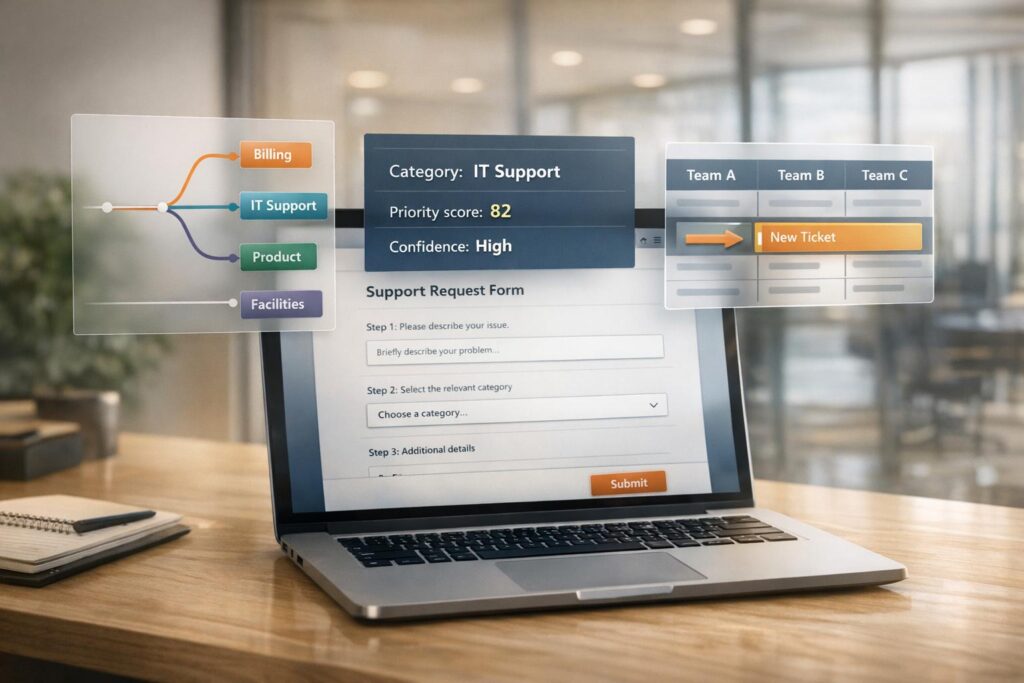
In B2B customer support, misrouted tickets lead to inefficiencies like "ticket tennis", where issues bounce between teams, delaying resolutions and frustrating customers. About 30% of tickets in traditional systems require reassignment, with each adding 15 minutes to resolution time. The solution? A guided intake form that uses conditional logic and AI tools to collect relevant details, route tickets accurately, and prioritize issues effectively.
Here’s how you can create one:
- Gather Key Information: Start with basics like name, email, and organization. Include fields like Customer Tier or Account Type to prioritize high-value clients.
- Use Dynamic Questions: Employ conditional logic to show only relevant questions based on user responses, reducing form complexity.
- Categorize and Prioritize: Use a two-tier categorization system and calculate priority scores by combining factors like urgency, customer tier, and sentiment.
- Integrate AI: AI can analyze text, detect intent, and assess sentiment to improve routing accuracy and reduce manual errors.
- Test and Optimize: Simulate scenarios with historical data, monitor performance, and refine workflows based on feedback.
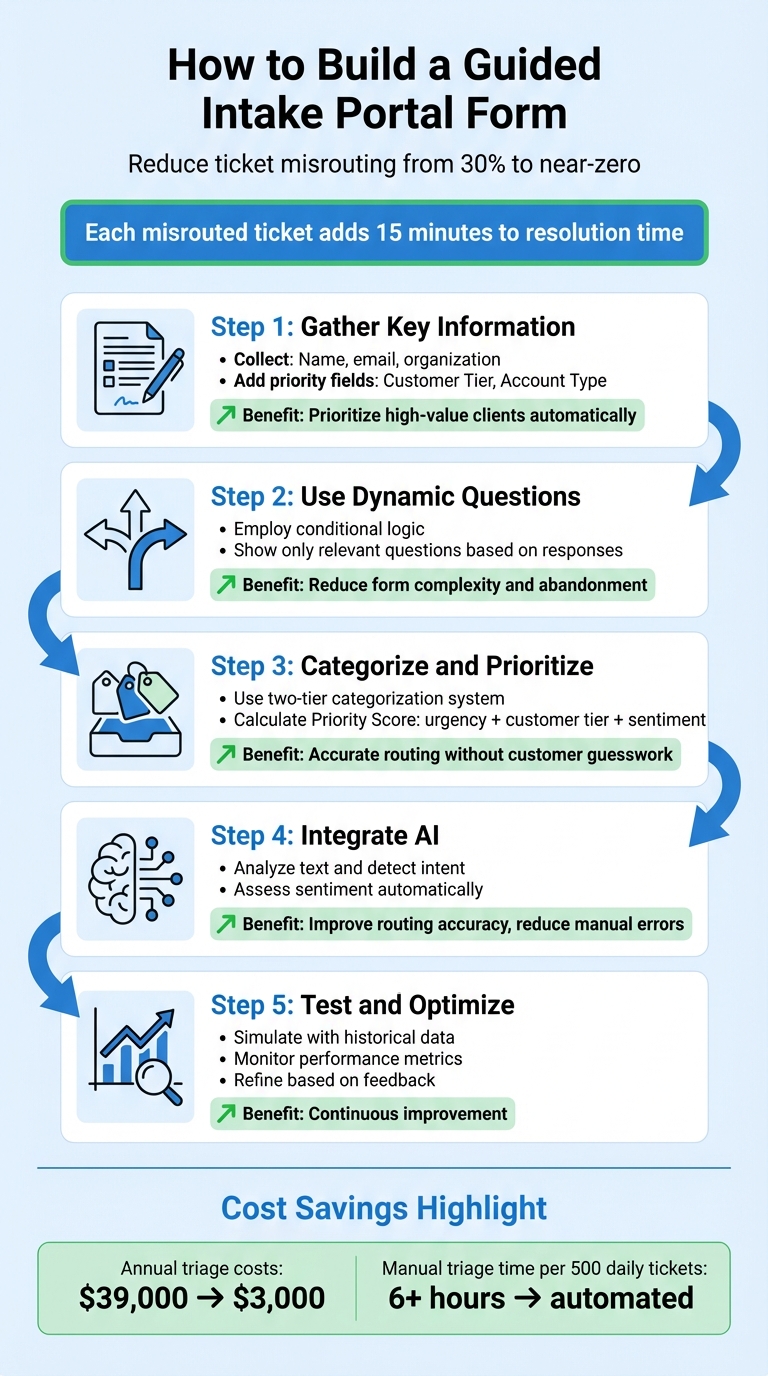
5-Step Guide to Building an Effective Guided Intake Portal Form
3 Rules to Automate Ticket Routing
sbb-itb-e60d259
Core Components of a Guided Intake Form
Designing an effective intake form is all about balance – keeping it simple while ensuring it collects the essential details needed for accurate ticket routing. The key is to gather just enough information to route tickets correctly on the first try without overwhelming users. This process revolves around three main elements: contact and account information, conditional logic for tailored questions, and issue categorization with severity assessment. Each piece works together to streamline ticket handling and improve efficiency.
Contact and Account Information
The first step is straightforward: gather the basics like name, email, and organization. But don’t stop there. Adding fields such as Customer Tier (e.g., Premier, Gold, Standard) or Customer Type (VIP, Trial, Partner) can help prioritize tickets for high-value clients automatically [2][5]. This isn’t just about making customers feel special – it’s about ensuring critical tickets reach the right teams faster.
For example, email domains can be used to map tickets to specific organizations or service-level agreements (SLAs) without requiring manual input [6]. Integration with your CRM takes this further by cross-referencing account data to flag VIP clients instantly [2].
The time and cost savings are clear. Manual triage takes about 45 seconds per ticket. For a team processing 500 tickets daily, that adds up to over 6 hours of manual effort each day. By automating ticket routing with structured intake data, annual triage costs can plummet from $39,000 to just $3,000 [6].
| Field Name | Data Type | Routing/Operational Purpose |
|---|---|---|
| Account Tier | Drop-down | Prioritizes tickets for "Premier" or "VIP" clients [2] |
| Department | Drop-down | Directs tickets to specific teams like Finance or IT [5] |
| Customer Segment | Drop-down | Differentiates between Enterprise and SMB clients [7] |
Conditional Logic for Dynamic Questions
Long, static forms often discourage users from completing them. Conditional logic solves this by dynamically adjusting questions based on earlier responses, making the process feel more conversational. For instance, if a user selects "Integration Issue", the form might ask for API logs or error codes. On the other hand, choosing "Billing" could prompt a request for invoice details. This ensures users only see questions relevant to their specific issue.
Before building your form, map out the branching points – those critical answers that determine what follow-up questions are necessary. Implementation relies on logical operators like "Equals" for exact matches, "Contains" for keywords, and "Is empty/Is not empty" for checking field completion [1].
You can refine this further by combining conditions with AND/OR logic. For example, show "Enterprise Support" fields only if the company size exceeds 500 employees and the issue type is "Outage" [1]. Always secure key details like name and email upfront to capture useful data, even if the form isn’t fully completed [1]. To keep things manageable, limit branching to two or three levels and eliminate questions that don’t serve a clear purpose [1].
Once the dynamic question flow is in place, you can move on to categorizing issues and evaluating their severity.
Issue Categorization and Severity Assessment
Customers aren’t always great at categorizing their own issues. For example, someone experiencing a production outage might mistakenly mark their ticket as "Low Priority." To address this, use a two-tier system: start with a high-level "Topic" (Tier 1) offering fewer than 10 options, then provide optional "Subtopics" (Tier 2) based on the selected topic. This structure lays the groundwork for AI tools to refine categorization and improve routing accuracy.
Behind the scenes, calculate a Priority Score by combining the reported impact with internal data such as customer tier or account value. Use clear labels like "Urgent: System Down" or "Minor: How-to Question" to avoid confusion. As Jake Bartlett puts it:
"If a tag doesn’t change how you handle a ticket or how you understand your support data, it’s adding noise instead of clarity." [8]
AI can further enhance this process by detecting intent, even when users phrase their issues poorly. For example, phrases like "I want my money back" or "refund this" both indicate a billing issue, even if the exact words differ. Nooshin Alibhai explains:
"AI cuts through the noise to identify truly urgent issues requiring immediate attention, regardless of how poorly the initial request might have been phrased or categorized by the user." [2]
To maintain clarity, standardize your terminology – use one consistent term per concept (e.g., "Billing" instead of mixing "Invoicing" or "Payments"). Avoid vague categories like "Other" or "General Inquiry", which can dilute the quality of your data. Conduct quarterly tag audits to consolidate overlapping tags and remove outdated ones for cleaner, more actionable insights.
Building Routing Logic and Workflows
After gathering the right data through your intake form, the next step is to create routing logic that directs tickets to the correct teams or agents. The aim is straightforward: ensure tickets land with the right person on the first attempt.
Mapping Responses to Teams or Agents
Start by using simple "If-Then" logic to assign tickets based on customer responses. For instance, if @issue_category = "Billing", route the ticket to the Finance team. If @issue_category = "API Integration", send it to Engineering or Tier 2 Support [5].
Behind the scenes, you can maintain a database that tracks agent expertise in areas like billing, technical support, or API troubleshooting. Match tickets to agents with the highest proficiency scores while also considering real-time workload – balancing ticket counts and agent availability to avoid overloading anyone [2][4].
The efficiency gains are clear. If 30% of tickets need reassignment and each reassignment adds 15 minutes of delay, a team wastes 4.5 hours for every 100 tickets processed [4]. As Nooshin Alibhai, Founder and CEO of Supportbench, explains:
"Getting the ticket to the right person faster inherently shortens the overall time to resolution. Reduced transfers mean less time spent waiting in queues or repeating information." [2]
This mapping process is the foundation for refining ticket priorities and escalation paths.
Adding Priority Scoring and Escalation Paths
Rather than relying on customers to determine ticket priority, calculate a Priority Score by combining factors like @priority_value + @impact_level + @customer_tier [5]. This approach incorporates sentiment analysis (identifying frustration or anger), urgency keywords like "outage" or "system down", customer tier from your support CRM, and behavior patterns such as rapid follow-up emails [2].
AI can even detect urgency in tickets without explicit keywords by analyzing tone and context [2]. As Nooshin Alibhai puts it:
"AI determines priority not just based on a selected field or a single keyword, but by analyzing a confluence of factors." [2]
Set automated escalation triggers for critical issues. For example, tickets flagged as "Critical" with technical problems can be routed directly to Engineering, Tier 2 Support, or a P1 Incident Management team, depending on the issue’s nature [2][5]. These scores support both automated escalations and direct agent assignments, as illustrated below:
| Intent Category | Typical Keywords/Triggers | Recommended Routing Target |
|---|---|---|
| Billing | payment, invoice, refund, subscription | Finance/Billing Team |
| Technical | bug, error, crash, API, broken | Engineering/Tier 2 Support |
| Account Access | login, password, locked, SSO | General Support/Automated Flow |
| Critical Outage | system down, cannot access, production | P1 Incident Management |
Before deploying new routing rules, test them in a sandbox or simulation mode using historical ticket data. This step predicts automation rates and accuracy before going live [3]. Begin with a phased rollout – automate one high-volume, straightforward category like "Refund Request" or focus on a single channel like email before expanding to more complex workflows [3].
Fallback Routing for Unclear Submissions
Even with automated routing, not every ticket will fit neatly into predefined categories. Some submissions will be vague, incomplete, or outside the scope of your logic. To handle these, create a "General" or "Triage" queue for tickets where AI confidence is low or form inputs are ambiguous [2][4]. This ensures no ticket is lost or misrouted when the system is uncertain.
Incorporate a human-in-the-loop (HITL) system by assigning dispatchers to review flagged cases or edge cases that the AI cannot confidently categorize [2].
Add auto-save features to your intake portal so users can resume lengthy reports if interrupted, reducing incomplete submissions that complicate routing [5]. Build a feedback loop by including a "was_correct_route" field for agents to complete, helping identify patterns in misrouted tickets and improving your logic over time [4].
As Nooshin Alibhai explains:
"AI automates the bulk of routine categorization, prioritization, and routing, freeing human oversight for exceptions, complex edge cases, quality checks, and managing overall workflow performance." [2]
With these routing strategies in place, the next step is leveraging AI capabilities to enhance the ticket intake process even further.
Adding AI Capabilities to Intake Forms
Once you’ve set up basic routing rules, adding AI features takes your intake forms to the next level. These capabilities help streamline ticket routing by making forms smarter and more responsive. Using Natural Language Processing (NLP), the system interprets the full meaning of user inputs, rather than relying on simple keywords [2].
As Kenneth Pangan, Writer at eesel.ai, explains:
"Simple keyword matching is outdated and easy to break… True AI intent detection understands the meaning behind the words." [3]
Here’s how features like automated tagging, sentiment analysis, and dynamic suggestions enhance the accuracy of ticket routing.
Automated Categorization and Tagging
Forget about cumbersome dropdown menus – AI can analyze the subject line and description to automatically assign categories and tags. This eliminates guesswork for users and avoids the common problem of tickets being dumped into vague categories like "Other" or "General Inquiry", which can muddy your data [8].
For example, if a submission mentions "payment declined" and "subscription renewal", the system can tag it as a billing issue and route it to the right team – no manual input required. AI assigns confidence scores to its classifications, helping teams trust its decisions [4].
To give your system context, train it on more than just helpdesk tickets. Integrate it with tools like Confluence, Notion, Google Docs, or Slack threads. Start with high-volume intents like "Password Reset" or order status inquiries to build the system’s confidence before tackling more complex scenarios [9][3].
Once tagging is in place, sentiment analysis takes issue prioritization a step further.
Sentiment and Intent Detection
AI doesn’t just understand what customers say – it picks up on how they feel. Sentiment analysis identifies emotional tones like frustration, urgency, or anger, even if customers don’t explicitly label their ticket as "Critical" [2]. Combined with intent detection, this creates a clearer picture of both the problem and the customer’s emotional state.
The system evaluates sentiment alongside other factors, such as customer tier from your CRM, urgency-related words like "outage" or "system down", and behavioral patterns like rapid follow-up emails [2][4]. For instance, a "Very Negative" sentiment score paired with a "Premier Customer Tier" can trigger an immediate escalation, bypassing standard queues [2].
Before launching, test your AI setup in simulation mode using historical tickets to evaluate accuracy. Then, introduce it gradually – start with email and expand to chat or phone channels [9][3].
Dynamic Field Suggestions and Knowledge Integration
AI can suggest relevant knowledge base (KB) articles in real time as customers fill out forms, potentially solving their issue before they even submit a ticket [3][4]. For instance, if someone types "How do I reset my password?" the system might display a KB article with step-by-step instructions.
The system can also integrate with tools like Shopify or your CRM to perform contextual lookups. For example, when a customer enters an order number, the AI can pull live data like order status, shipping details, or purchase history. This reduces the need for back-and-forth communication later [3][4].
Conditional logic further refines the process. If the AI detects a technical issue combined with negative sentiment, it can display additional fields (e.g., system version, browser type, or error messages) to gather more details for complex cases. This keeps forms simple for straightforward inquiries while collecting necessary information for tougher ones [5].
Define clear rules for when AI should handle tickets and when to escalate them to a human agent. For instance, set thresholds like "Very Negative" sentiment or low confidence scores as triggers for human intervention [2][3]. This ensures edge cases get the attention they need while routine issues are handled efficiently.
| AI Capability | Function | Impact on Efficiency |
|---|---|---|
| Intent Detection | Identifies the purpose behind a message | Reduces user effort by limiting required fields |
| Sentiment Analysis | Flags emotional or urgent issues | Ensures high-priority cases get immediate attention |
| Dynamic Suggestions | Recommends KB articles during form filling | Reduces ticket volume by providing instant answers |
| Automated Tagging | Adds internal metadata automatically | Simplifies forms by removing dropdown menus |
With these AI capabilities, tickets are routed correctly on the first try. This reduces the 30% reassignment rate seen in manual systems and eliminates the 15-minute delay that often comes with each reassignment [4].
Testing, Optimization, and Common Mistakes
Testing and Monitoring Form Performance
Once your form is set up and AI integration is in place, thorough testing is the next step to ensure smooth ticket routing. One effective approach is to simulate performance using historical ticket data. By running "what-if" scenarios, you can compare how automated routing would have handled past tickets versus your team’s manual efforts – without affecting live customer interactions [3]. For example, test key rules like "If Priority = Critical, route to Support Leads" to confirm they trigger correctly [5].
A gradual rollout is often the safest approach. Start with one channel, like email, before expanding to others [3]. Be sure to monitor user behavior closely. If you notice significant drop-offs at certain steps, it could signal that the process is too complicated [10]. Pay attention to how long users spend on each step and whether they frequently hit the "Back" button – these are clear indicators of confusion. Use the data you collect to fine-tune your support workflows for better performance.
Analyzing Feedback and Refining Workflows
Agent feedback is invaluable when it comes to resolving issues like misrouted or miscategorized tickets. As Nooshin Alibhai, Founder and CEO of Supportbench, puts it:
"AI isn’t ‘set it and forget it.’ Monitor the accuracy of AI-driven categorization, prioritization, and routing. Provide feedback to the system (if possible) and refine configurations based on performance and changing business needs." [2]
Customer submissions can also reveal areas for improvement. For instance, if users frequently inquire about topics not covered in your knowledge base, it’s a clear sign that new self-service content is needed [3]. Additionally, track which fields generate the most validation errors. If one field is consistently causing issues, consider rewriting its label or adding clearer instructions [10].
Avoiding Over-Complexity and Mobile Issues
Over-complicating your form can overwhelm users and cause them to abandon the process [10]. Keep multi-step forms manageable by limiting them to 3–5 groupings, with no more than 4–5 fields per step [10]. Start with simple, low-effort questions to ease users into the process – once they complete the first step, they’re more likely to finish the entire form [10].
Don’t overlook mobile users. Design your form to be mobile-friendly by including large tap targets (at least 44×44 pixels) and ensuring fields aren’t blocked by on-screen keyboards [10]. Adding progress indicators can help reduce uncertainty and encourage users to complete the form [10].
Mandatory dropdown menus can also lead to problems. Frustrated users may select incorrect options or stick with the default choice, which can result in misrouted tickets [2]. Instead, let AI categorize tickets based on the descriptions customers provide. By focusing on simplicity and optimizing for mobile usability, you can ensure a smoother, more efficient AI-driven ticket routing process.
Connecting Intake Forms to Support Operations
Embedding Forms in Customer Portals
Place your intake form directly within authenticated customer portals. Adding features like a "My Tickets" or "My Escalations" section allows users to monitor the status of their submissions in real-time [5]. This transparency helps reduce follow-up emails and reassures users that their concerns are being addressed.
Unified support apps bring intake forms, knowledge bases, and live dashboards together in one secure environment [5]. This eliminates the hassle of switching between multiple tools. For more complex or technical forms, consider enabling an auto-save function. This ensures users don’t lose progress on lengthy reports, especially when they need to gather additional details or screenshots before completing their submission. This feature is particularly helpful for B2B customers and sets the stage for more advanced system integration.
CRM and Ticketing System Integration
Taking integration a step further, linking your intake form with CRM and ticketing systems can greatly improve efficiency. Submissions can be set to automatically create or update customer records using unique identifiers like email addresses, cutting out the need for manual data entry [12][13]. To avoid data gaps, ensure that every field in your intake form maps directly to a corresponding CRM field [11][13].
When intake forms are connected to CRM data, the system can prioritize submissions based on customer tier or lifetime value, automatically flagging high-priority requests using AI-driven sentiment analysis [2]. Nooshin Alibhai, Founder and CEO of Supportbench, highlights the benefits of this approach:
"AI routes the ticket to the best-equipped available agent or queue the first time. This minimizes internal transfers (‘ticket tennis’), reduces delays, and ensures customers connect with someone who can actually solve their problem faster" [2].
To further streamline the process, use IP-based location detection or pre-filled fields for returning users, reducing the time and effort required to complete the form [13].
Linking to Knowledge Bases and Scheduling Tools
Integrating your intake forms with other support tools can enhance ticket routing accuracy. AI and Natural Language Processing (NLP) can analyze submissions to identify common "how-to" queries, suggesting relevant knowledge base articles before the form is even submitted. If a user references a specific article (e.g., "Followed KB 1234 but still failing"), the system can flag it for specialist review or route the ticket directly to an expert [2].
For IT or field support, include mandatory fields like "Device ID" or "Location" to ensure technical requirements are addressed during escalation [7]. You can also configure forms with conditional logic, showing additional fields – like "Escalation reason" – only when users select a "High" or "Critical" priority level [7].
Finally, connect intake forms to external tools like Slack or Jira. This integration can trigger instant ticket creation and alert the right teams about high-priority issues [5]. Automating these processes ensures urgent concerns are addressed promptly without manual intervention.
Conclusion
To create an effective guided intake form, start by mapping out your decision tree, defining essential universal fields, incorporating conditional logic, and setting up dynamic routing. Think of routing as a matching challenge rather than a manual task to streamline the process effectively [1][4].
With this solid framework in place, AI technology takes your support operations to the next level. By leveraging Natural Language Processing, AI can understand the true intent and urgency behind customer submissions – even when customers don’t explicitly select high-priority options [2][4]. This smart approach significantly reduces ticket reassignments, which can account for nearly 30% of tickets. Considering each reassignment wastes about 15 minutes, that’s 4.5 hours lost for every 100 tickets – a costly inefficiency AI can eliminate [4].
"AI is revolutionizing the operational backbone of support by bringing intelligence and context-awareness to ticket routing and prioritization. This isn’t just about incremental improvement; it’s about fundamentally optimizing how support work gets done." – Nooshin Alibhai, Founder and CEO of Supportbench [2]
By moving away from outdated keyword-based rules and adopting intelligent systems that consider context, customer tier, and agent expertise, B2B support teams can eliminate the back-and-forth of "ticket tennis." Complex issues are routed directly to the right specialist, ensuring faster and more accurate resolutions [2][4]. Combining these advanced intake forms with CRM integration, workload balancing, and sentiment-driven prioritization enhances efficiency and transforms the way support teams scale.
Start small by focusing on high-volume, straightforward intents. Test every pathway on real devices, and continuously track routing accuracy to refine the system [1][3]. The payoff? Faster resolutions, reduced operational costs, and a noticeable boost in customer satisfaction for B2B support teams.
FAQs
What’s the minimum data a guided intake form should collect?
A guided intake form should gather essential details like the issue category, priority level, and customer information to ensure tickets are routed correctly. The specific fields included may differ depending on the organization’s needs. Additionally, features like conditional logic and AI-driven enhancements can be used to streamline and improve the process further.
How do I calculate a reliable ticket priority score?
To determine a dependable ticket priority score, consider using AI-powered techniques that evaluate factors such as customer sentiment, profiles, issue severity, and historical patterns. These systems adjust ticket rankings in real time, making sure urgent matters get immediate attention. By learning from previous data, these models become increasingly precise, streamlining the process, speeding up responses, and lowering operational expenses.
When should tickets fall back to a human triage queue?
When automated systems struggle to classify or route tickets accurately, they should revert to a human triage queue. This usually occurs with tickets that are ambiguous, complex, or high-priority – situations where human judgment is essential. Having this fallback process in place ensures tickets are handled correctly, avoids misrouting or delays, and helps maintain service quality, particularly for issues that require a more nuanced approach or when automation lacks confidence.