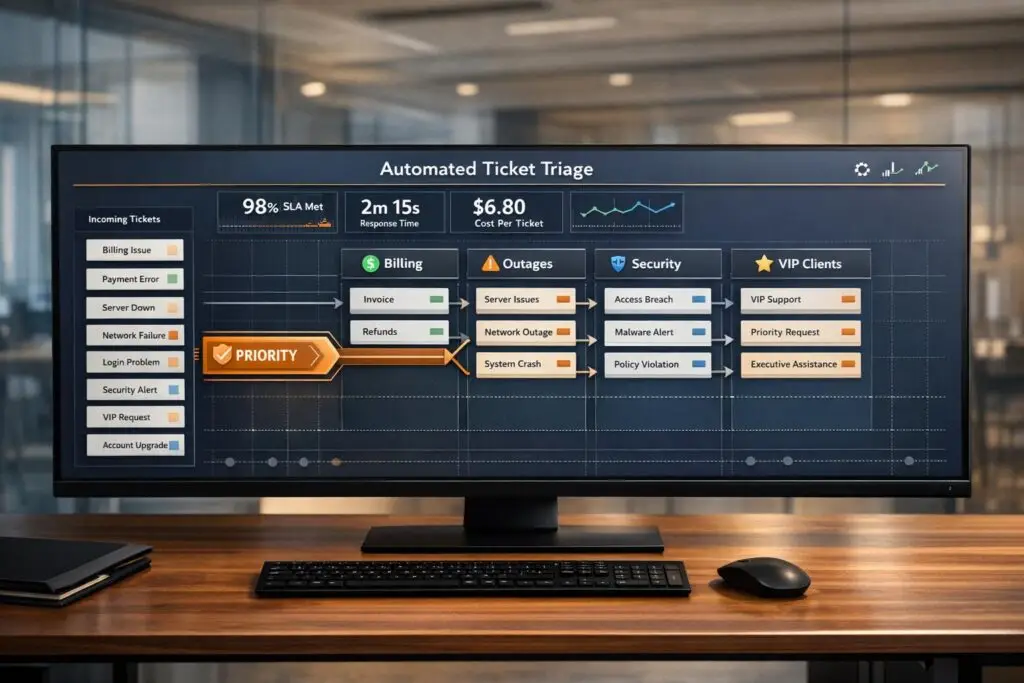
Automated triage uses keyword-based systems to sort and route support tickets instantly, eliminating manual effort and reducing delays. By scanning for terms like "billing" or "error", tickets are sent directly to the right team, improving response times and reducing costs. Advanced setups incorporate AI for better accuracy, handling misspellings, sentiment analysis, and prioritization.
Key benefits include:
- Faster response times: Tickets skip general queues and go directly to specialists.
- Cost savings: Automation reduces manual sorting efforts.
- Improved accuracy: AI minimizes misrouting by analyzing context and sentiment.
- Scalability: Handles high ticket volumes without expanding teams.
For B2B teams, automated triage is critical for meeting SLAs, protecting key client relationships, and addressing complex issues like technical bugs or VIP escalations. Setting up involves auditing workflows, defining keyword rules, testing, and integrating CRM data. Regular updates ensure the system stays efficient as needs evolve. By combining automation with AI, businesses can prioritize urgent tickets, predict customer satisfaction, and streamline processes for better customer experiences.
3 Rules to Automate Ticket Routing
sbb-itb-e60d259
What is Keyword-Based Automated Triage?
Keyword-based automated triage is a system designed to sort incoming support tickets by scanning for specific keywords and routing them to the appropriate team or agent. It uses straightforward "IF-THEN" logic: for instance, a ticket mentioning "billing" might go straight to the Finance team, while one referencing "outage" would head to the technical team. This eliminates the need for manual sorting at the initial stage.
This kind of automation has become a key element of efficient B2B support operations, saving both time and resources.
The system analyzes multiple data points in real time, such as the subject line, message body, and even metadata. For example, a "Premier" client reporting an "API error" might be escalated to a senior specialist, while a "password reset" request would be routed to a junior agent. By processing tickets quickly, it avoids delays and ensures faster responses.
Traditional keyword systems, however, often struggle with misspellings or varied phrasing. Integrating AI-driven Natural Language Processing (NLP) solves these issues, improving accuracy and ensuring tickets are routed correctly. This is a core component of AI in customer support. This enhanced precision directly benefits support teams by reducing errors and streamlining workflows.
Main Benefits of Automated Triage
Automated triage brings clear, measurable advantages. One major benefit is faster response times, as tickets no longer sit idle in a general queue waiting for manual sorting. Kirsty Pinner, Head of Product at SentiSum, highlights this:
"Ticket routing improves response and resolution time. With automation in place, tickets are not waiting in a generic backlog waiting to be triaged or picked up by an agent. The most relevant agent can respond to the ticket straight away." [4]
In addition to speed, cost savings are another significant advantage. Automating the sorting of thousands of tickets each month allows support teams to focus on resolving customer issues or creating resources like help center articles. Between September 2019 and September 2021, companies using automation saw a 15% or greater improvement in first reply times [4]. Automation also reduces human error by applying consistent criteria, ensuring tickets are always routed correctly.
Why B2B Support Teams Need Automated Triage
B2B support has unique challenges compared to B2C, where a single misrouted ticket can jeopardize a high-value relationship. For instance, if a "Premier" client submits a critical issue and it goes unaddressed for hours, the financial and reputational consequences can be severe. Automated triage integrates with CRM data to prioritize VIP clients, ensuring their tickets bypass general queues and reach senior agents immediately.
B2B issues also tend to be more complex. For example, a ticket about SSO integration may require specialized technical expertise. Without automation, such tickets might bounce between agents before reaching someone qualified to handle them. Skills-based routing – a type of automated triage – ensures technical queries are directed to agents with the right certifications and experience from the start.
A real-world example of this comes from Wolseley Canada. In June 2025, Eilis Byrnes, their Customer Service and Process Improvement Manager, faced the challenge of managing 7,000 to 8,000 support emails per month manually. After adopting Supportbench, the team implemented AI-powered ticket routing and prioritization based on case type and client profile. This change centralized ticket management, improved agent performance visibility, and resolved long-standing support issues [2].
"The ticketing system assisted us in resolving instances that were long overdue and in providing the staff with a smooth platform experience." – Eilis Byrnes, Customer Service and Process Improvement Manager, Wolseley Canada [2]
For B2B teams, automated triage is more than a helpful tool – it’s a critical strategy for meeting SLA requirements, safeguarding key client relationships, and scaling support operations without needing to dramatically expand the team. Next, explore how you can bring these practices into your own support operations.
How to Set Up Keyword-Based Triage
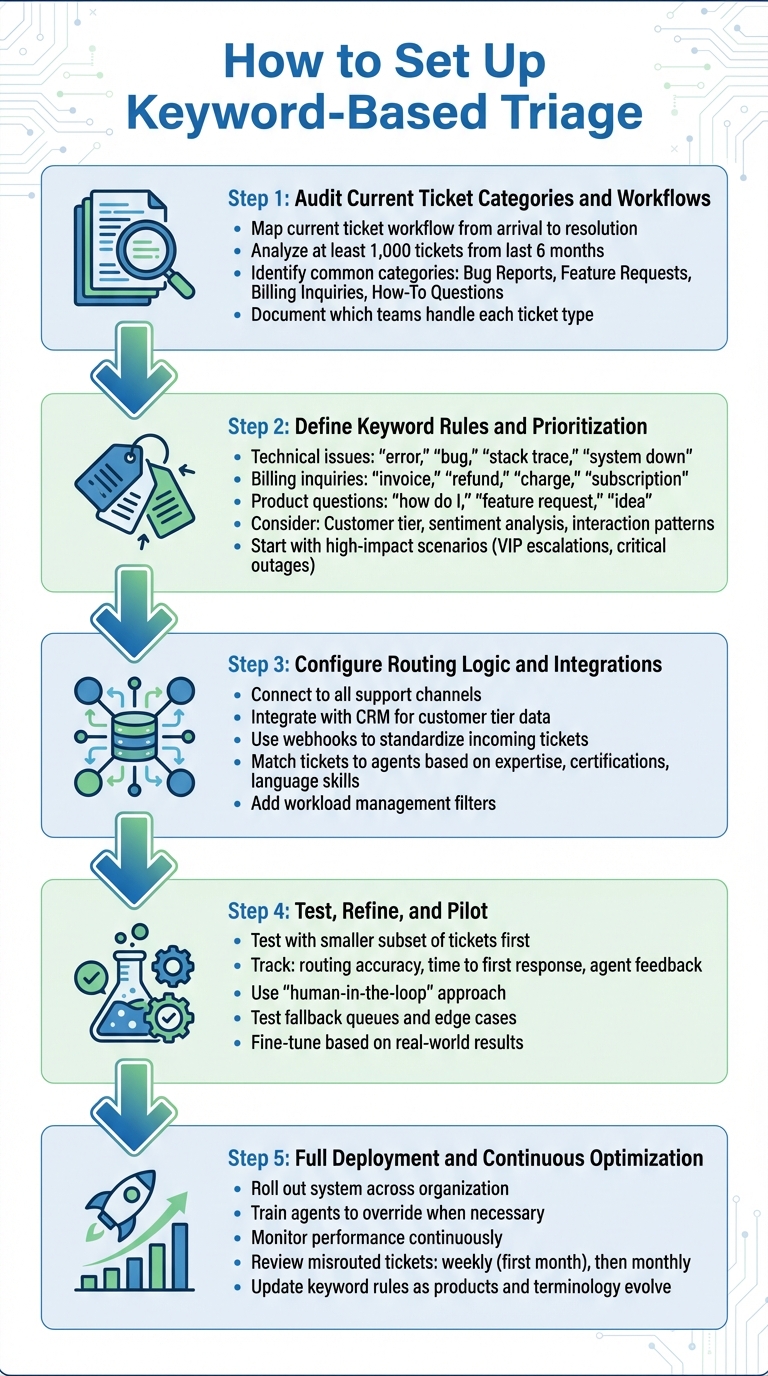
5-Step Process for Setting Up Automated Ticket Triage System
Shifting from manual ticket sorting to automated keyword-based triage requires a clear plan. Here’s a step-by-step guide to help you get started.
Step 1: Audit Current Ticket Categories and Workflows
Begin by mapping out your current ticket workflow. Document how tickets come in – whether via email, web forms, or in-app chat —often managed by AI chatbots – and follow their path from arrival to resolution [3]. This process helps pinpoint bottlenecks and areas where tickets are delayed or bounced between teams due to misrouting or incomplete information [1][2].
Dive into historical ticket data to identify common categories like "Bug Reports", "Feature Requests", "Billing Inquiries", or "How-To Questions" [1][3]. To train your system effectively, analyze at least 1,000 tickets from the last six months [6]. For each category, note the specific details required – like logs for bugs or customer IDs for billing – to ensure the triage system can correctly classify them [3].
Also, identify which teams handle each type of ticket. For instance, frontend bugs may go to one team, backend issues to another, and billing inquiries to finance. Use tools like whiteboards or digital flowchart software to create a clear "if-this-then-that" logic for your manual processes. This map will serve as the foundation for building your automated system.
Step 2: Define Keyword Rules and Prioritization
Using the insights from your audit, establish keyword rules for each ticket category. For example:
- Technical issues: Keywords like "error", "bug", "stack trace", or "system down."
- Billing inquiries: Keywords such as "invoice", "refund", "charge", or "subscription."
- Product-related questions: Phrases like "how do I", "feature request", or "idea" [3][6].
In business-to-business (B2B) settings, keywords alone might not cut it. You’ll need to consider additional factors like customer tier from your CRM, sentiment analysis to detect frustration, and interaction patterns such as rapid follow-ups that signal urgency [1][2]. As Nooshin Alibhai, Founder and CEO of Supportbench, explains:
"AI determines priority not just based on a selected field or a single keyword, but by analyzing a confluence of factors [including] sentiment analysis, urgency keywords, and customer value/tier." [1]
Start by automating high-impact scenarios, such as VIP escalations or critical outages, instead of trying to handle everything at once [2]. Make sure to include fallback options so tickets don’t get stuck if they don’t meet specific criteria or if the assigned agent is unavailable [2].
Step 3: Configure Routing Logic and Integrations
Connect your triage system to all support channels and integrate it with your CRM to pull in customer tier data. Use webhooks to standardize incoming tickets into a machine-readable format before applying keyword rules [3]. This ensures consistent and reliable keyword scanning.
Set up routing rules that match tickets to agents based on their expertise, certifications, or language skills [1][2]. For instance, tickets mentioning "API" should go directly to agents trained in API support, not just whoever is available next. Add workload management filters to distribute complex tickets evenly across qualified agents, preventing burnout [2].
| Routing Factor | Description | Integration Source |
|---|---|---|
| Customer Tier | Prioritizes tickets from "VIP" clients | CRM (e.g., Salesforce, HubSpot) |
| Sentiment | Flags frustration or anger without explicit words | AI/NLP Engine |
| Agent Skills | Matches technical terms (e.g., "SSO", "API") | Helpdesk Agent Profiles |
| External Forwarding | Routes specific requests to non-support teams | Webhooks / Email Targets |
These integrations create a solid framework for testing and refining the system.
Step 4: Test, Refine, and Pilot
Before rolling out the system company-wide, test it with a smaller subset of tickets. Track metrics like routing accuracy, time to first response, and agent feedback on the quality of ticket assignments. Use a "human-in-the-loop" approach, allowing agents to flag misrouted tickets and suggest rule adjustments [3].
Test fallback queues to ensure tickets are properly handled when they don’t meet specific criteria. Also, check edge cases, such as tickets containing multiple keywords that could apply to different categories. Use real-world results to fine-tune your system.
Step 5: Full Deployment and Continuous Optimization
Once your pilot delivers consistent results, roll out the system across your organization. Train agents to override the system when necessary and to flag misrouted tickets for further rule refinement.
Keep monitoring the system’s performance. Review misrouted tickets weekly during the first month, then shift to monthly reviews. Update keyword rules periodically as new products are introduced, terminology changes, or customer behaviors evolve. Over time, the system will become more accurate as it adapts based on feedback and data.
Keyword Strategies for Complex B2B Scenarios
Straightforward keyword rules might work for simple support tickets, but B2B scenarios often involve highly technical, nuanced issues. A single keyword like "error" could mean anything from a minor UI glitch to a major integration failure. To minimize misrouting and reduce internal handoffs, you’ll need more advanced strategies that align with the complexity of enterprise workflows. These methods go beyond basic automation and aim to improve ticket routing accuracy.
Using Multi-Keyword Combinations
Relying on multiple keywords together provides a level of precision that single keywords just can’t achieve. For instance, if a ticket includes terms like "SSO", "SAML 2.0", and "Okta", it likely points to a specialized integration issue. Instead of routing such tickets to general support, you can direct them straight to an Integration Specialist team[1]. This approach helps eliminate unnecessary internal transfers and speeds up resolution time.
Multi-keyword logic is also handy when customers use language that differs from your internal terminology. For example, someone might report "system down" without mentioning "outage." A single-keyword rule might miss this, but combining related phrases like "can’t access", "not loading", and "unavailable" with product names can capture these variations[1][3].
For complex products, use "AND" logic to create rules that require specific combinations – like product name, error code, and module – to route tickets directly to Tier 3 or engineering teams[1]. Adding customer context to these keyword clusters can further improve routing accuracy.
Adding Customer Context to Keywords
Keywords alone often lack the full picture. For example, a "billing" inquiry from a Premier account deserves different handling than the same inquiry from a standard customer. By combining keywords with CRM data – like account tier or renewal status – you can refine routing priorities[1][2].
Sentiment analysis can add another layer of insight. AI tools can detect frustration or urgency in a customer’s tone, even if they don’t explicitly mark the issue as "urgent." Nooshin Alibhai, Founder and CEO of Supportbench, explains:
"AI determines priority not just based on a selected field or a single keyword, but by analyzing a confluence of factors."[1]
Behavioral signals are equally important. For instance, if a customer submits several rapid follow-ups or visits a cancellation page before opening a ticket, their issue should be escalated immediately – regardless of the keywords used. This context-driven approach not only improves routing precision but also enhances the overall support experience.
Creating Fallback Rules for Ambiguous Tickets
Sometimes, even the best rules can’t capture a ticket’s complexity. That’s where fallback strategies come in. A "General Inquiry" or default queue acts as a safety net for tickets that don’t match specific keyword criteria or have low AI confidence scores[2][3].
To make these fallback rules effective, place them at the bottom of your trigger list. Most systems execute rules from top to bottom, so high-confidence matches should always be attempted first. Additionally, use exclusionary logic to avoid false positives. For example, exclude phrases like "no longer urgent" from triggering high-priority rules[7].
Keep a close eye on your fallback queue. If you notice frequent manual reassignments from the general queue to specific teams, it’s a sign that new keyword rules might be needed[2][3]. Monitoring reassignment trends can help you continuously refine your fallback logic.
| Fallback Strategy | Implementation Method | Primary Benefit |
|---|---|---|
| General Queue | Default "Else" or "Catch-all" rule | Prevents tickets from being lost or unassigned[2][3] |
| Exclusionary Logic | "Subject contains none of the following" | Avoids triggering incorrect rules[7] |
| Human Review | Flag low-confidence tickets for manual triage | Ensures quality while handling edge cases[1] |
Common Mistakes and How to Avoid Them
Keyword-based automation can be a game-changer, but poorly thought-out rules can throw everything off track. Issues like overly simplistic logic, ignoring edge cases, or treating these rules as "set and forget" can lead to misrouted tickets and wasted time. Catching these problems early is key to keeping things running smoothly.
Overly Broad Keywords Causing Misroutings
One major mistake is relying on keywords that are too generic. Words like "help" or "issue" are so common that they can trigger incorrect routing. For instance, a rule that sends any ticket mentioning "billing" to the Finance team might misfire when an agent uses the word "billing" in a reply to an unrelated ticket. This can create a frustrating cycle of tickets bouncing between departments because the automation isn’t specific enough [9].
To solve this, add conditions like Current User | Is | (end user) so the rules only apply to customer-submitted tickets, not internal responses. Also, avoid broad terms by combining them with more specific details. Instead of triggering on "error", use combinations like "SSO" AND "SAML 2.0" AND "authentication failed" to narrow down the scope [9].
Another issue to watch out for is priority inflation. Allowing users to set their own priority levels often leads to every ticket being marked as urgent. As one expert put it:
"If priority levels are decided by end users, you’re in trouble. Every issue feels like an emergency when it’s happening to you" [8].
A better approach is to assign priorities based on objective criteria, such as whether the issue impacts just one user or an entire team.
Now, let’s look at how vague or incomplete tickets can cause problems.
Ignoring Incomplete or Vague Tickets
Sometimes, customer submissions lack the details needed for keyword rules to work. Titles like "Quick Question" or "Need Help" don’t provide enough context, leaving tickets unassigned or misdirected [8].
To address this, automate a follow-up to request more information. For instance, send an automated reply asking for specifics like software versions, account IDs, or a detailed description of the issue. You can also use dynamic forms to collect key details based on the type of problem. And don’t forget to set up a fallback queue for tickets that don’t match any rules. If you notice a lot of tickets being manually reassigned from the fallback queue, it’s a clear sign that your keyword rules need fine-tuning.
Failing to Review and Update Rules Regularly
Keyword rules aren’t a "set it and forget it" solution. Products evolve, new issues come up, and team structures change, which means rules that worked well six months ago might not be effective today. Nooshin Alibhai, Founder and CEO of Supportbench, highlights this challenge:
"As products evolve, new issue types emerge, and team structures change, maintaining and updating potentially hundreds of rigid rules becomes a complex and error-prone administrative task" [1].
This underscores the importance of regular reviews and updates. Plan monthly or quarterly audits to check how well your rules are performing. Look at reassignment rates – if tickets are frequently moved manually after being routed, it’s a sign your rules need adjustment. Encourage agents to flag misrouted tickets so you can quickly identify and fix problem areas.
For example, during the COVID-19 pandemic, updating routing rules and using AI-based tagging helped reduce first reply times by 46% [4]. Regular updates like these ensure your system stays efficient as circumstances change.
Enhancing Keyword Triage with AI in Supportbench
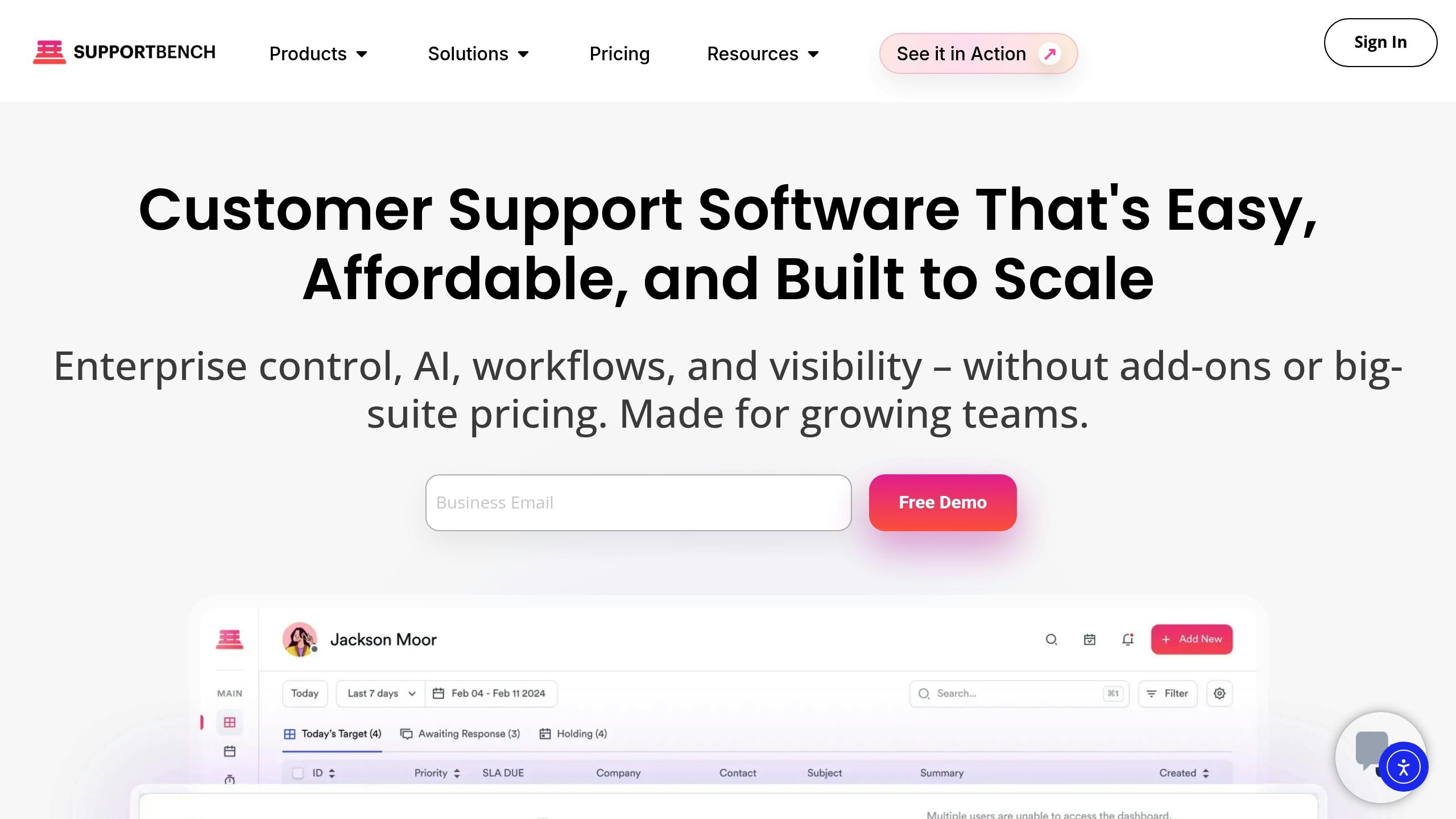
Improving your keyword triage system with AI takes customer communication handling to the next level, especially when dealing with the complexities of human language. While keyword-based rules work well for straightforward scenarios, they often struggle with subtleties like misspellings, ambiguous subject lines, or sarcasm. AI steps in by analyzing the entire context of a ticket, moving beyond rigid "IF-THEN" logic to interpret meaning more effectively.
AI-Driven Sentiment Analysis for Prioritization
Sometimes, a short subject line can hide a pressing issue. AI-powered sentiment analysis helps uncover urgency in even the most understated messages. Supportbench’s natural language processing (NLP) evaluates sentiment, customer tier, issue type, and follow-up frequency to determine priorities. As Nooshin Alibhai, CEO of Supportbench, puts it:
"AI determines priority not just based on a selected field or a single keyword, but by analyzing a confluence of factors [including] Sentiment Analysis" [1].
For example, if a high-priority client sends multiple follow-up messages in quick succession, the system recognizes the pattern and escalates the ticket automatically – no explicit urgency keywords required.
Predictive CSAT and Case Summaries
AI can also predict customer satisfaction levels based on the tone and content of messages. Supportbench’s Predictive CSAT feature uses ticket data to estimate satisfaction scores before an agent even responds. This allows support teams to identify potential problems early and adjust routing or escalation as needed [2].
In addition, AI-generated case summaries save agents time by providing a concise overview of the ticket’s history. Instead of combing through long email threads, agents can quickly understand the context, cutting down on unnecessary back-and-forth communication.
Automation for Dynamic Tagging and Prioritization
Manual tagging often leads to inconsistencies, as different agents may categorize the same issue in different ways. AI eliminates this problem by automatically tagging tickets based on content analysis, resulting in cleaner data for reporting and trend identification [1].
AI also dynamically adjusts ticket priorities in real-time. For instance, if a customer sends multiple rapid follow-ups, the system recognizes the increased urgency and moves the ticket higher in the queue. It even ensures tickets are routed to the right agents with the necessary expertise. For example, a ticket about "SSO/SAML authentication failed" would go directly to an API specialist instead of being passed around between teams [1].
Measuring Success: Metrics to Track After Implementation
Once your automated triage system is up and running, it’s time to measure its effectiveness. Tracking the right metrics will help you confirm whether your keyword rules are delivering better efficiency and more accurate ticket routing.
Key Performance Indicators (KPIs) to Monitor
Start with routing accuracy. A good benchmark is achieving over 85% correct assignments on the first attempt [10]. You can track this by comparing automated assignments to the corrections made by agents over a two-week rolling period.
Keep an eye on the reassignment rate, which reflects how often tickets are bounced between teams after their initial automated routing. Aim to keep this below 0.2 reassignments per ticket [10]. High rates could indicate conflicting rules or poorly chosen keyword combinations. Another important metric is first response time (FRT). Automation often reduces FRT dramatically – from hours to mere minutes. Alongside this, mean time to resolution (MTTR) typically sees a boost, improving by approximately 30% [10], as tickets are routed directly to the right specialist instead of sitting in a general queue.
Don’t forget to measure the override rate, which shows how often agents manually change automated decisions. A high override rate could point to a lack of confidence in the system. Lastly, evaluate the cost per ticket by dividing total support costs by the number of tickets handled. Automation should bring this number down by cutting the time spent on manual sorting and reassignments.
These KPIs will give you a clear picture of how your system is performing compared to its pre-automation state.
Before and After Comparisons
To validate your automated triage strategy, compare these metrics before and after implementation. Start by auditing 100–200 recent tickets to establish a baseline [5]. Use a 90-day data export from your ticketing system to capture key metrics like average daily volume, response times, and routing patterns [10]. After the system goes live, track the same metrics and analyze them side-by-side.
Take Wolseley Canada as an example. In June 2025, they implemented Supportbench to handle 7,000–8,000 support emails per month. By automating ticket routing based on case type and client profiles, they cleared long-standing backlogs and improved SLA visibility. Eilis Byrnes, Customer Service and Process Improvement Manager, shared:
"The ticketing system assisted us in resolving instances that were long overdue and in providing the staff with a smooth platform experience" [2].
Here’s how their performance improved:
| Metric | Before Automated Triage | After Automated Triage | Improvement |
|---|---|---|---|
| First Response Time | 4+ hours | <15 minutes | 81% faster |
| Reassignment Rate | 25% | 5% | 80% reduction |
| SLA Compliance | 88% | 98% | 11% increase |
| Weekly Manual Triage Hours | 40 hours | 2 hours | 95% reduction |
To keep your system running smoothly, schedule quarterly reviews. Retire keyword rules that aren’t triggering or are causing high reassignment rates [10]. Expand automated triage to new channels or departments only after achieving consistent assignment accuracy above 85% and keeping reassignments below 0.2 per ticket [10]. This methodical approach ensures your system remains effective and adapts to evolving support needs.
Conclusion
Keyword-based automated triage is transforming how B2B support teams handle tickets. By cutting out manual sorting, it ensures requests get to the right specialist faster – reducing first response times and cutting down on ticket reassignments. This method brings together all the key steps: defining keyword rules, configuring routing logic, testing, and ongoing optimization, creating a streamlined and effective workflow.
When combined with AI-powered tools, the benefits grow even further. Features like sentiment analysis and predictive CSAT help identify frustrated customers and prioritize tickets that could impact satisfaction scores. As Nooshin Alibhai, Founder and CEO of Supportbench, aptly states:
"For support leaders aiming to optimize their operations, embracing intelligent automation is no longer optional; it’s essential." [1]
With advanced AI-driven routing, businesses can achieve faster resolutions, meet SLAs more consistently, and reduce support costs – all while delivering a better customer experience.
FAQs
How do I choose the right keywords for routing?
When selecting keywords for support tickets, focus on terms that directly relate to the issues, intents, or categories customers are dealing with. These could include product names, specific issue types, or common problem descriptions. The goal is to make sure the keywords are precise enough to guide tickets to the right team.
Avoid using vague or overly broad terms, as they can lead to misrouting and delays in resolving customer concerns. For example, instead of using a generic term like "error", opt for something more descriptive, such as "login failure" or "payment processing issue."
Using AI tools, especially those powered by Natural Language Processing (NLP), can help identify relevant keywords directly from ticket content. These tools analyze the text to find patterns and suggest terms that match customer queries. To stay effective, regularly update your keyword list based on customer trends or emerging issues. This keeps your system aligned with what your customers are experiencing and ensures smoother ticket handling.
What happens when a ticket matches multiple keywords?
When a ticket includes multiple keywords, it’s essential for routing rules or workflows to manage any overlaps smoothly. AI-powered tools, like Natural Language Processing (NLP), can assess the ticket’s content to identify the main intent and urgency. These systems rely on predefined criteria – such as the severity of the issue or its relevance to a specific department – or leverage AI-driven insights to ensure tickets are routed correctly and efficiently. This approach helps prevent conflicts or errors in ticket assignment.
How can I tell if automated triage is effective?
To gauge how well automated triage is performing, focus on several key metrics:
- Routing accuracy: Measures how often tickets are assigned to the correct team or agent.
- Resolution time: Tracks the average time it takes to resolve a ticket.
- First contact resolution (FCR): Indicates the percentage of tickets resolved during the first interaction.
- Customer satisfaction (CSAT): Reflects how happy customers are with the support they receive.
- Error rates: Highlights the frequency of misrouted tickets.
When these metrics show improvement, it’s a sign your triage system is working effectively. Regularly reviewing this data can also uncover areas where adjustments are needed to keep things running smoothly.