


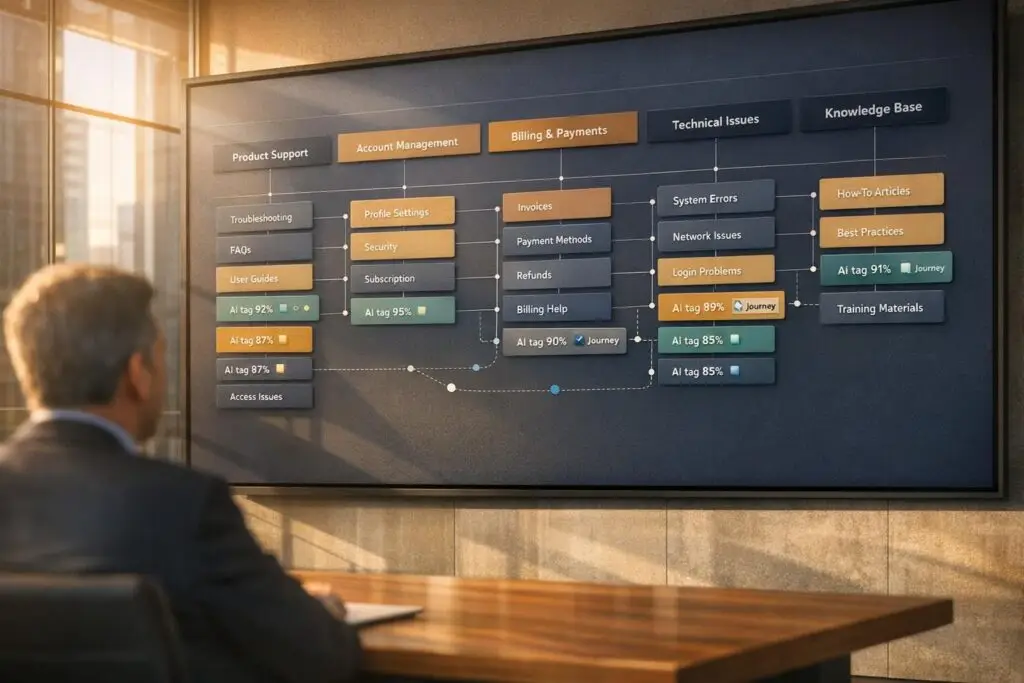
Managing over 20 categories in a support portal can get messy fast. Without a clear structure, you’ll face issues like duplicate tags, vague categories, and inconsistent data. This makes it harder for teams to classify tickets, analyze trends, or automate workflows effectively.
Here’s the solution: Build a scalable, hierarchical category model that aligns with user behavior and grows with your needs. Start by auditing your current setup, map user journeys, and define clear primary categories. Then, layer in subcategories and use AI for auto-tagging and maintenance.
Key Steps:
- Audit existing categories: Identify overlaps, vague tags, and high-traffic areas.
- Map user workflows: Align categories with real user tasks and cross-team terminology.
- Create a hierarchy: Limit top-level categories to 5–7, with subcategories for depth.
- Leverage AI: Automate tagging, ensure consistency, and flag unclear cases.
- Test and refine: Pilot the structure, gather feedback, and adjust regularly.
This approach simplifies navigation, improves ticket routing automation, and keeps your system efficient as it scales. Let’s break down how to make it work.
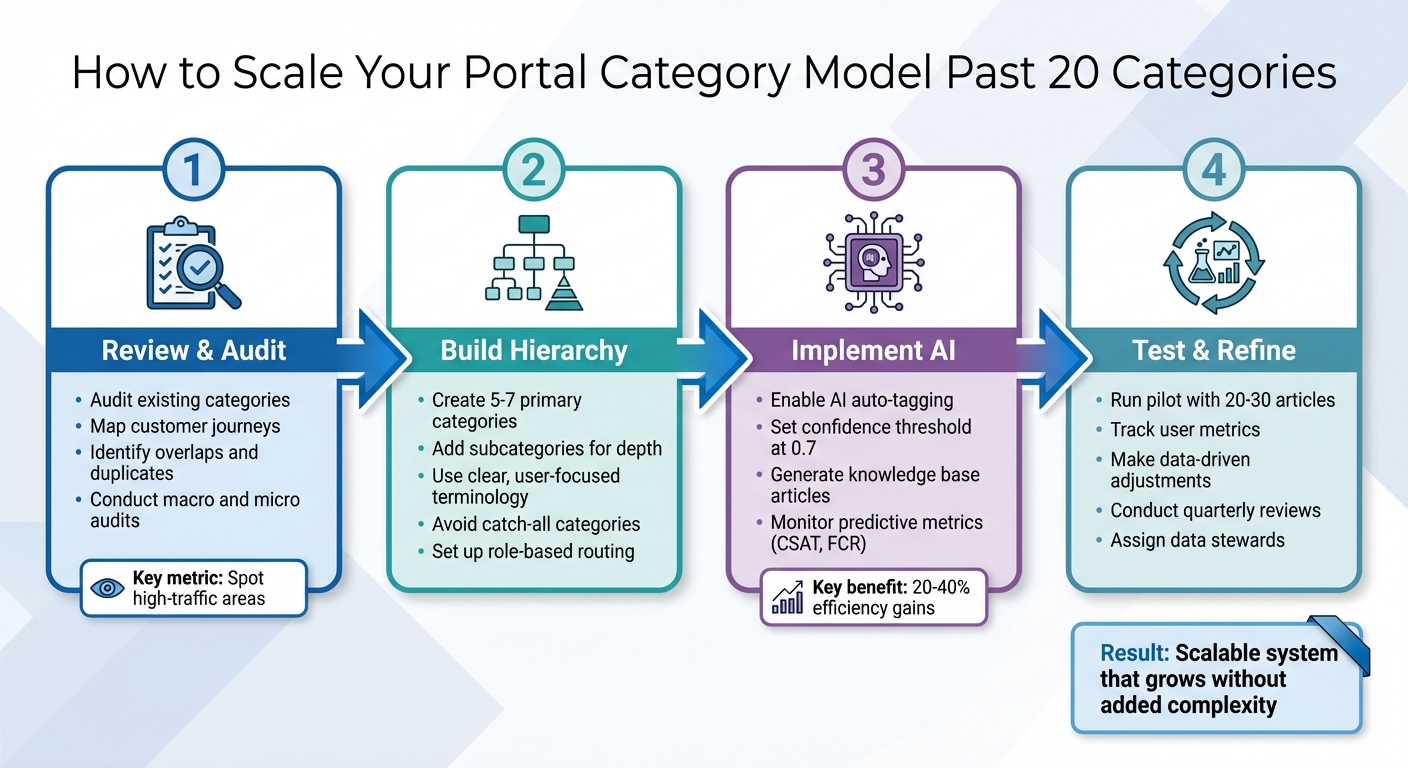
4-Step Process to Scale Portal Categories Beyond 20
23 – Building a Taxonomy for ServiceNow Employee Center: Organize Content Like a Pro!
sbb-itb-e60d259
Step 1: Review Your Current Categories and Understand User Needs
Before diving into any new structure, it’s crucial to take stock of what you already have and how users interact with it. This means closely examining your current categories and aligning them with real user behavior based on data.
Audit Your Existing Categories
Start by analyzing ticket data, search trends, and support volume to identify where things might be going wrong. Look for duplicate categories that confuse users, overlapping topics that make tagging unclear, and high-traffic areas that might benefit from more detailed subcategories for your knowledge base. Beatriz Novais, Solutions Architect at Supernova.io, highlights the importance of identifying "crutches" – the workarounds your support teams use when the current category system doesn’t meet their needs [3]. These crutches are often the key to spotting areas that need improvement.
Conduct two types of audits:
- Macro audits: Align the overall structure with your company’s goals.
- Micro audits: Spot inconsistencies at the team level, like different teams using conflicting terms for the same issues.
For example, if your sales and support teams use different terminology for similar tasks, it’s a clear sign that your categories need consolidation. By aligning your structure with actual user behavior, you’ll create a foundation for a scalable system.
This analysis is vital for better understanding customer journeys and making informed changes.
Map Customer Journeys
After completing your audit, focus on mapping the workflows that are most critical in B2B support. These might include processes like escalations, renewals, resolving product issues, onboarding, or integrating new tools. Break down each step for tasks such as creating users or assigning roles, and identify which categories and permissions are required at every stage [1].
Organize cross-functional workshops to unify terminology across teams. This step helps uncover the different "mental models" teams may have for the same functions, reducing naming conflicts and ensuring your taxonomy is logical for both designers and developers [3]. For instance, your sales team might view "account management" differently than your support team, and reconciling these differences is essential for a clear category structure.
Finally, use data to calculate usage estimates. Consider factors like the total number of registered users, average concurrent logins, and how many categories users typically access per session [4]. Building your model around actual user behavior ensures it’s grounded in reality, not just assumptions.
Step 2: Build a Hierarchical Structure That Scales
Now that you’ve audited your system and mapped customer journeys, it’s time to create a structured hierarchy that can grow with your needs. A well-organized system ensures users and agents can efficiently find the right category without feeling overwhelmed by too many choices.
Create Primary Categories
Start with broad, clearly defined top-level categories. These should be stable and mutually exclusive, ensuring that each ticket fits into one and only one category. To avoid overwhelming users, aim for 5 to 7 primary categories, but keep this tier under 10 options total [2].
Use terminology that aligns with user goals rather than internal jargon. For example, instead of "Revenue Operations" or "Incident Resolution", stick with straightforward terms like "Billing", "Technical Support", or "Account Management." A helpful framework to consider is the RUF model, which organizes categories into:
- Reliability: Issues like errors or performance problems.
- Usability: How-to questions or guidance.
- Functionality: Requests for new features or changes [2].
Avoid catch-all categories like "General" or "Miscellaneous." These often become dumping grounds for unclear tickets, making it harder to analyze your data effectively. If agents frequently struggle to classify tickets, use that as a signal to refine your primary categories rather than adding vague options.
Add Subcategories and Tags
Once your top-level categories are set, add a second tier of subcategories that appear only when a related primary category is chosen. For example, under "Billing & Payments", you might include options like "Refund Request", "Invoicing Errors", or "Payment Method Update" [2].
Tags play a different role – they act as metadata to drive routing, escalations, or reporting. Use tags to highlight details that influence ticket handling, such as "SLA-Breach", "VIP-Customer", or "Renewal-Urgent."
"If a tag doesn’t change how you handle a ticket or how you understand your support data, it’s adding noise instead of clarity." – Jake Bartlett, Writer, Swifteq [2]
Stick to consistent terminology. For instance, always use "Billing" instead of switching between "Invoicing" or "Payments." This avoids what Jake Bartlett refers to as "synonym chaos" and ensures clarity across your team. Conduct quarterly reviews to remove unused tags and consolidate overlapping ones before they create unnecessary complexity [2].
Set Up Role-Based and Skill-Based Routing
Implement AI-powered ticket routing to match agent expertise. For instance, if a ticket is tagged as a "Technical Issue" with a subcategory of "API", it should go directly to your product support team instead of sitting in a general queue [2].
Implement Role-Based Access Control (RBAC) to streamline the user experience. By hiding irrelevant options based on roles, you reduce clutter and help users focus on what’s most relevant to them [1]. Ensure your routing logic aligns with the hierarchy you’ve built so that every ticket is directed to the right expert without delay.
With this hierarchical system in place, you’ll be ready to integrate AI for dynamic ticket categorization and ongoing system maintenance in the next step.
Step 3: Use AI for Automatic Categorization and Ongoing Maintenance
When managing more than 20 categories, manual tagging often struggles due to inconsistent approaches by agents and the mental fatigue that comes with repetitive decisions [2]. AI steps in to tackle these challenges, ensuring accuracy and consistency as your categorization system expands. It applies the same logic to every ticket, instantly and at scale.
Enable AI Auto-Tagging and Categorization
Modern AI models, like GPT-4o, can automatically extract ticket categories, urgency levels, and sentiment, transforming unstructured data into actionable insights almost instantly [7]. To ensure predictable results, setting the temperature parameter to zero is recommended [7]. You can also define fixed enums for categories, urgency, and sentiment to maintain consistent terminology across your system [7][2].
AI classification systems assign each categorization a confidence score between 0 and 1. For example, you can set a threshold of 0.7 – tickets scoring below this can be flagged for human review [7]. Even companies without dedicated AI teams can use AutoML platforms to train high-performing classification models tailored to their specific needs [6].
| Feature | Manual Tagging | AI Classification |
|---|---|---|
| Consistency | Low | High |
| Speed | Slow | Instant |
| Scalability | Limited | High |
| Error Handling | Human oversight | Confidence scores flag uncertainty |
Once consistent categorization is in place, AI can take things further by generating structured content like knowledge base articles.
Optimize Your Knowledge Base with AI
AI doesn’t stop at ticket categorization – it can also create valuable knowledge base articles from resolved cases. For instance, Supportbench’s AI Agent-Copilot converts resolved tickets into articles complete with subject lines, summaries, and keywords. This automation transforms your support team’s work into a growing library of resources.
AI also helps refine your category structure by identifying patterns in tickets that don’t align with existing categories. If certain tickets frequently fall below the confidence threshold or end up in generic "catch-all" categories, it’s a clear sign that your taxonomy might need adjustments.
Beyond tagging and content creation, AI continues to improve your system over time.
Keep Categories Current with AI Insights
AI-based metrics like predictive CSAT (Customer Satisfaction) and First Contact Resolution (FCR) detection offer deeper insights into your support operations. Predictive CSAT can estimate customer satisfaction even when surveys go unanswered, helping you pinpoint potential problem areas. Similarly, AI-powered FCR detection reviews case histories to determine whether issues were resolved on the first attempt – something that’s traditionally been difficult to measure accurately without AI [2].
"Automation of support ticket classification is crucial to improve customer support performance and shortening resolution time for customer inquiries."
- Mario Truss, Researcher [6]
To keep your system efficient, conduct quarterly audits using AI insights. These audits can help eliminate unnecessary tags and consolidate overlapping categories [2]. Additionally, automated workflows can link AI-generated tags directly to your routing system, ensuring tickets are immediately assigned to the right department or skill-based queue without manual effort [2].
Integrating these AI-driven processes ensures ongoing improvements and smoother operations for your support team.
Step 4: Test, Adjust, and Expand
Launching a new category model across 20+ categories without testing it first is asking for trouble. A step-by-step rollout helps you validate your structure with real users before fully committing. This approach not only minimizes risk but also allows you to fine-tune your setup based on real-world feedback.
Run a Pilot Test
Start small by testing your new structure on 20–30 high-traffic articles. This way, you can evaluate how well your categorization works without disrupting the entire portal. During the pilot, track key user metrics to see how people interact with the new setup.
Ask your agents to perform five common tasks and watch their first clicks. If they hesitate or click the wrong option, it’s a sign the labels might need rethinking. Also, keep an eye on pauses during navigation – these often signal that something about the labeling isn’t intuitive.
Make Changes Based on Data
Use the insights from your pilot to make targeted changes. Focus on small, precise adjustments that lead to noticeable improvements. This keeps your structure flexible and user-friendly.
Combine both quantitative data (like metrics) and qualitative feedback (like user comments) to refine your model. For instance, if you notice recurring support tickets about topics that should be handled via a customer self-service portal, it might mean those topics are misplaced. Try simple fixes, like adding a subcategory, and then reassess the results before making bigger changes.
To keep things clear, write a one-line description for each category. If two categories can’t be easily distinguished in one sentence, they’re probably too similar and could confuse users. Set clear editorial guidelines and assign data stewards to keep categories updated as user needs evolve.
Common Mistakes and How to Avoid Them
When scaling portal category models, teams often run into recurring challenges. These pitfalls, while common, can be addressed with proactive strategies to ensure your model stays intuitive and effective.
Avoid Flat Structures
A flat structure with too many categories can overwhelm users, making navigation confusing and leading to poor classification. For example, in one IT support system, a flat, keyword-based setup resulted in 23% of tickets being dumped into the "Other" category – a clear sign the structure wasn’t capturing specific issues properly [10].
"23% of tickets were getting classified as ‘Other’. That’s more a surrender flag than a valid category." – Luise Freese, Azure & Power Platform Architect [10]
To prevent this, focus on a hierarchical structure. Start by limiting your top-level categories to 5–7 broad groups and organize related topics underneath. Ideally, your model should include around 15 total categories, with each branching into 7–10 subcategories. This approach keeps navigation simple while distributing content evenly [10].
Address Stakeholder Disagreements
Disagreements over category names often arise because of internal jargon. For instance, one department might prefer "Revenue Operations", while another leans toward "Billing." These conflicts usually stem from designing the taxonomy around organizational silos rather than user needs [5].
The key to resolving this is data-driven decision-making. Instead of relying on opinions, analyze ticket data to see where ambiguous issues are being classified. This evidence can guide adjustments to eliminate confusion and create clearer, more user-focused categories [10].
Plan for Regular Updates
Category models aren’t a one-and-done deal. As your product evolves, new features will require new support structures, and outdated models can frustrate both users and agents [5].
To stay ahead, plan for continuous maintenance. Use AI-powered ticket routing and monitoring to track trends and flag when changes are needed. For example, frequent use of the "Other" category or tickets about topics that should be self-service are signs your taxonomy needs a refresh. Schedule regular reviews – quarterly, for instance – where data stewards analyze uncategorized content and emerging trends to keep your model aligned with user behavior [10]. These ongoing updates ensure your taxonomy remains effective as your system grows.
Conclusion
Creating a category model that effectively scales beyond 20 categories isn’t about adding more complexity – it’s about building the right structure. This starts with thorough audits and mapping out user journeys. From there, establish a clear hierarchy with a manageable number of top-level categories that expand into subcategories. Using a self-referencing table with materialized paths ensures unlimited depth, better performance, and clean organization [11].
When the structure is thoughtfully designed, technical efficiency follows.
"A scalable category system uses a self-referencing table with materialized paths to support unlimited depth, fast reads, clean URLs, and UI-controlled ordering." – AYON, Backend Engineer, GohilTech [11]
AI automation takes this a step further. By integrating AI, your categorization system becomes largely self-sustaining. AI doesn’t just streamline the process – it ensures consistency as your model grows. Companies have seen initial productivity gains of 20–25% and long-term efficiency boosts of up to 40% through AI automation [12]. It handles routine tasks, identifies emerging trends, and adapts to new scenarios without requiring constant manual input. This frees up your team to tackle strategic challenges instead of being bogged down by repetitive taxonomy updates. AI also enables ongoing improvements based on real-world data.
To keep your model relevant, testing and fine-tuning are essential. Use feedback loops, track error rates, monitor adoption trends, and conduct quarterly audits to prevent outdated categories [8][9]. A scalable category model for your knowledge base simplifies support processes, reduces frustration for agents, and empowers customers to find answers independently. By combining a user-centered hierarchy, AI-driven automation, and regular refinements, you create a system that grows efficiently without unnecessary complexity or added headcount. This approach not only solves common challenges in large-scale support operations but also lays the foundation for sustainable growth.
FAQs
How do I decide my top-level categories?
To create effective top-level categories, focus on aligning them with both your business goals and the needs of your users. Start by pinpointing your main service areas or the most frequent questions your users have. From there, group related topics into broad, easy-to-understand categories. It’s also a good idea to design your structure in a way that allows for subcategories as your portal expands. This keeps things user-friendly and adaptable as your content grows.
When should I use subcategories vs tags?
Subcategories and tags serve different purposes when it comes to organizing content, and understanding their strengths can help you create a more user-friendly structure.
- Subcategories break down broad categories into smaller, more specific groups. This creates a clear, hierarchical structure, making them perfect for scalable models with a large number of categories. They help users navigate through layers of information with ease.
- Tags, on the other hand, are non-hierarchical labels. They allow for flexible filtering and help connect related topics across different categories. Tags are especially useful for quick searches and cross-referencing without disrupting the overall structure.
Both tools complement each other, improving clarity, navigation, and searchability.
How can AI safely auto-categorize tickets?
AI can reliably sort support tickets by using a mix of fine-tuning and safety nets. Training the AI on a carefully selected dataset of about 3,500 examples boosts its accuracy. Meanwhile, the safety net steps in to flag tickets that the system finds uncertain, passing them to humans for review. This approach improves efficiency while keeping errors low, ensuring top-notch service even in complex situations. By blending automation with human oversight, the process achieves dependable ticket categorization.
Related Blog Posts
- How do you standardize ticket categorization so reporting is accurate (and consistent)?
- How do you standardize ticket categorization so dashboards are accurate?
- How do you build a taxonomy that Product, Support, and Success can share (one language)?
- Building a Support Taxonomy: How to Tag Tickets for Product Insights
Evaluating help desks for a B2B team?
Supportbench is all-inclusive from $32 per agent per month, with migration and onboarding included. See pricing or book a 20-minute demo.






