


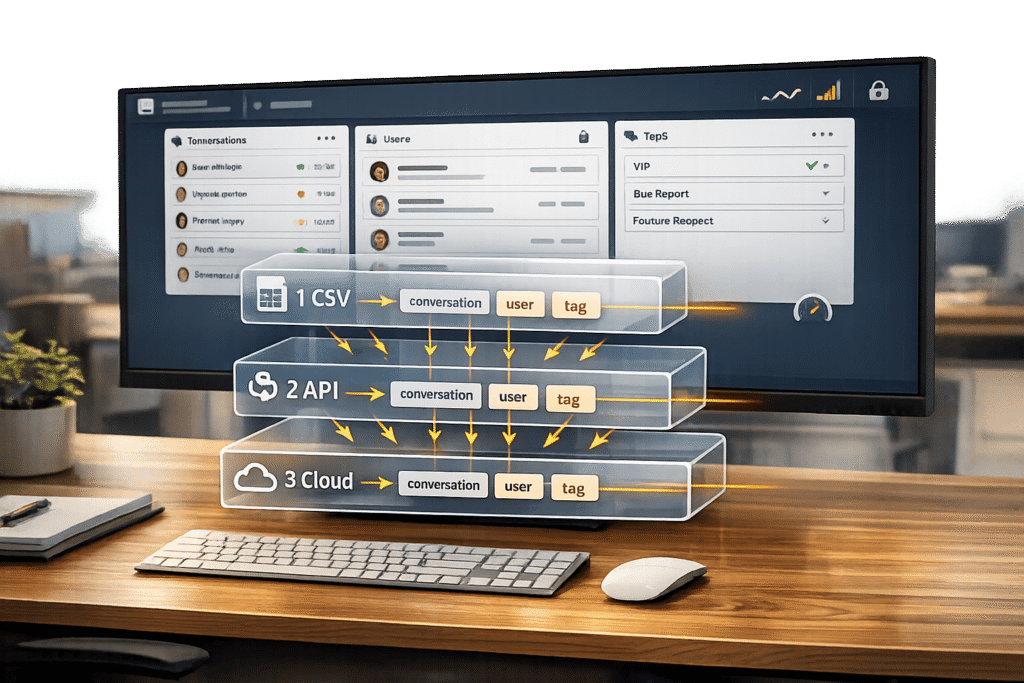
Exporting data from Intercom involves several methods depending on your needs:
- Conversations: Use the API for full transcripts, cloud storage for large datasets, or CSV exports for metadata. Individual conversations can also be saved as text or PDF.
- Users: Export through the Contacts section for smaller lists or Reports for larger datasets. Customize columns as needed.
- Tags: Use the Tags API for detailed information or manually copy smaller tag lists from the settings page.
Key Points:
- CSV Exports:
- Metadata only, no message content.
- Browser downloads limited to 10,000 rows; larger files emailed.
- API:
- Full transcripts, up to 90 days per request.
- Requires pagination for large datasets.
- Cloud Storage:
- JSON/JSONL format, up to two years of data.
- Suited for data warehouses and AI tools.
- Permissions:
- Admin access and API tokens are required for most exports.
For large-scale operations or AI sentiment analysis, cloud storage and APIs are the most effective methods. Manual methods work best for small, specific datasets.
What You Need Before Exporting Data from Intercom
Setting Up Admin Access and API Tokens
Before you can export data, make sure you have the right permissions. For CSV exports, your admin needs to grant you two key permissions: "Can access Chart drill-in" and "Can export CSV". Without these, the export page will show up blank, and you won’t be able to download anything.
For cloud storage exports (like Amazon S3 or Google Cloud Storage), you’ll need full Intercom Administrator access. Intercom also requires email verification for security. After starting a cloud export, you’ll get an email from team@intercom.io to verify your request. Be sure to confirm it quickly to avoid any delays.
"This is a security measure to ensure that you are an Intercom Administrator with permission to access your Data export feature." – Intercom Help Center
If you’re using API-based exports, you’ll need to generate an API token from the Intercom Developer Hub. Add this token to the HTTP request header as a Bearer token (Authorization: Bearer <YOUR_TOKEN_HERE>) and specify the API version (Intercom-Version: 2.14). Keep in mind that API export jobs expire two days after they’re completed, so download your data right away.
Once you’ve got the right permissions and tokens, you’re ready to use cloud tools to simplify your data export process.
Tools That Make Data Handling Easier
Having the right tools can make managing large datasets much simpler. Platforms like Amazon S3, Google Cloud Storage, and Azure Blob Storage support JSON and JSONL formats, allowing you to export up to two years of historical conversation data.
For teams that need regular updates, setting up periodic exports can save time. You can schedule hourly or daily exports for new or updated conversations. When exporting to cloud storage, opt for the JSONL format – it’s better suited for processing large datasets.
If you’re working with the REST API, you may need to create custom scripts to manage pagination and loop through conversation IDs. By default, the API returns 20 conversations per page, but you can bump this up to 150 using query parameters. This is especially helpful if you need full conversation transcripts, as standard CSV exports only include metadata – not the actual message content.
sbb-itb-e60d259
Export your user data from Intercom
How to Export Conversations from Intercom
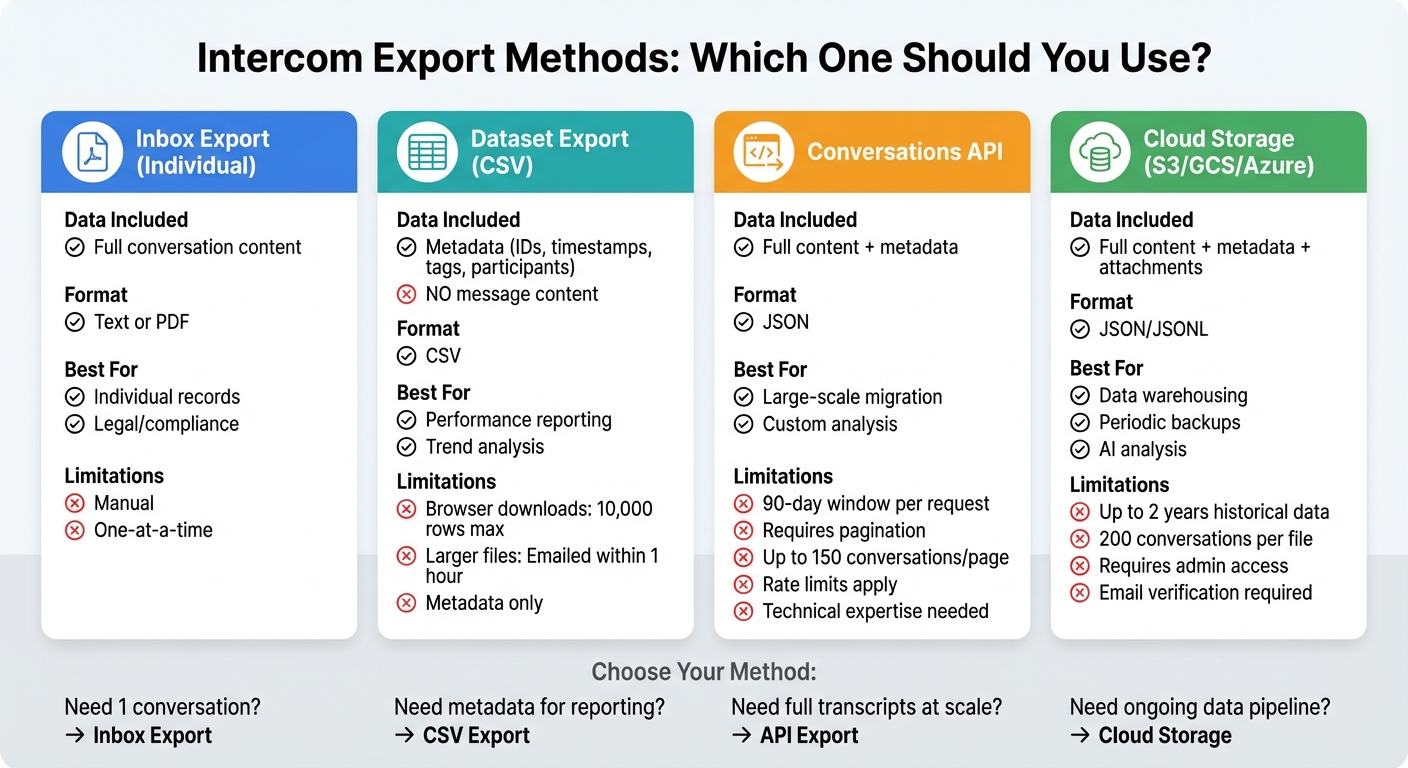
Intercom Data Export Methods Comparison: CSV, API, and Cloud Storage
Exporting Individual Conversations
Need to save a single conversation for legal or compliance purposes? Open the conversation, click the three dots in the top-right corner, and choose either "Export conversation as text" or "Export conversation as PDF". The PDF option includes everything – message order, timestamps, and all participants – giving you a detailed record with full context.
This approach works well for one-off cases. But for larger-scale exports, consider using CSV files or the API for more efficient handling.
Exporting Conversation Metadata as CSV
If you’re looking to analyze trends or create reports, Intercom’s Reports > Dataset export feature is your go-to option. This tool exports metadata like conversation IDs, timestamps, participant details, and tags – but not the actual messages.
"Conversation/message content is not included in the CSV export." – Intercom Help
You can customize your export by filtering specific attributes and selecting the columns you want. Keep in mind that browser downloads are capped at 10,000 rows, while larger datasets are sent via email. Also, remember that the metadata reflects the state of the data when the conversation began – updates to user attributes made later won’t appear in the export.
Bulk Exporting Conversations Using the API
For exporting full conversation transcripts at scale, the Conversations API is the way to go. Start by listing conversations to collect their IDs, then retrieve the content for each one. The API allows up to 150 conversations per page, and you can use the per_page parameter to tweak this for better performance. For even larger datasets, paginate through results using the starting_after attribute. Each conversation is divided into parts, representing individual messages or actions. Don’t forget to monitor rate limits to avoid throttling.
For exporting bulk message content, the Data Export API (POST https://api.intercom.io/export/content/data) is another powerful tool. You can request data for up to 90 days at a time. This process runs asynchronously – once the export is marked "completed", download the gzipped CSV file from the provided URL. These URLs remain active for two days, so be sure to download promptly. This method is ideal for integrating with AI tools or conducting deeper sentiment analysis.
| Export Method | Data Included | Format | Best For |
|---|---|---|---|
| Inbox Export | Full conversation content | Text or PDF | Individual records, legal/compliance |
| Dataset Export | Metadata (IDs, timestamps, etc.) | CSV | Performance reporting, trend analysis |
| Conversations API | Full content and metadata | JSON | Large-scale data migration, custom analysis |
| Cloud Storage | Full content and metadata | JSON/JSONL | Data warehousing, periodic backups |
For a complete dataset, don’t forget to export users and tags as well. This data is essential for creating a seamless customer support management system that tracks every touchpoint.
How to Export Users and Tags from Intercom
Exporting User Data as CSV
Intercom provides two main ways to export user data: through the Contacts section for smaller, targeted exports or the Reports section for larger-scale data analysis. Both methods generate CSV files, but they cater to different needs.
For quick and selective exports, head to the Contacts section. Select the users you want, click the More dropdown, and choose Export users. In the export dialog, you can decide whether to include only the displayed columns or all available columns. To add company-related data, customize the user list columns before exporting.
"The user export currently only includes the name and ID of the most recent company a user was tracked with. No other company data is included. But you can set up the user list to show company data." – Beth-Ann Sher, Intercom Support
For more comprehensive analysis, use the Reports > Dataset export feature and select the Users & Companies dataset. This option allows you to apply filters, set a date range (up to two years of historical data), and customize the columns included in the export. If the export exceeds 10,000 rows, the file will be emailed to you, and the download link will expire one hour after delivery. Make sure your account has the necessary permissions – "Can access Chart drill-in" and "Can export CSV" – before starting the process.
Once your user data is exported, you can move on to exporting tag information to round out your dataset.
Exporting Tags Using the API and Manual Methods
To organize and categorize your support interactions, exporting tag data is essential. Unlike user data, Intercom doesn’t offer a direct CSV export for tags, so you’ll need to rely on the Tags API or manual methods.
If you’re comfortable with programming, use the Tags API to retrieve all tag details and their metadata. Send a GET request with a Bearer Token for authentication and include the Intercom-Version header (e.g., "2.14"). Make sure to use the correct regional endpoint (US, Europe, or Australia) based on your workspace location. The API supports pagination, returning up to 150 records per page. To fetch all tag data, you’ll need to paginate using the starting_after attribute.
For non-technical users, tags can be manually copied from the Tags settings page in your Intercom workspace. While this method works for smaller datasets or quick checks, it’s not practical for handling a large number of tags. For larger-scale exports, consider creating a simple script to automate API retrieval and format the data into a spreadsheet.
| Export Method | Data Included | Best For |
|---|---|---|
| Contacts Export | Selected users, limited company data | Targeted user lists and compliance records |
| Dataset Export | Full user attributes, custom columns | Large-scale reporting and trend analysis |
| Tags API | Tag names, IDs, and metadata | Automation and integration with external tools |
| Manual Copy | Tag names and details | Small datasets or quick audits |
When using the API, remember that pagination is required to retrieve all tag data. This ensures you capture everything, even for workspaces with a large number of tags.
Common Problems When Exporting Intercom Data
Working Around CSV Export Limits
Intercom’s CSV export feature comes with some notable restrictions. For instance, browser downloads are capped at 10,000 rows, and larger exports are sent via email within an hour. However, these CSV files only provide metadata like timestamps, assignee names, and conversation IDs – full conversation content is excluded.
"Conversation/message content is not included in the CSV export".
This limitation is particularly frustrating for B2B teams that need detailed data for quality audits or AI model training. Without the actual conversation text, the usefulness of standard CSV exports is significantly reduced.
The API offers a workaround but introduces its own constraints. Each export request is limited to a 90-day timeframe, and only one export job can run at a time per workspace. If you try to start a second export job while one is already running, you’ll hit a 429 error: "Exceeded rate limit of 1 pending message data export jobs". Managing these restrictions requires careful planning, especially when dealing with large datasets.
Here’s a quick comparison of the available export methods:
| Export Method | Row/Volume Limit | Content Included | Delivery Time |
|---|---|---|---|
| Browser CSV | 10,000 rows | Metadata only | Immediate |
| Large CSV (Email) | No limit | Metadata only | Up to 1 hour |
| API Export | 90-day window | Full message text (JSON) | Varies |
| Cloud Storage (S3/GCS) | 200 conversations/file | Full content + attachments | Continuous |
While managing export volumes is important, ensuring the accuracy of the exported data is equally critical.
Ensuring Data Accuracy
Data accuracy introduces another layer of complexity. One notable issue is that user attributes in conversation exports reflect the state of the user at the time the conversation started, not their most recent details. For example, updated information like a change in company or subscription tier won’t appear in the export.
Additionally, the timeframe selection can distort the data. Exports only include conversations that started within the selected date range. This means new messages added to older conversations won’t show up in your CSV file. For ticket exports, the "created date" refers to when the original conversation began – even if it was converted into a ticket much later. This can lead to inaccuracies in metrics like ticket volume or response times.
A more reliable option for accurate and complete data is configuring exports to Amazon S3 or Google Cloud Storage. These cloud exports provide the full message content in JSON format and can include up to two years of historical data. Although the data is split into files containing a maximum of 200 conversations each, this method avoids issues with missing content or outdated user attributes. For teams using AI to analyze support interactions or train models, cloud storage exports ensure a more dependable dataset – accuracy here is key to generating meaningful insights.
How AI-Native Platforms Simplify Data Exports
AI-Powered Case Summaries and Tag Automation
Exporting data from Intercom can feel like a daunting task – juggling API limits, reformatting CSV files, and organizing conversations manually. But AI-native support platforms change the game entirely. Instead of pulling raw metadata and spending hours sorting through it, these tools use AI to automatically create concise summaries of customer interactions and apply relevant tags based on the content.
Take Supportbench, for instance. Its AI features generate initial ticket summaries and keep them updated until the case is resolved. This means the data you export is already organized and actionable, saving your team from the tedious process of reviewing countless conversations just to figure out what happened. AI-powered tagging goes a step further, leveraging AI-driven sentiment analysis to detect customer intent – whether it’s about billing, technical issues, or a feature request – and assigns the right labels automatically.
This method eliminates the headaches of traditional CSV exports, which often require cross-referencing conversation IDs or making additional API calls to access complete message histories. Instead, AI-native platforms deliver ready-to-use summaries, enabling quicker analysis, improved reporting, and significantly less time spent cleaning up data.
Removing API Requirements for B2B Teams
AI-native platforms also tackle the technical barriers that often complicate data exports. For many B2B support teams, working with Intercom’s API can be a steep hill to climb. It requires familiarity with REST protocols, JSON formatting, and sometimes even Python scripting to manage bulk data requests. This often means waiting for help from developers or outsourcing the task altogether.
These platforms solve this issue with low-code or no-code interfaces, making it possible for non-technical teams to automate data exports without writing a single line of code. Forget about managing rate limits (Intercom caps API calls at 1,000 per minute) or dealing with 429 errors caused by overlapping jobs. Instead, you can set up scheduled exports using simple drag-and-drop tools. These platforms automatically send conversation data, user attributes, and tags to data warehouses like Snowflake or BigQuery – fully formatted and ready for analysis.
Supportbench takes it a step further with AI-driven automation that prioritizes tasks, auto-assigns issue types, and tags cases – all without requiring agents to manually categorize interactions. This means your exported data isn’t just easier to access; it’s also more accurate and consistent from the outset. By removing complex API dependencies and cutting out manual processes, these AI-native solutions free up B2B support teams to concentrate on what really matters: delivering top-notch customer service.
Key Takeaways
Summary of Export Steps
Selecting the right export method depends on what you need. You can download individual conversations as text or PDF files directly from the inbox, as explained earlier. For metadata reporting, go to Reports > Dataset export, where you can pick your datasets, timeframes, and columns. Keep in mind that browser downloads are capped at 10,000 rows. If you need full conversation content, the Conversations API allows exports with a 90-day limit, while cloud storage exports to platforms like Amazon S3 or Google Cloud Storage can provide up to two years of historical data. To export user data and tags, you can use CSV files in the Dataset export section or access the Contacts API and Tags API endpoints. Make sure your admin account has the required permissions before starting the export process. Once your data is ready, the next step is turning it into actionable insights with AI.
How AI Improves Data Management
Exporting data is just the beginning; the real value comes when AI steps in to make sense of the information. Traditional exports often leave you with raw metadata that requires hours of manual sorting, reformatting, and analysis. In contrast, AI-powered platforms streamline this process by delivering pre-organized insights right out of the gate. For instance, platforms like Supportbench automatically create ticket summaries, apply smart tagging based on customer intent, and even generate knowledge base articles from resolved cases. The impact is clear: businesses using AI-integrated support systems report an average ROI of 250% over two years, and Supportbench customers boast a 96% satisfaction rate. By minimizing API complexity and cutting down on manual data cleanup, AI tools allow support teams to focus on what truly matters – providing outstanding customer experiences.
FAQs
Which export method is best for AI analysis?
Exporting conversation data in JSON or JSONL format to cloud storage platforms like Amazon S3 or Google Cloud Storage is one of the most effective ways to prepare for AI analysis. These formats are well-suited for handling complex data structures, allowing for smooth integration with AI tools. This approach simplifies the process of organizing and analyzing data, making it both efficient and straightforward.
How do I export more than 90 days of conversations?
To export conversations spanning more than 90 days in Intercom, you can use the cloud storage export feature. This tool lets you retrieve up to two years of historical conversation data through Amazon S3 or Google Cloud Storage. Additionally, you can set up scheduled exports – whether hourly or daily – for continuous data management.
How can I export tags without using the API?
Intercom’s reporting tools make it simple to export tags without needing to rely on the API. The ‘Conversation tags reporting’ feature allows you to create detailed reports on tagged conversations. This helps you track trends and recurring topics over time. You’ll find this feature in the Reports section, where you can filter data by tags, team members, or sources to get exactly what you need.
Additionally, Intercom provides built-in export options that let you download conversation and user data as CSV files. This straightforward method eliminates the need for APIs or third-party tools, making data exports easier and more accessible.
Related Blog Posts
- How do you export Freshdesk tickets + attachments (API + CSV) the right way?
- How do you export Pylon conversations, tickets, and customer data (step-by-step)?
- How do you export HappyFox tickets, contacts, and KB content (step-by-step)?
- How do you migrate from Intercom to a true helpdesk without losing conversation history?
Evaluating help desks for a B2B team?
Supportbench is all-inclusive from $32 per agent per month, with migration and onboarding included. See pricing or book a 20-minute demo.






