



Switching from Freshdesk to a multi-inbox B2B workflow can streamline your customer support operations, but it requires careful planning to avoid disrupting email communication. Here’s the process in a nutshell:
- Evaluate your current Freshdesk setup: Document email channels, routing rules, automations, and DKIM configurations to ensure no critical settings are overlooked.
- Define your B2B helpdesk workflow needs: Prioritize features like account-level visibility, AI-powered ticket routing, and SLA management based on customer value or urgency.
- Export and clean your data: Extract historical tickets, clean up formatting issues, and map data fields to align with your new system.
- Choose and configure your new platform: Pick a multi-inbox tool that supports advanced workflows, maintains email threading, and integrates with your CRM.
- Test and migrate: Run both systems in parallel to verify email forwarding, ticket creation, and routing before fully transitioning.
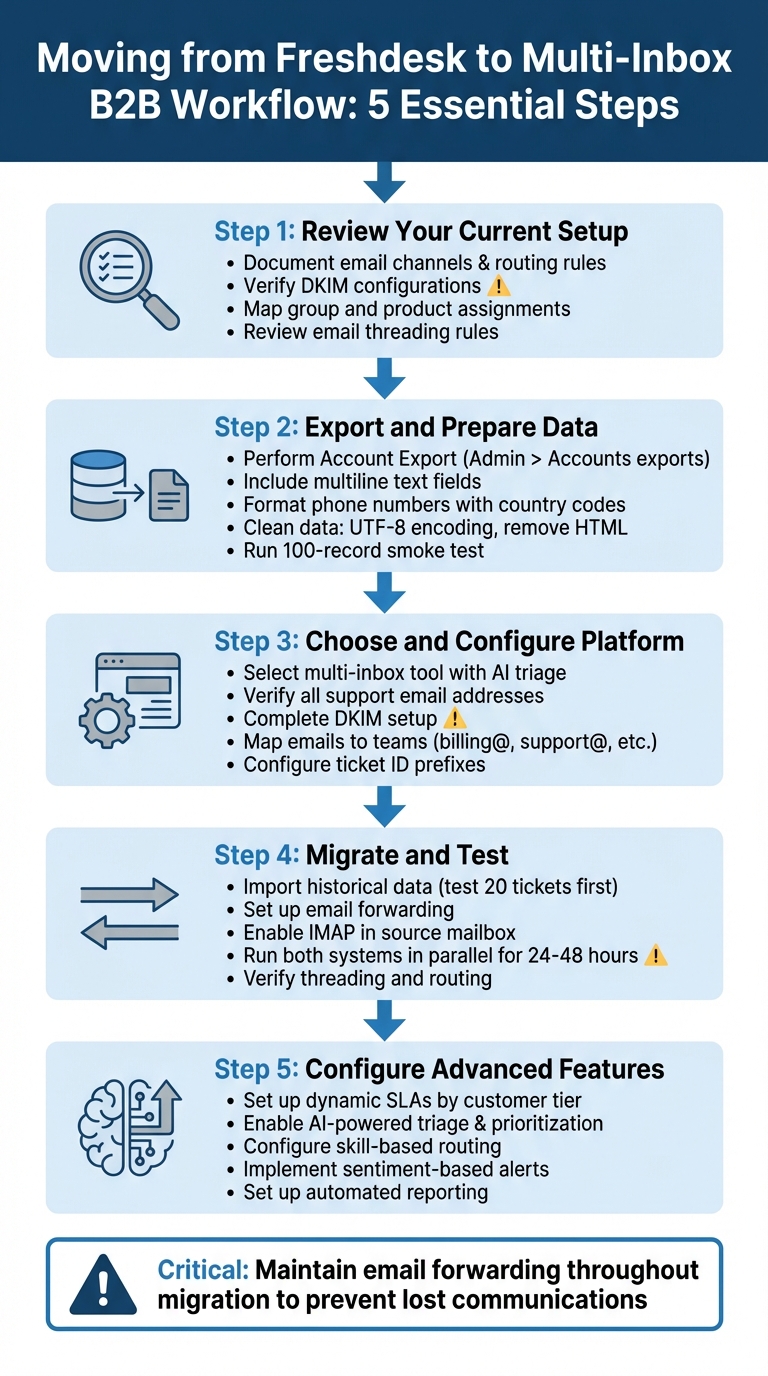
5-Step Process for Migrating from Freshdesk to Multi-Inbox B2B Workflow
Getting Started with Data Mapping
sbb-itb-e60d259
Step 1: Review Your Current Freshdesk Setup and B2B Requirements
Before diving into changes, take a close look at how your Freshdesk system currently operates. This means understanding every automation rule, email alias, and routing configuration that keeps your B2B support running smoothly. Missing something as simple as a forwarding rule or having incorrect DKIM settings could lead to lost emails and SLA violations during migration.
Document Your Current Freshdesk Configuration
Start by listing all your email channels, including the primary support address and any product-specific ones like billing@yourcompany.com or api-support@yourcompany.com. If you’re on the Growth plan or above, you’re likely handling multiple support emails, but keep in mind that the Free plan only allows one.
Next, note the mail servers you’re using – whether it’s Freshworks, Gmail, Microsoft Office 365, or custom IMAP/SMTP. Keep in mind that reconnecting a Gmail inbox often results in Freshdesk fetching only the last 48 to 72 hours of historical emails. Also, double-check your DKIM settings during this process. Without proper DKIM verification, emails may end up flagged as spam during the migration.
Don’t forget to document your group and product mappings. These determine how tickets are assigned to specific teams. Also, review your email threading rules. Does your system ignore ticket IDs in subject lines? Does it create new tickets when subjects change? Or does it rely on message-ID logic? These details are crucial for maintaining the flow of long-term B2B conversations.
Other settings to document include BCC addresses, outbound conversation rules, agent name displays, flexible recipient settings, long forwarding addresses, and wildcard support addresses (e.g., *@yourcompany.freshdesk.com).
Once you’ve recorded all this, you’ll have a clear picture of your current setup and can move on to identifying what your B2B workflow needs to improve.
Define Your B2B Workflow Requirements
With your current setup mapped out, it’s time to focus on what your B2B workflow requires. Unlike B2C, where keywords might drive processes, B2B support relies heavily on context. As Nooshin Alibhai, Founder and CEO of Supportbench, explains:
"AI determines priority not just based on a selected field or a single keyword, but by analyzing a confluence of factors: Sentiment Analysis, Urgency Keywords, Customer Value/Tier, Issue Type, and Interaction Patterns."
Take a close look at historical ticket flows to identify areas where routing and prioritization could be improved. For instance, frequent ticket transfers – commonly called "ticket tennis" – often suggest that your routing system isn’t effectively connecting requests to the right specialists from the start. In B2B settings, where products are often complex, even a small complaint might point to a critical issue affecting many users.
Consider whether your workflow needs to prioritize tickets based on factors like customer contract value or Premier tier status, pulling this data from your CRM. Think about whether specialized routing is necessary – like sending SSO configuration issues directly to authentication experts rather than general support teams. Also, assess how many distinct product lines you support and whether each one requires its own email alias and routing setup.
Finally, review your SLA requirements. If your contracts specify response times in hours rather than days, your system needs to recognize true urgency. For example, it should flag cases where a customer sends multiple follow-ups within a short time frame, using sentiment analysis and interaction patterns to identify critical issues.
Step 2: Export and Prepare Your Data for Migration
Once you’ve assessed your current setup and B2B needs, the next step is to extract your data from Freshdesk. A standard ticket export will only include ticket fields, leaving out conversation histories and archived tickets. To get a complete dataset, perform an Account Export by navigating to Admin > Accounts exports.
Make sure to expand the "Show multiline text fields" option to include full ticket descriptions. Adjust the "Created time" filter to "Any time" to ensure you capture all records. When exporting contacts and companies, be sure to include email addresses, as these act as unique identifiers. For phone numbers, format them with country codes (e.g., +14088481234) to ensure they migrate correctly.
While processing the export, keep email forwarding active in your primary mailbox (e.g., Gmail or Outlook) to prevent losing any emails during the transition. You can track the progress of your export and download completed files under Admin > Accounts exports.
Clean and Format Data for Multi-Inbox Import
Before importing, you’ll need to clean the raw exports from Freshdesk. Save all files in UTF-8 encoding to avoid any character issues, and remove unwanted characters, trailing spaces, and unsanitized HTML from ticket descriptions.
Set up a mapping table to align Freshdesk’s data with the schema of your new system. For instance, if Freshdesk labels priority as "High", you might map it to "P1", or translate "Normal" to "P3". Additionally, standardize all timestamps. While Freshdesk uses the format YYYY-MM-DD, many multi-inbox platforms require ISO 8601 (e.g., 2024-09-20T10:30:00Z).
To avoid surprises, run a 100-record smoke test before importing the full dataset. For example, one company with 50 employees discovered a 12% duplicate rate during such a test and corrected the issues before moving forward. Tag all tickets (e.g., imported_from_freshdesk) during the export process to make it easier to identify and filter migrated records later.
If maintaining email threading is important, ensure your export includes the Message-ID, In-Reply-To, and References headers.
Once your data is exported and cleaned, you’re ready to move on to selecting and setting up your multi-inbox platform in the next step.
Step 3: Choose and Configure Your Multi-Inbox Platform
Pick a multi-inbox platform that brings together all your support email addresses without interrupting your email workflows. The right tool should give you a single view of all your support accounts – like sales@, billing@, info@, and support@ – while keeping the individual identities intact for customer replies.
Key Features for B2B Multi-Inbox Operations
Once your data is organized, focus on features tailored for complex B2B needs. AI-powered triage is a must – it can analyze emails for intent and sentiment, then automatically tag and route them to the right team. For instance, a billing issue from a priority client should go directly to your finance team, while a technical glitch report heads to support.
It’s also crucial to maintain email threading and sender identity. Replies should always come from the same address the customer used (e.g., billing@yourcompany.com) to ensure consistency. Look for platforms that can automatically pick the correct "From" address based on where the email originated.
Collision detection is another critical feature, preventing multiple agents from accidentally responding to the same ticket, especially during busy times. Proper DKIM configuration is equally important – it digitally signs outgoing emails with your domain name, helping avoid spam filters during the migration. Additionally, if you manage several business units, choose a platform that supports workflows tailored to each product line, allowing separate support emails and routing rules for each.
Setting Up Your Multi-Inbox Workflow
Once you’ve chosen your platform, it’s time to configure it. Begin by verifying all your support email addresses in the system and completing the DKIM setup to ensure emails are delivered properly. Without verification, your addresses can’t send replies or be assigned to specific agent groups.
Next, map each email address to the right team. For example, route billing@yourcompany.com to the Billing team and vip-support@yourcompany.com to enterprise account managers. If you have older email aliases, configure them to redirect seamlessly to the new system, ensuring customers can still reach you during the transition.
Update advanced settings to include a ticket ID prefix in email templates. This helps ensure replies are threaded correctly with existing tickets, avoiding duplicate entries. If you’re combining multiple inboxes, set up automated workflows to tag conversations moved from secondary inboxes (e.g., "migrated_from_secondary_inbox") for easier tracking. For agents forwarding emails from personal accounts, enable the "Original Sender as Requester" option. This way, tickets are created under the customer’s name, not the agent’s.
Step 4: Migrate Emails and Test for Continuity
Once your data is prepared and configurations are set, it’s time to focus on ensuring a smooth email migration. The goal here is to transfer historical records while keeping live email communication running seamlessly.
Import Data and Configure Email Forwarding
Start by importing your historical data using the cleaned CSV files or API exports you prepared earlier. Before diving into the full import, run a small-scale test with 20 tickets to make sure field mapping and formatting look correct. This step helps catch potential issues early.
Once the test import checks out, set up email forwarding from your source mailboxes – whether you’re using Gmail, Office 365, or custom servers – to the new platform’s unique forwarding addresses. These addresses are long, distinct strings designed to prevent emails from getting mixed up during the transition. To activate ticket creation, confirm each forwarding address by clicking the verification link sent to the source mailbox.
For Gmail users, go to Settings → Forwarding and POP/IMAP. Add your new platform’s forwarding address and select "Keep Gmail’s copy in the Inbox" to maintain a backup during testing. If you’re using Office 365, create a "Redirect" rule in the Exchange Admin Center to ensure the original sender information is preserved.
Make sure IMAP is enabled in your source mailbox settings. When the new platform connects for the first time, it typically fetches emails from the previous 48 to 72 hours, which helps bridge any gaps between systems. Also, double-check that your DKIM configuration is complete to prevent emails from landing in spam folders.
With your import and forwarding processes in place, it’s time to confirm that both systems are capturing emails without any interruptions.
Run Both Systems in Parallel to Ensure Continuity
For 24 to 48 hours, operate Freshdesk and your new platform side by side. This parallel run ensures that all emails are being captured properly. During this period, incoming emails should appear in both systems, allowing you to verify sender details, threading, and routing rules.
Use external email addresses for testing to avoid creating internal loops. Pay close attention to whether replies are sent from the correct "From" address (e.g., billing@yourcompany.com for billing-related inquiries). Also, confirm that conversation threads remain intact and don’t generate duplicate tickets.
If possible, conduct this testing during off-peak hours for easier monitoring. If any test emails fail to show up as tickets, check spam and trash folders for misrouted messages. Once you’re confident that email continuity is intact and all stakeholders have access, you can start phasing out Freshdesk and fully transition to your new multi-inbox setup.
Step 5: Configure Advanced B2B Workflow Features
Once your email migration is complete, it’s time to take your workflows to the next level with features like dynamic SLAs, stakeholder assignments, and AI-driven automation. These tools help you handle the complexities of B2B relationships more effectively.
Configure Dynamic SLAs and Stakeholder Assignments
In B2B environments, static SLAs that treat every ticket equally just don’t cut it. For instance, a billing issue from a Premier-tier client nearing renewal deserves faster attention than a general inquiry from a trial user. Dynamic SLAs allow you to adjust response times based on factors like customer value, issue urgency, and account context by syncing directly with your CRM.
Start by integrating your multi-inbox platform with your CRM to automatically flag high-value accounts. Then, set tiered response goals – for example, 1-hour responses for critical issues from Premier clients, 4 hours for Standard-tier customers, and 8 hours for general inquiries. Configure your system to recognize urgency signals like "system down" or "outage" in subject lines or messages, and combine this with sentiment analysis to identify frustrated customers, such as those sending rapid follow-ups.
For better efficiency, implement skill-based routing. Assign tickets based on agent expertise (e.g., API issues or billing questions), language skills, workload, and availability. Include agent names in replies to add a personal touch and build trust, which is especially important in B2B relationships where clients value consistent points of contact. If managing multiple products or business units, create unique ticket ID prefixes (e.g., [VIP-{{ticket.id}}]) in email templates to ensure clear threading and accurate SLA tracking.
Enable AI-Powered Triage, Prioritization, and Reporting
AI can revolutionize how you manage tickets by analyzing content and context, going beyond rigid keyword rules. It can prioritize tickets by assessing factors like sentiment, urgency, customer tier, issue type, and interaction history.
Activate AI triage to automatically classify tickets, flag missing details (e.g., purchase orders or account numbers), and route specialized requests – like those mentioning "SAML 2.0" or "SSO" – directly to the right technical teams. Use predictive CSAT and CES scoring to identify cases likely to result in poor customer satisfaction before surveys are even distributed, giving you the chance to address concerns early.
Set up automated reporting and analytics to track trends like issue deflection, sentiment shifts across accounts, and category-specific ticket volumes. You can also enable sentiment-based alerts to notify managers when AI detects strong negative emotion or repeated follow-ups from the same account. Make sure to regularly review your AI’s performance – check the "Past Queries" log to spot common questions the system couldn’t handle, which can highlight gaps in your knowledge base that need attention.
Conclusion
Switching from Freshdesk to a multi-inbox B2B workflow doesn’t have to mean losing email threads or customer context. The process hinges on careful planning, thorough testing, and embracing AI-driven tools tailored for complex B2B operations.
To ensure a smooth transition, start by reviewing your current setup and identifying the additional capabilities your workflow needs. Handle your data with care – export it, clean it, and choose a platform that offers features like dynamic SLAs, stakeholder assignments, and routing based on account value rather than just email addresses. Once set up, verify email forwarding immediately and run both systems side by side to catch any errors before they affect customers.
As Eric Klimuk, Founder and CTO of Supportbench, explains:
"A high-performing helpdesk doesn’t stay that way by accident. Ongoing review, iteration, and user collaboration ensure it stays fit for purpose as your business evolves".
This migration isn’t a one-and-done event – it’s the starting point for ongoing improvements that align your support operations with your business’s evolving needs.
The real game-changer comes when you go beyond basic email-to-ticket systems and adopt AI tools that analyze intent, sentiment, and urgency. These advanced features don’t just organize tickets – they predict potential customer satisfaction issues and automatically route specialized requests to the right teams. In the B2B world, this level of intelligence is essential.
Take the time to map out workflows, test forwarding rules, and configure your "From" address settings to reflect the correct brand identity. With the right strategy, you’ll create a support system that’s faster, smarter, and primed to grow with your business.
FAQs
What features should I prioritize when choosing a multi-inbox platform for B2B support?
When choosing a multi-inbox platform for B2B support, focus on tools that simplify processes, improve communication, and grow with your needs. Features like AI-powered ticket routing can make a big difference by automatically categorizing and prioritizing emails, saving time and speeding up responses. Additionally, role-based access controls and detailed performance tracking are key for managing complex workflows and keeping everyone on the same page.
You’ll also want a platform that brings together multi-channel communication – combining email, chat, and other tools into one interface to avoid disjointed customer interactions. Make sure it handles multiple mailboxes smoothly for both incoming and outgoing emails, ensuring a seamless experience. Lastly, automation tools such as intelligent triage, email-to-ticket conversion, and proactive routing are essential for running operations efficiently while keeping costs under control.
How can AI enhance ticket routing and prioritization in B2B customer support?
AI is reshaping ticket routing and prioritization in B2B customer support by boosting speed, precision, and efficiency. Through Natural Language Processing (NLP) and machine learning, AI examines ticket details to determine intent, urgency, and sentiment. This allows tickets to be automatically routed to the appropriate team or agent, cutting down on manual errors and delays. For instance, AI can spot product names or error codes within a ticket, helping ensure it reaches the most knowledgeable staff member.
Beyond routing, AI helps prioritize tickets based on urgency or sentiment, enabling teams to tackle high-priority issues more quickly. These systems continuously learn from new data, improving their ability to understand context over time. By automating these processes, businesses can speed up response times, lower costs by reducing manual effort, and create scalable workflows for efficient B2B support.
How can I ensure a smooth email transition when moving from Freshdesk to a multi-inbox B2B workflow?
To make your email transition as smooth as possible, start by reviewing your current email setup and preparing the new multi-inbox system ahead of time. Double-check that all email addresses and inboxes are configured correctly before beginning the migration. This step helps prevent unnecessary disruptions.
While transitioning, use tools like email forwarding or auto-redirects to keep messages flowing without interruptions. These methods ensure that no incoming emails slip through the cracks while the new system is being implemented. You might also want to explore options like staged cutovers or delta migrations to seamlessly handle updates during the process.
Before making the full switch, perform comprehensive testing. Confirm that emails are being routed properly, tickets are created as they should be, and your team is comfortable navigating the new system. After the migration, keep a close eye on email activity to quickly address any hiccups and ensure uninterrupted support.






