



Migrating from Salesforce Service Cloud to a new helpdesk can feel overwhelming, especially when preserving case history is non-negotiable. The key? A structured approach that ensures no data – like timestamps, comments, or attachments – gets lost in the process. Here’s a quick breakdown:
- Audit Your Data: Identify what’s critical, clean up unnecessary records, and document dependencies like custom fields or support workflows.
- Choose the Right Tools: Look for tools with automated mapping, encryption, and support for attachments to avoid broken links or missing data.
- Run Test Migrations: Start small with a demo migration to catch errors before committing to a full transfer.
- Validate Post-Migration: Double-check data integrity, fix any gaps, and optimize workflows for your new platform.
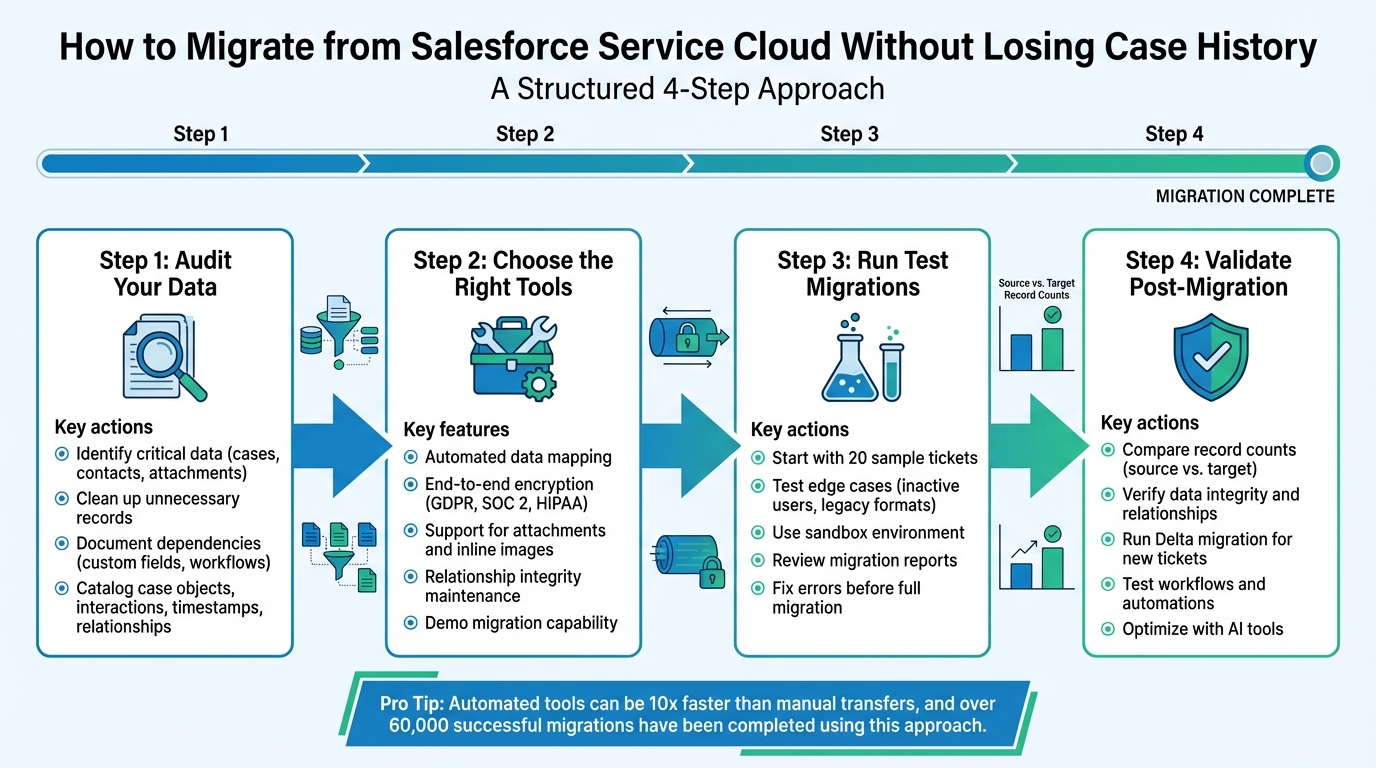
4-Step Process for Migrating from Salesforce Service Cloud Without Losing Case History
Review Your Current Data and Migration Requirements
To keep operations running smoothly, you need a clear picture of your existing data and its dependencies. Start by thoroughly documenting your current environment. Salesforce Service Cloud often contains years’ worth of customer interactions, custom configurations, and workflows tailored to your business. As Eric Klimuk, Founder and CTO at Supportbench, puts it:
"Data migration is more than just copying files from one system to another – it’s a delicate, high-stakes process that can affect everything from day-to-day operations to long-term compliance".
Take stock of ticket counts, field usage, and how your data is interconnected. For instance, in July 2025, Rossi Residencial, a Brazilian construction company, performed a detailed pre-migration analysis before moving four SAP environments to a cloud platform. By replicating their architecture in advance, they achieved zero downtime and slashed infrastructure costs by 50%.
The main objective here is straightforward: figure out what data is critical, clean up anything unnecessary, and lay the groundwork for a seamless transition. Skipping this step can lead to missing data, broken links, or compatibility issues – problems that are much harder to fix after the migration has started. This preparation is key to selecting the right migration strategy in the next phase.
Catalog Your Case Data
Start by creating a detailed inventory of all the data stored in Salesforce Service Cloud. Document every piece of your Knowledge Base, including articles, categories, sections, folders, translations, and internal links. This ensures your support resources remain well-structured and easy to navigate post-migration.
Pay close attention to custom fields. These might include SLA timers, product categories, contract IDs, or internal reference numbers – data points that are often central to your workflows. Help Desk Migration emphasizes:
"Losing these fields during migration can mean losing critical context".
Also, document any workarounds your team has created, such as tagging tickets with product names when no official field exists for that purpose.
| Data Category | Key Elements to Catalog | Priority Level |
|---|---|---|
| Case Objects | Subject, Status, Priority, Type, Custom Fields, Tags | High |
| Interactions | Public/Private Comments, Comment Authors, Attachments, Inline Images | High |
| Timestamps | Created Date, Updated Date, Closed Date, Last Modified | High |
| Relationships | Ticket-to-Contact, Contact-to-Company, Agent Assignments | High |
| Knowledge Base | Article Body, Categories, Internal Links, Attachments | Medium |
| System Metadata | Audit Trails, Status Change History, Creator IDs | Medium |
Identify Critical Case History
Not all data is equally important. Focus on information that supports daily operations, compliance, and customer satisfaction. For example, audit trails that track status changes, agent assignments, and timestamps for when tickets were opened or closed are essential for maintaining accountability and historical accuracy.
Preserve interaction details, including comment authors, body text, privacy settings (public vs. private), attachments, and original creation dates. This historical context allows agents to continue conversations seamlessly and ensures the integrity of your data.
Command Alkon’s experience highlights the importance of addressing custom fields during migration. Matthew Fox, Manager of Program Management at Command Alkon, shared:
"Relokia’s entire team was knowledgeable, responsive, and incredibly supportive throughout this time-sensitive project. Their solution proved especially valuable when working with the many custom fields we needed to import".
Once you’ve identified the critical data, review its quality and dependencies to ensure a smooth migration process.
Check Data Quality and Dependencies
Good data quality is non-negotiable. Before migrating, audit your Salesforce instance for duplicates, outdated records, and incomplete fields. Transferring unnecessary or low-quality data to your new system only creates clutter and increases the risk of errors, leading to extra cleanup work later on. Decide what stays and what can be removed to streamline the migration.
Next, address dependencies that could cause issues. Disable active triggers, validation rules, and duplicate rules to avoid disruptions during the migration process.
Additionally, review your API limits and attachment storage capacity. Salesforce Service Cloud enforces specific free storage caps, and exceeding them could result in extra costs on your new platform. To speed up the migration, contact Salesforce and request a temporary API limit increase. Finally, ensure that all end-user accounts remain active during the migration, as many tools cannot transfer cases tied to inactive accounts.
sbb-itb-e60d259
Select Your Migration Tools and Strategy
After understanding your data landscape, the next step is to pick the right tools and approach to ensure a smooth and secure migration. The wrong tool can lead to lost attachments, broken ticket links, or incomplete histories. While automated tools can be up to 10 times faster than manual transfers, speed alone won’t guarantee success.
Look for tools that provide automated data mapping, maintain relationship integrity, and offer secure encryption. Automated data mapping ensures that Salesforce custom fields – like ticket priorities, statuses, and custom objects – are accurately aligned with your new helpdesk system. Maintaining relationship integrity is equally important, as it ensures tickets stay linked to the correct agents, customers, and companies. Don’t overlook support for attachments and inline images; these elements are critical for preserving troubleshooting steps and providing full context in historical tickets. Choosing tools with these capabilities sets the foundation for a transition from email to helpdesk or a more complex migration without unnecessary disruptions.
Before diving into migration, make sure your chosen tool fully supports your data structure. Security should be a top priority when working with sensitive customer information. Opt for tools with end-to-end encryption and compliance with standards like GDPR, SOC 2 Type II, and HIPAA. For example, one migration tool has successfully completed over 60,000 migrations. Similarly, Jason Morehouse, CEO and Co-founder of Checkfront, used automated tools to transfer over 160,000 tickets – spanning six years of support history – from Desk.com to Zendesk. When data issues arose, support intervention resolved them quickly.
To minimize risks, start with iterative demo migrations. Many tools offer free trials that allow you to migrate a small sample – typically 20 tickets – to confirm that fields, attachments, and relationships map correctly. Patrick A., an IT System Administrator at a large enterprise, shared his experience migrating approximately 200,000 records (covering over 10 years of data):
"Being able to run demos many times iteratively to show business partners exactly what to expect, vet the tool, and catch some gaps along the way was absolutely key".
Once you’ve validated the tool through these demo migrations, you’re ready to test for scale and compatibility. This involves including edge cases like inactive users, legacy formats, and complex attachments to ensure the tool can handle your actual data without surprises during the full migration. If your support team needs to stay operational during the process, plan for a Delta Migration. This approach captures new or updated tickets created after the initial migration begins, ensuring uninterrupted service.
Execute the Migration: Step-by-Step Process
Map Your Data for Migration
Once your data inventory is prepared and you’ve chosen your tools, it’s time to focus on field mapping. This involves matching each Salesforce field to its counterpart in your new helpdesk system. You’ll need to account for both standard fields – like Subject, Status, Priority, and Tags – and any custom fields tailored to your organization. Be sure to reassign records from inactive or deleted Salesforce users to active team members to ensure everything runs smoothly.
Keep the connections between tickets and their related contacts, companies, and attachments intact. Double-check that all mandatory fields on the new platform are properly mapped. If any source data is missing, assign default values (for example, set an empty priority field to "Low").
Before locking in your mapping, audit the data for duplicates, outdated entries, or inconsistent formatting. Matthew Fox, Manager, Program Management at Command Alkon, shared his experience:
"Relokia’s entire team was knowledgeable, responsive, and incredibly supportive throughout this time-sensitive project. Their solution proved especially valuable when working with the many custom fields we needed to import into."
Run a Test Migration
Pick a sample of data that covers a variety of scenarios – like inactive users, older formats, unusual record types, and tickets with large attachments or inline images. Conduct the test migration in a sandbox environment to confirm that critical relationships, such as links between tickets and users, remain intact.
After the test migration, review the migration report to identify and resolve any issues, such as failed or skipped records (e.g., missing contact data or inactive agents). Use AI tools to monitor and adjust for unexpected anomalies. Irving S., a Senior ERP Developer, described his experience:
"Just matched up a few fields and said what to do with the blanks and the migration started running extremely smoothly."
If problems arise, rollback tools can help you remove test data from the target system, allowing you to start fresh. Once you’re confident in the test migration’s results and data integrity, you’re ready to move forward with the full migration.
Complete the Full Migration
During the final migration, it’s critical to temporarily freeze changes in your Salesforce environment. Use real-time monitoring tools – like dashboards and audit logs – to quickly detect and resolve any issues. Adjust email forwarding settings just before the final import to ensure no tickets are missed during the switch.
After the migration is complete, test key workflows, such as creating, updating, and closing tickets. Confirm that all reports accurately reflect historical data, ensuring your team can hit the ground running in the new system.
Validate and Optimize After Migration
Once the migration is complete, the next step is to validate the process to ensure that all data has transferred correctly and is functioning as expected.
Verify Data Integrity and Case History
Start by comparing the total number of records in both the source and target systems to confirm that everything has been transferred successfully. Use migration reports to manually check records side-by-side, ensuring key details like timestamps, user assignments, and custom fields have been preserved. Relational data should also remain intact, linking tickets to the correct customers, agents, and companies. Additionally, confirm that file attachments and inline images display properly.
To account for any records created or updated during the migration window, run a Delta migration after the main transfer. Beyond data accuracy, ensure core workflows – like ticket creation, updates, assignments, and closures – are functioning without issues. For easier troubleshooting and reporting, consider tagging all migrated records with a custom label, such as "Migrated_Salesforce".
As Eric Klimuk, Founder and CTO at Supportbench, puts it:
"Validation is your safety net – it confirms that everything moved as expected and continues to function correctly in the new system."
Adjust Workflows and Automations
After verifying the data’s integrity, shift your attention to refining workflows for the new system. Update workflows, SLAs, and automations to match the structure of the platform. Double-check user permissions to ensure sensitive information is only accessible to the right personnel. Test email alerts, ticket triggers, and escalation rules to confirm they are functioning properly.
Integrations with other tools – like analytics dashboards, CRM systems, and reporting platforms – should also be tested to ensure they accurately pull historical data. Keep an eye out for duplicate tickets or missed communications during the initial days after launch, as these could signal routing issues. For added security, have a rollback plan ready in case of critical failures.
Use AI for Continuous Improvement
AI tools can do more than just preserve case history – they can help improve operations over time. Modern AI-powered platforms offer features like:
- Auto-prioritization and assignment, which reduces manual errors by aligning tasks with business priorities.
- Sentiment monitoring to detect dissatisfaction early and take proactive measures.
- Auto-summarization of ticket histories, giving agents quick access to relevant context.
- Knowledge base generation, creating self-service help centers based on real ticket data.
- AI-driven quality assurance for monitoring agent performance and automating feedback collection like CSAT or CES.
- AI Co-Pilots that assist agents in real-time by pulling insights from knowledge bases and ticket histories.
These tools streamline workflows, minimize manual effort, and help keep operations running efficiently.
Wrapping Up
Switching from Salesforce Service Cloud to a new helpdesk doesn’t mean losing your case history – if you take a careful, step-by-step approach. Start by auditing your data, ensure fields are mapped correctly, test with real-world scenarios, and thoroughly validate the results.
"Data migration is more than just copying files from one system to another – it’s a delicate, high-stakes process that can affect everything from day-to-day operations to long-term compliance."
- Eric Klimuk, Founder and CTO at Supportbench
Look for migration tools that provide demo migrations, allow detailed field mapping, and ensure end-to-end encryption. Combining these tools with clear communication across your team can make the transition much smoother.
Migration isn’t just about technology – it’s also about aligning your team. Keep everyone in the loop, run pilot tests to catch potential issues early, and always have a rollback plan ready. Once the migration is complete, take advantage of AI-driven tools to enhance your support operations and make the most of your preserved case history.
FAQs
What are the risks of skipping a data audit before migration?
Skipping a data audit before migration can cause serious headaches for your support operations. Without taking a close look at your data, you risk losing critical information like case histories, customer details, or metadata – key elements that keep your workflows running smoothly. On top of that, transferring outdated or irrelevant data can lead to clutter, inaccuracies, and even compliance risks if sensitive information isn’t handled properly.
Failing to audit can also create technical issues like broken ticket relationships, mismatched data fields, or missing attachments. These problems leave agents confused and customers frustrated, leading to slower resolution times and lower satisfaction levels. Plus, fixing these errors after migration can be expensive and time-consuming – issues that could have been avoided with a thorough review upfront.
Taking the time to audit your data ensures a smoother migration process, preserves operational continuity, and helps maintain trust with your customers. It’s a step you can’t afford to skip.
How can AI tools streamline operations after migrating to a new helpdesk?
AI tools can make the transition to a new helpdesk system much smoother by automating essential processes and ensuring data accuracy. For example, AI can verify that critical information – like case histories, timestamps, and customer profiles – is transferred correctly. This helps maintain smooth operations and keeps customer trust intact.
Beyond data validation, AI-powered tools can also analyze customer feedback, such as satisfaction and effort scores, to uncover opportunities for improving service quality. On top of that, they can handle repetitive tasks like ticket prioritization and assignment. This frees up support teams to focus on resolving customer issues more quickly.
By integrating AI into the post-migration process, support operations can become more efficient and focused on delivering better customer experiences, setting the stage for long-term success.
What should I do if I notice data issues after migrating to a new helpdesk?
If you spot data integrity problems after migration, the first step is to validate the migrated data against the original records. Pay close attention to key details like case histories, customer profiles, and timestamps to pinpoint discrepancies. Running a small-scale test migration beforehand can also help identify potential issues early on.
When problems persist after migration, a data reconciliation process can help. This means comparing the migrated data with the source system and fixing any errors. In some cases, you might need to re-import specific data segments using updated mappings or cleaned data. To avoid future issues, keep backups, validate data regularly, and consider using AI tools to simplify these processes and ensure everything runs smoothly.
Related Blog Posts
- A practical guide on how to Migrate From one Helpdesk to Another
- Help Desk Migration Checklist: How to Switch Platforms Without Downtime
- How do you run a successful help desk migration project (timeline, roles, and cutover plan)?
- How do you migrate from a US helpdesk to a non-US platform without losing history or data?






