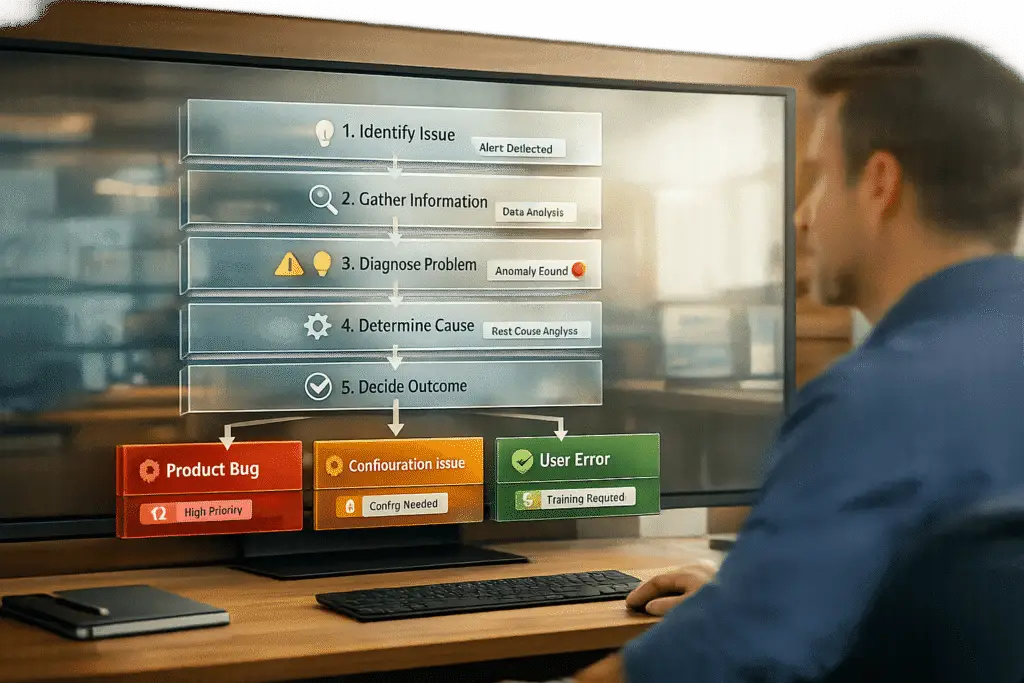
When customers report issues, the challenge is figuring out whether the problem is a product bug, a configuration issue, or a user error. Misclassifying these can waste time, delay fixes, and frustrate users. Here’s the gist:
- Product Bugs: Flaws in the code causing crashes, data loss, or broken features. Look for reproducible errors, stack traces, or sudden regressions.
- Configuration Issues: Problems tied to incorrect settings, mismatched integrations, or environment-specific errors. Often resolved by checking logs, settings, or comparing environments.
- User Errors: Mistakes in how users interact with the software. These often appear as non-reproducible issues or "how-to" questions.
Key Steps to Triage:
- Collect Info: Gather error messages, environment details, and ticket metadata.
- Reproduce the Issue: Test in a controlled setup to confirm if it’s a bug.
- Check Configurations: Review settings, API keys, and integrations for mismatches.
- Examine Code: Look for evidence of defects like stack traces or logic failures.
- Categorize and Escalate: Use urgency, impact, and severity to route tickets effectively.
Quick Comparison
| Feature | Product Bug | Configuration Issue | User Error |
|---|---|---|---|
| Symptom | Crashes, data loss, broken features | Connection failures, mismatched settings | Misinterpretations, "how-to" questions |
| Reproducibility | Consistent steps in standard environments | Environment-specific | Not reproducible |
| Root Cause | Code flaw | Incorrect settings or integrations | User misunderstanding or input error |
| Owner | Development team | DevOps or IT | Support or Customer Success team |
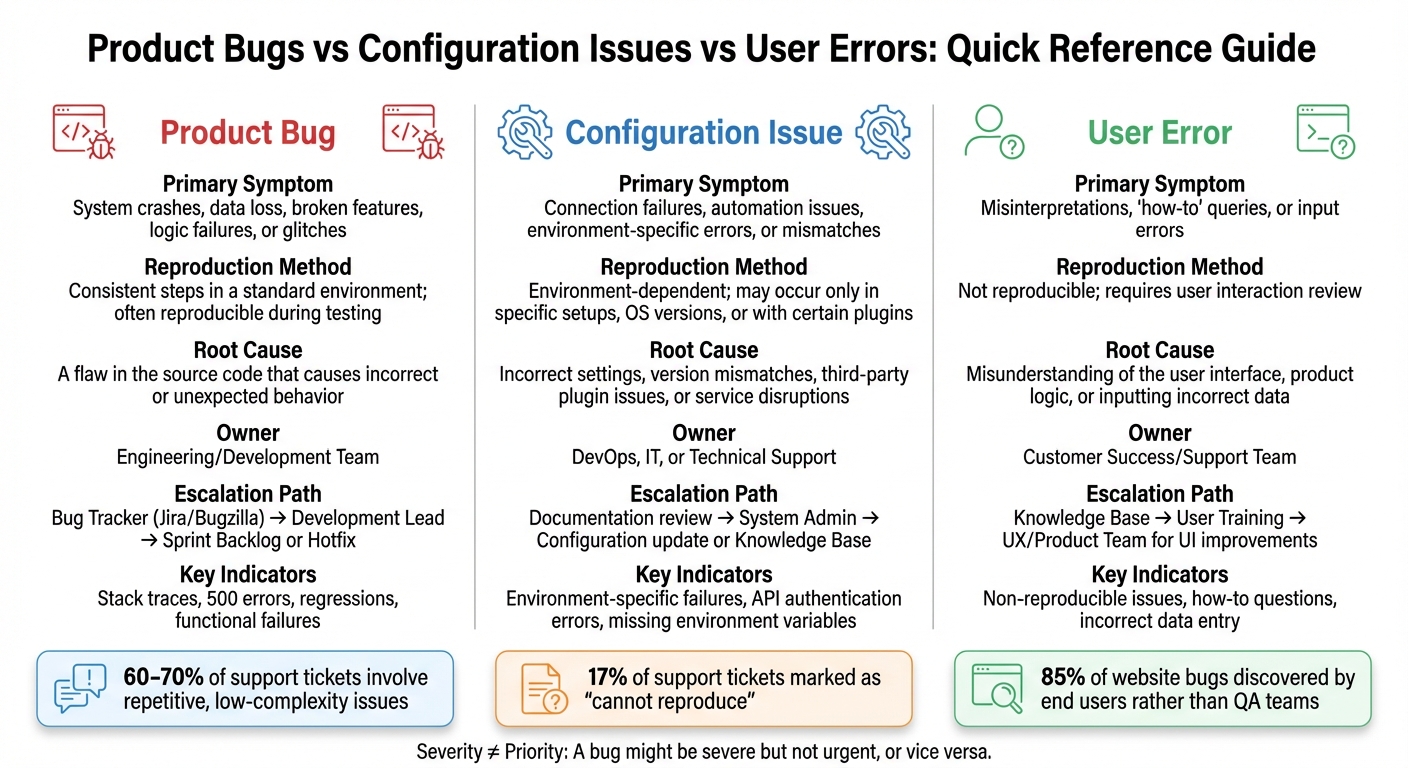
Product Bugs vs Configuration Issues vs User Errors: Quick Reference Guide
5-Step Framework for Triaging Support Issues
A consistent triage process removes guesswork and ensures your team handles support tickets systematically. This framework also works well with AI tools to simplify B2B support workflows. Here’s how to create one that delivers results.
Step 1: Gather Initial Information
Start by collecting the basic ticket details: subject line, body description, and any attachments the user includes [6]. Add technical clues like error messages, stack traces, or steps to reproduce the issue [8]. Don’t overlook the user’s environment details – browser, operating system, or software version – since these often reveal configuration-specific problems [8]. To assess priority, also pull in customer metadata such as their plan type, how long they’ve been a customer, and their history of support tickets [6]. Finally, evaluate impact and urgency: how many users are affected, and is there a workaround or an upcoming deadline like a product launch? [7]
For teams using automation, set a confidence threshold of 80–85%. If the system’s confidence dips below this range, flag the ticket for human review to avoid misclassification [6][8].
"The triage itself isn’t the hard part. Fixing the customer’s problem is. But triage is what happens first, and when it’s slow or inconsistent, everything downstream suffers." – JieGou [6]
Step 2: Try to Reproduce the Issue
Attempt to recreate the issue in your environment. Reproducibility is one of your most valuable diagnostic tools. Separate issues into "Pattern Bugs", which are common and well-documented, and "Causal Bugs", which are tied to specific system states, data histories, or race conditions [11]. AI or documentation can often handle pattern bugs, but causal bugs usually require human judgment to untangle [11].
Use a diagnostic decision tree that considers error clarity, known patterns, and runtime states. Limit each reproduction attempt to 15 minutes. If you’re stuck after 15 minutes, step back and reassess to avoid wasting time [11]. Skilled debuggers tend to explore multiple possibilities (breadth-first), while less experienced ones often fixate on early assumptions (depth-first) [11].
"AI is a powerful debugging assistant for pattern recognition and a poor debugging lead for causal reasoning." – Johannes, Creator of Super Productivity [11]
If you can’t reproduce the issue, move on to verify configuration settings.
Step 3: Check Configuration Settings
Review the user’s configuration by linking your ticketing tools to an IT Asset Management (ITAM) system or a Configuration Management Database (CMDB). This provides a snapshot of their equipment specs and environment-specific settings [9]. Look for mismatches in integrations, API keys, permissions, or environment variables. Many so-called "bugs" stem from misconfigurations that work fine in controlled test environments but fail in real-world setups.
Step 4: Review Product Code
If error logs point to issues like null pointer exceptions or failed database queries, dive into the product code. Engineers lose an average of 23 minutes of productive time regaining focus after being interrupted for manual triage tasks [8]. Only escalate issues with clear evidence of a product defect, such as reproducible failures, stack traces tied to your codebase, or behavior that contradicts documentation. Once you’ve confirmed a bug in the code, categorize and escalate it appropriately.
Step 5: Categorize and Escalate
Sort issues using objective factors like urgency (how soon a fix is needed), impact (number of users affected), and severity (the extent of functional disruption) [12][13]. Use scoped labels like type::bug, type::feature, or type::maintenance to avoid conflicting classifications [10]. Clearly document escalation paths for routing issues to higher-tier support or development teams [9][13].
| Categorization Factor | Priority Level Example |
|---|---|
| Urgency | High: Product is unusable. |
| Impact | High: Affects all users or core revenue. |
| Severity | High: Security breach or data loss. |
| Customer Type | High: VIP or high-revenue account. |
| SLA | High: Breach is imminent. |
Maintain a triage handbook in a shared wiki to standardize categorization and prioritization criteria across the team [10]. Use automated routing rules to prioritize specific issues – like VIP tickets or security vulnerabilities – by sending them directly to the appropriate high-priority queue [9].
sbb-itb-e60d259
What Product Bugs Look Like
A product bug happens when software doesn’t behave as it should or as outlined in its specifications. This could mean anything from functional errors and user interface glitches to slow performance or security flaws [15]. The root of the problem lies in the code itself, not in how the user has set up or is using the software. Spotting these bugs early is crucial to avoid wasting time and delaying fixes.
How to Recognize Product Bugs
To identify product bugs effectively, it’s important to differentiate them from setup or usage issues. The first step? Look for evidence in the code. Error messages like stack traces, 500 errors, Java tracebacks, or strange logs often point to code-related problems [11][15]. Another clear sign is regressions – when something that worked fine before suddenly breaks after an update [15]. Additionally, keep an eye out for unexpected spikes in error rates or sudden drops in system stability scores [14].
Some signs are hard to miss. For example, functional failures – like a payment system throwing a 500 error – make it clear there’s a bug [15]. Other indicators include data integrity problems such as lost data, silent file corruption during exports, or unauthorized data exposure [15]. Performance issues – like memory leaks, severe slowdown, or latency that wasn’t present in earlier versions – are also strong indicators of a bug rather than a setup problem [15].
It’s also helpful to understand the difference between pattern bugs and causal bugs. Pattern bugs are recurring issues that are common across many systems and are often easy for AI tools to flag [11]. On the other hand, causal bugs are trickier – they’re tied to the unique state of a specific system, its data history, or timing issues like race conditions. These often need deeper manual investigation. Interestingly, around 17% of support tickets end up marked as "cannot reproduce" because such bugs only show up in real-world production environments, not in testing setups [16].
Common Mistakes When Identifying Bugs
One common pitfall is mixing up severity and priority. Severity reflects the technical impact of an issue, like data loss or a system crash, while priority is a business-driven decision based on factors like customer importance, revenue risks, or upcoming deadlines [15]. For instance, a minor UI glitch might be technically low in severity but high in priority if it affects a major product launch.
Another mistake is overstating severity – marking every issue as "critical." This can clutter your backlog, making it harder to spot genuine emergencies [15]. Similarly, teams sometimes mislabel configuration issues as bugs. Problems like misconfigured webpack loaders, missing environment variables, or incorrect Docker settings are setup errors, not actual defects in the code [11].
Watch out for the plausible hypothesis trap. When AI suggests a likely cause, treat it as a starting point, not the final answer. If an investigative direction doesn’t yield results in about 15 minutes, take a step back and reassess [11]. With 70% of software professionals noting a decline in application quality due to AI-driven code generation, human judgment remains critical during bug triage [14].
Next, we’ll dive into how to tell apart code-related bugs from configuration issues.
How to Identify Configuration Issues
Building on the earlier review of configuration settings, this section takes a closer look at spotting and fixing environment-specific problems. Configuration issues often arise when software doesn’t work due to incorrect settings, mismatched integrations, or environmental differences. These problems can be tricky because they might only show up in one environment – like production – while working fine in others, such as staging. In these cases, the code itself is fine, but it’s not receiving the right inputs or connections.
Signs of Configuration Problems
A key indicator of configuration trouble is when failures are tied to specific environments. For example, a Docker container might fail to connect to a database in production, even though it works perfectly in a local development setup [11]. Similarly, a TypeScript build might crash in production due to environment-specific settings [11]. Other common culprits include misconfigured webpack loaders or incorrect CORS headers [11].
Look out for cryptic error messages that suggest environmental issues rather than code problems. Messages like "Internal Server Error" or error codes such as 0x80070005 often point to configuration issues [20]. Another red flag is mismatched logic in workflows – like an automation failing because it checks for "status = completed", while the system actually uses "status = done" [17]. Before diving into debugging, check for broader outages by reviewing your status page or incident logs [17].
Integration failures are another telltale sign. If services can’t communicate – for instance, a payment gateway times out or an API returns authentication errors – it’s worth checking for issues like incorrect connection strings, outdated API keys, or missing environment variables [21]. In these cases, asking users for screenshots of settings can help identify typos or misconfigurations that might not appear in logs [17].
Once you’ve identified these anomalies, it’s time to apply a systematic approach to fixing them.
How to Fix Configuration Problems
Start by gathering as much context as possible. Collect error messages, note recent environment changes, and review log outputs before troubleshooting [11]. AI tools can be helpful here, as they can decode cryptic stack traces from languages like Java, Python, or Rust into plain language, often highlighting missing or incorrect configuration values [11].
Set a time limit for initial debugging – 15 minutes is a good benchmark to avoid wasting time [11]. Using diff tools to compare environments, like production against a staging environment or a .env.example file, can quickly pinpoint configuration drift [21].
For long-term solutions, consider adopting Infrastructure as Code tools like Terraform or CloudFormation. These tools allow you to track changes in Git, enable peer reviews, and maintain an audit trail [21]. To catch errors earlier, use schema validation tools like env-sentinel to verify environment variables during CI/CD and runtime [21][18]. Running regular drift detection – such as scheduling a daily "terraform plan" – can alert your team to discrepancies between production and your Git repository [21].
"Prevention beats debugging at 2 AM every single time." – Env-Sentinel [21]
Studies show that 60–70% of support tickets involve repetitive, low-complexity issues like configuration questions [18]. AI-driven support tools can resolve 40–60% of these cases when the topics are well-documented, while automated context gathering can cut ticket handling time by 30–50% [5][18]. Configuration issues are especially suited for automation since they often follow predictable diagnostic steps, such as checking for outages, reviewing settings, and comparing misconfigurations to known solutions.
Recognizing and Handling User Errors
When tackling issues in your product, it’s crucial to distinguish between technical bugs and user errors. While bugs and configuration issues require a deep dive into the code, user errors are more about improving usability and guiding users effectively. These errors often mimic actual defects, but the key difference lies in their root cause: user errors stem from how someone interacts with the software, not from flawed code or settings. Identifying this early helps avoid wasting your engineering team’s time on non-existent bugs and keeps your support team focused on real product problems.
Signs of User Errors
One of the clearest signs of a user error is non-reproducibility. If your QA or development team can’t replicate the reported issue, it’s a strong indicator the problem lies in user interaction rather than the software itself [1][3].
Another red flag is when support tickets sound more like how-to questions than actual error reports [4][19]. For example, if a user claims a feature is "broken" but has skipped required steps or fields, the issue is more about their process than the product. Phrases like "I can’t figure this out" often point to gaps in usability or user knowledge [4]. Sometimes, users even report "bugs" that are actually feature requests – what they perceive as a malfunction is often just a desire for functionality that doesn’t exist yet [2][19].
Incorrect data entry is another common culprit. Users may input dates in the wrong format, pass incorrect argument types to APIs, or fail to complete mandatory steps in a workflow [11]. Before jumping to conclusions about a product issue, ask for supporting materials like screenshots, screen recordings, or HAR files to understand the exact sequence of actions that led to the reported problem [1][3].
Once you recognize these patterns, the next step is to adopt strategies that help minimize user errors.
How to Reduce User Errors
Start by implementing robust validation at every layer of your software and ensure error messages are clear and actionable [22].
For example, avoid technical jargon in error messages. Instead of showing a cryptic stack trace, provide a straightforward explanation like, "The upload failed because the file size exceeds 10MB" or "The connection timed out – please check your network and try again" [11].
"A 2024 study found that nearly 85% of website bugs are discovered by end users rather than QA teams." [23]
Standardized templates for support responses can also help streamline communication. When a user error is identified, provide links to relevant documentation and close the ticket promptly to keep your support queue manageable [4]. For unclear issues, use labels like "awaiting feedback" to encourage users to review their actions before escalating further.
This approach often leads users to identify their own mistakes during the review process [3][11]. Additionally, regularly audit your help text, tooltips, and error messages for clarity – small errors or confusing language can easily mislead users [23].
Lastly, establish clear acceptance criteria for every feature. Define how it should work, including edge cases like poor network conditions, so users have a clear understanding of expected behavior and are less likely to misinterpret functionality as a bug [24].
Product Bugs vs Configuration Issues vs User Errors
When it comes to managing a high volume of support tickets, the ability to quickly identify and categorize issues is crucial. By distinguishing between product bugs, configuration issues, and user errors, teams can route problems to the right departments, saving time and avoiding unnecessary work for engineers. The table below offers a quick reference to help your team make these decisions in seconds.
Comparison Table
| Feature | Product Bug | Configuration Issue | User Error |
|---|---|---|---|
| Primary Symptom | System crashes, data loss, broken features, logic failures, or glitches | Connection failures, automation issues, software environment-specific errors, or mismatches | Misinterpretations, ‘how-to’ queries, or input errors |
| Reproduction Method | Consistent steps in a standard environment; often reproducible during testing | Environment-dependent; may occur only in specific setups, OS versions, or with certain plugins | Not reproducible; requires user interaction review |
| Root Cause | A flaw in the source code that causes incorrect or unexpected behavior | Incorrect settings, version mismatches, third-party plugin issues, or service disruptions | Misunderstanding of the user interface, product logic, or inputting incorrect data |
| Owner | Engineering/Development Team | DevOps, IT, or Technical Support | Customer Success/Support Team |
| Escalation Path | Bug Tracker (e.g., Jira or Bugzilla) → Development Lead → Sprint Backlog or Hotfix | Documentation review → System Admin → Configuration update or Knowledge Base | Knowledge Base → User Training → UX/Product Team for UI improvements |
One important distinction to keep in mind is the difference between severity and priority. A bug might be severe but not urgent, or vice versa. For instance, a typo on a high-traffic page might be low in severity but high in priority, while a crash in a rarely accessed admin tool could be severe but lower in priority. Understanding this helps teams triage effectively and ensure issues are routed to the right place.
"Bug triage is the quality control valve that prevents your team from drowning in defects while chasing feature delivery."
– Robert Weingartz
This structured approach to categorization enhances the efficiency of issue triage and keeps workflows moving smoothly.
Using AI-Driven Triage in Supportbench
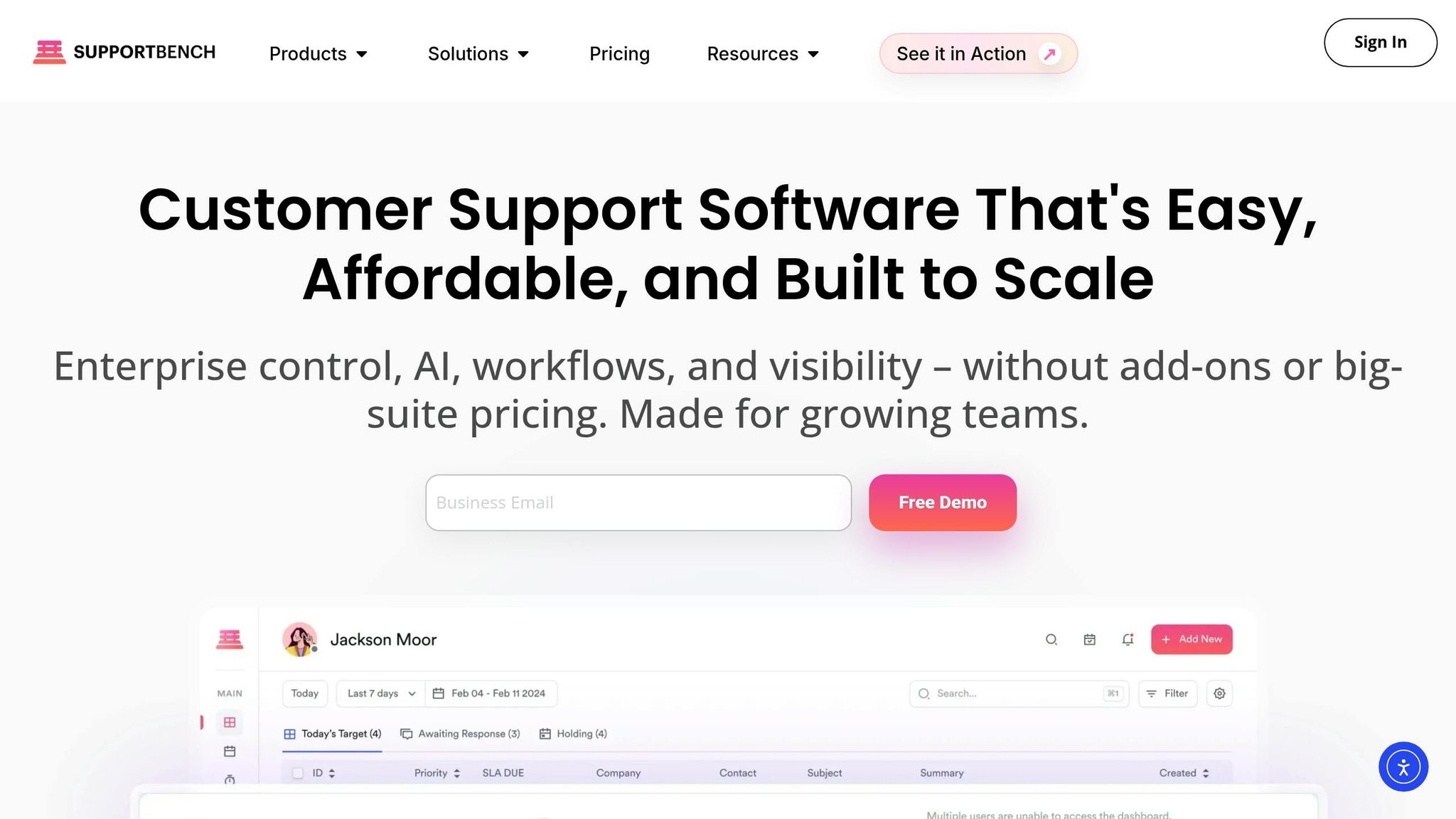
Supportbench takes its structured 5-step triage framework to the next level with AI-driven tools. Manual triage often leads to tickets being misrouted or issues misunderstood, which slows down resolutions. Supportbench’s AI features tackle these challenges head-on, offering immediate context and ensuring tickets are routed correctly. Here’s how these tools operate in real-world scenarios.
AI Case Summaries
When a case arrives, Supportbench’s AI springs into action, summarizing long email threads or extensive exchanges into a clear and concise overview. This summary pinpoints the main issue, outlines steps already taken, and provides insight into the customer’s current situation. Instead of agents wading through endless messages, they get a quick snapshot of the problem. This feature is particularly useful during escalations or shift changes, allowing the next agent to dive in without needing a detailed handoff.
AI Automation for Auto-Tagging
Supportbench uses Natural Language Processing (NLP) to analyze case details – like subject lines, descriptions, and comments – and automatically applies relevant tags such as "Bug", "Configuration Issue", or "User Error." These tags ensure issues are categorized accurately. Additionally, tagging rules can be customized to differentiate between, for example, product bugs and configuration issues by analyzing specific keywords in technical logs or user descriptions. This customization triggers the appropriate escalation path automatically. For repetitive, straightforward issues like password resets or billing inquiries, auto-tagging saves agents time, letting them focus on more complex cases that need deeper attention.
AI Agent-Copilot for Context Analysis
Supportbench’s AI Agent-Copilot acts as a smart assistant, providing agents with a complete understanding of each ticket. It searches past cases, knowledge base articles, and previous resolutions to offer context-driven suggestions. For instance, if an agent is investigating a potential bug, the Copilot might highlight similar cases that turned out to be configuration errors, helping avoid misclassification. It also recommends the next best response and retrieves relevant knowledge base content instantly. By reducing errors and streamlining resolutions, the Copilot empowers agents to work more efficiently and effectively.
Conclusion
Getting triage right is the backbone of successful B2B support operations. When your team can quickly separate product bugs from configuration issues and user errors, you avoid wasting engineering resources, prevent unnecessary escalations, and keep your backlog under control. Without a structured approach, bugs can slip through the cracks, and configuration issues may end up misrouted.
By following a five-step framework, your team creates a shared playbook that aligns engineering, QA, product management, and support teams on resolution priorities [25][2]. As Steve Maguire wisely said:
"Don’t fix bugs later; fix them now" [2].
This mindset helps prevent an overwhelming defect backlog and ensures your software maintains a high standard of quality. On top of this solid foundation, AI tools take triage to the next level.
Supportbench’s AI-powered features handle repetitive tasks with ease. AI can summarize cases, automatically tag issues, and pull relevant context from past cases and knowledge-centric solutions. These capabilities cut down resolution times, improve reporting accuracy, and ensure critical problems get the attention they need right away.
For B2B support leaders working with complex accounts and renewal-focused relationships, this blend of structured processes and AI-driven automation delivers clear benefits: quicker responses, better first-contact resolution rates, and happier customers. When your team spends less time sorting through tickets and more time resolving issues, everyone benefits – your agents, your developers, and most importantly, your customers. This AI-integrated approach shows how modern support teams can achieve both efficiency and excellence.
FAQs
What’s the fastest way to tell a real bug from a bad setup?
When troubleshooting, start by verifying the environment and collecting relevant logs or configuration details. Determine if the issue can be consistently reproduced in a controlled setting or with different user accounts. If it happens across the board, it may point to a bug. However, if the problem only arises under specific configurations or settings, it’s likely tied to the setup. Leveraging AI-driven tools can make this process more efficient by correlating reports with known bugs or errors.
What should I ask in my first reply to classify the issue?
Start by asking the user to explain what they were trying to achieve and what actually happened. For instance, you might say: "Could you describe what you were trying to do and what the result was?" This approach helps clarify whether the issue stems from user error, a bug in the product, or a configuration issue, giving you the context needed to classify the problem accurately.
How can AI auto-triage tickets without misrouting edge cases?
AI systems streamline ticket triaging by leveraging machine learning to assess factors like intent, urgency, and sentiment. This approach enables accurate categorization and prioritization of tickets. When the AI encounters uncertainty, confidence-based routing steps in, flagging ambiguous cases for manual review rather than risking misrouting.
To minimize errors and handle edge cases effectively, many setups combine automated classification with backup procedures. For example, tickets with low confidence scores are escalated to human agents, ensuring that even complex or unusual scenarios are resolved appropriately.