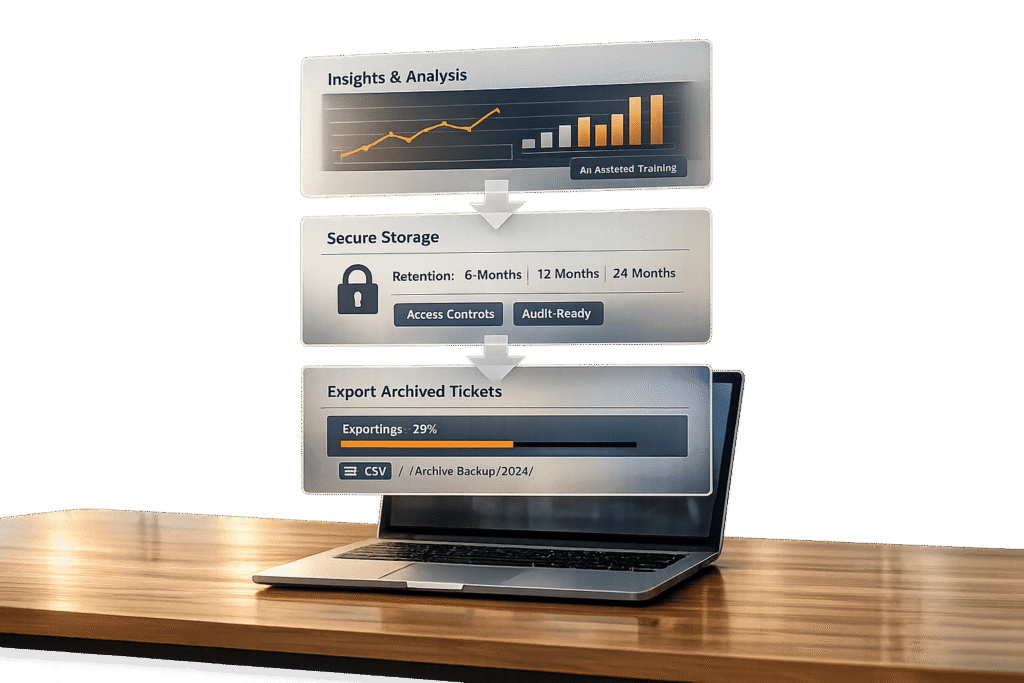
Archived tickets are more than just records – they’re a resource for compliance, AI development, and identifying long-term trends. Whether you’re meeting regulations like GDPR and HIPAA, training AI models, or analyzing historical data, exporting these tickets properly is essential. Here’s what you need to know:
- Why Export? Ensure compliance, protect against data loss, and gain insights for improving customer support.
- How to Start: Filter tickets by date, tags, or customer details to focus on relevant data. Export key fields like timestamps, custom fields, and customer satisfaction scores.
- Methods: Use built-in tools for smaller datasets or APIs for large-scale, automated exports. JSON is ideal for complex data, while CSV works for simpler needs.
- Post-Export Use: Store data securely, analyze trends, improve knowledge bases, and train AI systems.
- Compliance: Retain records based on industry regulations (e.g., 6 years for HIPAA, 7 years for SOX). Ensure exported data is accessible and complete.
Pro Tip: Always test your exports to ensure data accuracy and usability. A backup is useless if you can’t retrieve it.
How to export Zendesk tickets from a view (the 1,000 limit trap)
sbb-itb-e60d259
Preparing for Ticket Exports
Getting your ticket export right from the start can save you a ton of time and effort down the line. By planning ahead, you can avoid unnecessary cleanup and focus on extracting data that actually matters. Here’s how to filter, choose fields, and set clear objectives for a smooth export process.
Filter Tickets Before Export
Start by narrowing down your dataset. Use date ranges like "Created At", "Updated At", or "Closed At" to focus on tickets from specific time periods. For performance reviews, filter by assignment data to analyze tickets handled by particular agents or teams. If customer satisfaction is your goal, segment your tickets by customer details, such as account name, industry, or subscription level (e.g., "Enterprise plan").
Tags and metadata are also incredibly useful for zeroing in on specific issues. For example, you can filter tickets labeled "billing", "refund", or "escalated" to focus on recurring problems. Filtering by communication channels – like email, chat, or API – can help you understand how different methods affect resolution times or customer sentiment. If you’re dealing with a large dataset, consider exporting in smaller batches using tighter filters. This approach not only speeds up processing but also minimizes file size. Remember, platforms like Intercom limit browser-based CSV exports to 10,000 rows and send larger datasets via email [5].
Select Key Fields and Metadata
When choosing what to export, focus on the data that aligns with your goals. Include customer details like account name, email domain, and industry classification to allow for effective segmentation. Ticket tags, custom fields, and technical metadata (such as product SKUs or error codes) can provide deeper insights, especially when working on AI training or preparing for platform migrations.
If you’re analyzing customer satisfaction, make sure to include CSAT ratings and comments to connect performance metrics with customer feedback. For industries with strict compliance requirements, such as healthcare or finance, your export should include full communication histories with timestamps [1]. Some platforms also let you export internal notes and attributes not visible to customers – these can be crucial for audits [5]. Lastly, choose the right export format. JSON is ideal for preserving complex data structures and is particularly useful for migrations or in-depth analysis, while CSV often excludes details like ticket comments and descriptions [2].
Set Clear Export Goals
Before starting, define what you want to achieve with your export. Common objectives include improving operational efficiency, managing storage costs, or conducting strategic analysis for AI training or trend reporting [6]. For B2B companies, it’s important to retain data that supports long-term relationships and warranty tracking. On the other hand, B2C companies may focus on purging old data to reduce storage demands [6].
"Define clear retention policies before implementing automation. Know what you need to keep and for how long. Don’t make it up as you go." – eesel AI [6]
If you’re planning to upgrade your helpdesk platform, make sure to account for "delta" syncs to capture updates made during the transition [2]. For compliance or legal purposes, ensure your export adheres to regulations like GDPR or CCPA and includes timestamped, unalterable records for audits or eDiscovery [2][7]. Documenting your export and archiving process is also a common requirement for compliance audits [6]. Lastly, test your exported data regularly to ensure it’s complete and accessible. After all, a backup is useless if it can’t be restored or read [6]. Following these steps will not only simplify data management but also provide a foundation for better insights and improved operations.
Methods for Exporting Archived Tickets
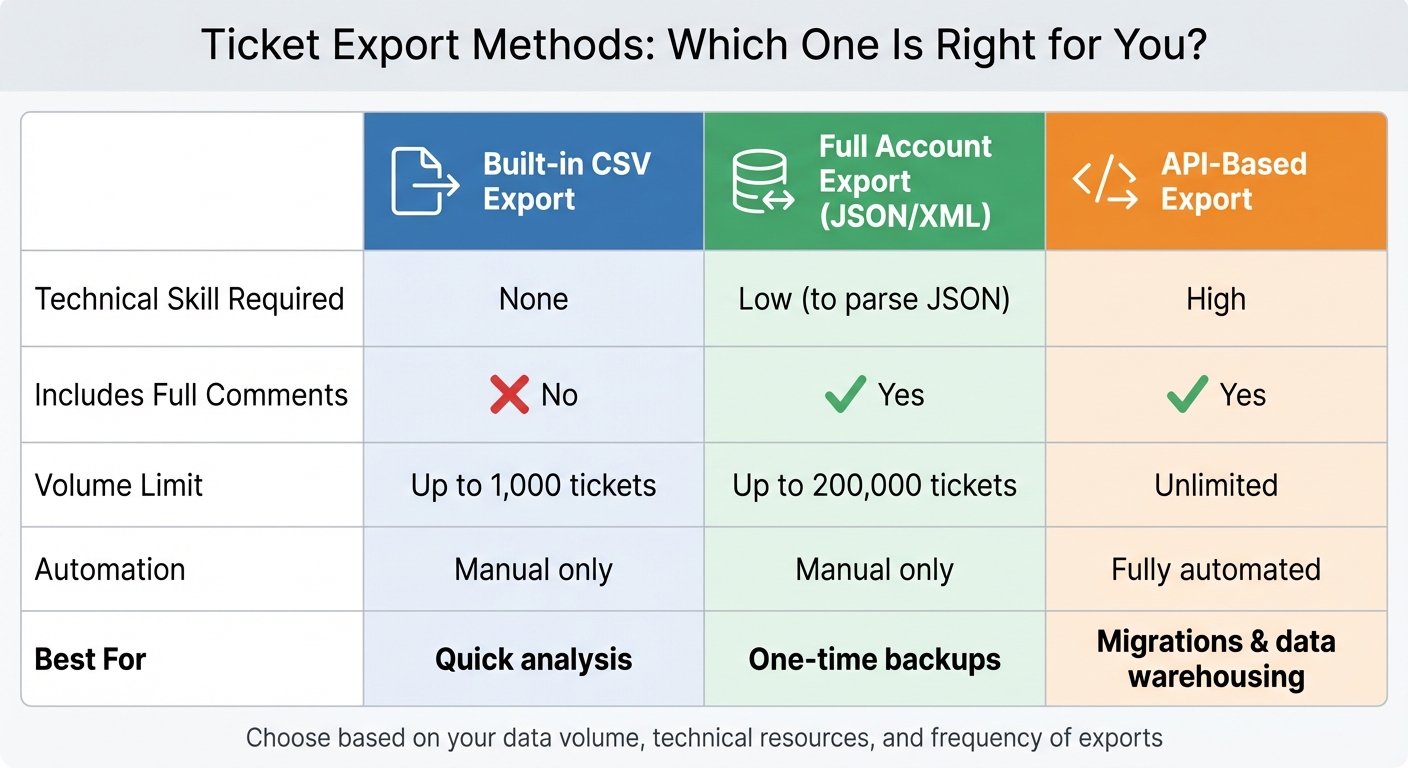
Comparison of Ticket Export Methods: Built-in Tools vs API vs Full Account Export
Once you’ve sorted your data and clarified your objectives, the next step is exporting it. You can choose between built-in tools or API endpoints, depending on the volume of data, how often you need to export, and the technical resources at your disposal. Let’s break down these methods for exporting archived tickets.
Use Built-In Export Tools
If you’re dealing with smaller datasets or just need a one-time export, built-in tools are your go-to option. Most customer support platforms offer straightforward export features that don’t require any coding skills. The process is usually simple: go to your ticket views, apply the necessary filters, and click the export button to download a CSV or Excel file.
That said, these tools come with limitations. They often exclude ticket comments and full conversation histories, only providing basic metadata. As Freshdesk Support explains:
"This export will NOT give you the entire conversation from the ticket or historical data (archived tickets) – for that, you will have to perform an account export" [4].
Additionally, built-in tools may have volume restrictions. Stevia Putri, Marketing Generalist at eesel AI, points out:
"The view export has a hard limit of 1,000 tickets. There’s no warning when you hit this limit. Your CSV simply stops at 1,000 rows" [8].
For larger datasets, you may need to break your exports into smaller batches or opt for a full account export. These full exports (usually in JSON or XML format) can handle up to 200,000 tickets and include complete data structures, making them ideal for audits or platform migrations.
Export via API for Custom Needs
If you’re managing large-scale datasets or need recurring exports, APIs are the better choice. They offer precise control and automation, making them perfect for exporting millions of records, setting up regular backups, or integrating data with external analytics systems. However, using APIs requires technical expertise in REST APIs and scripting.
With APIs, you can extract exactly what you need – specific fields, advanced filters, and even scheduled exports for real-time dashboards or nightly backups [9]. Unlike CSV exports, APIs capture everything: full conversation histories, metadata, attachments, and internal notes [11].
Keep in mind that most platforms limit API requests to 400–700 per minute, with some endpoints capped at just 10–20 requests per minute. To avoid issues, implement exponential backoff when encountering "429 Too Many Requests" errors [9][10]. As ClonePartner warns:
"A poorly coded script can easily hit this limit, receive a 429 Too Many Requests error, and fail silently in the middle of the night" [9].
For large-scale projects, the effort spent on API-based exports can be worth it. For example, in early 2026, ClonePartner’s data migration engineers helped a fintech company move 3.5 million tickets to a new platform. While the client’s internal team estimated a three-month timeline using standard methods, ClonePartner’s API scripts completed the migration in just one weekend, with no downtime [9].
| Feature | Built-in CSV Export | Full Account Export (JSON/XML) | API-Based Export |
|---|---|---|---|
| Technical Skill Required | None | Low (to parse JSON) | High |
| Includes Full Comments | No | Yes | Yes |
| Volume Limit | Up to 1,000 tickets | Up to 200,000 tickets | Unlimited |
| Automation | Manual only | Manual only | Fully automated |
| Best For | Quick analysis | One-time backups | Migrations & data warehousing |
Using Exported Ticket Data
Before diving into analysis, it’s essential to establish a reliable storage system for your exported ticket data. Secure cloud solutions like Amazon S3, Dropbox, or SFTP are excellent options. These not only ensure you maintain full control over your data but also help bypass storage limitations imposed by help desk platforms [6]. Plus, having your data in a centralized, secure location makes it easier to integrate with business intelligence tools later.
Organize and Store Exported Data
Keeping your data organized starts with consistent file naming. For example, using a format like {team-name}-{date}-{time}.csv allows you to quickly locate specific files, even months down the line [3]. Before diving into analysis, double-check that your exported data is complete and accurate. As Larry Barker, a CX leader, aptly puts it:
"The ability to reliably export tickets from Zendesk is one of those capabilities that seems simple…until you actually need it" [1].
Once your data is securely stored and verified, you’re ready to move on to deeper analysis.
Analyze Data for Patterns and Trends
Exported ticket data can reveal insights that go far beyond what standard dashboards provide. For example, you can calculate CSAT scores for individual team members, track resolution times by product type, or identify bottlenecks by analyzing SLA metrics like first response and resolution times. Business intelligence tools such as Tableau, Power BI, or SQL databases are ideal for uncovering trends that native help desk reports might miss [1][3].
This data can also highlight recurring issues, peak ticket times, and customer sentiment trends based on feedback. For example, support leaders might notice ticket volume spikes tied to marketing campaigns or product launches, allowing them to better allocate resources. AI tools can also play a significant role here, analyzing patterns to fill knowledge gaps. In fact, mature AI deployments have been shown to achieve up to an 81% resolution rate by leveraging historical ticket data [6]. Such insights not only streamline operations but also ensure compliance and improve AI-driven support systems.
| Analysis Method | Ease of Use | Data Freshness | Key Benefit |
|---|---|---|---|
| Built-in Export | High | Point-in-time | Reliable data portability |
| API / Connector | Low (Developer-heavy) | Near real-time | Complete enterprise control |
| AI Tools | High (Self-serve) | Live | Automated insights & actions |
These analytical approaches not only uncover operational challenges but also spotlight areas where support knowledge and training can be improved.
Improve Knowledge Bases and Training
Historical ticket data is a goldmine for refining your support resources. By reviewing past tickets, you can pinpoint common customer questions that your knowledge base doesn’t currently address. Use this insight to create new articles based on successful agent responses, ensuring your knowledge base aligns with customer needs.
For agent training, examine metadata like "Story Points" or effort estimates to balance team workloads more effectively [3]. Historical data can also help identify which issues could have been resolved through AI or self-service, enabling you to adjust your strategy for better efficiency. As ClonePartner wisely notes:
"Getting your view right before you export is 90% of the battle" [2].
Compliance and Record Management
Archived tickets aren’t just a convenience – they’re critical for meeting compliance standards during audits. If your business operates in sectors like healthcare, finance, or processes payment data, you’re likely subject to strict retention rules. For instance, HIPAA requires retaining protected health information for 6 years from its creation or last effective date. SOX mandates public companies to keep audit-related records for 7 years, while PCI-DSS 4.0 specifies 12 months of audit log retention, with at least 90 days easily accessible for review [12][13]. These regulations highlight the importance of robust record management and data retention strategies.
Meet Regulatory Requirements
Many businesses must navigate overlapping regulatory frameworks. As Tech Jacks Solutions advises:
"When multiple frameworks apply to the same record type, use the most restrictive requirement" [12].
For example, if a ticket contains both payment details and healthcare information, you’ll need to follow the longer retention period required by either PCI-DSS or HIPAA.
Regulators also expect records to be retrievable in a standalone, reviewable format [14]. This means exported tickets must remain accessible and readable, even if your current help desk software is retired. According to Archon:
"If records exist but cannot be produced in context, regulators do not consider them accessible" [14].
Keep in mind, most cloud platforms only retain logs for 30–90 days, which falls short of HIPAA, SOX, or PCI-DSS requirements [12]. To stay compliant, export and store tickets in secure, independent archives. These archives should preserve not only the ticket text but also critical metadata – like timestamps, access logs, and sender information – to provide necessary context for audits or investigations [14].
Set Data Retention Policies
To ensure compliance, it’s essential to establish clear data retention policies. Automating deletion workflows without defined rules can lead to costly mistakes. On average, companies juggle more than 12 different data retention requirements across various regulations [15]. Begin by cataloging your data: identify what types of tickets you store, where they’re located, and which legal rules apply [15].
Organize tickets into categories (e.g., Financial Records, Customer Communications, Personal Data) and assign retention periods based on relevant laws [15]. For instance, employment tax records must be kept for 4 years from the date the tax is due or paid [12].
Your policy should also include a legal hold mechanism to pause routine deletion during litigation, audits, or investigations [13][14]. Test your system’s readiness by simulating regulatory requests to confirm that archived records can be retrieved without manual effort [14]. Additionally, maintain certificates of destruction to verify that data was securely deleted after its retention period ends [13].
| Regulation | Primary Industry | Key Retention Requirement |
|---|---|---|
| PCI-DSS 4.0 | Payment Card Industry | 12 months total; 90 days "hot" access [12] |
| HIPAA | Healthcare | 6 years from creation or last effective date [12] |
| SOX | Public Companies | 7 years for audit-related records [12] |
| SEC 17a-4 | Financial Services | 3 years for communications; 6 years for account records [12] |
| FTC Safeguards | Financial Institutions | 2 years after last use [12] |
Conclusion: Getting the Most from Archived Tickets
Archived tickets aren’t just old records sitting in storage – they’re a treasure trove of insights for compliance, operational analysis, and smarter cost management. The key to unlocking their potential lies in having clear goals, whether you’re using the data to train AI models or pinpoint recurring customer pain points.
"Your Zendesk instance is the beating heart of your customer operations. It’s not just a queue of conversations; it’s a goldmine of data" [2].
When choosing an export method, consider factors like ticket volume and your technical requirements. Keep in mind that archived tickets can affect your storage quotas, so creating a "delete after export" process can help keep your system running smoothly while keeping costs in check [6].
But exporting is just the beginning. The real value comes from what you do with the data. Use it to fuel business intelligence efforts, enhance your knowledge base with AI-driven summaries, and fine-tune AI tools. For example, AI systems trained on historical ticket data have been shown to reach resolution rates as high as 81%, cutting down on future archiving needs while boosting efficiency and reducing costs [6].
To make the most of this process, prioritize thorough documentation and regular testing of your archiving workflow. As Stevia Putri, Marketing Generalist at eesel AI, wisely points out:
"A backup you can’t restore is worthless" [6].
FAQs
What should I export besides basic ticket fields?
When exporting ticket data, don’t just stop at the basics. Include custom fields, activity metrics, and relationships like parent-child ticket links. Add layers of context by exporting sentiment, urgency levels, status updates, timestamps, and even related internal threads or tickets. This approach gives you a more complete picture, whether you’re diving into analysis or planning a full data migration.
How do I export archived tickets at scale without missing data?
To export archived tickets efficiently and without losing any data, here’s what you need to do:
- Check your permissions: Make sure you have the necessary access to use export features.
- Set filters: Narrow down your dataset using filters like date ranges or tags to focus on what you need.
- Choose the right export method: For large datasets, consider options like incremental exports or API-based solutions.
- Double-check the exported data: Ensure everything is complete and complies with requirements. Encrypt files if needed for added security.
Following these steps helps maintain both accuracy and data protection.
How can I use archived tickets to train AI safely and compliantly?
To train AI using archived tickets responsibly, prioritize data quality, security, and privacy. Begin by carefully filtering and organizing the tickets to ensure you’re working with relevant and reliable data. Remove any inconsistencies or irrelevant information to maintain accuracy.
Protect the data by encrypting files and limiting access to authorized personnel only. Avoid including sensitive or personally identifiable information to stay compliant with privacy regulations. For fine-tuning, use curated datasets that follow consistent tone and style guidelines. This approach helps your AI learn effectively while reducing the risks of bias or privacy breaches.
Related Blog Posts
- How do you export Freshdesk tickets + attachments (API + CSV) the right way?
- How do you export Pylon conversations, tickets, and customer data (step-by-step)?
- How do you export Kayako ticket history and customer records (API + database options)?
- How do you export HappyFox tickets, contacts, and KB content (step-by-step)?