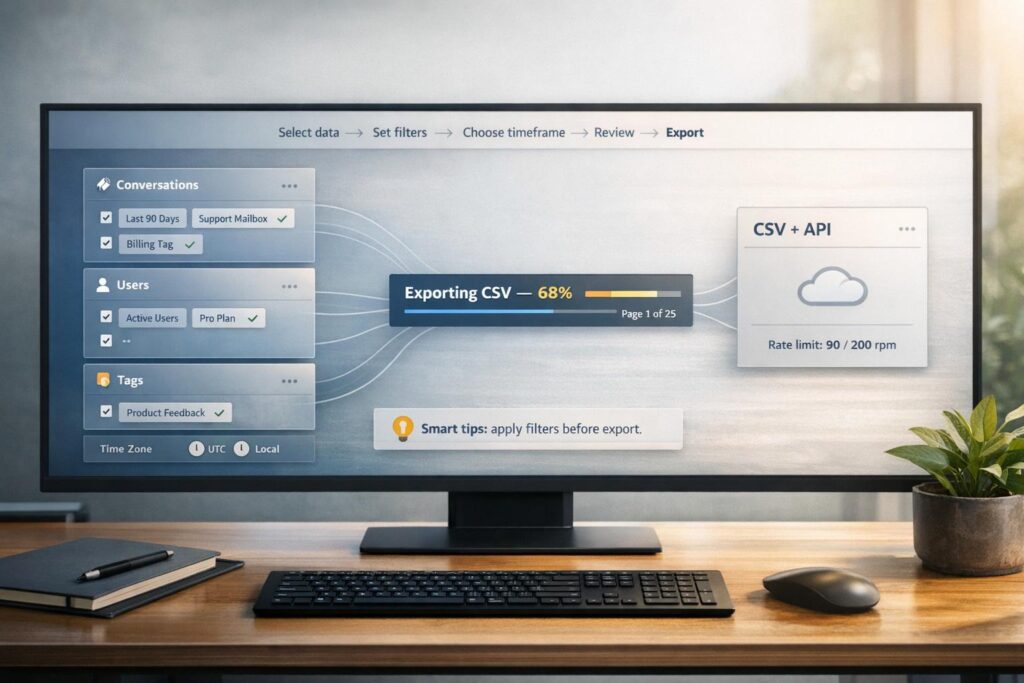
Exporting data from Help Scout helps you analyze customer conversations, track team performance, and manage support operations efficiently. Here’s a quick guide to export conversations, tags, and user data:
- Conversations: Use the Reports dashboard for manual exports (CSV/XLSX) or the API for automated, large-scale exports (JSON). Manual exports include metadata but not full conversation threads.
- Tags: Automatically included in conversation exports. For detailed tag data, use the API with filters.
- Users & Customers: Export customer names, emails, and metadata via the dashboard or API. Team metrics like response times and happiness scores can also be exported.
Key Tips:
- Use filters (date range, tags, etc.) to narrow down data and avoid oversized files.
- CSV files use your company’s timezone, while XLSX defaults to UTC.
- For recurring exports or full conversation threads, the API is essential.
Avoid common issues like oversized files, API rate limits, and timezone mismatches by planning your exports carefully. Whether you’re managing a small team or handling large datasets, these tools make exporting data straightforward and effective.
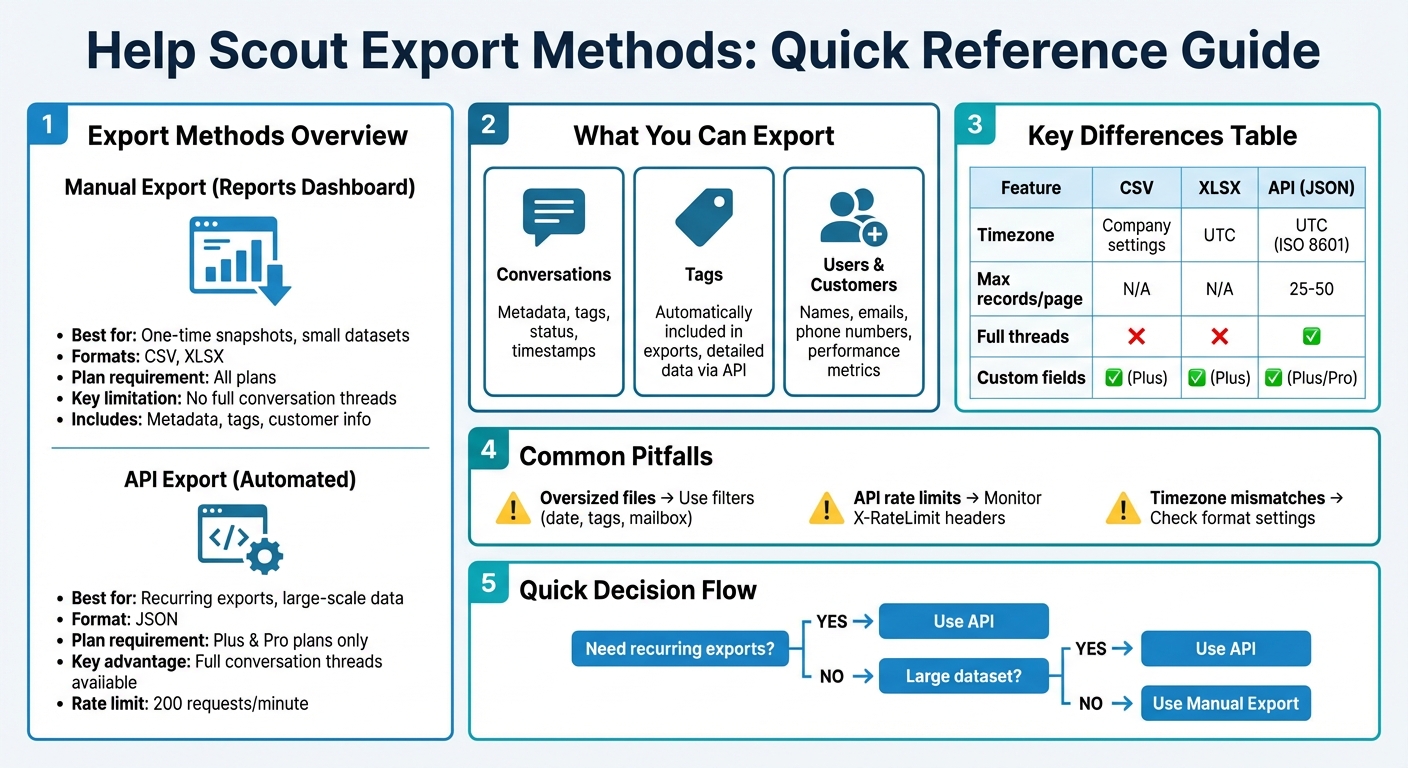
Help Scout Data Export Methods Comparison: Manual vs API
How to Export Conversations from Help Scout
Manual Export via the Reports Dashboard
To export your conversation data manually, start by heading to the Reports menu and selecting the report you need: All Channels, Email, Company/User, or Happiness.
From there, you can apply filters such as a specific date range or a particular view. Once set, click the Export/Print icon located near the date filter and choose Export. A modal window will pop up, allowing you to confirm the date range and pick a file format. Choose CSV if you want timestamps in your company’s configured timezone or XLSX for UTC timestamps.
After initiating the export, Help Scout will queue your request and send you an email with the subject "Data export from Help Scout", which includes a download link. Make sure to log in using the exact user account that requested the export and confirm that your User Role has the "Reports: Export reporting data" permission enabled. Keep in mind that manual exports include metadata but do not contain full conversation threads or satisfaction comments.
For larger datasets or recurring exports, consider using the Help Scout API.
Automated Export Using the Help Scout API
If you need a more efficient solution for frequent or large-scale exports, the Help Scout API is your go-to option. Use the GET /v2/reports/conversations/drilldown endpoint to access Conversation Report data. This feature is available exclusively on Plus and Pro plans.
To authenticate, include an OAuth 2.0 Bearer token in your request header as Authorization: Bearer oauth_token. The API allows you to refine your export with filters such as:
- Date ranges: Use
startandendparameters. - Mailboxes: Specify inboxes to focus on.
- Tags: Filter conversations by specific tags.
- Types: Narrow down by email, chat, or phone interactions.
You can also use the modifiedSince parameter or queries like modifiedAt:[2024-01-01T00:00:00Z TO *] to retrieve only updated records.
The API returns data in JSON format, with pagination set to 25 records per page by default (up to a maximum of 50 records per page). Use the page and pages fields in the response to navigate through all the data. Additionally, monitor the X-RateLimit-Remaining and X-RateLimit-Reset headers to ensure you stay within the API’s rate limits.
sbb-itb-e60d259
How to Export Tags from Help Scout
How Tags Work in Help Scout
Tags in Help Scout act as labels to help you organize and filter conversations. For example, tags like "bug-report" or "feature-request" make it easier to group similar support issues together.
Tracking tags like "feature-request" can give you actionable insights for your product roadmap, while monitoring "bug-report" tags helps you spot recurring technical issues with AI-driven support tools.
Exporting Tag Data with Conversations
Since tags are essential for organizing your support data, exporting them alongside conversations is simple.
Tags are automatically included in every conversation export, whether you choose CSV or XLSX format. To keep your exports focused, you can apply filters in the Reports dashboard to include only specific tags, like "feature-request".
For more detailed tag data – such as tag IDs or color codes – you can use the GET /v2/reports/conversations/fields-drilldown endpoint with the tags parameter. This API call provides a tags array containing the tag ID, name, and color for each conversation. Note that this feature is available only for Plus and Pro plans.
These options let you efficiently export and manage tag data along with your conversations.
| Export Method | How Tags Are Included | Available Formats |
|---|---|---|
| Manual Export | Tags are automatically included in all conversation exports | CSV, XLSX |
| API Export | Use the tags parameter to filter; returns detailed tag arrays | JSON |
| Filtered Export | Apply tag filters in the Reports dashboard to isolate categories | CSV, XLSX |
How to Export Users and Customer Data from Help Scout
Once you’ve exported conversations and tags, the next step is pulling out customer, user, and team data. This information is essential for gaining operational insights and feeding analytics tools that can improve support strategies.
Exporting Customer Data
When exporting customer data, you’ll get details like names, email addresses, phone numbers, and profile URLs for each contact. It also includes conversation metadata, such as subject lines, status updates, tags, and timestamps. However, keep in mind that these exports don’t include actual message threads or satisfaction rating comments.
To export customer data manually, start by selecting a report – like "All Channels" or "Company." Apply any filters you need, such as date range, mailbox, or tags, and click the Export/Print icon. You can then choose between CSV (formatted with the company’s timezone) or XLSX (using UTC) formats. Help Scout will process the export and send a download link to your registered email.
If you’re on a Plus plan, your export will also include custom field values as extra columns.
Once you’ve secured customer data, the next step is to focus on user and team performance metrics.
Exporting User and Team Data
User and team data exports provide a clear view of productivity metrics like Total Customers Helped, Resolved Conversations, Handle Time, and Happiness Score. These metrics give you a snapshot of team performance without diving into specific conversation threads.
To export this data, you’ll need the "Reports: Export reporting data" permission, which only Account Owners and Administrators can manage. Navigate to Reports > User or Team, set the reporting interval, and click Export. The data will be processed, and you’ll receive a download link via email.
For more detailed user information – like roles or account settings – or to automate exports, you’ll need API access through the Mailbox API. This feature is available only on Plus and Pro plans. Standard plans don’t support these reporting endpoints. If you’re planning a large-scale data migration, note that imports exceeding 500,000 records incur a fee of $500 per every 500,000 records.
| Export Method | Required Permission | Plan Requirement | Data Included |
|---|---|---|---|
| Manual Dashboard Export | Reports: Export reporting data | All Plans | Customer names, emails, phone numbers, and user/team metrics |
| API (Reporting Endpoints) | OAuth Token / API Key | Plus or Pro only | Raw reporting metrics for users, teams, and customers |
Common Mistakes to Avoid When Exporting Data
Once you’ve got the hang of export methods, it’s equally important to sidestep common errors that can disrupt your data retrieval process. Even with the right permissions, issues like oversized files, API limits, or timezone mismatches can lead to complications.
Preventing Oversized Exports and Data Overload
Handling large data exports can be a challenge, as bigger files take longer to process and can clog up the export queue. To keep things manageable, use specific filters before exporting. Narrow down your data by applying filters like Date Range, Mailbox, Tags, or Assignee to avoid dealing with massive, unwieldy files.
If you’re exporting message content via API, make the data easier to analyze by using a parser to strip out unnecessary HTML tags (like <div> or <p>). This step ensures the exported text is clean and ready for review.
Managing API Pagination and Authentication Challenges
APIs often limit the number of results you can retrieve in a single request. For instance, many APIs paginate results to 50 items per page, while List Conversation requests cap it at 25 items per page. Additionally, the Reports Conversations Drilldown API enforces a 50-row-per-page limit. If you don’t handle pagination properly, you risk missing part of your dataset.
To navigate through paginated results efficiently, rely on the next link in the _links response object. This link allows you to fetch the next page of data until you’ve reached the end (indicated by the absence of a next link).
Rate limits are another common hurdle. Help Scout, for example, caps API requests at 200 per minute per account. Exceeding this limit triggers a 429 "Too Many Requests" error. When this happens, check the Retry-After header to see how long you need to wait before trying again. Also, keep in mind that access tokens generated via the Client Credentials flow are valid for 172,800 seconds (2 days). To avoid disruptions, program your script to detect 401 errors and refresh the token using your client_id and client_secret.
Addressing Timezone and Formatting Issues
Timezone inconsistencies can make your data exports frustrating to work with. For instance, XLSX exports are always in UTC, while CSV files use the timezone set in your Company settings. This mismatch can complicate analyses, especially if you’re combining data from multiple sources or regions.
Before exporting a CSV file, double-check your timezone settings under Manage > Company to ensure timestamps align with your needs. If you’re working with datasets that are already in UTC, consider using the XLSX format to avoid manual timezone adjustments. For Mailbox API exports, ensure all start, end, and modifiedSince parameters are formatted as YYYY-MM-DDTHH:MM:SSZ to prevent errors with authentication or filtering.
Proper timezone management ensures your exported data integrates smoothly into your analysis or workflows.
| Export Format | Timezone Handling | Best Use Case |
|---|---|---|
| XLSX | Always UTC | Standardized global reporting |
| CSV | Company-defined timezone | Localized team analysis |
| API (JSON) | ISO 8601 (UTC) | Programmatic integration and custom tools |
Conclusion
Key Takeaways
Exporting data from Help Scout becomes much simpler once you understand the available methods and their limitations. For quick, one-time snapshots, manual exports via the Reports dashboard work well, offering data in CSV or XLSX formats. On the other hand, the Inbox API is a must for recurring workflows or when you need full conversation threads that standard reports might miss. Keep in mind that XLSX exports use UTC, while CSV exports follow your Company settings. Filtering your data before exporting helps avoid oversized files and ensures your analysis stays focused. By leveraging these methods, you can turn raw data into actionable insights, shifting your support operations from reactive problem-solving to proactive, strategic decision-making that enhances both customer satisfaction and team performance.
Next Steps for Better Export Workflows
Once you’ve mastered the basics, you can take your data workflows to the next level with automation and advanced tools. Automating exports can save time and improve efficiency. Tools like Zapier or Make let you push Help Scout data into Google Sheets in real-time, eliminating the need for repetitive manual downloads. For teams managing high volumes of data, automation ensures your analysis stays up-to-date without constant oversight.
AI can also supercharge your data processing. It can perform tasks like sentiment analysis on conversation text, automatically detect recurring topics, and merge fragmented CSV rows into complete conversation histories – all without manual effort. AI can even clean up your data by stripping HTML tags from message bodies and calculating custom metrics, like "First Agent Reply" timestamps, which aren’t included in standard reports. These advanced capabilities can help you make smarter decisions about staffing, product development, and improving customer experiences.
FAQs
How can I export full conversation threads (not just metadata)?
To export complete conversation threads, including message content, you’ll need to use Help Scout’s API. The in-app export tools only offer metadata, so the API is your go-to solution for detailed data.
- Authenticate with API credentials: Securely log in to access the API.
- Retrieve conversation data: Use the Inbox API to pull full conversation details.
- Automate the process: Scripts can help extract and format the data into a usable format like CSV or JSON.
If accessing full threads is your goal, Help Scout’s API is the key.
What’s the easiest way to avoid timezone issues in exports?
To prevent timezone mismatches in Help Scout exports, make sure your company’s timezone is properly configured under Manage > Company settings. This setup ensures that CSV exports align with your chosen timezone, reducing potential inconsistencies. Keep in mind that while API exports always use UTC for dates and times, setting the correct timezone for CSV exports helps maintain uniformity in your data.
How do I automate recurring exports without hitting API limits?
To handle recurring exports without hitting API limits, you can rely on scheduled tools or carefully manage API requests. For instance, platforms like Skyvia offer a no-code solution that allows you to automate exports at defined intervals, cutting down on manual labor.
Alternatively, you can build custom scripts using Help Scout’s API. By incorporating features like rate limiting, pagination, and scheduling (e.g., using cron jobs), you can regulate the frequency of requests and stay within quota limits. Both approaches make it easier to automate exports while keeping API usage under control.
Related Blog Posts
- How do you export Freshdesk tickets + attachments (API + CSV) the right way?
- How do you export HappyFox tickets, contacts, and KB content (step-by-step)?
- How do you export Intercom conversations, users, and tags (step-by-step)?
- How do you migrate away from Help Scout without losing conversations or history?