When managing customer support through Intercom, converting conversations into tickets is crucial for tracking complex issues, maintaining ownership, and meeting SLAs. Here’s how to ensure a smooth process:
- Auto-Convert Conversations: Use Intercom Workflows to automatically turn chats, emails, or messages into tickets based on triggers like keywords or customer tiers.
- Assign Ownership: Set automated rules to assign tickets to the right team or agent immediately to prevent delays or confusion.
- Track SLAs: Implement dynamic SLA rules that adjust based on ticket priority, customer type, or issue complexity. Pause timers during "Waiting on Customer" states to keep metrics accurate.
- Integrate Systems: Link Intercom with external ticketing platforms to centralize management and streamline tracking.
- Leverage AI: Use AI tools to automate tagging, prioritize tickets, predict SLA risks, and escalate cases when necessary.
How to streamline customer support with Intercom tickets
sbb-itb-e60d259
How to Set Up Intercom Workflows for Auto-Converting Conversations
Intercom provides two ways to convert conversations into tickets: a global email toggle and a channel-specific Workflow. If both are enabled, the Workflow will take priority.
Configuring Auto-Conversion Rules
If you want all incoming emails to convert into tickets automatically, go to Settings > Channels > Email > Customization, toggle on "Convert inbound emails to tickets", and choose your preferred ticket type. This setup applies only to the first email in each new conversation.
For more control, you can create a Workflow triggered by "Customer sends their first message" and specify channels like chat, email, WhatsApp, or Facebook (note: phone calls aren’t supported). Add conditions such as "Email contains [refund]" or "Customer is VIP" to direct conversations appropriately. To finalize, include the "Convert to ticket" action step in the Workflow.
"Customers only experience the first customer facing Workflow they match which is why we recommend having different audience rules in your targeting if you have multiple Workflows with the same trigger." – Jennifer K, Technical Support Specialist, Intercom
Keep in mind that tickets created automatically may miss required attributes or company details. Be sure to update these fields or include an additional step for follow-up.
Once configured, connect these Workflows to your ticketing system for streamlined case management.
Integrating Intercom with a Ticketing System
If your team uses an external system for ticket management, Intercom’s Data Connectors can help. To set this up, go to Settings > Integrations > Data connectors and create a POST request to your ticketing system’s API endpoint. Map Intercom attributes like the message body and email to the external system’s API fields. Then, trigger this connector through a Workflow, for example, when a conversation is closed or when a specific tag is applied.
This integration ensures smoother ticket handling and sets the stage for features like assigned ownership and SLA tracking, which are covered in later sections.
Maintaining Ownership: How to Assign Agents Correctly
When turning conversations into tickets, it’s essential to assign them to the right owner from the beginning. Without clear assignment rules, tickets can pile up in an "Unassigned" folder or, worse, bounce from one agent to another until someone finally takes charge.
Setting Up Assignment Rules
Intercom simplifies automated ticket assignment through its Workflows tool, located under AI & Automation > Workflows. You can set triggers such as "A ticket is created" or "Ticket state changes." From there, add conditional steps based on factors like message content, ticket type, customer attributes (e.g., "Plan is Lite"), or customer tier (e.g., "VIP").
Always include a specific assignment action in your workflows. Without it, tickets default to "Unassigned" and may remain untouched. Assigning tickets to a team allows further distribution through the Round Robin method, which evenly allocates tickets among active agents within a team inbox. To ensure that only available agents receive tickets, enable "Away" mode checks. Keep in mind, though, that Round Robin only works when a ticket first enters the team inbox. If you manually unassign a ticket later, you’ll need a separate workflow to reassign it back into the queue.
Intercom also uses a "Default assignee" as a fallback when no workflow specifies a ticket owner.
Once your rules are in place, use Intercom’s visibility tools to monitor and adjust ticket ownership as needed.
Tracking Ownership During Handoffs
Clear visibility is key during ticket handoffs, and Intercom provides two tools to help: the "Details" sidebar in the inbox and the "Table View." The Table View includes columns for "Assignee" and "Team", making it easy to see who currently owns each ticket.
Manually assigning a ticket to a specific agent keeps the team assignment intact. However, assigning a ticket to a team removes the individual agent assignment, allowing the next available agent to take over.
To maintain accountability during handoffs, workspace admins can restrict permissions by disabling the "Can reassign conversations and edit lead or user ownership" option for certain agents. This ensures they only work on tickets assigned to them or their team, preventing unintentional reassignments. Additionally, regularly auditing your workflows can help identify and fix overlaps that might cause multiple reassignments, which can lead to confusion about ownership.
How to Meet SLAs with Dynamic Rules and States
Meeting SLAs requires more than just setting a timer – it’s about responding in a way that fits the situation. For example, a high-priority issue from a customer nearing renewal deserves faster attention than a low-priority feature request from a trial user. This is where dynamic SLAs and workflow states come into play, allowing you to tailor response targets based on the context of each case. Let’s explore how to set up dynamic SLAs and escalation workflows in your support platform.
Using Dynamic SLAs to Adapt to Case Context
Dynamic SLAs let you adjust response targets based on ticket details like priority, customer tier, or type of issue. You can configure workflows to activate specific SLA rules when a ticket is created or its state changes.
In Supportbench, this setup is straightforward. Go to Configuration > Workflows > New Workflow, set the trigger to "On SLA Calculation (Target first response)", and add conditions – like "Priority is High" – to enforce a faster response time, such as 30 minutes. For VIP customers or those approaching renewal, you can add additional conditions to ensure even quicker responses.
You can also pause SLAs when tickets move into states like "Waiting on Customer" or "Snoozed." This way, the SLA timer stops but doesn’t reset. When the ticket returns to "In Progress" after the customer responds, the timer resumes, ensuring accurate tracking of resolution time.
If a case evolves – like turning an Intercom chat into a formal support ticket – you can configure workflows to override the initial SLA with a stricter one. This ensures the ticket complies with the appropriate response standards, even when the situation changes.
Setting Up Escalation Management
Once dynamic SLAs are in place, the next step is managing escalations to avoid SLA breaches. Escalation workflows work alongside dynamic SLAs to ensure response standards are met, even for complex cases.
These workflows help identify tickets at risk of breaching SLAs before it happens. For instance, you can use color-coded alerts: gray for tickets with over 5 minutes left, orange for less than 5 minutes, and red for overdue SLAs. The orange warning can trigger notifications to supervisors or reassign the ticket to a senior agent automatically.
To streamline escalations, agents should sort tickets by "Next SLA Target." This reorders tickets dynamically, prioritizing those closest to breaching. You can also automate ticket assignments based on type at the time of creation. This reduces manual routing and helps protect SLAs from the start.
For cases that involve multiple handoffs, use custom ticket states like "Awaiting Third Party" or "In Progress" as workflow filters. These states inherit SLA rules and provide better visibility into potential bottlenecks. Regularly auditing workflows can help you spot overlaps that might cause confusion, such as multiple reassignments delaying resolution.
Finally, account for office hours. For example, if a 15-minute SLA triggers 10 minutes before the end of a shift, the remaining 5 minutes should carry over to the next business day. This prevents false SLA breaches and ensures your reporting stays accurate.
Common Problems and How AI-Native Tools Solve Them
Converting Intercom conversations into tickets is a must for organized support, but manual processes often bring errors that disrupt SLA compliance. Common issues include missing company associations that fragment customer data and SLA timer resets that obscure how long customers have truly been waiting. When agents manually transfer conversation details into ticket forms, mistakes pile up, leading to routing errors and visibility problems. Here’s how AI-native tools help tackle these challenges.
Avoiding Manual Errors in Ticket Creation
Manual ticket creation is a frequent source of trouble. Agents may forget to tag the company, mislabel the priority, or fail to capture critical details. These mistakes can lead to tickets disappearing from customer portals or being sent to the wrong team due to incorrect tagging.
AI-native tools address this by automating the process from the beginning. Using natural language processing, these systems analyze conversation content to identify issue types – like billing inquiries or API bugs – and apply consistent, accurate tags without human input. Automated workflows associate tickets with the correct company using details like email domains or CRM data, ensuring they show up in the right portal and get routed to the appropriate team.
For example, Supportbench allows you to configure workflows that trigger during ticket creation. With "Collect data" blocks, these workflows gather structured information upfront, ensuring all required fields are filled before an agent even sees the ticket. Skill-based routing and prioritization then assigns the ticket to the most qualified agent, preventing the dreaded "ticket tennis", where cases bounce between teams.
By eliminating manual errors, AI-driven systems not only streamline ticket creation but also strengthen SLA management.
Improving SLA Tracking with Predictive Insights
Traditional SLA management often reacts to problems after they occur. AI, on the other hand, predicts potential SLA breaches 48–72 hours in advance, giving teams time to act before customers are affected. Machine learning evaluates factors like response times, ticket complexity, and agent workloads to flag cases at risk. Companies using AI for SLA management report a 70% reduction in manual monitoring time and a 45% drop in SLA violations.
"AI Agents fundamentally transform how teams handle SLA management through proactive monitoring and intelligent automation." – Relevance AI
AI also enhances accuracy by analyzing customer sentiment. Even when customers don’t explicitly use words like "urgent" or "outage", the system can detect frustration or urgency through tonal shifts across messages. If sentiment moves from neutral to frustrated, the case is automatically escalated, and the SLA target is adjusted. This ensures high-priority issues and important customers get faster attention, while standard requests follow normal timelines.
The result? Fewer SLA breaches, smarter resource allocation, and more precise reporting on resolution times. These AI-powered improvements blend seamlessly into ticketing workflows, ensuring data accuracy and proactive SLA management.
Step-by-Step Workflow for Ownership and SLA Tracking
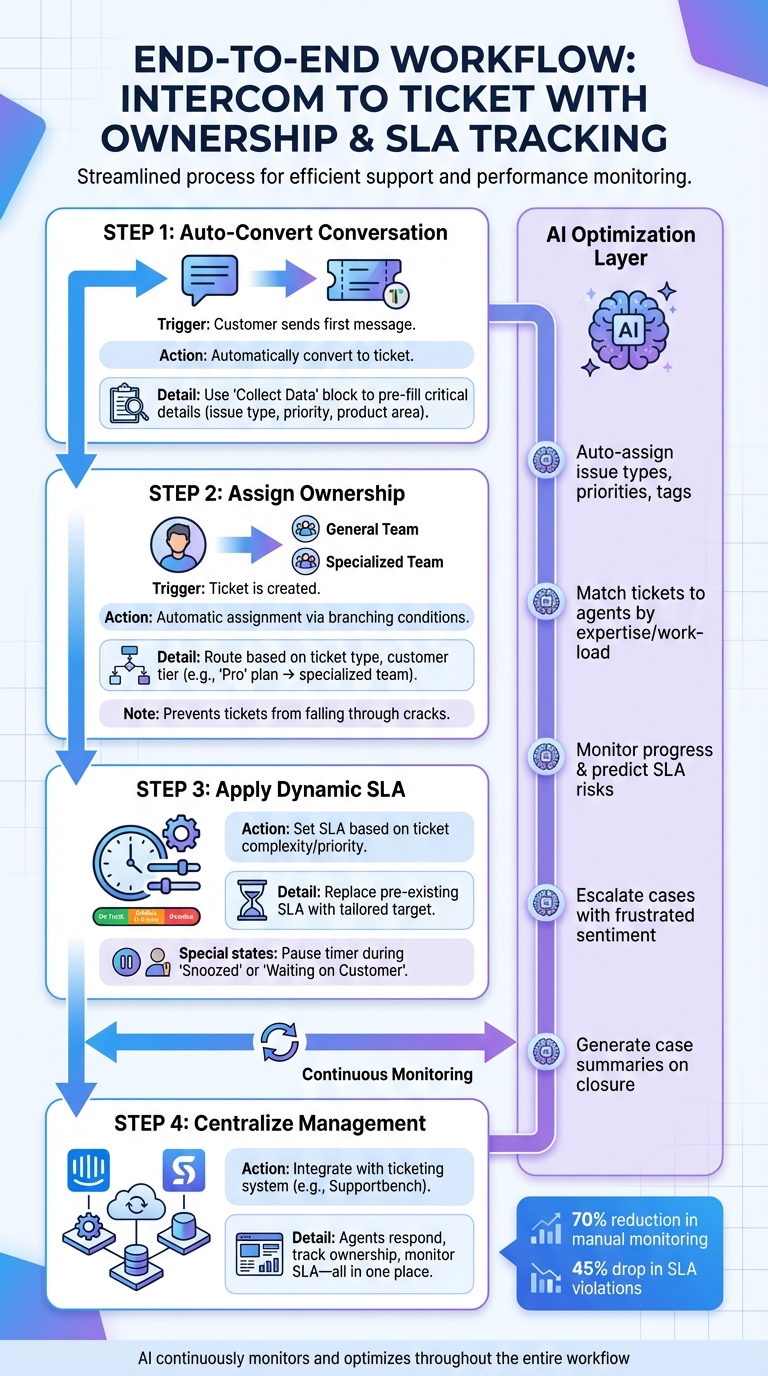
Complete Workflow for Converting Intercom Conversations to Tickets with SLA Tracking
Let’s dive into how you can create a seamless process for managing ownership and SLA tracking, building on AI-driven tools to improve error prevention and efficiency.
Building an End-to-End Workflow
Start by triggering a workflow as soon as a customer sends their first message. This automatically converts the conversation into a ticket, ensuring every query is trackable. Use a "Collect Data" block to pre-fill the ticket with critical details like issue type, priority, or product area. This way, agents have everything they need to hit the ground running.
Next, set up a second workflow triggered when a ticket is created. This step ensures automatic ticket routing. Use branching conditions to route tickets based on attributes like ticket type or customer tier. For example, a customer on a "Pro" plan could receive a faster SLA and be assigned to a specialized support team. This method keeps tickets from falling through the cracks and ensures the right team takes action immediately.
For SLA management, implement dynamic SLAs that adjust based on the ticket’s state. When a conversation turns into a ticket, any pre-existing SLA is replaced with one tailored to the ticket’s complexity or priority. Pause SLA timers during states like "Snoozed" or "Waiting on Customer" to ensure your metrics reflect actual agent effort, not delays caused by external factors.
Finally, centralize your management process by integrating Intercom with your ticketing system. With Supportbench’s Intercom integration, every chat becomes a case within the platform. Agents can respond directly, track ownership, gather survey data, and monitor SLA compliance – all from one place. This setup minimizes oversights and keeps everything organized.
Up next, let’s see how AI tools take this workflow to the next level by reducing manual tasks and improving SLA adherence.
Using AI Tools for Workflow Optimization
AI adds advanced automation to the mix, making ticket management smoother and more efficient. It can handle repetitive tasks and even predict potential issues. For instance, Supportbench’s AI analyzes incoming tickets, automatically assigns issue types, sets priorities, and adds relevant tags based on the conversation content. Imagine a billing error being flagged and routed without any manual input – this saves agents valuable time.
AI also enhances ticket routing. It matches tickets with agents based on factors like expertise, workload, and past performance. Plus, it assists agents by pulling insights from previous cases, internal knowledge bases, and related articles to suggest quick, accurate responses. This reduces unnecessary back-and-forth and helps resolve issues faster.
When it comes to SLA tracking, AI continuously monitors ticket progress and identifies cases at risk of breaching SLA targets. If a ticket is lagging or an agent is overwhelmed, the system can escalate or reassign it to maintain compliance. Sentiment analysis adds another layer of intelligence: if a customer’s tone shifts to frustration, the AI can escalate the issue and adjust SLA targets accordingly.
Once a case is closed, AI generates a detailed summary of the entire interaction. This makes it easier to review what worked, pinpoint areas for improvement, and refine your processes moving forward.
Conclusion: Improving Support Operations with Modern Tools
Streamlined workflows can transform Intercom chats into tickets while maintaining ownership and meeting SLA targets. Automated routing ensures tickets reach the right teams, tracks accountability during handoffs, and adjusts SLAs based on the specific context of each case.
By integrating Intercom with a platform like Supportbench, every chat is converted into a case that’s easy to track. Agents can manage tickets within a single, unified system, enabling real-time SLA monitoring and quick access to conversation histories. This integration eliminates gaps where tickets might otherwise get lost, ensuring accountability from the initial message to final resolution.
Dynamic SLAs further enhance efficiency by pausing when tickets are waiting on customer responses, so performance metrics focus on active agent work. Color-coded alerts – red for overdue and orange for cases with less than five minutes left – offer instant visibility into priorities.
AI plays a key role by automating repetitive tasks like assigning issue types, setting priorities, and routing tickets based on agent expertise and workload. It can even predict which cases are at risk of missing SLA targets and escalate them proactively. This reduces manual errors, speeds up resolutions, and improves customer satisfaction. Together, these tools create a support system that works smarter, not harder.
FAQs
What’s the best trigger to auto-convert a conversation into a ticket?
The best way to automatically turn a conversation into a ticket is by using the first inbound email in the thread. This approach keeps things simple by ensuring only the initial message gets converted, avoiding confusion and keeping the process organized.
How do I prevent tickets from ending up unassigned during handoffs?
To keep tickets from slipping through the cracks during handoffs, make sure your assignment workflows are set up with clear and effective routing rules. Leverage automation to assign tickets based on specific criteria, such as type or category, ensuring they land with the right team or individual.
Additionally, enable auto-reassignment for cases where teammates are unresponsive, so no ticket is left without an owner. Regularly review and fine-tune your workflows to ensure smooth ownership transitions, boost efficiency, and stay on top of SLA commitments.
How can I report SLAs accurately when I’m waiting on the customer?
To ensure accurate SLA reporting during customer wait times, it’s essential to pause SLA timers when a ticket is marked as "Waiting on Customer." By tracking these periods separately, you can maintain a clear picture of SLA performance and compliance. This approach prevents customer response delays from negatively affecting your overall SLA metrics.