

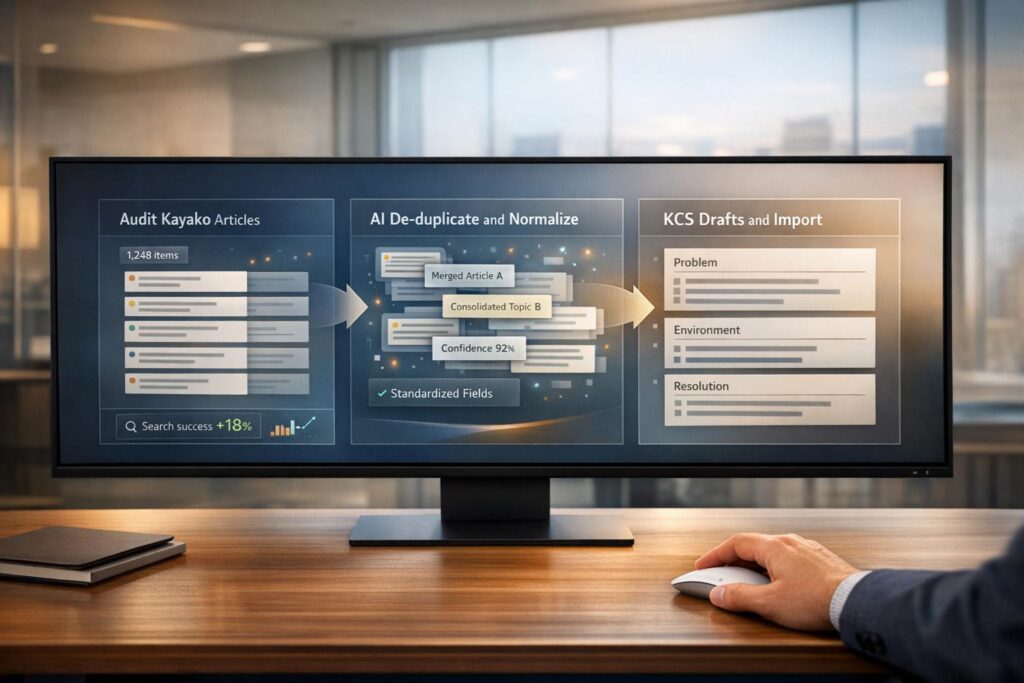
Migrating your Kayako knowledge base (KB) to a Knowledge-Centered Service (KCS) framework is all about improving efficiency and usability. Here’s how you can do it step-by-step:
- Audit Your Kayako Content
- Identify outdated, duplicate, or irrelevant articles (20–30% of legacy content often falls into this category).
- Use analytics to find low-performing articles, missing documentation, or gaps in search results.
- Focus on high-value articles that align with current customer needs.
- Export Your Articles
- Request a full data dump from Kayako or use their REST API for a JSON export.
- Document the structure (categories, sections, and articles) and key metadata like titles, tags, and attachments.
- Map old URLs to new ones to prevent broken links.
- Restructure for KCS Standards
- Break content into the KCS template: Issue, Environment, Resolution, and Cause.
- Rewrite titles and content in customer-friendly language.
- Remove customer-specific details and focus on reusable, modular solutions.
- Leverage AI for Cleanup and Optimization
- Use AI tools to identify duplicates, reformat content, and apply consistent tagging.
- Automate the creation of KCS articles from ticket histories.
- Refine articles with AI-driven suggestions for better readability and searchability.
- Import and Configure Your KCS KB
- Import articles into your new system using CSV files or APIs.
- Set up workflows for validation and publishing based on KCS roles (e.g., Candidates, Contributors, Publishers).
- Keep legacy content in a read-only repository and migrate only as needed.
- Test and Optimize
- Analyze search performance, bounce rates, and feedback to identify gaps.
- Regularly audit and update content to keep it relevant.
- Use AI to track metrics like resolution rates and improve article quality.
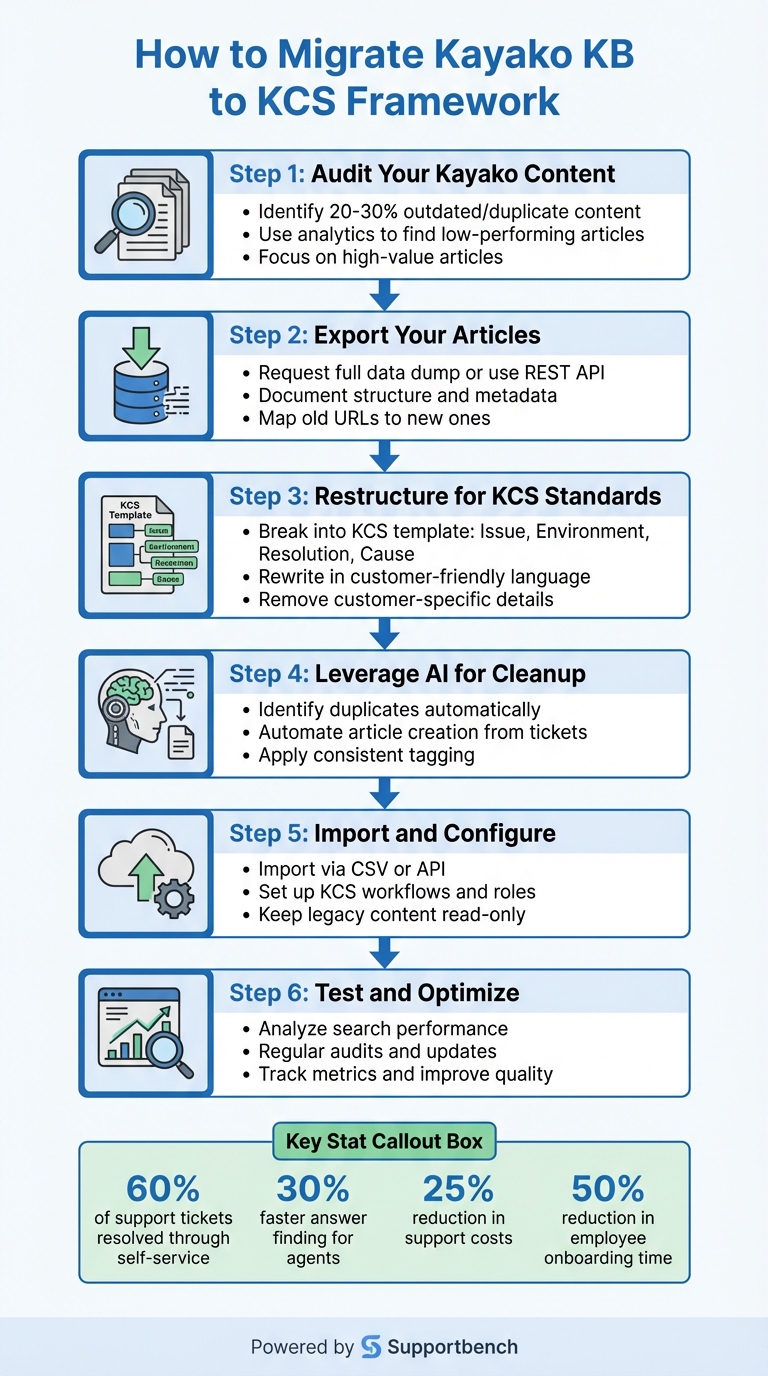
6-Step Process for Migrating Kayako Knowledge Base to KCS Framework
KCS 6.5 Migrating Legacy Data and Knowledge Into your Knowledge Base – Knowledge Centered Support
sbb-itb-e60d259
Step 1: Audit and Export Your Kayako Articles
Before you start migrating your articles, take a closer look at your content. Many organizations deal with a surprising amount of duplication – up to 20–30% of their content might be redundant. Moving irrelevant or outdated articles can rack up unnecessary costs, especially since each support call costs between $6 and $12. A thorough audit helps you restructure your content while building a knowledge base that aligns with KCS principles, ensuring only the most useful and up-to-date information is carried forward.
Run a Knowledge Audit
Begin by identifying underperforming content. Low-rated articles are a good place to start – they often have issues like grammatical errors, broken links, or outdated screenshots. Next, focus on articles with little to no traffic. If these pieces aren’t answering customer questions effectively, they could be increasing live support costs.
Dive into your ticket data to find critical gaps. Look for escalations where agents referenced an article, but customers still needed further help. Pay attention to tickets tagged with "needs_faq", which can highlight missing documentation based on customer needs. Also, use site search analytics to track frequent keywords that return no results or poor matches.
Here’s a quick breakdown of what to evaluate during your audit:
| Audit Component | Method of Evaluation | Goal |
|---|---|---|
| User Feedback | Article ratings and comments | Spot outdated or low-quality content |
| Search Analytics | "No results" queries and top keywords | Identify content gaps |
| Ticket Data | "Needs_faq" tags and article references | Pinpoint missing or ineffective articles |
| Redundancy Check | Inventory and overlap analysis | Remove duplicate or irrelevant articles |
Get rid of outdated content, like FAQs for products you no longer support, before exporting. It’s much easier to migrate 500 high-value articles than to sift through 800, only to find 300 of them are obsolete.
Once you’ve cleaned up your content, you’re ready to export your articles.
Export Articles from Kayako
When it comes to exporting, you have two main options. First, for a full migration, you can request a complete data dump from Kayako’s infrastructure team. This will include articles, attachments, and user profiles. Alternatively, you can use Kayako’s REST API to export articles in JSON format. For this, you’ll need your API key and secret key, which can be found in the administrator control panel.
As you prepare for export, document the current structure of your knowledge base (Category → Section → Article) and ensure you capture key metadata such as titles, body content, authors, statuses, tags, creation dates, and attachments. Verify a sample of attachments to ensure they’re intact and properly linked. If you’re working with a large dataset, reach out to Kayako support to temporarily increase API limits.
Finally, create a spreadsheet to map old article URLs to new ones. This step is crucial to avoid 404 errors and maintain your search rankings by setting up proper redirects.
With a cleaned-up, well-documented export in hand, you’re ready to restructure your articles to follow KCS standards. Following these KCS knowledge base tips will ensure your new system is optimized for long-term success.
Step 2: Restructure Articles to Match KCS Standards
Once you’ve exported your content from Kayako, the next step is to reformat it using a modular, context-driven KCS structure. This approach shifts the focus from lengthy, document-heavy formats to capturing the essence of problem-solving experiences, minus any customer-specific details. This transition is key to aligning legacy content with precise KCS fields.
The main change lies in how information is organized. KCS breaks content into four distinct sections: Issue (the problem in the customer’s own words), Environment (details like product versions or recent changes), Resolution (step-by-step instructions to solve the problem), and Cause (the underlying reason). This structure not only makes articles easier to find but also boosts their reusability, streamlining support team workflows.
KCS Article Template Components
A typical KCS article is built around four core sections. The Issue section captures the user’s problem verbatim to improve searchability. The Environment section lists relevant constants, such as product names, versions, operating systems, or any recent updates. In the Resolution section, you’ll provide clear, numbered steps to solve the issue, while the Cause section explains why the issue occurred.
"KCS seeks to create content that is good enough to be findable and usable by a specific audience." – Consortium for Service Innovation
Unlike Kayako’s broader "How-to" or "Reference" formats, KCS emphasizes reusable elements from each support experience. Instead of long manuals, break content into concise, single-issue articles. To make instructions even clearer, include visuals like screenshots or short videos in the Resolution section. These elements can help overcome language barriers and make complex steps easier to understand.
Once your content aligns with KCS principles, the next step is mapping Kayako fields to their KCS equivalents.
Map Kayako Fields to KCS Formats
Transitioning from Kayako to KCS involves careful mapping of fields. For instance, the Kayako Article Title becomes the KCS Issue, but it should be rewritten using customer-friendly language instead of internal jargon. The Article Body is divided into Environment (product details, versions, changes), Resolution (numbered steps), and Cause (the root reason for the issue). Additionally, Kayako’s Tags and Categories should be reclassified as KCS metadata attributes like "Audience" and "Quality".
| Kayako Field | KCS Component | What to Change |
|---|---|---|
| Article Title | Issue | Rewrite using the customer’s phrasing |
| Article Body (Intro) | Environment | Extract product names, versions, and updates |
| Article Body (Steps) | Resolution | Format as numbered steps; remove customer-specific details |
| N/A (Often missing) | Cause | Add the underlying reason |
| Tags/Categories | Metadata | Map to audience type (internal vs. external) and article state |
For sensitive information, label content as "Internal Resolution" to restrict visibility to internal teams. This ensures public-facing articles address known issues without exposing sensitive details.
Step 3: Use AI Tools to Improve Content
Once your articles are structured according to KCS principles, the next step is to refine and optimize them using AI. Manually reviewing and editing hundreds – or even thousands – of articles is not only time-intensive but also prone to inconsistencies. AI tools can handle tasks like removing duplicates, reformatting content into a problem-solution framework, and applying consistent tagging, all with remarkable efficiency.
AI-Powered Content Clean-Up
Legacy knowledge bases often contain a significant percentage of duplicate content – typically between 10% and 30%. During migration, AI tools use advanced techniques like vector embeddings and matching algorithms to identify duplicates, even when the wording or formatting varies. For example, AI-powered duplicate detection cut processing time by 98% for MGT Consulting and reduced duplicate records from 22% to just 0.14% for Children’s Medical Center Dallas.
AI doesn’t just stop at identifying duplicates; it also restructures content to align with KCS guidelines. It extracts clear problem-solution pairs from case histories, eliminates unnecessary jargon, and organizes articles with logical headings (H1, H2, H3) to write effective knowledge base articles that improve readability for both humans and machines. For instance, instead of a technical title like "DNS Server is down", AI can reframe it as "Cannot navigate to a website", mirroring the way customers describe their issues. This ensures the articles conform to the KCS template components discussed earlier in Step 2. Additionally, AI-driven tagging assigns context-aware labels to articles, enabling support agents to locate solutions 30% faster.
"Manually searching for duplicate content in a large enterprise knowledge base can be like searching for a needle in a haystack. AI does all the hard work for you." – Document360
When using AI for content clean-up, set similarity thresholds at around 80% to ensure only high-confidence duplicates are flagged. For repetitive boilerplate text, AI can recommend converting it into reusable snippets instead of outright deletion. This approach keeps the knowledge base streamlined while maintaining consistency across articles.
With this refined content, you’re now ready to leverage AI for automated KCS article creation using Supportbench AI.
Create KCS Articles with Supportbench AI
Once your content is cleaned up, Supportbench AI takes it a step further by automating the creation and tagging of KCS articles. When agents resolve an issue, Supportbench AI scans case interactions and generates a draft KCS article. This draft includes pre-filled sections for Issue, Environment, Resolution, and Cause, following the KCS standard. The goal? To make it easier for agents to contribute by eliminating the intimidating "blank page" problem.
"When agents see a well-structured draft instead of a blank page, they’re more likely to refine and contribute rather than abandon the task entirely." – Jeff Elser, Senior Manager, Product Management, Oracle
Supportbench also uses Natural Language Processing (NLP) to apply context-aware tags in real time as articles are created or migrated. These tags are based on the article’s topic, tone, and function, reducing the need for manual input. To prevent tag overload, limit each article to 3 to 5 tags and establish a controlled vocabulary before migration.
For longer articles, AI can generate concise abstracts at the beginning, helping search algorithms quickly identify the main topic. It also highlights critical terms with bold or italic formatting, making it easier for both AI systems and human readers to scan for key details. By automating these processes, Supportbench minimizes the manual effort involved in migrating and optimizing your knowledge base, all while adhering to the high-quality standards required by KCS.
Step 4: Import and Set Up Articles in Your KCS Knowledge Base
Once your articles are restructured, the next step is to bring them into your KCS knowledge base. This process requires careful planning and validation to avoid issues like broken links or misplaced content.
Import Content into Supportbench
To maintain proper data relationships, the import process should follow a specific order: start with authors (using email mapping), then move on to categories, articles, and finally, attachments.
Supportbench offers two import methods: CSV files or a RESTful API, depending on the size and complexity of your data. For CSV imports, ensure you use UTF-8 encoding, include mandatory headers like title and content, and keep text fields under 2,000 characters. Before committing to a full migration, test the process with a small batch of 10–20 articles.
To avoid 404 errors, use automatic internal link remapping to update article URLs. Also, disable email notifications and automated workflows during the import process. If you’re using the API, set the notify_subscribers parameter to false to prevent unnecessary notifications during bulk uploads.
Once the import is complete, verify everything has been transferred correctly before moving on to configure your KCS-specific workflows.
Set Up KCS Workflows
After importing your content, it’s time to configure workflows that align with KCS principles. Unlike older systems that treat content migration as a one-and-done task, KCS promotes a demand-driven approach. Articles are reviewed and published only when agents actively use them to resolve current issues.
Set up role-based validation workflows with clear statuses: Not Validated, Internal – Validated, and External – Validated. Assign permissions based on KCS roles: Candidates can draft articles but need approval, Contributors can publish internally, and Publishers can approve content for public use. This ensures every article is thoroughly checked before it reaches your customers.
"We are adamant: do not mass migrate legacy content into a new KCS KB! … You will find that less than 10% of the legacy content is ever used." – Greg Oxton, Consortium for Service Innovation
Instead of transferring all your legacy Kayako content at once, try a seeded approach. Ask support engineers to manually migrate their 5–10 most frequently used articles first. Keep the rest of the Kayako content in a read-only repository. Agents should consult the new KCS knowledge base first; if they find relevant content only in the legacy system, they can restructure and add it to the new system as needed. This prevents your knowledge base from becoming cluttered with unused content, which typically accounts for 90% to 95% of legacy material.
To keep your knowledge base dynamic, integrate auto-retirement and flagging features into your KCS Evolve Loop. Agents should have the ability to "flag" or "fix" articles as they encounter problems, creating a feedback loop that continually improves content quality. By setting up these workflows from the start, you ensure your knowledge base stays relevant and useful, rather than becoming a static archive.
Step 5: Test and Optimize Your Knowledge Base
Once your content is imported and workflows are set up, the next step is to ensure your knowledge base (KB) truly serves its purpose. Testing and refining it is not a one-time task – it’s an ongoing process that separates an average KB from one that genuinely supports your business goals.
Test Article Findability and Usefulness
Start by analyzing search analytics to spot queries that yield no results. These "dead-end" searches highlight areas where content is missing.
Pay attention to search-to-click and bounce rates. If users search but don’t click on an article, it’s a sign that the results aren’t relevant. On the other hand, if they click but quickly leave, the content may not be addressing their needs. According to Forrester Research, 72% of U.S. online consumers prefer finding answers on a company’s website rather than reaching out to support via phone or email.
Conduct a gap analysis to uncover recurring issues. Look at failed chatbot interactions, repeated ticket topics without corresponding articles, and customer feedback from "reopen notes" where users indicate an article didn’t solve their problem. Interestingly, 20% of KB issues often account for 80% of support costs, so focusing on these high-impact areas can make a big difference.
Add “Was this helpful?” feedback options to every article. Route negative feedback to content owners for weekly reviews and quick fixes. Regular audits are also essential to ensure outdated content is either updated or retired.
These insights will feed directly into AI-driven improvements, which are covered next.
Monitor Performance with AI
Once you’ve tested content findability, it’s time to track performance metrics to ensure your KB consistently delivers results. AI tools paired with a Knowledge-Centered Service (KCS) framework make it easier to measure and improve article effectiveness.
Use predictive metrics like CSAT (Customer Satisfaction) and CES (Customer Effort Score) to quickly identify content that isn’t meeting user expectations. These early indicators can help you address issues before they escalate.
AI-powered First Contact Resolution (FCR) detection is another game-changer. This metric, historically tough to measure, now allows you to compare FCR rates for interactions where agents used KB articles versus those where they didn’t. This comparison provides a clear picture of how your content is performing.
Track how often AI retrieves an article versus its resolution rate. If an article is frequently accessed but resolves few issues, it likely needs immediate restructuring. For example, Intercom achieved an 80% resolution rate by training its AI agent with optimized documentation. Articles with resolution rates below 50% should be flagged for improvement.
Automated gap analysis tools can identify content gaps by clustering failed or low-confidence chatbot responses. Platforms can also pinpoint articles that are accessed often but fail to resolve issues, helping you prioritize updates based on real usage patterns. AI-driven chatbots anchored in your KB should aim for a 60–80% deflection rate for high-volume queries.
| Metric Category | AI Metrics | Target/Benchmark |
|---|---|---|
| Deflection | Containment Rate | 60–80% for high-volume intents |
| Efficiency | Assisted Handle Time (AHT) | 20–30% reduction |
| Effectiveness | AI Resolution Rate | >50% (Intercom targets 80%) |
| Quality | Predictive CSAT / NPS | Higher for KB-assisted interactions |
| Accuracy | First Contact Resolution (FCR) | Higher for KB-linked tickets |
Make it a habit to conduct monthly audits for stale content. Focus on articles that haven’t been updated in six months or more, especially those with high traffic and frequent AI use. Remember, a knowledge base isn’t meant to be static – it’s a dynamic system that thrives on regular updates and maintenance.
Conclusion
Migrating your Kayako articles to a KCS-aligned knowledge base is more than just moving files – it’s a chance to streamline your support operations and set the stage for long-term efficiency. This process involves carefully auditing your content to focus on high-value articles, restructuring them to align with KCS standards, and using AI tools to handle formatting, tagging, and quality checks.
Think of migration as a complete content overhaul rather than a simple transfer. By mapping Kayako fields to KCS formats, preserving SEO metadata with 301 redirects, and conducting pilot migrations to catch potential issues early, you can sidestep common challenges like broken links and lost search rankings. Companies that take this approach often see big wins, such as resolving up to 60% of support tickets through self-service, which significantly lightens the load on support agents.
AI-native platforms like Supportbench make this process smoother by automating much of the heavy lifting. These tools can generate articles from ticket histories, ensure consistent formatting, and even suggest solutions proactively for both agents and customers. With features like AI-powered search that helps agents find answers 30% faster and automated gap detection to identify missing content, the adoption of KCS principles becomes far less daunting.
The benefits don’t stop at migration. Companies that invest in strong knowledge management practices often see a 50% reduction in employee onboarding time and can cut overall support costs by up to 25% through improved self-service and automated knowledge retrieval. This approach not only aligns with KCS principles but also harnesses AI to create a more efficient, cost-effective support system.
FAQs
What should we migrate first?
Migrating your existing knowledge base articles is a smart first step. These articles serve as the backbone of self-service, making customer support more efficient. To get the most out of this process, ensure the content aligns with Knowledge-Centered Service (KCS) principles. This means paying close attention to details like proper tagging, updating metadata, and conducting thorough quality checks. These steps help ensure the articles are easy to find, accurate, and useful, boosting both usability and operational effectiveness.
How do we handle old URLs and redirects?
When moving content to a new platform or structure, URL redirects are key to keeping your user experience smooth and your SEO intact. Redirects ensure old article URLs point to their new locations, preventing broken links, maintaining search rankings, and avoiding those dreaded 404 errors.
You can set up these redirects manually or use tools, depending on what your platform supports. Just make sure to test them thoroughly before making the final switch – this helps you catch any issues early and ensures everything runs smoothly when the migration goes live.
How do we prevent AI from creating wrong or duplicate articles?
To minimize the risk of AI generating incorrect or duplicate articles during content migration or management, focus on creating well-structured, clear, and user-centered content. Each article should tackle one specific issue to avoid overlap or contradictions.
Make it a habit to audit your content regularly using AI tools. These tools can help identify outdated or conflicting information, ensuring your knowledge base stays accurate. Assigning clear ownership for content updates is another key step to maintain consistency and accountability.
By following these steps, you can reduce errors and align your process with Knowledge-Centered Service (KCS) principles.