



Want to improve how you handle customer issues? Start by automating environment metadata collection. This includes details like browser type (e.g., Chrome 122), operating system (e.g., macOS Sonoma), and more. Automating this process eliminates manual errors, speeds up issue resolution, and enhances workflows.
Here’s how you can do it:
- Client-Side (JavaScript): Use tools like UAParser.js to collect metadata directly in the browser. It’s great for ticket forms and UI adjustments.
- Server-Side (HTTP Headers): Extract data like user-agent and platform info during API calls for backend logging and CRM integration.
- AI Integration: Use AI-powered ticket routing and prioritization to automatically tag and route tickets based on metadata, ensuring faster and more accurate support.
Methods for Automatic Environment Metadata Capture
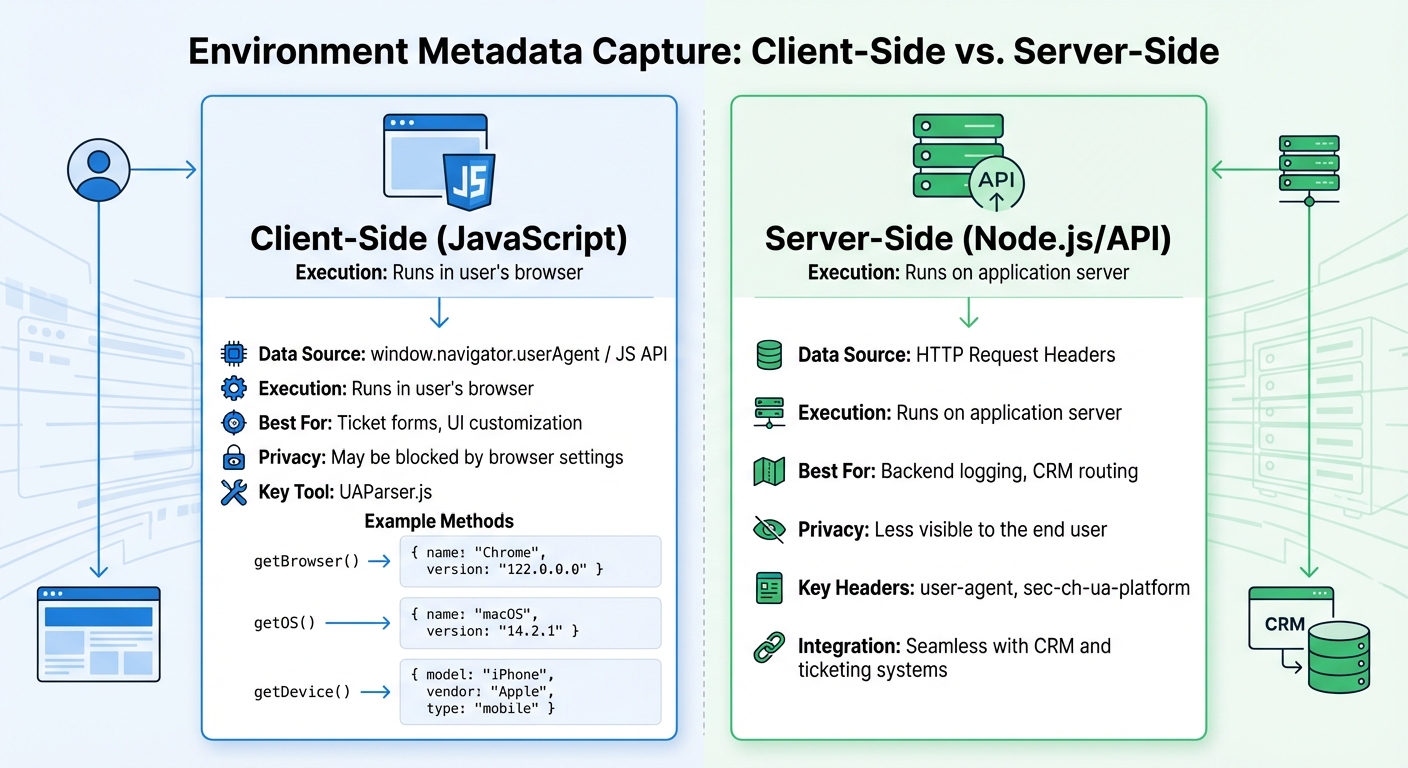
Client-Side vs Server-Side Environment Metadata Capture Comparison
Capturing environment metadata can be done in two main ways: client-side using JavaScript in the user’s browser, and server-side by processing HTTP request headers. Each approach serves different needs and offers unique advantages.
Client-Side Capture with JavaScript
Client-side capture happens directly in the browser and is especially useful for gathering metadata before a user submits a form. A popular tool for this is UAParser.js, a lightweight library designed for precise environment detection [4].
To implement it, you can either include the library via a CDN (like jsDelivr or cdnjs) or install it using npm if you’re working in a Node.js environment. Once integrated, UAParser.js provides straightforward methods such as getBrowser(), getOS(), and getDevice(). These methods return structured data, sparing you from the hassle of manually parsing complex User-Agent strings.
For Chromium-based browsers (like Chrome, Edge, and Opera v85+), the library offers the withClientHints() method. This is particularly important since Chrome has started reducing the details available in standard User-Agent strings. Client Hints provide more precise information, such as specific OS versions and device models, but they require HTTPS or localhost connections to function. Note that Safari and Firefox don’t support Client Hints due to privacy concerns, so you’ll need to fall back on standard User-Agent parsing for those browsers [2].
Here’s an example of the output you can expect when using UAParser.js:
| Method | Output Example | Description |
|---|---|---|
getBrowser() | { name: "Chrome", version: "122.0.0.0" } | Identifies the browser and its version |
getOS() | { name: "macOS", version: "14.2.1" } | Detects the operating system |
getDevice() | { model: "iPhone", vendor: "Apple", type: "mobile" } | Provides hardware details |
Additionally, the toString() method can create user-friendly strings like "Windows 11" or "Chrome 120.0.0.0." These can be directly added to support ticket fields, ensuring consistent data across your system.
Next, let’s look at how server-side metadata retrieval complements this process.
Server-Side Metadata Retrieval
Server-side capture works by extracting metadata from HTTP request headers during API calls or automated workflows. This method is particularly effective for background tasks and uses headers like user-agent and sec-ch-ua-platform [2].
In a Node.js setup, you can pass req.headers to the UAParser() constructor to automatically gather metadata when a page request is made. This process runs synchronously on the server, offering quick results without requiring user interaction.
One major benefit of server-side capture is its seamless integration with CRM and ticketing systems. For instance, metadata can be used to automatically route tickets or trigger workflows. If a support request originates from a Windows 11 device using Chrome 122, the system can assign it to an agent familiar with Windows-related issues.
To improve accuracy for Chromium browsers, configure your server to send Accept-CH and Critical-CH headers. These headers prompt the browser to include high-entropy values, such as Sec-CH-UA-Model, in its response. This ensures detailed metadata collection, even as browsers restrict traditional User-Agent data [2].
| Feature | Client-Side (JavaScript) | Server-Side (Node.js/API) |
|---|---|---|
| Data Source | window.navigator.userAgent / JS API | HTTP Request Headers |
| Execution | Runs in user’s browser | Runs on application server |
| Best For | Ticket forms, UI customization | Backend logging, CRM routing |
| Privacy | May be blocked by browser settings | Less visible to the end user |
sbb-itb-e60d259
Adding Metadata to Support Workflows
Integrating metadata into your support workflows can transform how customer support operates. By connecting data capture with workflow processes, you can achieve faster routing, better prioritization, and deliver more consistent customer experiences. Let’s take a closer look at how AI auto-tagging and routing can streamline these workflows.
AI-Powered Case Tagging and Routing
AI-driven auto-tagging takes the guesswork out of categorizing support tickets. Instead of relying on agents who might interpret the same issue differently, AI analyzes case data and applies tags automatically at the time of ticket creation. This ensures consistency and reduces human error in ticket classification [5][8].
For example, metadata like "Chrome 122.0.0.0" and "Windows 11" can be mapped to custom fields, allowing the AI to assign tags such as "Browser-Chrome" and "OS-Windows-11" instantly [7][8]. These tags, in turn, drive automated routing.
Routing becomes seamless when metadata is linked to specific agent skills or specialized teams. A ticket tagged with "iOS" and "Safari" can skip general triage and head straight to a mobile support team. Similarly, cases involving software builds with known critical bugs can be escalated directly to senior technical teams without delay [6].
Metadata can also work in tandem with AI sentiment analysis to refine prioritization. For instance, if a ticket includes both a "Production" environment tag and a "Frustrated" sentiment, the system can escalate it over less critical cases, ensuring urgent issues are addressed promptly [8].
Once tagging and routing are automated, metadata can further enhance SLA management.
Dynamic SLA Management with Metadata
Traditional SLAs treat all cases equally, but metadata allows for dynamic SLA adjustments that reflect the urgency and impact of specific issues. By leveraging environment metadata, you can create case policies that automatically adapt SLA targets based on the context of each case [6][10].
For example, cases involving critical environments or outdated software versions that pose security risks can trigger stricter response times. If metadata reveals that a customer is using an unsupported browser version, the system can prioritize the case to mitigate potential compliance or security concerns.
Case policies make this automation possible. They let you define rules that activate based on specific metadata criteria. Additionally, displaying key metadata – such as support level, environment type, and current SLA status – at the top of each case summary ensures agents can quickly identify high-priority issues [10].
Common Challenges in Metadata Automation
While automation can streamline metadata capture, it comes with its own set of technical hurdles. These challenges can impact both the accuracy of data and the reliability of workflows. By addressing these issues early, you can create systems that are better equipped to handle complexities.
Maintaining Accuracy Across Devices and Browsers
User Agent strings are notoriously unreliable for identifying browsers and devices. This is largely due to intentional obfuscation. For example, Chrome often identifies itself as "Mozilla/5.0", "AppleWebKit", and "Safari" all at once, even though it’s none of those [11][12][13].
"You cannot parse this string with simple substring matching. The tokens don’t mean what they appear to mean." – APIVerve [12]
The problem becomes more pronounced on mobile and tablet devices. For instance, many tablets like iPads skip the "Mobile" or "Mobi" tokens when requesting desktop versions of websites, leading to incorrect categorizations [11][13]. In-app browsers add another layer of complexity with their non-standard strings that include app-specific versioning, making manual parsing nearly impossible [3].
Instead of relying on browser sniffing, feature detection is a better approach. Using JavaScript, you can check for specific API support. For example:
if ('geolocation' in navigator) { … } Similarly, for detecting touch-enabled devices, rely on navigator.maxTouchPoints rather than just searching for "Mobi" in the User Agent string [11]. These methods help ensure that AI-driven workflows receive reliable data, enabling better case routing and tagging.
Privacy and Compliance Requirements
Metadata like geolocation, device type, and operating system is often classified as personal data under laws such as GDPR and CCPA [1]. To prevent passive fingerprinting, browsers are sharing less detailed information in User Agent strings, which means your workflows must adapt to stricter privacy standards [12].
To comply, transparency is key. Inform users about metadata collection and secure their consent when required. A Consent Management Platform (CMP) can help categorize metadata appropriately: essential data for site functionality can be enabled by default, while analytics or marketing data requires explicit opt-in [14]. Use "Accept-CH" headers to request only necessary high-entropy values, like specific OS versions, for troubleshooting purposes [2][11]. Additionally, support Global Privacy Control (GPC) signals to honor "Do Not Sell/Share" requests under CCPA [14]. All metadata collection should occur over HTTPS, as modern privacy APIs like navigator.userAgentData will not work with insecure HTTP connections [2][15].
Navigating these privacy requirements is just one part of the puzzle. API limitations add another layer of complexity to metadata automation.
Managing API Rate Limits and Reliability
In high-volume environments, API rate limits can quickly become a bottleneck. Every request – valid or not – counts toward your total limit, and exceeding it triggers an HTTP 429 error with a Retry-After header specifying how long to wait before retrying [16].
To avoid hitting these limits, cache repeated User Agent strings and monitor API headers closely to reduce unnecessary calls [12][16]. Processing metadata in batches or asynchronously can also prevent latency issues from slowing down support workflows. For non-urgent tasks like analytics, consider storing raw metadata strings and processing them during off-peak hours [12].
Keep an eye on real-time API usage through response headers like X-RateLimit-Total, X-RateLimit-Remaining, and X-RateLimit-Used-CurrentRequest [16]. Implement retry logic that respects the Retry-After value to prevent cascading failures. Additionally, request high-entropy values only when absolutely necessary, as these often require server requests, consuming additional quota [15][13].
Conclusion
For modern B2B support teams, automating environment metadata capture has shifted from being a nice-to-have to an absolute must. With data volumes growing exponentially, manual processes simply can’t keep up. Nearly half of digital workers report struggling to find the information they need due to outdated workflows [9]. Automation steps in to eliminate these bottlenecks, cutting out delays and reducing frustration by removing tedious manual tasks.
By automating metadata capture, businesses can scale operations without needing to grow their teams at the same rate. This reduces the workload tied to audits and minimizes the risks associated with managing data manually. Alarmingly, more than 80% of enterprises still rely on outdated or stale data for decision-making [17]. Automated, real-time metadata capture tackles this issue head-on, offering immediate access to accurate information. Organizations that adopt these practices early gain a distinct edge, as operational efficiency paves the way for turning metadata into actionable insights.
AI-powered platforms like Supportbench take this a step further by transforming captured metadata into practical intelligence. These systems automatically tag and route cases, and generate detailed technical summaries – removing the need for manual research. It’s a smarter, faster approach. As Alation explains, “Automation can transform metadata into a valuable, real-time asset – continuously collected, policy-enforced, and ready for analysis” [9].
Beyond improving individual ticket resolution, automated metadata capture has long-term benefits. It enables trend analysis that can flag version-specific bugs or compatibility issues before they become larger problems. It also feeds AI models with accurate, governed data, ensuring automated responses are reliable. By sparing customers the hassle of providing technical details themselves, businesses can deliver a smoother, more professional support experience, which directly boosts satisfaction scores.
Looking ahead, Gartner forecasts that by 2026, 30% of enterprises will automate over half of their network-related tasks [9]. The real question is: how quickly can you implement automation to keep pace with rising customer expectations and operational demands? Acting swiftly is essential for building competitive, AI-driven B2B support operations.
FAQs
What’s the best way to capture metadata when users can’t submit a form?
To gather metadata when users are unable to submit a form, you can use browser scripting to automatically detect information such as the device type, operating system, and browser. This involves embedding a custom JavaScript snippet into your website or app. The script works by collecting metadata directly from the user’s browser and storing it through a metadata API. This data can then be used to refine AI-powered workflows and enhance customer support experiences.
How can we collect accurate OS versions now that User-Agent data is reduced?
With less User-Agent data available, the User-Agent Client Hints API is a reliable way to gather detailed OS and device information. This API, supported by most Chromium browsers starting from version 85, uses secure headers like Sec-CH-UA-* to provide key details. Alternatively, tools like JavaScript libraries (e.g., UAParser.js) or third-party APIs can help parse Client Hints or User-Agent strings into structured OS data. Using a mix of these approaches ensures accurate and consistent data collection across different platforms.
How do we store and use metadata without violating privacy laws?
To handle metadata while respecting privacy laws, focus on gathering only the necessary information and adopt privacy-friendly approaches like User-Agent Client Hints. This API allows you to securely retrieve browser and device details without overstepping privacy boundaries.
You can store metadata in ticket fields using APIs to provide better context for support teams. Additionally, implementing custom JavaScript can help capture details like the device type and operating system. Always ensure that user privacy is a top priority by limiting data collection strictly to what’s required for support purposes.






