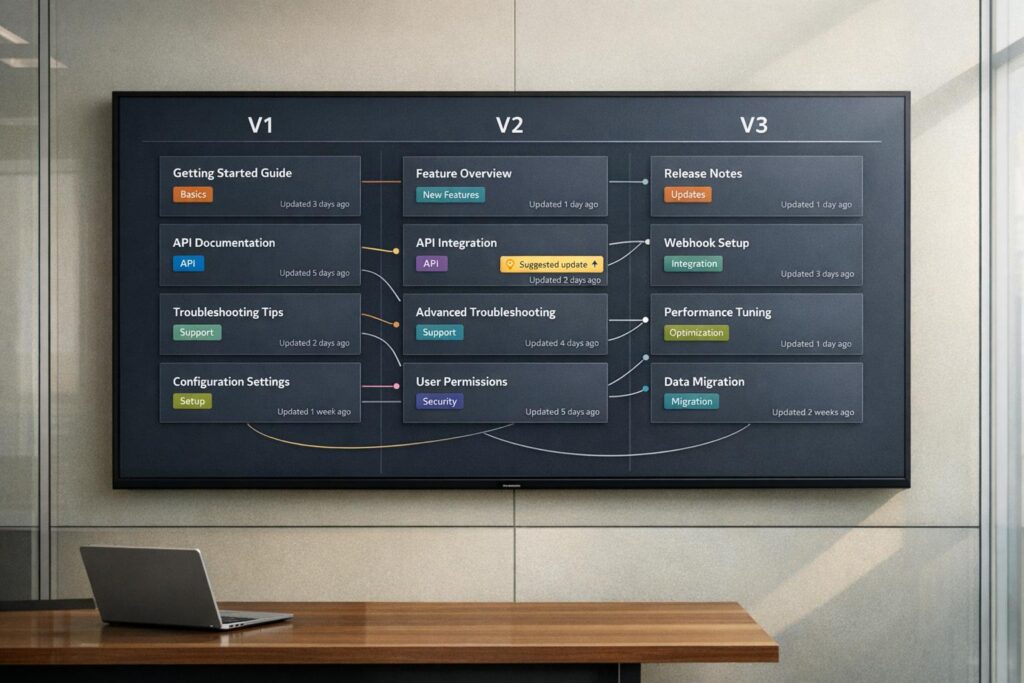
Building a knowledge base for versioned products (v1, v2, v3) ensures users always find accurate and version-specific information, reducing confusion and support tickets. Here’s how you can do it:
- Create a versioning framework: Label articles clearly with version numbers (e.g., "v1 Setup Guide"). Use metadata fields like
version,product_area, andaudienceto make content searchable and precise. - Organize content hierarchically: Group articles into parent and child categories by product version, ensuring easy navigation for users and AI systems.
- Design user journeys: Map FAQs to specific versions, link related articles for transitions (like migrations), and add filters for product versions to guide users to the right content.
- Keep content current: Use workflows to update articles when product changes occur. Archive outdated content with redirects to prevent dead links.
- Leverage AI tools: Automate tagging, detect outdated content, and generate articles from support cases to maintain accuracy and fill gaps.
This approach improves resolution times, reduces errors, and ensures both users and support teams get the right answers for the right product version.
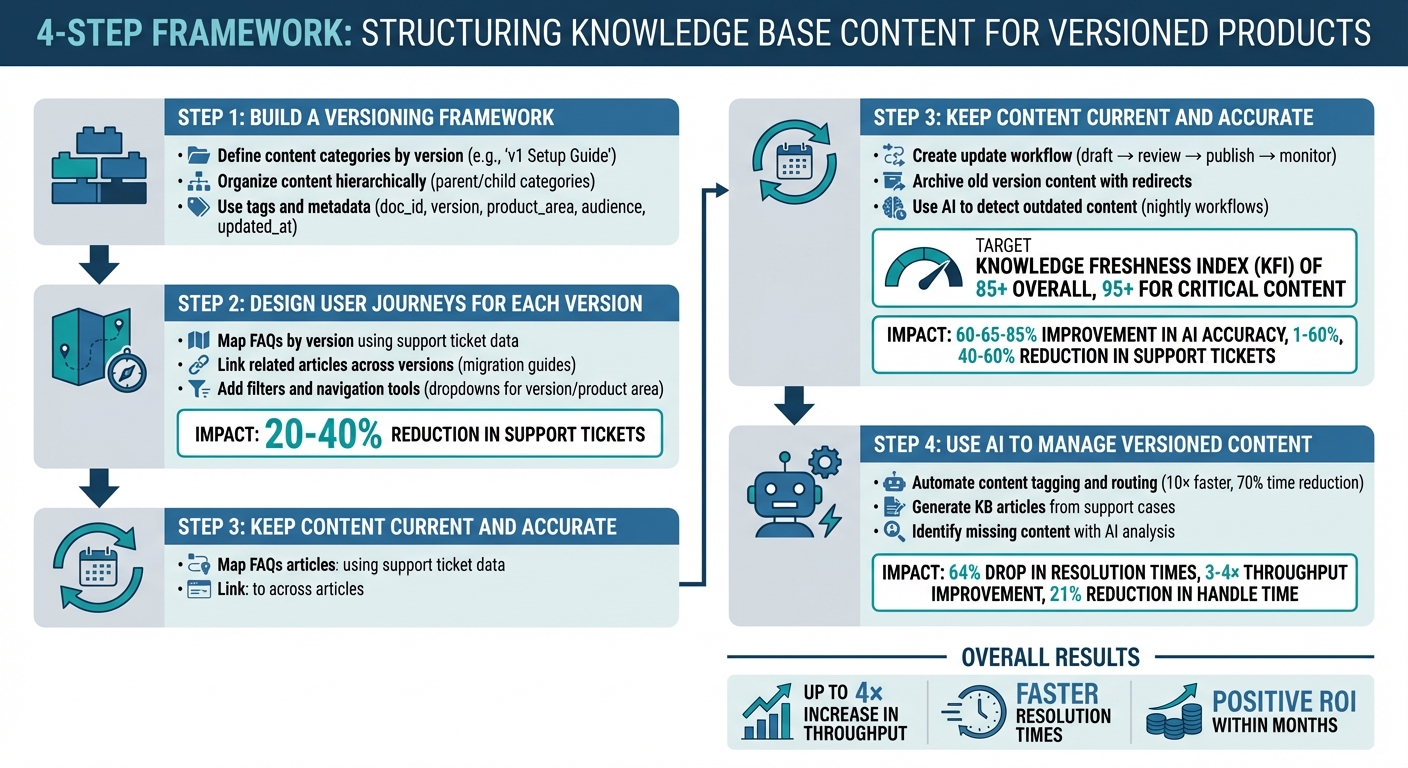
4-Step Framework for Structuring Knowledge Base Content for Versioned Products
Step 1: Build a Versioning Framework
Creating a scalable knowledge base (KB) starts with a versioning framework that makes it easy to categorize, label, and retrieve content. Without it, even the most well-crafted articles can become nearly impossible to find when users need them the most.
Define Content Categories by Version
Start by clearly differentiating your content based on version. Include version details directly in article titles and metadata. For instance, instead of vague titles like "Setup Guide", opt for something more specific, such as "v1 Setup Guide" or "v2 Feature Overview." This approach removes confusion for both users and AI systems. You can also use semantic versioning (e.g., v1.0, v2.1, v3.2) or include date ranges in metadata to clarify which product iteration each article applies to. This ensures users won’t accidentally rely on outdated solutions when working with newer versions. Think of each KB article as an API response – structured, predictable, and easy to interpret [3].
Organize Content in a Hierarchical Structure
Design your KB with clear hierarchies that work for both people and AI. Structure content into parent and child categories that align with your product’s architecture. For example, you could have a parent category like "Billing" with subcategories like "Billing v1", "Billing v2", and "Billing v3."
Use a modular approach where each article focuses on solving one specific problem. Keep sections concise – 150 to 300 words is ideal – not only to make it easier for users to digest but also to improve how AI systems retrieve the information. Instead of recreating content with every product update, unify your existing resources (like those stored in Confluence or SharePoint) into a single, permission-aware layer. This prevents the creation of information silos and keeps everything accessible [4].
Use Tags and Metadata to Identify Versions
Metadata can turn a static document into a dynamic, machine-readable resource. Standardize fields like doc_id, version, product_area, audience, and updated_at for each article. Use taxonomy-based tags for product areas instead of free-text inputs. Include lifecycle states (e.g., draft, published, retired) to keep outdated or pre-release content from cluttering search results. Tagging by audience – such as customer, agent, or admin – ensures that users see only the technical details meant for them. For more complex products, you can also map entities like SKUs, feature names, or common codenames to further refine search accuracy.
| Metadata Field | Purpose | Example Value |
|---|---|---|
doc_id | Unique identifier for tracking | KB-4831 |
version | Product iteration | v3.2 |
product_area | Functional category | Billing |
audience | Target user role | Agent, Admin |
updated_at | Content freshness (MM/DD/YYYY format) | 04/08/2026 |
When AI systems search your KB, filtering by metadata before running similarity searches can cut down irrelevant results and dramatically improve accuracy [3]. A strong versioning framework sets the foundation for keeping your KB organized and up to date as your product evolves. With this in place, you’re ready to focus on designing user journeys for each product version.
sbb-itb-e60d259
Step 2: Design User Journeys for Each Version
Once your versioning framework is in place, the next step is to guide users effortlessly to the right content for their specific version. A well-thought-out user journey anticipates their needs and delivers accurate, version-specific answers. This ensures clarity and keeps things running smoothly, as mentioned earlier. Here’s how you can create tailored user journeys for each version.
Map Frequently Asked Questions by Version
Start by analyzing support ticket data and search logs to identify common questions and workflows for each version. Topics like installation steps, API authentication, error troubleshooting, and feature configurations often vary between versions like v1, v2, and v3. For instance, if v2 users are struggling with an authentication method that’s been updated in v3, it’s better to create separate articles for each version. This avoids mixing outdated and current solutions. To keep things organized, use a canonical question field in your article templates. This connects user intent to a clear and stable answer for the correct version [3].
Link Related Articles Across Versions
Once you’ve mapped out common questions, connect related content to guide users through upgrades or transitions. Many users might not know which version they’re using, and some may need help moving between versions during migrations. Adding a "Related articles" or "See also" section at the bottom of pages can make navigation easier. For example, if someone is reading "v2 API Setup", include links to articles like "Migrating from v2 to v3 API" or "v3 API Setup."
To further streamline the experience, set up automatic redirects to the latest version to prevent users from landing on outdated content [8]. You can also link articles to changelogs or release notes, using tags like "breaking change" or "migration required" to highlight version differences [8]. Companies that use clear self-help articles with smart cross-linking have seen a reduction in support tickets by 20–40% [8].
Add Filters and Navigation Tools
Enhance usability by adding dropdown menus or filters for product version, product area, audience type (like customer, agent, or admin), and even region [3][4]. For AI-powered search, apply metadata filters before running similarity searches to ensure users only see content relevant to their version [3]. This minimizes confusion and prevents users from following solutions that don’t apply to them.
Additionally, include a "Versions" section under articles to give users access to version history, specific versions, or the ability to restore earlier iterations if needed [7]. Use canonical articles as a single, authoritative resource to avoid fragmented or outdated content [6]. These tools work alongside the hierarchical structure you’ve already built, ensuring users always know they’re looking at the right information.
"The modern user does not navigate to a help center; they ask a question inside their workflow." – Enjo [4]
Step 3: Keep Content Current and Accurate
Once you’ve established a clear versioning framework and created tailored user journeys, the next step is ensuring your content stays up-to-date. Keeping documentation accurate not only reduces confusion but also improves the efficiency of AI-driven support systems. As your product evolves, even a single outdated API reference can lead to a flood of support tickets. The solution lies in combining structured workflows with AI tools to maintain accuracy and relevance.
Create an Update Workflow
Introduce a Knowledge Freshness Index (KFI) to measure the health of your documentation based on factors like how recent and accurate it is. High-performing teams often target a KFI of 85+ overall, with a focus on achieving 95+ for critical content.
Set up a multi-step update process that activates whenever product changes occur. This workflow should include drafting updates, peer reviews by Product Managers and Support leads, AI training, offline testing of intents, publishing, and ongoing post-release monitoring [5]. Assign a Knowledge Lead to oversee this process, generate weekly KFI reports, and automatically flag documents for maintenance when their scores dip below acceptable levels [5].
"Accuracy follows freshness. Consistently align your support knowledge base with the evolving state of your product." – Typewise [5]
Archive Old Version Content
Outdated content should be archived with clear deprecation dates and proper redirects. Redirects are essential to ensure users don’t encounter dead links when accessing bookmarked or externally linked pages [5].
For significant version updates, use reporting tools to monitor the publishing status of all documentation. This ensures updates across your entire ecosystem go live simultaneously [1].
Use AI to Detect and Update Outdated Content
Archiving is just one part of the equation. To keep active content relevant, AI tools can help by identifying outdated materials before they cause problems. Unlike manual reviews, which can miss subtle changes, AI monitoring can flag issues by analyzing patterns like zero-result searches, repeated community questions, and support escalations tied to outdated workflows [2].
Set up nightly AI workflows to compare new product updates against existing documentation. These tools can identify inconsistencies, flag contradictions, and even draft updates for review. If drift indicators spike, initiate a focused "hotfix sprint", pairing product managers with content owners to resolve issues within 24 hours [2]. Teams using this approach have reported a 3–4× increase in content update efficiency within just a few months [2].
Regularly refreshed knowledge bases not only improve AI accuracy by 60–85% but also reduce support ticket volume by 40–60% [9]. Combining consistent updates with smart archiving leads to more efficient customer support operations and better scalability.
Step 4: Use AI to Manage Versioned Content
When managing a structured knowledge base (KB), keeping content accurate and relevant across multiple versions can be a real challenge. Manual tagging for versions like v1, v2, and v3 quickly becomes impractical. That’s where AI steps in, automating tagging, routing, article creation, and even identifying content gaps.
Automate Content Tagging and Routing with AI
AI, powered by natural language processing (NLP), can analyze titles, summaries, and text to automatically assign version-specific tags [10][12]. These tags act as a smart filter, helping users find the right content for their specific product version without wading through irrelevant results [13].
In Retrieval-Augmented Generation (RAG) systems, AI applies these metadata filters before conducting similarity searches. This ensures users on v3, for example, won’t accidentally land on outdated v1 solutions [3]. Even better, AI can interpret user queries to extract details like version numbers or product areas, routing them to the correct documentation automatically [13].
Here’s the kicker: manual tagging costs $2–$5 per item, but AI systems process content 10× faster and cut tagging time by up to 70% [11]. Teams that mapped their top-20 user intents to properly tagged articles saw a 64% drop in resolution times [2].
To improve tagging accuracy, use few-shot learning by training your AI with examples of correctly tagged content (e.g., "Input: v2 Update Guide → Tag: v2") [12]. When using large language models, set a lower "temperature" to reduce randomness and ensure the AI consistently applies your version tags [12].
Once your tagging is automated, the next step is turning real-world support cases into actionable KB articles.
Generate KB Articles from Support Cases
AI doesn’t just stop at tagging – it can also transform support interactions into updated KB content. Support cases often reflect real customer language and problems, making them a goldmine for creating relevant articles. AI systems analyze these interactions to auto-generate draft articles, ensuring user feedback directly improves your knowledge base [4].
To keep this process running smoothly, consider a nightly "reconcile–publish–sync" loop. This workflow pulls in new resolutions, compares them to existing content, and drafts updates for approval [2]. It’s a hands-off way to ensure version-specific solutions are always up-to-date.
"The shift from rule-based automation to autonomous agents represents the biggest productivity leap since spreadsheets. Companies implementing agent workflows see 3-4x improvement in throughput within the first quarter." – Dr. Sarah Mitchell, Director of AI Research at Stanford HAI [2]
For clear and actionable AI-generated articles, use structured templates with fields like:
- Problem Statement: Written in the customer’s words.
- Prerequisites: Specifying version details.
- Version: Using semantic versioning (e.g., v3.2) [3].
Breaking content into focused sections of 150–300 words for each version-specific issue ensures better retrieval precision. Companies using this strategy report a 3-4× boost in throughput within the first quarter, with personalized knowledge snippets reducing support handle time by 21% [2].
Identify Missing Content with AI Analysis
AI doesn’t just maintain your existing content – it also flags what’s missing. By monitoring signals like "I can’t find this" searches, repeated community questions, unresolved support escalations, zero-result queries, or frequent edits to helpdesk macros, AI can identify gaps in your documentation [2].
It can even analyze unresolved support questions and auto-generate drafts to fill these gaps [4]. To maintain accuracy, metadata filters for "version" and "product area" are applied before similarity searches, ensuring users only see solutions relevant to their version [3].
Set up your AI tools to automatically create tasks for outdated documentation. High-performing teams aim for a Knowledge Freshness Index (KFI) of 85+ overall and 95+ for high-impact versioned content [5]. If drift indicators spike, launch a "hotfix sprint", pairing product managers with content creators to resolve issues in just 24 hours [2].
"Structure outperforms volume. A smaller, well-structured knowledge base can deliver better results than a larger, disorganized one." – Typewise [3]
Some platforms, like Supportbench, even include built-in tools to generate KB articles from case histories. When you identify a case with a strong problem-solution pair, the system uses all related interactions to create an article, pre-filling fields like subject, summary, and keywords automatically.
Conclusion
Structuring your knowledge base for versioned products is all about creating a solid foundation that supports AI-driven customer service. By establishing a clear versioning framework, focusing on user journeys that address real customer needs, keeping content up to date, and leveraging AI to handle repetitive tasks, you build a system that grows alongside your product roadmap instead of crumbling under its demands.
These practices lead to faster resolution times, up to a 4× increase in throughput, and a positive return on investment within just a few months [2]. A well-organized, compact knowledge base often outperforms a sprawling, disorganized one. With this approach, your AI tools provide accurate, version-specific answers consistently, reducing errors or "hallucinations." Customers receive instant, precise responses in platforms like Slack or Teams without needing to navigate a help center, while your support team benefits from quicker onboarding and fewer escalations.
"Automation is only as good as the knowledge it sits on. A knowledge base stopped being a content project and became an operational system." – Enjo.ai [4]
FAQs
When should we split an article by version vs keep one article for all versions?
When product versions differ significantly, it’s best to create separate articles for each version. This keeps the content clear and avoids overwhelming users with unnecessary details or confusion.
On the other hand, if the content is mostly the same across versions, stick to a single article. Minor differences can be handled using tagging or conditional content. This keeps things streamlined for users while also cutting down on the effort required to maintain the content.
How can we help users who don’t know which product version they’re on?
To help users identify the correct product version they’re using, include clear version identifiers in every article. These could be version numbers, release dates, or specific labels.
Here’s how to make it easier for users:
- Use consistent templates that include fields like "Version" or "Effective Date."
- Add prominent labels at the beginning of each article to highlight the version information.
- Introduce version-specific navigation or filters in your knowledge base so users can quickly locate content tailored to their version.
This approach ensures users can find the most relevant and accurate information without unnecessary confusion.
What’s the simplest workflow to keep versioned KB content from going stale?
To keep versioned knowledge base (KB) content up to date, it’s essential to follow a structured workflow that includes regular audits, AI-powered updates, and effective version control.
Here’s how to make it work:
- Tag documents with version numbers and review dates: This helps track changes and ensures everyone knows when content was last updated.
- Automate updates to fix inconsistencies: Use AI tools to identify and resolve contradictions across your KB, saving time and reducing errors.
- Monitor content freshness: Leverage tools that evaluate both the accuracy and recency of your content to maintain relevance.
By following these steps, you can keep your KB content accurate, reduce confusion for users, and make updates more manageable over time.