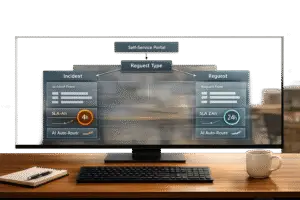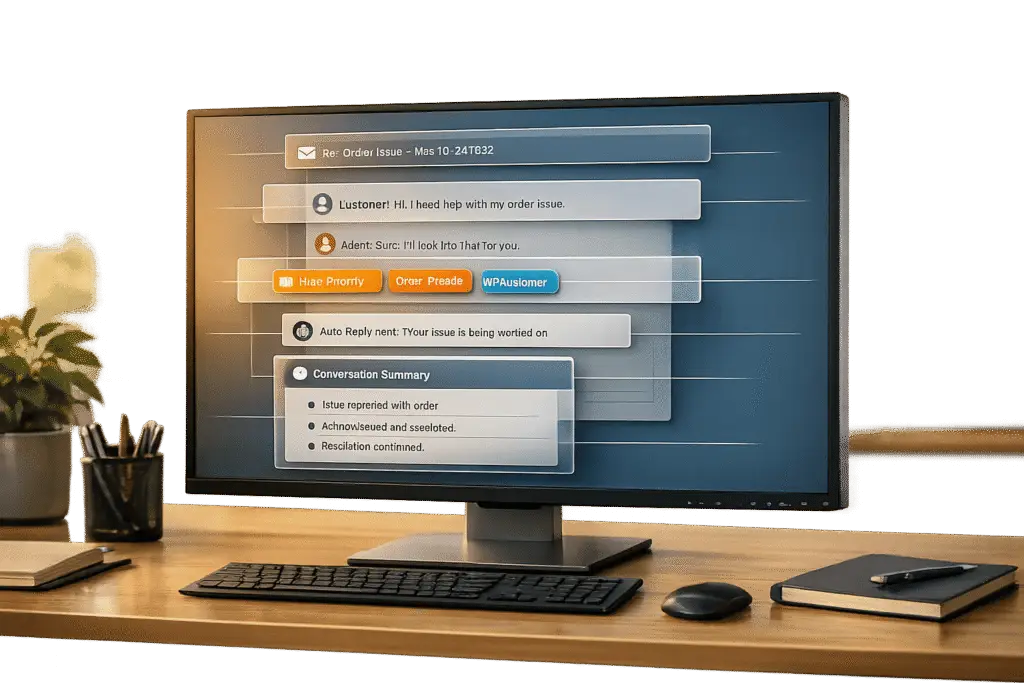
Losing context in customer support tickets can frustrate customers and waste agents’ time. Here’s how you can avoid it in Freshdesk:
- Threading Intervals: Configure time windows for replies (e.g., 48 hours for emails) to reopen existing tickets instead of creating new ones.
- Email Headers: Ensure replies retain
Message-IDandIn-Reply-Toheaders to maintain continuity. - Custom Fields: Use dropdowns and required fields to keep ticket data organized.
- Automation Rules: Use workflow automation to automate tagging, escalate complex cases, and notify agents of context gaps.
- AI Tools: Use Freddy AI for summaries and sentiment tracking to simplify ticket histories.
- Collaborators and Threads: Use private, discussion, or forward threads to manage multi-stakeholder conversations.
- Activity Logs: Track changes and recover missing historical data when needed.
Why Ticket Threads Lose Context
Losing the thread of a conversation in ticketing systems can cause major headaches for support teams. Freshdesk, like many platforms, relies on technical identifiers to connect replies to the right tickets. When these identifiers fail, the result is a fragmented conversation and lost context.
Email Forwarding and CC/BCC Challenges
Email threading hinges on hidden identifiers embedded in message headers, such as Message-ID and In-Reply-To. If a customer forwards an email or starts a new one without these identifiers, Freshdesk won’t recognize the link to the original conversation. Instead, it creates a brand-new ticket, leaving agents scrambling to piece things together.
Even if a forwarded email keeps a similar subject line, it often removes these critical headers. In such cases, Freshdesk tries to match the string [#{{ticket.id}}] in the subject line, but any slight change can break the thread.
Forwarding emails can also mix external replies with the original customer messages, adding more confusion to the conversation. And this is just one part of the problem – reassignments and requester changes can make things even trickier.
Ticket Reassignments and Requester Changes
When tickets are reassigned or the requester information is updated, vital context can be lost. Agents are then left to manually reconstruct the history of the interaction. Freshdesk adds another layer of complexity with its configurable threading interval. This is a preset time window during which a customer’s reply will reopen an existing ticket. If the customer responds after this interval expires, a new ticket is created, even if the reply is directly related.
Challenges with Older Helpdesk Platforms
Older ticketing systems often rely solely on subject line matching and lack advanced threading features like configurable intervals. Many of these legacy platforms don’t handle email headers such as Message-ID effectively, making it nearly impossible to maintain continuity in forwarded or multi-party conversations.
Without modern features like AI case summaries, agents must sift through lengthy ticket histories to find key details, such as troubleshooting steps or resolutions. This manual process slows response times and increases the risks of sidestepping AI summaries. These limitations highlight the importance of upgrading to systems with more adaptable and efficient solutions.
sbb-itb-e60d259
How to Configure Freshdesk for Thread Continuity
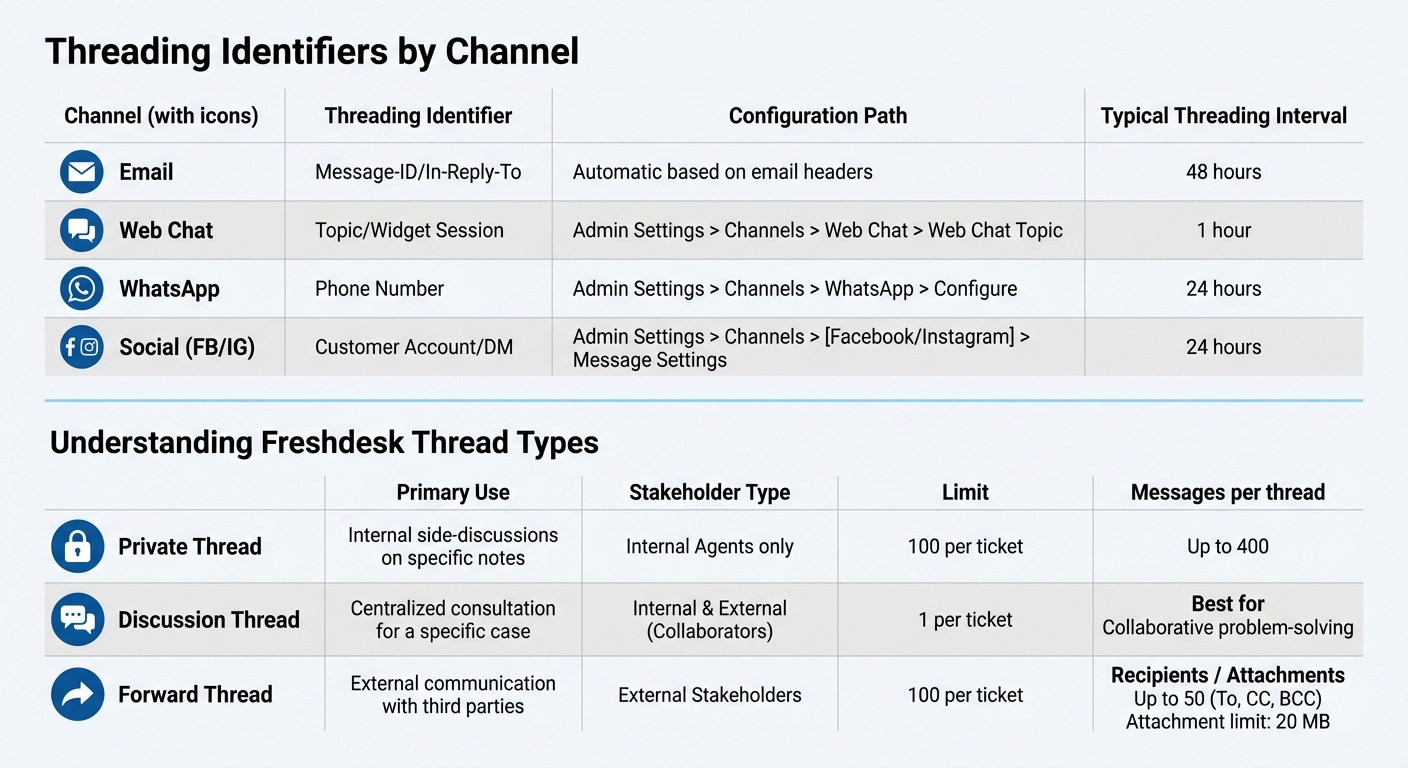
Freshdesk Thread Types and Channel Threading Configuration Guide
To keep support conversations seamless and avoid fragmented tickets, follow these steps to configure Freshdesk effectively. These settings ensure consistent context across all your communication channels.
Creating Custom Fields and Metadata
Custom fields help structure ticket data in a way that’s both organized and easy to manage. For better consistency, use dropdown menus instead of open text fields. Freshdesk provides 8 types of custom fields: Single-line text, Multi-line text, Checkbox, Dropdown, Dependent fields, Date, Number, and Decimal. Dependent Fields allow for a three-level hierarchy (e.g., Category > Subcategory > Item), making it easier to classify issues and maintain context throughout the ticket’s lifecycle. Additionally, Dynamic Sections can display specific custom fields based on dropdown selections.
To ensure important details are captured, mark certain fields as "Required when closing the ticket." If you ever need to retire a field, archive it rather than deleting it. Archiving keeps historical data intact for older tickets and reports.
Using Ticket Properties and Workflows
Threading intervals can be configured in Admin Settings > Channels for each platform, such as Email, Web Chat, WhatsApp, and social channels like Facebook or Instagram. For instance, if a customer replies within the threading interval (e.g., 48 hours for Email or 24 hours for WhatsApp), their response will reopen the existing ticket. This setup reduces resolution times and keeps the conversation in one place.
Automation rules can be created under Admin > Workflows > Automations to manage ticket threads effectively. For example, you can set up rules to notify a supervisor when a ticket exceeds a certain number of threads or to pause SLA timers for specific statuses like "Waiting for Third-Party." This prevents delays caused by external dependencies from impacting SLA metrics.
When dealing with external stakeholders, the Forward Threads feature is invaluable. Use the "+ Threads" icon to forward a ticket, and Freshdesk will automatically capture any replies from external contacts within the original ticket. This keeps the main conversation thread tidy while retaining all necessary context.
Managing Requester and Company Data
Accurate identification of requesters is key to maintaining continuity. Messages can be linked to tickets using unique identifiers like phone numbers (for WhatsApp). As long as the customer responds within the configured threading interval, their reply will reopen the original ticket, preserving the full conversation history.
For Pro and Enterprise plan users, the Collaborators feature allows you to involve external partners without losing context. Replies from collaborators are captured as Forward Threads within the original ticket, ensuring everything stays organized.
Changes to requester and company data are tracked in an Activity Log, which provides a chronological record of updates, automation triggers, and agent reassignments. To view this log, click the "Show Activities" button.
| Channel | Threading Identifier | Configuration Path |
|---|---|---|
| Message-ID / In-Reply-To | Automatic based on email headers | |
| Web Chat | Topic/Widget Session | Admin Settings > Channels > Web Chat > Web Chat Topic |
| Phone Number | Admin Settings > Channels > WhatsApp > Configure | |
| Social (FB/IG) | Customer Account/DM | Admin Settings > Channels > [Facebook/Instagram] > Message Settings |
Using Automation and AI to Preserve Context
Handling hundreds of tickets daily makes manually preserving context nearly impossible. Building on Freshdesk’s setup strategies, automation and AI ensure ticket histories stay intact and easy to follow. Let’s dive into how these tools simplify context retention.
Automating Responses with Historical Details
Dynamic placeholders can automatically insert ticket properties and historical data into email notifications and private notes. For instance, when setting up "Send email" or "Add note" actions in automation rules, you can use placeholders like "Last Interaction" or "Ticket Description." This ensures that every automated response includes critical history, saving agents from manually copying details.
To maintain a record of shared context, check the "Add as private note in the ticket" option for automated emails. This way, the next agent can see exactly what the customer was told. Additionally, automation rules can flag tickets with increasing thread counts, helping agents quickly identify complex cases.
AI Summaries and Sentiment Tracking
For tickets with evolving histories that placeholders can’t fully capture, AI summaries step in to provide clarity. Freddy AI Summarize organizes information into three sections: Issue (customer concerns), Steps Taken (actions and notes), and Outcome (current status or resolution). To enable this feature, go to Admin > Freddy icon > Ticket content assist. Agents can update summaries by clicking Edit > Generate summary whenever new replies are added to a ticket. These summaries complement manual configurations, making AI a helpful extension of existing practices.
Sentiment tracking workflows also enhance context management. For example, automation rules can trigger actions like reopening or reassigning tickets when customers leave "Extremely dissatisfied" feedback. Freshdesk can even automatically add an agent as a "Watcher" if a company’s health score is low or if negative feedback is received, ensuring critical details aren’t overlooked.
Automated Tagging for Context Gaps
Tags created through automation rules make it easier to identify tickets with complex histories. For example, when merging tickets, you can set a rule to automatically add a "Merged" tag, helping agents avoid losing individual thread details. Similarly, when tickets are transferred between groups (e.g., from Support to Development), tagging them as "Bug" or "Escalated" ensures context is preserved during transitions.
Hourly triggers can also scan for specific conditions, such as tickets with a high number of interactions that remain unresolved. For example, if a ticket exceeds a certain thread count (e.g., 5), it can be tagged as "High_Complexity", and an email can be sent to the assigned agent or team, prompting a manual review of the case.
| AI/Automation Feature | Primary Function for Context | Trigger/Event |
|---|---|---|
| Freddy AI Summarize | Creates Issue/Steps/Outcome overviews | Manual click or "Ticket Summary" button |
| CSAT Automations | Monitors sentiment to highlight context issues | "Customer feedback is received" |
| Thread Automations | Flags complex, multi-thread tickets | "Thread is created/updated" or thread count limit |
| Tagging Rules | Assigns labels like "Merged" or "Bug" | Property changes or note additions |
Handling Complex Support Scenarios
When dealing with intricate support cases, like those involving multiple departments, external vendors, or extended timelines, maintaining context becomes a top priority. To tackle these challenges, specialized threads and workflows are essential.
Managing Conversations with Multiple Stakeholders
Different thread types can help streamline communication and keep discussions organized:
- Private Threads: These are perfect for internal side discussions without cluttering the main conversation. Agents can use @mentions to notify colleagues via email instantly. Each ticket supports up to 100 threads, with each thread allowing up to 400 messages.
- Discussion Threads: Designed for collaborative problem-solving, these threads serve as a centralized space for internal teams and external collaborators. On Pro and Enterprise plans, agents can invite third-party stakeholders by @mentioning their email addresses using the Collaborators feature.
- Forward Threads: These enable agents to loop in external stakeholders by forwarding specific messages or entire tickets. Replies from these stakeholders stay contained within the thread, avoiding confusion in the main conversation. Forward Threads support up to 50 recipients across To, CC, and BCC fields, with a 20 MB limit for attachments.
Agents can track when threads were created or updated by using the Show Activities log, located at the top right corner of any ticket. Once stakeholder conversations are well-organized, it’s time to address any missing historical context.
Fixing Missing Historical Data
Lost context can sometimes result from ticket deletions, merges, or migrations. In such cases, the Activities log is a lifesaver. By clicking the Activities button on the ticket details page, agents can access a chronological record of changes, including updates to fields, automation rules, agent reassignments, and edits to ticket subjects. The log displays the first 20 activities by default, with older entries grouped under collapsible sections.
For older cases, keep in mind that Freshdesk archives closed tickets after 120 days of inactivity. These archived tickets are read-only but searchable if you enable them in Global Search or access them through the Archive view in the Tickets tab. Admins can export archived tickets, including URLs and custom field values, to help reconstruct case histories.
If a customer’s reply creates a new ticket instead of reopening the original one, check the Threading Interval settings in Admin for that specific channel (e.g., Email, WhatsApp, or Social Media). Also, don’t overlook Forward Threads, as they often contain critical external context that might not appear in the main conversation pane.
Once historical data is restored, focus on meeting data retention standards.
Meeting Data Retention Requirements
Beyond managing active cases, maintaining a complete support history is crucial for compliance in industries like healthcare, finance, and legal services. Freshdesk makes this easier by indexing thread messages, which can be searched globally by filtering for Notes & replies. This functionality saves time during audits, as agents can quickly locate specific exchanges without sifting through countless messages.
The Ticket Summary button is another helpful tool, providing a snapshot of the issue, steps taken, and the outcome. This ensures that new team members can get up to speed without combing through extensive ticket histories.
It’s important to note that archived tickets cannot be unarchived. Any reply to an archived thread creates a new ticket. For industries with strict data retention policies, admins should export critical case data before the 120-day archive period ends. Automation rules can also alert supervisors when thread counts exceed predefined limits, signaling increased case complexity.
| Thread Type | Primary Use Case | Stakeholder Type | Limit |
|---|---|---|---|
| Private Thread | Internal side-discussions on specific notes | Internal Agents | 100 per ticket |
| Discussion Thread | Centralized consultation for a specific case | Internal & External (Collaborators) | 1 per ticket |
| Forward Thread | External communication with third parties | External Stakeholders | 100 per ticket |
Lastly, set threading intervals specific to each channel (e.g., 24 hours for WhatsApp or 48 hours for Email) to ensure follow-up messages stay linked to the same ticket. This practice not only preserves a complete audit trail but also reduces compliance risks.
Conclusion
Preserving ticket thread context is a game-changer for resolving issues quickly and keeping your support team running smoothly. By setting threading intervals tailored to each channel, you can ensure customer replies stay tied to the original ticket, avoiding duplicate conversations that disrupt the flow. For example, a 48-hour interval for emails and a 1-hour window for web chat aligns perfectly with customer expectations.
AI tools add another layer of efficiency to this process. Freddy AI Summarize, for instance, condenses ticket histories into concise summaries. This means agents don’t have to wade through lengthy histories, which is especially helpful during L1 to L2 handoffs where maintaining context can directly influence resolution speed. Pairing these tools with automation rules – like escalating tickets that exceed a certain thread count – allows managers to step in before complex cases spiral out of control.
The benefits are clear: smoother conversations that keep customers happy, reduced agent workloads thanks to automated context management, and better collaboration through features like Forward and Discussion threads. These tools ensure internal and external communications stay organized without cluttering the customer-facing side. Agents spend less time hunting for information and more time solving problems.
For B2B support teams juggling multiple stakeholders, strict data retention policies, or high ticket volumes, these practices aren’t just helpful – they’re essential. Threading logic, AI summarization, and contextual collaboration tools ensure every critical detail is captured, whether it’s a simple question or a complex, multi-department escalation. With these methods, support teams can scale operations efficiently while still delivering personalized service. Together, these strategies represent the modern, AI-driven approach to B2B customer support.
FAQs
How can I make sure email headers stay intact to keep ticket threads organized?
To keep email threads organized and maintain the integrity of ticket conversations, it’s crucial to set up your email settings correctly. This ensures email headers – key pieces of information used to route and identify conversations – are preserved, allowing replies to align with the correct tickets.
Freshdesk relies on email headers and subject lines to decide whether a reply should update an existing ticket or generate a new one. Be sure that your email forwarding and automation processes don’t remove or modify these headers. This helps maintain clear communication and prevents confusion in multi-threaded conversations.
How do custom fields help keep ticket conversations organized and clear?
Custom fields offer a smart way to keep ticket conversations streamlined by letting support teams gather details tailored to their specific needs. Instead of relying solely on a standard ticket form, these fields allow agents to capture extra information that ensures nothing critical gets overlooked, reducing the chances of confusion or delays.
With custom fields, teams can log updates, note customer preferences, or document unique issues in a clear, structured manner. This approach ensures that everyone involved has access to consistent and detailed information, making collaboration smoother and resolutions quicker. They’re particularly useful in complex situations with multiple stakeholders, as they help maintain a well-organized and thorough ticket history.
How does Freddy AI help keep ticket histories organized and easy to understand?
Freddy AI makes handling ticket histories easier by using automated summarization to create quick, digestible overviews of long conversations. These summaries focus on the main issues, actions taken, and final outcomes, so support agents can grasp the context without wading through the entire thread. This not only saves time but also ensures no important detail is missed.
On top of that, Freddy AI can summarize bot conversations after lengthy interactions, providing agents with private notes that neatly condense the discussion. This makes handoffs smoother and helps agents stay informed, even with complex or ongoing support cases. By giving agents easy access to the key information they need, Freddy AI boosts both efficiency and accuracy in customer service.
Related Blog Posts
- How do you prevent duplicate tickets and “email thread chaos” in customer support?
- How do you prevent duplicate tickets and merge threads without losing context?
- How do you migrate Salesforce Email-to-Case conversations without breaking threading?
- How do you move from Freshdesk to a multi-inbox B2B workflow without breaking email?