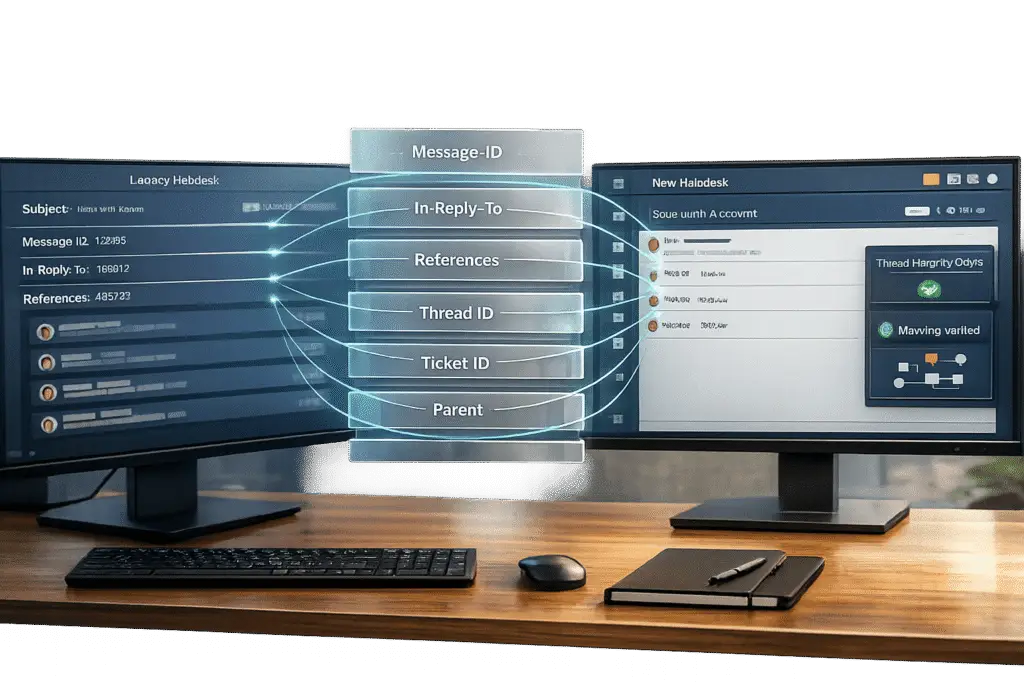
Preserving email threading during a migration from HappyFox requires careful handling of metadata and ticket structures. HappyFox uses a combination of email headers (References, In-Reply-To, and Message-ID) and ticket IDs embedded in subject lines to maintain conversation history. Losing this metadata during migration can disrupt threads, forcing agents to work with incomplete histories and frustrating customers who may need to repeat issues.
Key Steps to Preserve Threading:
- Understand Threading Logic: HappyFox threads emails using
Referencesheaders or subject-line ticket IDs. Check your account settings to identify which method is in use. - Audit Data: Review tickets for missing metadata, duplicates, or errors. Ensure all fields like timestamps, ticket IDs, and message relationships are intact.
- Export Data Carefully: Use API-based tools to capture complete ticket histories, including attachments and metadata. Avoid standard CSV exports, as they may not preserve all details.
- Map Metadata Correctly: During migration, align HappyFox fields (e.g.,
References,ticket_Id,Created Time) with equivalent fields in the target system to maintain thread continuity. - Test Before Full Migration: Run a pilot migration with a small dataset to ensure threads remain intact and messages are properly linked.
Common Issues to Watch For:
- Emails with altered subject lines or missing ticket IDs may break threads.
- Forwarded emails or BCC handling can disrupt ticket assignment.
- Metadata loss during export or import can fragment conversation histories.
By planning thoroughly, testing tools, and verifying data post-migration, you can ensure a smooth transition while preserving critical email threads.
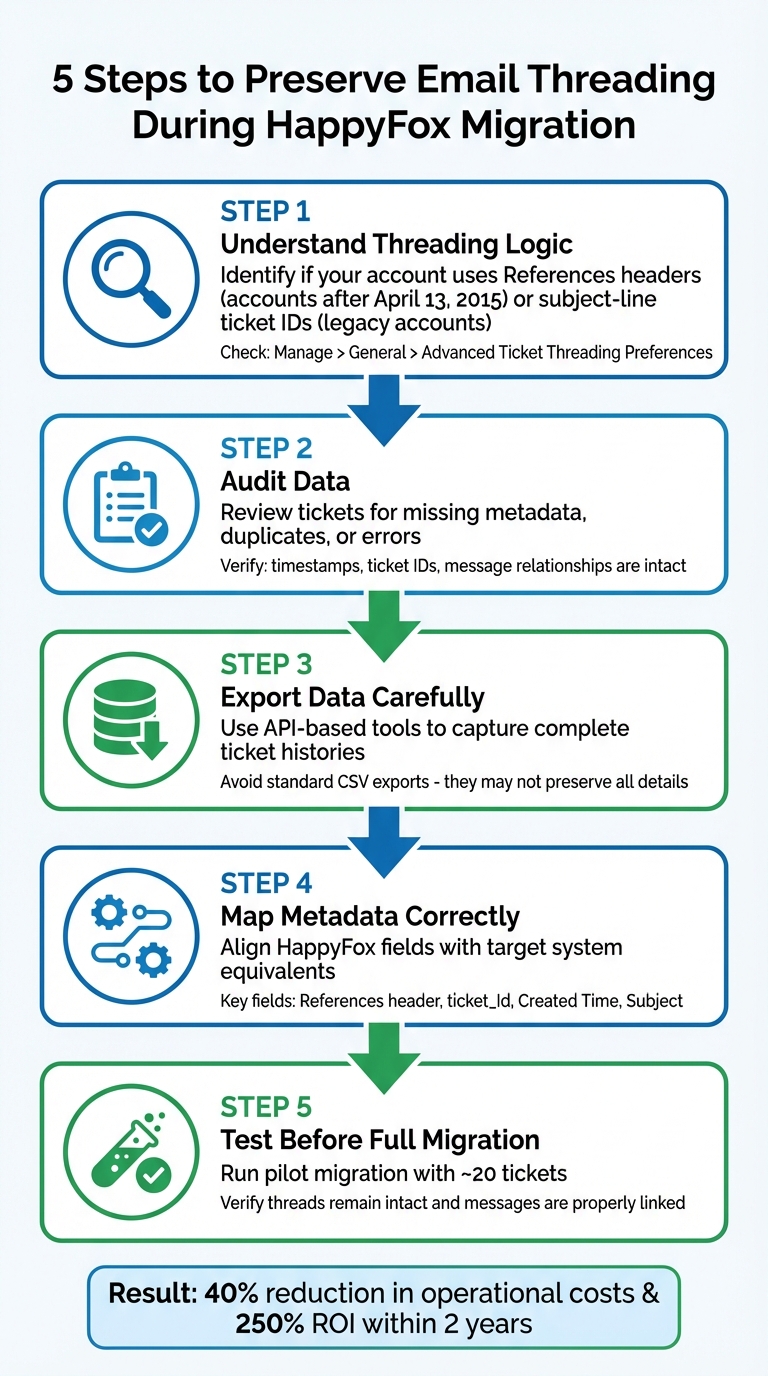
5-Step Process for Preserving Email Threading During HappyFox Migration
How Email Threading Works in HappyFox

HappyFox uses two main methods to thread emails. The first relies on a References header with a specific format: <ticketID>@<accountname>.happyfox.com. When an email arrives, HappyFox scans this header to identify and assign the correct ticket. The second method looks for the ticket ID in the subject line, which requires the {{ticket_Id}} merge field to be included in outgoing notifications.
The method used for threading depends on when your account was created. Accounts created after April 13, 2015, use the References header by default, while older accounts rely on subject line parsing. This difference can complicate migrations – especially since the proprietary header format may not integrate seamlessly with other platforms. For legacy accounts, threading logic might vary over time, making it even trickier to maintain consistency. Knowing how these mechanisms work is key to planning a smooth migration.
Threading Metadata Fields
HappyFox prioritizes the References header. If it finds a valid ticket ID there, the email is added as an update to the existing ticket. If header-based threading is turned off or the References header is missing, HappyFox switches to scanning the subject line for a ticket ID.
The Message-ID attribute acts as a fallback for linking replies when the subject line has been altered. Since the Message-ID typically stays consistent throughout a conversation, it provides another way to maintain threading. To avoid fragmented email threads during migration, both methods need to be accounted for.
Threading Problems in HappyFox
Even with threading metadata in place, certain issues can disrupt the flow of conversations.
One common problem happens when customers change the subject line. If threading is disabled, HappyFox won’t recognize the message as part of an existing ticket and will create a new, separate ticket instead. As noted in the platform’s documentation:
"HappyFox parses the reply email’s subject line for ticket ID… If this ticket ID is not present… HappyFox then considers this as a new email from a customer and creates a new ticket".
Another complication arises with BCC handling. If a HappyFox category email address is included in the BCC field, the system won’t process the message into a ticket at all. Forwarded emails can also cause issues – especially if the "Forwarded message" tag is removed or if you’re using Outlook, which often strips metadata. In such cases, HappyFox might misassign the ticket. These inconsistencies can lead to data quality problems, making it essential to perform a thorough pre-export audit to minimize disruptions and ensure better thread continuity.
sbb-itb-e60d259
Preparing Your Data for Migration
Getting your data in order is a crucial step to ensure everything runs smoothly during the migration process. For HappyFox users, this means reviewing and organizing your data to maintain accurate conversation threads.
Reviewing Your Email Data
Start by taking stock of your current and historical tickets, customer contacts, communication preferences, and knowledge base articles. Look for any gaps or missing threading information that could disrupt the migration process.
Next, check your threading method by navigating to "Manage > General > Advanced Ticket Threading Preferences." Determine whether you’re using "Ticket ID-less threading" (based on References email headers) or "Subject-line threading" (which parses Ticket IDs from the subject line). This is an important distinction, as your migration tool must replicate the same threading logic.
To keep your data clean, remove duplicates and fix any errors that could compromise its integrity. Document custom workflows, such as SLAs and routing rules, to ensure these are accurately transferred. Pay special attention to maintaining unique identifiers, message relationships, and timestamps, as these are essential for preserving thread continuity.
Once you’ve audited your data, prepare it for export by double-checking that all fields – especially timestamps and unique identifiers – are intact.
Exporting Data from HappyFox
When exporting data from HappyFox, keep in mind that standard CSV exports only capture the first message in the "Text" field, with subsequent replies combined into a single "Private Note". To maintain full thread chronology, export the "Created Time" in the correct format (yyyy/mm/ddThh:mm:ss or yyyy/mm/dd hh:mm:ss) and consider using API-based tools to include attachments and preserve the complete conversation history.
Automated migration services can help maintain the structure of your data by transferring linked record IDs, URLs, and custom fields along with standard ticket details. Before starting a large export, check the API limits and configuration settings of your target system to avoid interruptions during the process.
With your data properly exported and its chronological structure intact, you’ll be ready to select migration tools that can reliably handle the transfer.
Choosing Migration Tools and Services
Pick migration tools that can maintain the chronological order of your data, map key email headers (such as In-Reply-To, References, Message-ID), and handle full conversation threads. Tools that support delta migrations – capturing any new or updated data during the main migration – are especially useful to ensure nothing gets left behind.
Before committing, test the tool on at least 20 records to verify that mapping and thread continuity work as expected. As Roller Luke, Director of Operation at The Core Technology Group, shared:
"The customer support team were kind, professional, and efficient throughout the entire process. We changed dates of our migration on them twice, and they rolled with the punches."
- Roller Luke, Director of Operation, The Core Technology Group
Also, confirm that the tool uses secure, encoded dialogues, operates on secured servers, and complies with regulatory security standards. Pricing will usually depend on the volume of entities (like tickets and contacts) and the complexity of your migration requirements.
Maintaining Thread Integrity During Migration
When moving your data to a new platform, one critical element to address is ensuring email threads stay connected. This process requires careful handling of metadata, thorough checks, and strategic use of automation tools.
Mapping Metadata to Your New Platform
To maintain the continuity of conversations, it’s essential to map metadata from HappyFox to the corresponding fields in your new platform. This includes key elements like the References header, ticket_Id, Created Time, and Subject. These fields play a central role in keeping threads intact. For instance, the References header links messages without relying on unique IDs, while the ticket_Id ensures each ticket has a unique identifier. The Created Time field ensures chronological order, and the Subject field helps maintain conventional threading, especially when the subject includes the ticket ID.
If your new platform doesn’t support inline images, map those images as ticket attachments to retain the visual context. Here’s a quick look at how to handle the metadata:
| HappyFox Metadata Field | Purpose in Threading | Mapping Requirement |
|---|---|---|
References Header | Links threads without IDs | Map to the target system’s header field |
ticket_Id | Unique identifier | Map to "External ID" or "Ticket ID" |
Created Time | Chronological ordering | Preserve the format "yyyy/mm/dd hh:mm:ss" |
Subject | Conventional threading | Include Ticket ID if using subject-threading |
Private Note | Internal updates | Map to "Internal Comments" or "Private Notes" |
To ensure everything is set up correctly, run a test migration with about 20 tickets. This will help you confirm that threads and parent-child relationships are preserved.
Verifying Threads After Migration
Once the migration is complete, verifying thread integrity is a must. Start by spot-checking a sample of tickets to ensure messages are properly ordered and linked to their parent tickets. Pay extra attention to tickets with multiple replies or complex histories, as these are more prone to errors.
It’s also crucial to check inter-ticket references. These links provide agents with the full context they need to assist customers effectively. To minimize disruptions, schedule this verification during off-peak hours.
Gather feedback from your support team as they work with the migrated data. Agents often notice fragmented threads or missing context that automated checks might overlook. Combining their feedback with automated checks will give you a clearer picture of the migration’s success.
Using AI to Validate Threading Accuracy
AI-powered tools can be a game-changer when it comes to validating thread accuracy. These tools can automatically detect inconsistencies, such as broken links or misplaced messages, which would be difficult to spot manually – especially in large-scale migrations.
For example, AI can analyze parent-child relationships and ensure messages are in the correct chronological order. Text analytics can also help by normalizing and labeling support topics, making it easier to identify threading errors.
"Verify accuracy by spot-checking thread integrity, ensuring messages are correctly ordered and linked; validating inter-ticket references; comparing analytics reports pre- and post-migration; and using automated scripts or agent feedback to detect inconsistencies or data loss." – Cobbai Blog
For large migrations, where manually reviewing thousands of tickets is impractical, AI can flag potential issues for human review. This approach allows your team to focus on resolving problems rather than spending time hunting for them.
Common Migration Mistakes to Avoid
Even with the best-laid plans, migrations can sometimes take an unexpected turn. By understanding some of the most frequent mistakes, you can sidestep broken threads and keep your support team from pulling their hair out.
Ignoring Metadata Requirements
One of the most common and costly errors is underestimating the importance of metadata. HappyFox relies heavily on parsing the subject line for a Ticket ID to thread emails correctly. If this ID gets altered or stripped during export, the system will treat the reply as a new email, creating duplicate tickets instead of maintaining the conversation flow.
It gets worse if your migration tool doesn’t preserve critical email header fields like "Message-ID", "In-Reply-To", or "References." Without these, the entire structure of your conversation history can collapse.
To avoid this, make sure the "Automatic threading for tickets" toggle in HappyFox is enabled before exporting your data (Main Menu >> Channels >> Email). This ensures "Message-ID" headers are properly recorded. During planning, map HappyFox’s "Message-ID" and "Ticket ID" fields to the equivalent unique identifiers in your target system. This step is key to maintaining consistent threading across platforms.
Insufficient Testing Before Launch
Skipping thorough testing is a gamble you don’t want to take. Without a pilot migration, hidden issues – like mismatched character encodings or timestamp errors – often surface only after the full dataset has been moved. By then, fixing them becomes a much bigger headache.
A great example of the power of testing comes from Rossi Residencial, a construction company that successfully migrated four SAP environments to the cloud in 2025. Thanks to rigorous pre-migration testing and validation, they achieved zero downtime and no unavailability incidents.
"Even the most detailed migration plan needs testing with real-world data before full execution." – Eric Klimuk, Founder and CTO, Supportbench
Start with a smaller, representative data set that includes complex threads, attachments, and varied formatting. Let your support agents interact with the test data to ensure conversation history and context are preserved and easily understood. Pay close attention to tricky scenarios like inactive users, outdated email formats, or unusual record types – these edge cases often reveal problems standard tests might miss.
Poor Communication with Your Team
Clear communication with your support team can make or break a migration. Without it, you risk creating data silos and fragmenting the customer conversation history, leaving agents unable to see the full picture. Since agents are often the first to notice broken threads, it’s crucial to establish a clear process for them to report any inconsistencies after the migration.
Before the final cutover, conduct training sessions to help your team understand how the new platform handles threading. Break the migration into manageable phases – system setup, test migration, full transfer, and training – and keep everyone updated at each stage. Create FAQs and tutorials tailored to the new threading workflows. After the migration, regularly gather feedback from your agents to uncover and fix threading issues that automated tools might overlook.
"A well-planned migration ensures minimal disruption to your team’s productivity while preserving critical customer information and setting the stage for improved customer service." – HappyFox
Addressing these common mistakes head-on will help you maintain thread integrity and ensure a smoother transition for your entire team. Careful planning, robust testing, and open communication are your best tools for a successful migration.
Conclusion
Maintaining thread integrity during migration is no small feat. It demands a well-coordinated approach that combines technical precision with operational readiness. To keep email threads intact, you need to prepare your data thoroughly, map metadata correctly, and validate the integrity of threads throughout the process. Conducting pilot tests with real data can help identify and resolve edge-case issues before rolling out the full deployment.
"Data migration is more than just copying files from one system to another – it’s a critical process that can affect everything from day-to-day operations to long-term compliance." – Eric Klimuk, Founder and CTO, Supportbench
AI-powered solutions make this process far more manageable. Platforms like Supportbench streamline migration by automating validation workflows and easing the complexities of metadata mapping. Features like audit logs not only ensure accountability but also make troubleshooting much simpler. On average, customers transitioning to Supportbench report a 40% reduction in operational costs and achieve a 250% ROI within two years.
FAQs
Which HappyFox threading method does my account use?
Your account tracks email conversations using the Ticket ID in the subject line. In some setups, it may also depend on email headers, such as the Message-ID attribute, to maintain the flow of a conversation. Review your settings to determine which method is in use.
What metadata must be migrated to keep threads intact?
To keep email threads intact during a migration, it’s crucial to transfer the metadata that links conversations together. This involves moving ticket IDs, email headers, and thread identifiers. These elements are essential for maintaining the flow and context of support interactions, ensuring the continuity of conversations.
How can I verify threading accuracy after cutover?
To ensure the threading remains accurate after the cutover, take a close look at email relationships, metadata, and how conversations flow in the new system compared to the original. Leverage tools or analytics to pinpoint threads, replies, and forwarded messages. This step is crucial to confirm that the migration process has preserved the structure and continuity of conversations.
Related Blog Posts
- How do you migrate Salesforce Email-to-Case conversations without breaking threading?
- How do you migrate email threads from Pylon and keep replies properly linked?
- How do you migrate away from HappyFox without losing ticket history or attachments?
- How do you map HappyFox categories, custom fields, and statuses to a new system?