Switching from Help Scout can be challenging, especially when trying to preserve email threading and customer context. Losing historical conversations or breaking thread continuity can disrupt support workflows and frustrate customers. Here’s how to transition smoothly:
- Review and prepare your data: Identify key components like conversations, tags, and custom fields. Use Help Scout’s Inbox API for full data exports, as standard CSV/XLSX exports lack thread details.
- Export data carefully: Ensure chronological order of threads, maintain attachments, and avoid hitting API limits (e.g., 100 threads per conversation).
- Map data to the new platform: Align fields (e.g., statuses, tags, custom fields) and maintain thread relationships using Help Scout’s unique IDs.
- Test migrations: Run small-scale test migrations to verify data integrity and fix issues before the full migration.
- Recreate workflows: Manually set up workflows, saved replies, and settings in the new platform.
- Validate post-migration: Check thread continuity, data accuracy, and workflow functionality to ensure a smooth transition.
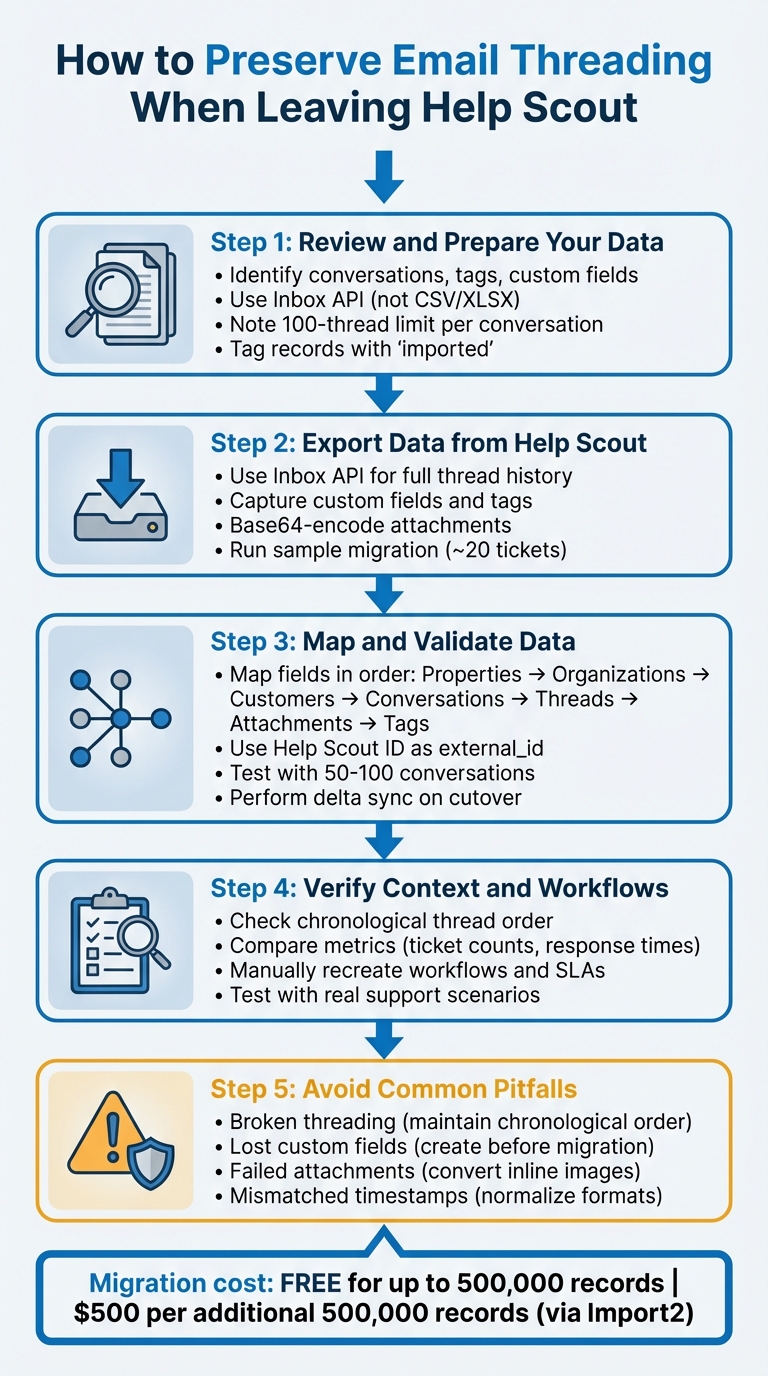
5-Step Process for Migrating from Help Scout While Preserving Email Threading
Step 1: Review and Prepare Your Help Scout Data
To maintain detailed email threads and customer context, it’s crucial to review and prepare your Help Scout data thoroughly. Start by identifying the key components – conversations, customer profiles, tags, custom fields, and attachments – that you’ll need to preserve. Metadata like createdAt timestamps, thread count, actionType (e.g., merged or moved conversations), and source (email, chat, or note) are essential for keeping threads organized and intact.
Identify What Data to Migrate
Begin with an audit of your data. Look at conversations, customer records, tags, custom fields, and attachments, and note any elements that can’t be transferred automatically. Items like users, inbox settings, workflows, saved replies, and native integrations will need to be manually recreated in the new platform. Additionally, Help Scout’s API imposes a limit of 100 threads per conversation. If you exceed that, you’ll encounter a "412 Precondition failed" error. Be proactive by identifying conversations nearing this limit, as migration tools may need to split them into multiple tickets to work around platform restrictions.
Review Export Tools and APIs
Help Scout provides in-app reporting exports in CSV or XLSX formats, but these do not include conversation thread contents or satisfaction comments. A basic customer list export will only include names and email addresses, leaving out conversation history. To extract full thread data – like message body content and attachments – you’ll need to use the Inbox API. If you’re also migrating knowledge base articles, the Docs API will be required. Documenting these migration details now will make the process smoother later.
Document Migration Requirements
Clearly outline data volumes, formatting constraints, and threading limitations in advance. Tag all records in Help Scout (e.g., with imported) before exporting to make them easy to identify later. When setting up your destination platform, ensure agents are created using the same email addresses as in Help Scout to maintain conversation ownership through "agent matching". Inline images should be migrated as attachments, as automated tools often can’t embed them directly into message bodies. Be aware that merged conversations in Help Scout result in the old ID returning a 301 Moved Permanently status, which can disrupt links during migration. Address these potential issues now to ensure seamless data continuity.
sbb-itb-e60d259
Step 2: Export Data from Help Scout
Once you’ve reviewed your data, the next step is exporting it from Help Scout. The method you choose will determine whether you get a complete conversation history or just basic metadata. Knowing this in advance can help you avoid surprises, like missing data, later on. This exported information will serve as the foundation for mapping and validating your data in the new system.
Export Full Email Threads and Conversations
If you are still transitioning from email to a helpdesk and rely on standard CSV or XLSX exports, be aware that they only include metadata like Conversation ID, Status, Tags, and CC/BCC fields – they do not contain the actual message bodies, internal notes, or attachments. To capture the full conversation history, including every customer and agent message in order, you’ll need to use the Help Scout Inbox API. If you’re also migrating knowledge base content, you’ll need to use the Docs API separately.
Keep in mind that there’s a 100-thread limit per conversation. Additionally, ensure any attachments are Base64-encoded with their file name and MIME type. This helps avoid issues like sending duplicate messages to customers during the migration process.
Capture Custom Fields and Tags
While reporting exports retain information like tags, CC/BCC fields, and custom values, they don’t include thread details. If you’re exporting via CSV, you can add specific tags to the column headers (e.g., _select, _date, _integer) to help migration tools correctly identify and process field types. Make sure the user performing the export has full mailbox access as an Account Owner or Administrator; otherwise, you risk missing critical data.
Another detail to note: times in XLSX exports are in UTC, while CSV exports reflect the timezone set in your Help Scout Company settings. This difference can affect your validation process, so plan accordingly.
Verify Export Completeness
Once you’ve completed the export, double-check your data to ensure it’s all there. Many migration tools offer a "Sample" or "Demo" migration feature, which processes around 20 random tickets. This lets you preview data mapping and thread integrity before committing to a full migration. These sample runs typically generate downloadable reports that categorize records as "migrated", "failed", or "skipped". Use these reports to confirm that authors are correctly preserved, custom fields are mapped to the right destinations, and attachments remain intact and downloadable.
Perform manual spot-checks on a few migrated threads to verify that messages appear in the correct chronological order and that parent-child ticket relationships are maintained. These checks are essential for preserving customer context after the migration. Additionally, compare analytics reports – such as total conversation counts and resolution times – before and after migration to identify any significant discrepancies.
If you’re using Help Scout’s partner Import2 for the migration, the process is free for up to 500,000 records. For larger migrations, you’ll need to pay $500 per every additional 500,000 records.
Once you’ve confirmed the completeness of your export, you’re ready to move on to mapping and validating your data in the new system.
Step 3: Map and Validate Data in the New Platform
Once you’ve exported your data from Help Scout, the next step is to carefully map that data to your new platform. This involves defining how Help Scout’s fields will translate into the structure of the new system. The goal is to ensure that email threading, customer relationships, and conversation history remain intact. Poor mapping can disrupt thread continuity or result in lost context, so precision is key.
Define Field Mappings
Start by establishing a mapping hierarchy in this order: Properties/Custom Fields, Organizations, Customers, Conversations, Threads, Attachments, and Tags. Following this sequence ensures that foundational elements are in place before linking dependent records.
To maintain consistency and avoid duplicate records, carry over Help Scout’s unique identifiers by using the id field as the new platform’s external_id. As ClonePartner advises:
"Always carry over Help Scout’s id as Intercom’s external_id. It’s your key to idempotent imports and safe delta runs".
When mapping thread types, align them with the appropriate categories in the new platform. For example, map "reply" to public messages, "note" to internal notes, and "phone" or "chat" to public messages with specific source tags. Similarly, match status fields like "Active" to "Open", "Pending" to "On-hold", and "Closed" to "Resolved" according to your new system’s workflow.
Don’t depend on automatic domain matching for customer-to-company relationships. Instead, explicitly link each contact to its organization after both objects are created in the new platform. This extra step helps avoid orphaned customer records.
Before importing, normalize data formats. For instance, convert Help Scout’s ISO timestamps to the required format for your target platform (such as UNIX epoch seconds). Standardize phone numbers to the E.164 format. If your new platform’s API doesn’t support direct uploads for historical attachments, host these files on external storage (like Amazon S3) and insert signed URLs into message bodies.
| Help Scout Field | New Platform Field | Mapping Notes |
|---|---|---|
| Conversation ID | External ID | Critical for linking threads and avoiding duplicates |
| Status (Active, Pending, Closed) | State (Open, On-hold/Pending, Solved/Resolved) | Match to the target platform’s workflow states |
| Mailbox | Team or Inbox | Align with support groups in the new system |
| Custom Fields | Data Attributes / Custom Properties | Pre-define these before starting the import |
| Tags | Tags | Usually a direct one-to-one mapping |
| Threads | Conversation Parts / Messages | Maintain visibility (internal vs. public) |
Once mappings are set, validate them through a controlled test migration.
Run Test Migrations to Verify Threading
Conduct a pilot migration with 50–100 conversations that include all thread types (email, chat, internal notes, and phone logs). This allows you to verify formatting, attachments, and timestamps without risking the entire dataset.
Maintaining strict chronological order during the import is crucial. Messages must be imported in sequence, preserving parent–child relationships and unique identifiers. Errors in sequence can disrupt conversation flow and cause confusion.
After the test migration, manually review a sample of threads to ensure correct chronological order and agent visibility. Compare analytics reports from before and after the migration to check for inconsistencies in metrics like ticket volumes, resolution times, or customer record counts. If discrepancies arise, revisit and correct your mappings before proceeding with the full migration.
Use Filters for Prioritized Migrations
To ensure uninterrupted customer support, prioritize high-priority threads during the migration process. Filters can help you focus on critical data first, allowing your team to start using the new platform while older data continues transferring in the background.
Tag essential threads with markers like priority or long_running so they can be easily filtered and validated in the new system. This ensures that the most important customer interactions are ready to go from day one.
On cutover day, perform a "delta sync" to capture any new conversations or updates that occurred after the initial migration began. This step helps fill in any gaps in conversation history, ensuring that all context is preserved during the transition. These measures will keep your customer interactions seamless throughout the migration process.
Step 4: Verify Customer Context and Workflow Integrity After Migration
Once the data transfer is complete, it’s time to ensure your support workflows, customer histories, and operational processes remain intact. This step is crucial for transitioning from data export to full operational readiness, aligning both technical and workflow elements.
Perform Data Integrity Checks
Start by reviewing sample conversation threads to confirm they maintain chronological order and proper parent-child relationships. Focus on threads with diverse components – like email replies, internal notes, and phone logs – to ensure everything displays correctly, including visibility settings.
Next, run reporting metrics in your new platform and compare them to the final export from Help Scout. Metrics such as ticket volumes, response times, and customer record counts should align. If you notice any major inconsistencies, they could signal mapping errors that need immediate resolution. Test the search functionality by cross-referencing a predefined list of customer profiles to verify data accuracy. If historical interactions fail to appear, your team may struggle to access vital context during live support.
Check that tags, labels, and custom field mappings align with your intended configuration. These metadata elements are key to understanding ongoing issues and maintaining customer relationships. Since custom fields often lack direct equivalents across platforms, carefully review your manual mappings to ensure no context is lost.
Consider using built-in AI tools in your new platform to identify and flag potential discrepancies automatically, streamlining the verification process.
Test Key Workflows and SLAs
Beyond confirming data accuracy, make sure your operational processes function smoothly in the new system. Automated workflows, SLAs, and inbox settings typically don’t transfer automatically and will need to be manually recreated. Rebuild Help Scout routing rules, SLA timers, and inbox configurations to replicate your previous workflows, ensuring proper auto-assignment, prioritization, and response logic.
Conduct a pilot test with your support team using real scenarios, such as escalations, high-priority tickets, and complex multi-thread conversations. Check that assignments are triggered correctly, notifications reach the right team members, and SLA timers operate as expected. Map Help Scout "Mailboxes" to "Teams" and translate "Folders/Views" into "Saved Filters" or "Views" in the new platform to maintain team segmentation. Additionally, export the text and subjects of Help Scout "Saved Replies" and manually recreate them as macros or canned responses in the new system.
Help Scout offers this important reminder:
"Your team should stop working in the source Help Scout account when you start the full import – they should only be working in the destination… once you start".
Following this disciplined approach ensures conversations don’t get split between systems, allowing your team to fully leverage the optimized workflows from day one.
Step 5: Avoid Common Migration Pitfalls
To ensure your migration goes smoothly, it’s essential to steer clear of these common issues. By addressing these technical challenges upfront, you can save yourself a lot of time and protect the integrity of your customer data.
Broken Threading Relationships
One of the most frequent causes of fragmented conversations is failing to maintain a strict chronological order during the import process. Help Scout threads must be imported sequentially to preserve the parent-child relationships between messages. If messages are imported out of order, your support team may end up dealing with fragmented conversations that make it hard to follow customer issues. Keeping thread relationships intact is critical for delivering effective support.
Another common issue is mismatched timestamps, which can throw off thread sequencing. Help Scout uses ISO format timestamps, but some platforms require UNIX epoch seconds. To avoid confusion, normalize your timestamps before migration. Additionally, retaining the original Help Scout ID as an "External ID" is key for maintaining thread relationships and ensuring idempotent imports.
Before scaling up, run a pilot test using threads with a variety of formats and timestamps to confirm everything works as expected. On the final migration day, pause Help Scout and perform a delta sync to capture the most recent updates, ensuring both systems remain perfectly aligned.
Loss of Custom Fields
Custom fields in Help Scout are specific to each inbox, while tags function at the account level. Because of this structural difference, you’ll need to manually create custom fields in your new platform before starting the migration. Without this step, important customer context – such as industry, priority level, or account tier – could be lost.
"It’s important the whole support team is on the same page about when and how to create new tags or custom fields. We always discuss and document new tags and custom fields as a team. This helps prevent confusion from tags with duplicate meanings or even typos".
To ensure everything transfers correctly, conduct a small-scale demo migration and check for any missing or skipped records in the post-migration report. If your new platform doesn’t support certain custom fields, consider mapping that data to a general "Notes" field to retain the information. Proper field mapping is essential for maintaining operational consistency.
Attachment and Image Failures
Attachments and inline images are another common pain point during migration. Inline images often break because many migration tools struggle to process them correctly. A reliable workaround is to extract these images and convert them into standard downloadable attachments.
"Inline images sometimes don’t display well across systems. This option extracts those images and converts them into standard downloadable attachments in Help Scout".
To avoid surprises, test the migration process using tickets with different types of attachments and multiple replies to identify potential issues early. Help Scout threads frequently include signatures or base64-encoded inline images, which may need to be converted into hosted URLs (e.g., stored on Amazon S3) to ensure they render properly. If the target platform’s API doesn’t support direct file uploads, you can pre-stage attachments by uploading them to external storage and embedding signed URLs into the message bodies.
Here’s a quick look at how different migration features impact attachments and images:
| Migration Feature | Impact on Attachments/Images |
|---|---|
| Inline Image Option | Converts embedded images into downloadable files to prevent display issues |
| Skip Attachments | Excludes files to speed up migration and reduce storage costs during testing |
| Database Dump | Retains attachments using original file paths or URLs from the source schema |
| CSV/JSON Export | Exports attachments separately, linking them to tickets by filename or ID |
Conclusion
Switching from Help Scout while maintaining email threading and customer context requires careful planning, thorough testing, and precise execution. A final migration checklist ensures everything stays intact, and the difference between a seamless transition and a chaotic one often lies in the details – preparing your data, validating mappings, and managing technical nuances.
Start by running a sample migration of 50–100 conversations, followed by a delta sync on cutover day to capture any late updates. As Aprill Allen and Ashley Milne put it:
"Failure to test [is] the most common overarching cause of problems".
Testing truly underpins the success of your migration.
Timing your cutover is equally important. Redirect email forwarding to the new platform just before the full import, and ensure your team stops using Help Scout as soon as the migration begins.
Remember, some elements – like workflows, saved replies, and knowledge base articles – won’t migrate automatically. These need to be manually recreated. Use this as an opportunity to tidy up by removing outdated tags, consolidating duplicate macros, and streamlining your processes. AI summarization tools can also play a role here, condensing long email threads into clear bullet points so your team can quickly grasp the context without wading through years of correspondence.
Once the migration is complete, validate everything. Confirm data integrity by comparing ticket counts, checking email threading, and gathering feedback from your team during their first days in the new system. By combining AI tools with meticulous validation, you can transition efficiently while preserving customer context and operational continuity.
FAQs
What’s the safest cutover plan to avoid split conversations?
A phased migration with careful planning and testing is the best way to ensure a smooth cutover while preserving email threading and customer context. Start by auditing and cleaning your data to avoid carrying over unnecessary or outdated information. It’s crucial to retain email headers like Message-ID and In-Reply-To, as these are key to maintaining threading.
Run a pilot migration to identify potential issues before the full rollout. Use tools designed to preserve metadata, ensuring no critical details are lost in the process. During the cutover, perform a delta sync to capture any changes since the pilot. Schedule this during low-traffic times to minimize disruptions and keep operations running smoothly.
How can we migrate threads over the 100-reply limit?
To move threads that surpass Help Scout’s 100-reply limit, it’s crucial to retain key email headers such as Message-ID, In-Reply-To, and References. These headers are what keep threading intact and ensure reply links function properly.
To do this, export the data while preserving these headers. Use tools capable of handling them accurately, and perform delta syncs to ensure any updates are captured during the process. After the migration, validate the results to confirm that threads remain complete and no context has been lost.
How do we preserve inline images and attachments reliably?
To keep inline images and attachments intact during migration, it’s essential to use tools that preserve the original file data. For example, you can opt to migrate inline images as attachments to ensure visuals remain accessible on the new platform. Additionally, retaining email headers like Message-ID, In-Reply-To, and References during export and import is crucial. This helps prevent broken conversation threads or orphaned replies, ensuring smooth communication flow and continuity after the migration.
Related Blog Posts
- How do you migrate Salesforce Email-to-Case conversations without breaking threading?
- How do you migrate email threads from Pylon and keep replies properly linked?
- How do you preserve email threading when migrating from HappyFox?
- How do you migrate away from Help Scout without losing conversations or history?