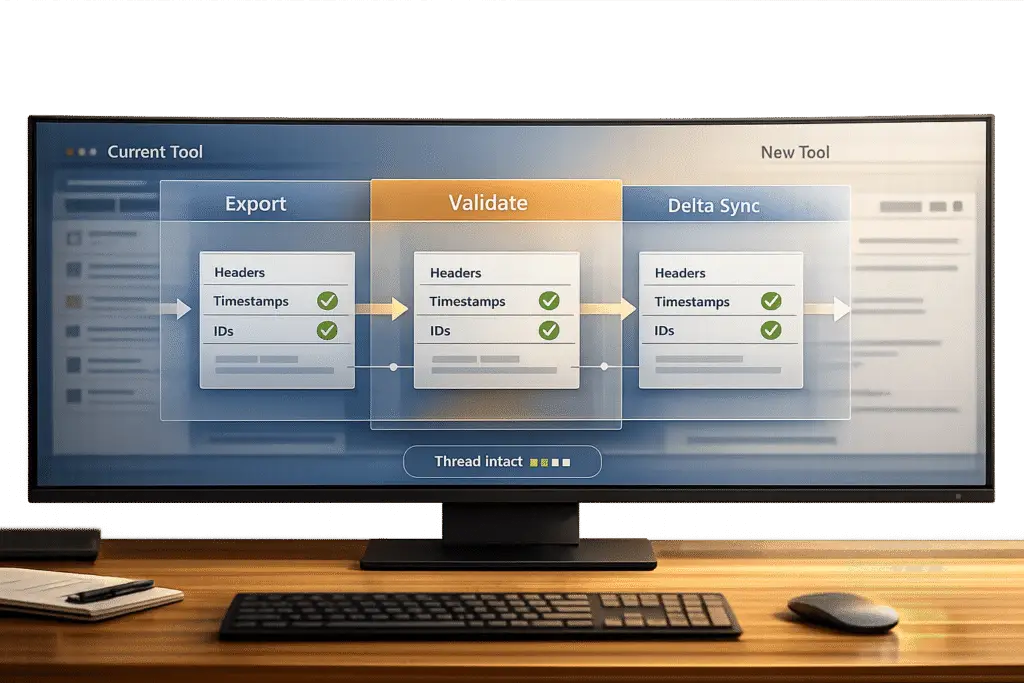
Email threading is critical for maintaining clear and organized communication during migrations. It links related messages into a single conversation using metadata like Message-ID and In-Reply-To headers. However, over 80% of migration projects face issues like broken threads due to lost metadata or altered subject lines, leading to fragmented communication and customer frustration.
To prevent this, here’s a quick guide:
- Understand email threading: Metadata (e.g., Message-ID, References) connects replies to the original email.
- Pre-migration planning: Audit high-priority threads, document metadata, and map dependencies.
- Protect metadata: Use standardized export formats (e.g., EML, MBOX) and validate data integrity.
- Configure threading rules: Align threading logic on the new platform with the old system.
- Post-migration validation: Spot-check threads, compare ticket counts, and fix broken links.
- Staged migrations: Transfer older data first, then sync active cases to reduce disruptions.
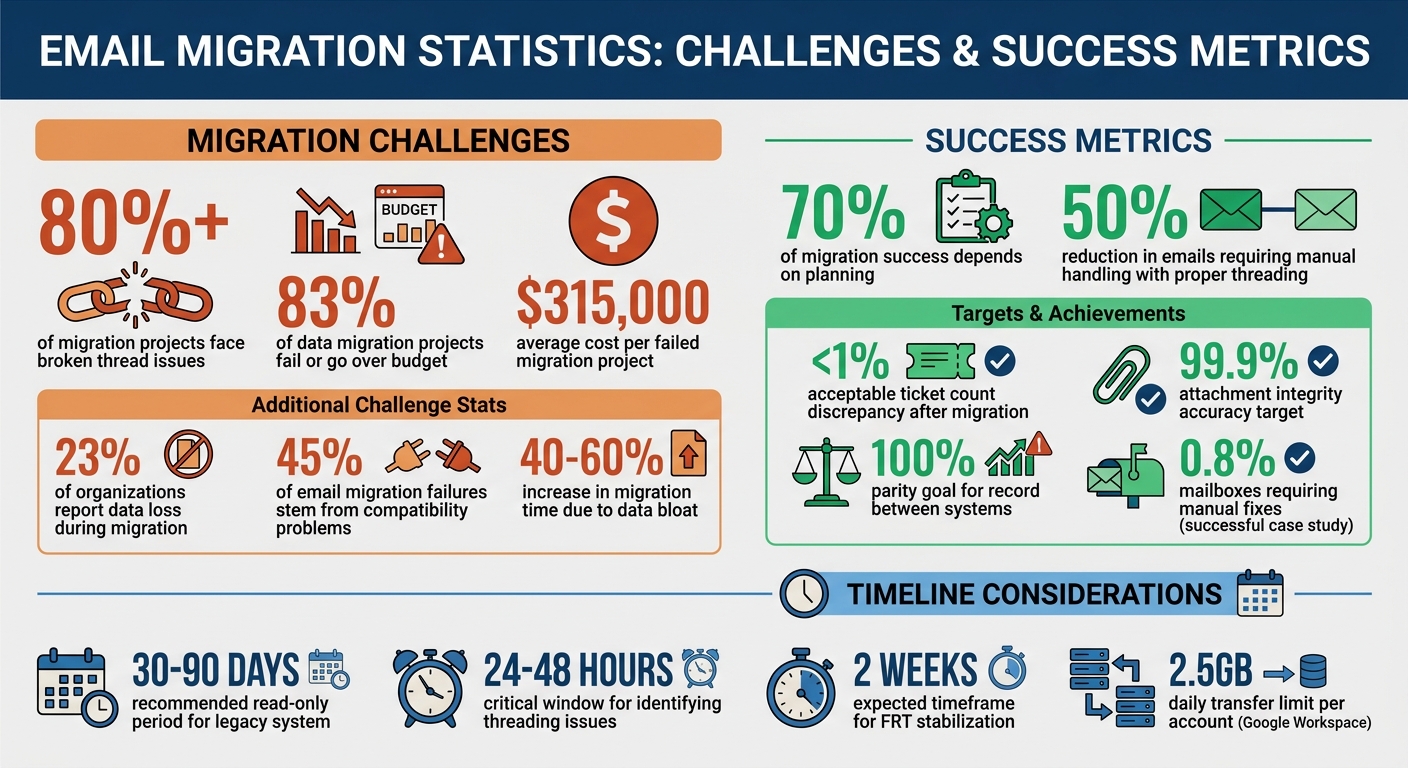
Email Migration Statistics: Costs, Failures, and Thread Integrity Metrics
Talking Tech: How Does Email Threading Work
Understanding these technical mechanics is crucial when upgrading your ticketing platform to ensure data integrity remains intact.
sbb-itb-e60d259
How Email Threading Works in Support Platforms
Email threading operates on a foundation of embedded metadata, going beyond just the visible subject line. Three technical elements are key to linking emails within a thread: Message-ID (a unique identifier assigned to each email), In-Reply-To (which references the Message-ID of the email being replied to), and References (a list of all Message-IDs in the conversation chain) [4]. Together, these elements create a trail that connects replies back to the original email, ensuring a structured conversation flow.
Modern support platforms also embed encoded IDs directly into the email body or support addresses (e.g., [1G7EOR-0Q2J] or support+id1G7EOR-0Q2J@company.com). This ensures accurate thread matching, even if the subject line changes. To maintain continuity, the system sequentially examines email headers, scans the body for identifiers, and checks recipient addresses.
Core Components of Email Threading
Support platforms build on this metadata with additional mechanisms to strengthen thread integrity. For example:
- Normalized subject lines: Systems strip prefixes like "Re:" or "Fwd:" to group messages when technical headers are unavailable or corrupted [4][6].
- Timestamps: These help determine the chronological order of messages, with some systems allowing for time variances (up to 30 hours) to account for server discrepancies [4][6].
- Participant metadata: Information from fields like From, To, CC, and BCC ensures threads remain relevant to the appropriate parties and identifies all stakeholders in complex B2B conversations [4][5].
Advanced platforms also use proprietary metadata, such as Conversation Index or Thread ID, to group emails even when the body text changes or recipients are updated [4][6]. To recognize a message as part of a thread, the system typically requires an "Email From" field along with at least one other element, such as the Sent Date, Subject, or a recipient field [4]. This layered approach can cut down the number of emails requiring manual handling by up to 50% [7].
How Email Threading Improves Support Operations
These technical measures directly benefit support teams by giving agents access to complete conversation histories. With intact threads, agents can manage conversations seamlessly, receiving all relevant context with each new message – no need for time-consuming searches [8]. This is especially crucial in B2B scenarios where cases like refund requests or technical troubleshooting may stretch over days or weeks and involve multiple stakeholders.
Threading tracks every step in the interaction (e.g., complaint → request for information → customer reply → resolution), providing agents with the context they need to resolve issues effectively. This can significantly improve first-contact resolution rates [8]. On the other hand, when email threading fails, escalation rates can exceed 40%, as agents often lack the context needed to resolve issues efficiently [8]. For new team members, threaded emails also act as a built-in guide, showing how similar cases were resolved from start to finish.
Pre-Migration Assessment and Planning
Before transferring any email threads, it’s essential to fully understand your current data setup. Did you know that planning accounts for a whopping 70% of a migration’s success[2]? Yet, many teams rush through this stage, only to face broken threads and lost context later on. Think of this step as an opportunity to identify every dependency, custom setting, and structural relationship that keeps your threads intact.
This isn’t just about counting tickets – it’s about creating a data inventory. Map out conversation links, pinpoint key metadata, and flag threads that might be at risk. Skipping this step could lead to fragmented threads and missing context, which no one wants.
Document Your Threading Requirements
Start by thoroughly documenting how threading works in your current system. This means recording each message’s unique identifier, parent-child relationships, and timestamps[3]. These details are crucial for keeping threads intact.
But don’t stop there. Include essential metadata like sender and receiver info, custom fields that influence threading logic, and any inter-ticket links that connect related issues[3]. If your system uses custom fields like "Urgency" or multi-select tags, be sure to document how these influence threading. Creating a detailed field mapping document will help prevent data from ending up in the wrong place – or worse, disappearing entirely[2].
"To preserve threads, import messages in chronological order maintaining parent-child relationships and unique identifiers." – Cobbai Blog[3]
You’ll also need to account for any limitations in the target system. For example, check API limits and configuration requirements to ensure the new platform can handle the imported data properly[3]. With a complete thread map in hand, you can now identify threads with the highest impact.
Audit High-Priority Threads
Once you’ve outlined your threading requirements, it’s time to focus on the most critical conversations. Active tickets should take priority to ensure ongoing issues are fully preserved[2].
Focus your audit on threads from the last 6–12 months. Older threads – especially those over two years old – are often inactive and can be archived instead of migrated live[2]. Within this timeframe, target threads that are more complex, like those with custom fields, HTML formatting, inline images, or large attachments. Review 20–30 tickets from different dates to catch potential issues, such as truncated messages or broken formatting, before they disrupt the migration process[2].
Pay close attention to threads with structural dependencies, like those with parent-child relationships or linked unique identifiers. These must remain intact during migration to preserve the full conversation history[3]. If these connections break, agents could lose critical context, leading to more escalations as they try to piece everything back together. By carefully planning and auditing, you’ll set the stage for a smooth migration while keeping thread integrity intact.
Preserve Metadata During Data Export
Once you’ve pinpointed your high-priority threads, the next step is to make sure metadata stays intact during the export process. This is often where migrations encounter serious issues. Around 23% of organizations report some level of data loss during migration, while 45% of email migration failures stem from compatibility problems. These failures can cost an average of $315,000 per project[13]. Many of these problems arise because teams overlook the metadata that connects and organizes threads.
The challenge isn’t just about transferring messages – it’s about ensuring the metadata that ties conversations together remains intact. Key header fields like Message-ID, In-Reply-To, and References, along with platform-specific identifiers like Microsoft Conversation Index or Gmail Message ID, are crucial for maintaining the links between replies and original messages[4]. Beyond these, organizational metadata – such as tags, labels, folders, custom fields, internal notes, and private comments – is particularly vulnerable and often gets lost during migration[2][11]. Even timestamps are critical; if they’re reset to the migration date instead of reflecting the original send date, the entire conversation history can become disorganized[3].
Use Standardized Export Formats
Opting for standardized formats like EML, MBOX, or PST can help preserve both basic and advanced metadata fields necessary for threaded conversations[4][12]. These formats maintain core email headers (From, To, Date, Subject) and advanced metadata, ensuring parent-child relationships in email threads remain intact. If you’re using the IMAP protocol, flags like --syncinternaldates (to retain original timestamps) and --uidl (to avoid duplicate copies) can be extremely helpful[12].
For example, an education provider in December 2025 successfully migrated 12,400 mailboxes using imapsync with XOAUTH2 tokens. They set up an automated validation pipeline using Python to store message checksums in Elasticsearch for auditing. By running hourly delta syncs and using 15-minute MX TTLs, they completed the cutover in 72 hours. Only 0.8% of mailboxes required manual fixes, and those issues were caused by alias problems rather than metadata loss[12].
Where possible, leverage API-based tools like Microsoft Graph or Google Workspace Migrate. These tools are better equipped to handle complex metadata and can bypass rate limits that often slow down basic IMAP transfers[12].
Once you’ve selected a standardized format, shift your focus to measures that ensure no metadata is lost during the export process.
Prevent Metadata Loss
Even with the right export format, metadata can still be at risk. Common issues include broken folder structures, missing flags or labels, and the "phantom node" effect – this happens when server-applied confidentiality footers create identical message segments that appear unique, disrupting thread continuity[9][4]. Gmail labels, for instance, often get converted into folders in other systems, which can lead to duplicate emails and increased storage needs[13].
Automation settings, email filters, and rules are another area of concern. As noted by the Superhuman team:
"Email filters and rules do not transfer between platforms. Filters and rules exist separately from email message data. You’ll rebuild everything by hand."[13]
To address this, document your settings with screenshots before migration so you can manually recreate them later.
To minimize metadata loss, test for integrity early. Compare item counts across all folders and check exported files (PST, MBOX) immediately after export[13]. Clean up your mailbox beforehand by removing spam and duplicates – data bloat can increase migration time by 40–60%[13]. Automated scripts can help by comparing message counts and sampling message hashes between the source and destination[12]. Keep in mind that Google Workspace enforces a 2.5GB daily transfer limit per account, which could extend timelines for large mailboxes[13].
"Design migration automation like production software: idempotent, observable, and reversible." – antimalware.pro[12]
Always prepare a reverse sync script with UID-aware flags to handle duplication if a cutover needs to be rolled back[12]. Once you’ve validated the metadata, you’re ready to configure threading rules in the new platform, laying the groundwork for a smooth transition.
Map and Configure Threading Rules in the New Platform
Once you’ve completed the metadata export, the next step is to reconfigure threading logic on the new platform. Different systems group conversations in unique ways, so if the threading rules don’t align, it could break apart threads that were intact in the original system. The aim here is to make sure the new platform interprets message relationships just as the old one did. That way, agents can access complete, chronological conversations from the start. This step is where the export process connects with the detailed configuration needed for smooth operations in the new system.
Set Up Threading Rules
To rebuild the conversation tree, map the three key RFC 5322 headers: Message-ID, In-Reply-To, and References [14].
"The threading mechanism relies on three standard email headers defined in RFC 5322… Together, these three headers allow any email client to reconstruct the full conversation tree." – Afterdraft Team [14]
As a backup, set up subject-line matching for cases where these headers are missing [1][14]. Include unique identifiers like ticket numbers or order IDs in subject lines (e.g., "Re: Order #12345"). This ensures the system can still group messages when technical headers fail [1]. If the new platform uses internal Conversation IDs to simplify header handling, confirm these IDs are mapped correctly during the import process [14].
Make sure to import messages in strict chronological order to maintain parent-child relationships [3]. Additionally, preserve inter-ticket links and references to related customer data so agents can see the full context of connected issues. Before importing, clean the source data thoroughly – duplicates or errors in the data can disrupt even the most carefully configured threading logic.
Test Threading with Sample Data
After setting up the threading rules, test your configuration with a controlled sample. Start by piloting a subset of conversations to identify any mapping errors [11][15]. Focus on complex or high-priority threads, manually reviewing them to confirm that messages appear in the correct order and replies are properly linked to their parent messages [3].
Test the fallback logic by removing headers from sample emails and sending them to the new platform. The system should still group messages based on subject lines, sender-recipient pairs, or even time proximity [14]. Use emails from various clients like Gmail, Outlook, and mobile apps to ensure the platform handles different header behaviors effectively [14]. When testing, always use "Reply" instead of "Forward", as forwarding generates a new Message-ID and disconnects the message from its original thread [1].
Run pre- and post-migration reports on your sample data to compare metrics like conversation counts and response times. A professional migration aims for 100% parity in record counts between the old and new systems, with attachment integrity verified at 99.9% accuracy using checksums [11]. If you notice any discrepancies, tweak your configuration before moving forward. Finally, have support agents test the migrated threads in the new interface – they’re often the first to spot broken threads or missing context that automated checks might overlook.
Validate Thread Integrity After Migration
Once you’ve preserved metadata, the next step is to confirm that thread integrity remains intact after the migration. Right after the migration, check that email threads are complete and functioning as expected. Compare the total number of tickets to your legacy data, and investigate any discrepancies exceeding 1% [2]. Additionally, conduct focused reviews to ensure conversations flow seamlessly.
Spot-Check Critical Threads
Take a random sample of 30–50 high-priority tickets and compare them side-by-side with the legacy system [2]. Pay special attention to active customer threads, as issues here can disrupt operations. Ensure messages are displayed in the correct chronological order, and that replies are properly linked to the original messages [3]. Look for signs of missing replies, lost attachments, incorrect field mapping, or formatting issues like broken HTML or missing inline images [2][16].
It’s also crucial to verify that internal agent notes remain private. If comments meant for internal use become visible to customers on the new platform, it could result in a privacy violation [2]. To mitigate potential issues, keep the legacy system in read-only mode for 30 to 90 days after migration. This allows agents to reference the original threads if anything seems off [2].
Define Success Metrics
After confirming the integrity of individual threads, establish measurable benchmarks to gauge the overall success of the migration. These benchmarks should ensure minimal thread fragmentation and ticket count discrepancies under 1% [2][3]. While First Response Time (FRT) may temporarily increase during the adjustment period, it should stabilize or improve within two weeks [2]. Similarly, agent throughput (tickets resolved per agent per day) might dip initially but should recover and eventually improve as teams adjust to the new system [2]. Monitor customer satisfaction (CSAT) closely, ensuring it remains steady during this transition phase [2].
| Metric | Success Criteria | Notes |
|---|---|---|
| Ticket Count Discrepancy | < 1% | Compare totals between source and target [2] |
| Thread Fragmentation Rate | Minimal | Percentage of threads with broken links [3] |
| First Response Time (FRT) | Stable or Improved | Should recover after the learning period [2] |
| Agent Throughput | Temporary drop, then increase | Tickets handled per agent per day [2] |
| CSAT | Stable | Watch for any dips in the first two weeks [2] |
If issues like incomplete threads or missing data are identified, perform a delta migration [10]. This final step ensures any gaps are filled and the migration is complete.
Reduce Disruption During Migration
Data migration projects can be tricky, especially during the migration window when support operations are at their most vulnerable. In fact, 83% of data migration projects fail or go over budget and scope [18]. A major reason for this is attempting to migrate everything all at once. To maintain email threading during this delicate period, it’s crucial to pace the migration carefully and manage incoming messages strategically.
Use Staged Migrations for Active Cases
Instead of migrating everything in one massive move, break the process into smaller, manageable phases. Start by transferring emails older than three months [10]. These older messages are less likely to disrupt active support cases since customers rarely respond to them. This phased approach also lets you confirm that email threading remains intact on the new platform before moving on to newer data.
For large-scale migrations, aim to move data in batches of 500,000 to 800,000 items. This helps avoid service throttling and keeps performance steady [19]. Segment the data by criteria like department, location, or ticket age instead of doing a full cutover. This method allows both the old and new systems to coexist, so agents can continue working on either platform as the migration progresses [20][21].
Once historical data is safely migrated, focus on the more recent emails from the past 90 days. Follow this up with delta migrations (also called "Copy if newer" mode) to catch any emails that arrived or were updated since the last sync [19][21]. This incremental process avoids overwriting updates made during the transition and ensures the chronological flow of messages stays intact for proper threading. With the phased migration complete, attention can shift to handling new emails arriving during the transition.
Handle Incoming Emails During Migration
Incoming emails during the migration period can disrupt threading if not managed properly. If new messages land in the old system while agents are working in the new one, threads can fragment. To minimize this risk, reduce your DNS TTL (Time-to-Live) to 3,600 seconds or less at least 24 hours before the final cutover [17]. This ensures that when MX records are updated to point to the new platform, the change propagates faster.
Before updating MX records, convert migrated mailboxes into mail-enabled users. This step ensures that all new emails are routed directly to the new system, even as the remaining data continues to migrate [17]. After the final cutover, perform one last delta sync to capture any emails that arrived during DNS propagation [10]. This final sync ties up loose ends, ensuring no recent emails are missed and that threading continuity is preserved throughout the migration process.
Troubleshoot and Repair Threads After Migration
After completing your pre-migration planning and post-migration validation, it’s time to focus on troubleshooting and ensuring thread integrity. Most threading issues tend to surface early, so the first 48 hours are critical for identifying and resolving problems. Start by comparing ticket counts between the old and new systems – if you notice a discrepancy greater than 1%, investigate immediately [2]. Once you’ve addressed any discrepancies, work on reconnecting broken threads and keep an eye out for further errors.
Reconnect Broken Threads
Broken threads can lead to misordered messages, orphaned replies, or duplicate tickets. These issues are often caused by corrupted header data, particularly in the In-Reply-To and References fields that link messages together. To diagnose the problem, examine the "Source" header and look for matching ID strings. If these IDs are missing or static, emails may fail to thread correctly, creating new tickets instead of attaching to the appropriate conversation.
During the first 48 hours, review a sample of 30–50 tickets [2] to check for issues like missing replies, lost attachments, or messages appearing out of order. Compare these tickets with the original system to ensure they maintain proper chronological order. If you find emails attached to the wrong ticket, the best solution is to create a new ticket with the correct content and set clear expectations with the customer. Keep in mind, most systems don’t support forcing a native "split" to reorganize threads.
Monitor for Threading Errors
Once immediate thread issues are resolved, shift your attention to ongoing monitoring. Designate a point person for the first week after migration to handle threading problems without interrupting customer-facing operations [2]. This ensures agents have a clear process for reporting issues as they arise. Pay close attention to the support queue during the first 24 to 48 hours, as agents are often the first to notice when workflows are disrupted. Their feedback can help identify systemic errors that automated checks might overlook [2].
Gather structured feedback at the one-week and four-week marks while also monitoring key metrics like first response time and ticket volume. A sudden increase in these metrics could signal customer confusion or duplicate requests caused by fragmented threads [2].
Conclusion
Maintaining email threading during support tool migrations requires careful planning, attention to metadata, and thorough validation. Statistics show that over 80% of data migration projects go over budget or fail to meet goals, often resulting in data loss, disrupted workflows, and costly fixes [2].
To ensure proper threading, start by understanding how your system connects messages. Key elements like the "Email From" field and at least one identifier – such as Sent Date, Subject, or CC – must be preserved during export [4]. Additionally, mapping platform-specific identifiers like Gmail’s "Message ID" or Microsoft’s "Conversation ID" can help improve threading accuracy [4].
Before migration, clean up the data by removing duplicates, standardizing tags, and running test migrations with 50–100 tickets [2]. Using a phased approach – migrating historical data first and then syncing active conversations – can reduce disruptions to ongoing support [10].
After migration, validate data integrity by ensuring ticket counts match within a 1% margin [2], checking 30–50 tickets for missing replies or attachments [2], and keeping the old system in read-only mode for 30–90 days [2]. These steps help maintain smooth operations and uninterrupted customer interactions. By following these practical strategies, your support team can ensure seamless conversation continuity throughout the migration process.
FAQs
Which email headers matter most for threading?
The In-Reply-To and References headers are key for keeping email threads intact. These headers hold unique message IDs that connect replies to their original emails, allowing email systems and support tools to properly match responses with the correct conversation. Ensuring these headers remain intact during migrations or integrations is critical for maintaining smooth communication flow.
How can we verify threads stayed intact after migration?
To keep email threads intact after migration, it’s crucial to validate that both conversation flow and metadata remain consistent. Start by comparing the original and migrated tickets to ensure message sequences, timestamps, and references align properly. Tools like AI-based solutions or automated workflows can help verify threading integrity by examining matching identifiers or metadata.
For added accuracy, manually spot-check a selection of tickets and run validation scripts to confirm threads are continuous and correctly linked. This approach helps minimize the risk of losing important context during the migration process.
What’s the safest way to migrate active support tickets?
When moving active support tickets to a new system, maintaining email threading and conversation flow is critical. Here’s how to ensure a smooth process:
- Validate data after migration: Double-check that all information transferred correctly and test workflows to confirm everything functions as expected.
- Leverage migration tools: Use tools designed to preserve ticket relationships, conversation threads, and metadata. This ensures no critical details are lost.
- Conduct pilot migrations: Start with a small batch of tickets to spot and resolve potential issues before a full-scale migration.
- Reduce downtime: Use delta migration to capture ongoing updates and minimize disruptions during the transition.
Careful planning is key. Clean up your data, configure the new system properly, and address potential challenges ahead of time. This preparation helps avoid hiccups and ensures a seamless migration.
Related Blog Posts
- How do you migrate Salesforce Email-to-Case conversations without breaking threading?
- How do you migrate email threads from Pylon and keep replies properly linked?
- How do you preserve email threading when migrating from HappyFox?
- How do you preserve email threading and customer context when leaving Help Scout?
Evaluating help desks for a B2B team?
Supportbench is all-inclusive from $32 per agent per month, with migration and onboarding included. See pricing or book a 20-minute demo.