


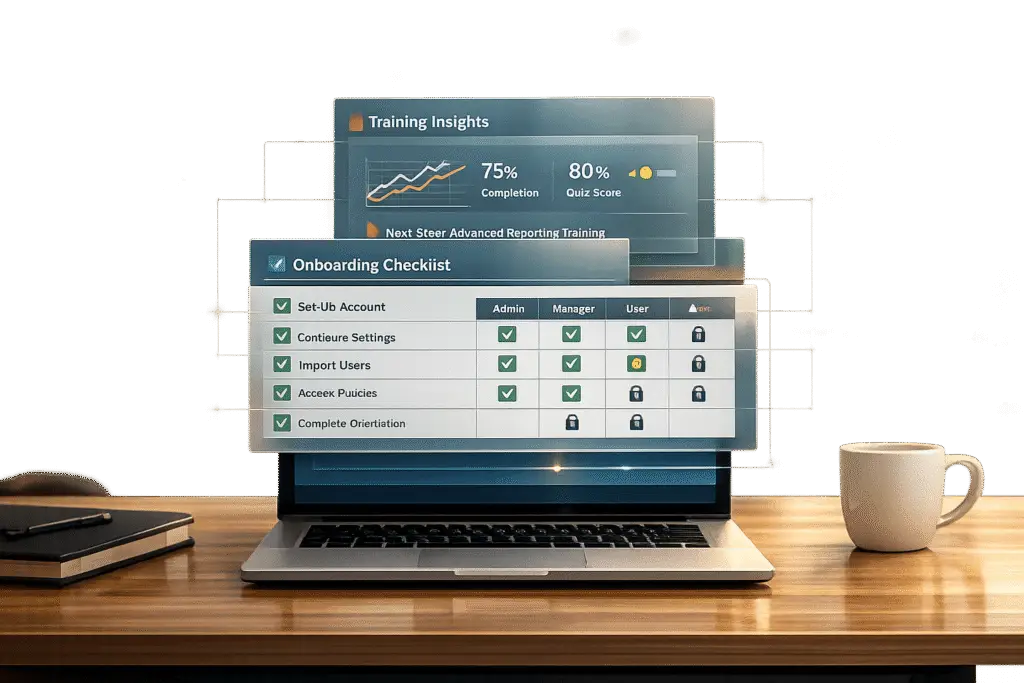
Admins are the backbone of your B2B SaaS platform’s success. They manage user access, security settings, and compliance, directly influencing platform adoption and retention. Yet, many companies fail to provide tailored support, leading to inefficiencies and frustration.
Here’s how to fix that:
- Onboarding: Prepare admin accounts with the right permissions, use sandbox environments for practice, and set clear goals during kickoff sessions.
- Permissions Management: Design roles based on job functions, not individuals. Test permissions thoroughly before launch and automate updates with tools like SCIM.
- Training Materials: Create role-specific guides for admins and end users. Focus on outcomes, not steps, and use AI to personalize content and keep it current.
- AI Integration: Automate repetitive tasks, monitor admin activity, and track key metrics like Time to First Value (TTFV) to improve engagement.
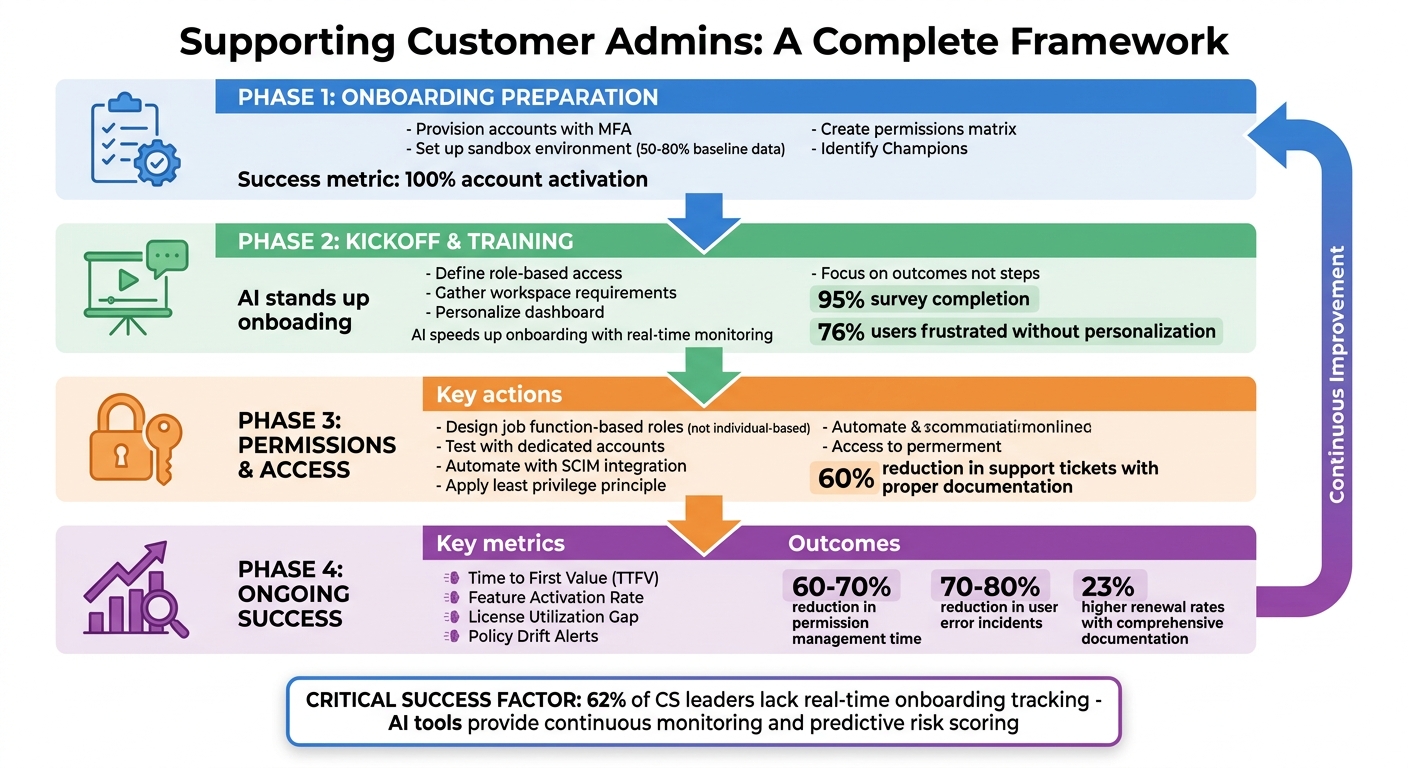
Complete Admin Support Framework: Onboarding to Long-Term Success
How to Onboard Customer Admins
Preparing Before Onboarding Begins
Getting ready for onboarding starts well before the kickoff call. First, set up admin accounts with the right permission groups and enable multi-factor authentication (MFA) for added security[4]. Build a sandbox environment that mimics the production setup and fill it with test records to let admins practice workflows safely[4].
Load a partial baseline dataset – covering about 50–80% of active records – to create realistic training scenarios[4]. Next, organize licenses by user type and decide on an identity model (cloud-only or hybrid) to ensure smooth authentication from day one[3].
Identify key "Champions" within the customer’s team. These power users can assist their peers and provide valuable feedback during the rollout[4]. Additionally, prepare an admin-specific guide that includes user management, security configurations, and a permissions matrix. A simple Yes/No table mapping actions to roles can be a game-changer, often becoming the go-to resource for admins[1].
| Onboarding Phase | Key Preparation Task | Success Metric |
|---|---|---|
| Pre-Kickoff | Provision accounts & set permissions | 100% account activation[4] |
| Environment | Set up sandbox with baseline data | 3 successful "smoke-test" signoffs[4] |
| Documentation | Create Permissions Matrix | 60% reduction in support tickets[1] |
| Kickoff | Live goals & KPI briefing | 95% survey completion rate[4] |
Running the Onboarding Kickoff
The kickoff meeting is where you set the tone for the partnership. Clearly define system access by role – for example, Level 1 versus Level 3 Support – and outline the data and actions available to each role[2].
Use this meeting to gather critical context: workspace setup, role definitions, integration needs, and the team’s primary goals[5]. Personalization is key here – 76% of users feel frustrated when interactions lack a personal touch[5]. Walk through the admin portal, customize dashboard cards to highlight relevant alerts, and review licensing to ensure admins understand what’s included in their plan[3].
Focus on outcomes, not just navigation. For instance, instead of saying, "Click Settings, then Users", frame it as, "To enforce strong passwords for all users, go to Settings > Security"[1]. Explain the impact of key settings changes, and include visual warnings in both the documentation and the user interface to help admins avoid mistakes like accidental lockouts[1].
Using AI to Speed Up Onboarding
AI tools can make onboarding faster and more efficient. They monitor progress in real time, suggest next steps, and handle repetitive tasks like resending invites or rotating API keys[5]. By capturing details like workspace ID, admin role, and goals, these tools can offer personalized guidance tailored to the admin’s needs[5].
AI can also simplify documentation by converting complex admin panel screenshots into clear, step-by-step instructions, saving time and effort[1]. Make sure AI suggestions are aligned with the admin’s permissions to avoid confusion or errors[5].
"The fastest way to earn trust is a bot that is honest about uncertainty and hands off cleanly." – Apptension[5]
For more complex issues, program the AI to escalate to a human agent when it lacks context or confidence in its responses[5]. For potentially destructive actions, require two-step confirmations and ensure proper logging for accountability[5]. Additionally, connect AI tools to internal APIs so they can diagnose setup errors, like failed webhook deliveries, and recommend immediate fixes[5].
These strategies streamline the onboarding process and set the stage for smooth permissions setup in the next steps.
sbb-itb-e60d259
B2B Client Onboarding Plans: Best Practices to Build or Maintain
Setting Up Permissions and Role-Based Access
With onboarding in place, setting up precise, role-based permissions ensures your platform operates smoothly in the long run.
Creating Role-Based Permissions
When designing permissions, focus on job functions rather than specific individuals. For example, roles like "Billing Administrator", "Data Ingestor", or "Analytics Viewer" make it easier to manage access as your team grows and evolves [6][7]. This approach avoids confusion and keeps your setup organized.
Use clear naming conventions that describe both the role’s function and its level of access. For instance, "Branding Manager" is much more descriptive than "Design Team" [6]. While configuring roles, you’ll need to define role names, assign permission categories, group roles, and double-check everything using the Permissions Preview tab [6][7].
Stick to the principle of granting only the permissions necessary for each role. Permissions are cumulative, meaning users with multiple roles inherit the combined access of all their assigned roles [6][7]. For more control, limit permissions to specific objects instead of granting global access. For instance, someone might need "Query Agent" permissions for one AI agent but only "Read Documents" access for specific datastores [7].
| Permission Category | Example Scopes/Actions |
|---|---|
| User Management | View users, manage attributes, configure custom SSO |
| Configuration | Manage environments, configuration variables, IAM credentials |
| Organization | Access audit logs, usage analytics, billing, and spaces |
| AI/Assist | Use "Assist" with Build/Ask modes, manage AI agents |
| Data/Resources | Edit query library, read/manage documents in datastores |
Once your roles are set up, it’s time to test them thoroughly.
Testing Permissions Before Going Live
Before rolling out new permissions, test them with a dedicated account. Assign the role to a test user – or even your own account – and confirm that the access matches your expectations [7]. Avoid using a creator account for testing, as these accounts often have default owner permissions that can skew results [7].
Pay attention to prerequisite permissions during testing. For example, a user cannot operate an agent without also having read access to its connected datastores [7]. Use the "Permissions preview" pane to identify any missing permissions early. If your platform offers a "Quick Fix" feature for validation errors, take advantage of it to resolve gaps automatically [7]. Reviewing a user’s profile in your member management tools can also help you see which permissions come from group memberships versus those assigned directly – this can be a lifesaver for troubleshooting [7].
Encourage users to refresh their browsers after permissions are updated. Regular audits of group memberships and role assignments are also essential to prevent "permission creep", where users accumulate more access than they need over time [6].
Automating Permissions with AI Tools
Once your manual setup is validated, consider automating routine permission updates to save time and reduce errors.
AI tools can simplify permissions management significantly. For example, platforms that support SCIM (System for Cross-domain Identity Management) can automatically sync user groups with your identity provider (IdP). This means when someone joins or leaves a team, their permissions are updated automatically [8][7]. Automation like this minimizes manual effort and ensures permissions stay current.
Some platforms also create an "owner" role by default when a user sets up a new AI agent or datastore, giving them immediate management rights for that resource [7]. To streamline workflows even further, create custom roles tailored to specific tasks. Examples include "Model Tester" for evaluating AI models or "Data Ingestor" for managing particular datastores [8][7].
To keep permissions aligned with your organization’s structure, assign roles to groups in your IdP rather than to individuals. This way, when team members change, permissions adjust automatically [8]. Start with preset roles that follow the principle of least privilege, then add specific permissions – like "Fine-tuning" or "File Write" – only when necessary [8][6]. Always test roles with a non-owner account to confirm access to dashboards and APIs [8]. Keep in mind that in larger systems, role changes may take up to 30 minutes to fully propagate across the platform [8].
Building Training Materials for Customer Admins
Once permissions are established, the next step is creating role-specific training. Admins need detailed, technical guides that cover provisioning, security protocols like SSO and 2FA, billing processes, and integrations [9]. On the other hand, end users benefit from straightforward instructions for tasks such as accessing materials, updating profiles, and tracking their progress [9]. Companies that prioritize comprehensive admin documentation report 23% higher renewal rates [1], making this effort a smart investment.
Different Training for Admins vs. End Users
Training content should align with the permissions and responsibilities of each role. For example, admins require guides that explain the impact of enabling SSO enforcement, such as logging out active users [1]. Managers or team leads need training centered on oversight tasks, like assigning responsibilities, viewing team-level analytics, and monitoring compliance [9]. End users, however, benefit from bite-sized lessons tailored to their simplified interface, focusing only on the actions they can perform [9].
"Admins are your most important users, and they are the most underserved by documentation." – ScreenGuide Blog [1]
A Role Permission Matrix can be an invaluable tool here. By mapping out every role’s permissions in a Yes/No grid, this resource becomes a go-to for admins managing complex setups [1]. Pre-configured roles such as Admin, Manager, and Learner typically meet the needs of 90% of organizations [9]. Start with these defaults, expanding only as necessary. Role-based notifications are another helpful feature – admins can receive system health alerts, while end users get reminders about deadlines [9].
This tailored approach ensures training materials are relevant and simplifies even the most complex processes.
What Types of Training Materials to Create
When developing training materials, focus on outcomes rather than step-by-step navigation. For instance, instead of saying, "Click Settings, then Users", frame it as "To enforce strong passwords…" [1]. Annotated screenshots with clear callouts can help highlight specific fields, especially in dense admin interfaces [1]. Include warnings for actions with significant consequences, such as deleting users or resetting organization-wide passwords [1]. Provider-specific SSO guides can also cut down on support tickets by as much as 60% [1].
For troubleshooting, structure knowledge base articles using a "Symptoms, Cause, Fix, Prevention" format. This layout makes it easier for users to find quick solutions and works well with AI tools that retrieve answers [5]. Create a settings reference table that lists every admin setting along with its description, default value, and possible options. This makes auditing faster and more efficient [1]. To streamline training, set up role-based enrollment, which automatically assigns training modules to users as soon as their accounts are created [9].
How AI Can Improve Training Content
AI can play a powerful role in enhancing training content, much like it does in onboarding and permissions management. By analyzing product signals – like integration statuses, error logs, or ticket keywords – AI can suggest personalized "next best actions" for admins and highlight areas where new training materials are needed [5]. Using Retrieval-Augmented Generation (RAG) ensures that AI-generated training content stays grounded in your most current documentation, reducing the spread of outdated information [10].
"If your KB is wrong, your assistant becomes wrong at scale." – Apptension [5]
To make AI even more effective, configure it with "permission-aware prompts" so it only suggests actions that admins are authorized to perform [5]. You can also track the freshness of documentation by setting rules that prioritize pages reviewed within a specific timeframe, preventing the AI from referencing outdated materials [5]. AI tools can even convert screenshots into step-by-step admin guides, saving time and effort [1]. Regularly review admin guides – quarterly, for example – with your Customer Success team to identify recurring questions that point to gaps in your documentation [1].
Measuring Adoption and Success
Onboarding and training are just the starting point – keeping admins engaged over time is what truly determines success. Interestingly, 62% of Customer Success and onboarding leaders admit they lack real-time tracking of onboarding progress [13]. Without measuring customer service metrics, you’re left making assumptions rather than improving your process.
Rolling Out in Phases and Collecting Feedback
A phased rollout is a smart way to identify issues early. Start by testing with a small group of 5–10 admins who represent different use cases. For example, include an admin from a large enterprise, one from a mid-market company, and others from various industries. Run this pilot for 2–3 weeks to test your onboarding flow, permissions, and training materials. Pay attention to recurring issues like gaps in training or inconsistent policy adherence.
"No onboarding process is set in stone. It is dynamic, with the potential for improvement lying in every interaction, every click, and every user feedback loop."
– Aurora, Strategic Mind, Digital Reach Online Solutions [15]
Once the pilot wraps up, conduct weekly quality assurance (QA) reviews of 20–50 admin interactions. These reviews can highlight common problems, such as repeated questions that point to missing or unclear training. Additionally, track your Customer Effort Score (CES) at key milestones – like the first permission setup or user invitation. High friction here is often an early warning sign of potential churn [13]. Insights from these pilot tests, combined with AI metrics, can help you refine your onboarding strategy even further.
Using AI to Track Adoption Metrics
After collecting feedback, AI tools can offer real-time insights into admin engagement. Advanced platforms can even predict which admins are at risk of disengaging [12]. For example, AI can monitor "Time to First Value" (TTFV), which measures when an admin completes critical actions like connecting an integration or setting up global permissions [5]. These milestones provide a clear view of when admins start seeing the platform’s benefits.
| Metric Category | AI-Tracked Success Indicator | Purpose |
|---|---|---|
| Readiness | Time to Competency | Tracks how quickly admins become confident with essential tasks [11] |
| Adoption | Feature Activation Rate | Measures which tools admins are actively using [11] |
| Productivity | Task Completion Rate | Evaluates how efficiently admins complete their tasks over time [11] |
| Governance | Policy Drift Alerts | Flags deviations from security or compliance standards [17] |
It’s crucial to assess both the range and depth of engagement. Range refers to the variety of features an admin uses, while depth measures how often they perform core tasks [14]. Comparing an admin’s activity to peer groups can also help identify those who might need additional support [17].
Maintaining Long-Term Success
Achieving long-term success means staying vigilant. One way to do this is by tracking license utilization – check the gap between purchased admin seats and the number of active daily users [14]. A low utilization rate could signal that admins aren’t fully understanding the platform’s value or need more training.
Creating a Center of Excellence (CoE) can also help. A CoE ensures that training, documentation, and best practices remain consistent as new admins join [16]. AI can further assist by offering real-time risk and compliance monitoring. Configure AI tools to provide continuous scoring based on admin activity, so you can quickly catch any security or compliance deviations [17].
Conclusion
Effective admin support hinges on three core strategies: structured onboarding, clear role-based permissions, and AI-driven training that promotes confident and efficient adoption. By implementing a 30-day onboarding plan with microlearning modules and sandbox environments, setting up Role-Based Access Control (RBAC) to uphold the principle of least privilege, and utilizing AI copilots for real-time assistance, you create a system that minimizes friction and costs.
Integrating AI to handle routine tasks reduces manual effort and lowers the volume of support tickets, yielding measurable efficiency improvements. For instance, organizations using structured RBAC models report a 60% to 70% reduction in time spent managing user permissions manually, while proper implementation can cut data incidents caused by user errors by 70% to 80% [18]. These advancements not only streamline operations but also mitigate risks.
"A good assistant is not the one that answers everything. It is the one that gets the user to a correct outcome with the least drama."
– Apptension [5]
The goal is to create systems that solve problems, not just respond to them. By deploying Knowledge-Centric Support using Retrieval-Augmented Generation (RAG) for up-to-date training content, enforcing two-step confirmations for critical actions, and piloting AI in shadow mode to build trust, you ensure your AI solutions are both reliable and transparent. This approach allows AI to acknowledge uncertainty and escalate issues to human support when necessary, fostering trust and operational stability [5][10].
Investing in robust onboarding, permission structures, and training – enhanced with AI where appropriate – does more than reduce support costs. It empowers admins to handle complex environments with confidence and independence. This AI-first approach not only cuts expenses but also lays the groundwork for scalable, sustainable growth.
FAQs
What should be in an admin kickoff call?
An admin kickoff call should address essential areas to ensure a smooth start and effective management of permissions. Here’s what to focus on:
- Platform Overview and Admin Responsibilities: Introduce the platform’s core features and outline the key duties of an admin.
- Roles and Permissions Setup: Discuss how to configure roles and permissions to match your organization’s structure and needs.
- User Management Workflows: Cover processes for onboarding new users and securely deprovisioning accounts when needed.
- Security and Compliance Guidelines: Highlight best practices to maintain system security and meet compliance requirements.
- Training and Support Resources: Share available training materials and detail how to access support for ongoing assistance.
By addressing these topics, the call sets the stage for efficient and secure platform management.
How do we prevent permission creep over time?
Preventing permission creep requires consistent management and a proactive approach. Here are some effective strategies:
- Regularly audit and update permissions: Periodically review access rights to ensure they align with current responsibilities. Remove outdated or unnecessary permissions to keep things tidy and secure.
- Apply least-privilege principles: Grant users only the access they need to perform their tasks – nothing more, nothing less.
- Adopt a deny-by-default policy: Start with no permissions and add access only when explicitly required. This minimizes accidental over-permissioning.
Leveraging AI-driven automation can also be a game-changer. Automated monitoring tools can spot anomalies and ensure permissions stay aligned with evolving roles and responsibilities.
Additionally, when designing roles, focus on actual job requirements. Avoid overcomplicating things with excessive or overly specific roles, as these can lead to unnecessary access piling up over time. These steps will help you maintain a secure and efficient permission structure.
Which admin actions should AI never automate?
Automating critical administrative tasks, such as access reviews and segregation of duties (SoD) processes, is not advisable. These tasks demand human oversight to maintain compliance, ensure security, and uphold governance standards. Relying solely on automation could introduce errors or risks that might jeopardize an organization’s integrity.






