


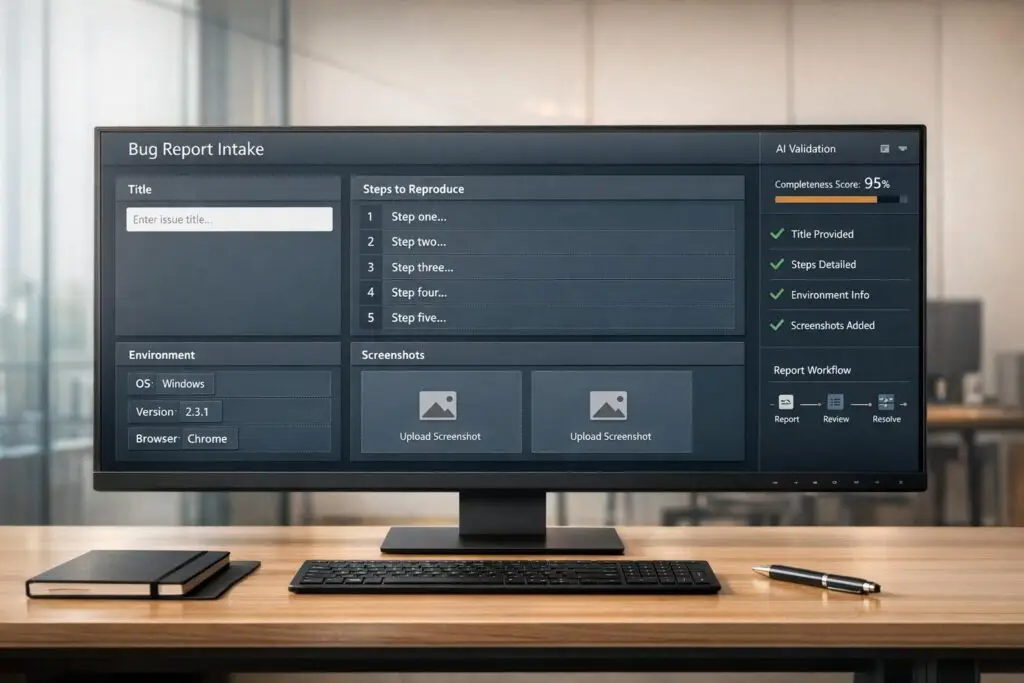
Vague bug reports waste time. Missing details like reproduction steps, environment info, or screenshots slow down issue resolution and frustrate both developers and customers. A clear, structured bug report can cut resolution time by up to 50%.
Here’s what to include in every bug report for faster fixes:
- Title & Description: Focus on facts, not guesses. Example: "[Login] – SSO fails with ‘Invalid credentials’ on Chrome 120 (macOS)."
- Steps to Reproduce: Use precise, numbered steps starting from a known state. Include exact UI actions and note if the issue is intermittent.
- Expected vs Actual Behavior: Clearly state what should happen vs. what actually happens.
- Environment Details: Include OS, browser, app version, device type, screen resolution, and network conditions. Avoid vague terms like "latest version."
- Screenshots & Logs: Visual evidence and logs help developers understand issues faster.
AI tools can further improve the process by validating reports, asking follow-up questions, and auto-filling technical details like browser version or console logs. This reduces back-and-forth and ensures every report is actionable from the start.
Bottom line: Clear bug reports save time and frustration. Use a structured checklist and AI-driven tools to streamline the process and resolve issues faster.
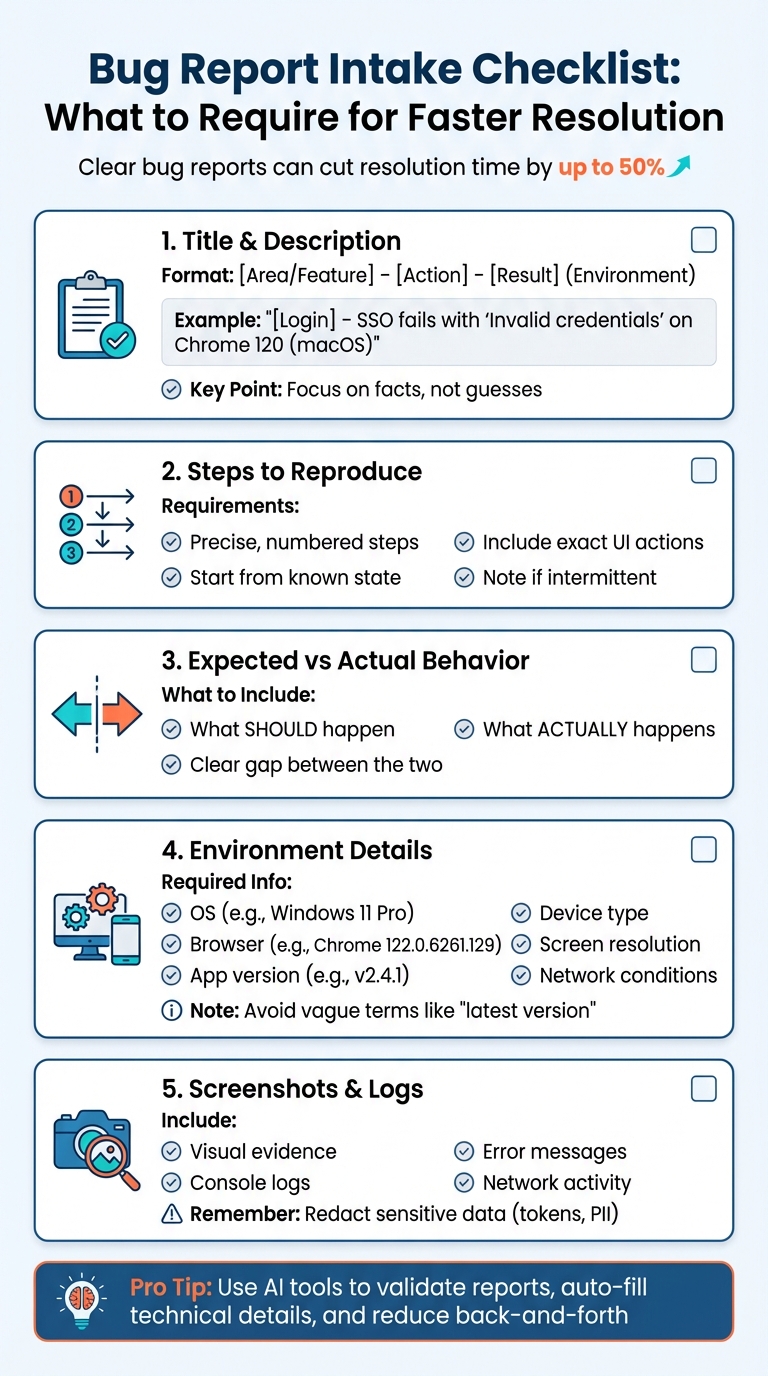
Essential Bug Report Checklist: 5 Required Fields for Faster Resolution
How To Write A Good Bug Report?
sbb-itb-e60d259
Required Fields for Your Bug Report Intake Checklist
A well-structured bug report is like a roadmap for developers. It provides all the key details they need to replicate, diagnose, and fix an issue without a back-and-forth exchange. Here’s a breakdown of the essential fields your intake form should include.
Bug Title and Description
The title should immediately convey what went wrong, where it happened, and under what conditions. Use a format like this: [Area/Feature] – [Action] – [Unexpected Result] (Environment). For example, instead of writing "Login doesn’t work", aim for something like "SSO login fails with ‘Invalid credentials’ error on Chrome 120 (macOS)." This gives your team a clear snapshot of the problem.
In the description, focus on the facts. Customers should report exactly what they observed, such as "Page returns a 500 error", instead of guessing the root cause like "I think the database is down." Encourage them to include exact error messages (e.g., "TypeError: Cannot read property ‘discount’") and to specify details like their user role or actions leading up to the issue. If the bug surfaced after a specific event – like a deployment – make sure that’s noted too.
And remember: one bug per ticket. Combining multiple issues in a single report only complicates things and slows down the resolution process.
Steps to Reproduce
Clear, detailed steps to reproduce the issue are the backbone of any bug report. Developers need precise, sequential instructions to recreate the problem on their end.
These steps should start from a known state and use specific details. For instance, "Log in as a registered user at app.example.com/login" is far better than "When you try to buy something." Avoid vague directions like "try to buy something", and instead name exact UI elements (e.g., "Click Add to Cart on product #4521"). If the issue happens sporadically, note how often it occurs, such as "Reproducible 3 out of 5 attempts."
| Element | Vague | Precise |
|---|---|---|
| Starting Point | "When you try to buy something…" | "Log in as a registered user at app.example.com/login" |
| Navigation | "Go to the product page." | "Navigate to Products > ‘Blue Widget’ (SKU #4521)" |
| Action | "Enter your info." | "Enter promo code SAVE20 and click ‘Apply’" |
| Result | "It crashes." | "Page shows a blank white screen. Console: ‘TypeError: Cannot read property…’" |
Expected vs Actual Behavior
This section highlights the gap between what was supposed to happen and what actually occurred. For example, instead of writing "the button doesn’t work", a better report might say, "The button remains unresponsive, and no network request is triggered." Providing this level of detail helps developers determine whether the issue is a functional failure, a UI glitch, or a misunderstanding of how the feature is supposed to work.
Environment Details
Environment details are critical for pinpointing issues that occur under specific conditions. Your form should ask for:
- Operating system: Include the name and version (e.g., Windows 11 or macOS Sonoma).
- Browser: Specify the name and full version (e.g., Chrome 122.0.6261.129).
- Application version: Provide the exact build or release number (e.g., v2.4.1).
For mobile bugs, include the device model (e.g., iPhone 15 Pro) and note any relevant gestures like swiping or long-pressing. For web apps, screen resolution (e.g., 1920×1080) and the environment (Local, Staging, or Production) are essential details. If network conditions play a role, include information like WiFi strength or 4G connectivity.
Avoid vague terms like "latest version." Always specify exact version numbers.
| Environment Field | Essential Details to Require | Example Format |
|---|---|---|
| Operating System | Name + Specific Version | Windows 11 Pro (23H2) |
| Browser | Name + Full Version Number | Chrome 120.0.6099.129 |
| Application Version | Build number or Release version | v3.2.1-beta |
| Device Type | Hardware model and type | iPhone 13, Desktop, Tablet |
| Environment | Deployment stage | Staging, Production, Local |
| Screen Resolution | Width x Height in pixels | 1920×1080, 375×812 (Mobile) |
| Network | Connection type and strength | WiFi (High Speed), 4G (2 bars) |
Screenshots and Additional Attachments
Visual evidence can save a lot of time. Screenshots or screen recordings show exactly what the customer is experiencing, removing ambiguity.
Encourage customers to include console logs, error messages, and network activity if relevant. For sensitive data, remind them to redact tokens, cookies, or personally identifiable information (PII) with placeholders like <REDACTED>. If sharing specific data isn’t possible, they can describe its structure instead, such as "500KB JSON with two nested arrays."
Modern tools can also help by automatically capturing environment data like browser type, operating system, screen size, and URL, which reduces manual errors and makes the reporting process smoother.
How to Set Up an AI-Driven Bug Report Intake Process
Using AI in your bug report intake process can improve clarity and efficiency, ensuring every report is detailed and actionable. This approach automates key tasks like validation, categorization, and routing, so developers receive the information they need to address issues right away – without unnecessary back-and-forth.
Dynamic Forms for Data Collection
Dynamic forms adapt to user inputs, showing only the fields relevant to the issue being reported. For instance, if someone reports a problem with a mobile app, the form might prompt for details like the device model and OS version. On the other hand, a web-related issue would trigger fields for browser version and screen resolution. This streamlined approach keeps forms short and focused, reducing user frustration and improving completion rates.
These forms can also adjust based on the severity of the issue. For example, if a user marks a bug as "Critical", the form might request additional details, such as the business impact or the number of users affected. To further simplify the process, tools can automatically capture metadata like browser version, screen resolution, and JavaScript console logs, ensuring developers have all the technical context they need [1].
AI Automation for Categorization and Prioritization
AI can analyze bug report content to tag issues, assign priority levels, and route them to the appropriate team. For example, a report stating "can’t complete checkout" might be flagged as urgent and sent directly to the engineering team [2].
This automated triage system distinguishes between severity (how the issue affects functionality) and priority (how quickly it needs to be addressed). For instance, a typo on a homepage might be low severity but high priority due to its impact on brand perception, while a payment gateway error would likely be both high severity and high priority [1]. By using standardized severity scales – such as Critical, Major, Minor, and Trivial – you provide a clear framework for the AI, improving its accuracy when sorting and prioritizing tickets.
"Most teams don’t have a bug quality problem – they have a communication problem. A clear report with a screenshot and reproduction steps can cut resolution time in half." – Radim Hernych, Founder, Ybug [1]
With automated triage in place, tools like Supportbench can further simplify the process with tailored AI features.
Supportbench‘s AI Features

Supportbench offers built-in AI tools that streamline bug report processing without requiring additional integrations. For example, AI ticket summaries create concise overviews when tickets are opened, summarizing customer activity and the full case history at closure. This helps developers quickly grasp the issue without sifting through lengthy email threads.
Predictive prioritization is another key feature. It evaluates ticket content to determine impact and urgency, ensuring critical bugs are flagged right away. Additionally, Supportbench’s AI can auto-tag cases and assign issue types, eliminating the need for manual sorting. For teams handling complex B2B accounts, these features ensure bug reports are seamlessly integrated into development workflows, complete with all necessary context. This reduces delays and speeds up resolution times.
Common Customer Mistakes When Submitting Bug Reports and How to Prevent Them
Building on the essential fields discussed earlier, let’s look at some common mistakes customers make when submitting bug reports and how AI tools can help address them. Even with well-designed intake forms, incomplete or unclear bug reports can slow down resolution times. Recognizing these errors – and using preventive measures – can make a big difference.
Frequent Errors in Bug Reports
One of the most common issues is vague titles like "Something’s wrong" or "It’s broken." These kinds of titles don’t provide any context, forcing developers to dig through the entire report just to understand the problem. This delays triage and wastes valuable time.
Another frequent mistake is missing reproduction steps. Customers often describe what’s wrong but fail to explain how to recreate the issue. For example, they might leave out critical details like "logged in as admin" or "after applying a discount code." Without this information, developers have to guess the conditions under which the bug occurs, which can lead to delays.
Combining multiple issues into one report is another common mistake. When a single ticket describes several unrelated problems, it becomes difficult to track and resolve them efficiently. Similarly, speculating about the cause instead of describing the actual behavior can mislead developers. For instance, saying "the database is down" is far less helpful than reporting "the page shows a 500 error when I click Checkout."
Customers also frequently omit environment details like browser version, operating system, or device type. Without this information, developers may struggle to reproduce the issue. On top of that, many reports lack visual evidence such as screenshots or recordings, which can be crucial for understanding UI-related bugs.
"A bug report is a technical document, not a complaint form." – Radim Hernych, Founder, Ybug
These mistakes highlight areas where automation can step in to improve the quality of bug reports, making the resolution process faster and more efficient.
Using AI Validation and Prompts
AI can play a key role in preventing these kinds of errors before they even reach your development team. With AI-driven validation, customers can be prompted to fill in missing fields or clarify vague responses during the submission process. For example, if someone writes "Login is broken" without any additional details, the AI could ask follow-up questions like, "What happens when you click the login button?" or "Are you seeing an error message? If so, what does it say?" This ensures vague complaints are turned into actionable reports without requiring manual follow-up.
AI can also enforce a "minimum reproducible input" rule by prompting users to reduce data payloads or test files to the smallest configuration that still triggers the bug. This makes it easier for developers to pinpoint the root cause. Additionally, AI tools can remind users to remove sensitive information – like tokens or cookies – from logs and screenshots before submission, ensuring privacy and security.
For teams using platforms like Supportbench, AI validation complements features like predictive prioritization and auto-tagging. Together, these tools ensure every bug report is complete, categorized, and ready for immediate action. By eliminating unnecessary back-and-forth, your team can focus on solving problems rather than chasing down missing details.
Conclusion
A well-thought-out bug report intake checklist does more than just gather details – it helps simplify and speed up the development process. By including clear reproduction steps, comprehensive environment details, and AI-powered validation, teams can cut down on unnecessary back-and-forth and resolve bugs faster. This approach not only saves time but also boosts customer satisfaction by addressing issues more efficiently.
The real game-changer comes when structured intake meets AI automation. Using AI for validation alongside automated triage ensures that only the most complex issues require manual attention. This two-step process allows your team to skip the tedious sorting and focus directly on solving problems, maximizing productivity.
For B2B teams managing intricate accounts or long-term cases, this level of efficiency is critical. It ensures high service standards without driving up support costs. Tools like Supportbench make this achievable by offering AI-driven features – such as automated categorization, predictive prioritization, and contextual internal notes – right out of the box. These capabilities turn customer feedback into actionable tasks with minimal hassle, keeping your engineering team focused on what matters most.
FAQs
What’s the minimum info a bug report must include?
When submitting a bug report, make sure to include the following details:
- A clear description: Explain the issue in simple terms so it’s easy to understand.
- Location of the problem: Specify where the issue occurred, such as a particular component or section.
- Reproduction steps: List the exact steps needed to reliably reproduce the bug.
- Environment details: Share information like the software version, operating system, or any relevant configuration.
Including these details helps the support team resolve the issue more quickly and effectively.
How can we capture environment details automatically?
To gather environment details automatically, leverage AI-powered triage tools that can analyze ticket content and identify key details like the browser, operating system, and device type. Alongside this, using structured bug report templates that prompt users to include these specifics ensures consistency across submissions. By combining AI tools with thoughtfully designed forms, you can minimize manual work while improving the accuracy of critical environment data collection.
How should we prioritize severity vs priority?
Severity and priority play distinct roles in handling bugs effectively. Severity measures the technical impact of a bug, such as causing system crashes or data loss. On the other hand, priority determines how urgently the issue needs to be addressed based on business or user needs.
It’s essential to evaluate these factors separately. For instance:
- High-severity issues, like a bug causing system downtime, demand immediate attention.
- Priority is assigned by considering customer impact. A critical bug affecting functionality is likely high priority, while a minor UI glitch – though technically significant – might be a lower priority.
This separation ensures resources are allocated efficiently and problems are resolved in a way that balances technical and business needs.
Related Blog Posts
- How do you create an “Engineering handoff” template that speeds up bug fixes?
- Why Engineering Hates Your Slack Support Channel: Structuring Bug Reports
- Portal submission forms: how to reduce bad tickets with smart intake design
- How to triage bug reports via portal forms (steps, logs, environment capture)






