



Exporting Jira Service Management (JSM) data like requests, comments, and attachments can be challenging due to limitations in native integrations. Whether you’re preparing for audits, analyzing customer data, or migrating platforms, here’s a quick overview of how to do it:
- Native UI: Use JQL in Advanced Issue Search for simple CSV exports. Customize fields for better insights. Attachments require the Backup Manager, but backups with attachments are limited to every 48 hours.
- REST API: Offers more control for bulk data exports, including attachments. Use pagination (
startAtandmaxResults) to handle large datasets. Automate repetitive tasks using tools like Python scripts. - Python Automation: Ideal for regular exports. Scripts can extract data, download attachments, and format results for analysis. Secure API credentials in
.envfiles. - Permissions: Ensure you have Jira System Administrator access and project-specific permissions like "Browse Projects" and "Manage Attachments."
- Backup Manager: Best for full-site exports but has restrictions like a 48-hour cooldown and a 30-day restore limit starting January 2026.
Key Tip: For large datasets, break exports into smaller batches to avoid API limits or timeout errors. AI tools can also help validate data and streamline the process.
Easily Export Jira or JSM Cloud Issues to Excel

sbb-itb-e60d259
Prerequisites: Permissions and Tools
Before diving into exporting JSM data, it’s crucial to have the right permissions and tools lined up. Without them, you might face unnecessary delays or incomplete exports. Here’s what you need to know.
Required Permissions for JSM Exports
To perform full site exports and backups, you’ll need the Jira System Administrator global permission. This is different from the Jira Administrator role, which covers many administrative tasks but doesn’t include advanced functions like importing or exporting site data. As Karolina Lasoń, Atlassian Apps Content Specialist, puts it:
"Jira Administrators is similar to [System Administrators], though limited. The assigned user group still can perform most of the actions… but import, export, some more advanced configurations, etc."
In addition to this global permission, ensure you have:
- Browse Projects permission for each project you want to export (otherwise, related issues won’t appear).
- Edit/Delete All Comments and Create/Delete All Attachments permissions for managing comments and attachments.
- Assets Administrator, Assets Manager, Assets Developer, or Assets User roles to export Assets data.
- Access to the Backup Manager in System settings for exporting issues, attachments, avatars, and logos. Don’t forget to select the "Include additional files" option during backup creation – attachments won’t be included otherwise.
| Permission Type | Role/Permission Required | Data Covered |
|---|---|---|
| Site-Wide Export | Jira System Administrator | Issues, Users, Attachments, Avatars, Logos |
| Request Visibility | Browse Projects | Access to view and select requests for export |
| Comment Management | Edit/Delete All Comments | Manage all comment data within a project |
| Attachment Management | Create/Delete All Attachments | Manage all file attachments within a project |
| Assets Export | Assets Manager/Developer/User | Object schemas and Assets-specific data |
Tools for Exporting Data
JSM offers several built-in tools tailored to different export needs:
- Backup Manager: Ideal for full site exports, including work items, comments, and media files.
- Advanced Issue Search (JQL): Use this to export filtered datasets into formats like CSV, XLSX, or HTML, with customizable columns.
- Assets Export: Provides CSV output for object schemas in two formats – “Data consistent” for migrations and “User friendly” for reporting.
For bulk attachment downloads, Jira Cloud doesn’t offer a direct UI option. Instead, you’ll need to use the Jira REST API (v2/v3). Tools like Postman make it easier to execute and test API calls, while command-line tools like curl are great for automation. The jq tool can help parse JSON responses to extract specific data, such as attachment URLs. Don’t forget to generate an Atlassian API token for authentication.
Once you have the necessary permissions and tools, you’re ready to prepare your data for export.
Data Preparation and Backup
Having the correct setup is just the first step; ensuring your data is backed up properly is equally important. Follow the 3-2-1 rule: keep at least three copies of your data, stored on two different media types (e.g., cloud storage and a local drive), with one copy stored offsite. For large datasets, split backups into a database (XML) file and a media file to avoid timeout issues.
Keep in mind that native JSM exports don’t include automation rules, third-party app data, or certain JSM-specific features. These will need to be exported separately.
To ensure your backups are reliable, test them by performing a restore in a non-production environment. As Rodney N., The Jira Guy, advises:
"If a backup process depends on you doing something, it eventually won’t be done."
Automating your backup process wherever possible can minimize the risk of human error.
Step-by-Step Export Methods
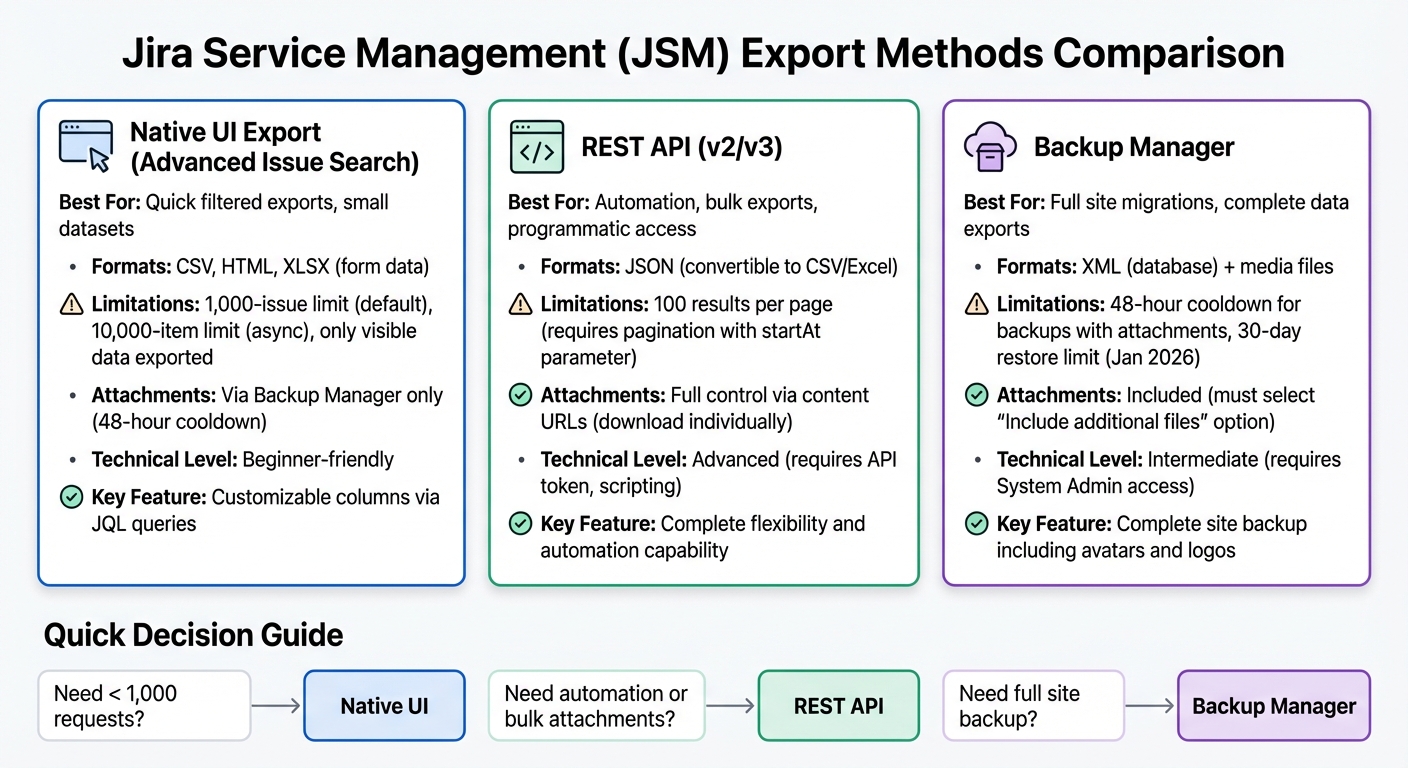
JSM Export Methods Comparison: Native UI vs REST API vs Backup Manager
JSM provides several ways to export data, catering to various needs and technical expertise. The native user interface is perfect for simple exports, while API-based methods offer automation and more detailed control over the data you extract.
Method 1: Using JSM’s Native Export UI
The Advanced Issue Search feature (accessible via the Filters menu) lets you export requests easily. Use JQL (Jira Query Language) to specify the exact requests you need. For example: project = SUPPORT AND created >= 2026-01-01 retrieves all requests from the SUPPORT project created after January 1, 2026.
Before exporting, switch to List view and customize the fields you want to include using the Columns dropdown. You can add comments, custom fields, or other data points here. If you skip this step, the export will only include basic request details. The native export supports CSV and HTML formats, which can be further analyzed in Excel or Google Sheets.
For data tied to specific forms, go to Project Settings > Request Management > Forms and use the "Export XLSX (form data)" option. This produces a structured spreadsheet of form responses. If you also need attachments, the Backup Manager (found in System settings) is your best bet. However, keep in mind that backups with attachments can only be generated every 48 hours.
For more advanced control and automation, check out the API-based methods below.
Method 2: Exporting via REST API
The REST API provides programmatic access to JSM data, offering far more flexibility than the UI. Use an API token for authentication and the POST /rest/api/3/search endpoint to retrieve requests by passing a JQL query.
To include attachments, add "fields": ["attachment"] to your API payload. The response will include attachment metadata like filenames and download URLs. Use the content URLs to download files. To filter requests with attachments, use a JQL query such as: project = <project-key> AND NOT attachments is EMPTY.
For attachments linked to specific comments, the API version 2 is recommended, as version 3 associates attachments with work items but not directly with individual comments.
Managing API pagination is straightforward with the startAt parameter. If your tasks are repetitive, consider automating the process with scripts, as outlined in the next section.
Method 3: Automating Exports with Python Scripts

Python scripting is ideal for automating regular exports and applying advanced filters. Using the requests library along with HTTPBasicAuth (your email and API token), you can interact with the API efficiently. The python-atlassian-api library simplifies many of these tasks, making it easier to handle exports.
"Python was a great language for scripting in, and we were really taken in by the python-atlassian-api. It’s not an official Atlassian offering but a great contribution by the open source community. It does most of the heavy lifting when interacting with Atlassian’s API’s, which saves a lot of time and effort." – Tony Skinner, Atlassian Engineer
To export only public comments, use the JSM-specific endpoint /rest/servicedeskapi/request/{issueIdOrKey}/comment and filter results where "public" is true. For security, store API credentials in environment variables or a .env file rather than hardcoding them. Use tools like pandas or Python’s built-in csv library to format the exported data into CSV or Excel files for easy sharing.
Exporting Attachments with REST API
Exporting attachments involves two steps: first, retrieve attachment metadata from the issue search response; second, download each file using its content URL. You can extract URLs and filenames from the JSON response using tools like jq or directly in Python.
Here’s a sample curl command for downloading attachments:
curl -L --create-dirs --user "email@example.com:api-token" --url "<attachment-url>" --output "<issue-key>/<filename>" The -L flag ensures redirects are followed to the actual file location. When downloading multiple attachments, organize them into folders by issue key to maintain order and avoid filename conflicts.
Handling Large Datasets
When working with standard exports, the process is fairly straightforward. However, dealing with large datasets – particularly those involving thousands of Jira Service Management (JSM) requests with attachments and comments – requires a more strategic approach. With limits like Jira Cloud’s asynchronous CSV export capping at 10,000 work items and the REST API defaulting to 100 results per page, extracting years’ worth of tickets without missing data or overloading the system can be tricky, especially when you need to integrate helpdesk data with PSA systems. To tackle this, you’ll need to adopt techniques that ensure both performance and accuracy. Using a unified support platform can also simplify data management by consolidating these tools.
Managing Pagination in API Exports
For large-scale exports, pagination is key. Use the startAt and maxResults parameters to break the data into manageable chunks. Set maxResults to 100, and increment startAt by 100 with each request until all records are retrieved. To keep results consistent across batches, always include ORDER BY key in your JQL query. Without this, you might end up with duplicate or missing items between requests.
To streamline the process, limit the fields returned in the API response using the fields parameter (e.g., fields: ["attachment", "comment"]). This reduces unnecessary data in the payload, which can otherwise lead to timeouts or bloated responses. When handling attachments in bulk, extract URLs from the JSON response and download the files in batches to avoid overwhelming the system.
Optimizing Performance for Large Exports
For datasets exceeding the 10,000-item limit in Jira Cloud, manual batching becomes necessary. Use the pager/start URL parameter to export data in increments of 1,000 (e.g., &pager/start=1000, &pager/start=2000) and then merge the resulting CSV files. Mixing different export methods is not recommended, as it can lead to inconsistent data.
| Export Method | Item Limit per Batch | Recommended Use Case |
|---|---|---|
| Native UI (Asynchronous) | 10,000 | Standard exports of work items |
| REST API Search | 100 (default) | Programmatic data extraction and attachments |
| URL Parameter Workaround | 1,000 | Manual batching for datasets > 10,000 |
Avoid using bulk options like "Export CSV (all fields)" or "Export Excel CSV (all fields)" for large datasets. These options create oversized files and slow down the process significantly. Instead, refine your JQL queries to target only the specific work items you need. Also, steer clear of the expand parameter for resource-heavy fields like changelog unless absolutely necessary. If you encounter issues like the "XSRF Security Token Missing" error during manual URL exports, simply click "Retry Operation" to continue.
Common Pitfalls and How to Avoid Them
JSM exports can sometimes fail, leading to missing data or errors. Beyond understanding export methods, it’s crucial to recognize and address specific challenges that might compromise the accuracy of your data.
Incomplete Data Exports
One common issue is the "current view" limitation, where exports only capture visible data. Native exports, for example, often omit essential details like transitions, comments, and attachments. As Łukasz Krupa, Solution Architect at Deviniti, points out:
"Native issue exports lack data that might be important for your business. For example, the exports don’t include transitions, comments, or attachments."
Additionally, there’s a 1,000-issue limit in both Jira Cloud and Data Center environments. Report exports are further restricted to six default columns: Key, Request Summary, Reporter, Assignee, Request Type, and Status. To bypass these limitations, you can use a JQL query in the "Advanced issue search" menu. This allows you to customize the columns and apply broader filters. For those using Server or Data Center environments, administrators can override the 1,000-issue limit by modifying the jira-config.properties file and updating the jira.search.views.default.max parameter.
Now let’s look at how to handle issues related to exporting attachments.
Errors with Attachments
The Jira REST API doesn’t directly support exporting file attachments. To retrieve these files, you’ll need to parse the JSON response for downloadable URLs and use a tool like curl to download each file one by one. If you’re working with attachment data tied to comments, make sure to use API version 2, as version 3 links attachments only to work items.
There are some additional constraints with Backup Manager exports that include attachments. For example, there’s a 48-hour cooldown period between exports. Also, Jira allows only one export event at a time, meaning you can’t generate a site backup and copy data into a sandbox simultaneously.
To avoid timeout errors during full site backups, consider splitting the backup into two separate files – one for the database (e.g., activeobjects.xml and entities.xml) and the other for attachments and media. Make sure the exporting account has "Browse projects" permissions and the appropriate work-item-level security access to avoid incomplete exports.
Finally, managing API rate limits is another factor to consider for seamless data exports.
Overcoming API Rate Limits
API rate limits can pose challenges when exporting large datasets. By default, the REST API returns only 100 results per page. To retrieve all data, you’ll need to iterate through pages using the startAt parameter. Including the header X-Atlassian-Token: no-check can help manage rate limits and prevent XSRF token errors.
For datasets larger than 10,000 items, use the pager/start URL parameter to export data in increments of 1,000 (e.g., &pager/start=1000, &pager/start=2000) and then manually combine the resulting CSV files. Avoid mixing different export methods to prevent inconsistencies in the data.
Using AI validation tools can further help by ensuring data accuracy and completeness before initiating an export.
Using AI to Improve JSM Exports
AI can change the way you handle JSM exports by automating tedious tasks and catching errors early. Instead of slogging through raw data dumps manually, AI tools can quickly structure, validate, and format your exports. This paves the way for smarter data extraction, better formatting, and more reliable error checks – key elements for efficient support operations.
AI for Automating Data Extraction
Atlassian Intelligence simplifies the process by generating summaries of descriptions and comments directly within JSM work items. This allows you to export concise, easy-to-read datasets rather than files bloated with lengthy comments. AI can summarize long conversations, reducing file size while keeping the critical context intact.
AI-powered Rovo agents take it a step further by instantly identifying relevant requests through advanced AI search capabilities. These agents categorize and filter data as it’s created, making it easier to extract specific datasets later using JQL queries. On top of that, AI can suggest appropriate request types and fields for forms, ensuring that data is well-structured right from the beginning.
AI-Powered Data Formatting and Organization
After data is extracted, AI steps in to refine its presentation for immediate analysis. Native JSM exports often include raw account IDs, Unix timestamps, or HTML markup, which can be cumbersome to work with. AI can transform these "raw" formats into "user-friendly" versions that integrate smoothly with tools like Excel or Power BI.
For instance, AI scripts can remove HTML tags from text areas, map Account IDs to display names, and convert timestamps into standard date formats. Since the REST API provides attachment metadata separately, AI can also link downloaded files to their corresponding issue keys. This creates a clean, structured table, ready for analysis. Additionally, customer sentiment analysis powered by AI can be applied to work items, enabling you to export and assess how customers feel across various request types.
Reducing Export Errors with AI Validation
AI validation tools ensure that exported data is complete and accurate before you use it. For example, they can verify that the row count in your exported file matches the count in the Jira Issue Navigator, ensuring no records are missed. Since the Jira REST API limits results to 100 per page, AI can confirm that your script correctly iterated through all batches using the startAt parameter.
AI can also detect empty Assets fields, which are a common issue in standard exports. For attachment exports, AI can validate that all URLs in the API response are functional and that the number of downloaded files matches the metadata. These checks are crucial for smooth, modern B2B support operations.
Conclusion: Key Takeaways for JSM Exports
Choosing the right export method can make all the difference. If you need quick, filtered lists with specific fields from a small number of requests, the native UI export is your best bet. For tasks like building automated workflows or programmatically extracting attachments, the REST API is the way to go. And when it comes to full site migrations, the Backup Manager is still effective – just keep in mind the 48-hour interval for backups that include attachments. These strategies help streamline data exports and minimize manual errors.
Before diving in, preparation is essential. Ensure you have the necessary permissions, including "Browse projects" and work-item-level security for API exports. For handling large datasets, leverage the startAt parameter, as the REST API caps results at 100 per page. When working with large backup files, splitting them into separate database and media components can help avoid timeout issues during imports.
Automation and AI can take your export processes to the next level. They not only save time but also reduce the risk of errors – especially when managing high volumes of requests.
Keep in mind that automation rules require separate exports and are not part of standard site backups. Also, starting January 22, 2026, the Backup Manager will only allow restores from backups that are 30 days old or newer. Make sure your data retention policies align with these changes. By combining reliable export methods with AI-driven automation, you can make your B2B support operations more efficient and resilient.
FAQs
What’s the easiest way to export requests with all comments included?
The easiest way to export Jira Service Management (JSM) requests along with their comments is by using the Export CSV (all fields) feature. This method organizes request data and arranges comments in chronological order across separate columns.
Here’s how to do it:
- Navigate to your JSM project or search for the requests you need to export.
- Apply a filter or select the specific view you want.
- Click on Export, then choose Export CSV (all fields).
How can I bulk download all attachments without missing any files?
If you need to bulk download attachments from Jira Service Management (JSM) requests, you’ll need to rely on the Jira REST API since there’s no built-in UI feature for this task. Here’s how you can approach it:
- Generate an API Token: Start by creating an API token through your Jira account. This token will allow you to authenticate API requests securely.
- Locate Issues with Attachments: Use the Jira REST API to search for issues that contain attachments. The API can help you filter and identify the specific requests you’re targeting.
- Download Attachments Programmatically: Once you’ve identified the attachment URLs through the API, you can write a script to automate the download process. This ensures accuracy and makes managing large volumes much easier.
By automating the process with scripts, you reduce the risk of missing files and can handle even extensive datasets efficiently.
How do I verify my export is complete for large datasets?
To make sure your export of large datasets from Jira Service Management (JSM) is accurate, refine your JQL query to focus on the issues and fields that matter most. This helps reduce unnecessary data and speeds up the export process. Always review export logs or confirmation messages to verify the number of items exported matches your expectations.
If you’re dealing with attachments, the Jira REST API is your go-to tool for verifying and downloading files. After exporting, compare the exported data with Jira’s total counts or use scripts to double-check for consistency and completeness.
Related Blog Posts
- How do you export Salesforce Cases, Emails, and Attachments (step-by-step)?
- How do you export Kayako ticket history and customer records (API + database options)?
- How do you export HappyFox tickets, contacts, and KB content (step-by-step)?
- How do you migrate away from Jira Service Management without losing ticket history?






