


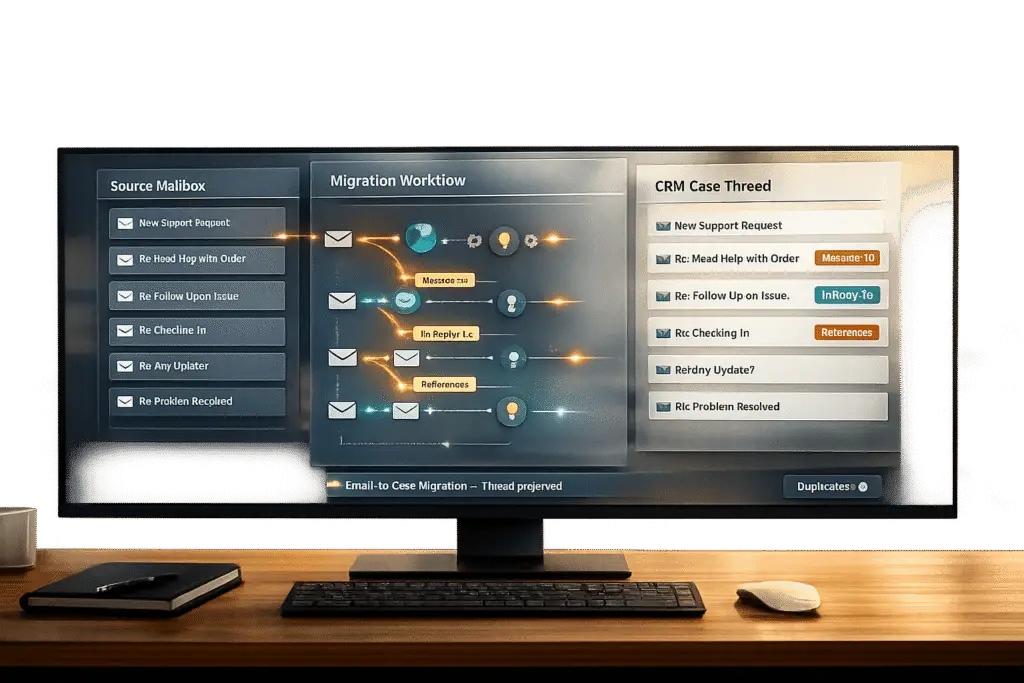
Migrating Salesforce Email-to-Case data while keeping email threading intact is critical to avoid creating duplicate cases and maintaining smooth workflows. Threading relies on email headers like Message-ID, In-Reply-To, and References, which link replies to their original cases. Without these headers, replies can mistakenly open new cases, causing confusion and extra work.
Here’s how to migrate without breaking threads:
- Audit your data: Identify missing headers using SOQL queries on the
EmailMessageobject. Missing headers can disrupt threading. - Export critical metadata: Include fields like
Headers,ParentId, andMessageDatewhen exporting data. Ensure theHeadersfield is intact. - Preserve email links: During import, map
ParentIdfields correctly and ensure the threading headers are maintained. - Validate after migration: Test threading by sending replies to migrated cases. Check for duplicates and ensure replies link to the correct cases.
- Avoid common pitfalls: Ensure email servers don’t strip headers or modify subject lines, as this can break threading.
Integrating your AI helpdesk with Salesforce can simplify the process by mapping and testing threads, reducing errors and saving time. Proper preparation, testing, and preserving metadata are key to a smooth migration.
How Salesforce Email-to-Case Threading Works
Salesforce has transitioned from the visible "Ref ID" system to Lightning Threading, which uses hidden email headers to connect replies to their original cases. This system ensures that email threading remains intact, even when subject lines are altered. Let’s dive into how the headers work and the common challenges that can disrupt this process.
The threading mechanism relies on three key email headers: Message-ID, In-Reply-To, and References. Salesforce generates a unique Message-ID for every email it sends. When a customer replies, the email client includes an In-Reply-To header referencing the original Message-ID. The References header, on the other hand, keeps track of the entire email conversation history.
"Behind the scenes, Email-to-Case actually works by checking email header information and matching it to a Salesforce case. So, remember to ensure that your email provider does not change the name of the headers when forwarding them to Salesforce." – Nikita M., Content Creator, Titan DXP
Since the Summer ’20 release, Salesforce automatically stores Message-ID details for all standard outbound Email-to-Case messages. The platform now uses the Apex method getCaseIdFromEmailHeaders to identify the correct case using these headers. This method replaces the older, now-deprecated getCaseIdFromEmailThreadId.
Email Headers That Control Threading
Each of the three headers plays a specific role in maintaining email threading:
- Message-ID: This uniquely identifies each email.
- In-Reply-To: Links the reply to its original email.
- References: Stores the full conversation history.
When Salesforce receives an incoming email, it checks these headers against existing EmailMessage records. If a match is found, the email is attached to the corresponding case. If no match exists, Salesforce creates a new case.
Common Problems That Break Threading
Despite the reliability of these headers, several factors can disrupt the threading process:
- Missing EmailMessage Records: If an outbound email is sent through a custom process that skips creating a corresponding
EmailMessagerecord in Salesforce, there’s no parent Message-ID for threading when a reply comes in. - Email Security Tools: Some tools, like Outlook Defender, may strip or modify headers such as In-Reply-To or References, especially if subject lines are changed. Similarly, certain email providers may rename or omit headers when forwarding emails to Salesforce service addresses, breaking the threading link.
- Subject Line Modifications: Although Lightning Threading is more resilient than the older Ref ID system, automated subject line tagging rules can still interfere with threading. Additionally, Salesforce limits both inbound email headers and body text to 32,000 characters. Any content beyond this limit is trimmed, which can result in the loss of critical header information.
"The email header message identifier references (i.e. new threading behavior) find no match to an existing email messages. Therefore, no case is found." – Sean Fielding, LinkedIn
Another major issue arises during migrations. If only Case records are moved without their associated EmailMessage history and header metadata, the threading chain is permanently broken. Preserving these header details is essential during migration to maintain continuity.
sbb-itb-e60d259
Preparing for Migration Without Breaking Threads
Before diving into migration, it’s essential to evaluate your Email-to-Case data. As mentioned earlier, preserving header metadata is crucial to maintaining conversation threads. A well-executed migration begins with careful preparation – this includes analyzing your current data, backing up important metadata, and identifying any configuration issues that might strip away the headers your threading depends on. Here’s how to get started:
Review Your Current Email-to-Case Data
First, identify your current threading method – are you using the legacy Ref ID system or Lightning Threading? If you see Case IDs embedded in email subject lines or bodies, you’re working with the older Ref ID system. Modern organizations typically use Lightning Threading, which depends entirely on email headers.
To verify your threading data, use a SOQL query on the EmailMessage object. Include fields like Id, ParentId, Headers, Subject, MessageDate, and Incoming. Pay close attention to the Headers field. If it’s blank in many records, those emails are missing the Message-ID, In-Reply-To, and References metadata that Lightning Threading requires. You can also create a report filtering for EmailMessage records where Headers = blank to gauge how many legacy emails you’re dealing with. Additionally, ensure your emails meet the header and body text limits (32,000 characters, unless increased).
Back Up Email Headers and Metadata
After reviewing your data, the next step is to safeguard your metadata. Export all EmailMessage records, including fields like ParentId, MessageDate, Incoming, and most importantly, the Headers. This field (API name: Headers) is critical – without it, your target system won’t be able to reconstruct conversation threads. Store the backup securely in multiple locations to avoid data loss.
If your email provider has been forwarding messages to Salesforce, double-check that headers like In-Reply-To and References haven’t been altered or removed during forwarding. To confirm header integrity, send test emails through your current routing addresses before starting the migration process.
Check for Configuration Problems
Take a close look at your email server’s forwarding rules to ensure headers remain intact. Be cautious of automated rules that add tags like "[External]" to subject lines. While Lightning Threading is more robust than the legacy Ref ID system, changes to subject lines can still cause issues.
In your target system, go to Setup > Release Updates and enable "Disable Ref ID and Transition to New Email Threading Behavior." This ensures the system uses the modern getCaseIdFromEmailHeaders Apex method instead of the outdated getCaseIdFromEmailThreadId. If you plan to use a test routing address during migration, set it up now to prevent test cases from cluttering your production environment.
Migration Steps That Preserve Email Threading
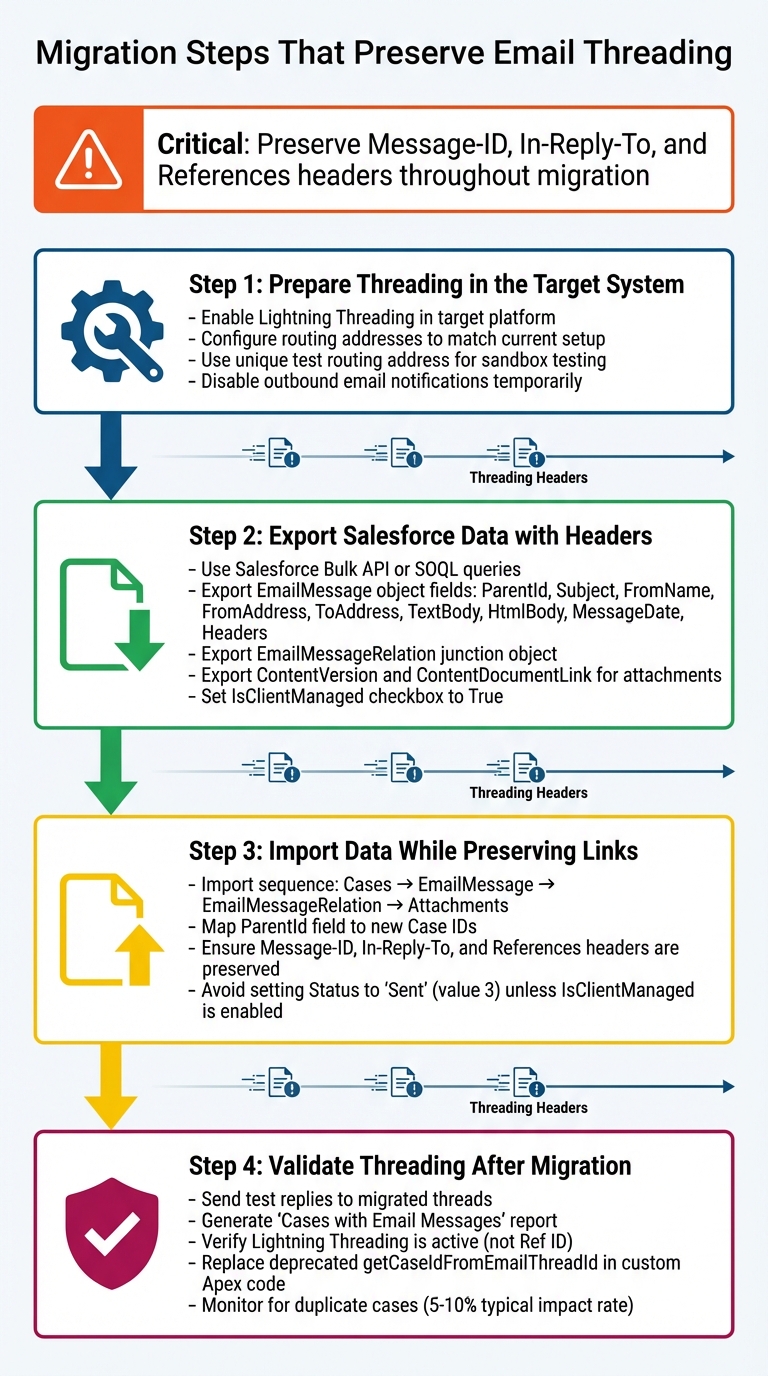
4-Step Process to Migrate Salesforce Email-to-Case Without Breaking Threading
Once you’re ready to begin the migration, the goal is to move your data in the correct order while keeping the Message-ID, In-Reply-To, and References headers intact. These headers are essential for maintaining email threading in modern systems. Here’s how to proceed without disrupting conversation continuity:
Step 1: Prepare Threading in the Target System
Before importing any data, ensure your target platform is set up to handle header-based threading. If you’re using Salesforce’s Email-to-Case, enable Lightning Threading. This replaces the older Ref ID system and ensures proper threading functionality. Configure routing addresses to match your current setup, including assignment rules and case creation logic. If you’re testing in a sandbox environment, use a unique test routing address to keep test cases separate from live data. Also, disable outbound email notifications temporarily to avoid accidental alerts or duplicate case creation during the import process.
Step 2: Export Salesforce Data with Headers
Use tools like the Salesforce Bulk API or SOQL queries to export data from the EmailMessage object. Be sure to include fields such as ParentId, Subject, FromName, FromAddress, ToAddress, TextBody, HtmlBody, MessageDate, and Headers. Additionally, export the EmailMessageRelation junction object to maintain links between emails and associated Contacts, Leads, or Users. For attachments, export both ContentVersion (the file data) and ContentDocumentLink (which connects attachments to emails). Set the IsClientManaged checkbox to True on EmailMessage records, allowing them to remain editable for updates. This careful export ensures the target system can replicate the existing email hierarchy and threading.
Step 3: Import Data While Preserving Links
Follow this import sequence: Cases, EmailMessage records, EmailMessageRelation, and finally, attachment objects. When importing EmailMessage records, map the ParentId field to the new Case IDs in the target system. It’s crucial to ensure the system correctly interprets the Message-ID, In-Reply-To, and References headers to maintain parent-child relationships. These headers are often mapped to fields like Conversation ID or Thread Group. Avoid setting the Status field to "Sent" (value 3) unless IsClientManaged is enabled, as this keeps records editable. If you’re transitioning from the legacy Ref ID system, consider using a formula to strip old Salesforce Thread IDs from email bodies. For example, you can use this formula: SUBSTITUTE({!Body}, RIGHT({!Body}, 33), "").
Step 4: Validate Threading After Migration
Testing is essential to confirm that email threading works as expected. Send test replies to migrated email threads and make sure replies are correctly linked to the appropriate Cases rather than creating new ones. Generate a custom report for "Cases with Email Messages" to identify any missing Headers that could cause threading issues. Double-check your Email-to-Case setup to confirm that it uses Lightning Threading and not the older Ref ID method. If you’ve customized Salesforce with Apex code, search for any instances of the outdated getCaseIdFromEmailThreadId method. Replace it with updated methods like EmailMessages.getRecordIdFromEmail or Cases.getCaseIdFromEmailHeaders. As Salesforce warns, failing to update custom code can result in errors when the Ref ID system is deprecated.
Finally, monitor for duplicate cases in the days following the migration. Threading issues can cause duplicates, with an average of 5% to 10% of cases impacted. If you’re using AI-based deduplication tools, set a certainty threshold around 95% to help identify and merge duplicates automatically.
Common Migration Mistakes and How to Avoid Them
Technical hiccups during migration can disrupt email threading, often leading to confusion and inefficiencies. Two of the most common issues stem from stripped email headers and altered subject lines. Here’s a closer look at these challenges and how to tackle them.
Problem: Forwarding Rules Strip Email Headers
When emails are forwarded, security tools like Outlook Defender or certain email servers may modify or strip headers for safety reasons. Unfortunately, this can stop Salesforce from correctly linking replies to existing cases. Instead, new cases are created because the system can’t match the incoming emails to the original threads.
"Remember to ensure that your email provider does not change the name of the headers when forwarding them to Salesforce. If it does, Email-to-Case will not be able to identify the email properly." – Nikita M., Content Creator, Titan
To avoid this, direct routing is your best bet. Route emails straight to your Salesforce service address without passing through multiple servers. Before migration, test your setup by sending a test email and checking the headers once it lands in Salesforce. If headers are missing or renamed, involve your IT team to adjust the routing. For cases where direct routing isn’t feasible, consider using custom matching logic with Email-to-Flow. This method allows you to match emails based on the subject line and sender email address, compensating for missing headers.
Problem: Changed Subject Lines Break Threads
Subject line changes, whether accidental or automated, can corrupt threading tokens, breaking email threads. Automated rules that add tags like "[EXTERNAL]" or disclaimers are a common culprit.
"If a person accidentally changed the subject line, deleted the subject line, or didn’t respond correctly in some other way, a duplicate case was created." – Bryce Jones, Co-Founder at delpha.io
To prevent this, disable any mail server rules that automatically modify subject lines before migration. Instead of tagging subject lines, use header-based filtering for identifying external emails. Additionally, during migration, place threading tokens in the email body rather than the subject line. This ensures they remain intact, even if users edit the subject when replying.
These steps can help reduce duplicate case creation, which can be costly. On average, 5% to 10% of cases become duplicates due to threading issues, and each duplicate costs between $5 and $40 per agent to resolve. Addressing these challenges upfront will save both time and resources in the long run.
Using AI Tools to Simplify Migration
AI-powered tools are changing how email migrations are handled, especially when it comes to mapping and verifying email threads. These tools analyze unstructured email data to uncover context that traditional systems often miss. For instance, they can identify specific products, issue types, or even the sentiment within a thread. Instead of relying purely on exact header matches, AI examines the content and intent of emails, ensuring relationships are mapped with greater accuracy.
AI for Analyzing Headers and Mapping Threads
AI tools simplify the process of identifying email relationships by standardizing metadata such as sender, date, recipient, and subject. By generating unique IDs from normalized author and date fields, these tools can map each email’s position within a conversation. This approach overcomes common challenges like timestamp discrepancies across servers or server-added footers that disrupt standard threading logic.
"Generative AI excels at reading unstructured data and extracting valuable insights." – Saurabh, GPTfy
One critical step during migration is normalizing author aliases before generating thread hashes. For example, AI should recognize that "john.doe@gmail.com" and "John Doe" refer to the same individual, preventing thread fragmentation. It’s also essential to exclude shared addresses, such as no-reply@company.com, so unrelated threads from automated senders aren’t incorrectly merged. Additionally, AI can pinpoint "inclusive emails" – those that contain the most complete prior message content – helping to eliminate redundant data while preserving the full conversation history.
By addressing these inconsistencies, AI-driven mapping enhances manual processes, especially during complex migrations. But accurate mapping is just one part of the equation. Next, let’s look at how AI validates the integrity of these threads post-migration.
Automated Testing with AI Models
Once threads are mapped, AI ensures that the original conversation structure remains intact after migration. It flags threading issues by using a high confidence threshold. For example, setting a confidence threshold above 99% ensures that only highly accurate merges are automated, while lower-confidence matches are flagged for manual review.
"Artificial intelligence, for example, may be 95% confident that a case is a duplicate. If your confidence threshold is set at 95%, that merge is fully automated and a staff member will never have to touch the case." – Bryce Jones, Co-Founder, Delpha
AI-based testing doesn’t just safeguard migration integrity; it also improves operational efficiency. These tools can boost AI-powered ticket routing accuracy from 70% to 93% and cut first-response times from hours to just minutes (e.g., reducing a 2–24-hour range to 2–3 minutes). Running AI deduplication tools immediately after migration can fix threading errors caused by reply-all chains or subject line changes. This implementation can significantly reduce the workload on agents, cutting the time spent on routine cases from 65% of their day to just 15%, while lowering the number of cases requiring manual intervention by 45%.
Conclusion
Migrating to AI-powered tools demands careful planning, thorough testing, and a well-thought-out deployment strategy. Start by auditing your data to ensure critical email headers like Message-ID, In-Reply-To, and References are intact. Double-check forwarding rules with your email provider to avoid stripping these headers during the transfer. Always test in a sandbox environment because once Lightning Threading is enabled in production, it cannot be reversed. This structured approach lays the groundwork for smoother migrations and helps you fully harness AI’s potential.
During migration, it’s crucial to preserve all email headers and maintain subject lines as they are. Automated tags like "[External]" can disrupt threading, leading to duplicate cases. Statistics show that duplicate cases typically account for 5% to 10% of total cases, but migration errors can push this number higher.
AI tools have transformed what was once a tedious, error-prone process into something far more efficient. By setting confidence thresholds above 99%, you can automate thread mapping and deduplication, while still flagging edge cases for human intervention. Companies leveraging AI-enhanced Email-to-Case have reported routing accuracy improving from 70% to 93% and first-response times shrinking from 2–24 hours to just 2–3 minutes. These advancements not only ensure smooth conversation continuity but also boost operational efficiency.
"Lightning threading is a secure method of email threading… Email-to-Case finds corresponding cases more reliably and avoids creating a new case when a related case exists." – Salesforce Help
The transition from legacy Ref ID systems to header-based Lightning Threading reflects the shift toward modern, AI-driven support workflows. By approaching your migration with precision and attention to detail, your team can maintain seamless conversations while reaping the efficiency benefits of cutting-edge, AI-native support platforms.
FAQs
What email headers are required to maintain threading in Salesforce Email-to-Case?
To keep email threads intact in Salesforce Email-to-Case, three key headers are essential: Message-ID, In-Reply-To, and References. These headers help Salesforce recognize and group emails that belong to the same conversation.
If these headers are missing, email threading can break, resulting in fragmented conversation histories. This can create confusion for support teams and disrupt smooth communication. Preserving these headers during migration is crucial to ensure conversations remain organized and easy to follow.
How can AI tools help ensure accurate email threading during migration?
AI tools play a crucial role in improving email threading accuracy during migrations by analyzing important metadata like Message-ID, In-Reply-To, and References. These elements help AI accurately group emails into their respective conversations, ensuring threads remain intact.
Automating this process not only minimizes errors but also saves time, preserving the integrity of your communication history. This is especially important for maintaining clarity and continuity in customer interactions, avoiding any potential confusion during or after the migration.
What mistakes should I avoid when migrating Email-to-Case conversations?
When migrating Email-to-Case conversations, one key challenge is maintaining email threading. Without proper handling, conversation histories can become fragmented, leading to confusion for your support team. In Salesforce, threading depends on unique identifiers like the Thread ID, Message-ID, and In-Reply-To headers. If these identifiers aren’t correctly managed during migration, related emails might break apart, causing replies to show up as new cases instead of being linked to the original conversation.
Another common oversight is improperly mapping email headers and metadata. These details are crucial for preserving the flow of communication. If they’re lost or misaligned during the transfer, the continuity of conversations can be disrupted. On top of that, forgetting to disable email sending during the migration process can create additional headaches, such as duplicate messages or system errors.
To sidestep these issues, consider using AI-powered tools to automate the thread mapping process. After migration, conduct thorough testing to ensure everything is accurate and working as expected. Taking these steps helps keep conversation history intact, allowing your support team to operate smoothly while maintaining customer trust.
Related Blog Posts
- How do you prevent duplicate tickets and “email thread chaos” in customer support?
- How do you prevent duplicate tickets and merge threads without losing context?
- How do you migrate from Salesforce Service Cloud to a helpdesk without losing case history?
- How do you map Salesforce Case fields, Record Types, and Statuses to a new helpdesk?
Evaluating help desks for a B2B team?
Supportbench is all-inclusive from $32 per agent per month, with migration and onboarding included. See pricing or book a 20-minute demo.






