


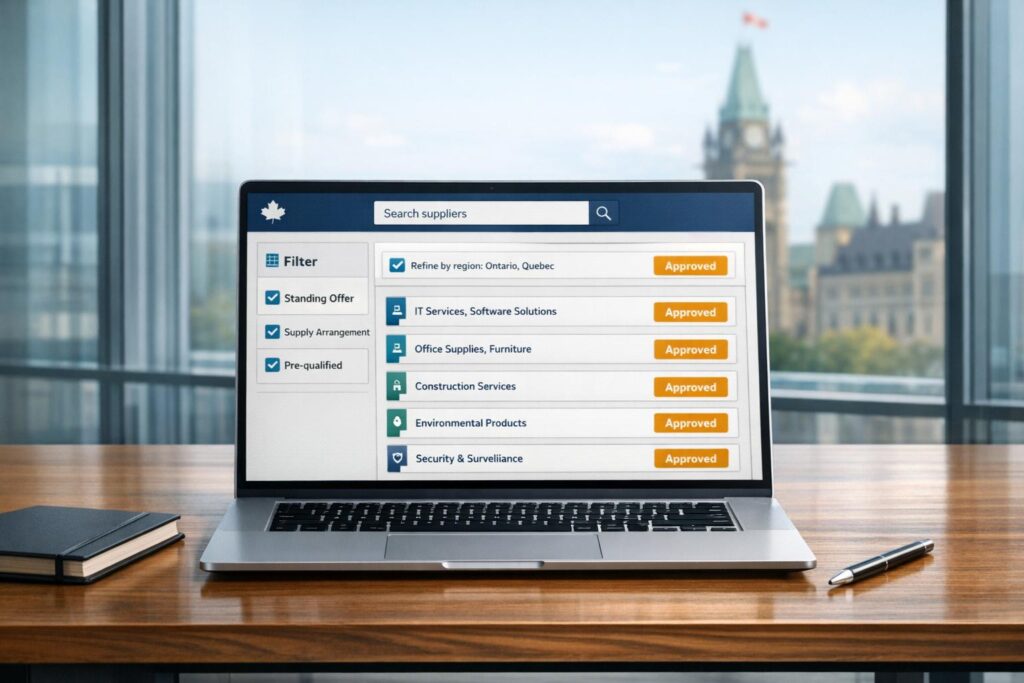
Federal procurement in Canada is managed through CanadaBuys, a centralized platform for tender opportunities. It connects businesses with federal, provincial, and MASH sector contracts. The SOSA App (Standing Offer and Supply Arrangement) simplifies finding pre-qualified suppliers, saving time and effort for procurement teams. Here’s how to navigate these tools effectively:
- Access CanadaBuys: Start by selecting "Start buying" (for public employees) or "Start selling" (for suppliers) on the platform. Use categories like Tender Notices, Award Notices, and Contract History to find procurement options.
- Use the SOSA App: Filter suppliers by GSIN codes, organization, or date to find pre-approved vendors. Weekly updates ensure the latest supplier data.
- Avoid Common Mistakes: Misusing filters or overlooking mandatory criteria can disqualify bids. Check supplier security clearances and compliance with federal standards.
Pro Tip: AI tools can automate searches, refine supplier evaluations, and reduce manual tasks, making procurement faster and more accurate.
Navigating CanadaBuys and the SOSA App helps B2B teams secure contracts efficiently while staying updated with the latest procurement data.
How to Find Approved Procurement Options on CanadaBuys
How to Access the CanadaBuys Platform
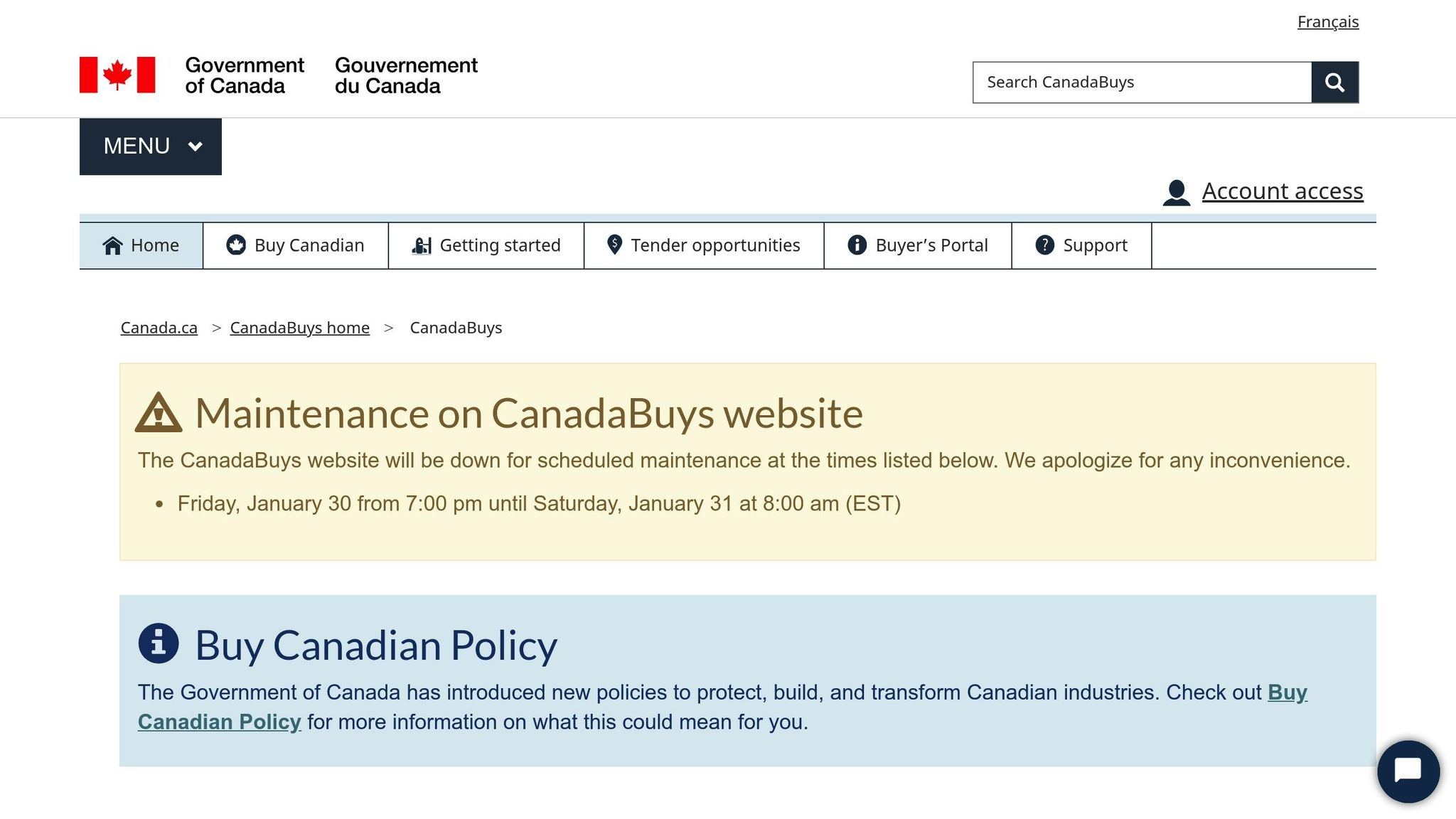
To get started with CanadaBuys, choose the entry point that matches your role. On the "Getting started" page, public service employees should click on "Start buying with CanadaBuys" to access procurement tools. Meanwhile, suppliers should select "Start the selling process". This choice is important because each option grants access to different tools and permissions tailored to your role.
The platform also integrates tools like SAP Ariba, which is useful for mobile access and specialized procurement tasks. Even during scheduled maintenance, core procurement applications remain available. Once you’re in the platform, explore its categories to identify the procurement options you need.
How to Browse Procurement Categories
After logging in, use the Search tenders feature to find procurement options. Results are grouped into three main notice types:
- Tender notices: For active bids.
- Award notices: For existing Standing Offers and Supply Arrangements.
- Contract history: For past federal spending.
Pre-approved procurement vehicles, such as Standing Offers (SO) or Supply Arrangements (SA), are typically found under the Award notices section. You can filter these results by categories like Goods, Services, and Construction, and sort them by Title, Category, or dates to locate the most relevant options. Pay close attention to the Closing date, as many active Supply Arrangements listed in early 2026 have validity periods extending through 2030.
How to Filter Suppliers Using the SOSA App
Once you’ve familiarized yourself with the platform, the SOSA App can help you refine your search for suppliers using advanced filter options. For example, you can filter suppliers by GSIN codes to match specific categories. The Procurement Data Dictionary is a helpful resource for understanding the data fields in SOSA files, ensuring you apply the right filters.
Some of the key filtering options include:
- GSIN codes: To narrow down by product or service category.
- Organization: The government department responsible for the arrangement.
- Notice Category: Whether it’s a Tender, Award, or Contract history.
- Supplier Name: To locate specific vendors.
- Date Modified: For the latest updates.
Since the SOSA dataset is updated weekly, always check the "Active" status of a Standing Offer or Supply Arrangement to confirm the supplier’s current eligibility. For deeper analysis, you can download SOSA data in CSV or XML formats.
Common Mistakes When Using CanadaBuys and the SOSA App
Using Filters Incorrectly
Filters can be tricky, and using them wrong might leave you with incomplete or inaccurate results. For instance, overly specific keywords can narrow your search too much, causing you to miss relevant suppliers. By default, filters like "Open" and "Awarded" are already selected, so if you’re looking for historical or updated records, you’ll need to tweak these settings. Also, if you’re searching for multi-word phrases, putting them in quotes (e.g., "Canada Free Trade Agreement") ensures you get exact matches. Without quotes, the search will return broader, less targeted results.
Another common issue is sorting results. The system only allows sorting by one column at a time – such as Title, Category, or Closing Date. Trying to sort by multiple columns won’t work and can cause unnecessary confusion.
Commodity codes are another stumbling block. Searching for UNSPSC or GSIN codes without consulting the Procurement Data Dictionary often leads to mismatched categories. Before applying any filters, check the green "Current Filters" section below the search bar to see which criteria are already active. If you need a clean slate, use the "Clear all filters" link instead of manually unchecking boxes. Hidden criteria might still be active and could skew your results. Paying attention to these details can make your supplier searches far more efficient.
Missing Important Procurement Details
Mistakes with filters aren’t the only issue – overlooking critical procurement details can have serious consequences. Federal Requests for Proposals (RFPs), for instance, often include strict mandatory criteria that are evaluated on a pass/fail basis. Missing even one requirement, like a specific certification or a financial disclosure, can instantly disqualify your proposal. The Treasury Board Secretariat emphasizes this clearly: "Failure to meet any single mandatory requirement results in immediate disqualification".
Another common oversight is failing to verify supplier security clearances through the Contract Security Program. Similarly, not reviewing the Standard Acquisition Clauses and Conditions (SACC) Manual can lead to proposals that don’t meet federal legal or financial standards. To avoid these issues, cross-check multiple datasets using the CanadaBuys tendering service. This will give you a clearer picture of a supplier’s history and current standing, helping you make informed decisions before finalizing your selection.
How To Do Business With the Canadian Government (and be complaint)
sbb-itb-e60d259
Example: Finding an Approved IT Services Supplier
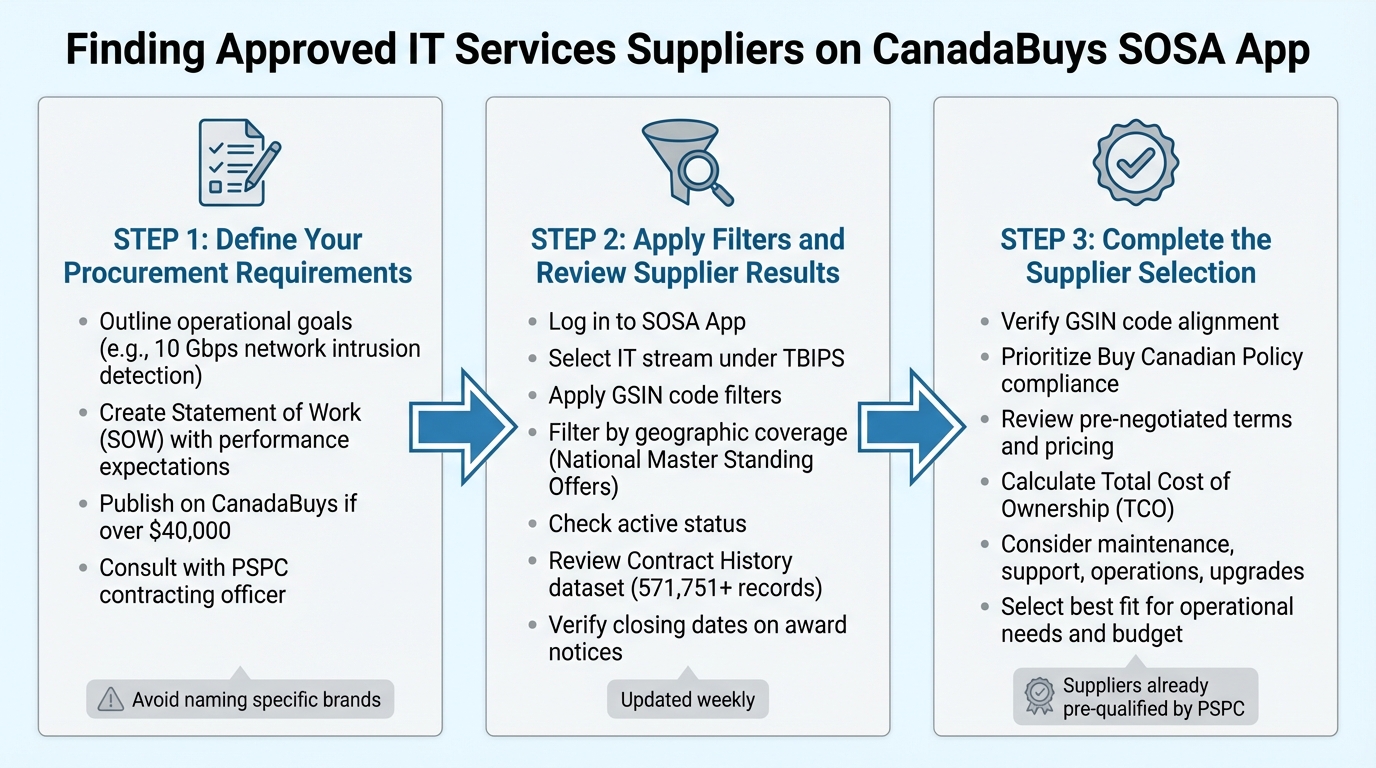
3-Step Process to Find Approved Federal Suppliers on CanadaBuys SOSA App
Step 1: Define Your Procurement Requirements
Start by outlining what you need from a cyber protection service. Focus on specific operational goals, like having a network intrusion detection system that can handle at least 10 Gbps. Avoid naming specific brands – this opens the door for a wider range of proposals and can lead to better value.
Create a clear, straightforward Statement of Work (SOW). This document should detail performance expectations, required security clearances, and any considerations for accessibility or environmental factors. If the IT services you need are estimated to cost over $40,000, make sure to publish your requirements on CanadaBuys.
It’s also a good idea to consult with a PSPC contracting officer. They can help clarify your needs and flag potential risks. If your agency has similar specifications from past projects, use them as a reference. This can save time and ensure consistency.
Once your requirements are set, use the SOSA App to apply specific filters for the IT services you need.
Step 2: Apply Filters and Review Supplier Results
Log in to the SOSA App and choose the appropriate IT stream under TBIPS for cyber protection services. Use the GSIN code filter to match your needs with the correct procurement category.
If you need broader coverage, apply geographic filters to find National Master Standing Offers. Make sure the suppliers you’re considering have an active status. You can also filter by organization to find suppliers with experience working for agencies like Shared Services Canada or the Department of National Defence.
Next, dive into the Contract History dataset. With over 571,751 records available, you can evaluate previous contract values and the departments served by each supplier. Check the closing dates on award notices to confirm that the supplier’s pre-qualified status is still valid.
After narrowing down your options, you’re ready to move on to the final selection process.
Step 3: Complete the Supplier Selection
Double-check that each supplier’s GSIN code aligns with your IT service category. Give preference to suppliers that comply with the Buy Canadian Policy. Use multiple datasets to get a full picture of each supplier’s history and current standing.
Review the pre-negotiated terms and pricing listed in each Standing Offer. Since these suppliers are already pre-qualified by PSPC, they’ve met the government’s mandatory requirements. Don’t just look at the initial price – consider the Total Cost of Ownership (TCO), which includes costs for maintenance, support, operations, and future upgrades.
After evaluating all factors, choose the supplier that best fits your operational needs and budget.
How AI Tools Improve Procurement Efficiency
AI tools are transforming federal procurement processes for B2B support teams. Instead of manually combing through endless supplier records, these tools can automate initial screenings, refine search results, and speed up decision-making. Studies reveal that AI can cut the time needed to complete basic procurement tasks by up to 80%, and it’s estimated that over 50% of procurement labor can now be automated, leading to both time and cost savings. These advancements pave the way for improved search, evaluation, and task automation.
Using AI to Improve Search Results
AI tools leverage Natural Language Processing (NLP) to monitor platforms like the SOSA App and CanadaBuys, classifying opportunities and supplier data using UNSPSC codes and custom taxonomies. By applying advanced machine learning, these tools score search results based on your team’s historical bidding patterns, active contracts, and capability profiles. This ensures the most relevant matches rise to the top.
AI-powered virtual assistants can interpret procurement queries to deliver quick summaries of market trends, category reports, and supplier price comparisons. These tools can also be configured with specific commodity codes and geographic filters to refine search results, ensuring they meet your exact needs. With these precise search capabilities, AI also speeds up supplier evaluation.
Using AI to Evaluate Suppliers Faster
Building on enhanced search results, AI simplifies supplier evaluations, ensuring only compliant vendors move forward. Automated tools analyze lengthy RFPs and supplier profiles to extract key criteria, flagging compliance issues or estimating "win-probability" before any manual review is required. In fact, AI error detection improves the accuracy of procurement spending classification by over 90%, reducing errors when assessing supplier qualifications.
"AI can be applied to help inform better procurement decision-making, reduce costs, and improve operational efficiency." – Mark Jackley, Senior Writer, Oracle
AI can handle initial reviews of supplier compliance records and security clearances, so only qualified vendors are presented for final consideration. Predictive analytics further identifies best-value vendors by analyzing historical performance data, enabling faster and more informed decisions. By 2024, 92% of Chief Procurement Officers have assessed Generative AI capabilities, with many focusing on automating supplier management.
Using AI to Reduce Manual Tasks
AI takes over repetitive tasks like processing purchase orders, matching invoices, and handling data entry. Generative AI tools can draft supplier emails, create RFPs, and summarize complex negotiation terms, saving time and effort. NLP-driven tools also streamline contract reviews by quickly identifying risks, obligations, and renewal clauses – tasks that traditionally required lengthy manual legal reviews.
Manual invoice processing costs between $12 and $40 per invoice, while automated AI solutions reduce this to just $3 to $5 per invoice. When integrated with SOSA App data, these automated workflows free up procurement teams to focus on strategic supplier decisions. AI can also populate responses to SOSA "call-ups" by pulling from a repository of pre-approved technical methodologies and project management plans.
To get started, focus on small, high-impact projects like automating purchase orders for quick wins. As you scale, ensure all AI-generated outputs or decisions are reviewed by humans to comply with the Treasury Board’s Directive on Automated Decision-Making. Equip procurement staff with training to shift from manual tasks to roles centered on strategic analysis and AI tool management.
Conclusion
Navigating approved federal procurement options on CanadaBuys and the SOSA App is a straightforward process. CanadaBuys can be accessed through its main website, where users can filter procurement options – such as tenders, awards, or contract histories – and check modification dates using the Procurement Data Dictionary. The SOSA App, updated weekly, simplifies the search for pre-qualified suppliers, eliminating the need to repeat qualification processes. For clarity on specific fields like Goods and Services Identification Numbers (GSIN), the Procurement Data Dictionary remains an essential resource. These steps create a strong foundation for improving efficiency through AI-driven tools.
AI solutions are transforming procurement workflows by automating screenings and fine-tuning search results with natural language processing (NLP). This turns manual tasks into streamlined, data-driven processes. By combining expertise in these platforms with AI capabilities, B2B support teams can make decisions faster and cut costs, aligning with modern government contracting needs. Starting with automating high-impact tasks and scaling up while maintaining human oversight ensures compliance with the Treasury Board’s Directive on Automated Decision-Making.
With thousands of procurement records available as of January 2026, the potential for success is immense. Teams that excel at navigating CanadaBuys and integrating AI tools into their procurement strategies can bid more effectively, respond quickly, and secure more federal contracts. Plus, the platform’s compatibility with tools like SAP Ariba ensures uninterrupted operations, even during scheduled maintenance, keeping procurement workflows steady.
FAQs
How can AI tools simplify and improve procurement on CanadaBuys?
AI tools can transform how you handle procurement on CanadaBuys by taking over tedious tasks and helping you make smarter decisions. For example, AI can analyze tenders and filter results based on your specific criteria, making it easier to find procurement opportunities that match your needs. This means less time spent manually searching for approved suppliers or navigating procurement categories.
AI can also simplify supplier evaluation by leveraging predictive analytics to assess proposals and highlight the most promising bids. Beyond that, it can handle repetitive tasks like drafting responses, ensuring compliance, and managing contract details. This not only saves time but also minimizes errors. By incorporating AI into your workflow, you can speed up the procurement process, improve accuracy, cut costs, and stay focused on achieving your strategic objectives.
What mistakes should I avoid when using the SOSA App to find federal procurement options?
To get the most out of the SOSA App, steer clear of these common mistakes:
- Skipping search filters: Be specific when searching. Use keywords like commodity names, GSINs, or UNSPSC codes. Then, narrow your results with filters such as province, department, or agreement type. This keeps your search focused and relevant.
- Overlooking agreement details: Take the time to review agreements carefully. Make sure they align with your needs, including geographic or departmental requirements.
- Using incorrect login credentials: Double-check your login details. Whether you’re using myKEY or GCKey, accurate credentials are essential for accessing all agreements.
- Forgetting to reset filters: Clear old search filters before starting a new search. This prevents confusion and ensures you see the most accurate results.
Avoiding these missteps can help you navigate the app more effectively and find the best procurement options with ease.
How can I make sure my supplier meets federal procurement requirements?
To make sure your supplier meets federal procurement standards, check if they have an approved standing offer or supply arrangement through the CanadaBuys SOSA App. This tool gives you access to pre-qualified suppliers and procurement resources that align with federal requirements.
Also, ensure the supplier follows all relevant federal procurement policies and guidelines. These precautions help you stay compliant while simplifying your procurement process.
Related Blog Posts
- What are the best non-US helpdesk platforms for Canadian companies in 2026?
- What does “Buy Canadian” mean for software and SaaS procurement in Canada?
- How can vendors qualify for Canada’s federal SaaS supply arrangement (SaaSSA)?
- How do Standing Offers and Supply Arrangements work for Canadian government buyers?






