Customers often contact support for issues already addressed in your knowledge base (KB). Why? They either can’t find the information or don’t trust it. Ticket tagging helps solve this by identifying gaps in your KB and turning support data into actionable insights.
Here’s the process in a nutshell:
- Set Up a Tagging System: Create a clear, two-tier structure (e.g., "Billing" > "Refund Requests"). Avoid vague tags like "Other." Include tags like
kb-gapto flag documentation issues. - Analyze Patterns: Use dashboards to track recurring tags and compare them with search data. Identify gaps where users search but still submit tickets.
- Automate with AI: Implement AI-powered auto-tagging to ensure consistent and fast tagging. Use AI to draft KB articles based on ticket history.
- Fill Gaps Effectively: Assign roles for content creation, prioritize updates based on impact, and measure success by tracking ticket deflection rates.
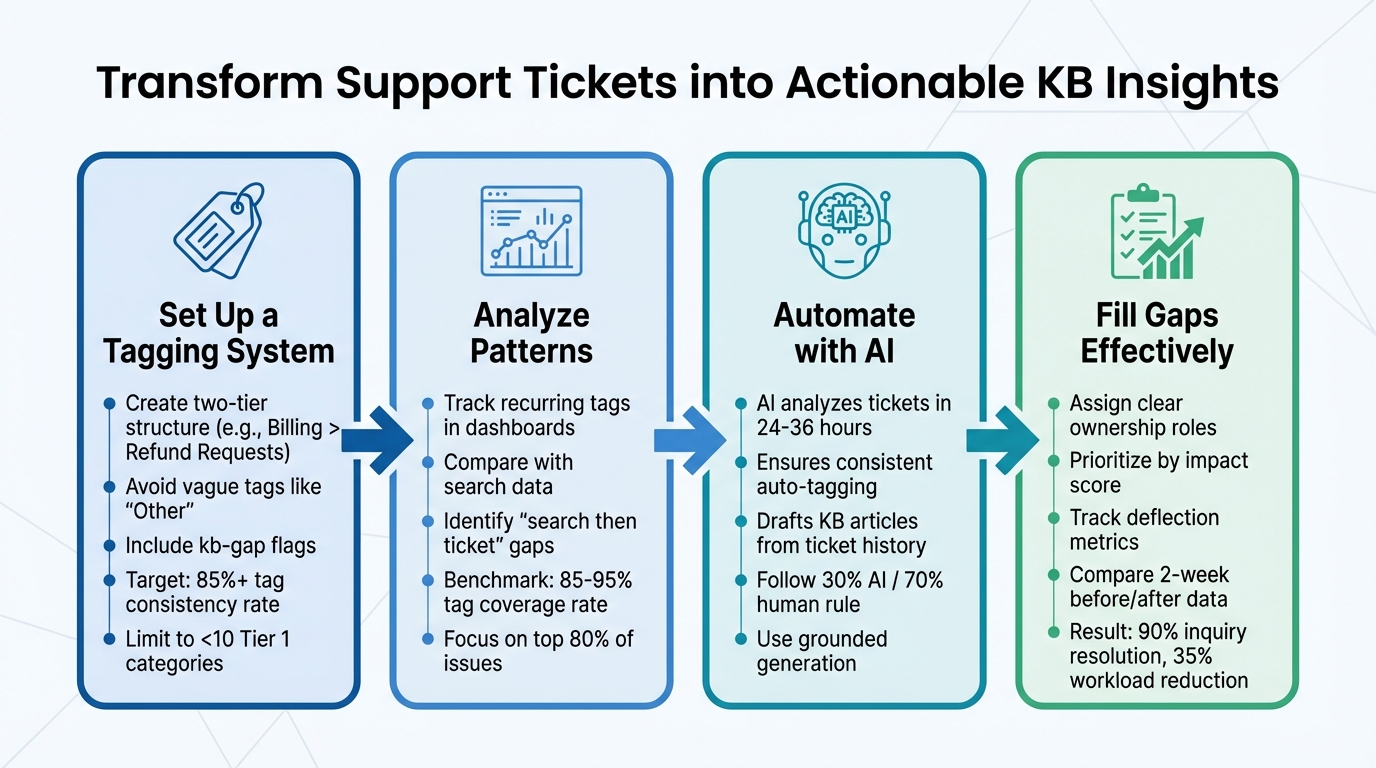
4-Step Process to Find and Fill Knowledge Base Gaps Using Ticket Tags
1. How to Set Up Your Ticket Tagging System
A good tagging system should make tagging quick and consistent while providing insights you can act on. Start by creating a taxonomy that makes tagging simple and helps identify gaps in your knowledge base (KB). This framework is essential for spotting areas in your KB that need improvement.
Consider a two-tier system: Tier 1 covers broad categories like "Technical Issue" or "Billing", while Tier 2 dives into specifics such as "Login Issues" or "Refund Requests." Research shows that B2B teams often achieve tag consistency rates of 85–92%, with an average of 2.8–3.5 tags per ticket [3]. Your goal? A tag agreement rate of at least 85%. This ensures your data is reliable enough to guide content decisions [3].
Avoid using vague, "catch-all" categories like "Other" or "General Inquiry", as they dilute the value of your data. Instead, focus your taxonomy on the most common 80% of tickets, skipping rare edge cases. Remember, if a tag doesn’t improve how you handle a ticket or analyze your data, it’s creating noise, not clarity. Prioritize tags that highlight knowledge gaps in your KB.
Choose the Right Tags for Knowledge Gaps
To pinpoint where your documentation falls short, include tags like kb-gap, needs-article, or unclear-docs in your Tier 2 taxonomy or as a separate flag. These tags should automatically trigger content creation workflows and directly address KB shortcomings. For example, if an agent resolves a ticket about password resets but notices the article doesn’t cover two-factor authentication, they should apply both the "Authentication" tag and the kb-gap flag.
Use the RUF framework to simplify tagging:
- Reliability: Errors and performance issues.
- Usability: Questions about existing features.
- Functionality: Feature requests.
Usability tags are especially valuable – they reveal when customers are asking about features that already exist but lack proper documentation. To ensure consistency, stick to one term per concept. For instance, use "Billing" instead of mixing terms like "Payments" and "Invoicing."
Train Your Agents to Tag Correctly
Create a one-sentence definition for each category and subcategory, and include these in your agent onboarding materials. Keep this glossary accessible in your internal KB so agents can reference it during live support. These definitions help ensure agents understand and apply tags correctly.
Limit Tier 1 categories to 10 or fewer to avoid overwhelming your team. Perform regular audits – either quarterly or twice a year – to merge redundant tags and remove unused ones. Use validation rules or automated checks to catch unusual tagging patterns, like an agent applying five tags to a single ticket or misusing the same tag repeatedly [3]. SaaS companies typically achieve tag coverage rates of 85–95% [3]. If your rates drop below this range, investigate the cause. Consistent tagging is the backbone of reliable data, which is key to identifying and addressing KB gaps.
sbb-itb-e60d259
2. How to Analyze Tagged Tickets and Find Patterns
A consistent tagging system can turn raw data into actionable insights. The aim? Pinpoint which knowledge base (KB) gaps are driving the most tickets and prioritize fixes that will have the biggest impact on reducing ticket volume. This means building reports that highlight trends and using data – not guesswork – to guide improvements.
Build Reports and Dashboards for Tag Analysis
Start by setting up dashboards that organize and filter tickets using your Tier 1 (Topic) and Tier 2 (Subtopic) tags. Pay special attention to usability tags from the RUF framework. These tags often reflect customer confusion about existing features due to unclear documentation rather than actual product defects [1]. For example, a surge in tags like "Login" or "Export Functionality" might indicate a documentation gap.
Take this a step further by comparing tag volume with customer search data. If users are searching your help center but still submitting tickets, it’s a sign that something’s missing. Maybe an article is too hard to find or doesn’t provide enough detail. Prioritize these "search then ticket" interactions for improvement [2].
Here’s one method to quantify the impact of these gaps: assign failure rates to search queries. Use a rate of 1.0 for searches with no results, 0.7 for queries with low click-through rates, and 0.4 for queries with high bounce rates. Then calculate an impact score with this formula:
(4-week query volume × failure rate) ÷ effort weight. This helps you focus on KB updates that will deflect the most tickets with minimal effort.
Regularly audit your dashboards – quarterly works well. Consolidate overlapping tags like "Billing", "Payments", and "Invoicing" to simplify analysis and identify true anomalies. A spike in "Other" or "General Inquiry" tags should raise a red flag. It often means your tagging system isn’t accurately capturing recurring issues [1].
Once your dashboards are in place, shift your attention to translating tag data into actionable insights about customer problems.
Identify Common Issues from Tag Data
Start by mapping top weekly search queries to specific intent categories. Export the most-searched terms and align them with Tier 1 tags such as "Billing", "Login", or "Integrations." This approach helps you uncover which topics are responsible for the majority of failed interactions. Focus on the 80% rule: prioritize the most frequent issues rather than rare or edge-case scenarios [1].
It’s also important to distinguish between two types of gaps: findability and resolution. If an article exists but users still open tickets, consider retitling it with terms that resonate more with customers or adding synonyms to improve search results. On the other hand, if customers find the article but it doesn’t solve their problem, enhance it with troubleshooting steps, prerequisites, or a quick "fast path" summary at the top.
After making updates, give it two weeks and then measure the impact. Look for reductions in zero-result search rates and fewer tickets tagged to the updated intent bucket. This will confirm whether your changes are working [2].
3. Automate Gap Detection with AI
Manual tagging can be a tedious and inconsistent process, but AI takes the hassle out of it. Modern AI systems can analyze ticket history within 24–36 hours, applying tags uniformly across thousands of entries. This not only speeds up the process but also reveals patterns that might take weeks to uncover manually [5]. The benefits? Faster detection of knowledge gaps, reduced workload for agents, and more precise insights into areas where your knowledge base might be lacking. By automating these tasks, AI strengthens the feedback loop for improving your knowledge base. To get started, configure your AI to consistently follow your tagging schema.
Set Up AI-Powered Auto-Tagging
Start by setting up your AI to automatically analyze ticket content and apply tags based on your predefined schema. This ensures consistent tagging over time, which is something manual processes often struggle with due to varying agent perspectives and habits [6]. Use structured outputs to align the AI with your established Tier 1 and Tier 2 taxonomy, avoiding redundant or irrelevant tags.
Improve tagging accuracy by feeding the AI contextual metadata. For instance, you can specify that "Login SSO" refers to your single sign-on feature or that "Export bug" means customers are unable to download reports. Additionally, set the system prompt to be conservative, instructing the AI to assign tags only when there’s a clear correlation [6]. This reduces the risk of unnecessary tags cluttering your data.
AI can also process historical ticket data, going back months – or even years – to uncover gaps that might have been overlooked [4]. To refine the process further, implement a review loop where AI-suggested tags are highlighted in a different color. This allows agents to quickly approve or reject suggestions, helping the AI learn and improve over time [4].
Generate KB Article Drafts from Ticket History
Once tickets are tagged, you can use AI to turn resolved cases into draft knowledge base articles. This is where automation truly shines. In platforms like Supportbench, agents can generate a draft article with a single click, pulling key details from the full conversation history [11]. The AI organizes this information into a structured draft, saving time and effort.
Follow the 30% AI rule: only 30% of the final article should come directly from AI-generated content. The remaining 70% should involve human input – adding context, clarifying steps, and ensuring the article is accurate and helpful [12]. This approach maintains the quality and reliability of your knowledge base while still speeding up content creation.
Focus on high-impact articles first. Use AI to identify gaps that affect the most customers or disrupt workflows the most. For example, if 200 tickets in the last month were tagged with "Export Functionality" and no article exists on the topic, that’s a clear priority for creating a draft. Automated drafting makes it easier to address these gaps while keeping your knowledge base up to date.
AI Workflows in Supportbench
Supportbench offers built-in AI tools for auto-tagging and article generation. It uses grounded generation, meaning all AI-generated content is based on verified ticket data and documentation – not on generic information [8]. This ensures that the drafts are accurate and tailored to your customers’ actual issues.
The AI also performs semantic analysis, mapping relationships between cases, customers, and knowledge base content. This enables it to recognize recurring patterns, even when customers describe the same issue in different ways [7]. For example, if multiple customers report a similar problem using varied terminology, the AI can flag it as a single knowledge gap.
You can also set up workflows to monitor search patterns and "unhelpful answer" flags in real time. If users search for a topic but still end up submitting tickets, the AI can either draft an article or flag the gap for review [9][10]. This creates a dynamic feedback loop, ensuring that your knowledge base evolves based on actual customer behavior rather than assumptions.
4. Create a Process to Fill and Monitor KB Gaps
After AI highlights gaps in your knowledge base (KB), the next step is to create a structured process to address and track them. Identifying the gaps is just the starting point. Without a clear, repeatable system for filling these gaps and measuring the results, your KB risks becoming stagnant. The key to maintaining an effective KB lies in clear accountability, consistent evaluation, and a feedback loop that keeps improving over time.
Assign Ownership for Article Creation
Accountability starts with defining roles. Assign specific tasks to the right people to avoid confusion. For instance:
- Support Operations: Responsible for gathering data, such as weekly reports on search trends and support tickets.
- Knowledge Base Owner: Manages the content backlog, prioritizes tasks, and oversees updates.
- Subject-Matter Reviewers: Validate technical or specialized content for accuracy before publication.
Establish a weekly workflow where Support Operations delivers a "demand feed", the KB Owner organizes and prioritizes the backlog, and Support Leads verify the prioritization. To streamline collaboration, use a shared tool like Google Sheets to track responsibilities, effort estimates, and impact scores in one place. This transparency ensures everyone knows their role and progress is easy to monitor.
When prioritizing updates, rely on an impact score formula. For example, if 200 users searched for "export functionality" in the past month but found no results (failure rate of 1.0) and the effort to create the article is minimal, this task should take priority. Defined ownership and prioritization make it easier to measure how KB updates impact ticket deflection.
Track Deflection Metrics and Results
Once roles are set, focus on measuring the success of KB updates. Publishing a new article isn’t enough – you need to confirm it actually reduces ticket volume. Start by comparing data from the two weeks before an update to the two weeks after. Break down metrics into intent categories like billing, login issues, or integrations, rather than looking only at overall ticket volume.
Pay attention to "search then ticket" sessions, which occur when users find an article but still need to contact support. If this trend continues, it’s a sign the article may be unclear or incomplete. Also, watch for signs of misguided deflection – such as lower ticket volume paired with longer session times or higher exit rates – indicating users are giving up because the article doesn’t help.
Benchmarks can guide your efforts. SaaS companies often achieve tag coverage rates of 85–95% and tag consistency rates of 75–85%. B2B enterprise teams generally reach consistency rates of 85–92%[3]. Use these benchmarks to audit your tagging accuracy by randomly sampling 50–100 tickets each week for supervisor review.
Improve the Process with Feedback
To refine your system, integrate agent feedback alongside tagging and AI-driven gap detection. Think of the process as a learning loop: every customer interaction and agent correction offers an opportunity to improve. If agents frequently edit AI-generated suggestions, it points to areas needing adjustment. Tracking correction rates and abandoned tasks can also reveal trust issues in the system.
Encourage agents to review their own interactions. They’re often more open to coaching when they can identify gaps on their own. Use the AID model (Action–Impact–Desired behavior) to deliver constructive feedback. For example: instead of saying, "You didn’t use the KB", frame it as, "When you didn’t reference the billing article, the customer waited 10 minutes for an answer. Next time, check the KB first to speed up resolution."
Finally, standardize ticket categories by writing a clear, one-sentence definition for each. Avoid vague tags like "Other" or "General Inquiry", which undermine data analysis. A well-organized taxonomy improves both gap detection and performance tracking[1].
Conclusion
Using ticket tags to pinpoint gaps in your knowledge base does more than just organize support data – it creates a feedback loop that improves your self-service content over time. By combining structured tagging systems with AI-driven automation, you can transform support tickets from a reactive tool for solving problems into a proactive source of insights. This approach not only reduces workload but also elevates the customer experience.
The beauty of this system lies in its efficiency. Tags highlight recurring issues without the need for manual reviews[1]. AI ensures these signals remain consistent and accurate, eliminating the guesswork and inconsistencies that often come with manual tagging[13]. This streamlined approach leads to measurable operational benefits.
"A knowledge base improves when it has a measurable feedback loop: failed searches become a ranked backlog, changes ship in weekly releases, and deflection is validated with consistent before/after checks." – fitgap [2]
The numbers speak for themselves: AI-powered automation can resolve as much as 90% of inquiries while cutting post-call workload by an average of 35%, saving approximately 5.8 minutes per call[14]. Combine this with effective detection of knowledge base gaps, and you have a support system that scales efficiently without ballooning costs.
The key takeaway? Treat your taxonomy as a strategic asset, not just an operational tool. As discussed earlier, keeping your taxonomy simple and well-maintained is crucial. Stick to fewer than 10 high-level categories, avoid vague tags like "Other", and conduct quarterly audits to keep your system lean and effective[1]. With this foundation in place, AI can handle the repetitive tasks, freeing your team to focus on creating content that drives ticket deflection and boosts customer satisfaction.
FAQs
What’s the best way to start a two-tier tag taxonomy?
Creating a clear and structured hierarchy is key to keeping things organized and user-friendly. Start with broad, top-level categories like "Billing" or "Technical Issue. Then, break these down into more specific sub-tags such as "Payment Failure" or "Login Issue."
This two-tier system strikes a balance between providing enough detail and maintaining usability. It also makes searching easier and helps pinpoint any gaps in your knowledge base. Plus, a well-thought-out taxonomy like this supports automated tagging, which can make data analysis faster and more efficient.
How do I prove a KB update actually reduced tickets?
To determine if a knowledge base (KB) update has successfully reduced support tickets, start by comparing ticket volumes from before and after the update. Pay close attention to deflection metrics, which show how often users find answers without needing to submit a ticket.
Monitor failed searches and analyze ticket tags to spot trends and improvements over time. Specifically, check if tickets tied to previously problematic queries have decreased. Tools like Google Analytics or your support platform’s dashboard can help validate these results. This approach ensures that the update addressed key gaps and contributed to lowering ticket volumes.
How can AI auto-tag tickets without creating noisy tags?
AI has the ability to auto-tag tickets by analyzing the ticket’s subject line and the first public comment. It then picks up to three relevant tags from a predefined list. To prevent irrelevant or confusing tags, make sure the tag titles and descriptions are clear and specific. Regularly reviewing the selected tags and keeping AI suggestions limited to a small number (like 1–3) can help maintain accuracy and streamline workflow automation.