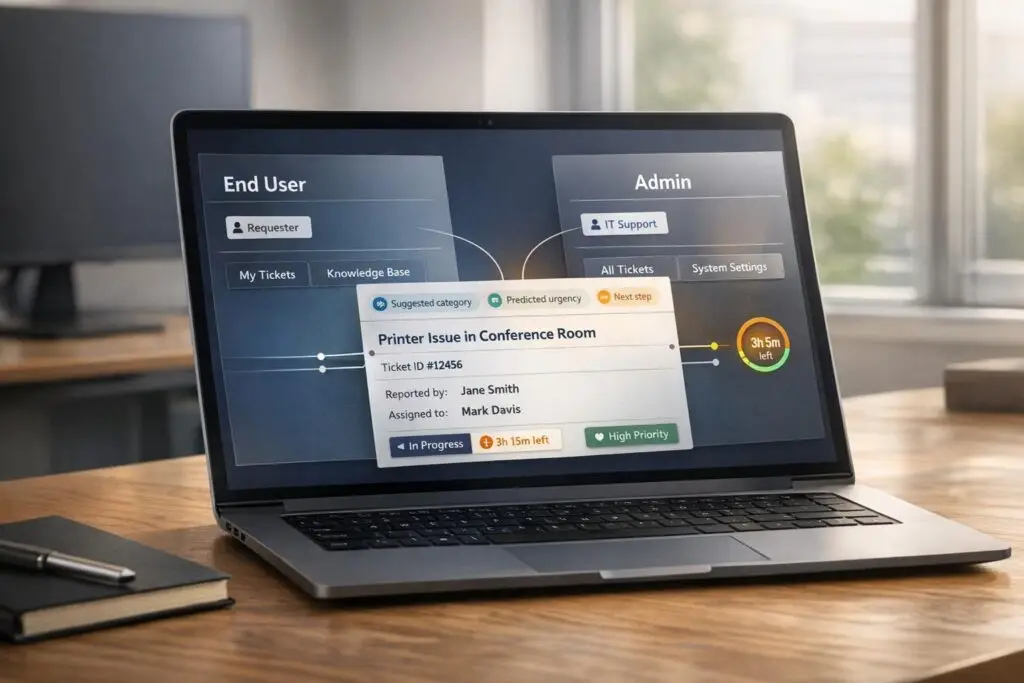
Managing separate ticketing systems for end-users and admins wastes time, creates silos, and drives up costs. A unified portal solves this by combining role-based access, smart workflows, and automation. End-users get simplicity: quick issue submissions, self-service options, and visibility into their own tickets. Admins gain full control: access to all tickets, advanced tools for escalations, and SLA management.
Key takeaways:
- End-users: Need easy-to-use interfaces, self-service tools, and restricted access to their own tickets.
- Admins: Require full visibility, priority management, and tools to oversee workflows and SLAs.
- AI and automation: Streamline ticket routing, triage, and resolution, reducing delays and manual effort.
Different Needs: End-Users vs. Admins
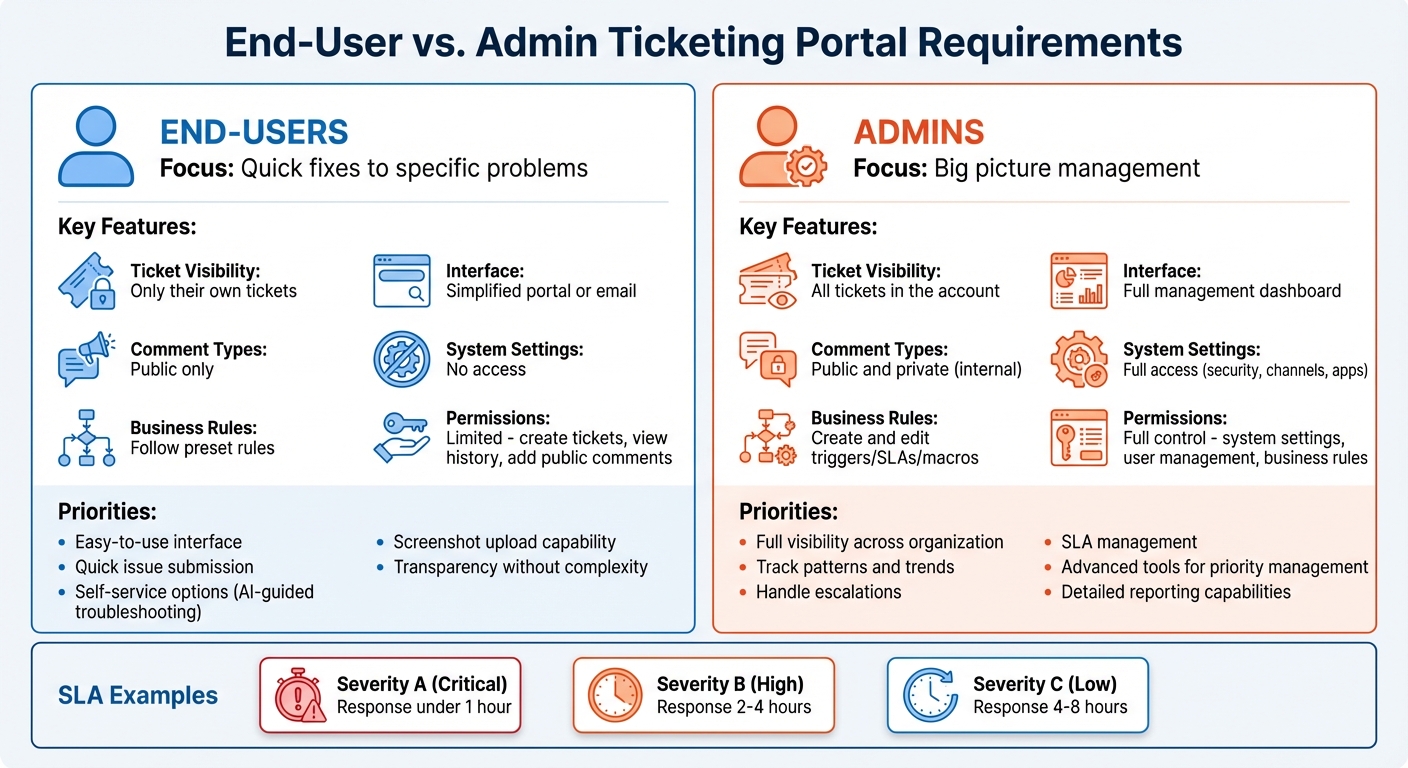
End-User vs Admin Ticketing Portal Requirements Comparison
End-users and admins come to ticketing systems with completely different priorities. Trying to treat them the same can lead to unnecessary complications. To keep support operations running smoothly, it’s important to address their unique needs within a single portal.
For end-users, the focus is on quick fixes to specific problems – like resetting a password, fixing a software error, or getting help with a feature. Admins, however, need the big picture. They’re looking for tools to manage all tickets across the organization, track patterns, handle escalations, and prevent small issues from turning into major problems. For example, when a critical "Severity A" issue arises – one that causes a major service outage – admins expect a response in under an hour. For less urgent "Severity B" problems, response times can range from two to four hours. Admins also need advanced tools to prioritize tickets, manage workflows, and ensure service level agreements (SLAs) are met [1].
The way permissions are structured highlights the differences between these roles. End-users typically can’t initiate high-level support requests unless their permissions are upgraded [1]. Admins, on the other hand, need elevated roles like Global Administrator or Service Support Admin to handle tasks such as domain management, tenant configurations, and system-wide operations [3]. Recognizing these differences is a key step in setting up role-based access controls effectively.
What End-Users Need from Ticketing
End-users value simplicity above all else. They want an easy-to-use interface where they can quickly describe their issue, upload a screenshot if needed, and submit their ticket. Many prefer email for support requests, as it spares them from learning a new system.
Self-service options are also a huge plus. Features like AI-guided troubleshooting that direct users to relevant documentation before they even file a ticket can reduce the overall volume of support requests while speeding up resolutions [4]. End-users should only see their own tickets – exposing them to organization-wide issues or internal notes risks confusion or even accidental data leaks. Keeping their comments public ensures transparency without overcomplicating the process. While end-users focus on simplicity, admins require more robust tools and oversight.
What Admins Need from Ticketing
Admins need full visibility and control. They rely on access to all tickets across the account to identify recurring problems, reallocate resources, and step in when tickets get stuck. This bird’s-eye view is essential for building detailed reports on case histories, assessing support quality, and even negotiating vendor contracts [2].
Admins also oversee the business rules that keep ticket workflows running smoothly. This includes setting up routing logic, creating escalation paths, and tweaking workflows to match the organization’s changing needs. On top of that, they manage identity-related tasks, like assuming an end-user’s identity to troubleshoot specific issues or promoting agents to administrative roles. These capabilities are critical for maintaining efficient and reliable support operations. These contrasting needs underscore the importance of tailoring access and workflows to each role.
| Feature | End-Users | Admins |
|---|---|---|
| Ticket Visibility | Only their own tickets | All tickets in the account |
| Interface | Simplified portal or email | Full management dashboard |
| Comment Types | Public only | Public and private (internal) |
| System Settings | No access | Full access (security, channels, apps) |
| Business Rules | Follow preset rules | Ability to create and edit triggers/SLAs/macros |
sbb-itb-e60d259
Setting Up Role-Based Access
Role-based access is a key component of an efficient dual-user portal. The idea is simple: end-users should only access their own tickets, while admins need full visibility across the system. This structure minimizes confusion, safeguards sensitive information, and ensures workflows stay on track.
Most support systems divide users into two main categories: End Users (customers) and Staff Members (agents and admins). End-users are restricted to their own tickets, while admins have unrestricted access to view and manage all tickets. This broad access helps admins identify trends, handle escalations, and maintain service standards.
Creating Permissions and Roles
To establish clear boundaries, permissions must align with your team’s workflow. At the very least, you’ll need three primary roles: End-User, Agent, and Administrator.
- End-Users: Limited permissions to create tickets, view their ticket history, and add public comments.
- Agents: Broader access, allowing them to resolve tickets, add private and public comments, and manage end-user profiles.
- Administrators: Full control over system settings, user management, and business rules.
You can assign these roles through the admin panel under People > Team > Team Members. Grant the Administrator role to those who require complete oversight. For customers, assign the End-User role to give them access to track their tickets via the portal. If you’re using an Enterprise-level plan, you can create custom roles to define more specific permissions, offering detailed control over what each user can see and do.
Well-defined roles not only streamline operations but also set the stage for integrating AI tools to automate ticket triage and resolution.
Limiting End-User Access While Enabling Admin Oversight
Once roles are in place, refine ticket visibility settings. Restricting end-users to a "My Activities" page keeps their focus on their own tickets and protects sensitive data.
For staff members who aren’t admins, visibility can be tailored further. Some agents may need access to all tickets to manage overflow, while others might only view tickets in their assigned groups or tickets they’re directly responsible for. These settings can be adjusted in each team member’s user profile under the Ticket Access section.
In multi-brand setups, you can restrict agents to specific brands, ensuring they don’t access tickets outside their assigned areas. Even if an agent is CC’d on a ticket they can’t normally view, they’ll still receive email updates for all changes to that ticket.
Configuring Ticket Routing and Prioritization
Once role-based access is in place, the next step is ensuring tickets are routed and prioritized correctly. Routing rules decide where tickets go, while prioritization rules determine how quickly they’re addressed. It’s crucial to recognize that admins and end-users have different needs and urgency levels.
The aim here is to avoid mixing admin tickets – often tied to major technical failures – with routine end-user questions. Without clear routing and prioritization, your team could waste time manually sorting tickets, and critical issues might be overlooked. By following these guidelines, you can make the most of a unified portal and ensure urgent matters get the attention they deserve.
Building Routing Rules for Each User Type
Start by creating separate entry points for admins and end-users. Admins should have access to a dedicated portal or form that automatically flags their tickets as high-priority or routes them to specialized teams. End-users, on the other hand, should be directed to product-specific support pages or self-service resources before submitting a ticket. This ensures admin requests aren’t buried under routine end-user inquiries.
Routing rules should also distinguish between technical failures ("break-fix") and general questions ("advisory"). For example:
- Break-fix tickets from admins should go directly to technical teams.
- Advisory requests from end-users can be sent to lower-priority queues or self-help tools.
AI-powered triage tools can further streamline this process by analyzing ticket content to determine intent and issue type. For instance, if an admin reports a system outage affecting multiple users, the rules should flag it as severe and assign it to a 24/7 technical team. Meanwhile, an end-user asking how to reset a password can be routed to a self-service article or a lower-priority queue that operates during standard hours.
Applying Dynamic SLAs for Priority Management
Static SLAs often fall short in environments with diverse user needs. Instead, use dynamic SLAs that adjust based on ticket severity and business impact. For example:
- A service outage reported by an admin might trigger a "Severity A" SLA with a response time of under one hour.
- A minor feature question from an end-user could fall under a "Severity C" SLA with a response time of four to eight hours [1].
"Priority quality is queue quality. Teams that use AI to standardize priority levels can reduce confusion, protect SLA performance, and execute support work with far better consistency."
Dynamic SLAs allow your team to respond faster and more effectively. AI can help by analyzing historical data to assign priorities based on urgency, affected services, and predefined rules. It also reduces errors in classification and adjusts routing logic over time by monitoring override rates.
This approach also considers business context. For instance, if a customer is nearing renewal, their tickets could automatically receive tighter SLAs to ensure a smooth experience. Similarly, if an end-user’s ticket reveals a system-wide issue, it can be re-prioritized and routed to the admin-level workflow. This flexibility ensures your team adapts to changing situations without relying on manual interventions.
Creating Escalation and Resolution Workflows
After setting up routing and prioritization, the next step is designing workflows that ensure tickets are resolved efficiently. A well-structured escalation process directs tickets to the right expertise level, while customized workflows enable both users and admins to find solutions quickly. The focus here is to avoid tickets getting stuck at inappropriate tiers or being escalated unnecessarily when the current agent has the tools to resolve the issue.
Setting Up Multi-Level Escalation Paths
Escalation paths should be based on outcomes rather than just ticket categories. Before escalating, assess whether the current resources can handle the issue to minimize unnecessary handoffs. This approach helps avoid delays caused by excessive transfers.
A tiered model works well for structuring escalation:
- Tier 0: Self-service options for users, like chatbots and help centers.
- Tier 1: General support agents handling basic troubleshooting.
- Tier 2: Technical specialists focused on admin-level configuration problems.
- Tier 3: Expert engineers addressing system bugs and API-related issues.
- Tier 4: External vendors managing third-party integration challenges.
"Escalations have a much more significant impact than they realize. It’s a bottleneck that can be removed rather easily."
- Tina Grubisa, Value Consultant, Mosaic AI [6]
De-escalation should also be part of your workflow. For instance, if a customer fails to provide necessary information or action is pending on their end, adjust the ticket’s severity accordingly [1]. Additionally, after resolving complex issues, use AI to extract the solution and update your knowledge base [6]. This proactive step helps reduce the need for escalations on similar issues in the future.
Your escalation paths should align with dynamic SLAs, ensuring consistency across all support tiers. Integrating these measures with customized resolution workflows creates a seamless support system.
Customizing Resolution Approaches by User Type
Resolution workflows should cater to the needs of both end-users and admins. For end-users, self-service knowledge bases and guided troubleshooting workflows encourage independent problem-solving. On the other hand, admins benefit from detailed case reports, offering a clear view of recurring issues and helping assess support ROI.
Admins should be able to track key case details, including:
- Case ID
- Severity
- Business Impact Summary
- Issue Category (e.g., Azure or M365)
- Resolution Notes
- CSAT scores
This level of detail provides insight into patterns and helps identify areas for improvement [2].
"A Microsoft Unified Case History works quietly on your behalf, keeping a record for you about what issues arise for your team and how they are resolved."
Clear criteria for reopening tickets are essential. Tickets should only be reopened if the issue involves the same hardware, software build, and error as the original case [1]. For different users or machines experiencing the problem, a new ticket should be created.
Lastly, unify customer data across your ticketing system, CRM, and product databases. This eliminates the need for agents to toggle between tools, a common cause of premature escalation [6]. With a complete view of customer history, licensing information, and past resolutions, agents can resolve more tickets within their tier, streamlining the overall process and reinforcing the centralized support strategy discussed earlier.
Using AI to Improve Dual Workflows
AI simplifies the challenge of managing two distinct user groups within a single portal by eliminating the need for manual sorting, tagging, and routing. It processes incoming requests in real time, assigning the appropriate priority, category, and routing based on the requester and their needs. This shift from manual triage to automated, intelligent workflows enhances speed, accuracy, and the capacity of support teams.
"AI triage is not a chatbot project. It’s a support operations upgrade that – done correctly – improves speed, consistency, and customer experience at the same time."
- Ameya Deshmukh, Director of Customer Support [7]
The standout feature of AI-powered workflows is their ability to understand context. Instead of relying on simple keyword matching, AI integrates data from systems like CRM platforms, billing tools, and product logs. This allows it to assess account value, entitlements, and history before making decisions. For end-users, it means quicker access to self-service solutions. For admins, it ensures tickets are directed to the right specialist with all the necessary technical details and actionable recommendations.
AI-Powered Ticket Triage and Routing
From the moment a ticket is submitted, AI analyzes its content to determine intent, extract key details, and assign a priority score (0–100). This score is based on factors like urgency, sentiment, and business impact. For end-users, this often means routing simple "how-to" questions to Tier 1 support or self-service resources. On the admin side, AI identifies technical language and account tier (e.g., Enterprise vs. Self-serve) to route critical issues directly to specialized teams.
Manual triage can lead to inefficiencies, with about 30% of tickets requiring reassignment – adding an average delay of 15 minutes per ticket [10]. AI minimizes these delays by auto-assigning high-confidence predictions using pre-set thresholds, while flagging lower-confidence cases for manual review. This approach has been shown to improve SLA compliance and First Contact Resolution rates by 20–30% [8].
| Triage Component | End-User Ticket Handling | Admin Ticket Handling |
|---|---|---|
| Primary Intent | How-to, billing, account access | Technical bugs, security alerts, feature requests |
| Priority Logic | Sentiment and standard SLA | Account value, system status, and VIP tier |
| Routing Path | Tier 1 Support or Automated Resolution | Engineering Support or Senior Escalation Engineers |
| AI Enrichment | Knowledge base suggestions | System logs review and error code extraction |
Before fully automating workflows, consider starting with a suggestion mode. In this mode, AI recommends categories and routing paths to agents, allowing for accuracy validation. It’s essential to ensure the AI has access to comprehensive data across systems like your CRM, billing tools, and product logs. Without this cross-system integration, the AI may struggle to make informed decisions about priorities and entitlements.
Automating Routine Tasks with AI
Repetitive tasks often pull agents away from addressing more complex issues. For instance, manually gathering context can take up to 3.3 hours per 100 tickets [10]. AI streamlines this by automatically filling in key fields and generating summaries for ticket reviews. It also uses Natural Language Processing to instantly tag and categorize tickets based on their content.
For high-frequency issues like password resets, billing questions, or access requests, AI can activate pre-built macros to resolve tickets automatically. In some cases, this can handle up to 60% of ticket volume without requiring additional input [11].
To identify which tasks are ideal for automation, conduct a macro audit of recent support activity (covering 30 to 60 days). Look for recurring patterns and define rules based on urgency and business impact. Additionally, monitor situations where agents override AI-assigned priorities – this feedback is critical for refining the system.
Delivering Personalized Support with AI
Providing tailored support for both end-users and admins is essential. AI enhances personalization by suggesting relevant knowledge articles for end-users, while offering admins actionable technical steps like "revoke active sessions" or "force password reset" based on the detected issue type.
AI also dynamically adjusts ticket priorities based on customer signals and business importance. For example, a general inquiry from an end-user might go to a standard queue, while a high-value admin reporting a production outage would be flagged as critical and routed directly to a senior specialist with escalation authority.
"The winning model is not ‘replace IT teams.’ It’s ‘remove repetitive triage friction so teams can focus on higher-value work.’"
- Layer 8 Labs [9]
Beyond routing, AI can manage entire workflows. It gathers context, attempts resolution using knowledge base policies, and escalates to human agents only for exceptions or cases requiring nuanced judgment. This approach boosts team capacity and coverage without increasing headcount. At the same time, maintaining manual review paths for sensitive issues – like legal matters or high-profile escalations – helps ensure trust and accountability.
Conclusion
A unified portal uses role-based access control to address the needs of both end-users and administrators. This setup ensures that users see and do only what’s relevant to their role – end-users can access their own tickets, while admins have a broader view, covering all support cases within the organization.
Efficient workflows thrive on smart routing and prioritization. For example, routine tasks like password resets are handled differently than urgent issues, such as a major system outage. Dynamic SLAs ensure that critical admin requests are addressed quickly, while standard end-user inquiries follow appropriate timelines. This balance prevents delays and keeps service quality consistent, paving the way for AI to simplify support tasks even further.
AI automation removes much of the manual effort involved in handling dual workflows. From the moment a ticket is submitted, AI identifies its purpose, assigns a priority, and routes it to the right team. Whether it’s guiding an end-user to AI-driven self-service tools or escalating a security alert from an admin to senior engineers, this process reduces delays and helps meet SLA commitments.
By integrating these intelligent processes, Supportbench offers an all-in-one solution. It combines role-based permissions, AI-driven triage, and dynamic workflows directly within the platform – eliminating the need for costly add-ons or extra IT setup. End-users get a streamlined and private support experience, while admins and other stakeholders gain the visibility they need to manage effectively.
This blend of efficient workflows, role-based customization, and AI-driven optimization represents a modern and cost-effective support strategy. The unified portal not only serves diverse needs but also reduces overhead, scales easily, and keeps costs under control.
FAQs
How do I keep end-users from seeing internal notes or other customers’ tickets?
To keep internal notes and other customers’ tickets secure, set up private ticket groups and use role-based permissions in your support portal. By assigning agents to these private groups, you limit access to sensitive information, ensuring that only authorized team members can view it. This approach helps maintain confidentiality and gives you full control over ticket visibility, keeping internal details hidden from end-users and other customers.
What’s the best way to route admin outage tickets differently from end-user questions?
To handle admin outage tickets separately from general end-user inquiries, implement role-based ticket routing. This involves setting up your system to direct end-user tickets to general support queues, while admin or critical outage tickets are routed to specialized escalation queues. You can automate this by creating rules that filter tickets based on roles, keywords, or specific categories. Leveraging AI-driven automation can take this a step further by streamlining the triage process, ensuring that admin outage tickets are prioritized for faster resolution.
How can AI automate triage without risking wrong priorities or misrouting?
AI can streamline triage by evaluating ticket content, urgency, and impact to suggest priorities and routing paths, reducing the chance of human error. To avoid misrouting, confidence-based controls can identify uncertain cases and escalate them for human review. Ensuring accuracy involves training AI with high-quality, policy-compliant data and continuously monitoring for errors. This approach strikes a balance between automation and human oversight, maintaining both efficiency and reliability.