


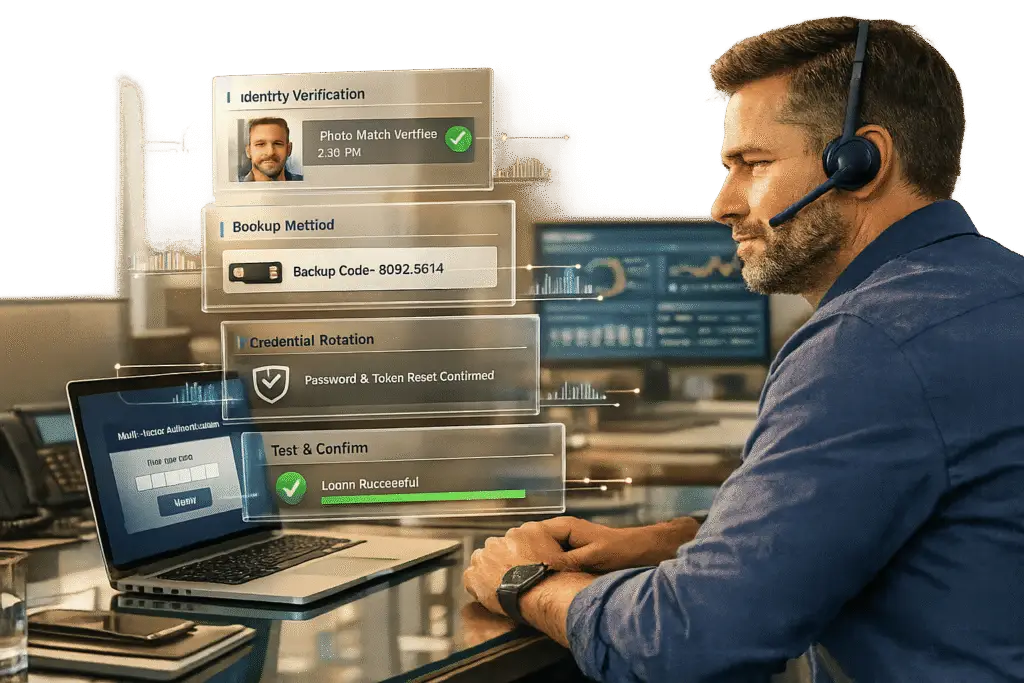
MFA lockouts can disrupt work, overload IT, and weaken security if handled poorly. They happen when users can’t complete the second authentication step, even with the correct password. The key is balancing quick recovery with strong security to avoid creating vulnerabilities.
Quick takeaways:
- Common causes: Lost devices, app issues, SMS delays, or policy misconfigurations.
- First steps: Verify identity through secondary channels like pre-verified phone numbers or manager confirmation.
- Recovery tips: Use backup codes, ensure device time settings are automatic, and test the updated MFA setup post-reset.
- Avoid future issues: Register multiple MFA options, maintain emergency admin accounts, and test recovery processes regularly.
- AI tools: Use risk-based authentication and automated workflows to detect and mitigate lockouts or attacks like MFA fatigue.
Effective MFA management prevents downtime, reduces helpdesk costs (up to $162 per reset), and keeps accounts secure. Let’s explore how to handle lockouts safely and prevent them altogether.
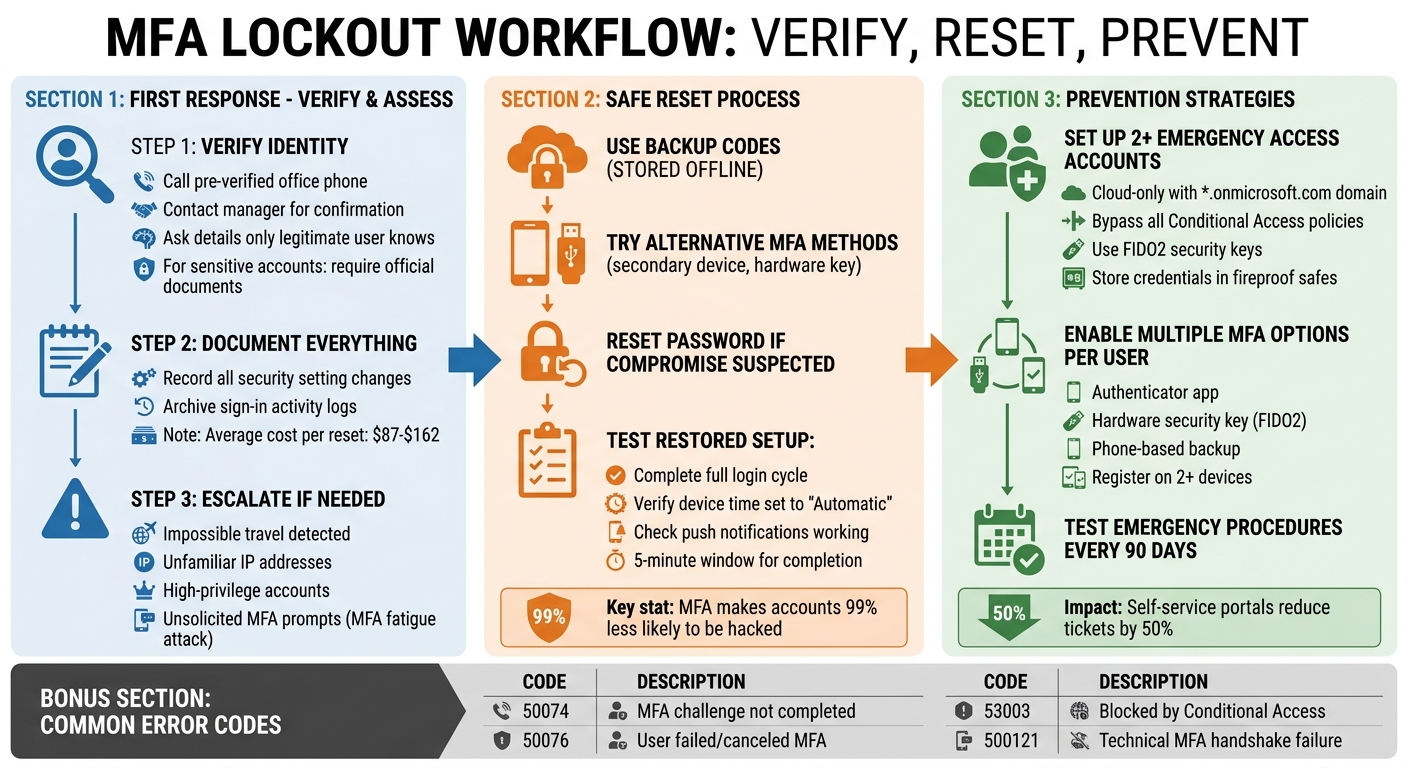
MFA Lockout Response and Prevention Workflow
Locked Out? How to Reset Multifactor Authentication for Microsoft 365 users
sbb-itb-e60d259
What Causes MFA Lockouts
MFA lockouts can happen for various reasons, including user mistakes, system misconfigurations, or even malicious interference. Each scenario requires a specific and timely response.
One of the most common causes is device-related issues. For example, users might lose their phones, fail to back up authenticator apps during a phone upgrade, or accidentally delete the app entirely [1][6]. Another frequent problem is clock synchronization errors. Time-based One-Time Passwords (TOTP) rely on exact UTC alignment, and even minor discrepancies can render codes invalid [3][7][8].
SMS-based MFA also brings its own set of challenges. Delays caused by carriers, full message inboxes, restrictions on VOIP numbers, or poor cellular reception can all prevent the delivery of authentication codes [3][7]. To mitigate rate-limit issues, Auth0 restricts SMS requests to ten messages per device per hour [7]. Additionally, policy and configuration errors – such as overly strict Conditional Access rules, incorrect group assignments, or conflicting policies – can block legitimate users, even when their credentials are correct [1][3].
Common Lockout Scenarios
Diagnosing the exact cause of a lockout is key to avoiding insecure resets. Microsoft’s sign-in logs can provide detailed insights. For example, the "Authentication Details" tab shows which MFA method was attempted and why it failed, while the "Conditional Access" tab identifies which policies were triggered [3].
A notable incident occurred on February 23, 2026, when Microsoft 365 users across North America experienced a widespread lockout during incident MO1237461. This caused 504 gateway timeout errors, preventing users from completing MFA challenges even when their credentials were correct [3]. Such cases highlight how provider-level infrastructure issues can mimic user-level problems.
Other scenarios include Android battery optimizations and legacy email protocols like POP3 or IMAP. These can interfere with MFA by either halting push notifications or bypassing MFA entirely [3]. To avoid such conflicts, administrators can use the "What If" tool in Conditional Access settings to simulate policy impacts before implementation [3].
| Error Code | Meaning | Common Cause |
|---|---|---|
| 50074 | Strong auth required | MFA challenge was issued but not completed [3] |
| 50076 | User didn’t pass MFA | User failed the challenge or canceled it [3] |
| 53003 | Access blocked by CA | Conditional Access policy explicitly denied the login [3] |
| 500121 | Auth failed during request | Technical failure during the MFA handshake [3] |
Individual vs. Organization-Wide Lockouts
Individual lockouts are generally resolved quickly by internal admin resets. However, organization-wide issues require escalation and careful planning.
Widespread lockouts can result from misconfigured global policies, mandatory enforcement of MFA (such as Microsoft’s enforcement for admin accounts on February 9, 2026 [3]), or major outages at the service provider level. A particularly critical situation arises when the sole Global Administrator is locked out. This can happen due to a device change or the absence of a configured MFA method, leaving no one with the authority to reset the account [3][6]. In such cases, contacting the provider’s Global Customer Service and requesting the "Data Protection Team" is crucial. Be ready to prove domain ownership, as this process can take days [6][9][10][11]. To avoid such scenarios, organizations should maintain at least two "break-glass" accounts – cloud-only accounts excluded from standard Conditional Access policies [3].
Real Lockouts vs. MFA Fatigue Attacks
MFA fatigue attacks happen when attackers bombard users with repeated authentication requests to wear them down. Unlike genuine lockouts, these attacks are unsolicited and occur at a high frequency [3]. Real lockouts typically involve user-initiated actions and result in errors like "Incorrect Code" or "Timeout" [8]. Fatigue attacks, on the other hand, are attacker-driven and are meant to trick users into approving a fraudulent request.
Modern tools like Microsoft Authenticator now use number matching by default. If a user receives a prompt to enter a number that doesn’t match their login screen, it’s likely an MFA fatigue attack [3]. Sign-in logs can help differentiate between the two. Legitimate failures usually show known devices and locations, while fatigue attacks often originate from suspicious IP addresses and involve unusually high request volumes [3]. If a user reports unsolicited MFA prompts, treat it as a security incident, not just a routine helpdesk issue.
Next, we’ll look at how to verify identities and assess risks to initiate secure recovery procedures.
First Response: Verify Identity and Assess Risk
When an MFA lockout happens, the first step is to confirm the user’s identity to prevent social engineering attempts. Since account recovery essentially bypasses primary security protocols, it must function as an alternative authentication process [4]. The method you choose should align with the account’s sensitivity and the specific circumstances of the lockout.
How to Verify User Identity
Don’t rely solely on the information provided during the lockout request. Instead, use out-of-band confirmation – for instance, calling the user on their pre-verified office phone number [3]. To strengthen verification, you can also reach out to the user’s manager for confirmation of their identity and the lockout situation [3]. Another effective approach is asking for details only the legitimate user would know, like the date of their last support interaction or recent transaction activity [4][14].
For accounts with higher sensitivity, you might require official document verification [12][6]. Some organizations also use "trusted contacts" – colleagues who can vouch for the user – similar to methods employed by platforms like Apple and Facebook [4][14]. Avoid relying on traditional security questions, as the National Institute of Standards and Technology (NIST) advises against them due to how easily the answers can be guessed or researched [4][14]. For the most sensitive cases, consider enforcing a waiting period of three to five days, a tactic used by platforms like GitHub, Cloudflare, and Gemini, to allow the legitimate user time to flag any fraudulent activity [4][14].
Document Every Action
Once the user’s identity is verified, document every step taken immediately. This includes recording any changes to security settings along with their previous states [13]. Also, archive all sign-in activity during the time MFA is disabled or bypassed to monitor for unauthorized access [13]. These logs are invaluable for internal troubleshooting, compliance audits, and investigating incidents. With companies spending an estimated $40 to $70 per support call to unlock accounts [4], thorough documentation can help identify trends and reduce future costs.
When to Escalate a Lockout
If verification raises any doubts, escalate the issue without delay. Not all lockouts are routine. For example, if sign-in logs show signs of impossible travel or unfamiliar IP addresses, escalate the matter immediately [13]. For high-privilege accounts, like those belonging to executives or administrators, reset the password before temporarily disabling MFA to minimize risks [13].
In cases where the sole Global Administrator is locked out, escalate to specialized vendor teams, such as the Microsoft Data Protection Team. This often requires verifying domain ownership and can take several days [3][6]. Similarly, if a Global Administrator is facing persistent MFA fatigue attacks – where unauthorized requests are coordinated to exhaust the user into approving access [16] – escalate the issue right away.
If a user reports unsolicited MFA prompts, particularly multiple requests in quick succession, treat it as a security incident rather than a routine helpdesk issue. This pattern is a hallmark of MFA fatigue attacks, where attackers attempt to pressure the user into approving fraudulent logins [15][16]. In such cases, lock the session, alert your security team, and reset the user’s credentials immediately.
Next, we’ll explore how to reset MFA safely while maintaining security.
How to Reset MFA Safely
Restoring access after a multi-factor authentication (MFA) lockout requires a careful balance between security and usability. Once a user’s identity is verified and risks are assessed, the reset process must ensure security remains intact while minimizing disruption. Below, we break down key strategies – from backup methods to testing – to safely reset MFA without introducing new risks.
Backup Authentication Methods
After confirming identity and assessing risks, the next step is using backup authentication methods to restore access securely. One of the quickest options is leveraging pre-generated, single-use recovery codes provided during the initial MFA setup. These codes, ideally stored offline or in a secure password manager, are invaluable when the primary device is unavailable [12][21]. According to Microsoft, MFA makes accounts 99% less likely to be hacked compared to relying solely on passwords [21], so preserving its integrity during recovery is essential.
For accounts requiring heightened security, alternative methods like verifying through a registered phone number or email address can be used [20]. Platforms like AWS allow users to register multiple MFA devices – up to eight for root and IAM users – to avoid lockouts [20]. If the user has a secondary hardware key or authenticator app on another device, use that to grant temporary access instead of disabling MFA entirely.
Avoid using SMS or email codes for sensitive accounts, as these methods are susceptible to SIM swapping and phishing attacks. Similarly, security questions should not be used, as they are no longer considered secure by NIST due to how easily answers can be guessed or retrieved online [18][19].
Reset Credentials and Rotate Passwords
When adding a new MFA factor, require reauthentication with an existing enrolled factor to prevent unauthorized access [19]. If the lockout stems from a suspected compromise, such as a stolen device or an MFA fatigue attack, immediately reset the account password along with the MFA factor [19][20]. This step ensures that even if an attacker has both the device and the password, they cannot regain access.
Notify the user through a verified secondary channel once any MFA factor is changed or reset [19]. For especially sensitive accounts, consider implementing a time delay before the new factor becomes active. This delay provides a window for the legitimate user to flag any suspicious activity [19]. Additionally, invalidate recovery codes immediately after they are used to prevent reuse [19].
"Account recovery is just an alternate way to authenticate so it should be no weaker than regular authentication." – OWASP [19]
Test the Restored MFA Setup
Before closing the support ticket, confirm the user can complete a full login cycle – logging out and then logging back in using the updated MFA method. This ensures the configuration is correct and eliminates any potential gaps in the recovery process.
Check that the device’s time is set to "Automatic" to avoid issues with time-based one-time passwords (TOTP) [7][22]. Verify that the new MFA account is properly labeled in the authenticator app and that push-based notifications are working as expected [22]. Keep in mind, there’s often a five-minute window for completing the second authentication factor before the session expires [7].
For users of Microsoft Authenticator, credentials can often be restored on a new device if cloud backup was enabled (e.g., iCloud for iOS or a Microsoft Account for Android). However, work or school accounts typically require a fresh sign-in and verification to fully reactivate [17]. Testing the entire login process ensures smooth recovery and reinforces the security of the MFA system for future use.
How to Prevent Future MFA Lockouts
Taking proactive steps to avoid future MFA lockouts is far more effective than scrambling for reactive solutions. By building redundancy into your authentication system and ensuring strong security measures, you can minimize disruptions while protecting against credential-based threats.
Set Up Emergency Access Accounts
Every organization should maintain at least two cloud-only emergency access accounts with Global Administrator roles [23][24]. These accounts should use the *.onmicrosoft.com domain and remain independent of on-premises environments or external identity providers to avoid unnecessary dependencies [23][24]. At least one of these accounts should bypass all Conditional Access policies and MFA requirements, ensuring access during authentication outages [24]. These accounts act as a last-resort safeguard when other recovery options fail.
Use phishing-resistant methods like FIDO2 security keys or certificate-based authentication instead of phone-based MFA [23]. For instance, Databricks allows up to 20 users to be configured for emergency access and recommends hardware keys such as YubiKey [26]. Credentials for these accounts should be stored securely, such as in fireproof safes at separate locations, with access granted only through multi-person authorization [23][24]. These accounts should never be tied to a specific individual or personal devices, and any sign-ins or changes should trigger immediate alerts in monitoring systems [23][24][25]. Use clear naming conventions, like "EM001 – ENABLE IN EMERGENCY", to make these accounts easily identifiable in a crisis [5].
Enable Multiple MFA Options
Providing multiple MFA options ensures users have alternatives if one method fails [5][27]. Configure a mix of methods, such as an authenticator app, a hardware security key (FIDO2), and a phone-based option (SMS or voice). Register MFA on more than one trusted device – such as a work phone and a personal tablet – to avoid being locked out if the primary device is lost or stolen [27].
While offering flexibility, prioritize phishing-resistant methods like FIDO2 security keys and Windows Hello for Business, especially for accounts with elevated privileges. Microsoft, for example, enforced mandatory MFA for all Microsoft 365 admin accounts starting February 9, 2026 [3]. Additionally, generate and securely store one-time backup codes during initial MFA setup. These codes can serve as a fallback if all devices become inaccessible. Always update MFA settings when replacing devices or changing phone numbers [27]. With multiple methods in place, confirm that emergency protocols are compatible with these configurations.
Test Emergency Procedures Regularly
Emergency procedures that aren’t tested regularly might fail when they’re needed most. Just like with MFA resets, routine testing ensures your emergency access remains reliable. Conduct simulations at least every 90 days, where a trusted team walks through the emergency steps, verifies physical MFA devices, and confirms that credentials are accurate and accessible [23][24][25]. Make sure new Conditional Access policies haven’t inadvertently restricted emergency accounts, which should always remain exempt from standard MFA and location-based policies [28].
If an emergency account is used – whether during a real incident or a test – review the event to ensure it was authorized and assess the response process [23][24][25]. Revoke all refresh tokens issued during the disruption to enforce re-authentication under the restored security settings [5].
Using AI to Manage MFA Lockouts
Modern AI-powered systems are reshaping how organizations handle multi-factor authentication (MFA) lockouts, combining real-time analytics with automated workflows. These tools go beyond traditional reset methods, offering faster recovery while keeping security intact. Instead of relying on manual troubleshooting, today’s authentication platforms use advanced techniques like real-time risk scoring and behavioral analysis to address lockouts – often before users even realize there’s an issue.
Risk-Based Authentication
Risk-based authentication (RBA) assigns a risk score to every login attempt by analyzing real-time contextual data. Factors include:
- Impossible Travel: Logins from locations that are geographically too far apart to be feasible.
- New Device: Attempts using unrecognized devices or browser cookies.
- Untrusted IP: Logins from IP addresses flagged for suspicious activity[33].
When a login comes from a trusted source, the system minimizes MFA prompts. But if it detects unusual activity – like a new device or unfamiliar location – it triggers extra verification steps.
"Adaptive MFA is a flexible, extensible policy that can help you protect your tenant… without increasing friction for real users. It assesses potential risk during every login transaction, and then prompts the user for additional verification if appropriate." – Auth0 Docs[33]
For example, Microsoft Entra ID Protection processes trillions of anonymized signals daily to spot suspicious patterns[34]. Similarly, Auth0’s Adaptive MFA, available with the Enterprise Plan, uses dynamic policies to assess risks during login attempts. Both systems recommend starting with Report-only or Audit modes to evaluate impacts on users and avoid widespread lockouts during configuration[30][34].
AI-driven threat detection further enhances security by identifying and responding to unusual behavior before it escalates.
Automated Threat Detection
Security tools like SIEM (Security Information and Event Management) and UEBA (User and Entity Behavior Analytics) analyze authentication logs to detect anomalies. These systems establish behavioral baselines – such as common login times, devices, and locations – to flag unusual activity. For instance, an MFA fatigue attack is identified when a user rejects five push prompts within an hour[32]. Once detected, the system can:
- Temporarily lock the account to block unauthorized access.
- Notify the security team through tools like Slack or PagerDuty.
- Assign the user to a high-risk group requiring stronger authentication methods.
Microsoft Entra ID’s "Report suspicious activity" feature automatically marks users as "High User Risk" when unfamiliar prompts are flagged, triggering additional safeguards[29]. SecureAuth applies intelligent throttling, blocking MFA attempts after five failures within 30 minutes to reduce brute-force risks[31].
By automating these processes, organizations can respond swiftly to threats while reducing the burden on IT teams.
Automate Incident Response Tasks
AI takes over repetitive tasks, allowing systems to handle incidents efficiently. For high-risk lockouts, it can:
- Revoke active sessions.
- Reset user credentials.
- Notify security teams while documenting actions for future reference[32].
Okta Workflows, for instance, can detect MFA fatigue attacks and automatically suspend accounts or reset credentials before a breach occurs[32]. These workflows also optimize log management by purging older entries while retaining summaries for a set time to maintain performance. A critical best practice is to exclude emergency access accounts (often called break-glass accounts) from automated lockout policies to ensure administrators maintain control during widespread incidents[30][34].
Conclusion
Managing MFA lockouts effectively starts with verifying user identity, implementing tiered recovery steps, and keeping detailed records of every action. Before initiating a reset, confirm the user’s identity through secondary channels, such as a verified office phone number or direct confirmation from their manager.
A good first step is enabling the "Set Time Automatically" setting to avoid TOTP (Time-Based One-Time Password) issues. If the issue persists, try backup codes or alternative authentication methods before considering a full administrative reset.
With MFA resets accounting for 20%-50% of IT helpdesk calls and costing an average of $87 per call[2], prevention is key. Organizations can minimize these incidents by taking proactive measures: enrolling users with at least two MFA methods, maintaining break-glass accounts for emergencies, and enabling self-service portals. These portals alone can cut ticket volumes by up to 50%.
Once these basics are in place, advanced tools can take prevention further. AI can transform MFA management from reactive to proactive. For example, risk-based authentication adjusts security requirements based on real-time activity, while automated systems detect and flag suspicious behaviors like push fatigue attacks. AI workflows can also handle routine tasks, such as session revocation and credential resets, often resolving issues before users even notice.
Striking a balance between security and usability is possible. By combining strict verification, diverse recovery options, and intelligent automation, organizations can maintain robust security without hindering legitimate access. Security gaps don’t come from helping locked-out users – they stem from skipping proper verification steps or relying on a single point of failure. These strategies empower support teams to resolve MFA lockouts quickly while keeping security intact.
FAQs
What’s the safest way to prove a user’s identity during an MFA lockout?
The best way to confirm someone’s identity during an MFA lockout is by relying on multiple trusted authentication methods. It’s wise to encourage users to set up backup options such as recovery codes, secondary email addresses, phone numbers, or even hardware security keys ahead of time. Support teams can then verify these methods to ensure the process stays secure and minimizes risks like social engineering attacks. At the same time, the recovery process should remain as straightforward as possible, keeping in mind the importance of the assets being protected.
When should we reset MFA versus treat it as an active security incident?
If a user is genuinely locked out of their account – perhaps due to losing their device or forgetting their credentials – it’s important to reset their multi-factor authentication (MFA) to restore access. This ensures they can regain entry without lowering security standards.
However, if there are signs of malicious activity, like repeated failed login attempts, unusual behavior, or brute-force attacks, treat the situation as a potential security incident. In such cases, investigate thoroughly and follow established security protocols to address any threats effectively.
What’s the minimum “break-glass” setup to avoid an admin lockout?
To avoid being locked out of your admin account, it’s smart to set up a secure emergency access account. This account should be designed to bypass multi-factor authentication (MFA) during critical situations. However, it’s crucial to safeguard it with strict MFA measures, like hardware security keys or time-based one-time passwords (TOTP), to ensure it remains secure.
Use this account only in documented emergencies, and make sure there are clear procedures in place for when and how it can be accessed. Regularly review its usage and enforce strict policies to prevent any misuse while maintaining the overall security of your systems.






