


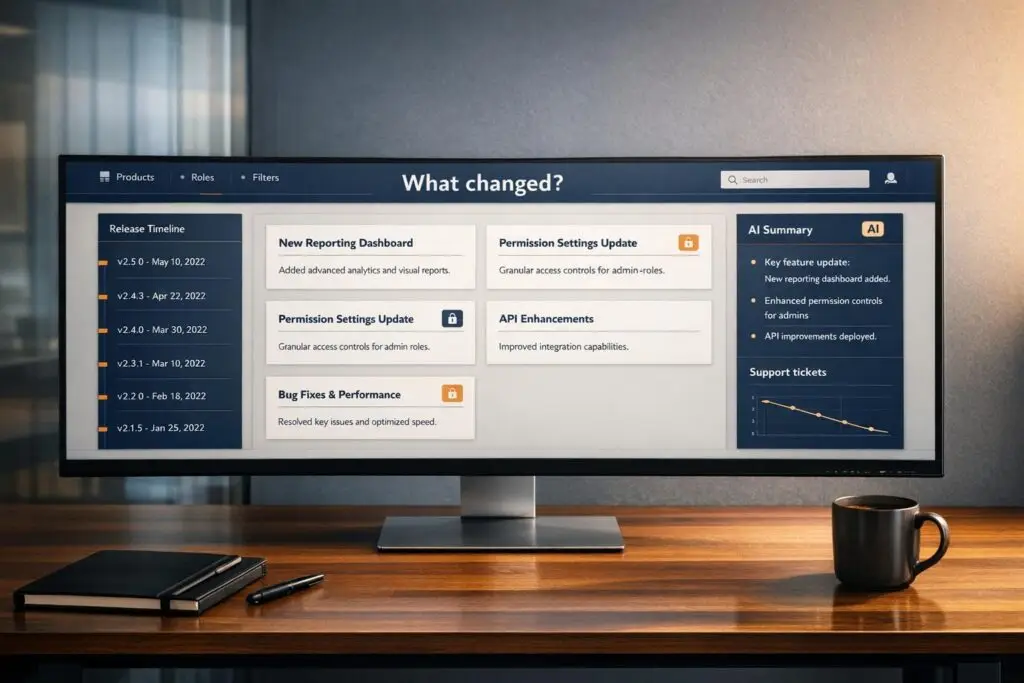
Admins need a reliable way to track platform updates without sifting through scattered information. A centralized “what changed?” portal simplifies this process by organizing feature changes, bug fixes, and policy updates into one accessible hub. This reduces support tickets, improves communication, and ensures admins stay informed.
Here’s a quick breakdown of how to build one:
- Include Key Update Types: Focus on Added, Changed, Fixed, Removed, and Security updates. Prioritize changes that impact workflows, like API deprecations or mandatory updates.
- Organize Clearly: Use reverse-chronological timelines, color-coded categories, and concise entries (1-3 sentences). Add visuals for clarity and secondary filters for faster navigation.
- Leverage Automation: Use AI workflows to pull updates from tools like Git or Jira, summarize technical details, and save time. Always include a human review step for accuracy.
- Choose the Right Platform: Look for features like role-based access control, audit logs, real-time monitoring, and customizable alerts. Ensure compatibility with your existing tools.
- Test and Maintain: Before launch, test the portal across devices. Use AI to monitor for outdated content and automate periodic recaps to keep updates fresh.
This approach not only simplifies admin workflows but also saves time and reduces operational costs. For example, automating update summaries can cut preparation time by 75%, while reducing support tickets by up to 63%.
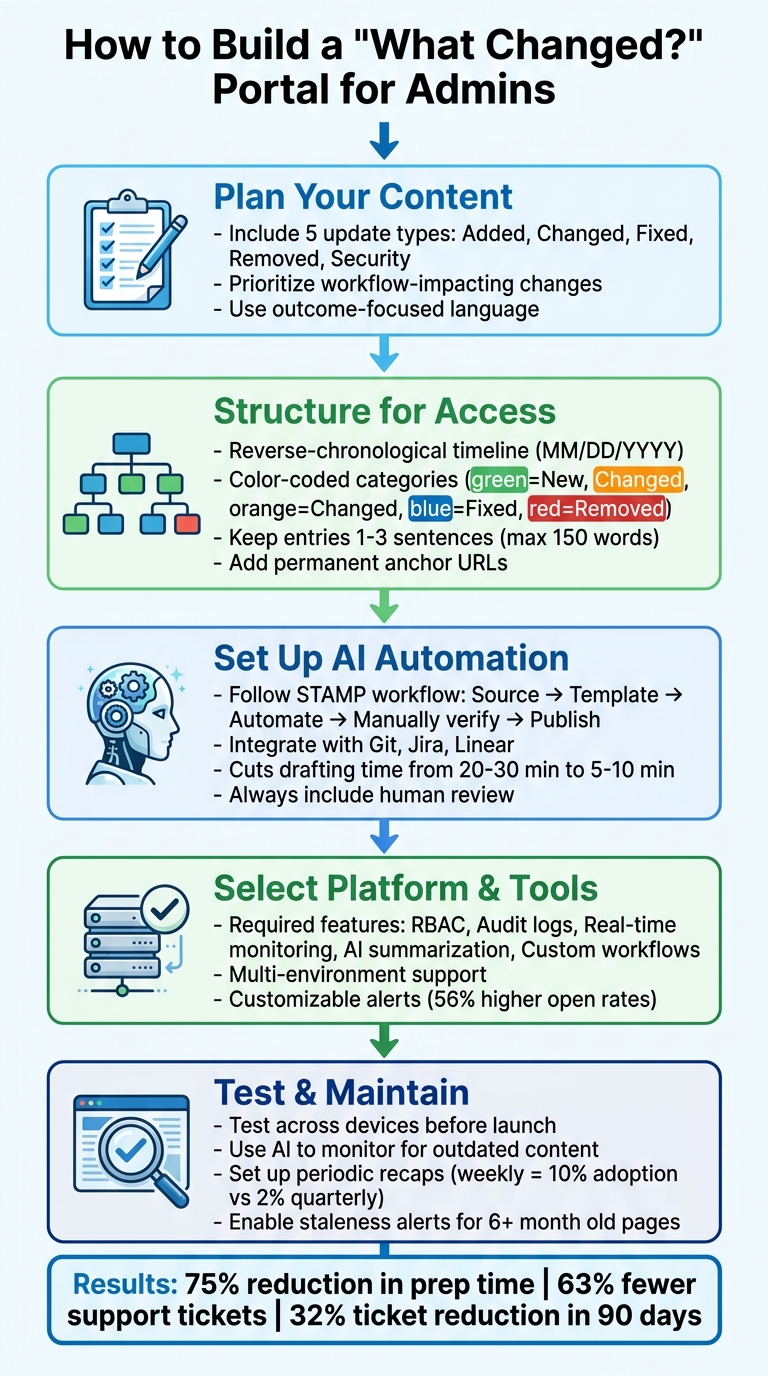
5-Step Process to Build an Admin What Changed Portal
Planning Your Portal Page
What Types of Updates to Include
A well-thought-out portal ensures admins have clear, actionable updates at their fingertips. Focus on five main update categories: Added (new features), Changed (modifications), Fixed (bug fixes), Removed (deprecations), and Security (patches and vulnerabilities) [7]. Beyond feature announcements, include critical information such as policy changes, pricing updates, terms of service revisions, and system-level adjustments like API versioning or integration updates for platforms like Salesforce [1][4].
Not all updates are equally impactful. Prioritize updates based on their potential to disrupt workflows. For example, breaking changes, API deprecations, or mandatory security updates can significantly affect operations [4][8]. As PageCrawl.io warns:
"Missing a deprecation notice does not just mean technical debt. It means a production incident when the deprecated feature stops working" [4].
Use language that emphasizes outcomes. For instance, instead of saying "Refactored query builder", say "Dashboards load 3x faster" [7][8]. Be specific about which plans (Free, Pro, Enterprise), regions, or platforms (Web, iOS, Android) are affected [8][6].
Once you’ve defined your update types, structure your portal for quick and easy navigation.
How to Structure the Portal for Easy Access
Organize updates in a reverse-chronological timeline, ensuring the most recent changes are front and center [9][7]. Use date headings in the MM/DD/YYYY format and apply color-coded categories for clarity – for example, green for New/Added, orange for Improved/Changed, blue for Fixed, and red for Removed [9][7]. Keep entries short and scannable, ideally one to three sentences (no more than 150 words), and include visuals like screenshots or GIFs for UI changes [7][8].
For more complex systems, consider adding secondary filters by product area (e.g., API, Billing, Dashboard) or by impact level (Low, Medium, High). This helps admins find what they need faster [1][7][9]. Every update should also have a permanent anchor URL so admins can easily share specific changes via Slack or support tickets [7]. Before publishing, apply a "Support-Ready" check that includes a customer-friendly explanation, an internal decision log for edge cases, and a plan for managing expected support volume [1].
Setting Up AI-Driven Workflows
AI thrives on consistent inputs, so use a structured intake format that captures key details like Feature Type, Name, Description, Impact, Plans/Platform, and Status [6]. Follow the STAMP workflow: Source, Template, Automate, Manually verify, and Publish [6]. Mukesh Swamy emphasizes:
"A changelog works best as part of the release process, not as a separate writing task" [6].
Develop a universal AI prompt that defines the assistant’s role (e.g., AI changelog assistant), provides a template structure, and sets rules like "Lead with user benefit" and "Use short paragraphs" [8]. Integrate AI workflows with tools like Git repositories, Jira, or Linear to automatically pull updates [6][9]. This can cut drafting time from 20–30 minutes to just 5–10 minutes per update [8].
However, always include a human review step – AI cannot ensure accuracy for feature scope, plan availability, or release dates [6][8][9]. Finally, set up role-based notifications so admins receive technical details, while end users are only alerted to relevant UI updates [2][9].
sbb-itb-e60d259
Selecting Your Platform and Tools
Required Platform Features
When building a centralized update portal, choosing the right platform is essential for efficient operations and maintaining security. Some features are non-negotiable. For example, Role-Based Access Control (RBAC) ensures sensitive change data is accessible only to authorized admins. This feature is gaining traction, with the RBAC market expected to grow from $8.7 billion in 2022 to $15.5 billion by 2027, reflecting a 12.2% annual growth rate [10]. Additionally, audit logs are critical – they provide a detailed history of changes, documenting who made updates and when, which supports both accountability and compliance [10].
Other must-haves include real-time data monitoring to keep admins updated without manual refreshes and AI-powered summarization to simplify complex technical details into digestible summaries [10][11]. Advanced filtering capabilities – by date range, status (like open or closed), or product area – make navigating large datasets manageable [10][11][12]. Platforms should also allow for custom workflows, enabling automated actions like notifying teams when a breaking change is published. Multi-environment support is another key feature, letting teams test updates in a staging environment before they go live [10][13].
Don’t overlook the importance of customizable alerts. Whether through in-app notifications, email, or SMS, these alerts ensure admins stay informed as updates happen. In fact, rich push notifications have been shown to boost open rates by as much as 56% [10]. For instance, in July 2025, Purplle – a beauty and personal care platform – streamlined its operations by implementing a centralized admin dashboard via DronaHQ‘s low-code platform, saving significant manual effort [10].
Supportbench offers a strong example of a platform that integrates these features into a cohesive, practical solution.
How Supportbench Supports This Approach
Supportbench takes these essential features and applies them to a B2B customer support context, offering a comprehensive and integrated platform. It includes a multi-tier community portal where admins can view updates, manage cases, and organize content in one place [14]. Updates are grouped into Containers, which categorize "what changed" articles into sections like product release notes or API deprecations, making information easier to locate [14]. The platform also offers design flexibility with options like the Modern Portal Theme or full customization, including logo integration, color schemes, and SEO-friendly meta tags [14].
To simplify complex data, Supportbench uses AI summarization to condense ticket details and change logs into concise updates [16]. Its REST API (https://api.supportbench.net/case) enables seamless integration with tools like Jira or GitHub, syncing change data in real time. Features like the id_source field help map updates to existing tools, while the tags array automatically categorizes entries for faster filtering [15].
Security is a top priority, with features like SAML and LDAP authentication ensuring safe access. Granular access controls allow admins to restrict visibility for specific Divisions or Containers [14]. For example, under Configuration > Cases > Policy, you can define which fields – such as status, priority, or custom metadata – are visible to clients versus internal users [14].
At $32 per agent per month, Supportbench provides enterprise-level functionality that supports security, efficiency, and customization.
Building the Portal: Step-by-Step
Creating the Portal Page
Start by setting up a dedicated page in your community portal titled something like "What Changed?" or "Admin Updates." This page serves as a central hub for critical updates, ensuring that admins can quickly stay informed and take action when needed. Use containers to break the content into clear sections, such as:
- Product Release Notes
- API Deprecations
- Policy Updates
- Security Patches
Organizing updates this way makes it much easier for admins to find what they need without wasting time.
When configuring the page, make sure to adjust for US regional settings. This means using the MM/DD/YYYY date format, a 12-hour clock with AM/PM, and standard US-style number formatting (with commas). These small details are crucial for B2B admin users who expect consistency with the tools they already use.
To make updates even more accessible, add a change list panel that pulls from your structured input specifications. Each entry should include key details like:
- The type of change (e.g., Major, Bug Fix, API Change)
- A brief description
- An impact assessment
- Affected customer plans
- Platform specifics
For a polished look, use the Modern Portal Theme or customize the design with your company’s logo, brand colors, and SEO-friendly meta tags. This ensures the portal looks professional while staying aligned with your branding.
Finally, streamline your process by automating updates with AI workflows.
Adding AI Workflows
Leverage the STAMP workflow to automate the creation and distribution of updates. Here’s how it works:
- Source updates in a standardized format.
- Template entries by change type.
- Automate the draft creation process.
- Manually verify for accuracy.
- Publish updates across all relevant channels.
Connect your AI workflows directly to tools like Git repositories, Jira, Linear, or GitHub Issues. This integration allows the system to automatically identify what features or fixes have shipped, eliminating the need for manual data entry.
AI can also help translate complex engineering jargon into admin-friendly language. For example, instead of saying, "Refactored query optimizer," the AI can generate something like, "Dashboard widgets now load three times faster." Additionally, AI-powered summarization tools can condense lengthy technical details into concise updates that admins can scan in seconds.
Integrate with tools like Supportbench’s REST API to categorize updates automatically. You can even configure periodic recaps – daily, weekly, or monthly – to send automated summaries directly to admin inboxes. According to data, weekly updates can increase adoption rates by 10%, compared to just 4% for monthly updates and 2% for quarterly ones [6].
Even with automation, always include a final human review for critical changes, especially for updates that might disrupt workflows. AI can handle formatting and structure, but a human touch ensures accuracy.
Once your portal is automated, focus on securing access with proper permissions.
Setting Up Permissions and Access Controls
When setting up permissions, follow the principle of least privilege. This means assigning users the most restrictive role that still allows them to complete their tasks. For example:
- Use "Reader" roles for users who only need to view updates.
- Reserve "Administrator" roles for those who manage settings.
In Supportbench, you can configure these roles by navigating to Configuration > Cases > Policy to define which fields (like status, priority, or custom metadata) are visible to specific user groups.
To enhance security, enable MFA (Multi-Factor Authentication) for all admin accounts. Also, ensure each admin has their own role-specific account. This reduces risks while making audit tracking much easier.
Set up granular access controls based on divisions or containers. For instance:
- Restrict "API Deprecations" to technical admins.
- Make "Product Release Notes" accessible to all authorized users.
Automated alerts can notify your team of any changes to permissions, ensuring nothing slips through the cracks. Keep the number of "Global" or "Super" administrators to a minimum – ideally more than one for recovery purposes, but as few as possible to reduce security risks.
"Use roles with the fewest permissions, and limit the number of users who have administrative permissions" – Microsoft 365 Admin Center [17]
Finally, use audit logs to monitor activity. This allows you to track who performed specific tasks and when, supporting both accountability and compliance efforts.
Testing, Publishing, and Maintaining the Portal
Testing the Portal
Before launching, plan a "go/no-go" checkpoint 48–72 hours before the scheduled release to confirm all components are ready to go [1]. This step ensures your team has time to resolve any last-minute issues and prevents anything from being overlooked.
Test the portal on both desktop and mobile devices to confirm that UI elements, GIFs, screenshots, and layouts display correctly without breaking [5][9]. Use this checklist to guide your testing:
- Ensure the portal fills the available vertical space correctly.
- Verify that all buttons (e.g., submit, publish) are visible and functional.
- Confirm full datetime stamps are displayed (e.g., 04/20/2026 at 2:30 PM) instead of relative time.
- Check that the portal is accessible via navigation menus, the footer, and help sections.
- Test that long paragraphs and wide images adjust well on smaller screens.
Preview updates in private channels, like a Slack group or an admin inbox, to review AI-generated content before publishing [5]. Once everything checks out, move forward with publishing the portal to your admin audience.
Publishing the Portal
When publishing updates, use a clear structure: "What changed, why it changed, and what to do now." This approach helps address admin concerns quickly and minimizes incoming support tickets [2]. Tailor updates to the audience – admins often need detailed governance and setup instructions, which differ from what end users require [2][1].
Distribute updates across multiple channels, such as email, Slack, Discord, and in-app widgets. This ensures admins receive critical information through the tools they already use, reducing the likelihood of missed communications and cutting down on support queries [5][2]. For major updates, create an enablement kit that includes:
- A concise use case
- A setup guide
- Workflow examples
- Common pitfalls to avoid
For added clarity, consider recording 8–12 minute video walkthroughs with tools like Loom. These videos can demonstrate how to use new features effectively and handle potential edge cases [1].
"The fix is not to write longer release notes. The fix is to design update communication as a support-reduction system." – Staffono.ai [2]
Schedule updates for times when admins are most active to maximize visibility and adoption [2]. Always provide information on where admins can check system status or rollback procedures in case of issues [2]. After publishing, maintain the portal’s accuracy and relevance with ongoing AI-driven updates.
Using AI for Ongoing Maintenance
AI can simplify the process of keeping your portal up to date. By monitoring "change signals" from connected systems like Git repositories, Jira, CI/CD pipelines, or regulatory sources, AI can detect when updates are needed [3][18][9]. For instance, when a release is tagged or a pull request is merged, AI can automatically update structured data such as version numbers, code snippets, and API schemas [18].
Set up "Periodic Recaps" to generate daily, weekly, or monthly summaries based on merged pull requests, commits, and tickets [5]. These summaries can be routed to an inbox for review or published directly to the portal. AI can also rewrite technical language – like commit messages – into user-friendly summaries, making the content more accessible for admins [9][2].
Use staleness alerts to flag pages that haven’t been reviewed in over six months or that are outdated due to significant code changes [18]. Systems like "Sentinel" can identify mismatches, such as a UI button renamed in code but not updated in the portal, or missing entries for new features [18]. AI-maintained documentation can dramatically reduce the time it takes to update content, cutting it from nine days to just six hours [18].
AI can also submit proposed updates as drafts or pull requests, allowing admins to review changes before they go live. This ensures critical updates are accurate and timely [18][9]. For example, a Series B SaaS company reduced support tickets by 32% in just 90 days after implementing AI-triggered documentation updates [18]. Automated workflows can save teams three to five hours per week on tasks like drafting and formatting changelogs [9].
Conclusion
Key Takeaways
A centralized "what changed?" portal transforms B2B support communication by bringing together updates like product changes, bug fixes, feature releases, and policy revisions into a single, easy-to-access hub. This approach simplifies processes and helps lower the volume of support tickets.
AI-powered automation plays a key role by detecting when updates are necessary and creating concise summaries, drastically reducing the need for manual effort. This not only saves time but also improves the interface, making it more user-friendly for administrators.
As Tobias Asböck, Senior System Engineer, explains:
"This centralized, visual interface reduces the need for PowerShell commands and provides an intuitive way to manage buildings, floors, rooms, desk pools, and desks" [12].
The portal also supports bulk tagging of priority accounts, removing the hassle of repetitive manual data entry [11].
Supportbench takes this process further by combining case management, knowledge base tools, and AI-powered summarization in one platform [16]. Features like built-in sentiment analysis and insights into trending help articles align perfectly with the portal’s goal of addressing and reducing support queries before they even arise. Additionally, its workflow engine and role-based permissions ensure that updates reach the right people securely and efficiently, enhancing both transparency and security.
FAQs
What should count as a “high-impact” change?
A “high-impact” change brings noticeable improvements to users, making their experience better and more efficient. These could involve adding major features, fixing critical bugs that enhance usability or security, or boosting performance (like a “Dashboard now loads three times faster”). Clearly communicating these updates is essential to encourage users to adopt them and to strengthen their trust in your product.
How do I keep updates accurate if AI drafts them?
To keep updates accurate when using AI, always include a step for human review and validation before publishing. Fine-tune AI prompts and outputs regularly to ensure precision, particularly for detailed tasks like change logs or release notes. Leveraging AI tools that pull dynamic updates from ticket changes or code commits can help keep information current. By blending AI automation with human oversight, you can produce updates that are both reliable and accurate over time.
How often should admins provide update recaps?
Keeping stakeholders in the loop is essential, and regular update recaps are a great way to do it. Using automated summaries – whether daily, weekly, or monthly – can streamline this process while ensuring transparency and keeping everyone engaged.
The right frequency depends on the nature of the updates and what the audience prefers. That said, weekly or monthly recaps often strike the perfect balance. They provide consistent communication without overwhelming recipients with too much information.






