


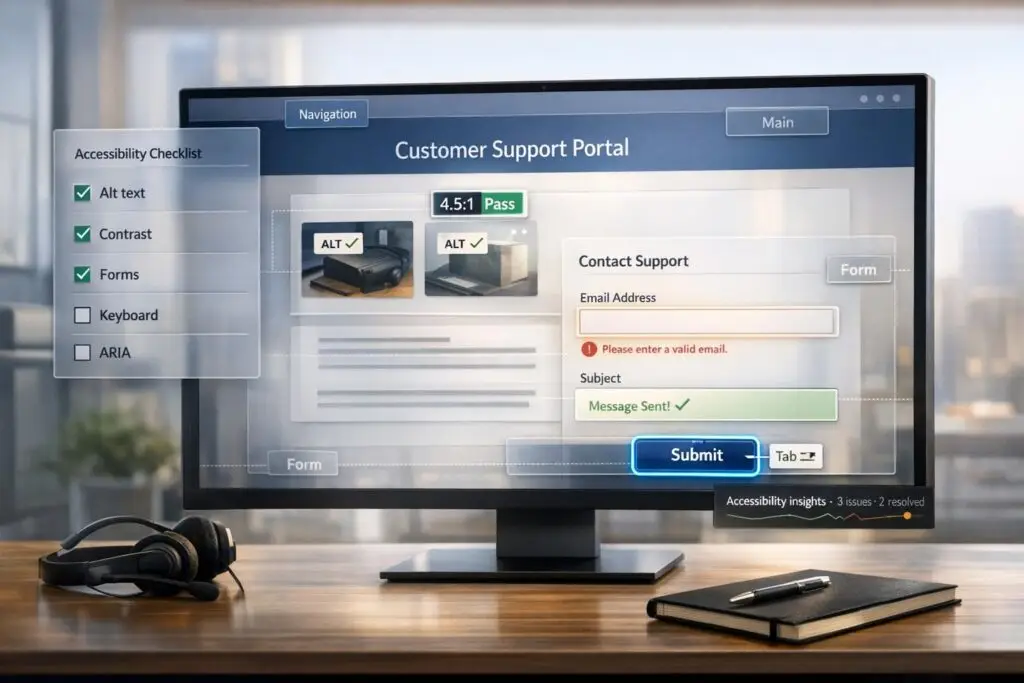
An inaccessible customer portal drives users away and creates legal risks. With over 1 billion people living with disabilities and 71% leaving inaccessible websites immediately, ensuring accessibility is no longer optional. Accessibility not only improves the user experience but also reduces support requests and protects against costly lawsuits.
Here’s what you need to know:
- WCAG 2.2 Level AA is the standard for accessibility in 2026 under laws like the European Accessibility Act.
- Accessibility improves engagement by 12% and conversion rates by 20%.
- Common issues include missing alt text, poor color contrast, and unlabeled forms.
- Fixing the "Big 5" issues resolves 70% of accessibility failures.
This checklist walks you through WCAG’s four principles – Perceivable, Operable, Understandable, and Robust – and offers actionable steps to make your portal accessible for everyone.
How to Run an Accessibility WCAG Audit: Step-by-Step for Beginners
sbb-itb-e60d259
WCAG Basics: 4 Core Principles for Support Teams
WCAG 4 Core Principles Accessibility Checklist for Customer Portals
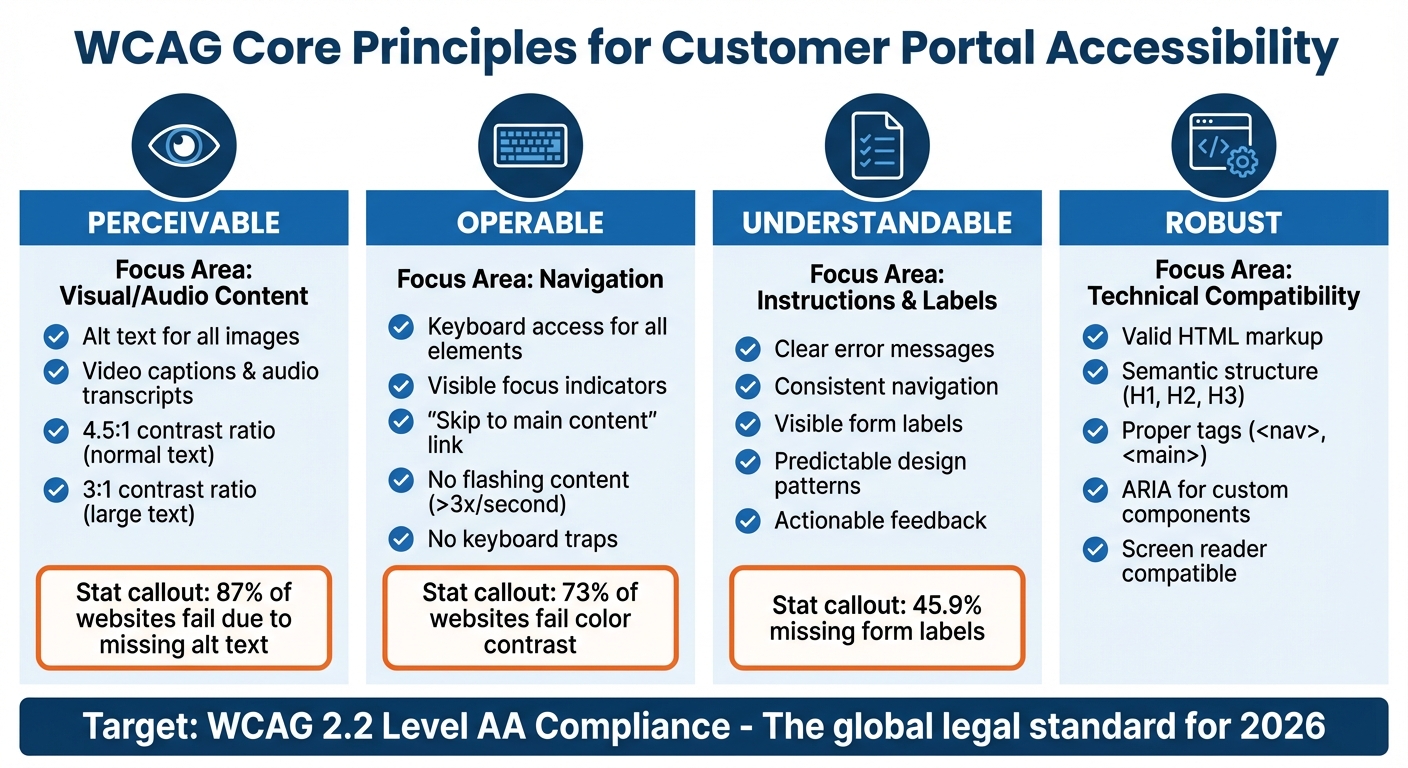
WCAG is built around four key principles: Perceivable, Operable, Understandable, and Robust [4]. These principles are the backbone of accessible design and apply to every part of your customer portal, from login screens to ticket submission forms.
Your support team should aim for Level AA compliance, which is the standard outlined by major global regulations like the ADA in the United States and the European Accessibility Act. As Web Accessibility Checker explains, "Level AA is the legal compliance target for virtually all global accessibility regulations in 2026" [4]. But this isn’t just about meeting legal requirements – it’s about making your portal usable for as many people as possible.
By understanding these four principles, support teams can pinpoint areas where their portal might fall short and focus on changes that improve the user experience the most. Let’s break down each principle with actionable steps.
Perceivable: Ensuring Content Is Accessible to All
Are users able to perceive the content you provide? If information is presented in ways that some users can’t experience – like missing alt text or poor color contrast – it becomes inaccessible [4].
For customer portals, offering alternatives is essential. Every image – whether it’s a product diagram, a ticket status icon, or a screenshot in your knowledge base – should include descriptive alt text. Alarmingly, 87% of websites fail accessibility audits due to missing alt text [9].
Color contrast is another critical factor. Normal text should meet a contrast ratio of 4.5:1, while larger text should reach at least 3:1 [6]. Poor contrast doesn’t just affect users with visual impairments – it can hinder anyone trying to use your portal in bright lighting. In fact, 73% of websites fail because of inadequate color contrast [9].
For multimedia content, captions for videos and transcripts for audio are a must. These features help users who are deaf or hard of hearing, as well as those in noisy or sound-restricted environments.
Operable: Making Navigation Keyboard-Friendly
Once users can see your content, the next step is ensuring they can interact with it – even without a mouse. Many users rely solely on keyboards to navigate, so your portal needs to accommodate them [4].
Keyboard users should be able to tab through every interactive element – buttons, form fields, dropdown menus, and modal windows – in a logical order. Visible focus indicators should show their current position on the page.
A key feature to include is a "Skip to main content" link. Placed as the first focusable element on each page, this allows users to bypass repetitive navigation menus and go straight to the content they need [4].
It’s also critical to avoid keyboard traps, where users can navigate into an element but not back out. Similarly, flashing content (more than three times per second) should be eliminated to avoid triggering seizures in users with photosensitive epilepsy [7].
Understandable: Clear Communication and Predictable Design
Can users easily understand your portal’s instructions and information? [4] For complex systems, clear communication is vital to reduce confusion and support requests.
Consistency is key. Users should always know where to find account settings, submit tickets, or view billing information. Unexpected or inconsistent navigation can confuse users, especially those with cognitive disabilities.
Error messages also need special attention. Instead of vague feedback like "Invalid password", provide clear, actionable guidance such as "Password must be at least 12 characters and include one number." Similarly, form labels should always be visible and descriptive, rather than relying on placeholder text. These small changes can significantly improve the user experience.
Robust: Ensuring Compatibility With Assistive Technologies
Can assistive tools like screen readers interpret your portal’s content accurately? [4] This requires using proper HTML and semantic markup to ensure compatibility and smooth interactions for all users.
Stick to valid HTML tags to structure your content. For example, use a logical heading hierarchy (H1, H2, H3) that mirrors your content’s structure. Navigation menus should be enclosed in <nav> tags, and main content should sit within a <main> tag. These steps make it easier for screen readers to navigate your portal.
For custom elements like date pickers or collapsible panels, ARIA (Accessible Rich Internet Applications) attributes are essential. For instance, a button that expands a panel should include aria-expanded="false" when collapsed and aria-expanded="true" when open.
Although WCAG 2.2 has removed the parsing requirement (4.1.1) because modern browsers handle HTML errors better [4], maintaining clean code is still crucial for long-term accessibility and compatibility with assistive technologies.
| Principle | Focus Area | Key Requirement |
|---|---|---|
| Perceivable | Visual/Audio Content | Alt text, video captions, 4.5:1 contrast ratio [6] |
| Operable | Navigation | Keyboard access, focus indicators, no flashing content [7] |
| Understandable | Instructions/Labels | Clear error messages, consistent navigation [4] |
| Robust | Technical Compatibility | Valid HTML, semantic markup, ARIA for custom components [4] |
Customer Portal Accessibility Checklist
Building on the core WCAG principles discussed earlier, this checklist provides actionable steps to help you systematically identify and address accessibility barriers in your customer portal.
Perceivable: What to Check
Start by reviewing all images in your portal. Ensure every informative image – like product diagrams, ticket status icons, or screenshots – has clear, descriptive alt text. A simple way to test this is the "phone test": describe the image as if explaining it to someone over the phone. For decorative images, use an empty alt attribute (alt="") so screen readers can skip them.
For videos, don’t rely solely on auto-generated captions. Manually review and edit captions, especially when technical terms are involved, and ensure they’re synchronized with the audio. For audio-only content, like podcasts, provide a full text transcript.
Check color contrast using tools like WebAIM‘s Contrast Checker. Follow these guidelines:
- Normal text: 4.5:1 contrast ratio
- Large text and UI elements: 3:1 contrast ratio
Avoid using color alone to convey information. For example, if form errors are highlighted in red, pair them with text like "Required" or an asterisk. Test your portal’s layout by zooming to 200% (Ctrl + ‘+’) and confirm that the design adjusts without overlap or horizontal scrolling at a width of 320 pixels.
Finally, ensure users can navigate all content without needing a mouse.
Operable: What to Check
Test your portal’s functionality using only a keyboard. Use Tab, Shift+Tab, Enter, Space, and Arrow keys to navigate, ensuring all interactive elements are accessible. The Tab order should follow a logical flow, such as top-to-bottom or left-to-right.
Interactive elements must have a clear, visible focus indicator (at least 2px solid) with proper contrast. Make sure it isn’t obscured by elements like sticky headers, chat widgets, or cookie banners.
Add a "Skip to Content" link at the top of each page for quick navigation. Test complex elements – like modals or dropdown menus – to ensure users can enter and exit them without getting stuck.
Interactive targets, such as buttons, should be at least 24×24 CSS pixels to accommodate users with motor impairments. For drag-and-drop features, offer an alternative, like buttons labeled "Up" and "Down" to reorder items.
Understandable: What to Check
Set the primary language of your portal in the HTML (e.g., <html lang="en">) and ensure consistent navigation links and labeling across pages. This consistency reduces confusion and helps users navigate efficiently.
Every form input should have a clear label or instructions. Mark required fields with text, like "Required", instead of relying on color alone. Test error handling by submitting forms with incorrect or missing data. Error messages should be specific – e.g., "Email is required" instead of "Error in field" – and announced to screen readers using techniques like aria-live or role="alert".
Ensure that user actions don’t trigger unexpected changes, like sudden focus shifts or pop-ups. Avoid instructions based solely on sensory details, such as "Click the square button on the right."
Robust: What to Check
Use the W3C Markup Validation Service to identify and fix HTML errors. While modern browsers may handle minor issues, clean code ensures better compatibility with assistive technologies.
Use proper semantic HTML:
- Organize headings hierarchically (H1, H2, H3, etc.) without skipping levels.
- Wrap navigation menus in
<nav>tags. - Enclose main content within a
<main>tag.
For custom components like date pickers or collapsible panels, add ARIA attributes only when native HTML solutions aren’t available.
"The first rule of ARIA is: do not use ARIA if you can use native HTML instead."
Test your portal with screen readers like NVDA (Windows) or VoiceOver (Mac/iOS). Ensure interactive elements have meaningful names. For instance, a search icon button should be announced as "Search", not just "Button."
| Element Type | Accessibility Requirement | Success Criterion |
|---|---|---|
| Informative Images | Descriptive Alt Text | WCAG 1.1.1 (Level A) |
| Decorative Images | Null Alt Attribute (alt="") | WCAG 1.1.1 (Level A) |
| Video (Pre-recorded) | Synchronized Captions | WCAG 1.2.2 (Level A) |
| Normal Text | 4.5:1 Contrast Ratio | WCAG 1.4.3 (Level AA) |
| Large Text | 3:1 Contrast Ratio | WCAG 1.4.3 (Level AA) |
| UI Components | 3:1 Contrast Ratio | WCAG 1.4.11 (Level AA) |
Common Accessibility Mistakes and How to Fix Them
Fixing accessibility errors not only improves the user experience but also reduces support demands and lowers legal risks. According to WebAIM’s 2024 analysis, 81% of the top one million website homepages had color contrast issues [11][12], and 45.9% were missing form labels [8]. These issues can make simple tasks, like logging in or submitting a form, unnecessarily difficult for users.
The good news? Many accessibility problems can be resolved with quick code tweaks [11]. Focus on the most common issues – missing alt text, poor color contrast, unlabeled forms, empty links or buttons, and missing document language attributes. Fixing these can address about 70% of automated scan failures [7]. For example, don’t just check the homepage for the document language attribute – ensure it’s present on every page.
Placeholder Text Problems
Using placeholder text like "Enter your email" as the sole label for input fields is a common misstep. Once users start typing, the placeholder disappears, leaving no context. This also often fails contrast guidelines [8]. Instead, use a proper <label> element linked to the input with the for attribute. If specific formatting is required (e.g., "MM/DD/YYYY"), provide clear instructions above the field and link them using aria-describedby.
Keyboard Navigation Issues
Keyboard traps are another frequent problem. These occur when users can Tab into an element, such as a modal or dropdown, but can’t Tab out without a mouse. Test all interactive components using only the keyboard – Tab, Shift+Tab, Enter, and Escape keys. If a trap exists, add proper keyboard event handlers or use native HTML elements like <button> instead of a <div> with click handlers.
"A
<button>is always better than a<div role="button">."
Vague Link Text
Generic link text like "click here" or "read more" is unhelpful for screen reader users, who often rely on link lists to navigate. Replace these with descriptive labels like "View your open tickets" to make navigation clearer [11][12]. Remember, automated tools can only identify 30% to 40% of accessibility issues [11], so manual reviews of link text, forms, and keyboard navigation are crucial.
To maintain compliance over time, consider using AI-powered accessibility testing tools alongside manual checks. These tools can help catch new issues as your site evolves.
Using AI Tools for Accessibility Testing and Monitoring
AI-powered accessibility testing addresses a major challenge: manual audits can take over 30 minutes per page and cost $15–$20 each. In contrast, automated AI scans handle a URL in about 2 seconds at just $0.01–$0.05 per page [10]. For support teams managing customer portals with hundreds of pages, this time and cost efficiency is game-changing. These automated tools can quickly identify issues like missing alt text, poor color contrast, and unlabeled form fields. However, they typically catch only 30–40% of WCAG issues, leaving room for improvement.
It’s important to understand what AI tools can and cannot do. While they excel at spotting obvious structural problems, they often miss more subtle issues, such as whether alt text is truly descriptive or if the reading order makes sense. That said, modern AI tools have evolved significantly. Many now offer "remediation-first" solutions, automatically generating developer-ready fixes for problems like incorrect ARIA attributes or keyboard traps [13]. These advancements help streamline ongoing support for customer portals.
Platforms like Supportbench take accessibility a step further by using AI to review 100% of support tickets for quality and tone. Resolved tickets are automatically converted into structured knowledge base articles, keeping support content organized and easy to search. This aligns with the WCAG principle of making content "Understandable." Additionally, features like predictive Customer Effort Scores (CES) and sentiment analysis can flag potential accessibility issues when users face navigation challenges or related barriers [15]. By automating these processes, teams can reduce their workload while maintaining compliance.
To ensure continuous compliance, it’s essential to integrate AI tools into the development cycle. A "shift-left" approach catches non-compliant code before it reaches production, avoiding expensive fixes later – these post-launch adjustments can cost between $15K and $50K [10]. Regular automated scans (weekly or monthly) are also critical, as they can detect regressions when new content or features are added. AI-generated reports further help by categorizing issues by severity, allowing teams to address critical violations immediately while scheduling medium-level issues for later.
For effective monitoring, combine AI automation with manual testing using tools like axe DevTools, Lighthouse, and WAVE. While AI handles repetitive tasks, human testers are still essential for verifying keyboard navigation, screen reader compatibility, and clear link text. AI-powered alt text generators, which use computer vision and OCR, can also generate descriptive alt text for thousands of images in minutes, solving a major manual compliance challenge [5]. The growing demand for AI-driven solutions is reflected in the digital accessibility software market, which is expected to grow from $0.85 billion in 2026 to $1.15 billion by 2031 [14]. This increasing adoption highlights the expanding role of AI in accessibility efforts.
Conclusion
Meeting WCAG standards is not just a recommendation – it’s a legal requirement [1]. With the ADA Title II deadline approaching on April 26, 2026, and the European Accessibility Act already in effect, there’s no time to waste [3]. The risks are clear: in 2023 alone, over 4,600 web accessibility lawsuits were filed in the U.S., with average settlements reaching $25,000 [4][1]. Beyond the legal implications, failing to address accessibility can directly harm your business – 71% of users with disabilities will leave a website that doesn’t meet their needs, impacting both customer retention and revenue [2].
The checklist in this article provides a practical starting point. By tackling the Big 5 issues – missing alt text, low color contrast, missing form labels, empty links, and missing document language – you can resolve 70% of common accessibility failures [7]. These fixes not only improve compliance but also make your site more usable for individuals relying on assistive technologies. Accessible websites also reduce support tickets by enabling users to complete tasks independently, allowing your team to focus on more complex inquiries [3].
AI tools have made accessibility testing faster and more efficient. While automated scans only catch 30–40% of WCAG issues [7], they do so at a fraction of the cost and time required for manual audits [3]. Pairing automated monitoring with quarterly manual reviews ensures you can address more nuanced challenges, like evaluating the quality of alt text or testing keyboard navigation. This balanced approach supports ongoing compliance while boosting operational efficiency.
"Web accessibility isn’t a one-time project – it’s an ongoing practice." – AccessiGuard [7]
Keep a thorough record of your fixes and compliance efforts. Not only does this demonstrate a "good-faith effort" in legal contexts [4], but it also helps track your progress over time [1]. In B2B environments, an updated VPAT is essential for maintaining existing contracts and winning new business [16]. The benefits extend beyond compliance: companies that prioritize accessibility often see a 12% increase in user engagement and a 20% rise in conversion rates [2]. These efforts don’t just meet legal obligations – they create tangible business advantages.
FAQs
What’s the fastest way to find the “Big 5” issues in our portal?
The fastest way to pinpoint the most common accessibility problems is by conducting a targeted audit of frequent WCAG violations. Some of the usual suspects include:
- Missing alt text: Images without proper descriptions make content inaccessible to screen readers.
- Poor color contrast: Text and background colors that are too similar can be hard to read for users with visual impairments.
- Over-reliance on color: Using color alone to convey information excludes those with color blindness.
To tackle these effectively, leverage automated tools to identify and prioritize these issues. For ongoing compliance, consider using AI-powered monitoring solutions. Pay special attention to images, forms, navigation, and contrast – these areas often harbor the most common accessibility barriers.
How do we test keyboard and screen reader usability without experts?
Testing your website’s keyboard and screen reader usability doesn’t always require expert help. You can start with a mix of manual checks and automated tools. First, try navigating your site using just a keyboard – use keys like Tab, Shift+Tab, Enter, Space, and the arrow keys. This helps you confirm that all interactive elements are accessible and that focus indicators are clearly visible.
Next, test with free screen readers like NVDA, VoiceOver, or ChromeVox. These tools let you check if the content is read in a logical order and if all functionalities work as intended. To go a step further, automated tools can help spot common accessibility problems, making this process even more thorough.
Where should accessibility checks fit in our support and release workflow?
To ensure your platform remains inclusive, accessibility checks should be woven into every step of your support and release process. Start by addressing them during the development and quality assurance phases – this helps identify and resolve potential issues before they escalate. Regular checks during release cycles are equally crucial, as they help prevent the introduction of new barriers.
For a comprehensive approach, combine checklists, automated tools, and manual reviews. Each method brings unique strengths to the table, ensuring nothing slips through the cracks. And don’t stop there – implement continuous monitoring after release to ensure updates stay aligned with WCAG standards. This ongoing vigilance is key to maintaining an inclusive and accessible customer portal.
Related Blog Posts
- How do you set up a customer portal that supports role-based access and multiple customer teams?
- Customizing Portals for Strategic Accounts: Why One Size Doesn’t Fit All
- How to build a portal that supports multiple contacts per customer account
- Customer portal branding for enterprise accounts: per-account themes and layouts






