



Migrating email threads from Pylon while maintaining reply links can be tricky, but it’s achievable with the right approach. The key is to preserve the parent-child relationships between emails by ensuring that metadata like Message-ID, In-Reply-To, and References remains intact. Here’s a quick summary of what you need to know:
- Understand Pylon’s structure: Email threads rely on headers like
Message-ID(unique email ID),In-Reply-To(links to parent email), andReferences(tracks conversation history). - Common challenges: Missing headers, fragmented threads caused by generic emails (e.g., @gmail.com), and data hygiene issues can disrupt threading.
- Preparation: Map Pylon’s data (e.g., Issues → Tickets, Accounts → Organizations), clean up inconsistencies, and plan a timeline with a demo migration.
- Migration process:
- Use tools that retain email headers during export.
- Perform a delta sync to capture changes during the migration.
- Test with a small sample to verify field mapping and thread continuity.
- Validation: Check for broken threads, orphaned replies, and missing data after migration. Use automated scripts or manual reviews to ensure integrity.
Tools like Supportbench can simplify the process by preserving headers and automating ticket mapping, while AI features can help organize and validate migrated threads.
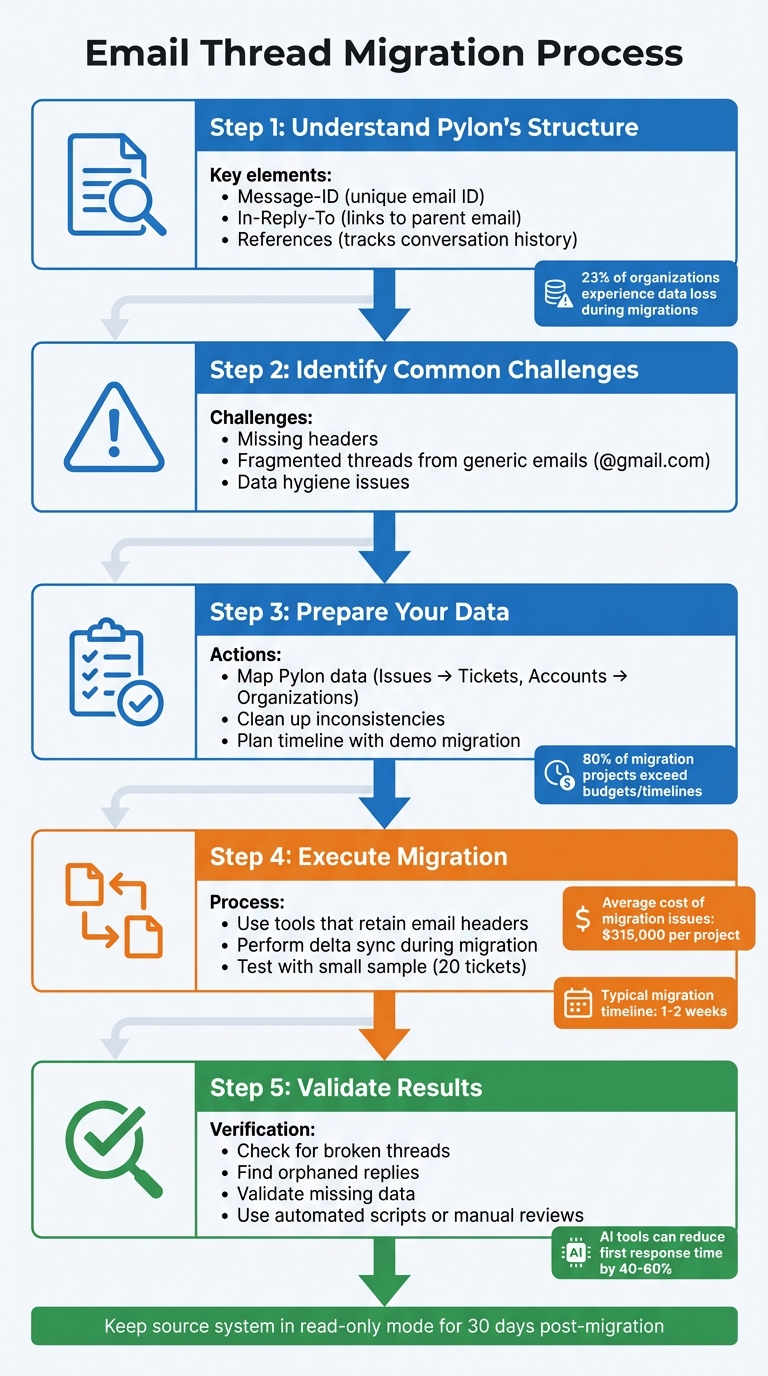
Email Thread Migration Process: 5 Steps to Preserve Reply Links
How Pylon Structures Email Threads
Pylon simplifies email conversations by pulling together issues from multiple platforms – like Email, Slack, and Microsoft Teams – into one unified interface. It uses a bidirectional sync to ensure that agents can reply from either Pylon or the original email platform, keeping everything seamlessly connected. This setup is especially helpful when tackling common threading challenges during migrations.
The system relies on three essential email headers to organize conversations. The Message-ID acts as a unique identifier for each email. In-Reply-To points to the parent email being replied to, while References lists all previous Message-IDs in the thread, arranged chronologically.
"The In-Reply-To field shuttles linkage identifiers behind the scenes – a simple concept granting users clarity amid streams of disjointed correspondence." – Mutant Mail
Pylon’s AI Issue Copilot ensures smooth communication by drafting replies that stay consistent with the conversation’s context. It also identifies "inclusive" emails – those containing the most complete prior message content – allowing agents to bypass redundant messages in lengthy chains.
Pylon’s Email Threading Logic
To group related messages, Pylon’s threading engine combines email headers with body content. Standard email threading allows for a time window of about 30 hours to match messages with consistent metadata.
Subject lines act as a secondary signal for threading. While minor changes like adding "Re:" or "Fwd:" are fine, altering the subject line too much can disrupt the thread, even if the headers are intact.
| Header Field | Function in Threading | Common Migration Issue |
|---|---|---|
| Message-ID | Unique identifier for a specific email | Often missing during legacy exports or IMAP transfers |
| In-Reply-To | Links to the Message-ID of the parent email | Sometimes stripped by email clients or forwarding services |
| References | Tracks the chain of all Message-IDs in the thread | Gmail limits this to the last 20 entries |
| Subject | Secondary signal for threading | Subject changes can break threads |
Common Problems That Break Threading
Several issues can disrupt email threading. For instance, some email clients or forwarding services strip out In-Reply-To and References headers, making it impossible for the destination system to link replies.
"Some email clients will strip out some or all of the headers from emails which Intercom uses to thread replies into a conversation. When this happens we don’t have a reliable way of finding the conversation to thread the email into." – Beth, Intercom Help Center
Data quality issues can also complicate threading. When migrating data, "anonymous" users or generic email domains (like @gmail.com) can lead to fragmented threads, as Pylon creates separate accounts for each generic email address.
Recipient mismatches are another common issue. Removing a participant from a reply or altering the "Reply-To" address can split the thread into a new conversation. Additionally, if you’re using Google Groups to forward emails to Pylon, DMARC policies may rewrite headers, breaking the thread unless "Advanced Email Routing" is configured.
Migrated tickets from other platforms often arrive in a closed state, preventing agents and customers from continuing the conversation on those threads. Even minor changes, like confidentiality footers added by servers, can alter the email body and disrupt threading during analysis.
sbb-itb-e60d259
Preparing Your Data for Migration
Getting your data ready for migration is crucial to ensure email threads stay linked properly. Start by mapping Pylon’s structure to your new system: Issues become Tickets, Accounts turn into Organizations, and Contacts align with Customers or Users. This mapping step minimizes confusion during migration and helps your team navigate the new system seamlessly after the transition.
Take time to review your Pylon records for inconsistencies, like anonymous users or generic email domains (e.g., @gmail.com). Audit custom fields and decide which ones are worth transferring – this avoids clutter and ensures threads remain intact in the new platform.
"Data migration is more than just copying files from one system to another – it’s a delicate, high-stakes process that can affect everything from day-to-day operations to long-term compliance." – Eric Klimuk, Founder and CTO, Supportbench
Once your mapping and data cleanup are done, establish a clear timeline to guide the migration process.
Planning Your Migration Timeline
Pylon migrations typically follow three phases: Preparation, Migration, and Post-Migration. During the preparation phase, review requirements and security protocols. Before migration begins, set a firm cutover date and recreate essential workflows in the new platform, such as SLAs, custom fields, and agent views.
To avoid losing updates during the migration, implement a Delta Migration strategy. This approach captures any new emails or changes that occur while the bulk of the data is being transferred. When you’re ready for the final export, freeze changes in Pylon to prevent discrepancies between the two systems.
Before committing to the full migration, run a demo migration with a small sample – around 20 tickets. This allows you to verify that field mapping, threading, and attachments work as expected. Have your support agents test the migrated data to confirm that thread continuity and usability remain intact.
Once your timeline and strategy are set, move on to exporting and mapping the data.
Exporting and Mapping Pylon Data
To export data from Pylon, use tools like IMAP or API-based export solutions to retrieve email threads, contacts, and attachments. Filter the data to focus on relevant records, such as tickets from the past year or those handled by specific teams (e.g., Support rather than Sales). Map both standard and custom fields to their equivalents in the new system.
Identify mandatory fields in the target platform and assign default values where necessary. For example, you might set all migrated tickets to "closed" or assign a "low" priority if Pylon data for those fields is missing. This step prevents migration errors midway through the process.
Ensure all linked data – like attachments, inline images, and comments – is included to preserve the full conversation context. The "external ticket ID" from Pylon is especially important, as it serves as a key identifier for backfilling information once the tickets are moved.
| Pylon Object | Common Target System Equivalent |
|---|---|
| Issues | Tickets / Cases |
| Accounts | Organizations / Companies |
| Contacts | Customers / Requesters |
| Users | Agents / Admins |
| Collections | Categories / Folders |
| Articles | Knowledge Base Articles |
Migration Process: Step by Step
With your data prepared and mapped, the migration unfolds in three key phases: connecting systems and testing, performing the full migration with delta sync, and verifying thread integrity.
Connecting Systems and Running Test Migrations
Start by linking Pylon to your new platform using an automated migration tool or wizard. Ensure you have the necessary administrative access or API tokens to authorize data transfer. During this step, align both standard and custom fields to maintain your existing data structure.
Before proceeding with the full migration, run a demo migration of about 20 records to verify that field mapping and threading are working correctly. This trial run minimizes risks by testing the process on a smaller scale.
Carefully inspect the demo results to ensure records are accurate, complete, and properly organized. If you notice issues with thread continuity, refine your mapping and remove outdated or irrelevant tickets. Excluding data older than a year can improve accuracy and streamline the migration. Additionally, ensure all agents and team members are set up on the new platform to avoid assignment errors.
Once the demo confirms everything is functioning as expected, you’re ready to move forward with the full migration.
Running Full Migration and Delta Sync
The full migration process typically involves three main steps: replicating routing rules and SLAs, transferring agents, and backfilling historical data like tickets and contacts. Email threading relies heavily on preserving headers such as Message-ID, In-Reply-To, and References.
To ensure records link correctly, consider including an external ticket ID in the subject line or body, such as [external-{{ticket.id}}]. After completing the migration, perform a delta sync to capture any recent changes. This step is particularly important, as 23% of organizations report experiencing some level of data loss during migrations.
Be mindful of API call limits, which can extend the timeline by 20–30%. Overall, a typical help desk data migration, including preparation and verification, usually takes one to two weeks.
Once the migration and delta sync are complete, it’s time to evaluate the integrity of the migrated threads.
Verifying Thread Connections After Migration
After the migration is finished, manually review a sample of threads to ensure the chronology is correct and that parent-child relationships between emails remain intact. Compare analytics reports from before and after the migration to spot any discrepancies in ticket volumes or thread counts.
Encourage support agents to flag any broken threads or missing histories they encounter during their initial use of the new system. Automated scripts can also help detect inconsistencies or fragmented dialogues. Double-check that unique identifiers, timestamps, and inter-ticket references have been preserved throughout the process.
Keep the source system accessible in a read-only mode for at least 30 days after the migration. This provides a safety net for verifying data integrity and addressing any missed threads.
Tools That Preserve Email Thread Links
When migrating emails, keeping threads intact is crucial. This means retaining headers, timestamps, and metadata that link replies to their original conversations. Using the right tools ensures this information stays in place, preventing fragmented threads and maintaining the flow of communication.
Migration Tools That Maintain Threading
Specialized migration tools are designed to handle the complexities of preserving thread relationships. Enterprise-grade tools, for instance, perform server-to-server transfers, ensuring critical metadata and attachments remain intact without straining local bandwidth resources. These tools also feature advanced error handling and real-time logging, which help catch and address failed transfers before they disrupt email threads.
For smaller datasets, some tools offer automated imports that can handle up to 500,000 records in a cost-efficient manner. Other solutions treat mailboxes like filesystems, enabling delta migrations. This method captures any new messages that appear between the initial migration and the final cutover, ensuring no data is left behind.
"Data integrity is vital – your selected email migration solution should guarantee that all emails… occur accurately, preserving meta-data, folder structures, and message statuses."
– Brad Slavin, CEO, DuoCircle
When assessing migration tools, look for those that support delta synchronization. This feature helps avoid gaps in conversation history, which can be a common pitfall during migrations. It’s worth noting that 80% of data migration projects exceed their budgets or timelines, with issues costing businesses an average of $315,000 per project. To minimize risks, test your chosen tool on a small subset – around 100 records – before committing to a full migration. This step can help identify and resolve data hygiene problems early.
Supportbench‘s Email Thread Management
Supportbench offers a tailored approach to email thread management, integrating AI-driven features to enhance the migration process. The platform ensures thread continuity by preserving email headers and the parent-child relationships between messages. Its AI-powered routing system analyzes incoming emails based on content, sentiment, and team expertise, ensuring that threads are assigned to the most relevant agents, avoiding the scattering of conversations. This approach addresses common challenges seen in other migrations, such as those with Pylon.
Once your data is migrated into Supportbench, its AI Copilot uses the complete conversation history and account context to draft replies, maintaining the flow of even historical threads. The platform also reduces duplicate tickets by around 18% through AI-driven duplicate detection, which uses content hashing to merge redundant records. Additionally, natural language querying allows teams to search through support history with ease, uncovering linked issues and patterns without needing complex manual reports. With structured rule packs, automated routing achieves an accuracy of up to 84%, ensuring that migrated threads are directed to the right team members from the start.
Validating and Improving Migrated Data
Once the migration is done, it’s crucial to confirm that the parent–child relationships in your threads have been maintained. This ensures that conversations remain continuous and functional. This step isn’t just about catching potential issues – it also provides an opportunity to use AI tools to better manage your historical data.
Checking for Missing or Broken Threads
Start by verifying the integrity of your data. Compare ticket counts, replies, and attachments between the old and new systems, and review key analytics metrics to spot discrepancies. Randomly check threads manually to confirm messages are in the right order and that parent–child relationships are still intact. Keep an eye out for "orphaned" replies – messages that have become disconnected from their original conversations.
For larger migrations, automated scripts can help uncover inconsistencies that might slip through manual reviews. These scripts can validate thread integrity, confirm messages are ordered correctly, check references between tickets, and even flag data loss or inconsistencies through automated checks or agent feedback.
Migrations often reveal data hygiene issues, such as duplicate entries caused by anonymous users or generic email domains like Gmail. To address this, map original ticket IDs to custom text fields in your new platform. This makes it easier for agents to search historical records. If you’re running the old and new systems in parallel for a short time, ensure that new replies correctly attach to the migrated history before fully committing to the new system.
Using AI to Organize Migrated Threads
Once your data is validated, AI tools can transform how your team manages these migrated threads. For example, Supportbench’s AI features can automatically tag and categorize historical conversations based on their content and sentiment, saving your team significant time. AI-powered triage systems can also route threads to the right team members based on their expertise and workload, streamlining case management.
For lengthy conversations, AI-driven case summaries can provide quick overviews, helping agents get up to speed without wading through extensive back-and-forth exchanges. These enhancements have tangible benefits: organizations often see a 40–60% reduction in first response time and a 30–50% boost in team productivity after implementing such workflows. By incorporating these AI tools, you can actively manage your historical data and complete the migration process with greater efficiency.
Fixing Common Threading Problems
Even with careful planning during migration, threading issues can still pop up. One common culprit is header stripping during transfer, which can mess with metadata like Message-ID, In-Reply-To, and References. This often happens when intermediary systems enforce strict DMARC policies or tweak headers to suit their own threading logic. Below, we’ll walk through how to repair broken thread connections and clean up data quality issues to restore proper thread integrity.
Repairing Broken Thread Connections
Start by reviewing the raw email data in the new system. Check that every message has a valid Message-ID and that replies correctly include the In-Reply-To field. If you find missing or corrupted headers, manually fix critical threads or re-import the affected data using tools designed to preserve headers.
For threads thrown off by chronological misalignment – where replies are imported before their parent messages – re-importing the messages in strict date order can help. This approach ensures that parent messages are in place before their replies are linked. Additionally, if sent and received messages were stored in separate folders, make sure your migration tool pulls data from all folders simultaneously to rebuild the complete conversation chain.
Once the header-related issues are resolved, the focus should shift to broader data quality problems that may cause orphaned or fragmented threads.
Cleaning Up Data Quality Issues
Orphaned replies often stem from preexisting data hygiene problems. Use automated scripts to pinpoint these orphaned messages by identifying broken In-Reply-To chains or replies that appear as standalone conversations instead of being nested within threads.
Duplicate entries are another common issue that can disrupt thread continuity. For instance, if an email is tagged with multiple labels in the source system, it might get exported into several folders, fragmenting the conversation view. To address this, run referential integrity checks to ensure replies remain linked to their parent messages. Then, remove duplicates by comparing unique Message-ID values. For larger datasets, AI-powered deduplication tools can speed up the process by identifying and eliminating redundancies efficiently.
Wrapping It All Up
Migrating Pylon email threads while keeping reply links intact requires careful planning. The process typically involves three key steps: discovery, field mapping with pilot testing, and final validation. Each phase plays a vital role in maintaining clear and connected conversation histories throughout the migration.
This structured approach sets the stage for leveraging automation tools to improve accuracy. Platforms powered by AI, like Supportbench, simplify the process by automating repetitive tasks such as data extraction, format checks, and relational mapping. Features like audit logs and real-time dashboards help detect issues quickly, while AI validation identifies broken links or mislabeled fields that might escape manual reviews. These tools can handle a year’s worth of historical data in just two weeks and reduce infrastructure costs by as much as 50%.
FAQs
How can I migrate email threads from Pylon without breaking reply links?
To move email threads from Pylon while keeping replies linked correctly, it’s essential to preserve email headers like In-Reply-To and References. These headers are what allow email systems to maintain the structure of threaded conversations.
The first step is choosing a migration tool or method that supports transferring email metadata, including these crucial headers. Before starting, review your current email system to verify the header formats and confirm they align with the capabilities of the migration tool. Many modern migration tools are built to handle these technical details, minimizing the chances of broken links or disorganized threads.
Taking the time to plan thoroughly and working with a provider experienced in email threading migrations can make the process much smoother. This ensures your email conversations remain intact and your customer support operations continue without disruption.
What causes email threads to break during migration, and how can you fix it?
Email threads can often break during migration because of changes or inconsistencies in email metadata – things like headers, message IDs, or reply references. For example, if fields such as In-Reply-To or References are altered during the process, the system might struggle to connect related messages. This can leave replies scattered or out of order. Additionally, variations in email client settings or server configurations can further complicate threading.
To avoid these issues, it’s essential to preserve all metadata accurately during migration. Leveraging AI-driven tools or structured methods to standardize and manage email headers can help maintain the integrity of threads. Automation and careful planning are especially important when transitioning from platforms like Pylon. By tackling these technical challenges, you can ensure email conversations remain seamless and organized – something that’s crucial for efficient customer support.
How can AI tools help manage email threads after migration?
AI tools make handling email threads after migration much easier by automating essential tasks. They can track conversations, supply agents with relevant customer details, and even help draft precise, timely responses. This keeps replies well-organized and properly linked within threads.
These systems can also sort, prioritize, and route emails automatically, cutting down on manual effort and reducing mistakes. On top of that, they group related messages together, ensuring conversations stay intact across platforms. This continuity is key to delivering smooth support experiences and boosting customer satisfaction.
Related Blog Posts
- How do you migrate from Salesforce Service Cloud to a helpdesk without losing case history?
- How do you migrate Salesforce Email-to-Case conversations without breaking threading?
- How do you move from Freshdesk to a multi-inbox B2B workflow without breaking email?
- How do you migrate away from Pylon without losing shared inbox history and customer context?






